> ## Documentation Index
> Fetch the complete documentation index at: https://algolia.com/llms.txt
> Use this file to discover all available pages before exploring further.
# Configure your search
> Tailor Algolia for Salesforce B2C Commerce to your needs.
export const Index = () =>
index
;
After [synchronizing your data to Algolia](/doc/integration/salesforce-commerce-cloud-b2c/getting-started/start-indexing-your-data),
configure your search for optimal relevancy.
You can do this in the [Algolia dashboard](https://dashboard.algolia.com), on the details page of your indices.
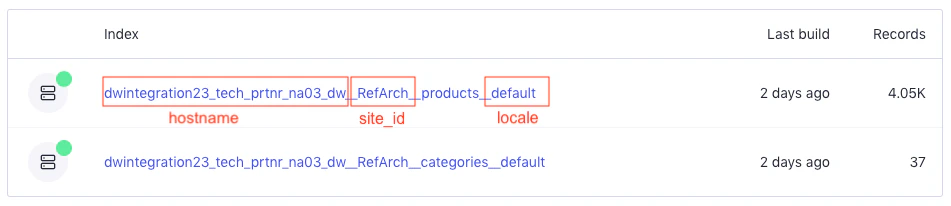
You should see your newly created indices, with the following naming pattern:
* `${hostname}__${site-id}__products__${locale}`
* `${hostname}__${site-id}__categories__${locale}`
* `${hostname}__${site-id}__contents__${locale}` (optional)
The total number of indices created depends on the number of locales your site supports.
 When you assign Algolia cartridges to a site, they automatically support all the locales the site uses.
You can customize the list of locales with the `Locales for indexing` [custom preference](/doc/integration/salesforce-commerce-cloud-b2c/getting-started/custom-preferences) or the `localesForIndexing` job step parameter.
Indexing many locales can [affect runtime](/doc/integration/salesforce-commerce-cloud-b2c/guides/performance-considerations#number-of-currencies-and-locales-affects-run-time).
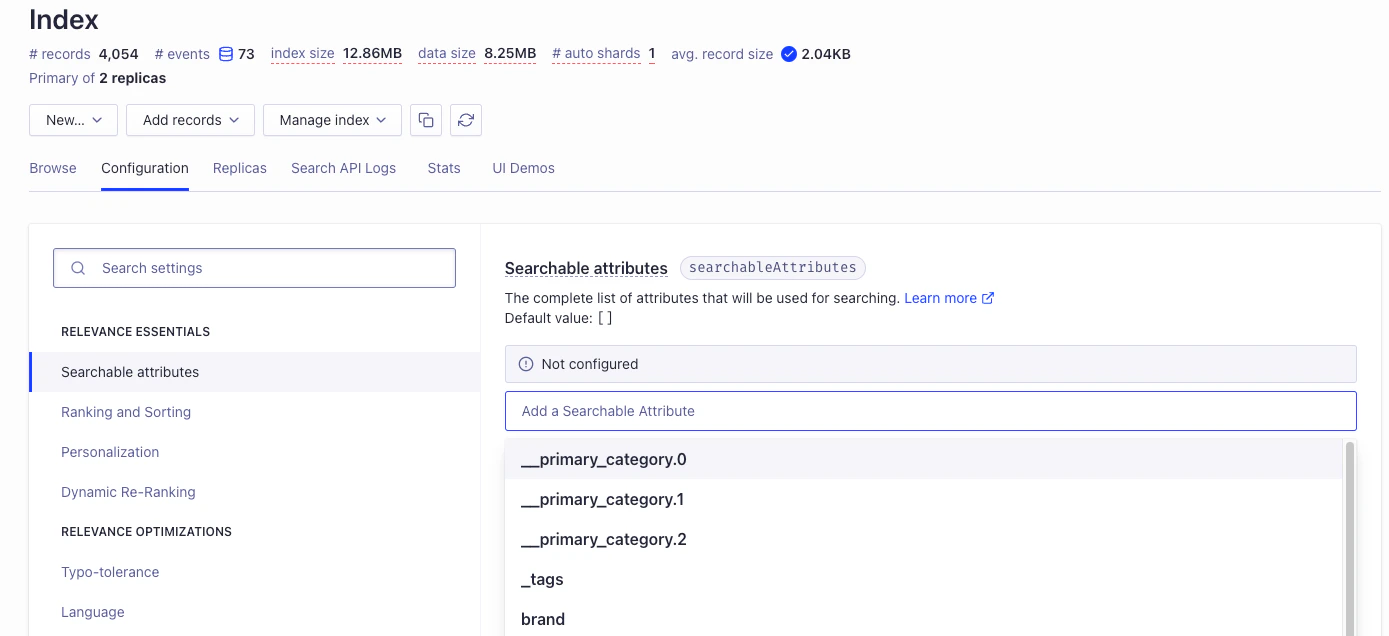
## Configure your searchable attributes
Decide which attributes to make searchable when setting up your .
Add them in the **Configuration > Searchable attributes** section of the dashboard.
For more information, see [Searchable attributes](/doc/guides/managing-results/must-do/searchable-attributes).
To begin with, consider adding the following attributes: `categoryPageId`, `name`, `short_description`, and `long_description`.
When you assign Algolia cartridges to a site, they automatically support all the locales the site uses.
You can customize the list of locales with the `Locales for indexing` [custom preference](/doc/integration/salesforce-commerce-cloud-b2c/getting-started/custom-preferences) or the `localesForIndexing` job step parameter.
Indexing many locales can [affect runtime](/doc/integration/salesforce-commerce-cloud-b2c/guides/performance-considerations#number-of-currencies-and-locales-affects-run-time).
## Configure your searchable attributes
Decide which attributes to make searchable when setting up your .
Add them in the **Configuration > Searchable attributes** section of the dashboard.
For more information, see [Searchable attributes](/doc/guides/managing-results/must-do/searchable-attributes).
To begin with, consider adding the following attributes: `categoryPageId`, `name`, `short_description`, and `long_description`.
 ## Configure your facets
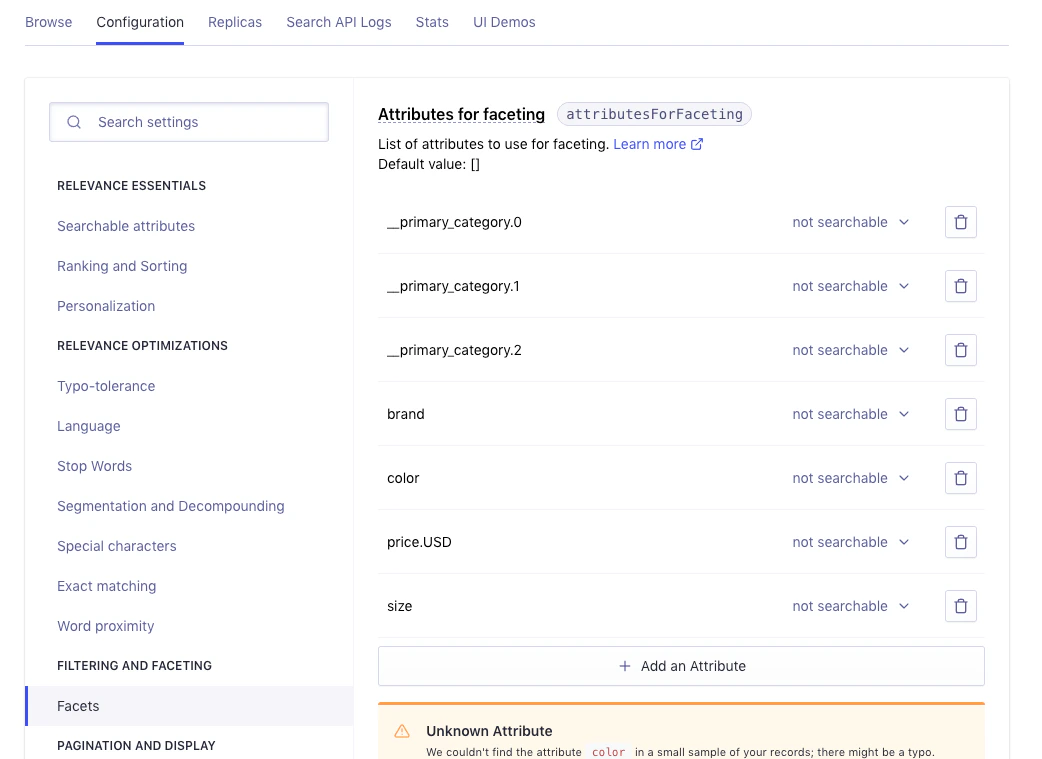
Define the attributes you want to be available as [facets](/doc/guides/managing-results/refine-results/faceting) in the **Configuration > Facets** tab on the Algolia dashboard.
You should add at least the following attributes:
* The Algolia cartridges support all the currencies your site uses. The `price` attribute relates to each currency. For example, if your site is using USD and EUR, add `price.USD` and `price.EUR`.
* `__primary_category.0`, `__primary_category.1`, `__primary_category.2` to show the category hierarchy in the search results.
* `categoryPageId` to create [category pages](/doc/guides/solutions/ecommerce/browse/tutorials/category-pages/).
* Facets relevant to your products, such as `brand`, `size`, and `color`.
The actual facets depend on your attribute names and your [record model](/doc/integration/salesforce-commerce-cloud-b2c/indexing/product-indexing/indexing-attributes#record-models).
For example, if you choose the base product-level or attribute-sliced record model, some facets would become `variants.price.USD`, `variants.size`, `variants.color`.
## Configure your facets
Define the attributes you want to be available as [facets](/doc/guides/managing-results/refine-results/faceting) in the **Configuration > Facets** tab on the Algolia dashboard.
You should add at least the following attributes:
* The Algolia cartridges support all the currencies your site uses. The `price` attribute relates to each currency. For example, if your site is using USD and EUR, add `price.USD` and `price.EUR`.
* `__primary_category.0`, `__primary_category.1`, `__primary_category.2` to show the category hierarchy in the search results.
* `categoryPageId` to create [category pages](/doc/guides/solutions/ecommerce/browse/tutorials/category-pages/).
* Facets relevant to your products, such as `brand`, `size`, and `color`.
The actual facets depend on your attribute names and your [record model](/doc/integration/salesforce-commerce-cloud-b2c/indexing/product-indexing/indexing-attributes#record-models).
For example, if you choose the base product-level or attribute-sliced record model, some facets would become `variants.price.USD`, `variants.size`, `variants.color`.
 Different category levels are represented by the corresponding `__primary_category` attributes.
These attributes are suitable for [hierarchical faceting](/doc/guides/managing-results/refine-results/faceting#hierarchical-facets)
in Algolia, such as `Women > Dresses > Evening Dresses`: `__primary_category.0`, `__primary_category.1`, and `__primary_category.2`.
With faceting, Algolia offers capabilities that are similar to [Salesforce product variation grouping](https://help.salesforce.com/s/articleView?id=sf.comm_var_group_overview.htm\&type=5).
## Configure results grouping
Results are grouped by default when you use the **[Base product](/doc/integration/salesforce-commerce-cloud-b2c/indexing/product-indexing/indexing-attributes#base-product-record-example)** or the **[Attribute-sliced](/doc/integration/salesforce-commerce-cloud-b2c/indexing/product-indexing/indexing-attributes#attribute-sliced-record-example)** record model.
For the **[Variation product](/doc/integration/salesforce-commerce-cloud-b2c/indexing/product-indexing/indexing-attributes#variation-product-record-example)** record model, if your catalog is large, it's common practice to [group](/doc/guides/managing-results/refine-results/grouping) related variants in the results by displaying *one* result per base product.
To do that:
* Add the `masterID` attribute to the list of **Additional Product Attributes**.
* [Enable the `distinct` feature](/doc/guides/sending-and-managing-data/prepare-your-data/how-to/indexing-long-documents) on the `masterID` attribute.
If you enable results grouping,
you should add [color swatches](/doc/integration/salesforce-commerce-cloud-b2c/building-the-search-ui/front-end#display-color-swatches) so users can see the different color variations.
## Configure your replicas
You can use [replicas](/doc/guides/managing-results/refine-results/sorting/in-depth/replicas) to let your users sort search results in different ways,
such as sorting by price in ascending and descending order.
To create the replicas for sorting on price:
1. Select your products index and go to **Replicas**.
2. Create two replicas:
* `hostname__site-id__products__price_USD_asc`
* `hostname__site-id__products__price_USD_desc`
Different category levels are represented by the corresponding `__primary_category` attributes.
These attributes are suitable for [hierarchical faceting](/doc/guides/managing-results/refine-results/faceting#hierarchical-facets)
in Algolia, such as `Women > Dresses > Evening Dresses`: `__primary_category.0`, `__primary_category.1`, and `__primary_category.2`.
With faceting, Algolia offers capabilities that are similar to [Salesforce product variation grouping](https://help.salesforce.com/s/articleView?id=sf.comm_var_group_overview.htm\&type=5).
## Configure results grouping
Results are grouped by default when you use the **[Base product](/doc/integration/salesforce-commerce-cloud-b2c/indexing/product-indexing/indexing-attributes#base-product-record-example)** or the **[Attribute-sliced](/doc/integration/salesforce-commerce-cloud-b2c/indexing/product-indexing/indexing-attributes#attribute-sliced-record-example)** record model.
For the **[Variation product](/doc/integration/salesforce-commerce-cloud-b2c/indexing/product-indexing/indexing-attributes#variation-product-record-example)** record model, if your catalog is large, it's common practice to [group](/doc/guides/managing-results/refine-results/grouping) related variants in the results by displaying *one* result per base product.
To do that:
* Add the `masterID` attribute to the list of **Additional Product Attributes**.
* [Enable the `distinct` feature](/doc/guides/sending-and-managing-data/prepare-your-data/how-to/indexing-long-documents) on the `masterID` attribute.
If you enable results grouping,
you should add [color swatches](/doc/integration/salesforce-commerce-cloud-b2c/building-the-search-ui/front-end#display-color-swatches) so users can see the different color variations.
## Configure your replicas
You can use [replicas](/doc/guides/managing-results/refine-results/sorting/in-depth/replicas) to let your users sort search results in different ways,
such as sorting by price in ascending and descending order.
To create the replicas for sorting on price:
1. Select your products index and go to **Replicas**.
2. Create two replicas:
* `hostname__site-id__products__price_USD_asc`
* `hostname__site-id__products__price_USD_desc`
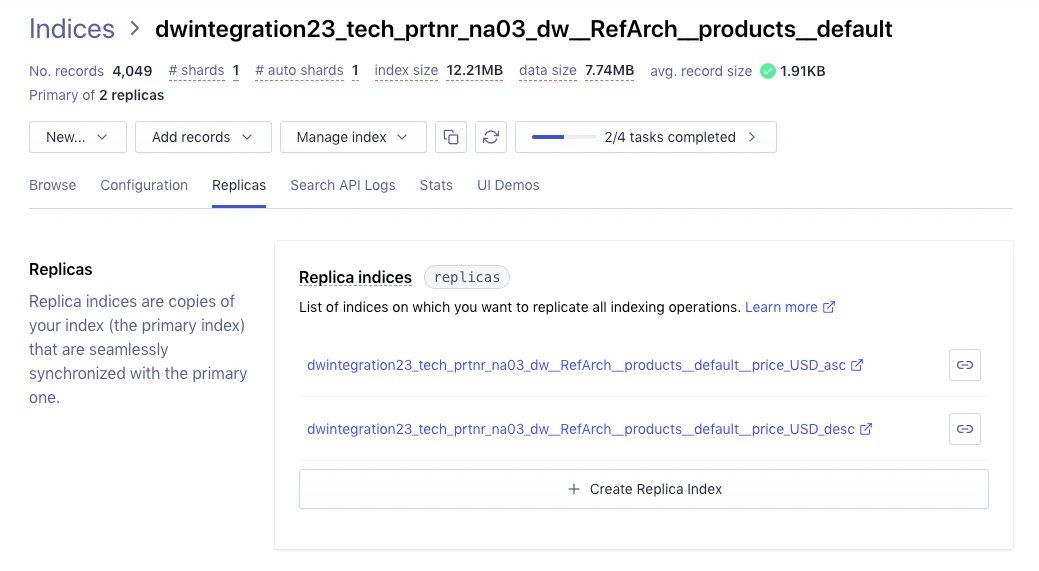 This adds two new indices to your app.
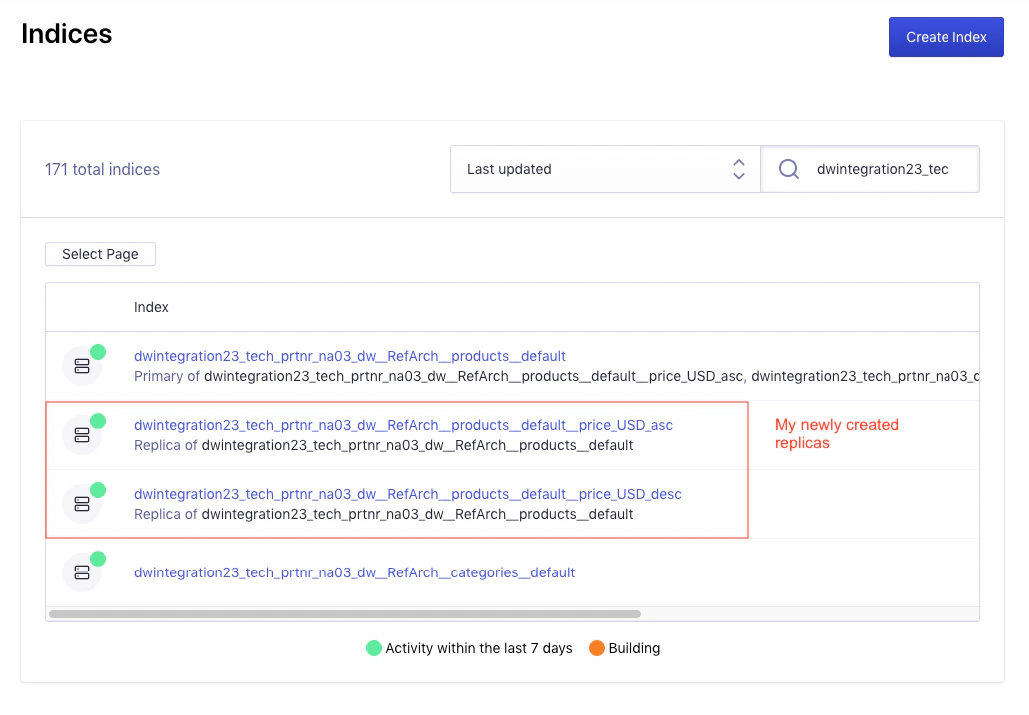 3. Configure each replica to sort by price.
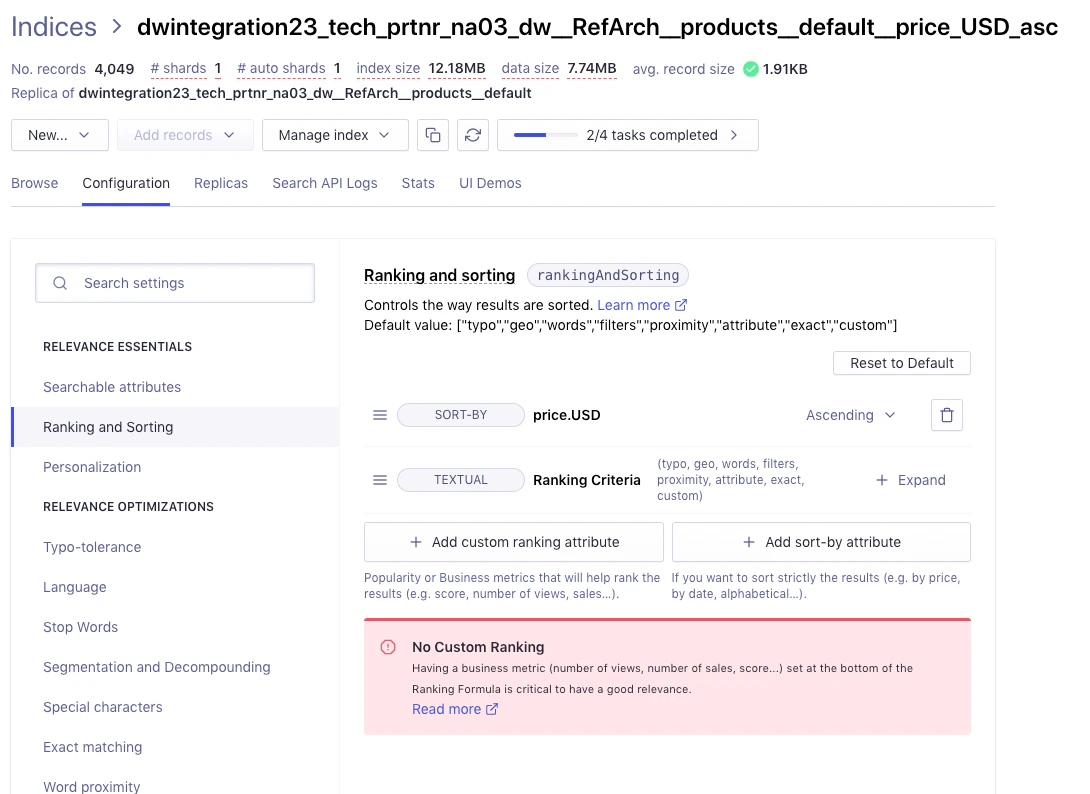 You can add as many replicas as you need,
depending on the number of locales your site supports or other sorting strategies you want to offer.
Just make sure your usage of Algolia falls within the limits of your plan.
You can add as many replicas as you need,
depending on the number of locales your site supports or other sorting strategies you want to offer.
Just make sure your usage of Algolia falls within the limits of your plan.