> ## Documentation Index
> Fetch the complete documentation index at: https://algolia.com/llms.txt
> Use this file to discover all available pages before exploring further.
# Integrate Algolia with a custom React frontend
> Connect Algolia to your headless Salesforce B2C Commerce using a React frontend.
export const Index = () =>
index
;
export const ApplicationID = () =>
application ID
;
export const APIKey = () =>
API key
;
This guide describes how to integrate Algolia into a headless Salesforce B2C Commerce storefront using a custom React frontend.
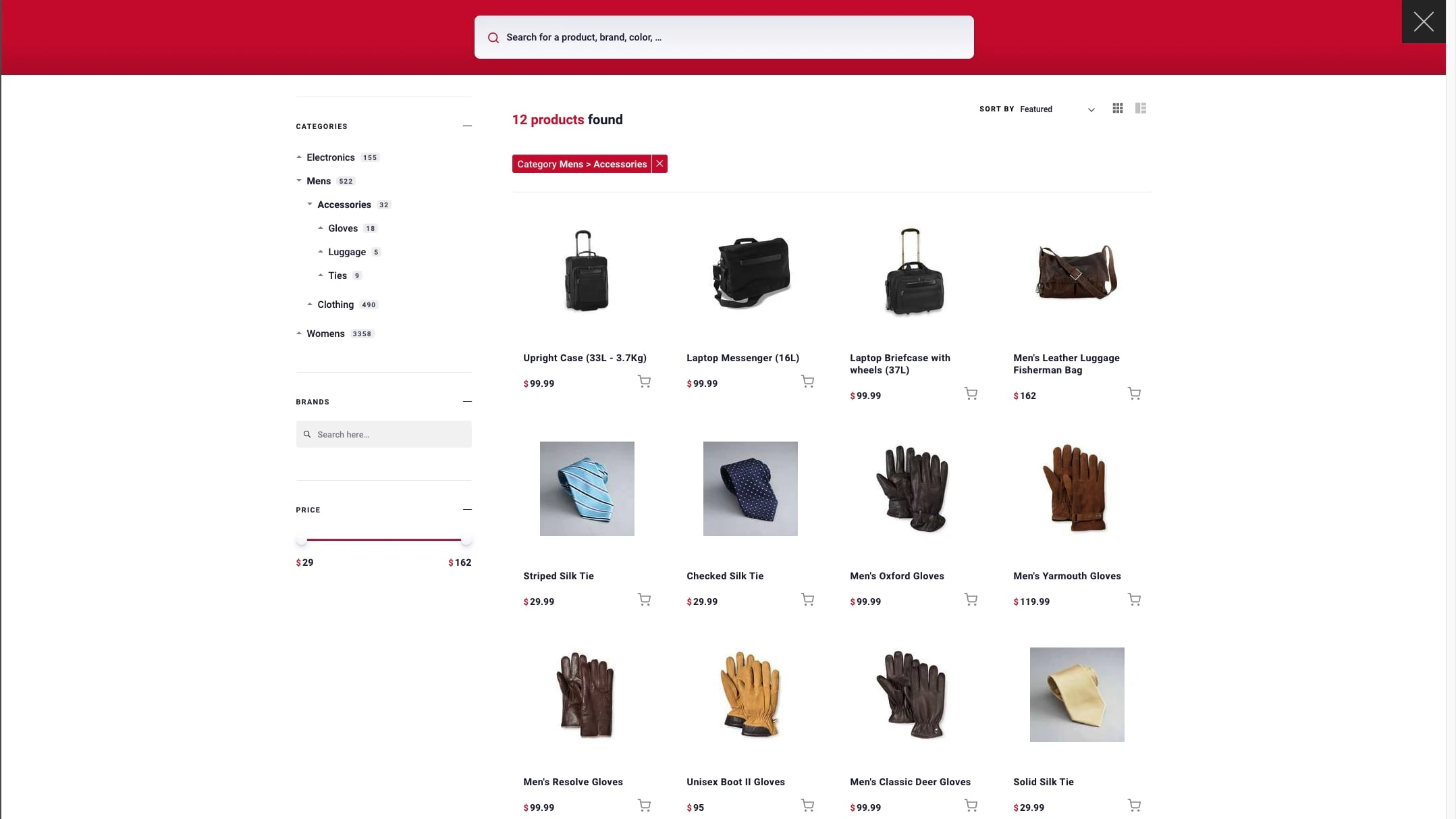
Run and edit the Algolia with a custom React frontend example in CodeSandbox.
Browse the source for the Algolia with a custom React frontend example on GitHub.
To set up Algolia for your headless Salesforce B2C Commerce storefront,
see [Headless commerce](/doc/integration/salesforce-commerce-cloud-b2c/guides/headless).
## Set up a React project
This guide uses [Next.js](https://nextjs.org/) but you can apply the instructions to any React project.
Create a new Next.js app with the [`create-next-app`](https://nextjs.org/docs/pages/api-reference/cli/create-next-app) command-line tool.
```sh Command line icon=square-terminal theme={"system"}
npx create-next-app my-react-storefront
cd my-react-storefront
yarn dev
```
Running this command creates a new project in the directory `my-react-storefront` and starts a local development server on `http://localhost:3000/`.
## Build your search experience
To create the search experience, you can either:
1. Use the [Unified InstantSearch](https://github.com/algolia/unified-instantsearch-ecommerce) package.
2. Build a custom experience with [React InstantSearch](/doc/guides/building-search-ui/what-is-instantsearch/react).
This guide uses the [Unified InstantSearch](https://github.com/algolia/unified-instantsearch-ecommerce) package.
### Download and run Unified InstantSearch
Clone the Unified InstantSearch [GitHub repository](https://github.com/algolia/unified-instantsearch-ecommerce).
```sh Command line icon=square-terminal theme={"system"}
git clone --depth=1 --branch=master https://github.com/algolia/unified-instantsearch-ecommerce
rm -rf unified-instantsearch-ecommerce/.git
cd unified-instantsearch-ecommerce
yarn && yarn start
```
### Configure Unified InstantSearch for your data
Open the file `unified-instantsearch-ecommerce/src/config/settings.js` and make the following changes:
1. Add your Algolia , search , and name:
```js JavaScript expandable icon=code theme={"system"}
export const appId = "latency"; // [!code --:2]
export const searchApiKey = "6be0576ff61c053d5f9a3225e2a90f76";
export const appId = "ALGOLIA_APPLICATION_ID"; // [!code ++:2]
export const searchApiKey = "ALGOLIA_SEARCH_API_KEY";
export const index = {
indexName: "instant_search", // [!code --]
indexName: "zzaa_001_sandbox_us01_dx__RefArch__products__en_US", // [!code ++]
};
//...
```
2. Configure your replica indices for sorting by "price" in ascending and descending order:
```js JavaScript expandable icon=code theme={"system"}
export const sorts = [
{
label: "Price ascending",
value: "instant_search_price_asc", // [!code --]
value: "zzaa_001_sandbox_us01_dx__RefArch__products__en_US__price_USD_asc", // [!code ++]
},
{
label: "Price descending",
value: "instant_search_price_desc", // [!code --]
value: "zzaa_001_sandbox_us01_dx__RefArch__products__en_US__price_USD_desc", // [!code ++]
},
];
```
3. Configure your category attributes.
By default, the Algolia cartridge indexes the primary category on the attributes `__primary_category.*`:
```js JavaScript expandable icon=code theme={"system"}
{
type: "hierarchical",
header: "Categories",
label: "Category",
options: {
attributes: [
"hierarchicalCategories.lvl0", // [!code --:2]
"hierarchicalCategories.lvl1",
"__primary_category.0", // [!code ++:3]
"__primary_category.1",
"__primary_category.2",
],
limit: 6,
showMore: true,
},
}
```
4. Set your price attribute.
By default, the Algolia cartridge indexes prices on the attributes `price.${currency}`:
```js JavaScript expandable icon=code theme={"system"}
{
type: "slider",
header: "Price",
label: "Price",
options: {
attribute: "price", // [!code --]
attribute: "price.USD", // [!code ++]
transformValue: (value) => (
<>
$
{value}
),
},
}
```
5. Optional: remove query suggestions.
If you don't have [Query Suggestions](/doc/guides/building-search-ui/ui-and-ux-patterns/query-suggestions/js) set up, remove the following code:
```js JavaScript icon=code theme={"system"}
export const suggestionsIndex = { // [!code --:6]
indexName: "instant_search_demo_query_suggestions",
searchParameters: {
hitsPerPage: 6,
},
};
```
6. Customize the Hit component:
```js JSX expandable icon=code theme={"system"}
export function Hit({ hit, insights, view }) {
const image = hit.image_groups[1].images[0]; // [!code ++]
return (
insights("clickedObjectIDsAfterSearch", {
eventName: "Product Clicked",
})
}
>
);
}
```
The `` component includes code for sending [click events](/doc/guides/sending-events/concepts/event-types) when users select a product in the search results.
### Export the project
To make your frontend available in your storefront, you need to export it:
```sh Command line icon=square-terminal theme={"system"}
yarn export
```
Running this command creates a new directory `unified-instantsearch-ecommerce/export` with all assets.
Copy this directory to the `public` directory of your storefront project.
```sh Command line icon=square-terminal theme={"system"}
cp -r unified-instantsearch-ecommerce/export my-react-storefront/public/
```
### Create a new Search component
To use your React frontend in your storefront, create a new Search component in the `components` directory.
```sh Command line icon=square-terminal theme={"system"}
mkdir -p my-react-storefront/components/Search
touch my-react-storefront/components/Search.js
```
Add the following code to the file `Search.js`:
```jsx JavaScript expandable icon=code theme={"system"}
// in my-react-storefront/components/Search.js
import React from "react";
import Head from "next/head";
export default function Search() {
React.useEffect(() => {
// remove the script if already exists
let script = document.querySelector(`script[src="${src}"]`);
if (script) {
script.remove();
}
// add script to DOM
script = document.createElement("script");
script.src = src;
document.body.appendChild(script);
return () => {
// remove the script on unmount
document.querySelector(`script[src="${src}"]`).remove();
};
});
return (
<>
);
}
```
### Use your Search component in your storefront
Open the file `pages/index.js` with your Home component and add your Search component to it.
## Click and conversion events
To complete your setup, [send click and conversion events](/doc/guides/building-search-ui/events/react).