> ## Documentation Index
> Fetch the complete documentation index at: https://algolia.com/llms.txt
> Use this file to discover all available pages before exploring further.
# Facet bucketing with custom attributes
> Replace many similar facet values by fewer common ones to simplify the filtering user experience in Salesforce B2C Commerce.
Facet bucketing refers to the grouping of similar facet values into *buckets* and representing them by a common value.
Listing all the facet values results in lengthy lists in your user interface.
Facet bucketing improves the user experience by simplifying the choices when filtering.
With Algolia for Salesforce B2C Commerce,
you can implement facet bucketing with custom attributes.
## Examples: sizes and colors
Apparel often comes in specific shades like ruby, crimson, scarlet, burgundy, or cherry.
Using the color attribute for faceting would result in too many options with potentially few results for each facet value.
Instead, you can use the essential color *red* as attribute for faceting.
Another example is shoe size, where the same sizes can be expressed in multiple formats:
* Letters: S, M, L
* Numerical systems: Mondopoint, EU, UK, US
* Alphanumeric: B10
Instead of using the size attribute for faceting,
you can choose common values that represent the same physical sizes.
## Create custom attributes for facet bucketing
First, create your custom attribute for the Product system object.
Go to **Business Manager (Administration > Site Development > System Object Types > Product)**
and select a custom attribute such as `refinementColor` or `refinementSize`.
For example, the custom attribute `refinementColor` has the type `enum` of `string`.
It has predefined values to choose from, and you can change the list of values.
You can select any type supported by Salesforce B2C Commerce.
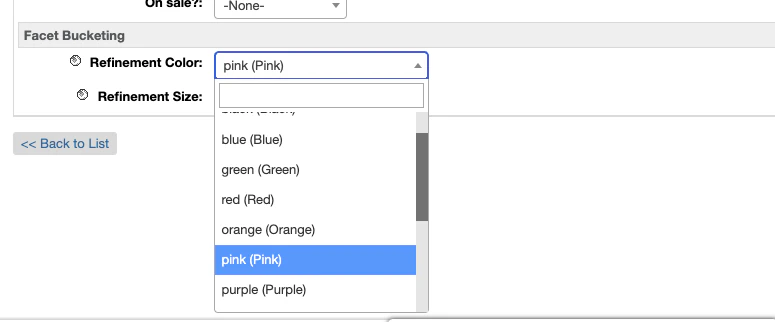
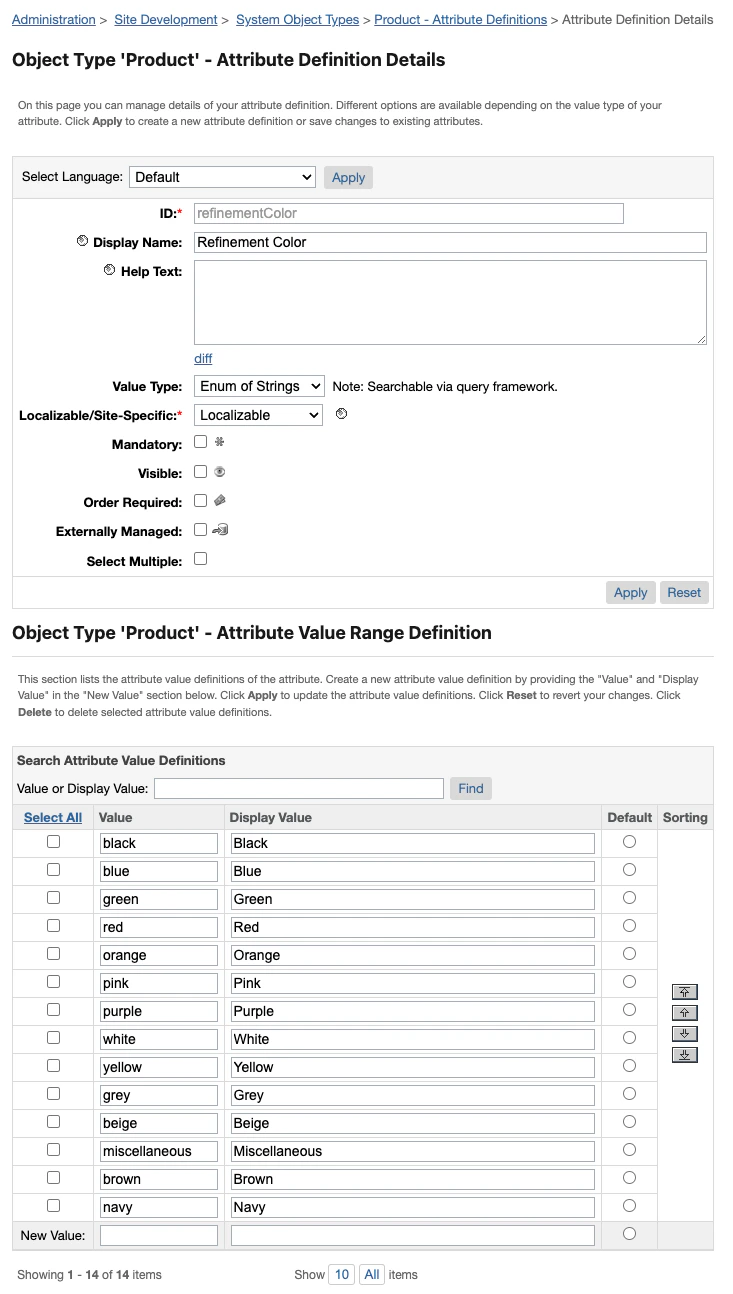 To make faceting work, fill this attribute with a value **for all your products** that you want to be filterable by this attribute:
 ## Add custom attributes to additional product attributes
Go to the **Algolia BM module** (**BM > Merchant Tools > Algolia > Algolia**) and add your custom attribute to the **Additional Product Attributes** field.
Use the pre-configured name if the attribute is part of the [configurable attributes](/doc/integration/salesforce-commerce-cloud-b2c/indexing/product-indexing/indexing-attributes#configurable-attributes) or use its full path, such as `custom.myCustomAttribute`.
To index a complex custom attribute or make transformations before export to Algolia,
[declare the attribute explicitly](/doc/integration/salesforce-commerce-cloud-b2c/indexing/product-indexing/indexing-attributes#extend-attributes-declarations).
## Create a new `refinementList` widget
After creating the custom attribute,
adding the values to your products,
and exporting it to Algolia,
you can now create a new `refinementList` widget to let your users filter the search results based on this new attribute.
Create a new `refinementListWithPanel` widget in `instantsearch-config.js`:
```js JavaScript expandable theme={"system"}
refinementListWithPanel({
container: '#algolia-refinement-color-list-placeholder',
attribute: 'refinementColor',
templates: {
item: ''
+ ''
+ ' {{#isRefined}}'
+ ' '
+ ' {{/isRefined}}'
+ ' {{^isRefined}}'
+ ' '
+ ' {{/isRefined}}'
+ ' {{label}}'
+ '',
},
panelTitle: algoliaData.strings.colorPanelTitle
}),
```
Add the placeholder `div` element for your new widget in the file `searchResultsNoDecorator.isml` as well.
After adding the new `refinementList` widget, your users will be able to filter products by the more generic color groups.
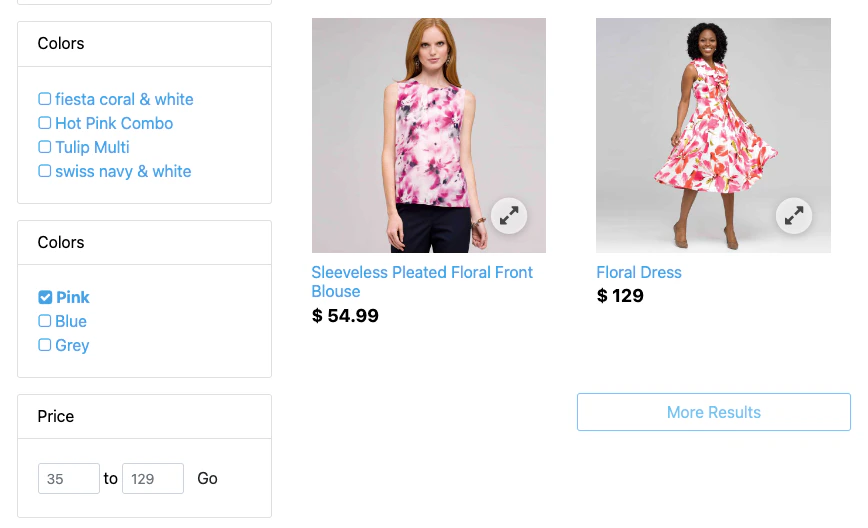
The following example shows a storefront with two filtering options.
The first **Colors** widget (`refinementList`) lists specific shades and color terms.
The second **Colors** widget (`custom.refinementColor`) only lists primary colors:
## Add custom attributes to additional product attributes
Go to the **Algolia BM module** (**BM > Merchant Tools > Algolia > Algolia**) and add your custom attribute to the **Additional Product Attributes** field.
Use the pre-configured name if the attribute is part of the [configurable attributes](/doc/integration/salesforce-commerce-cloud-b2c/indexing/product-indexing/indexing-attributes#configurable-attributes) or use its full path, such as `custom.myCustomAttribute`.
To index a complex custom attribute or make transformations before export to Algolia,
[declare the attribute explicitly](/doc/integration/salesforce-commerce-cloud-b2c/indexing/product-indexing/indexing-attributes#extend-attributes-declarations).
## Create a new `refinementList` widget
After creating the custom attribute,
adding the values to your products,
and exporting it to Algolia,
you can now create a new `refinementList` widget to let your users filter the search results based on this new attribute.
Create a new `refinementListWithPanel` widget in `instantsearch-config.js`:
```js JavaScript expandable theme={"system"}
refinementListWithPanel({
container: '#algolia-refinement-color-list-placeholder',
attribute: 'refinementColor',
templates: {
item: ''
+ ''
+ ' {{#isRefined}}'
+ ' '
+ ' {{/isRefined}}'
+ ' {{^isRefined}}'
+ ' '
+ ' {{/isRefined}}'
+ ' {{label}}'
+ '',
},
panelTitle: algoliaData.strings.colorPanelTitle
}),
```
Add the placeholder `div` element for your new widget in the file `searchResultsNoDecorator.isml` as well.
After adding the new `refinementList` widget, your users will be able to filter products by the more generic color groups.
The following example shows a storefront with two filtering options.
The first **Colors** widget (`refinementList`) lists specific shades and color terms.
The second **Colors** widget (`custom.refinementColor`) only lists primary colors: