> ## Documentation Index
> Fetch the complete documentation index at: https://algolia.com/llms.txt
> Use this file to discover all available pages before exploring further.
# Collection search page
> Enable InstantSearch on your Shopify collection pages
export const Records = () =>
records
;
export const Index = () =>
index
;
export const Facet = () =>
facet
;
Shopify apps can't modify theme code directly.
To integrate Autocomplete and InstantSearch,
use the Algolia AI Search & Discovery app's **App Embed** and **App Blocks**.
For more information, see:
* [Manual theme configuration](/doc/integration/shopify/getting-started/quick-start#manual-theme-configuration)
* [Shopify Algolia configuration](/doc/integration/shopify/sending-and-managing-data/algolia-config)
With the Algolia AI Search & Discovery app for Shopify,
you can enhance your collection pages with real-time search.
**Collection search pages** list products from a [collection](https://help.shopify.com/en/manual/products/collections).
Usually, they have URLs with the following pattern: `/collection/`.
When you modify a collection, all products from the collection are reindexed.
Enabling the collection search feature increases the number of [indexing operations](https://support.algolia.com/hc/en-us/articles/18138875086865).
## All products
Shopify automatically creates a page at the URL `/collections/all` that lists all your products.
To enable InstantSearch on this [collection list](/doc/integration/shopify/getting-started/quick-start#enable-instantsearch) page,
you must [create a collection](https://help.shopify.com/en/manual/products/collections) called `all` in the Shopify Admin.
## Turn on Algolia on collection pages
To enable Algolia on your collections,
go to the **Collection pages** tab and click **Enable**.
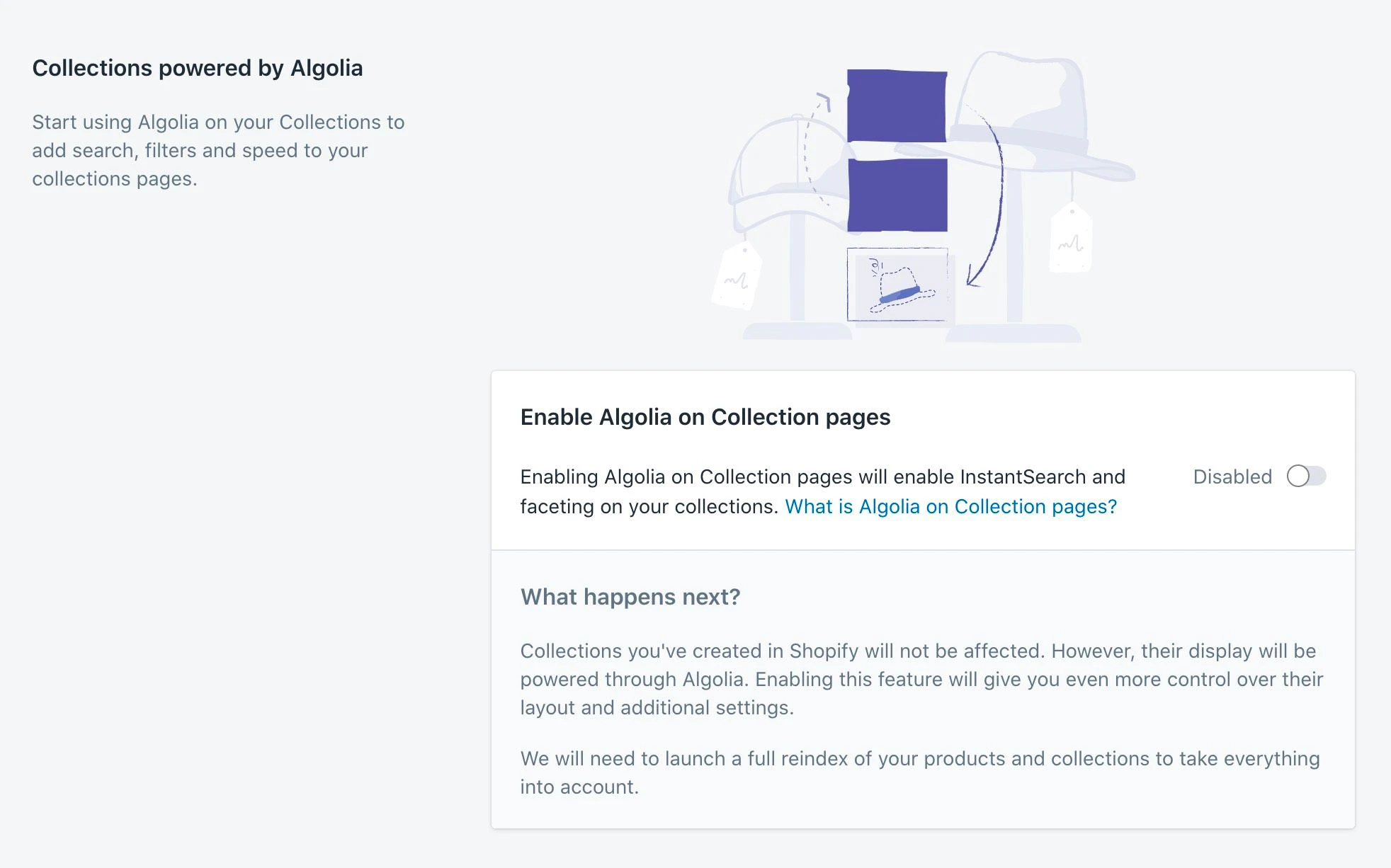 Once the feature is enabled, all your products and collections will be reindexed to ensure that all required data is available.
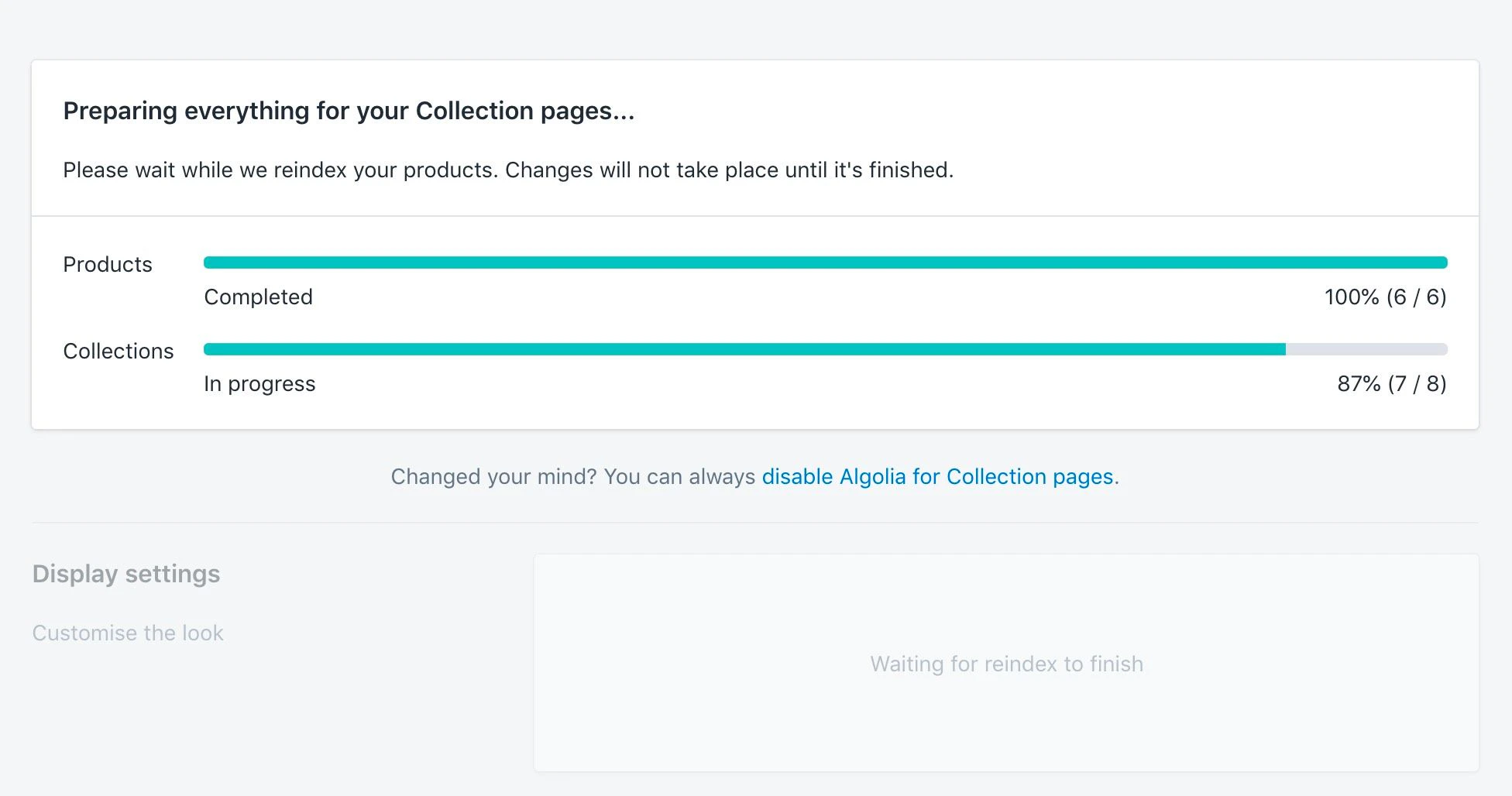 Once the reindexing is done, InstantSearch will be enabled on your Collection pages.
You can now configure how it behaves.
## Configure Algolia on collection pages
Once the reindexing is done, InstantSearch will be enabled on your Collection pages.
You can now configure how it behaves.
## Configure Algolia on collection pages
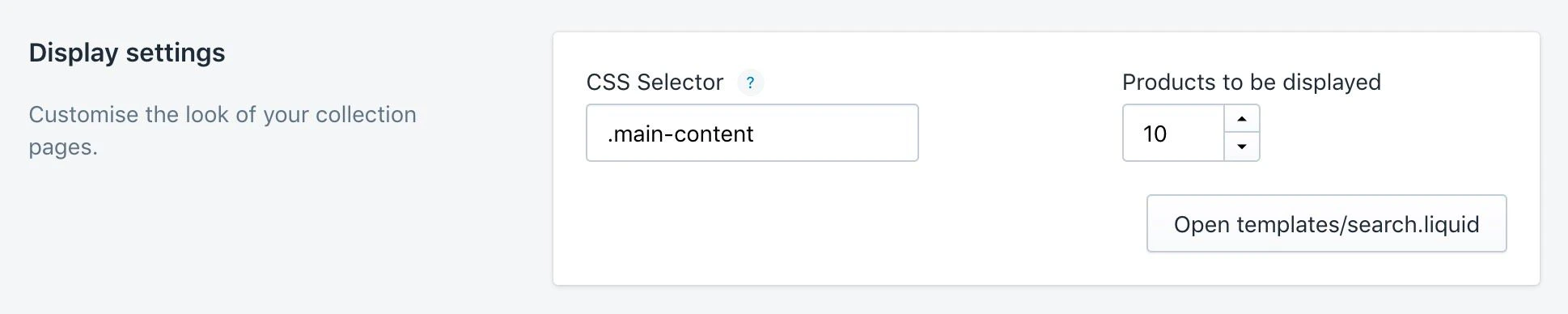 ### Enable InstantSearch on collection pages
1. Add the [Algolia Search App Embed](/doc/integration/shopify/getting-started/quick-start#enable-instantsearch) to your theme.
2. Add [Algolia App Blocks](/doc/integration/shopify/getting-started/quick-start#enable-autocomplete). App Embed must be enabled before the App Block will work.
### Products to be displayed
The number of products to show per page for your collections.
### Sort orders
In this section, you can choose which sort orders you want to activate for your collections, how you want to call them, and which ones you want to display first.
### Enable InstantSearch on collection pages
1. Add the [Algolia Search App Embed](/doc/integration/shopify/getting-started/quick-start#enable-instantsearch) to your theme.
2. Add [Algolia App Blocks](/doc/integration/shopify/getting-started/quick-start#enable-autocomplete). App Embed must be enabled before the App Block will work.
### Products to be displayed
The number of products to show per page for your collections.
### Sort orders
In this section, you can choose which sort orders you want to activate for your collections, how you want to call them, and which ones you want to display first.
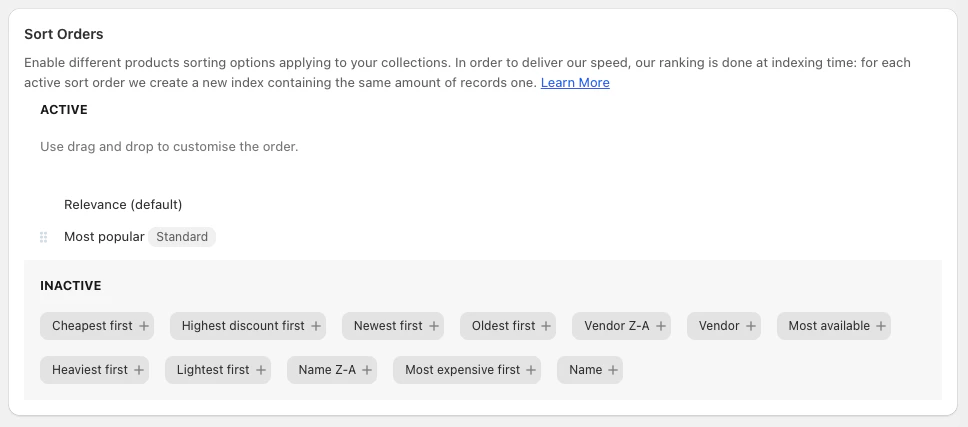 Each sort order uses a [replica](/doc/guides/managing-results/refine-results/sorting/in-depth/replicas) of your main .
The replica's type—set in **Search options > Sort orders** determines its impact on your record count.
Standard replicas duplicate the from your main index.
Virtual replicas don't add to your record count.
Results are ordered by [relevant sorting](/doc/guides/managing-results/refine-results/sorting/in-depth/relevant-sort/).
**Make sure that an increased record count won't exceed your [plan's quota](https://www.algolia.com/pricing/)**.
**Search options** and **Collection Pages** share replicas for the same sort orders.
If the same sort order is active in both places,
changing its type in **Search options** also changes it in **Collection Pages**.
This can change sorting on collection pages.
For more information, see [Sorting](/doc/guides/managing-results/refine-results/sorting).
On collection pages, the manual order defined in the Shopify admin don't apply.
To customize the order, you can use the [visual merchandising tool](/doc/integration/shopify/going-further/merchandising-tool).
### Facets
In this section, choose each to activate for your collections, what you want to call it, and its display order.
Each sort order uses a [replica](/doc/guides/managing-results/refine-results/sorting/in-depth/replicas) of your main .
The replica's type—set in **Search options > Sort orders** determines its impact on your record count.
Standard replicas duplicate the from your main index.
Virtual replicas don't add to your record count.
Results are ordered by [relevant sorting](/doc/guides/managing-results/refine-results/sorting/in-depth/relevant-sort/).
**Make sure that an increased record count won't exceed your [plan's quota](https://www.algolia.com/pricing/)**.
**Search options** and **Collection Pages** share replicas for the same sort orders.
If the same sort order is active in both places,
changing its type in **Search options** also changes it in **Collection Pages**.
This can change sorting on collection pages.
For more information, see [Sorting](/doc/guides/managing-results/refine-results/sorting).
On collection pages, the manual order defined in the Shopify admin don't apply.
To customize the order, you can use the [visual merchandising tool](/doc/integration/shopify/going-further/merchandising-tool).
### Facets
In this section, choose each to activate for your collections, what you want to call it, and its display order.
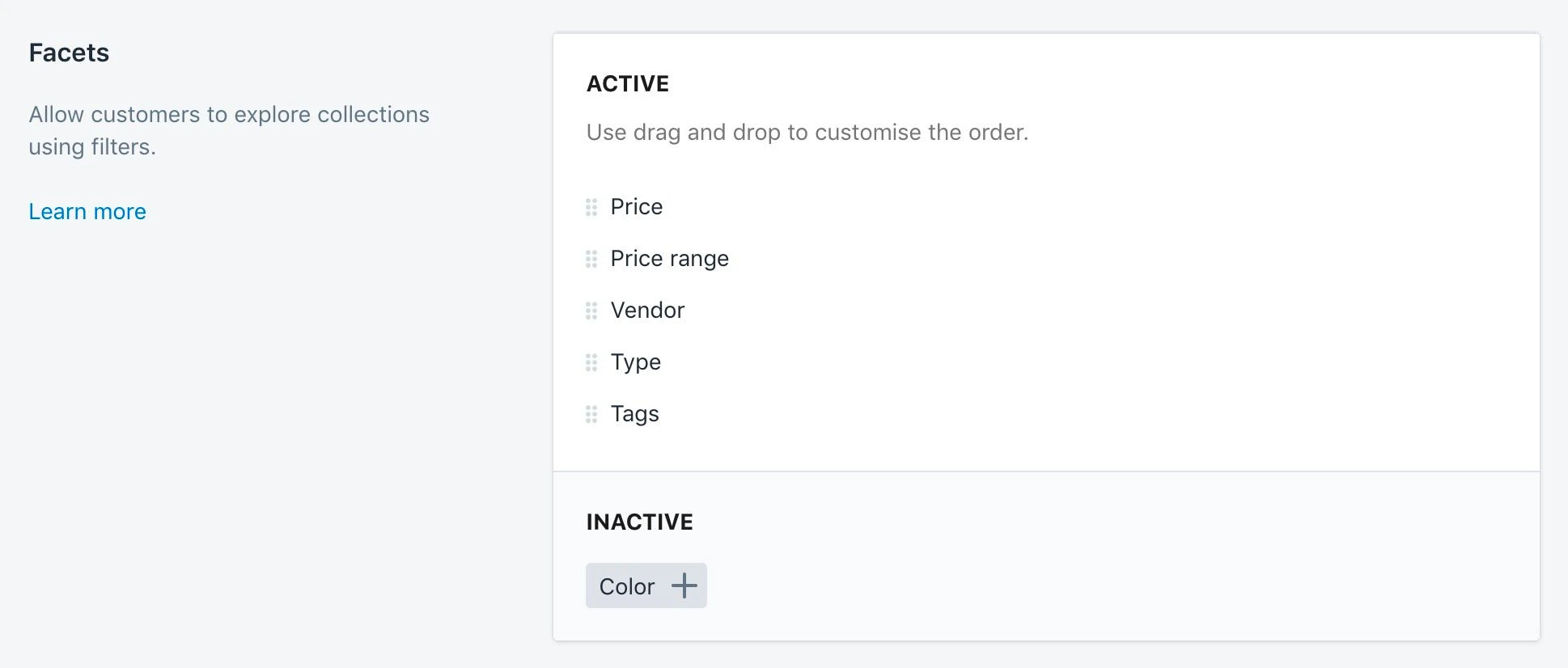 Facets are primarily used to refine searches.
For more information, see [Filtering](/doc/guides/managing-results/refine-results/filtering).
### Configure with Merchandising Studio
By default the Shopify category pages use the `collection_ids` attribute as a [category page identifier](/doc/guides/solutions/ecommerce/browse/tutorials/category-pages#implementation-steps).
To create a more accessible interface to merchandise your categories,
change the category page identifier to `collections`.
Add a custom facet called `collections` in the Algolia app for Shopify and set it as hidden and searchable.
Facets are primarily used to refine searches.
For more information, see [Filtering](/doc/guides/managing-results/refine-results/filtering).
### Configure with Merchandising Studio
By default the Shopify category pages use the `collection_ids` attribute as a [category page identifier](/doc/guides/solutions/ecommerce/browse/tutorials/category-pages#implementation-steps).
To create a more accessible interface to merchandise your categories,
change the category page identifier to `collections`.
Add a custom facet called `collections` in the Algolia app for Shopify and set it as hidden and searchable.
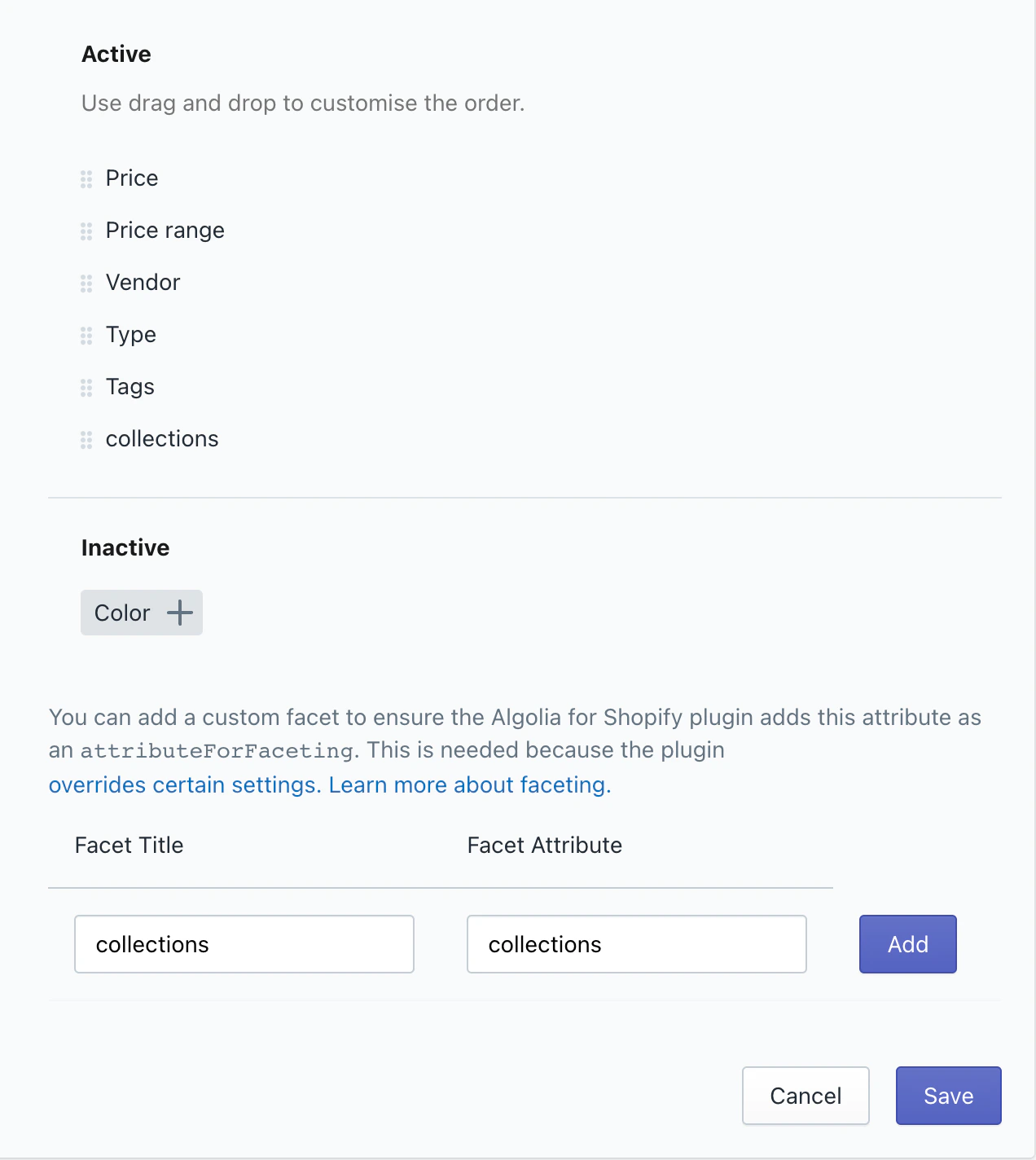
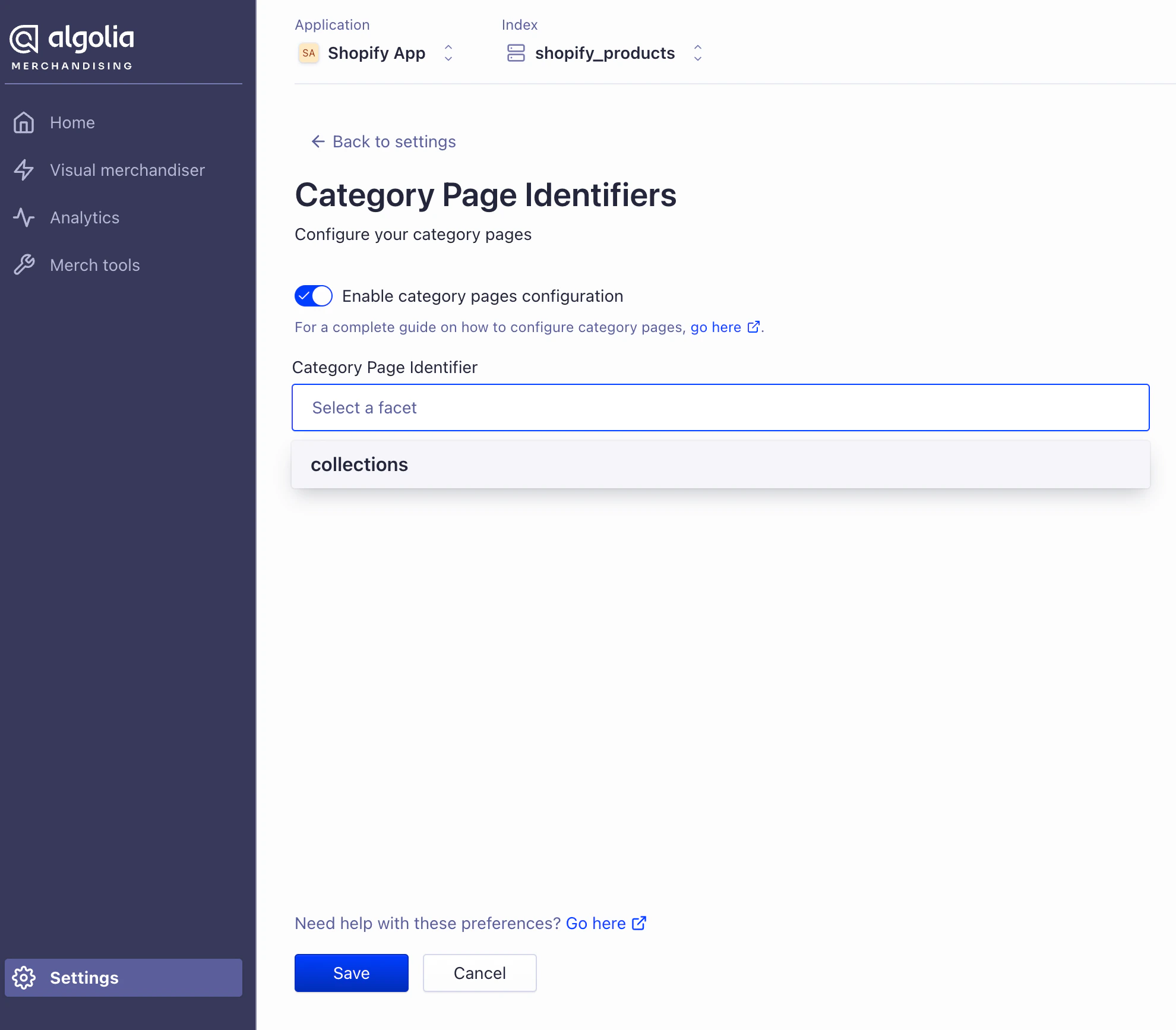
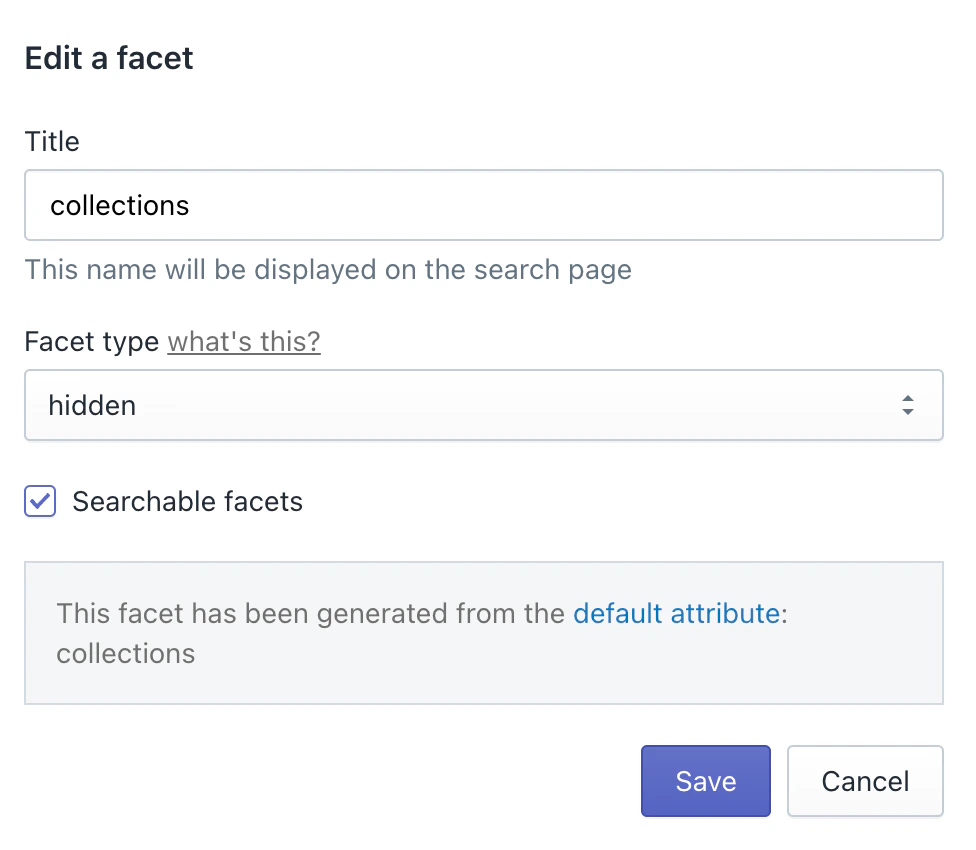 You can configure the category page identifier on your Merchandising studio settings.
To do this, go to **Merchandising Studio > Settings > Category Page Identifiers** and change the category page identifier to `collections`.
You can configure the category page identifier on your Merchandising studio settings.
To do this, go to **Merchandising Studio > Settings > Category Page Identifiers** and change the category page identifier to `collections`.
 Add a [custom hook](/doc/integration/shopify/building-search-ui/frontend-custom-events#add-custom-hooks) to your Shopify theme to update the search filter using the [`beforeInstantSearchFiltersString`](/doc/integration/shopify/building-search-ui/instantsearch-hooks#beforeinstantsearchfiltersstring) hook:
```js JavaScript icon=code theme={"system"}
document.addEventListener("algolia.hooks.initialize", function () {
algoliaShopify.hooks.registerHook(
"beforeInstantSearchFiltersString",
function (defaultFilter) {
if (defaultFilter && defaultFilter.includes("collection_ids")) {
const collectionIDFilterRegex = /collection_ids:"\w+"/g;
const matches = window.location.pathname.match(
/\/collections\/([^/]+)/i,
);
const collectionHandle =
matches && matches.length === 2 ? matches[1] : null;
if (collectionHandle) {
return defaultFilter.replace(
collectionIDFilterRegex,
"collections:" + collectionHandle,
);
}
}
return defaultFilter;
},
);
});
```
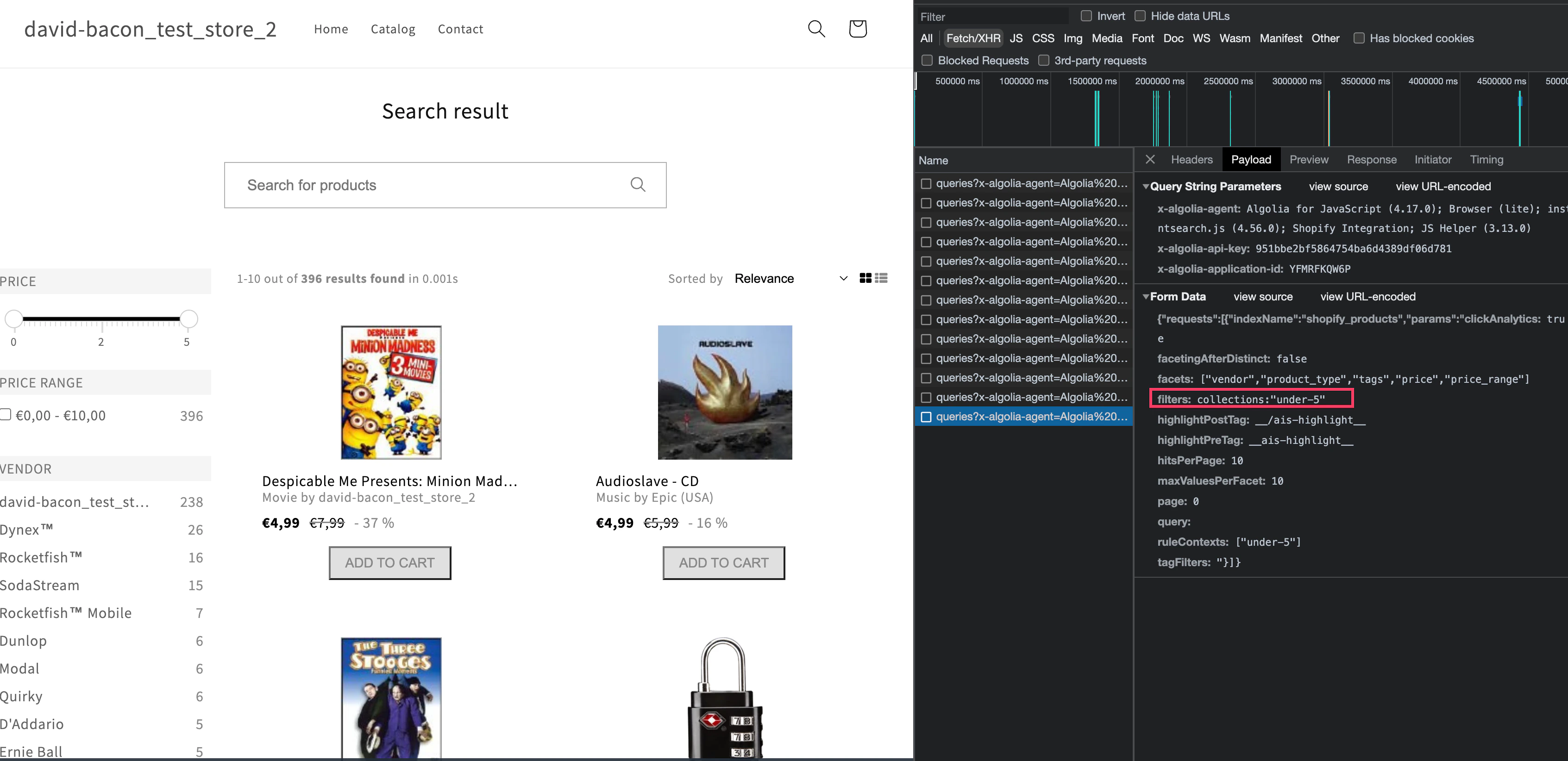
Now, you should the this filter applied on your collection pages.
Add a [custom hook](/doc/integration/shopify/building-search-ui/frontend-custom-events#add-custom-hooks) to your Shopify theme to update the search filter using the [`beforeInstantSearchFiltersString`](/doc/integration/shopify/building-search-ui/instantsearch-hooks#beforeinstantsearchfiltersstring) hook:
```js JavaScript icon=code theme={"system"}
document.addEventListener("algolia.hooks.initialize", function () {
algoliaShopify.hooks.registerHook(
"beforeInstantSearchFiltersString",
function (defaultFilter) {
if (defaultFilter && defaultFilter.includes("collection_ids")) {
const collectionIDFilterRegex = /collection_ids:"\w+"/g;
const matches = window.location.pathname.match(
/\/collections\/([^/]+)/i,
);
const collectionHandle =
matches && matches.length === 2 ? matches[1] : null;
if (collectionHandle) {
return defaultFilter.replace(
collectionIDFilterRegex,
"collections:" + collectionHandle,
);
}
}
return defaultFilter;
},
);
});
```
Now, you should the this filter applied on your collection pages.
 ## Turn off Algolia on collection pages
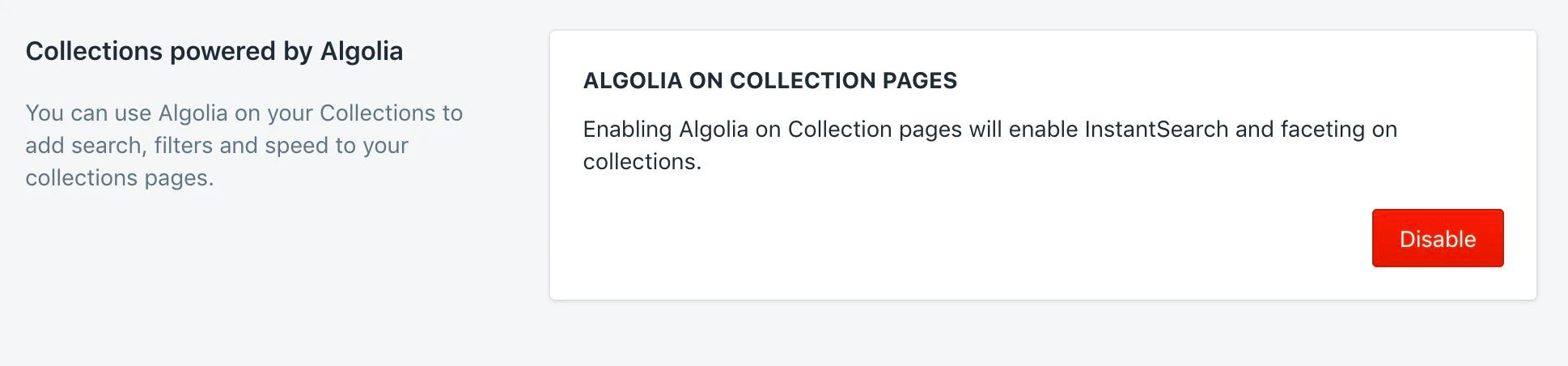 To turn off Algolia on Collection pages,
go to the bottom of the page and click **Disable**.
Your collection pages revert to their default layout,
and InstantSearch no longer shows up.
To turn off Algolia on Collection pages,
go to the bottom of the page and click **Disable**.
Your collection pages revert to their default layout,
and InstantSearch no longer shows up.