> ## Documentation Index
> Fetch the complete documentation index at: https://algolia.com/llms.txt
> Use this file to discover all available pages before exploring further.
# Click and conversion events
> Send click and conversion events to increase discovery and conversions.
export const Index = () =>
index
;
The Algolia AI Search & Discovery app lets you track [click and conversion events](/doc/guides/sending-events) from your Shopify store.
Sending events enables you to use these features:
* [Search analytics](/doc/guides/search-analytics/overview)
* [Revenue analytics](/doc/guides/search-analytics/concepts/metrics#revenue)
* [A/B Testing](/doc/guides/ab-testing/what-is-ab-testing)
* [NeuralSearch](/doc/guides/ai-relevance/neuralsearch/get-started)
* [Algolia Recommend](/doc/guides/algolia-recommend/overview)
* [Personalization](/doc/guides/personalization/classic-personalization/what-is-personalization)
* [Dynamic Re-Ranking](/doc/guides/algolia-ai/re-ranking)
* [Query Categorization](/doc/guides/algolia-ai/query-categorization)
## Before you begin
Algolia AI Search & Discovery supports the **default widgets** provided by the app.
If you're using custom widgets, see [Sending events](/doc/guides/sending-events/getting-started) for more information.
The [Algolia AI Search & Discovery app must be enabled on your theme](/doc/integration/shopify/getting-started/quick-start).
## User token strategy
Events represent an interaction of a user with your store.
Algolia relates a user profile to an event through a [user token](/doc/guides/sending-events/concepts/usertoken).
You can choose how you want to set the user token:
* With a random alphanumeric string at every page refresh
* Using cookies
### `userToken` is set with a random alphanumeric string at every page refresh
This option doesn't use cookies.
Because every page refresh generates a new user token,
you can't identify user profiles across sessions.
### `userToken` is set using cookies depending on the user's approval
This option stores the user token in a cookie on the user's device.
You must use Shopify's [Customer Privacy API](https://shopify.dev/docs/api/customer-privacy) or enable Shopify's Cookie Consent Banner in your Shopify admin settings.
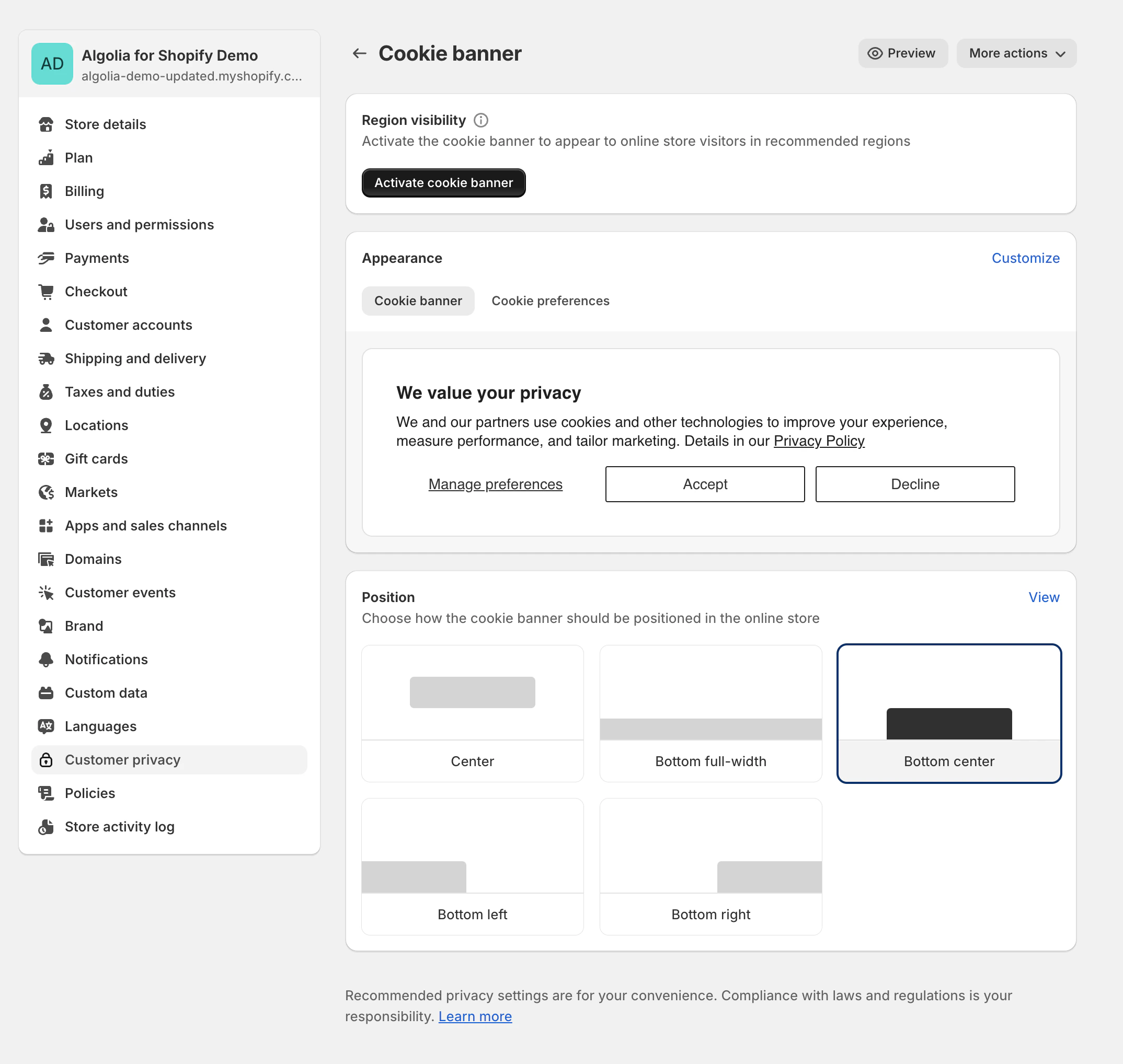 If the user hasn't consented, a random alphanumeric string is used as user token.
Algolia uses Shopify's [`loadFeatures method`](https://shopify.dev/docs/api/consent-tracking#loading-the-customer-privacy-api) to check if the user has consented.
### User token for Personalization
To [personalize your search experience](/doc/guides/personalization/classic-personalization/what-is-personalization),
you need to provide a way to identify user profiles across sessions with a *stable* user token.
For example, you can use the user's account ID after they signed in to your shop.
To add a stable user token, use [custom hooks](/doc/integration/shopify/building-search-ui/insights-recommend-hooks#insights-hooks).
## Send events
To track user interactions in your Shopify store and send them to Algolia, choose between:
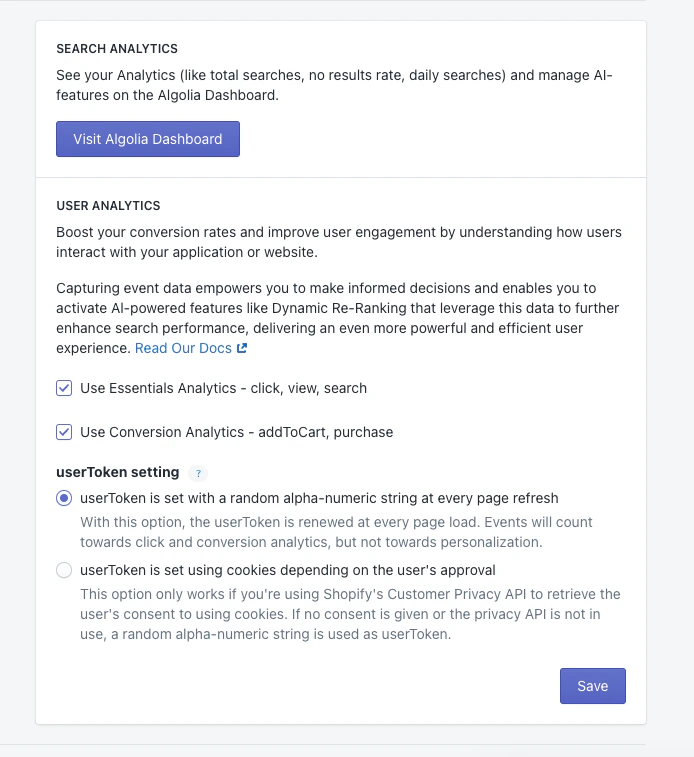
* **Use Essentials Analytics**: automatically send "click", "view", and "search" events to Algolia.
* **Use Conversion Analytics**: using Shopify web pixels, send "addToCart" and "purchase" conversion events to Algolia.
If the user hasn't consented, a random alphanumeric string is used as user token.
Algolia uses Shopify's [`loadFeatures method`](https://shopify.dev/docs/api/consent-tracking#loading-the-customer-privacy-api) to check if the user has consented.
### User token for Personalization
To [personalize your search experience](/doc/guides/personalization/classic-personalization/what-is-personalization),
you need to provide a way to identify user profiles across sessions with a *stable* user token.
For example, you can use the user's account ID after they signed in to your shop.
To add a stable user token, use [custom hooks](/doc/integration/shopify/building-search-ui/insights-recommend-hooks#insights-hooks).
## Send events
To track user interactions in your Shopify store and send them to Algolia, choose between:
* **Use Essentials Analytics**: automatically send "click", "view", and "search" events to Algolia.
* **Use Conversion Analytics**: using Shopify web pixels, send "addToCart" and "purchase" conversion events to Algolia.
 ## Shopify web pixels
[Shopify web pixels](https://shopify.dev/docs/apps/build/marketing-analytics/pixels) are JavaScript snippets that track user interactions and improve your search results.
The web pixels collect data about your users' interactions with your store, such as add-to-cart and purchase events.
You can use the data to improve the relevance of your search results and gain insights into your users' behavior.
By default, the Algolia AI Search & Discovery app creates and enables a web pixel to collect event data.
* To customize this behavior, see [Install a custom web pixel](#install-a-custom-shopify-web-pixel).
* To prevent duplicate events, turn off the default web pixel.
To capture events with web pixels,
enable the [app embed for Algolia Search](/doc/integration/shopify/getting-started/quick-start#before-you-begin).
If you're using web pixels with a custom frontend,
ensure you also call `trackSearchAttribution(hit)` from your Autocomplete and InstantSearch product templates. This ensures the web pixel can capture conversion events from items in the browser's local storage. For more information, see [Custom frontends with Shopify web pixels](/doc/integration/shopify/building-search-ui/events#custom-frontends-with-shopify-web-pixels).
The Shopify web pixel is categorized as "analytics" and "preferences", according to [Shopify's criteria](https://shopify.dev/docs/apps/build/marketing-analytics/build-web-pixels#step-2-define-your-web-pixel-settings).
It collects data only if users accept the consent banner.
To stop the pixel from collecting data,
in Shopify Admin **Settings**, turn off **Use Conversion Analytics**.
### Install a Custom Shopify web pixel
{/* vale Algolia.Ampersand = NO */}
1. Go to your Shopify admin and click **Settings**.
2. Open the **Customer events** tab.
## Shopify web pixels
[Shopify web pixels](https://shopify.dev/docs/apps/build/marketing-analytics/pixels) are JavaScript snippets that track user interactions and improve your search results.
The web pixels collect data about your users' interactions with your store, such as add-to-cart and purchase events.
You can use the data to improve the relevance of your search results and gain insights into your users' behavior.
By default, the Algolia AI Search & Discovery app creates and enables a web pixel to collect event data.
* To customize this behavior, see [Install a custom web pixel](#install-a-custom-shopify-web-pixel).
* To prevent duplicate events, turn off the default web pixel.
To capture events with web pixels,
enable the [app embed for Algolia Search](/doc/integration/shopify/getting-started/quick-start#before-you-begin).
If you're using web pixels with a custom frontend,
ensure you also call `trackSearchAttribution(hit)` from your Autocomplete and InstantSearch product templates. This ensures the web pixel can capture conversion events from items in the browser's local storage. For more information, see [Custom frontends with Shopify web pixels](/doc/integration/shopify/building-search-ui/events#custom-frontends-with-shopify-web-pixels).
The Shopify web pixel is categorized as "analytics" and "preferences", according to [Shopify's criteria](https://shopify.dev/docs/apps/build/marketing-analytics/build-web-pixels#step-2-define-your-web-pixel-settings).
It collects data only if users accept the consent banner.
To stop the pixel from collecting data,
in Shopify Admin **Settings**, turn off **Use Conversion Analytics**.
### Install a Custom Shopify web pixel
{/* vale Algolia.Ampersand = NO */}
1. Go to your Shopify admin and click **Settings**.
2. Open the **Customer events** tab.
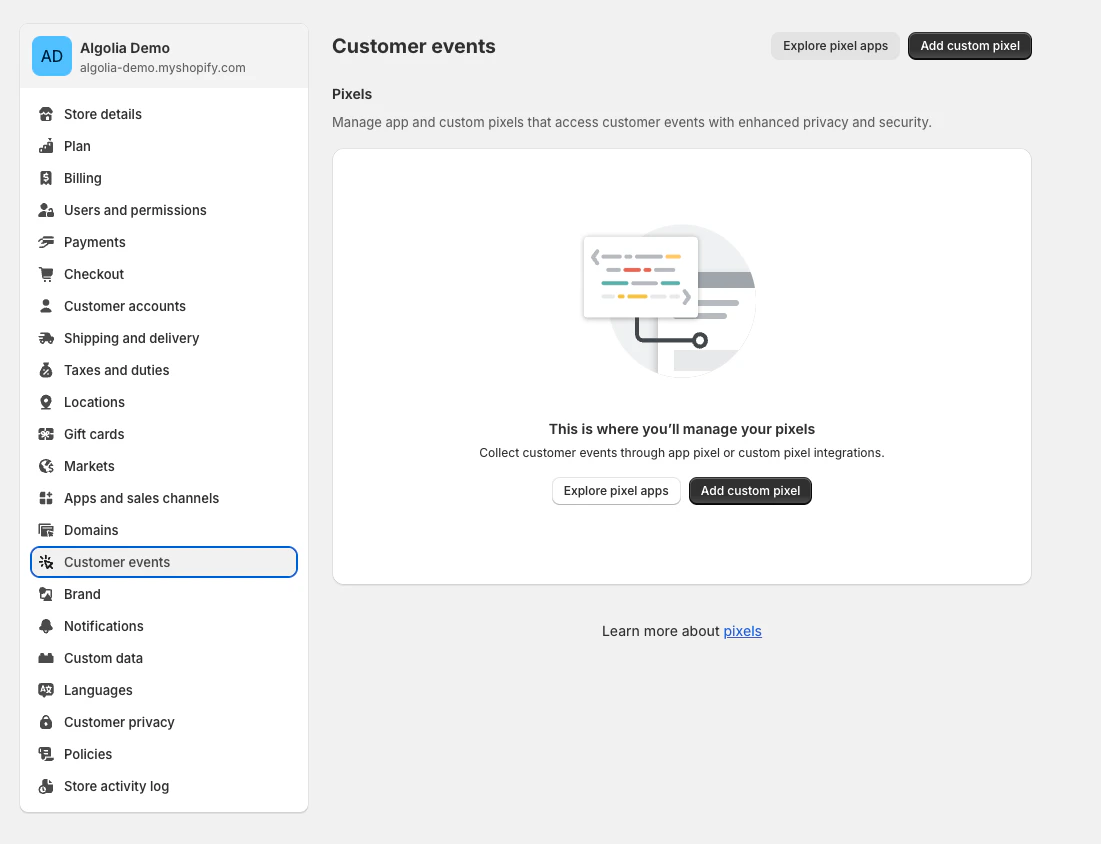 3. Click **Add custom pixel**.
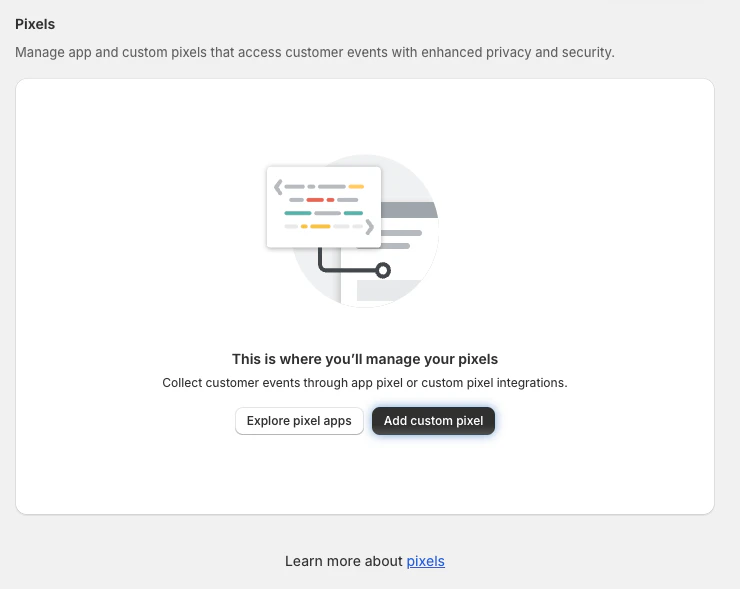 4. Name your pixel and click **Add pixel**.
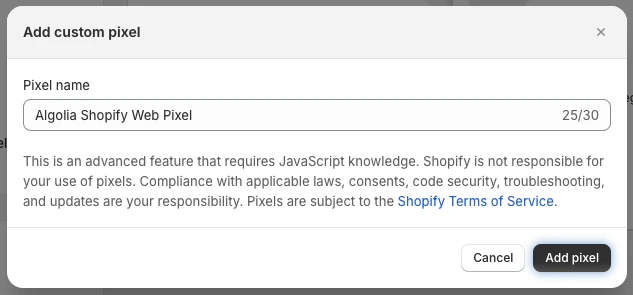 5. Copy the pixel code and paste it into the **Algolia web pixels** area in the **Code** section provided by Shopify.
```js JavaScript expandable icon=code theme={"system"}
// Add Algolia Insights cdn
const ALGOLIA_INSIGHTS_SRC =
"https://cdn.jsdelivr.net/npm/search-insights@2.17.3/dist/search-insights.min.js";
!((e, a, t, n, s, i, c) => {
(e.AlgoliaAnalyticsObject = s),
(e[s] =
e[s] ||
function () {
(e[s].queue = e[s].queue || []).push(arguments);
}),
(e[s].version = (n.match(/@([^/]+)\/?/) || [])[1]),
(i = a.createElement(t)),
(c = a.getElementsByTagName(t)[0]),
(i.async = 1),
(i.src = n),
c.parentNode.insertBefore(i, c);
})(window, document, "script", ALGOLIA_INSIGHTS_SRC, "aa");
// Enrich line items with queryID
const enrichLineItemsWithQueryID = (items, purchases) =>
items.map((item) => {
const purchaseItem = purchases.find((purchase) =>
purchase.objectIDs.includes(item.variant.id),
);
if (purchaseItem) {
return {
...item,
variant: {
...item.variant,
queryID: purchaseItem.queryID,
},
};
}
return item;
});
// Filter items with and without queryID
const filterItemsWithQueryID = (enrichedItems) =>
enrichedItems.filter((item) => !!item.variant.queryID);
const filterItemsWithoutQueryID = (enrichedItems) =>
enrichedItems.filter((item) => !item.variant.queryID);
// Function to create random user token if one isn't found
function createRandomUserToken() {
return Array.from(Array(20), () =>
Math.floor(Math.random() * 36).toString(36),
).join("");
}
// Constant Storage keys
const CONFIG_STORAGE_KEY = "algolia_config";
const ANALYTICS_STORAGE_KEY = "algolia_analytics_options";
const CLICK_STORAGE_KEY = "algolia_analytics_clicked_objects";
const PURCHASE_STORAGE_KEY = "algolia_analytics_purchase_objects";
analytics.subscribe("product_added_to_cart", async (event) => {
try {
// Get all stored data from the Shopping session
const analyticsData = await browser.localStorage.getItem(
ANALYTICS_STORAGE_KEY,
);
const analyticsOptions = analyticsData ? JSON.parse(analyticsData) : {};
const config = await browser.localStorage.getItem(CONFIG_STORAGE_KEY);
const algoliaConfig = JSON.parse(config);
const { app_id, search_api_key, index_name, user_token } = algoliaConfig;
const clickedObjects =
await browser.localStorage.getItem(CLICK_STORAGE_KEY);
const previousClickItems = clickedObjects ? JSON.parse(clickedObjects) : [];
const cartLine = event.data.cartLine;
const variant = cartLine.merchandise;
const product = variant.product;
const cartLineCostCurrency = cartLine.cost.totalAmount.currencyCode;
let selectedRecord = previousClickItems.find((record) =>
record.objectIDs.includes(variant.id),
);
let algoliaInsightMethod = "addedToCartObjectIDsAfterSearch";
// Look for the parent (product) if the variant is not found.
if (!selectedRecord) {
const productIdClicked = previousClickItems.find(
(record) => record.productId == product.id,
);
// Reassign the objectIDs to the variant id if the parent is found.
if (productIdClicked) {
productIdClicked.objectIDs = [variant.id];
selectedRecord = productIdClicked;
}
}
// If the variant is not found we send what we have
if (!selectedRecord) {
algoliaInsightMethod = "addedToCartObjectIDs";
selectedRecord = {
index: index_name,
objectIDs: [variant.id],
};
}
selectedRecord.currency = cartLineCostCurrency;
selectedRecord.eventName = "Add To Cart";
aa("init", {
appId: app_id,
apiKey: search_api_key,
partial: true,
userToken: user_token || createRandomUserToken(),
...analyticsOptions,
});
aa("addAlgoliaAgent", "Shopify Web Pixels");
delete selectedRecord.positions;
aa(algoliaInsightMethod, selectedRecord);
// Remove the item from local storage
const updatedClickItems = previousClickItems.filter(
(item) => !item.objectIDs.includes(variant.id),
);
await browser.localStorage.setItem(
CLICK_STORAGE_KEY,
JSON.stringify(updatedClickItems),
);
// Add clicked event to the purchase cookie
const purchaseStorage =
await browser.localStorage.getItem(PURCHASE_STORAGE_KEY);
const purchaseObjects = purchaseStorage ? JSON.parse(purchaseStorage) : [];
purchaseObjects.push(selectedRecord);
await browser.localStorage.setItem(
PURCHASE_STORAGE_KEY,
JSON.stringify(purchaseObjects),
);
} catch (error) {
console.error(error);
}
});
analytics.subscribe("checkout_completed", async (event) => {
try {
// Get all stored data from the Shopping session
const analyticsData = await browser.localStorage.getItem(
ANALYTICS_STORAGE_KEY,
);
const analyticsOptions = analyticsData ? JSON.parse(analyticsData) : {};
const config = await browser.localStorage.getItem(CONFIG_STORAGE_KEY);
const algoliaConfig = JSON.parse(config);
const { app_id, search_api_key, index_name, user_token } = algoliaConfig;
const purchaseDataStorage =
await browser.localStorage.getItem(PURCHASE_STORAGE_KEY);
const purchaseData = purchaseDataStorage
? JSON.parse(purchaseDataStorage)
: [];
const lineItems = event.data.checkout.lineItems;
// Combine the purchase data with the line items
// Filter out the line items that don't have a queryID and the ones that do
const allEnrichedPurchaseObjects = enrichLineItemsWithQueryID(
lineItems,
purchaseData,
);
const purchaseObjectWithQueryID = filterItemsWithQueryID(
allEnrichedPurchaseObjects,
);
const purchaseObjectsWithOutQueryID = filterItemsWithoutQueryID(
allEnrichedPurchaseObjects,
);
aa("init", {
appId: app_id,
apiKey: search_api_key,
partial: true,
userToken: user_token || createRandomUserToken(),
...analyticsOptions,
});
aa("addAlgoliaAgent", "Shopify Web Pixels");
// Add all the items purchased objects with query IDs
if (purchaseObjectWithQueryID.length > 0) {
const purchasedObjectIDsAfterSearch = {
eventName: "Checkout Completed",
index: index_name,
objectIDs: purchaseObjectWithQueryID.map((item) => item.variant.id),
objectData: purchaseObjectWithQueryID.map((item) => ({
queryID: item.variant.queryID,
price: item.variant.price.amount,
discount: item.discountAllocations[0]
? item.discountAllocations[0].amount.amount
: 0,
quantity: item.quantity,
})),
value: event.data.checkout.subtotalPrice.amount,
currency: event.data.checkout.subtotalPrice.currencyCode,
};
aa("purchasedObjectIDsAfterSearch", {
...purchasedObjectIDsAfterSearch,
});
}
if (purchaseObjectsWithOutQueryID.length > 0) {
const purchasedObjectIDs = {
eventName: "Checkout Completed",
index: index_name,
objectIDs: purchaseObjectsWithOutQueryID.map((item) => item.variant.id),
objectData: purchaseObjectsWithOutQueryID.map((item) => ({
price: item.variant.price.amount,
discount: item.discountAllocations[0]
? item.discountAllocations[0].amount.amount
: 0,
quantity: item.quantity,
})),
value: event.data.checkout.subtotalPrice.amount,
currency: event.data.checkout.subtotalPrice.currencyCode,
};
aa("purchasedObjectIDs", {
...purchasedObjectIDs,
});
}
// Clear the purchase data from the storage
const updatePurchaseItems = purchaseData.filter(
(purchase) =>
!lineItems.some((item) => item.variant.id === purchase.objectIDs[0]),
);
await browser.localStorage.setItem(
PURCHASE_STORAGE_KEY,
JSON.stringify(updatePurchaseItems),
);
} catch (error) {
console.error(error);
}
});
```
6. Click **Save**, then **Connect**.
Your Shopify web pixels are now installed and can start tracking user interactions on your store. Make sure that your web pixels show **Connected** in their status.
5. Copy the pixel code and paste it into the **Algolia web pixels** area in the **Code** section provided by Shopify.
```js JavaScript expandable icon=code theme={"system"}
// Add Algolia Insights cdn
const ALGOLIA_INSIGHTS_SRC =
"https://cdn.jsdelivr.net/npm/search-insights@2.17.3/dist/search-insights.min.js";
!((e, a, t, n, s, i, c) => {
(e.AlgoliaAnalyticsObject = s),
(e[s] =
e[s] ||
function () {
(e[s].queue = e[s].queue || []).push(arguments);
}),
(e[s].version = (n.match(/@([^/]+)\/?/) || [])[1]),
(i = a.createElement(t)),
(c = a.getElementsByTagName(t)[0]),
(i.async = 1),
(i.src = n),
c.parentNode.insertBefore(i, c);
})(window, document, "script", ALGOLIA_INSIGHTS_SRC, "aa");
// Enrich line items with queryID
const enrichLineItemsWithQueryID = (items, purchases) =>
items.map((item) => {
const purchaseItem = purchases.find((purchase) =>
purchase.objectIDs.includes(item.variant.id),
);
if (purchaseItem) {
return {
...item,
variant: {
...item.variant,
queryID: purchaseItem.queryID,
},
};
}
return item;
});
// Filter items with and without queryID
const filterItemsWithQueryID = (enrichedItems) =>
enrichedItems.filter((item) => !!item.variant.queryID);
const filterItemsWithoutQueryID = (enrichedItems) =>
enrichedItems.filter((item) => !item.variant.queryID);
// Function to create random user token if one isn't found
function createRandomUserToken() {
return Array.from(Array(20), () =>
Math.floor(Math.random() * 36).toString(36),
).join("");
}
// Constant Storage keys
const CONFIG_STORAGE_KEY = "algolia_config";
const ANALYTICS_STORAGE_KEY = "algolia_analytics_options";
const CLICK_STORAGE_KEY = "algolia_analytics_clicked_objects";
const PURCHASE_STORAGE_KEY = "algolia_analytics_purchase_objects";
analytics.subscribe("product_added_to_cart", async (event) => {
try {
// Get all stored data from the Shopping session
const analyticsData = await browser.localStorage.getItem(
ANALYTICS_STORAGE_KEY,
);
const analyticsOptions = analyticsData ? JSON.parse(analyticsData) : {};
const config = await browser.localStorage.getItem(CONFIG_STORAGE_KEY);
const algoliaConfig = JSON.parse(config);
const { app_id, search_api_key, index_name, user_token } = algoliaConfig;
const clickedObjects =
await browser.localStorage.getItem(CLICK_STORAGE_KEY);
const previousClickItems = clickedObjects ? JSON.parse(clickedObjects) : [];
const cartLine = event.data.cartLine;
const variant = cartLine.merchandise;
const product = variant.product;
const cartLineCostCurrency = cartLine.cost.totalAmount.currencyCode;
let selectedRecord = previousClickItems.find((record) =>
record.objectIDs.includes(variant.id),
);
let algoliaInsightMethod = "addedToCartObjectIDsAfterSearch";
// Look for the parent (product) if the variant is not found.
if (!selectedRecord) {
const productIdClicked = previousClickItems.find(
(record) => record.productId == product.id,
);
// Reassign the objectIDs to the variant id if the parent is found.
if (productIdClicked) {
productIdClicked.objectIDs = [variant.id];
selectedRecord = productIdClicked;
}
}
// If the variant is not found we send what we have
if (!selectedRecord) {
algoliaInsightMethod = "addedToCartObjectIDs";
selectedRecord = {
index: index_name,
objectIDs: [variant.id],
};
}
selectedRecord.currency = cartLineCostCurrency;
selectedRecord.eventName = "Add To Cart";
aa("init", {
appId: app_id,
apiKey: search_api_key,
partial: true,
userToken: user_token || createRandomUserToken(),
...analyticsOptions,
});
aa("addAlgoliaAgent", "Shopify Web Pixels");
delete selectedRecord.positions;
aa(algoliaInsightMethod, selectedRecord);
// Remove the item from local storage
const updatedClickItems = previousClickItems.filter(
(item) => !item.objectIDs.includes(variant.id),
);
await browser.localStorage.setItem(
CLICK_STORAGE_KEY,
JSON.stringify(updatedClickItems),
);
// Add clicked event to the purchase cookie
const purchaseStorage =
await browser.localStorage.getItem(PURCHASE_STORAGE_KEY);
const purchaseObjects = purchaseStorage ? JSON.parse(purchaseStorage) : [];
purchaseObjects.push(selectedRecord);
await browser.localStorage.setItem(
PURCHASE_STORAGE_KEY,
JSON.stringify(purchaseObjects),
);
} catch (error) {
console.error(error);
}
});
analytics.subscribe("checkout_completed", async (event) => {
try {
// Get all stored data from the Shopping session
const analyticsData = await browser.localStorage.getItem(
ANALYTICS_STORAGE_KEY,
);
const analyticsOptions = analyticsData ? JSON.parse(analyticsData) : {};
const config = await browser.localStorage.getItem(CONFIG_STORAGE_KEY);
const algoliaConfig = JSON.parse(config);
const { app_id, search_api_key, index_name, user_token } = algoliaConfig;
const purchaseDataStorage =
await browser.localStorage.getItem(PURCHASE_STORAGE_KEY);
const purchaseData = purchaseDataStorage
? JSON.parse(purchaseDataStorage)
: [];
const lineItems = event.data.checkout.lineItems;
// Combine the purchase data with the line items
// Filter out the line items that don't have a queryID and the ones that do
const allEnrichedPurchaseObjects = enrichLineItemsWithQueryID(
lineItems,
purchaseData,
);
const purchaseObjectWithQueryID = filterItemsWithQueryID(
allEnrichedPurchaseObjects,
);
const purchaseObjectsWithOutQueryID = filterItemsWithoutQueryID(
allEnrichedPurchaseObjects,
);
aa("init", {
appId: app_id,
apiKey: search_api_key,
partial: true,
userToken: user_token || createRandomUserToken(),
...analyticsOptions,
});
aa("addAlgoliaAgent", "Shopify Web Pixels");
// Add all the items purchased objects with query IDs
if (purchaseObjectWithQueryID.length > 0) {
const purchasedObjectIDsAfterSearch = {
eventName: "Checkout Completed",
index: index_name,
objectIDs: purchaseObjectWithQueryID.map((item) => item.variant.id),
objectData: purchaseObjectWithQueryID.map((item) => ({
queryID: item.variant.queryID,
price: item.variant.price.amount,
discount: item.discountAllocations[0]
? item.discountAllocations[0].amount.amount
: 0,
quantity: item.quantity,
})),
value: event.data.checkout.subtotalPrice.amount,
currency: event.data.checkout.subtotalPrice.currencyCode,
};
aa("purchasedObjectIDsAfterSearch", {
...purchasedObjectIDsAfterSearch,
});
}
if (purchaseObjectsWithOutQueryID.length > 0) {
const purchasedObjectIDs = {
eventName: "Checkout Completed",
index: index_name,
objectIDs: purchaseObjectsWithOutQueryID.map((item) => item.variant.id),
objectData: purchaseObjectsWithOutQueryID.map((item) => ({
price: item.variant.price.amount,
discount: item.discountAllocations[0]
? item.discountAllocations[0].amount.amount
: 0,
quantity: item.quantity,
})),
value: event.data.checkout.subtotalPrice.amount,
currency: event.data.checkout.subtotalPrice.currencyCode,
};
aa("purchasedObjectIDs", {
...purchasedObjectIDs,
});
}
// Clear the purchase data from the storage
const updatePurchaseItems = purchaseData.filter(
(purchase) =>
!lineItems.some((item) => item.variant.id === purchase.objectIDs[0]),
);
await browser.localStorage.setItem(
PURCHASE_STORAGE_KEY,
JSON.stringify(updatePurchaseItems),
);
} catch (error) {
console.error(error);
}
});
```
6. Click **Save**, then **Connect**.
Your Shopify web pixels are now installed and can start tracking user interactions on your store. Make sure that your web pixels show **Connected** in their status.
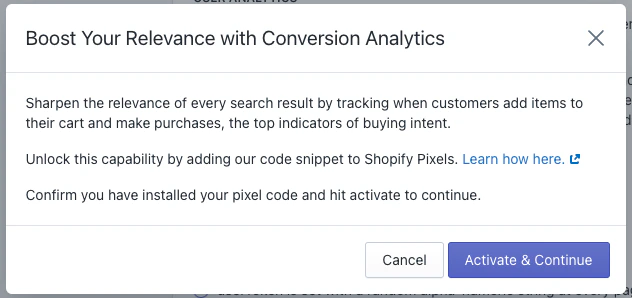
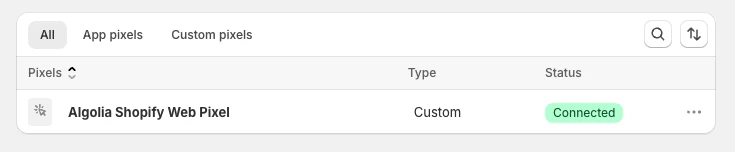 7. Go back to your Shopify admin and complete the setup by clicking **Activate & Continue**.
 {/* vale Algolia.Ampersand = YES */}
### Custom frontends with Shopify web pixels
If you want to use Shopify web pixels with your custom frontend, pass `query_id`, `variant_id`, and `product_id` to the `trackSearchAttribution` function.
Add the following JavaScript to your custom frontend to call `trackSearchAttribution` whenever a hit is displayed. This stores the required attributes in `localStorage` for conversion tracking.
```js JavaScript icon=code theme={"system"}
const trackSearchAttribution = (query_id, variant_id, product_id) => {
const clickData = {
eventName: 'Added to cart',
index: , //Update this
queryID: query_id,
objectIDs: [variant_id],
productId: product_id,
};
try {
const localStorageKey = 'algolia_analytics_clicked_objects'; // Key
// Get any data previously stored
const previousClickItemsString =
localStorage.getItem(localStorageKey) || '[]';
const previousClickItems = JSON.parse(previousClickItemsString);
// Add the current products data to local storage
previousClickItems.push(data);
localStorage.setItem(localStorageKey, JSON.stringify(previousClickItems));
} catch (error) {
console.error(error);
}
}
```
### Web pixel `product_added_to_cart` flow
This process shows how a Shopify web pixel `product_added_to_cart` event is sent to Algolia.
1. User searches and then clicks a result.
2. The `trackSearchAttribution` function stores `queryId`, `variantId`, and `productId` in local storage.
3. The Shopify web pixel `product_added_to_cart` event is triggered.
4. The `trackSearchAttribution` function is called with `query_id`, `variant_id`, and `product_id`.
5. Algolia retrieves the `queryId` by matching the `variantId` and `productId` in local storage.
6. Algolia sends attribution data to the :
* If `queryId` is specified, Algolia uses the [`addedToCartObjectIDsAfterSearch` event](/doc/rest-api/insights/push-events#body-events).
* If `queryId` isn't specified, Algolia uses the `addedToCartObjectIDs` event.
{/* vale Algolia.Ampersand = YES */}
### Custom frontends with Shopify web pixels
If you want to use Shopify web pixels with your custom frontend, pass `query_id`, `variant_id`, and `product_id` to the `trackSearchAttribution` function.
Add the following JavaScript to your custom frontend to call `trackSearchAttribution` whenever a hit is displayed. This stores the required attributes in `localStorage` for conversion tracking.
```js JavaScript icon=code theme={"system"}
const trackSearchAttribution = (query_id, variant_id, product_id) => {
const clickData = {
eventName: 'Added to cart',
index: , //Update this
queryID: query_id,
objectIDs: [variant_id],
productId: product_id,
};
try {
const localStorageKey = 'algolia_analytics_clicked_objects'; // Key
// Get any data previously stored
const previousClickItemsString =
localStorage.getItem(localStorageKey) || '[]';
const previousClickItems = JSON.parse(previousClickItemsString);
// Add the current products data to local storage
previousClickItems.push(data);
localStorage.setItem(localStorageKey, JSON.stringify(previousClickItems));
} catch (error) {
console.error(error);
}
}
```
### Web pixel `product_added_to_cart` flow
This process shows how a Shopify web pixel `product_added_to_cart` event is sent to Algolia.
1. User searches and then clicks a result.
2. The `trackSearchAttribution` function stores `queryId`, `variantId`, and `productId` in local storage.
3. The Shopify web pixel `product_added_to_cart` event is triggered.
4. The `trackSearchAttribution` function is called with `query_id`, `variant_id`, and `product_id`.
5. Algolia retrieves the `queryId` by matching the `variantId` and `productId` in local storage.
6. Algolia sends attribution data to the :
* If `queryId` is specified, Algolia uses the [`addedToCartObjectIDsAfterSearch` event](/doc/rest-api/insights/push-events#body-events).
* If `queryId` isn't specified, Algolia uses the `addedToCartObjectIDs` event.