> ## Documentation Index
> Fetch the complete documentation index at: https://algolia.com/llms.txt
> Use this file to discover all available pages before exploring further.
# InstantSearch results page
> Display search results from Algolia in your Shopify app using InstantSearch.
Shopify apps can't modify theme code directly.
To integrate Autocomplete and InstantSearch,
use the Algolia AI Search & Discovery app's **App Embed** and **App Blocks**.
For more information, see:
* [Manual theme configuration](/doc/integration/shopify/getting-started/quick-start#manual-theme-configuration)
* [Shopify Algolia configuration](/doc/integration/shopify/sending-and-managing-data/algolia-config)
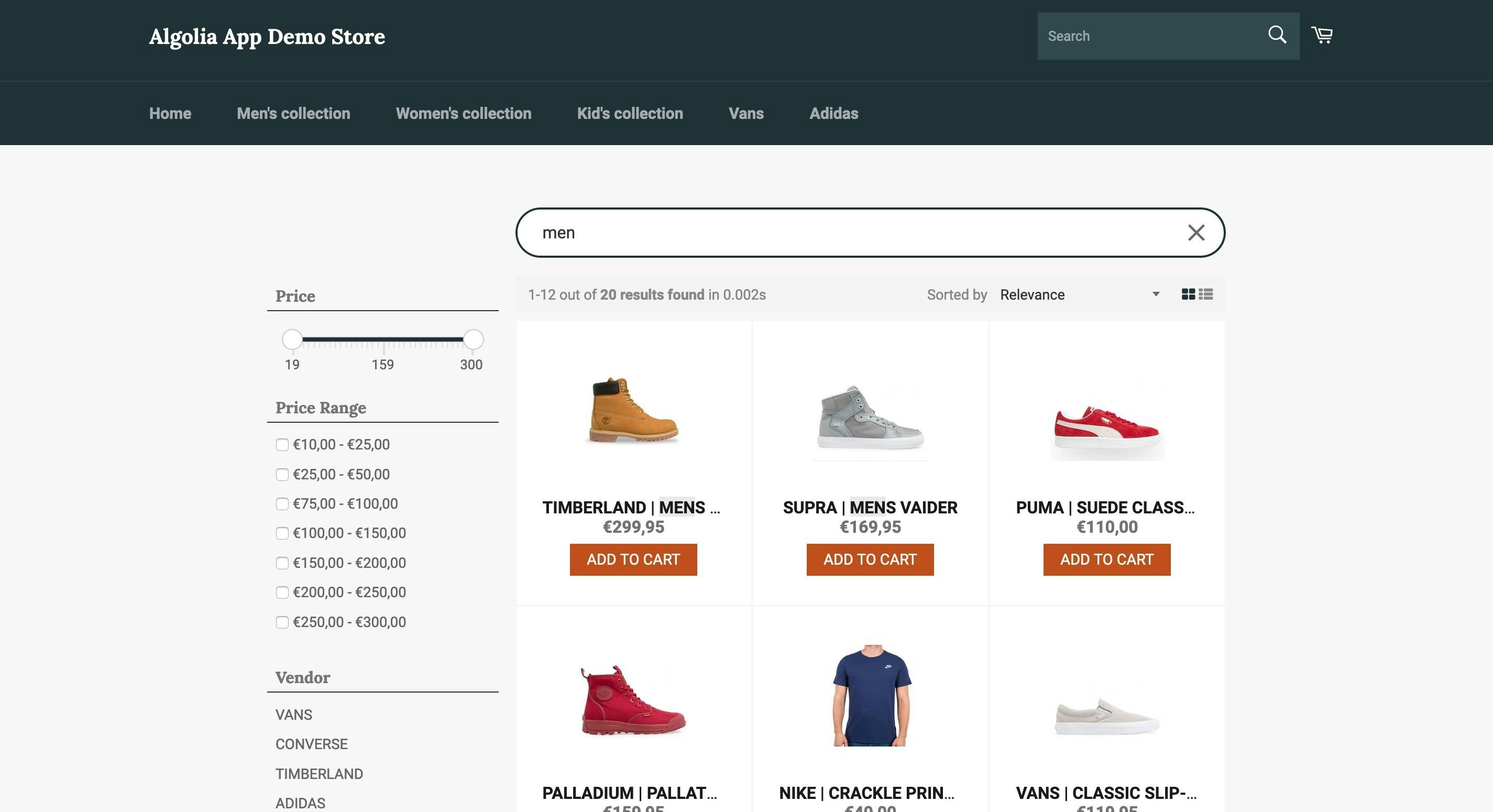
Algolia AI Search & Discovery includes a search results page powered by InstantSearch.
It replaces your default Shopify search results page and comes with several InstantSearch widgets.
 ## Enable the InstantSearch results page
To enable the InstantSearch results page:
1. Enable [Algolia Search App Embed](/doc/integration/shopify/getting-started/quick-start#before-you-begin) in your theme settings.
2. Enable [Algolia App Blocks](/doc/integration/shopify/getting-started/quick-start#enable-autocomplete).
### Configuration
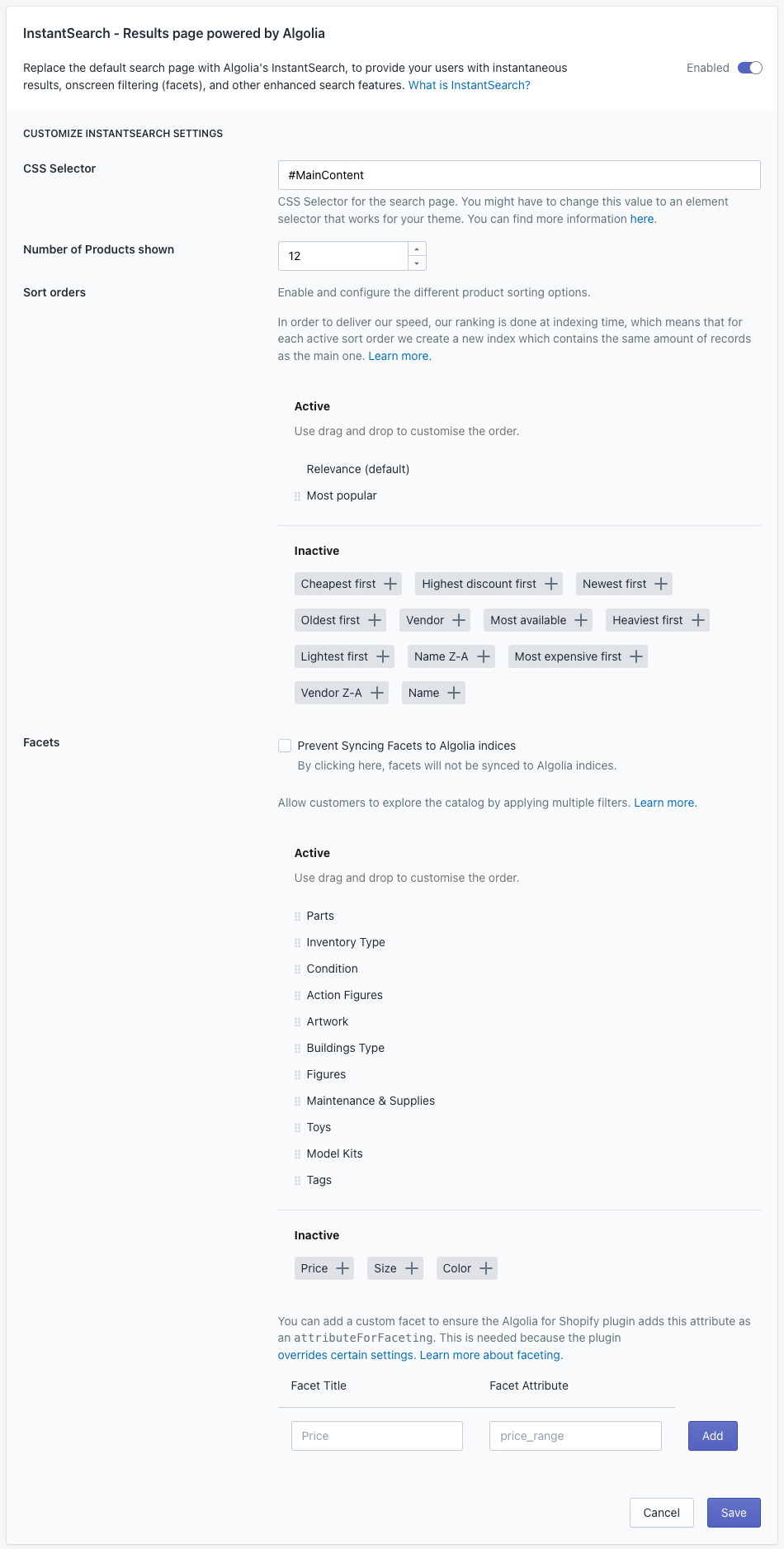
To configure the InstantSearch page, go to the **Search options** tab in your Shopify app.
## Enable the InstantSearch results page
To enable the InstantSearch results page:
1. Enable [Algolia Search App Embed](/doc/integration/shopify/getting-started/quick-start#before-you-begin) in your theme settings.
2. Enable [Algolia App Blocks](/doc/integration/shopify/getting-started/quick-start#enable-autocomplete).
### Configuration
To configure the InstantSearch page, go to the **Search options** tab in your Shopify app.
 For advanced customization,
use [custom hooks](/doc/integration/shopify/building-search-ui/instantsearch-hooks).
### No results
To tailor the message displayed when a search yields no results,
use the [`templates.empty` option provided by the InstantSearch `hits` widget](/doc/guides/building-search-ui/going-further/conditional-display/js#handling-no-results).
This lets you define custom HTML or text to inform users appropriately.
For more information,
see [Customize an InstantSearch widget](/doc/guides/building-search-ui/widgets/customize-an-existing-widget/js).
## Facet display
Algolia AI Search & Discovery supports [facet display](/doc/guides/building-search-ui/ui-and-ux-patterns/facet-display/js) to manage facet ordering from the Algolia dashboard.
### Enable the facet display beta feature
Facet display is available as a **beta feature** in the Algolia AI Search & Discovery app,
as defined in the [Algolia Terms of Service ("Beta Services")](https://www.algolia.com/policies/terms).
If you need access, contact the [Algolia support](https://support.algolia.com/hc/en-us/requests/new) team.
To enable facet display, select the checkbox in your Shopify admin and click **Save**.
For advanced customization,
use [custom hooks](/doc/integration/shopify/building-search-ui/instantsearch-hooks).
### No results
To tailor the message displayed when a search yields no results,
use the [`templates.empty` option provided by the InstantSearch `hits` widget](/doc/guides/building-search-ui/going-further/conditional-display/js#handling-no-results).
This lets you define custom HTML or text to inform users appropriately.
For more information,
see [Customize an InstantSearch widget](/doc/guides/building-search-ui/widgets/customize-an-existing-widget/js).
## Facet display
Algolia AI Search & Discovery supports [facet display](/doc/guides/building-search-ui/ui-and-ux-patterns/facet-display/js) to manage facet ordering from the Algolia dashboard.
### Enable the facet display beta feature
Facet display is available as a **beta feature** in the Algolia AI Search & Discovery app,
as defined in the [Algolia Terms of Service ("Beta Services")](https://www.algolia.com/policies/terms).
If you need access, contact the [Algolia support](https://support.algolia.com/hc/en-us/requests/new) team.
To enable facet display, select the checkbox in your Shopify admin and click **Save**.
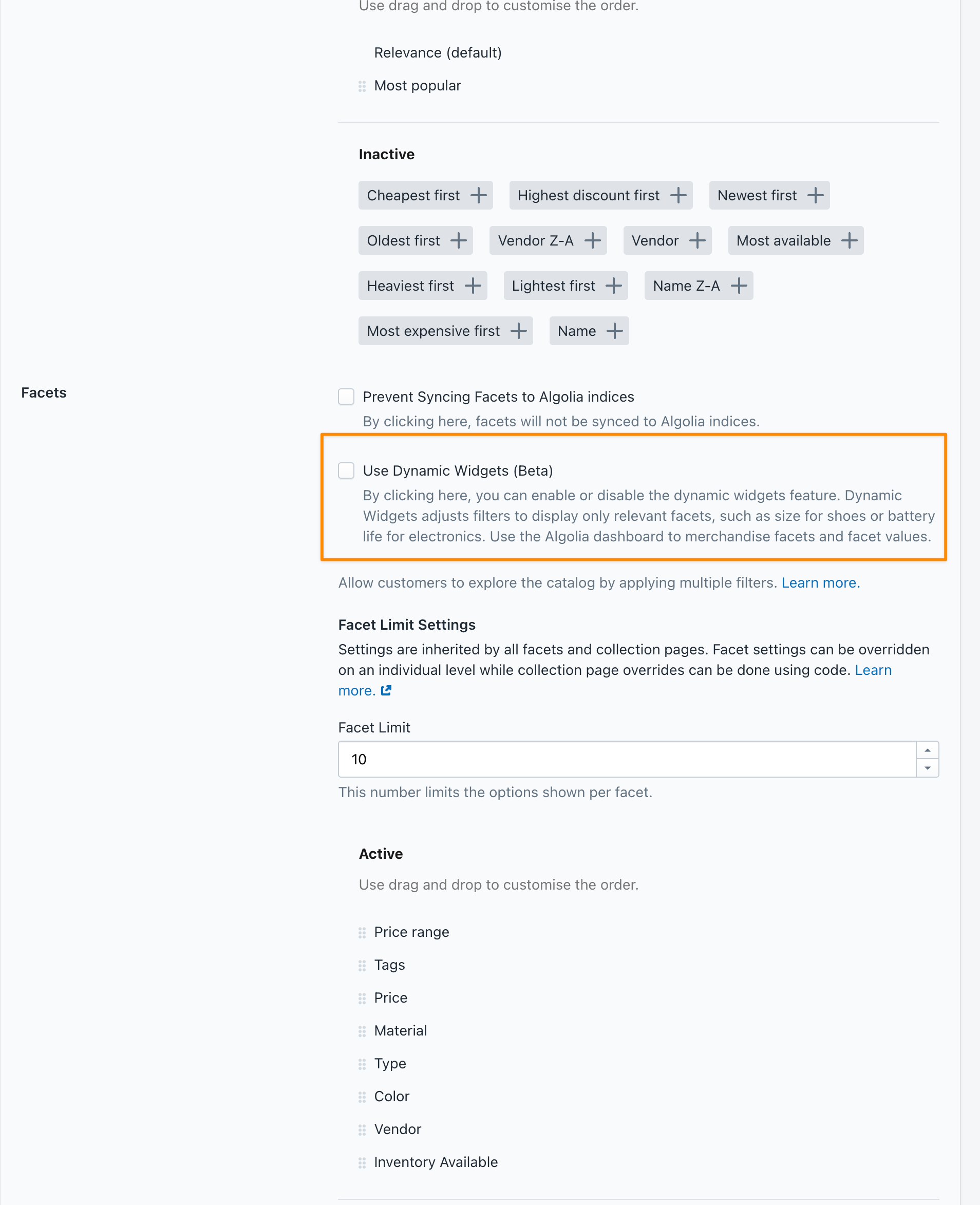 This activates facet display and maps your collection facet rules to your Algolia indices.
### Facet display rules
Enabling facet display creates two types of rules:
* Search page rules
* Collection page rules
#### Search page rules
**Search page rules** use the `shopify_default_collection` context and apply to collection pages that aren't customized.
This activates facet display and maps your collection facet rules to your Algolia indices.
### Facet display rules
Enabling facet display creates two types of rules:
* Search page rules
* Collection page rules
#### Search page rules
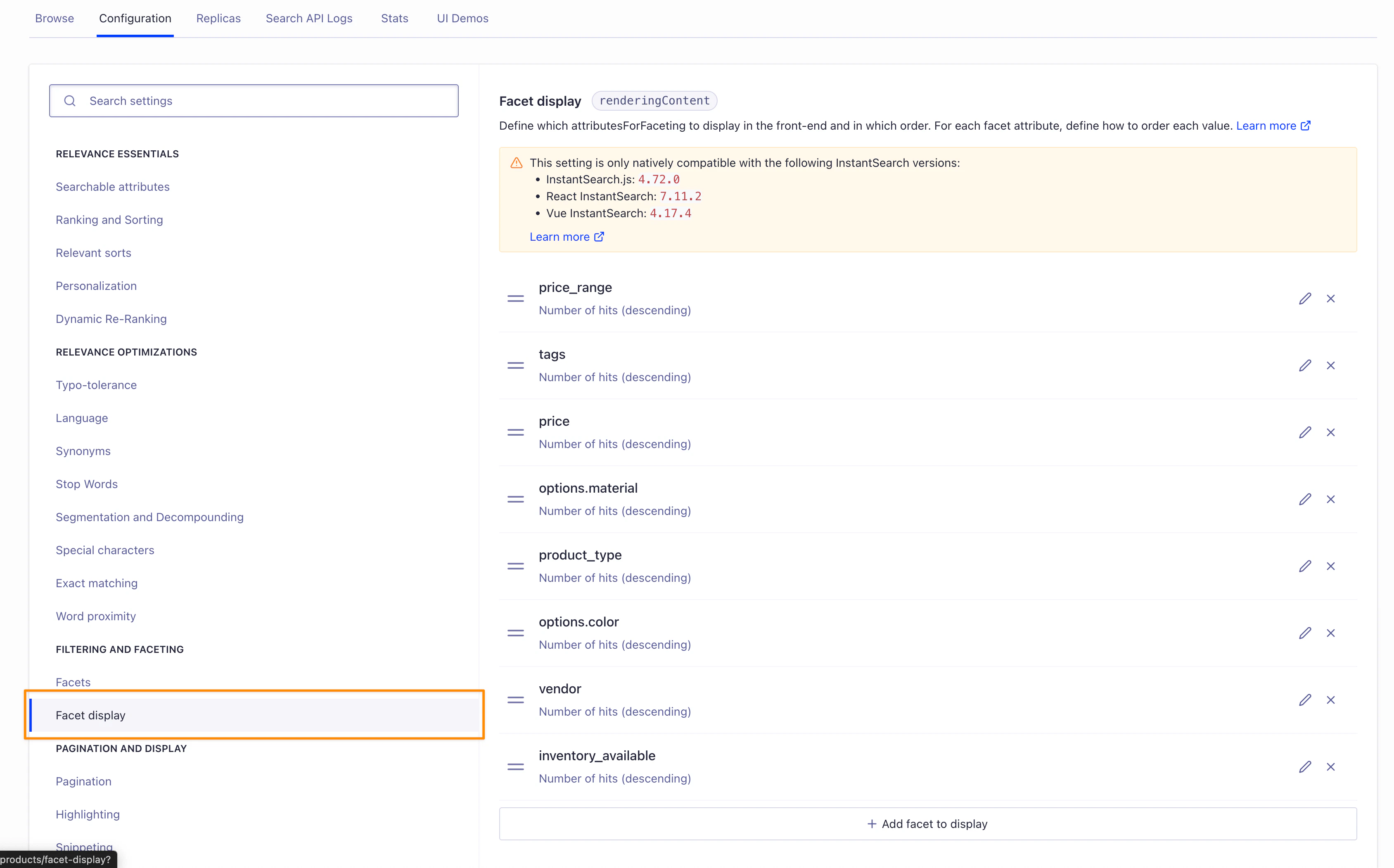
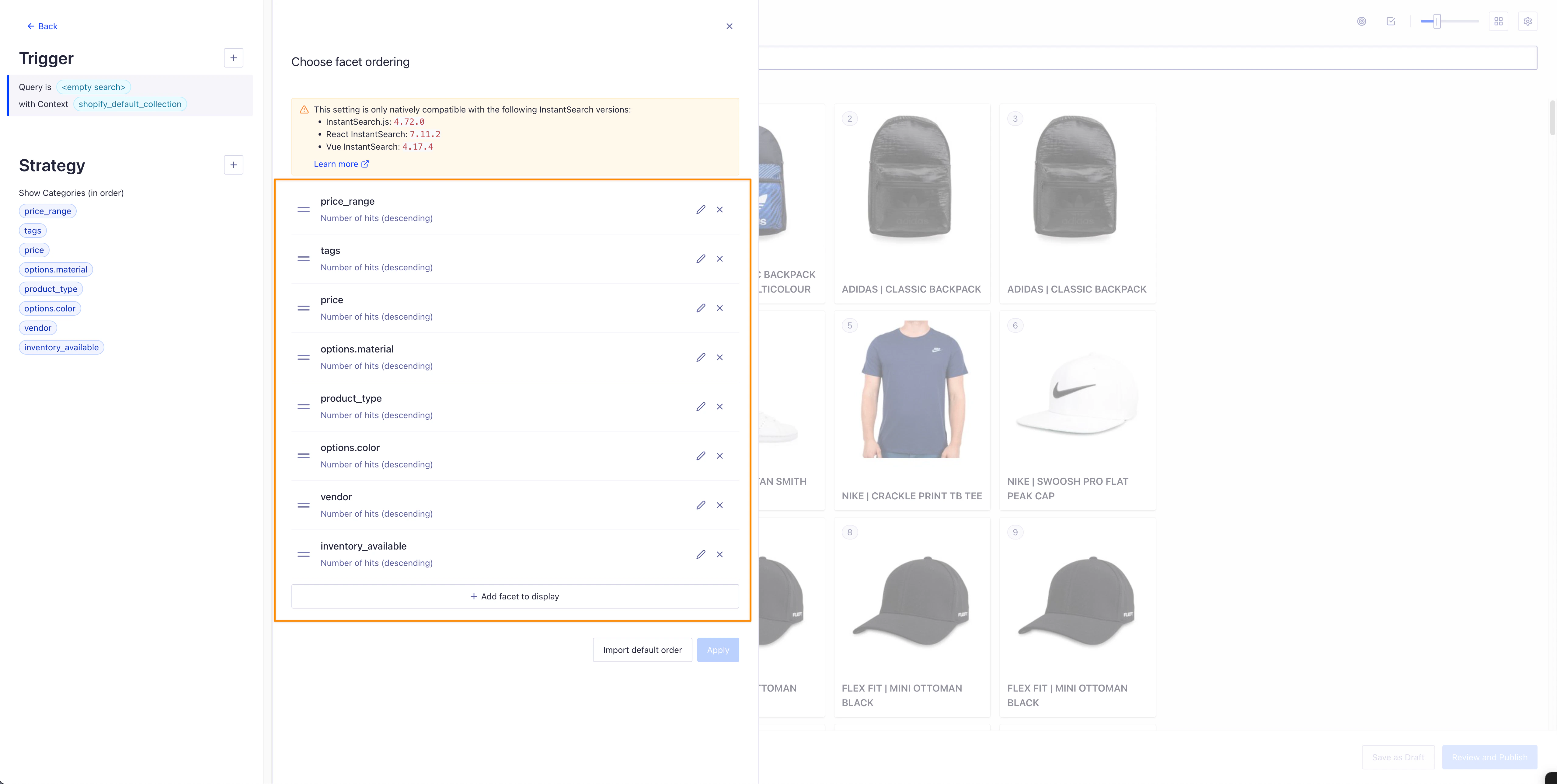
**Search page rules** use the `shopify_default_collection` context and apply to collection pages that aren't customized.
 To change facet display for search pages,
[edit the feature in the Algolia dashboard](https://dashboard.algolia.com/explorer/configuration/facet-display).
For example:
To change facet display for search pages,
[edit the feature in the Algolia dashboard](https://dashboard.algolia.com/explorer/configuration/facet-display).
For example:
 #### Collection page rules
**Collection page rules** are triggered by the collection's handle and its ID.
#### Collection page rules
**Collection page rules** are triggered by the collection's handle and its ID.
 To change these rules,
[edit them in the Algolia dashboard](https://dashboard.algolia.com/rules).
To change these rules,
[edit them in the Algolia dashboard](https://dashboard.algolia.com/rules).
 If you deactivate the feature,
Algolia removes the rules from your dashboard but retains them in your Shopify admin for future reactivation.
If you deactivate the feature,
Algolia removes the rules from your dashboard but retains them in your Shopify admin for future reactivation.