> ## Documentation Index
> Fetch the complete documentation index at: https://algolia.com/llms.txt
> Use this file to discover all available pages before exploring further.
> How to configure Algolia inside your Shopify site.
# Configuration
Algolia Search and Discovery is a **Shopify Plus certified app**.
You can use it with your Shopify Plus or Shopify stores.
After [installing](/doc/integration/shopify/getting-started/quick-start) the Algolia AI Search & Discovery app, configure your store.
## Indexing
As soon as you update your credentials, Algolia begins indexing your content.
Algolia stores your data in [indices](/doc/integration/shopify/sending-and-managing-data/introduction-to-shopify-indexing). View and edit your indices in the [Indices](https://dashboard.algolia.com/explorer) tab of your Algolia dashboard.
An Algolia index is composed of **records**: a record could be one of your products or a blog post in Shopify. These products have **attributes**, which are stored as key-value pairs. For example, a product attribute could be the description of a shirt, a link to a picture of it, or its price. Default attributes for different Shopify records are described in the [schemas section](/doc/integration/shopify/sending-and-managing-data/schemas) of the documentation.
You can index four types of Shopify data:
* Products (and their variants)
* Collections
* Blog posts and articles
* Pages
Select the attributes you want to make searchable by toggling the relevant **Enable** buttons and then save your changes.
## Store configuration
After your data is indexed and you have installed the Algolia AI Search & Discovery app in your theme, you can integrate the following Algolia features:
* An **autocomplete menu** implemented with the [`autocomplete`](/doc/api-reference/widgets/autocomplete/js) widget.
* A **search results page** that includes a bundle of [`instantsearch`](/doc/api-reference/widgets/instantsearch/js) widgets.
From the **Search options** tab in the Algolia Search and Discovery app,
you can choose to use the autocomplete menu and InstantSearch results page to replace Shopify's default results page.
If this doesn't fit your needs, you can [customize the frontend code](/doc/integration/shopify/building-search-ui/frontend-custom-events).
## Search options
### Sort orders
This option only applies if you plan to use the Algolia **InstantSearch results page**.
In the **Search options** tab of the Algolia AI Search & Discovery app, you can choose which "sort orders" to activate, how to name them, and which ones to display first.
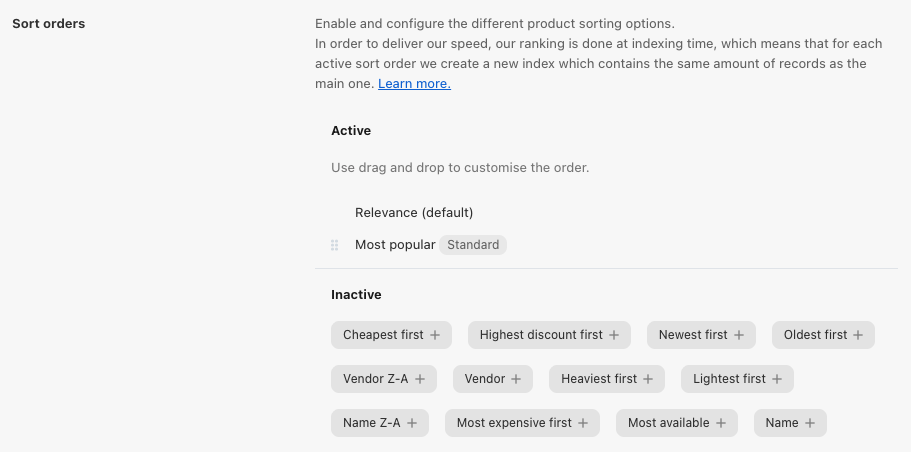 [Sorting](/doc/guides/managing-results/refine-results/sorting) is done at indexing time. Each sort order is backed by a [replica index](/doc/guides/managing-results/refine-results/sorting/in-depth/replicas) of your main products index.
#### Sorting method
This is a **beta feature** according to [Algolia's Terms of Service ("Beta Services")](https://www.algolia.com/policies/terms/).
When you add or edit a sort order, choose its **Sorting method**:
* **Full Sort (Standard Replica)**. Default. Returns all matching products ordered by the sort attribute. Creates a standard replica, which duplicates the records from your main index and counts toward your plan’s record quota.
* **Relevant First (Virtual Replica)**. Returns the most relevant products first, then orders them by the sort attribute. Creates a [virtual replica](/doc/guides/managing-results/refine-results/sorting/in-depth/replicas#standard-and-virtual-replicas), which shares the main index's records and doesn't add to your record count.
Virtual replicas are only available on some [pricing plans](https://www.algolia.com/pricing).
If your plan doesn't support them, the **Relevant First** option isn't available.
Existing virtual replicas keep working after a plan downgrade, but you can't create new ones.
The number of virtual replicas you can create per index is limited by your [plan's quota](/doc/guides/scaling/algolia-service-limits#application-record-and-index-limits).
Changing a sort order from standard to virtual, or from virtual to standard,
deletes the old replica and creates a new one.
During the switch, the sort order briefly returns no results.
**Ensure any increase in record count is within your [plan's quota](https://www.algolia.com/pricing).**
### Faceting
This option only applies if you plan to use the Algolia **InstantSearch results page**.
[Faceting](/doc/guides/managing-results/refine-results/faceting) is the technical word used to describe navigation using filters.
Facets are primarily used to refine searches.
Configure facets in the **Search options** tab of the Algolia Search and Discovery app.
[Sorting](/doc/guides/managing-results/refine-results/sorting) is done at indexing time. Each sort order is backed by a [replica index](/doc/guides/managing-results/refine-results/sorting/in-depth/replicas) of your main products index.
#### Sorting method
This is a **beta feature** according to [Algolia's Terms of Service ("Beta Services")](https://www.algolia.com/policies/terms/).
When you add or edit a sort order, choose its **Sorting method**:
* **Full Sort (Standard Replica)**. Default. Returns all matching products ordered by the sort attribute. Creates a standard replica, which duplicates the records from your main index and counts toward your plan’s record quota.
* **Relevant First (Virtual Replica)**. Returns the most relevant products first, then orders them by the sort attribute. Creates a [virtual replica](/doc/guides/managing-results/refine-results/sorting/in-depth/replicas#standard-and-virtual-replicas), which shares the main index's records and doesn't add to your record count.
Virtual replicas are only available on some [pricing plans](https://www.algolia.com/pricing).
If your plan doesn't support them, the **Relevant First** option isn't available.
Existing virtual replicas keep working after a plan downgrade, but you can't create new ones.
The number of virtual replicas you can create per index is limited by your [plan's quota](/doc/guides/scaling/algolia-service-limits#application-record-and-index-limits).
Changing a sort order from standard to virtual, or from virtual to standard,
deletes the old replica and creates a new one.
During the switch, the sort order briefly returns no results.
**Ensure any increase in record count is within your [plan's quota](https://www.algolia.com/pricing).**
### Faceting
This option only applies if you plan to use the Algolia **InstantSearch results page**.
[Faceting](/doc/guides/managing-results/refine-results/faceting) is the technical word used to describe navigation using filters.
Facets are primarily used to refine searches.
Configure facets in the **Search options** tab of the Algolia Search and Discovery app.
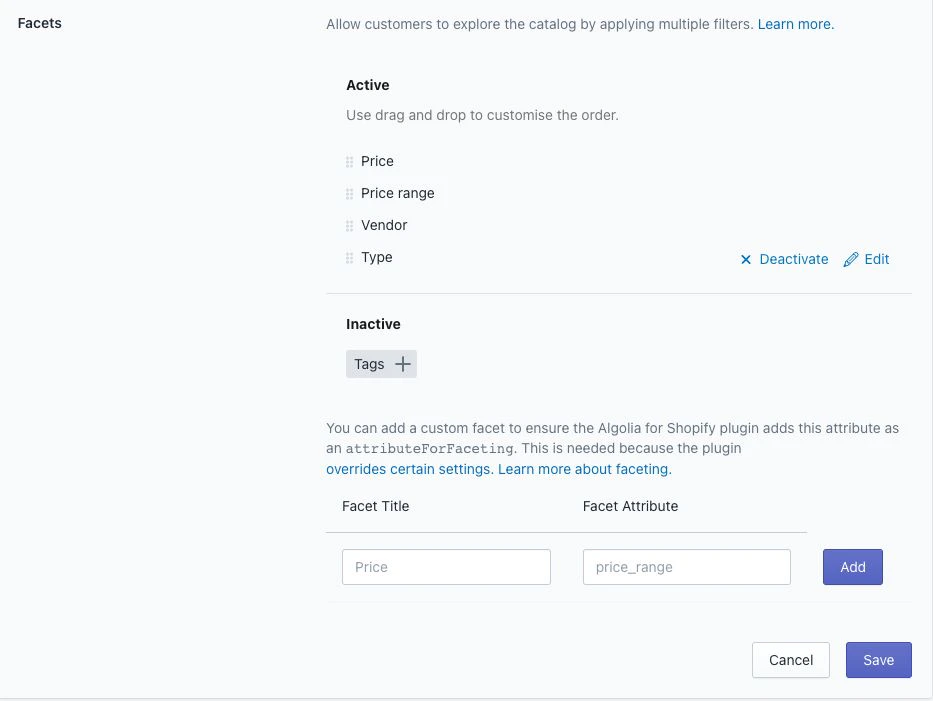 Drag potential facets to choose their order and mark them as active or inactive.
Hover over a facet and click **Edit** to set its name and type, and to mark it as searchable.
Mark a facet as searchable only if it contains too many subcategories to display clearly.
This lets users search within its subcategories.
#### Facet types
The Algolia AI Search & Discovery app offers six facet types:
* **slider**. A simple slider for numeric values.
* **conjunctive**. Filters using AND between refinements.
* **disjunctive**. Filters using OR between refinements.
* **menu**. A list of possible values from which one can be selected.
* **hierarchical**: a hierarchical facet for nested menus. For example, use it to display Shopify's product taxonomy.
* **hidden**. A hidden facet in the active list is added to the [`attributesForFaceting`](/doc/api-reference/api-parameters/attributesForFaceting) setting but not displayed on the search page.
#### Facet sources
Facets can come from four different sources:
* **Default attributes**. These attributes are detailed in the [schemas section](/doc/integration/shopify/sending-and-managing-data/schemas)
* **Variant options**. If you're using aspects like "Color" to distinguish your variants, this will show up here
* **[Named tags](/doc/integration/shopify/sending-and-managing-data/named-tags)**
* **[Metafields](/doc/integration/shopify/sending-and-managing-data/metafields)**.
#### Facets on product collections
To facet on collections of products, go to the [**Collection pages**](/doc/integration/shopify/advanced-customization/collection-search-page) tab of the Algolia AI Search & Discovery app and enable it.
* **Collections indexing** enables searching within collections.
* **Collection page indexing** enables collection faceting for the InstantSearch results page.
#### Add custom facets
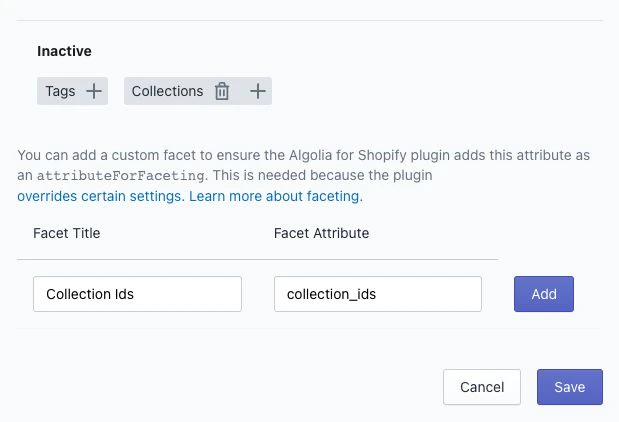
You can add custom facets in the Algolia AI Search & Discovery app to ensure they're added as attributes for faceting.
Drag potential facets to choose their order and mark them as active or inactive.
Hover over a facet and click **Edit** to set its name and type, and to mark it as searchable.
Mark a facet as searchable only if it contains too many subcategories to display clearly.
This lets users search within its subcategories.
#### Facet types
The Algolia AI Search & Discovery app offers six facet types:
* **slider**. A simple slider for numeric values.
* **conjunctive**. Filters using AND between refinements.
* **disjunctive**. Filters using OR between refinements.
* **menu**. A list of possible values from which one can be selected.
* **hierarchical**: a hierarchical facet for nested menus. For example, use it to display Shopify's product taxonomy.
* **hidden**. A hidden facet in the active list is added to the [`attributesForFaceting`](/doc/api-reference/api-parameters/attributesForFaceting) setting but not displayed on the search page.
#### Facet sources
Facets can come from four different sources:
* **Default attributes**. These attributes are detailed in the [schemas section](/doc/integration/shopify/sending-and-managing-data/schemas)
* **Variant options**. If you're using aspects like "Color" to distinguish your variants, this will show up here
* **[Named tags](/doc/integration/shopify/sending-and-managing-data/named-tags)**
* **[Metafields](/doc/integration/shopify/sending-and-managing-data/metafields)**.
#### Facets on product collections
To facet on collections of products, go to the [**Collection pages**](/doc/integration/shopify/advanced-customization/collection-search-page) tab of the Algolia AI Search & Discovery app and enable it.
* **Collections indexing** enables searching within collections.
* **Collection page indexing** enables collection faceting for the InstantSearch results page.
#### Add custom facets
You can add custom facets in the Algolia AI Search & Discovery app to ensure they're added as attributes for faceting.
 ### Where to configure settings: Shopify or Algolia dashboard?
**Algolia AI Search & Discovery** handles these settings:
* Indexing (products, collections, indexing queue)
* Sorting strategies
* Facets
* Click and conversion events
* UI widgets (InstantSearch and Autocomplete)
Go to the **[Algolia dashboard](https://dashboard.algolia.com)** to change these settings:
* Searchable and irretrievable attributes (on top of the default ones)
* Relevance settings
* Synonyms
* Query Suggestions
* Rules (transform queries, return custom data)
* Personalization and AI features
For **merchandising** you can use either the Algolia dashboard or the Shopify admin.
Any change you make in the Algolia dashboard overwrites the default index settings,
**except** facets ([`attributesForFaceting`](/doc/api-reference/api-parameters/attributesForFaceting)) and the sort order of the products index.
Updating settings for faceting and sort order from within the Shopify admin overwrites changes made to these settings in the Algolia dashboard.
### Prevent syncing facets to Algolia indices
Select **Prevent Syncing Facets to Algolia indices** if you prefer to manage facets in the Algolia dashboard.
When enabled, the Algolia AI Search & Discovery extension no longer syncs facet information (`attributesForFaceting`) with your indices.
This means it won't add, remove, or reorder facets automatically.
### Where to configure settings: Shopify or Algolia dashboard?
**Algolia AI Search & Discovery** handles these settings:
* Indexing (products, collections, indexing queue)
* Sorting strategies
* Facets
* Click and conversion events
* UI widgets (InstantSearch and Autocomplete)
Go to the **[Algolia dashboard](https://dashboard.algolia.com)** to change these settings:
* Searchable and irretrievable attributes (on top of the default ones)
* Relevance settings
* Synonyms
* Query Suggestions
* Rules (transform queries, return custom data)
* Personalization and AI features
For **merchandising** you can use either the Algolia dashboard or the Shopify admin.
Any change you make in the Algolia dashboard overwrites the default index settings,
**except** facets ([`attributesForFaceting`](/doc/api-reference/api-parameters/attributesForFaceting)) and the sort order of the products index.
Updating settings for faceting and sort order from within the Shopify admin overwrites changes made to these settings in the Algolia dashboard.
### Prevent syncing facets to Algolia indices
Select **Prevent Syncing Facets to Algolia indices** if you prefer to manage facets in the Algolia dashboard.
When enabled, the Algolia AI Search & Discovery extension no longer syncs facet information (`attributesForFaceting`) with your indices.
This means it won't add, remove, or reorder facets automatically.
