> ## Documentation Index
> Fetch the complete documentation index at: https://algolia.com/llms.txt
> Use this file to discover all available pages before exploring further.
# Get started with Algolia search for Shopify
> Add fast, customizable Algolia search to your Shopify or Shopify Plus store.
export const Index = () =>
index
;
Algolia AI Search & Discovery replaces the default Shopify search and connects to your Shopify store, indexes your products and collections, and enables fast, relevant search across your site.
Algolia Search & Discovery is a **Shopify Plus certified app**.
You can use it with Shopify Plus and Shopify stores.
## Before you begin
Ensure you have the following tools and accounts ready:
* **An Algolia account.** If you don't have one, [create a new account](https://www.algolia.com/users/sign_up) for free.
* [Shopify admin access](https://help.shopify.com/en/manual/your-account/logging-in).
* A [duplicate](https://help.shopify.com/en/manual/online-store/themes/managing-themes/duplicating-themes) of a Shopify theme.
Shopify apps can't modify theme code directly.
To integrate Autocomplete and InstantSearch,
use the Algolia AI Search & Discovery app's **App Embed** and **App Blocks**.
For more information, see:
* [Manual theme configuration](/doc/integration/shopify/getting-started/quick-start#manual-theme-configuration)
* [Shopify Algolia configuration](/doc/integration/shopify/sending-and-managing-data/algolia-config)
## Quickstart
In this quickstart,
you'll install the Algolia AI Search & Discovery app, connect to Algolia, configure your duplicate theme, enable Autocomplete and InstantSearch, then publish your duplicate theme.
The live theme remains unchanged until you publish the duplicate.
Go to [https://shopify.algolia.com/install](https://shopify.algolia.com/install),
enter your Shopify domain, and click **Install app**.
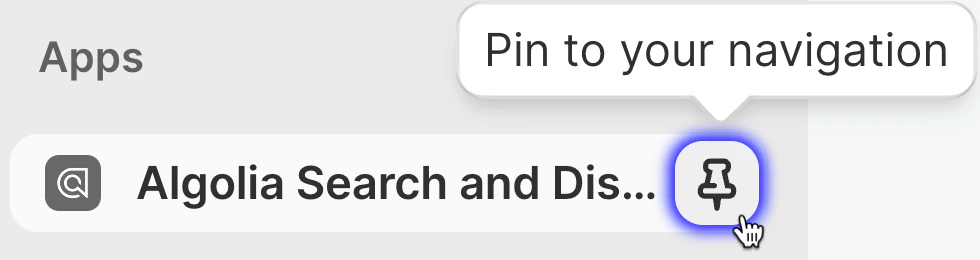
To quickly access your search settings from the sidebar of Shopify admin,
click **Pin to your navigation** for the **Algolia AI Search & Discovery** app.
 1. In the Algolia AI Search & Discovery app, click **Get Started**.
 If automatic setup fails or your security policy forbids automatic key creation,
click **[Use manual setup instead](#enter-credentials-manually)**.
2. Sign in to your Algolia account.
If automatic setup fails or your security policy forbids automatic key creation,
click **[Use manual setup instead](#enter-credentials-manually)**.
2. Sign in to your Algolia account.
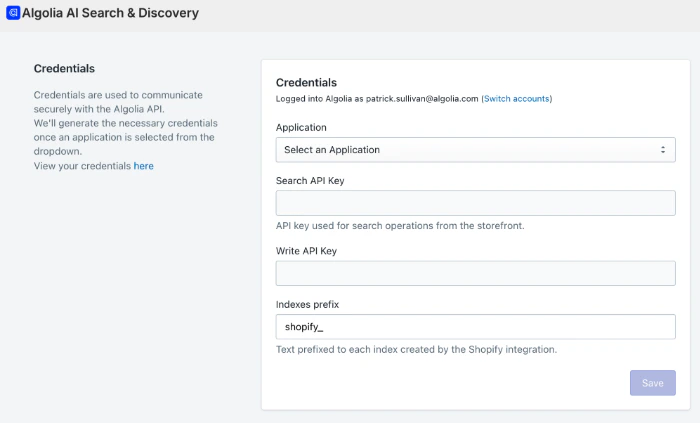 On the **Credentials** page of the Algolia Search & Discovery app,
select the Algolia application for your Shopify store.
Leave **Index prefix** set to `shopify_`.
The Algolia AI Search & Discovery app creates new API keys in your Algolia account and automatically adds them to this page.
The Search API key generated during automatic setup has a rate limit of 100,000 requests per IP address per hour.
This helps block bot traffic without affecting users.
3. Click **Save**.
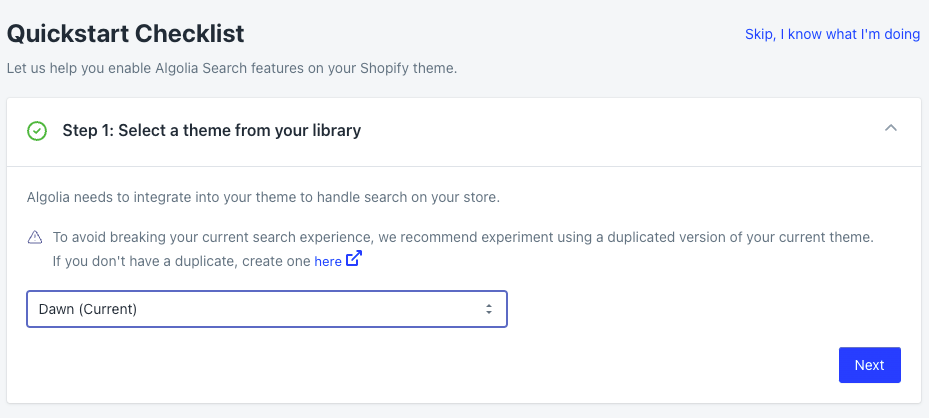
1. Select your duplicated theme using the drop-down menu and click **Next**.
On the **Credentials** page of the Algolia Search & Discovery app,
select the Algolia application for your Shopify store.
Leave **Index prefix** set to `shopify_`.
The Algolia AI Search & Discovery app creates new API keys in your Algolia account and automatically adds them to this page.
The Search API key generated during automatic setup has a rate limit of 100,000 requests per IP address per hour.
This helps block bot traffic without affecting users.
3. Click **Save**.
1. Select your duplicated theme using the drop-down menu and click **Next**.
 2. Click **Enable Algolia Search** to add Algolia Autocomplete to your theme.
3. Click **Save** and then **Next**.
2. Click **Enable Algolia Search** to add Algolia Autocomplete to your theme.
3. Click **Save** and then **Next**.
 4. Click **Enable InstantSearch** to add Algolia InstantSearch to your theme.
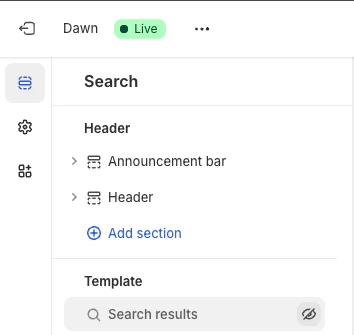
5. To turn off the default Shopify search results, click **Search results** then click **Save**.
4. Click **Enable InstantSearch** to add Algolia InstantSearch to your theme.
5. To turn off the default Shopify search results, click **Search results** then click **Save**.
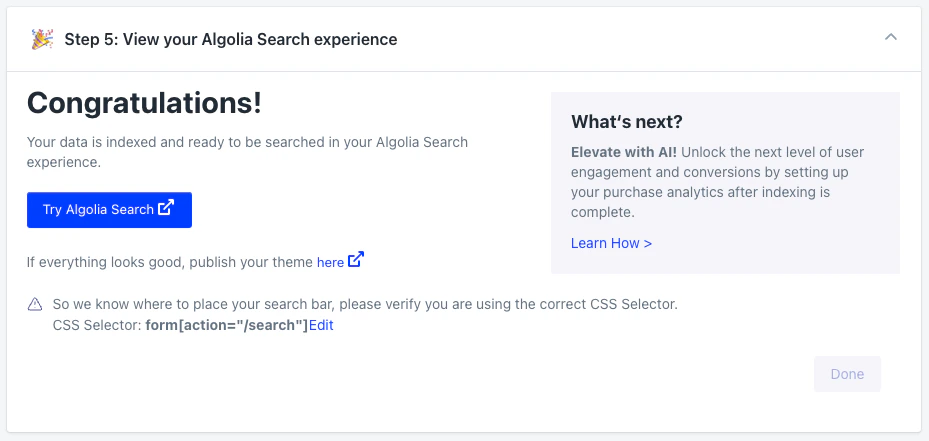
 6. Click **Try Algolia Search** to test your new Algolia-powered search.
 This step automatically applies the required theme changes.\
You can [manually configure the same settings](#manual-theme-configuration) but that doesn't add any extra options or give you any extra control.
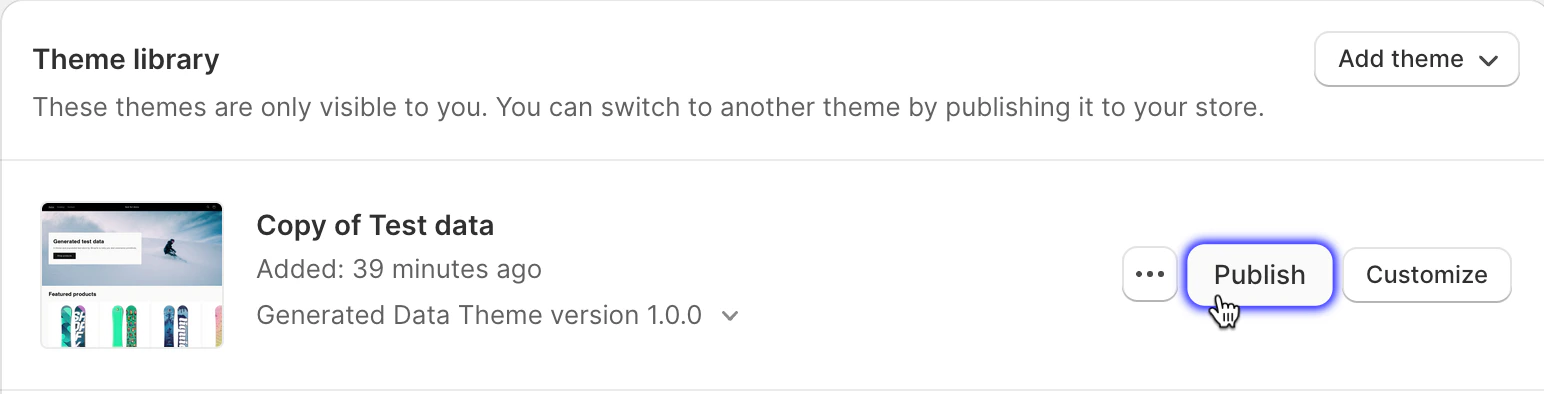
1. Go to **Online Store > Themes** in your Shopify admin.
2. Select the duplicate theme with Algolia search enabled and click **Publish**.
This step automatically applies the required theme changes.\
You can [manually configure the same settings](#manual-theme-configuration) but that doesn't add any extra options or give you any extra control.
1. Go to **Online Store > Themes** in your Shopify admin.
2. Select the duplicate theme with Algolia search enabled and click **Publish**.
 ## Enter credentials manually
Only use this method if your security policy prevents automatic API key creation.
Otherwise, follow the process in the [Quickstart](#quickstart).
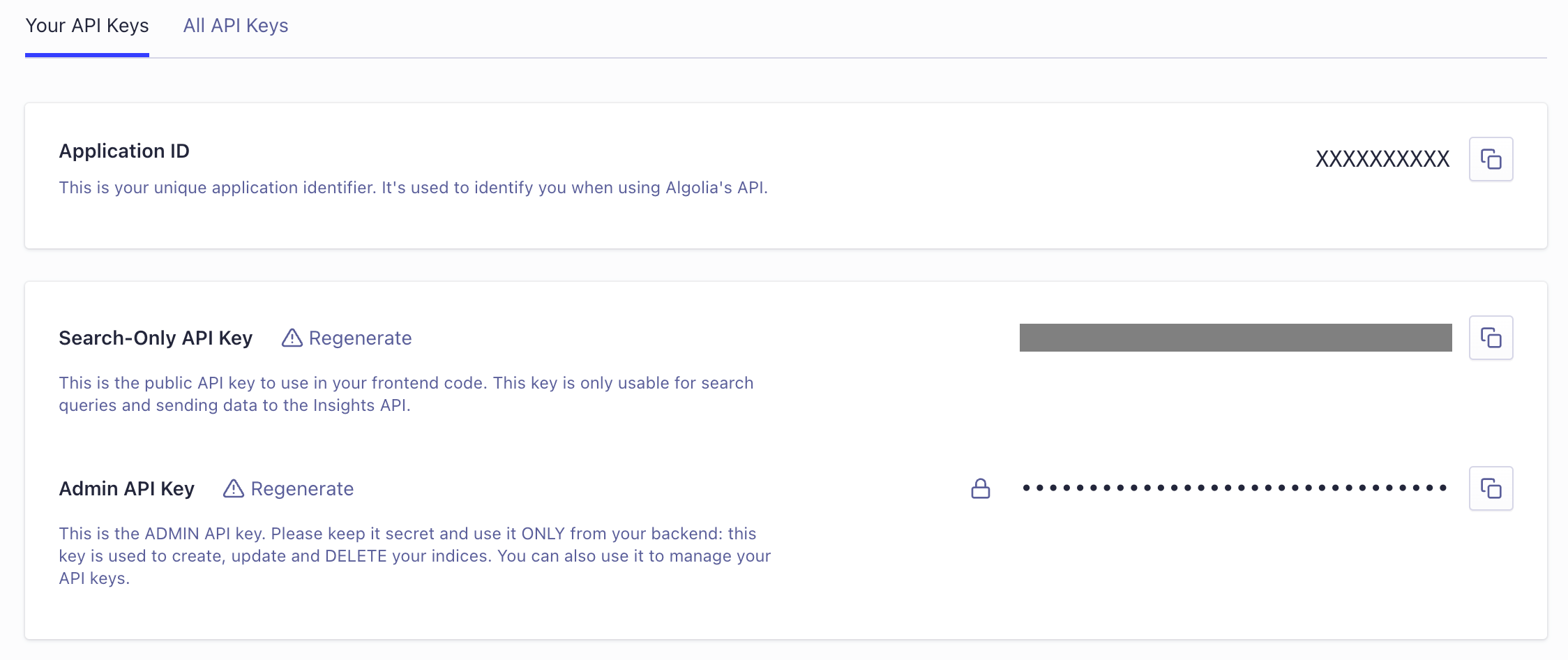
1. Go to the [API Keys](https://dashboard.algolia.com/account/api-keys) page in the Algolia dashboard for the application you'll use and copy:
* **Application ID**
* **Search API Key**
* **Admin API Key**
## Enter credentials manually
Only use this method if your security policy prevents automatic API key creation.
Otherwise, follow the process in the [Quickstart](#quickstart).
1. Go to the [API Keys](https://dashboard.algolia.com/account/api-keys) page in the Algolia dashboard for the application you'll use and copy:
* **Application ID**
* **Search API Key**
* **Admin API Key**
 2. On the **Credentials** page in the Algolia AI Search & Discovery app,
paste the credentials you copied from the Algolia dashboard.
2. On the **Credentials** page in the Algolia AI Search & Discovery app,
paste the credentials you copied from the Algolia dashboard.
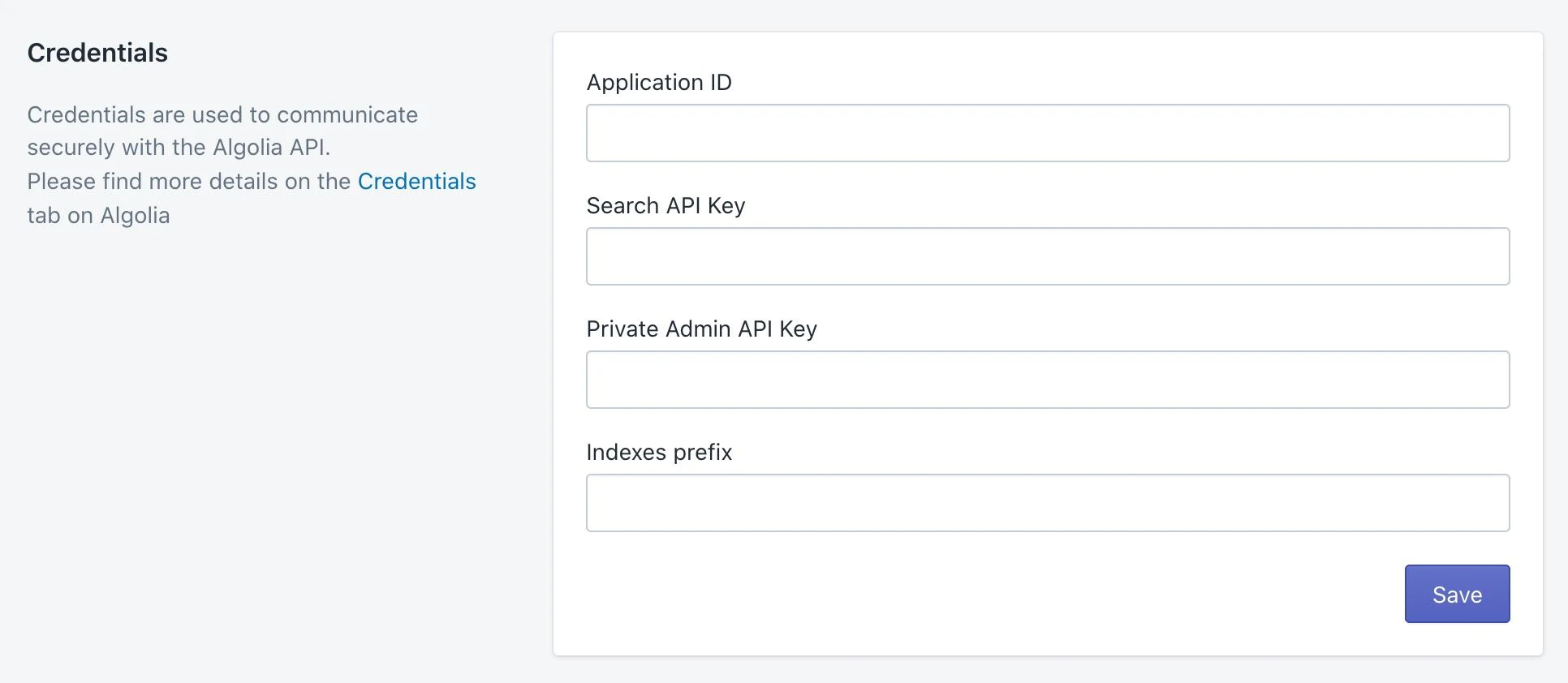 3. Optional: set your prefix, for example, `my_shopify_`. The prefix helps to distinguish indices from multiple stores in your Algolia application.
4. Click **Save**, then continue with theme configuration.
## Advanced customization (optional)
To customize your search experience, you can:
* [Hide attributes in search results](#hide-attributes-in-search-results)
* [Change your CSS selector](#change-css-selector) to use a non-standard search form
* [Add Algolia search to collection pages](#add-algolia-search-to-shopify-collection-pages)
* [Customize your app's behavior and UI](/doc/integration/shopify/getting-started/quick-start#customize-app-behavior-and-ui).
### Hide attributes in search results
By default, search results show [matching records for each indexed attribute](/doc/integration/shopify/sending-and-managing-data/schemas#retrievable-attributes).
To hide attributes, go to the Algolia dashboard: **Search > Configuration > Search behavior > Retrieved attributes > Unretrievable attributes**
and [add the attributes you don't want to retrieve](https://dashboard.algolia.com/explorer/configuration/products/retrieved-attributes).
### Change CSS selector
If you use a non-standard search form, locate the **CSS selector** in Shopify admin and click **Edit** to change it from the default: `form[action="/search"]`.
### Add Algolia Search to Shopify collection pages
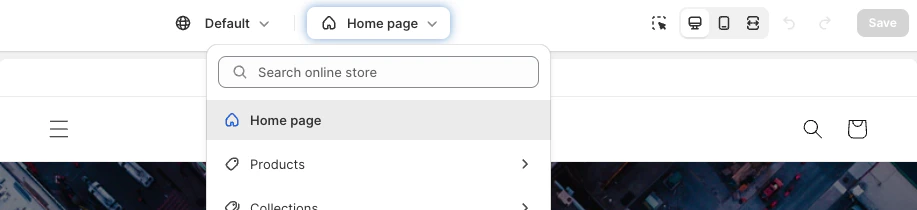
1. In Shopify's theme customizer, open the **Home page** menu and select **Collections**.
3. Optional: set your prefix, for example, `my_shopify_`. The prefix helps to distinguish indices from multiple stores in your Algolia application.
4. Click **Save**, then continue with theme configuration.
## Advanced customization (optional)
To customize your search experience, you can:
* [Hide attributes in search results](#hide-attributes-in-search-results)
* [Change your CSS selector](#change-css-selector) to use a non-standard search form
* [Add Algolia search to collection pages](#add-algolia-search-to-shopify-collection-pages)
* [Customize your app's behavior and UI](/doc/integration/shopify/getting-started/quick-start#customize-app-behavior-and-ui).
### Hide attributes in search results
By default, search results show [matching records for each indexed attribute](/doc/integration/shopify/sending-and-managing-data/schemas#retrievable-attributes).
To hide attributes, go to the Algolia dashboard: **Search > Configuration > Search behavior > Retrieved attributes > Unretrievable attributes**
and [add the attributes you don't want to retrieve](https://dashboard.algolia.com/explorer/configuration/products/retrieved-attributes).
### Change CSS selector
If you use a non-standard search form, locate the **CSS selector** in Shopify admin and click **Edit** to change it from the default: `form[action="/search"]`.
### Add Algolia Search to Shopify collection pages
1. In Shopify's theme customizer, open the **Home page** menu and select **Collections**.
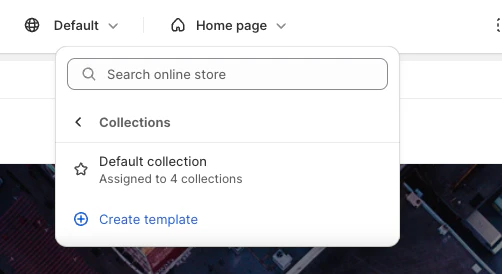
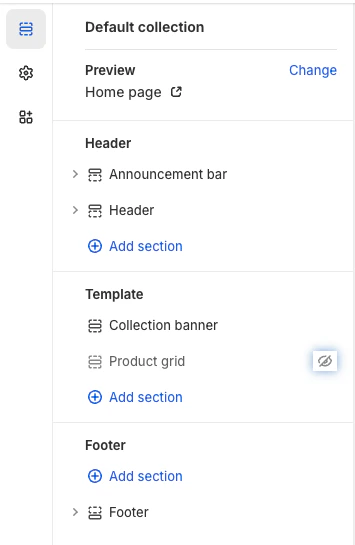
 2. Select the collection template to which you want to add Algolia InstantSearch.
For example: **Default collection**.
2. Select the collection template to which you want to add Algolia InstantSearch.
For example: **Default collection**.
 3. Under **Template**, click **Product grid** to turn off the theme's default product grid.
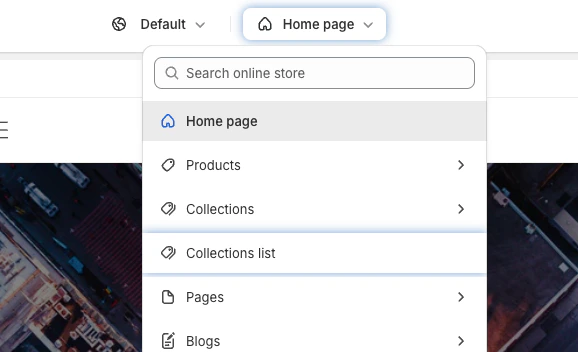
 4. In the theme customizer, open the **Home page** menu and select **Collections list**.
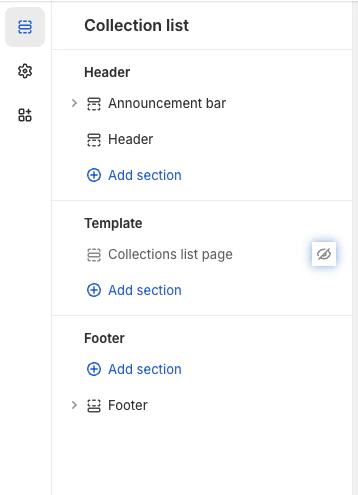
 5. Under **Template**, click **Collections list page** to turn off the theme's default collections list page.
 6. [Add the InstantSearch app block](#add-the-instantsearch-app-block).
### Customize app behavior and UI
Adjust the [InstantSearch configuration](/doc/integration/shopify/building-search-ui/instant-search#configuration) to control behaviors such as number of hits, sort order, and facets.
For more advanced control of the UI, use [Autocomplete](/doc/integration/shopify/building-search-ui/autocomplete-hooks) or
[InstantSearch](/doc/integration/shopify/building-search-ui/instantsearch-hooks) custom hooks.
## Manual theme configuration
This isn't the recommended process for configuring a theme:
instead, follow the process in the [Quickstart](#quickstart).
Algolia attaches to your theme with [Shopify app embeds and blocks](https://help.shopify.com/en/manual/online-store/themes/customizing-themes/apps):
* **Autocomplete** uses Shopify app embeds.
* **InstantSearch** uses Shopify app blocks.
### Enable Autocomplete
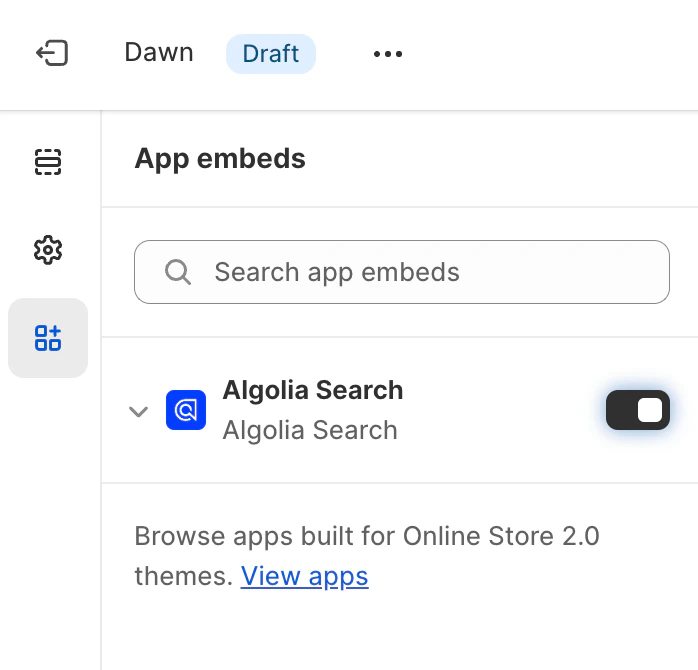
1. In Shopify's theme customizer, click **Embed apps**.
6. [Add the InstantSearch app block](#add-the-instantsearch-app-block).
### Customize app behavior and UI
Adjust the [InstantSearch configuration](/doc/integration/shopify/building-search-ui/instant-search#configuration) to control behaviors such as number of hits, sort order, and facets.
For more advanced control of the UI, use [Autocomplete](/doc/integration/shopify/building-search-ui/autocomplete-hooks) or
[InstantSearch](/doc/integration/shopify/building-search-ui/instantsearch-hooks) custom hooks.
## Manual theme configuration
This isn't the recommended process for configuring a theme:
instead, follow the process in the [Quickstart](#quickstart).
Algolia attaches to your theme with [Shopify app embeds and blocks](https://help.shopify.com/en/manual/online-store/themes/customizing-themes/apps):
* **Autocomplete** uses Shopify app embeds.
* **InstantSearch** uses Shopify app blocks.
### Enable Autocomplete
1. In Shopify's theme customizer, click **Embed apps**.
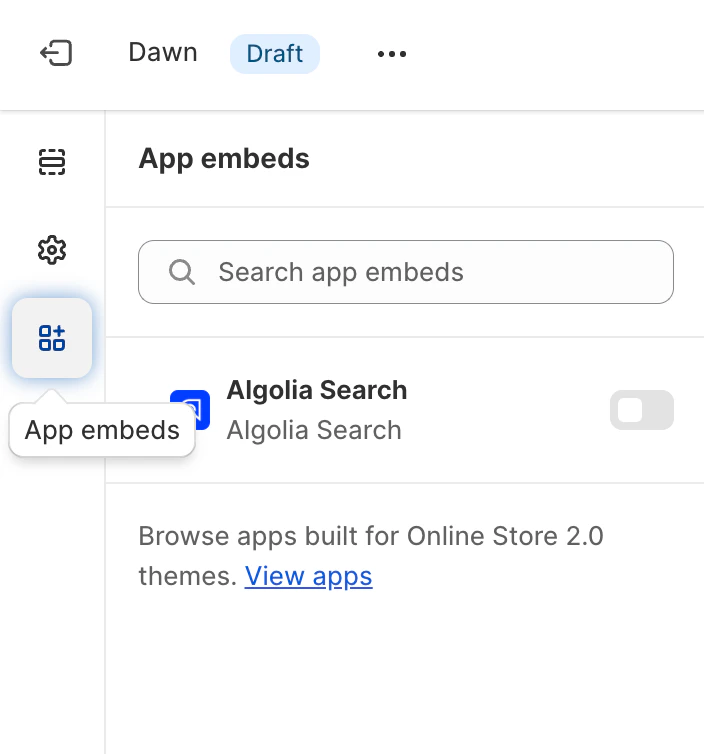 2. Select **Algolia Search** to enable Algolia for the theme and click **Save**.
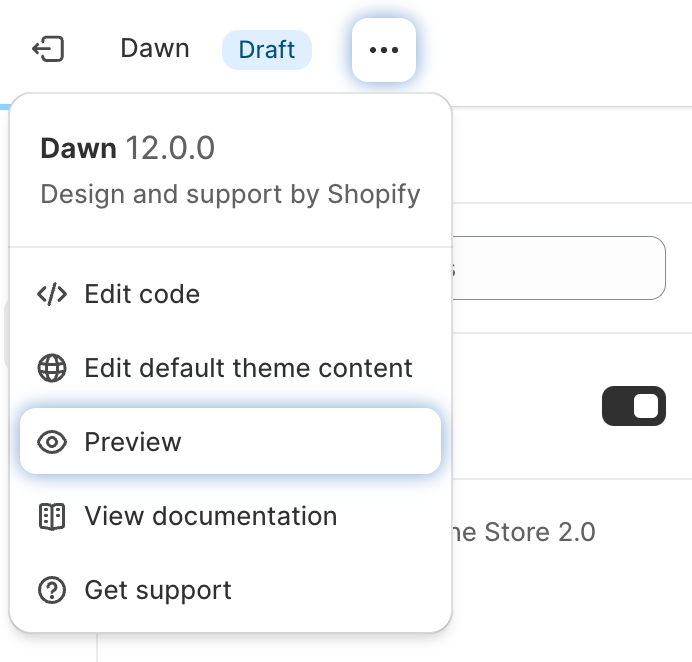
 3. To preview the theme, select **Options > Preview**.
 ### Enable InstantSearch
1. In the theme customizer, open the **Home page** menu.
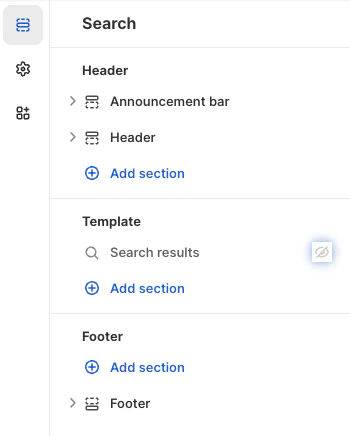
2. In the **Search online store** box, enter `search` to find the search page, then select **Search**.
### Enable InstantSearch
1. In the theme customizer, open the **Home page** menu.
2. In the **Search online store** box, enter `search` to find the search page, then select **Search**.
 3. Under **Template**, click **Search results** to turn off the theme's default search results.
 4. Add the InstantSearch app block.
### Add the InstantSearch app block
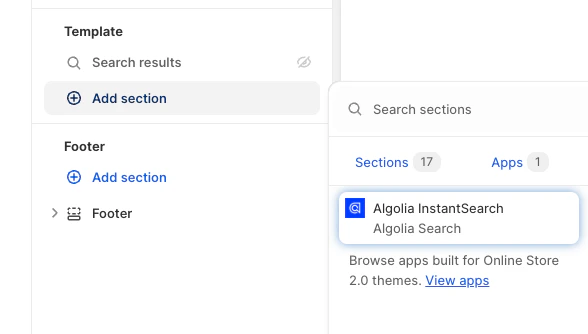
1. Under **Template**, click **Add section**.
Open the **Apps** tab and select **Algolia InstantSearch**.
4. Add the InstantSearch app block.
### Add the InstantSearch app block
1. Under **Template**, click **Add section**.
Open the **Apps** tab and select **Algolia InstantSearch**.
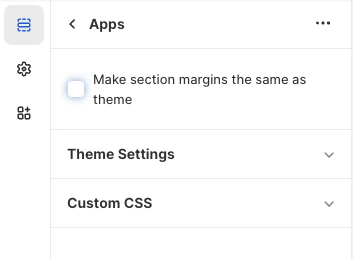
 2. To remove extra padding, click **Apps**.
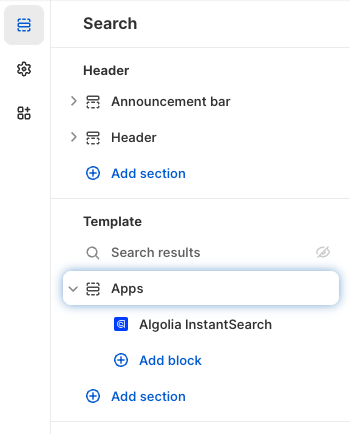 Clear the **Make section margins the same as theme** option.