> ## Documentation Index
> Fetch the complete documentation index at: https://algolia.com/llms.txt
> Use this file to discover all available pages before exploring further.
# Visual merchandising tool
> Learn how to use the visual merchandising tool in the Algolia AI Search & Discovery app.
export const SearchQuery = () =>
search query
;
export const Index = () =>
index
;
export const Filter = () =>
filter
;
The Merchandising tool helps shop owners actively promote (or demote) items for specific search queries or collections.
With the Merchandising tool, you can influence results and boost certain products in specific search contexts:
* Promote high-performing products for popular searches
* Add related items to searches with no results
The Merchandising tool uses Algolia's [Rules](/doc/guides/managing-results/rules/rules-overview).
Rules are *if-then* statements that let you to assign actions to specific triggers.
For example, *if* a user types "dress", *then* promote the item "Red satin dress".
## How you can influence search results
For a given , the Merchandising tool lets you:
* **Pin a product.** Assign an absolute position to a product.
* **Hide a product.** Remove the product from the search results.
* **Promote a product.** Move the product higher in the search results.
* **Demote a product.** Move the product lower in the search results.
* **Add a product.** Using the search box, add a product that wouldn't be on the first page of the results otherwise.
The item is assigned to the first available (not pinned) position.
## How the Merchandising tool works
When you modify the results for a search query using the Merchandising tool,
it creates a new rule.
Each rule represents a single query and can contain multiple actions—you can promote,
demote, pin, or hide as many objects as needed.
You can view these rules in the [Algolia dashboard](https://dashboard.algolia.com/rules/).
Rules created by the Merchandising tool follow the naming pattern `shopify-merchandising-`.
Changes made in the Merchandising tool are sent to Algolia.
However, rules created directly in the Algolia dashboard **aren't synced back** to the Merchandising tool.
Similarly, don't delete rules created in the Merchandising tool in the Algolia dashboard.
This can cause unexpected behavior.
The Merchandising tool only applies changes to the first page of the search results.
The number of results shown is determined by the **Number of Products shown** setting in the InstantSearch configuration,
under **Search Options** in your app.
## Create a new rule
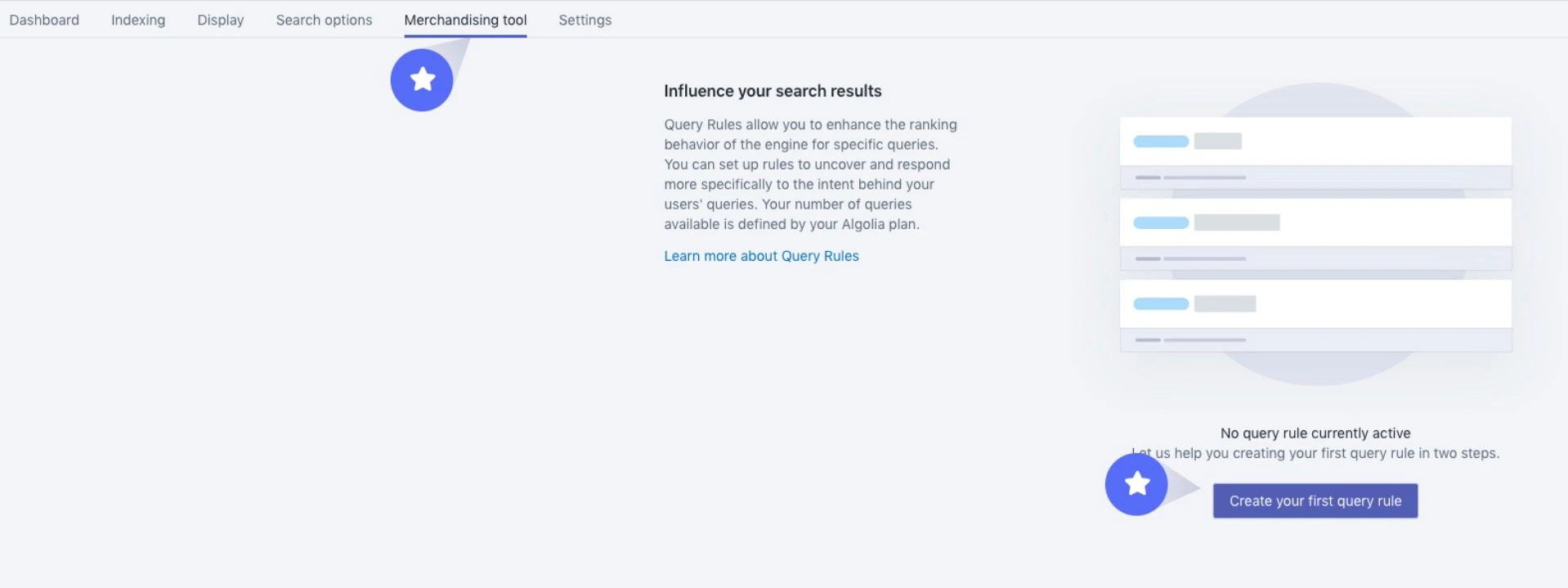
1. Open the **Merchandising tool** tab and click **Create your first query rule**.
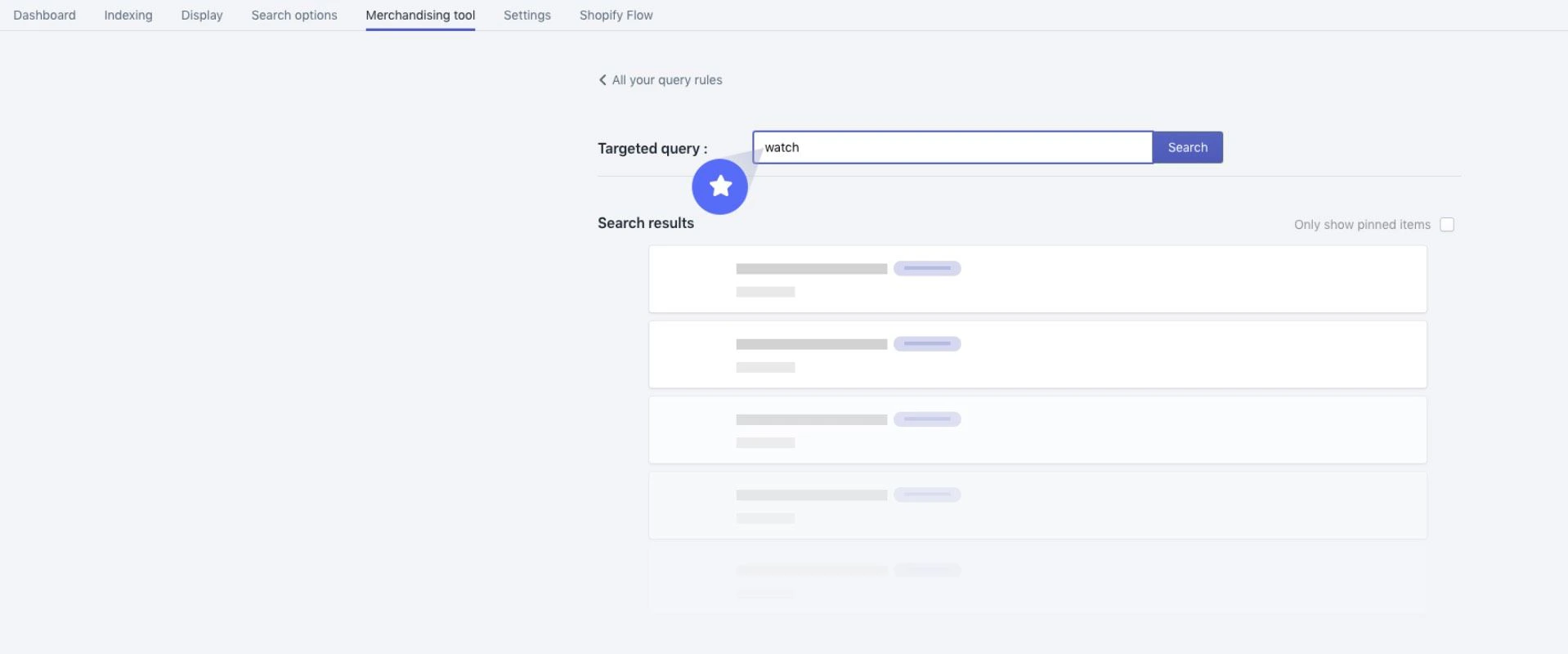
 2. Type a search query you want to assign actions to, and click **Search**.
You can change the order of the results.
2. Type a search query you want to assign actions to, and click **Search**.
You can change the order of the results.
 ## Promote or demote products
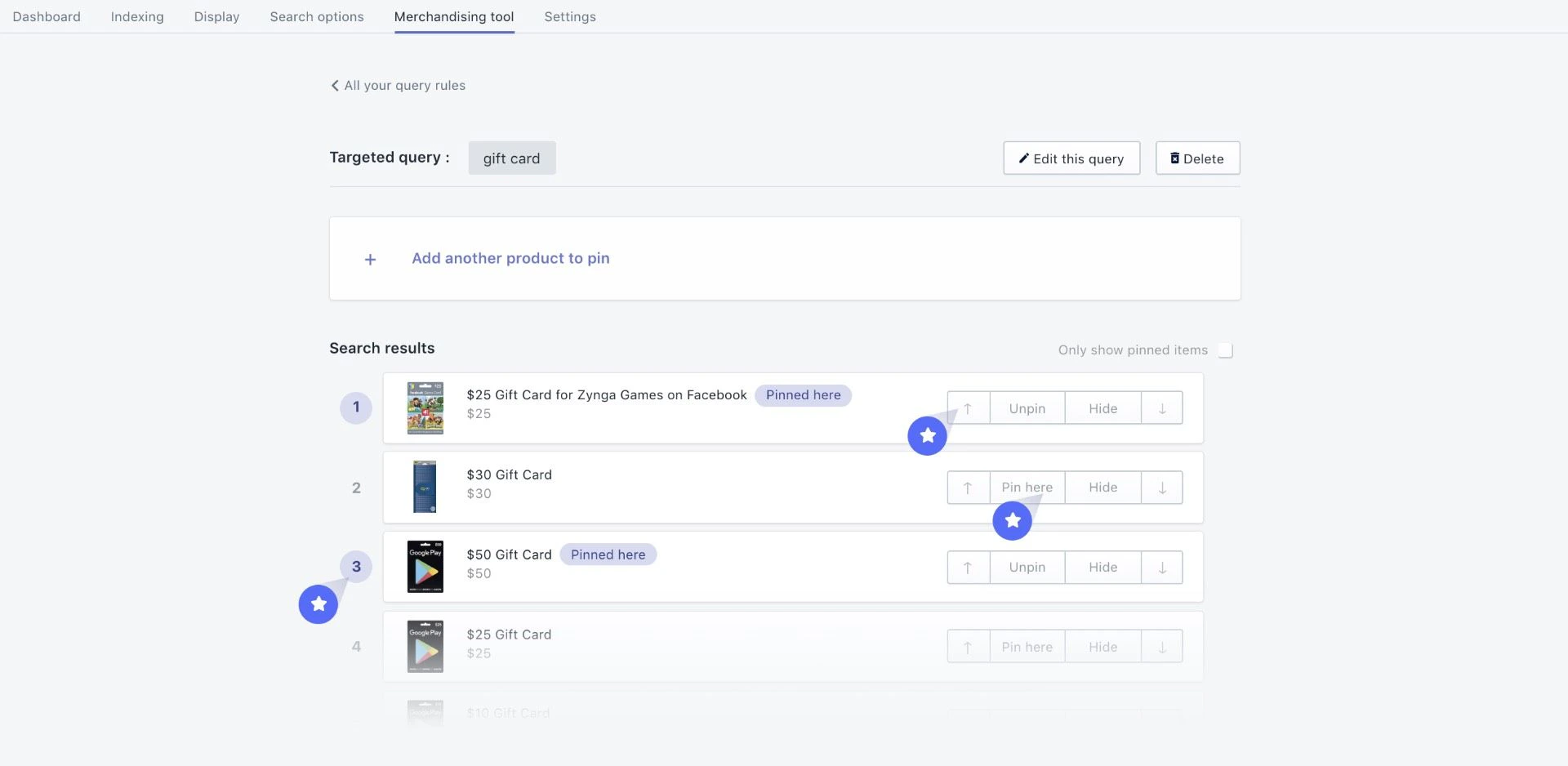
Use the arrow buttons to adjust the desired position of a product: up or down.
## Promote or demote products
Use the arrow buttons to adjust the desired position of a product: up or down.
 ## Pin a product which is outside search results
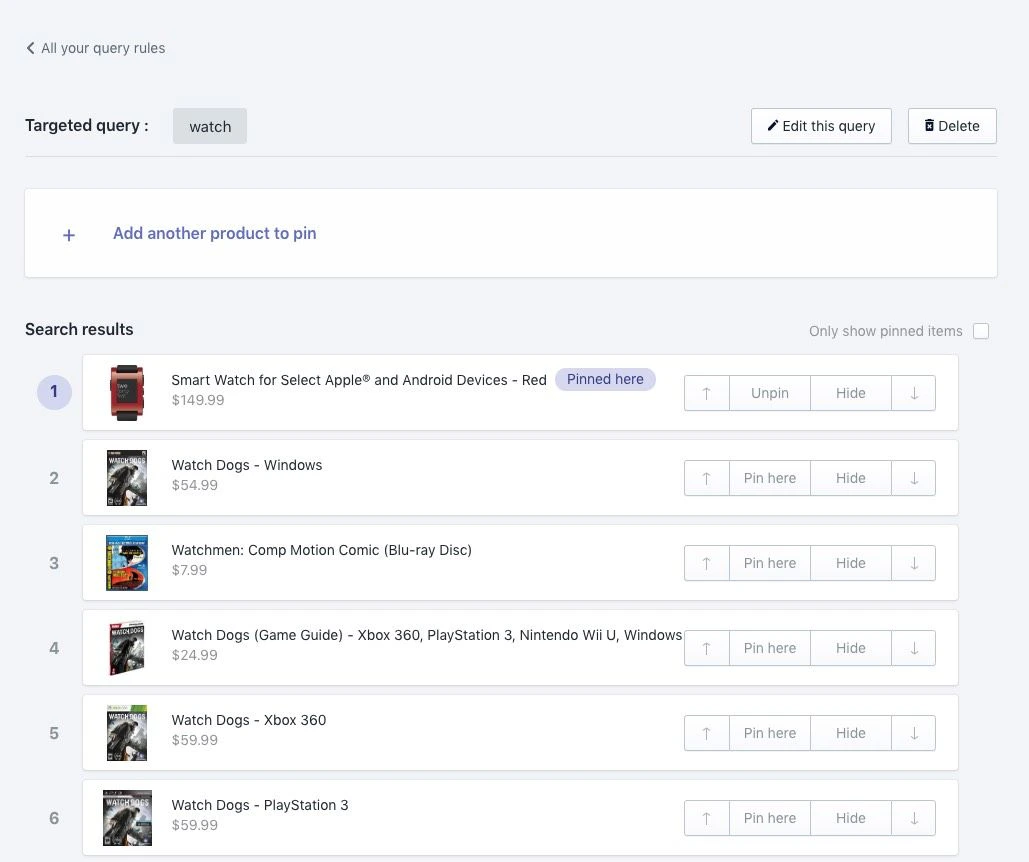
In the following example, the search query "watch" returns video games.
## Pin a product which is outside search results
In the following example, the search query "watch" returns video games.
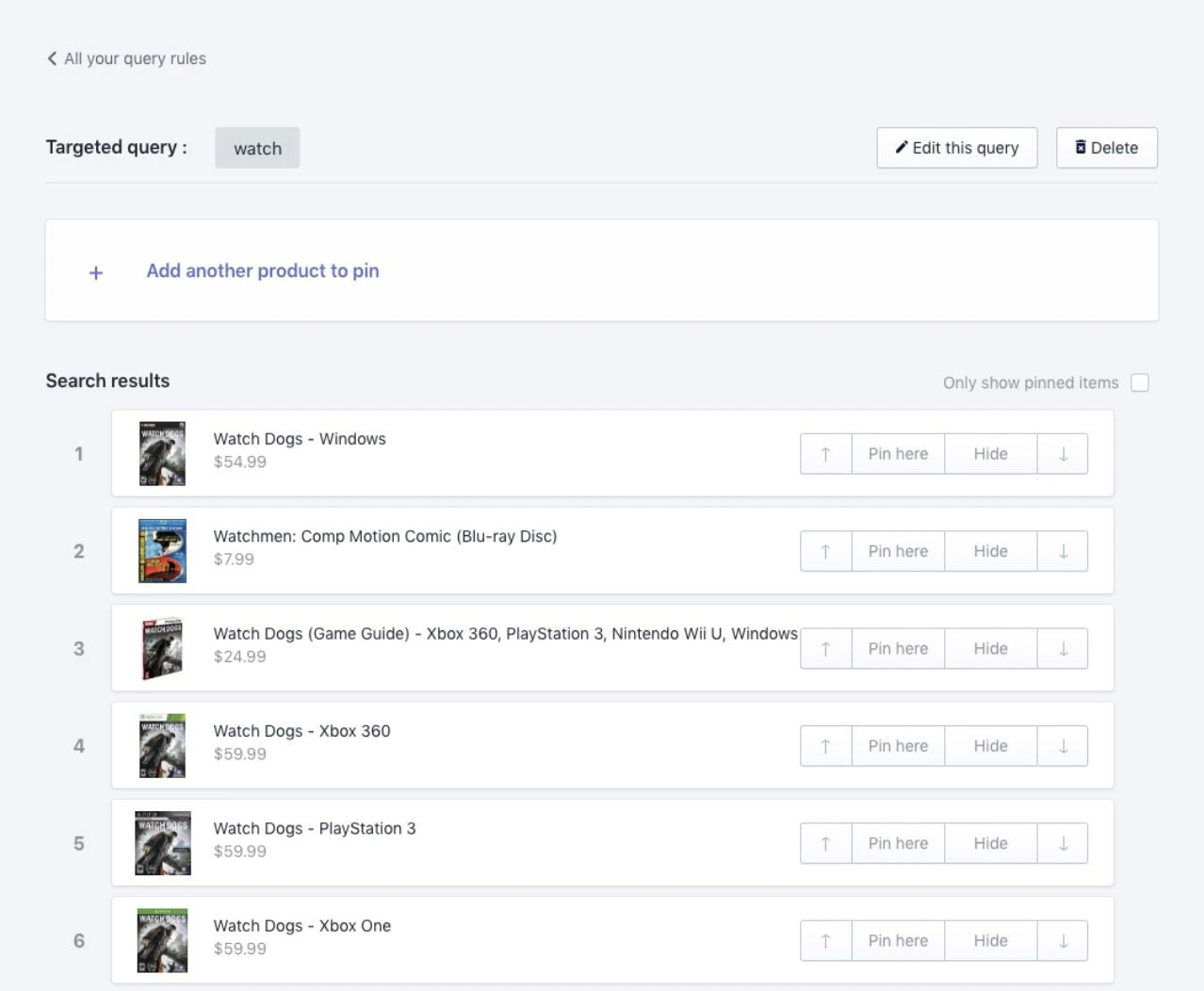 To show wrist watches instead:
1. Click **Add another product to pin** and search for the item you want to promote.
To show wrist watches instead:
1. Click **Add another product to pin** and search for the item you want to promote.
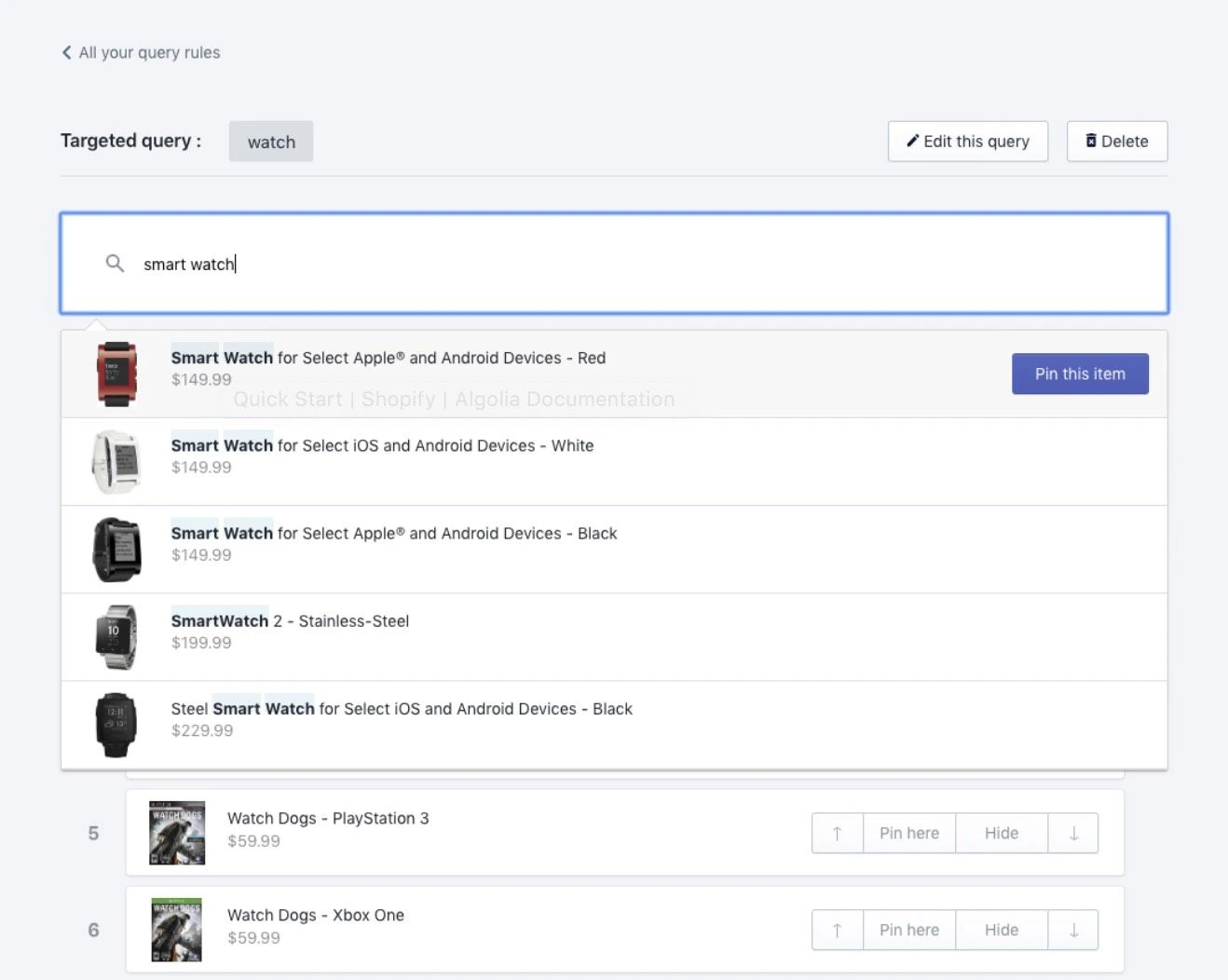 2. The items are pinned to the first available (not pinned) position. Other pinned items aren't impacted.
 ## Hide a product from search results
To hide a product from your search results,
select an item and click **Hide**.
The item won't appear in your search results and is listed at the bottom of the page under **Items hidden from search results**.
If you want to return a hidden product to your search result, select it and click **Add to results**.
The item will be restored to either its initial position—if no other product has been pinned to it—or to the next available position.
## Make pinned items filterable
By default, pinned items show up in the search results even if they don't match an applied .
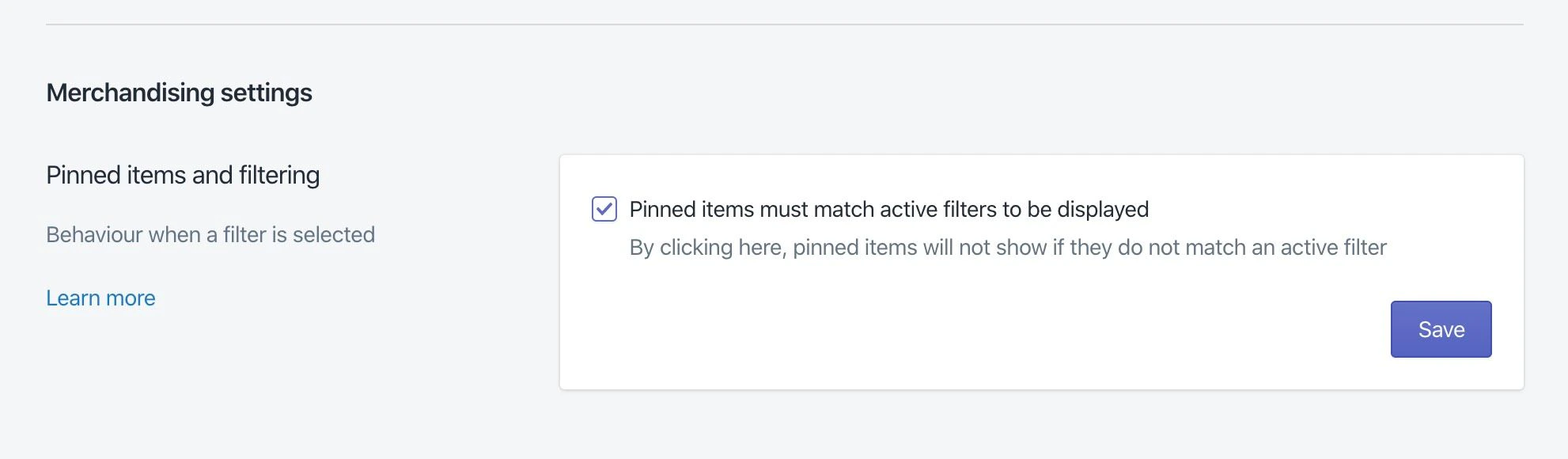
You can change this behavior by selecting **Pinned items must match active filters to be displayed** in the **Merchandising tool > Merchandising settings** section.
For example, if you pinned a red item that's on sale, but users filter on blue items, this setting ensures that only blue items appear (discarding your pinned red item).
## Hide a product from search results
To hide a product from your search results,
select an item and click **Hide**.
The item won't appear in your search results and is listed at the bottom of the page under **Items hidden from search results**.
If you want to return a hidden product to your search result, select it and click **Add to results**.
The item will be restored to either its initial position—if no other product has been pinned to it—or to the next available position.
## Make pinned items filterable
By default, pinned items show up in the search results even if they don't match an applied .
You can change this behavior by selecting **Pinned items must match active filters to be displayed** in the **Merchandising tool > Merchandising settings** section.
For example, if you pinned a red item that's on sale, but users filter on blue items, this setting ensures that only blue items appear (discarding your pinned red item).
 ### Widget updates
The InstantSearch widget was updated to support this new feature for merchandised collections.
You can find the latest version in [`algolia_instant_search.js.liquid`](https://shopify.algolia.com/shopify/assets/javascripts/v4/algolia_instant_search.js.liquid).
```diff JavaScript icon=code theme={"system"}
@@ -177,17 +177,11 @@
// targeting collection pages
if (collectionPage) {
// Collection page merchandising:
- // send rulesContext for promoted results only if no filters active
- if (
- !hasRefinements(searchFunctionHelper, instant.facets.list) &&
- Number(page) === 0
- ) {
// If we are on a collection page, `collectionRulesContextValue` is defined
if (collectionRulesContextValue) {
searchFunctionHelper.setQueryParameter('ruleContexts', [
collectionRulesContextValue.toString(),
]);
}
} else {
searchFunctionHelper.setQueryParameter('ruleContexts', []);
}
```
## Collection merchandising in the Algolia dashboard (Visual Editor)
You can also merchandise your collections with the **Visual Editor** in the Algolia dashboard.
Enable the [collection search page](/doc/integration/shopify/advanced-customization/collection-search-page) feature to merchandise collections.
### Create a new Rule with the Visual Editor
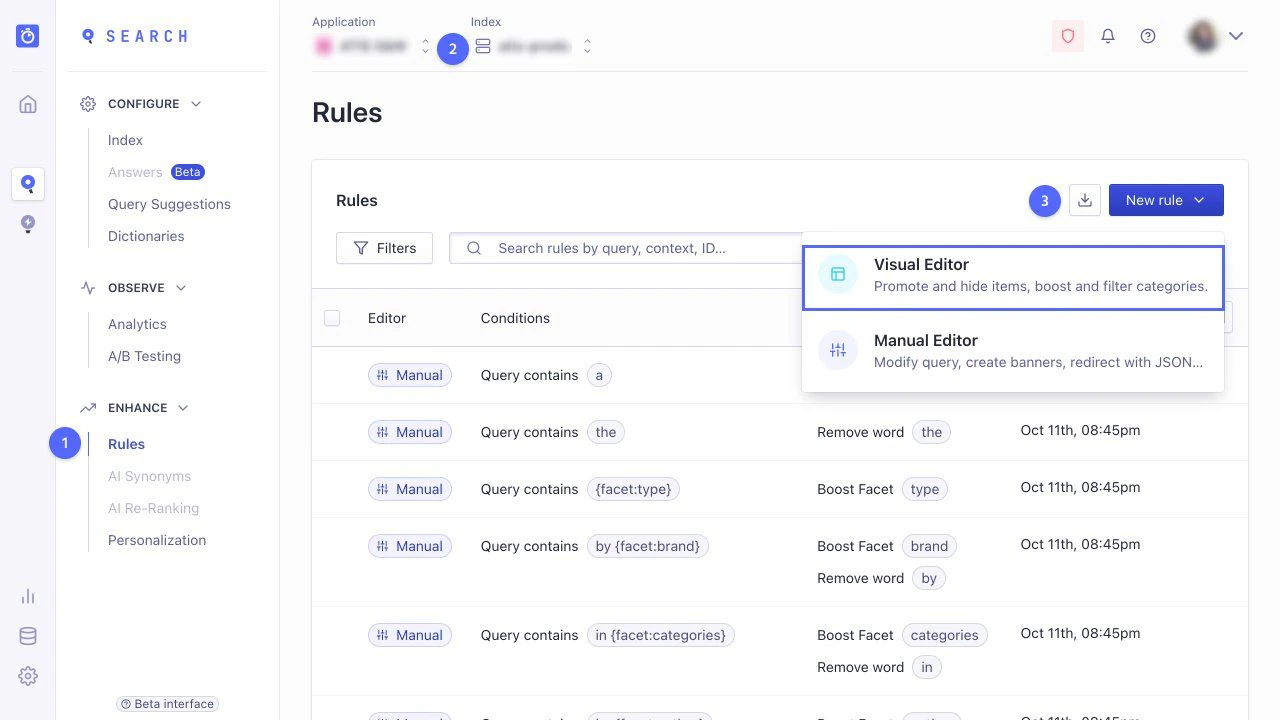
1. Go to the [**Rules**](https://dashboard.algolia.com/rules/) section in the Algolia dashboard and select the to which you want to add a rule.
2. Select either **Create your first Rule** or **New Rule** and select **Visual Editor**.
### Widget updates
The InstantSearch widget was updated to support this new feature for merchandised collections.
You can find the latest version in [`algolia_instant_search.js.liquid`](https://shopify.algolia.com/shopify/assets/javascripts/v4/algolia_instant_search.js.liquid).
```diff JavaScript icon=code theme={"system"}
@@ -177,17 +177,11 @@
// targeting collection pages
if (collectionPage) {
// Collection page merchandising:
- // send rulesContext for promoted results only if no filters active
- if (
- !hasRefinements(searchFunctionHelper, instant.facets.list) &&
- Number(page) === 0
- ) {
// If we are on a collection page, `collectionRulesContextValue` is defined
if (collectionRulesContextValue) {
searchFunctionHelper.setQueryParameter('ruleContexts', [
collectionRulesContextValue.toString(),
]);
}
} else {
searchFunctionHelper.setQueryParameter('ruleContexts', []);
}
```
## Collection merchandising in the Algolia dashboard (Visual Editor)
You can also merchandise your collections with the **Visual Editor** in the Algolia dashboard.
Enable the [collection search page](/doc/integration/shopify/advanced-customization/collection-search-page) feature to merchandise collections.
### Create a new Rule with the Visual Editor
1. Go to the [**Rules**](https://dashboard.algolia.com/rules/) section in the Algolia dashboard and select the to which you want to add a rule.
2. Select either **Create your first Rule** or **New Rule** and select **Visual Editor**.
 ### Set the collection context
1. In the Visual Editor, click **Set a search query**.
2. In the menu next to **Your search**, select **is** and leave the following input field empty.
3. In **Add a context (optional)**, add a collection handle.
To trigger a Rule when a user lands on a collection page, the search query must be empty and the context must be equal to your collection handle.
### Set the collection context
1. In the Visual Editor, click **Set a search query**.
2. In the menu next to **Your search**, select **is** and leave the following input field empty.
3. In **Add a context (optional)**, add a collection handle.
To trigger a Rule when a user lands on a collection page, the search query must be empty and the context must be equal to your collection handle.
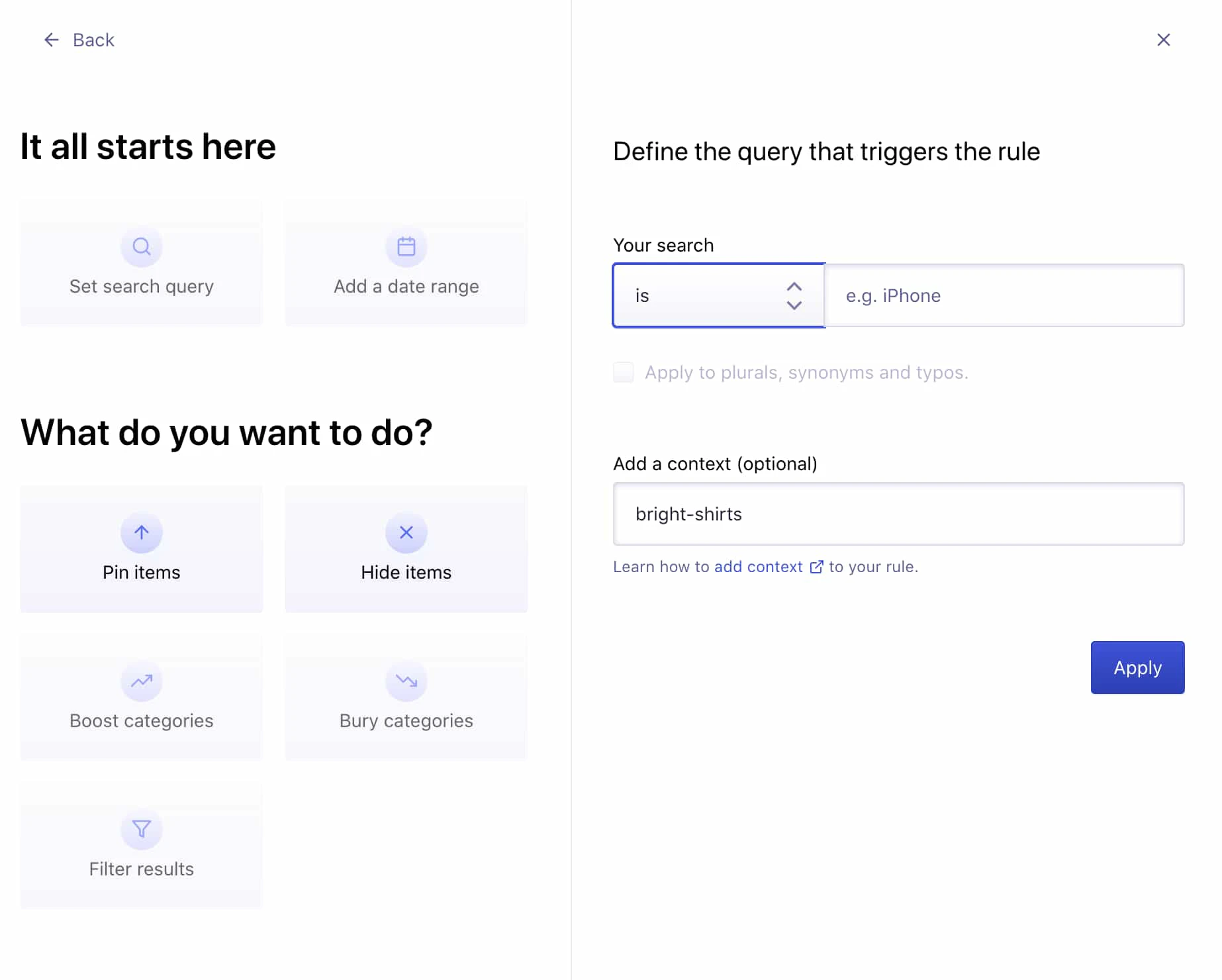 The collection handle is the last part of your collection page's URL.
You can also find it when editing your collection's "website SEO" in the Algolia AI Search & Discovery app's settings.
For example, if the URL of the collection "Bright Shirts" is `mystore.myshopify.com/collections/bright-shirts`,
then its collection handle is `bright-shirts`.
### Filter the results on a particular collection
To display only the products of a specific collection,
click **Filter results** in the **What do you want to do?** section.
In the **Category** section, you can either choose to filter on:
* `collection_ids`: an array of the collection IDs the product belongs to
* `collections`: an array of the collection *handles* the product belongs to
Filtering on the `collection_ids` attribute is more robust,
as changes to the collection ID are less likely.
The collection handle is the last part of your collection page's URL.
You can also find it when editing your collection's "website SEO" in the Algolia AI Search & Discovery app's settings.
For example, if the URL of the collection "Bright Shirts" is `mystore.myshopify.com/collections/bright-shirts`,
then its collection handle is `bright-shirts`.
### Filter the results on a particular collection
To display only the products of a specific collection,
click **Filter results** in the **What do you want to do?** section.
In the **Category** section, you can either choose to filter on:
* `collection_ids`: an array of the collection IDs the product belongs to
* `collections`: an array of the collection *handles* the product belongs to
Filtering on the `collection_ids` attribute is more robust,
as changes to the collection ID are less likely.
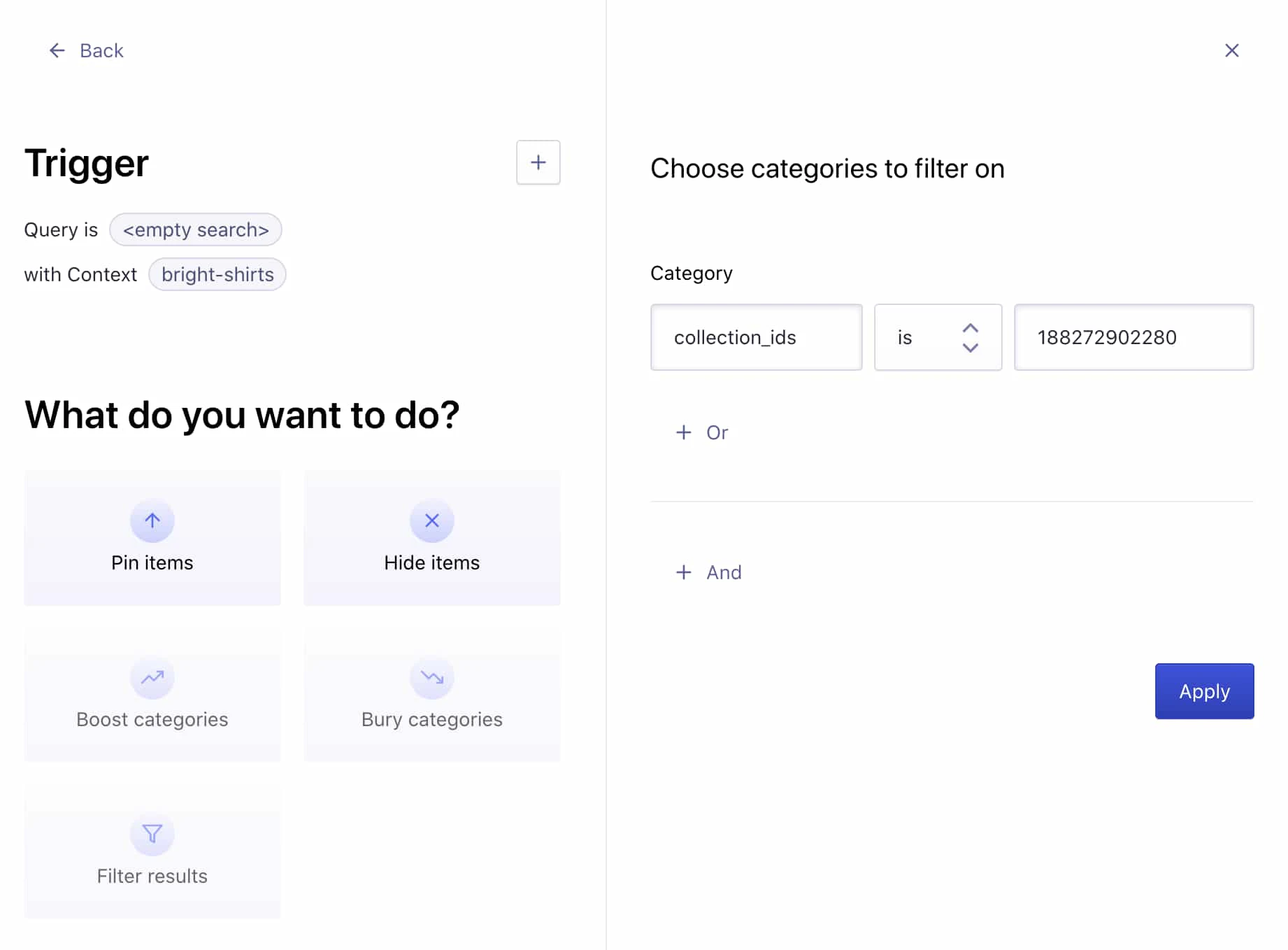 You can find the `collection_id` in the URL, when editing your collection in Shopify.
For example, if the URL of the collection edition page is `mystore.myshopify.com/admin/collections/187530641539`,
then its ID is `187530641539`.
### Pin or hide your products
Move the items at the position you want them to appear in the collection page and hide the ones you don't want to show.
Save your selection by clicking **Review and Publish**.
You can find the `collection_id` in the URL, when editing your collection in Shopify.
For example, if the URL of the collection edition page is `mystore.myshopify.com/admin/collections/187530641539`,
then its ID is `187530641539`.
### Pin or hide your products
Move the items at the position you want them to appear in the collection page and hide the ones you don't want to show.
Save your selection by clicking **Review and Publish**.
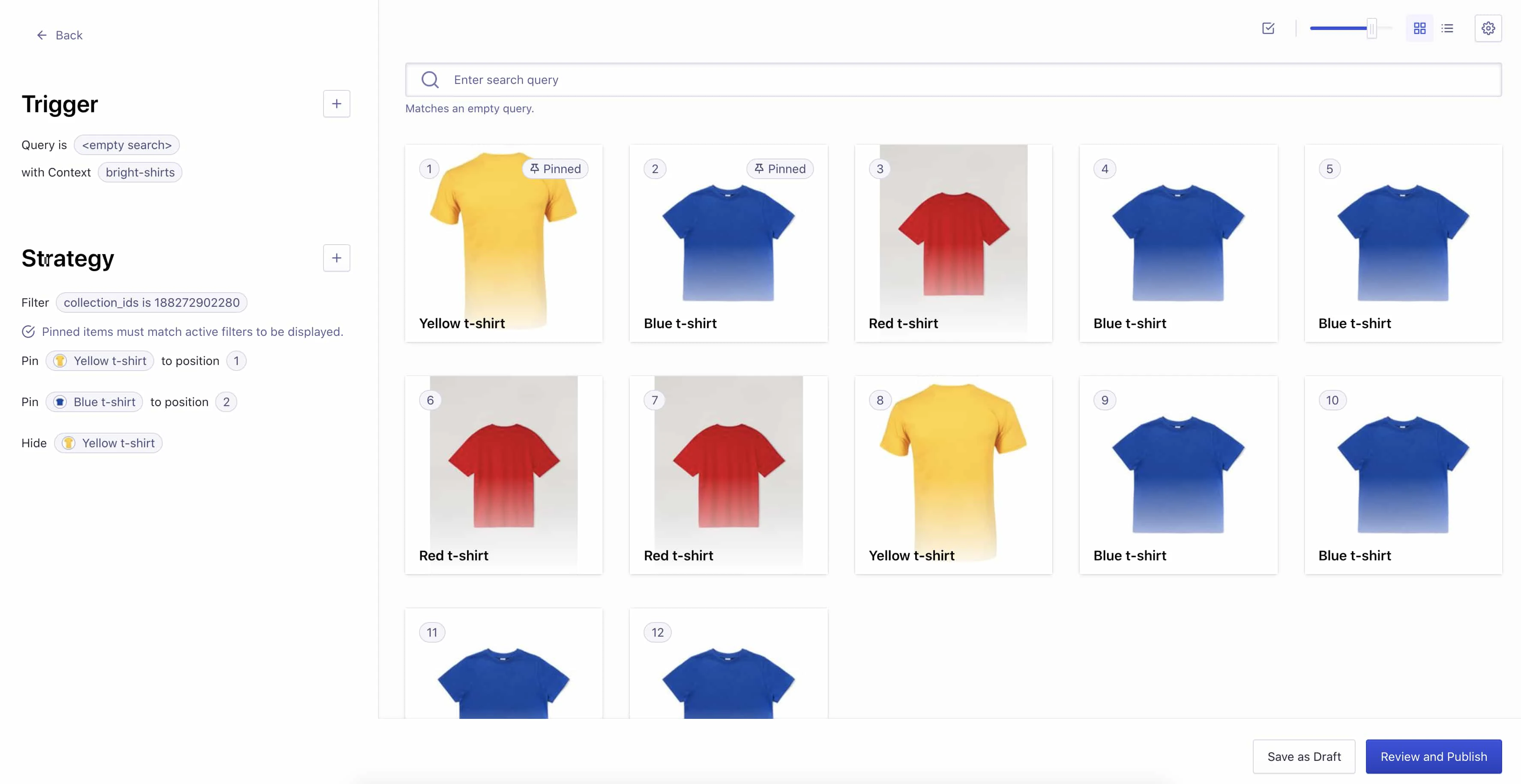 **If you want to use the Algolia dashboard to merchandise a collection, the rule condition must be an empty query and the context must be the collection handle.**