> ## Documentation Index
> Fetch the complete documentation index at: https://algolia.com/llms.txt
> Use this file to discover all available pages before exploring further.
# Shopify Flow
> Track top searches and get notified with the Algolia triggers for Shopify Flow.
[Shopify Flow](https://help.shopify.com/en/manual/shopify-flow/) is an automation platform for your Shopify store.
It has two main parts:
* **Triggers** are events that start workflows.
* **Actions** are tasks, such as sending Slack messages or emails.
## Algolia triggers for Shopify Flow
The Algolia AI Search & Discovery app includes these triggers:
* **Top searches.**
Track the most popular searches and the most viewed results.
This trigger runs every day at 1 PM UTC.
* **Top searches with no results.**
Track queries that returned no results.
This trigger runs every day at 1 PM UTC.
* **Indexing paused.**
This trigger runs when your Algolia indexing pauses.
## Set up workflows with Algolia
The following workflow notifies you through Slack messages and emails about your top searches.
For more information, see [Creating workflows in Shopify Flow](https://help.shopify.com/en/manual/shopify-flow/create-workflow/).
### Before you begin
Install the [Shopify Flow](https://apps.shopify.com/flow) app.
If you want to send Slack messages to channels, install the Flowbot app in your Slack workspace.
### Activate the trigger
To activate the trigger in the Algolia AI Search & Discovery app:
1. In your Shopify admin, go to the Algolia AI Search & Discovery app.
2. Open the **Shopify Flow** tab.
3. Activate the **Top Searches** trigger.
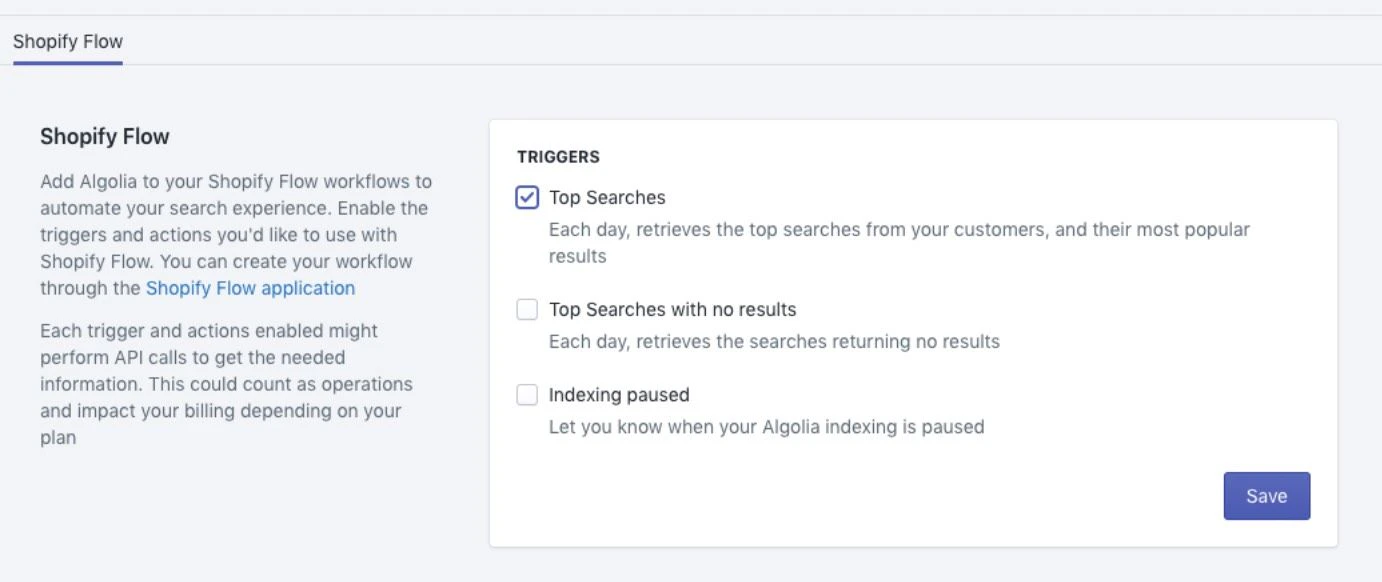 If you skip this step, you can still select the Algolia triggers in Shopify Flow,
but no action will be performed unless you activate the trigger in the Algolia AI Search & Discovery app.
### Configure the trigger
After [activating the trigger](#activate-the-trigger), you can use it in your workflows.
1. In your Shopify admin, select **Flow** in the **Apps** section of the sidebar.
2. Click **Create workflow**.
If you skip this step, you can still select the Algolia triggers in Shopify Flow,
but no action will be performed unless you activate the trigger in the Algolia AI Search & Discovery app.
### Configure the trigger
After [activating the trigger](#activate-the-trigger), you can use it in your workflows.
1. In your Shopify admin, select **Flow** in the **Apps** section of the sidebar.
2. Click **Create workflow**.
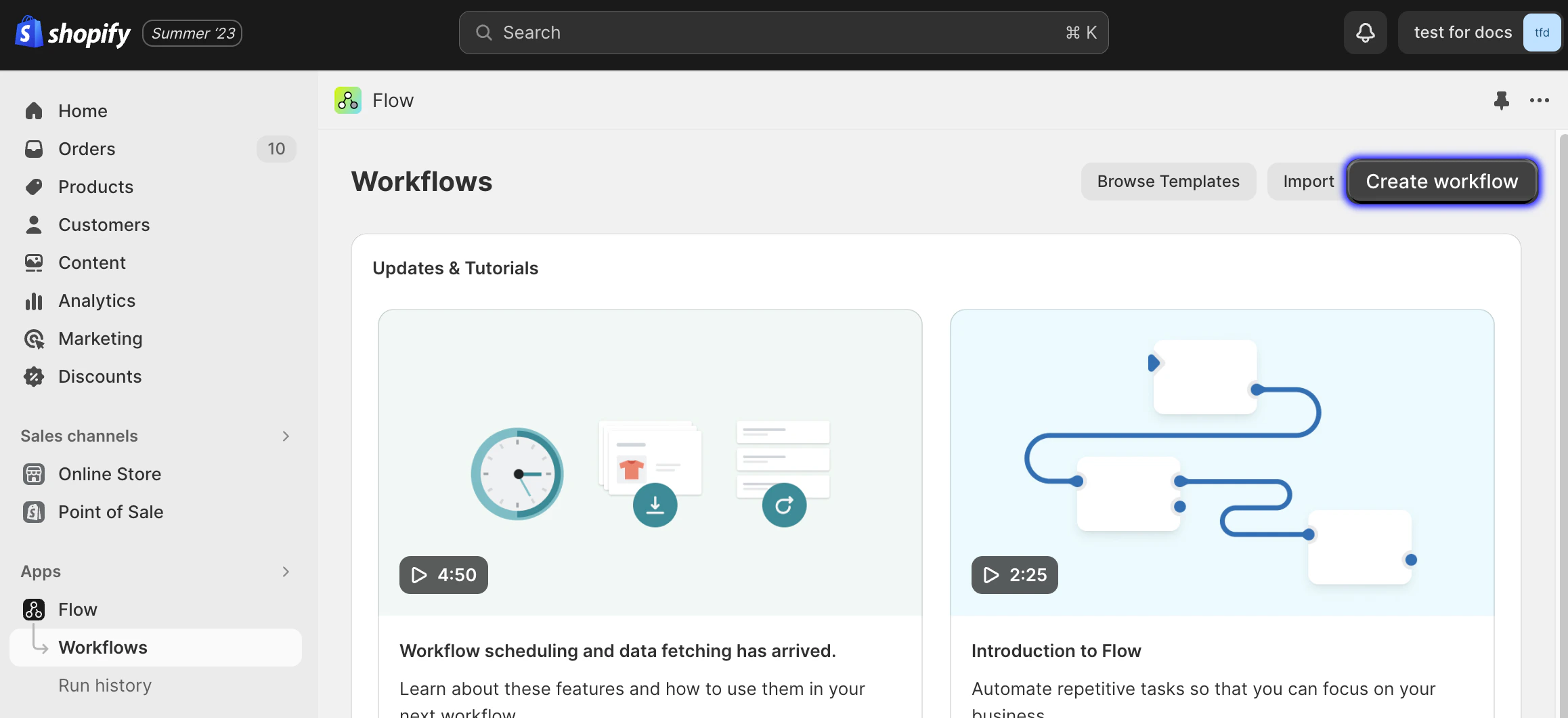 3. Click **Select trigger**, find the **Algolia AI Search & Discovery** app,
and select the **Top Searches** trigger.
3. Click **Select trigger**, find the **Algolia AI Search & Discovery** app,
and select the **Top Searches** trigger.
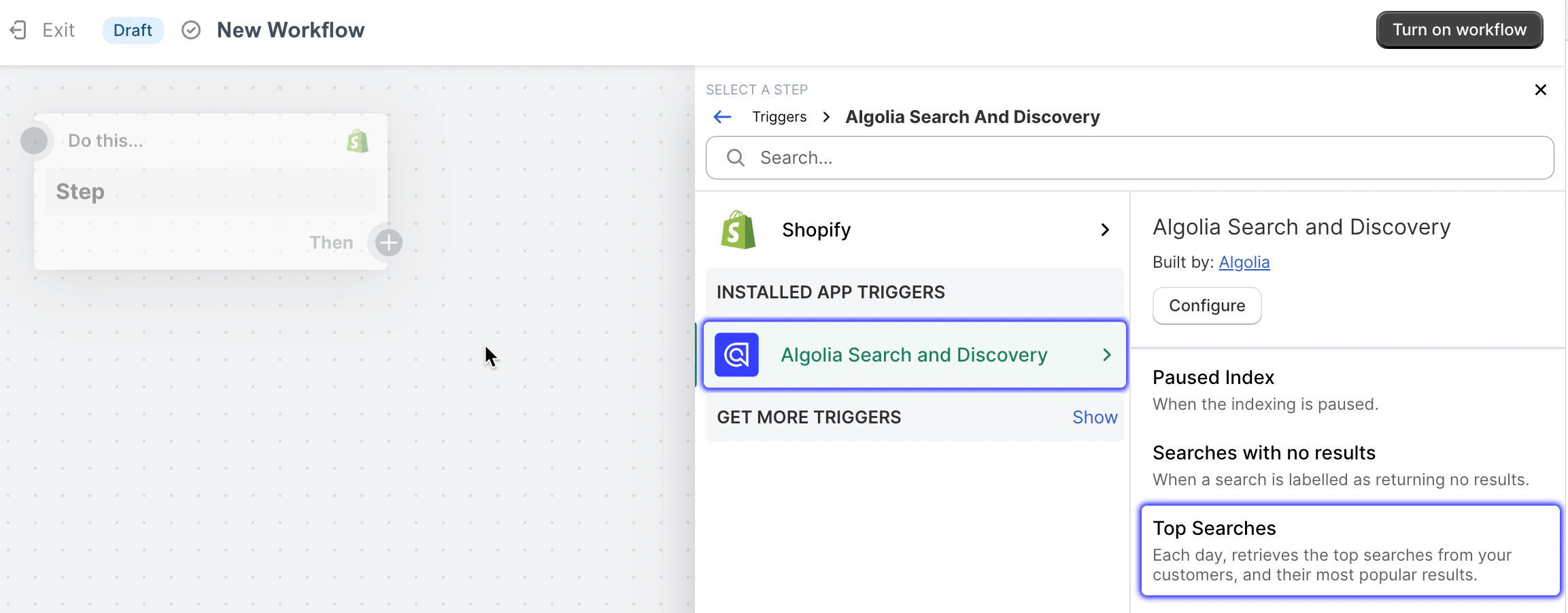 If you didn't [activate the trigger](#activate-the-trigger) yet,
you can set up the workflow,
but you won't receive any notifications.
### Configure action: send Slack messages
When the trigger event is fired, you can perform one or more *actions*,
such as, sending a Slack message.
1. In the Shopify Flow app, click **Add action**.
If you didn't [activate the trigger](#activate-the-trigger) yet,
you can set up the workflow,
but you won't receive any notifications.
### Configure action: send Slack messages
When the trigger event is fired, you can perform one or more *actions*,
such as, sending a Slack message.
1. In the Shopify Flow app, click **Add action**.
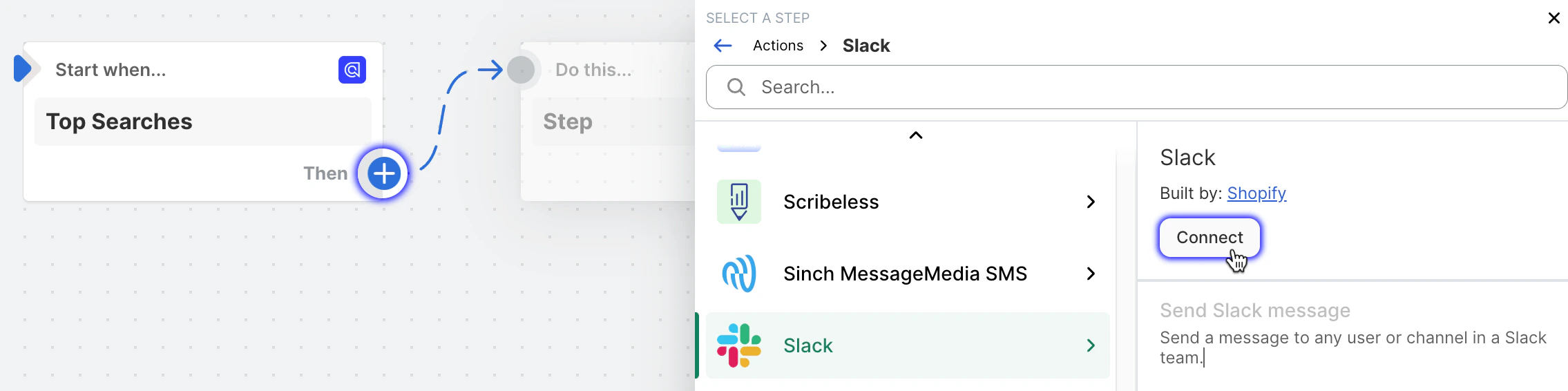
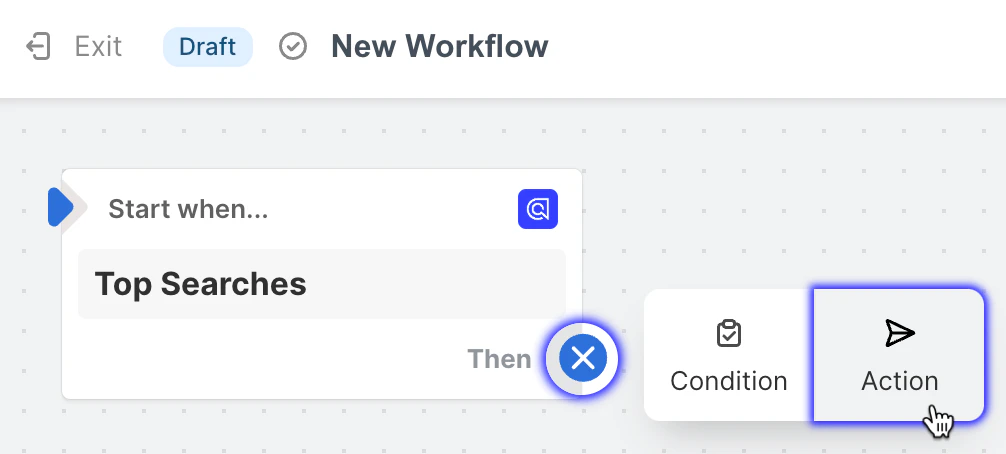 2. Find the **Slack** app.
3. If it's your first time using the Slack action in Shopify, click **Connect**.
2. Find the **Slack** app.
3. If it's your first time using the Slack action in Shopify, click **Connect**.
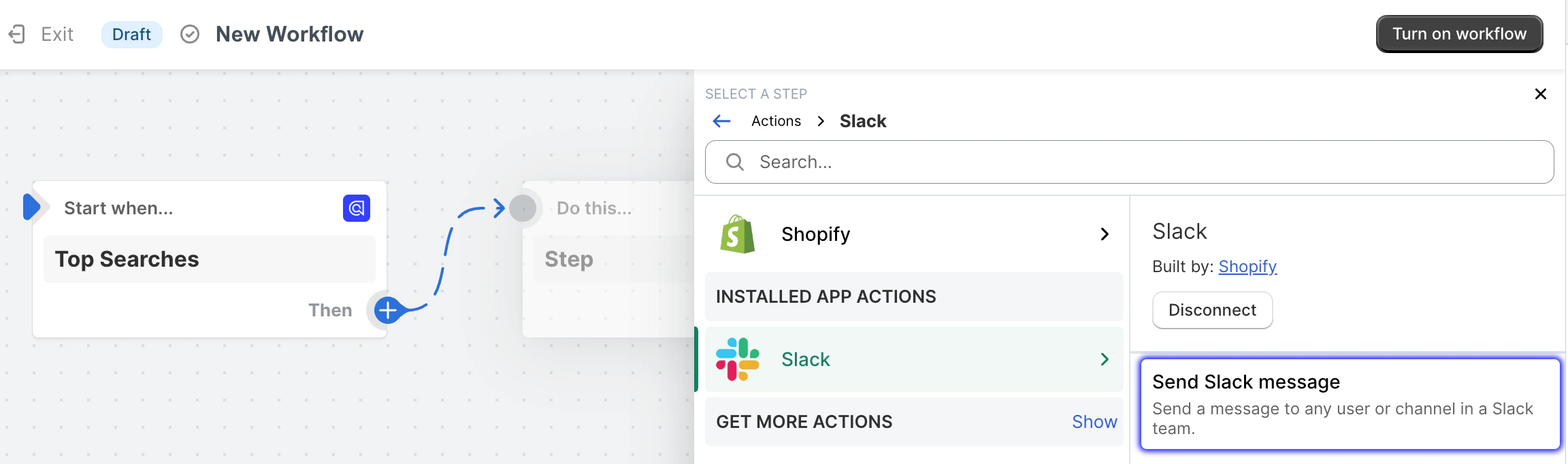
 4. Select the **Send Slack message** action.
 5. Enter the details for your Slack message:
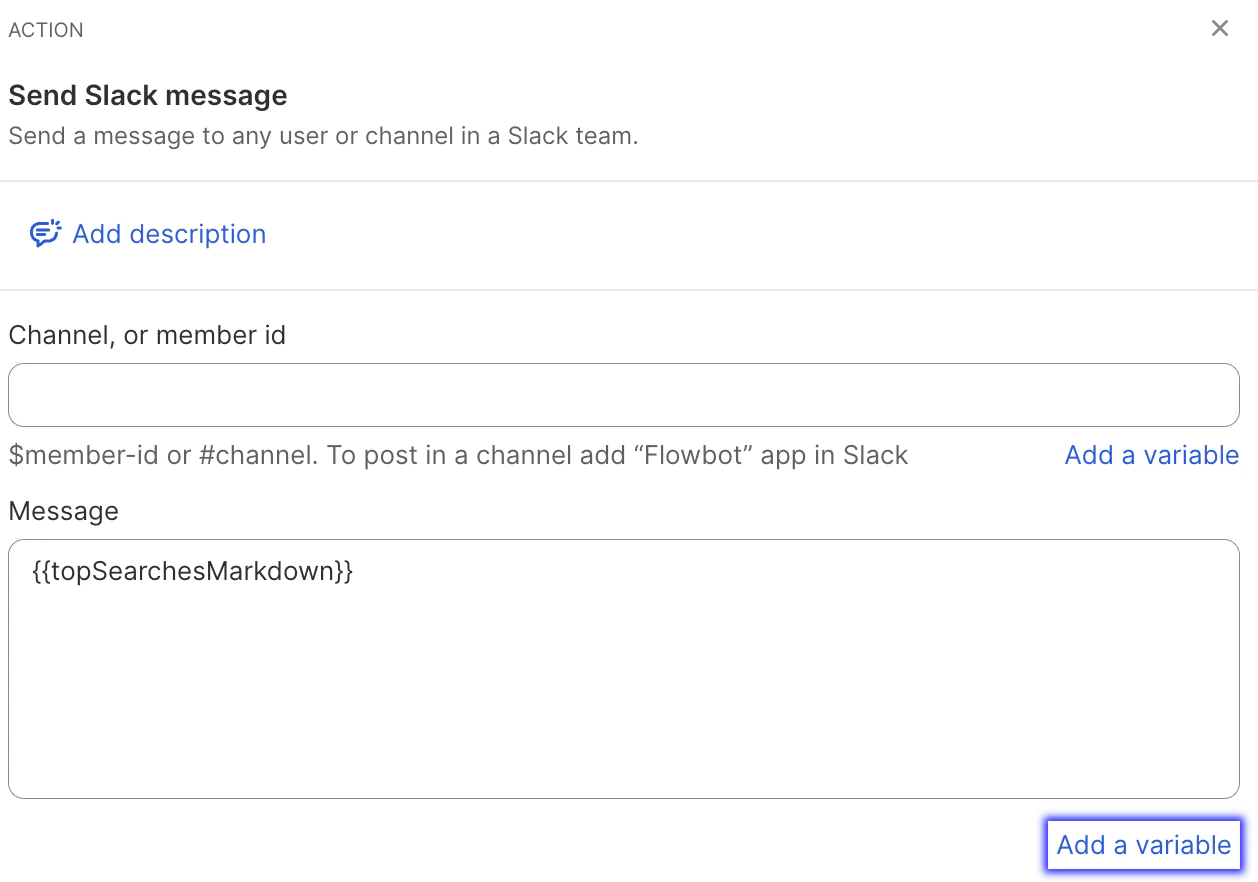 1. Optional: add a description for this Slack notification.
2. Select a Slack member ID or enter a channel name which should receive the Slack message.
To find your Slack member ID, visit your profile,
click the icon and select **Copy member ID**.
3. Under the **Message** field, click **Add a variable** and select the `topSearchesMarkdown` variable.
When the Slack message is sent, this variable will be replaced with the message body.
6. Click **Turn on workflow**.
1. Optional: add a description for this Slack notification.
2. Select a Slack member ID or enter a channel name which should receive the Slack message.
To find your Slack member ID, visit your profile,
click the icon and select **Copy member ID**.
3. Under the **Message** field, click **Add a variable** and select the `topSearchesMarkdown` variable.
When the Slack message is sent, this variable will be replaced with the message body.
6. Click **Turn on workflow**.
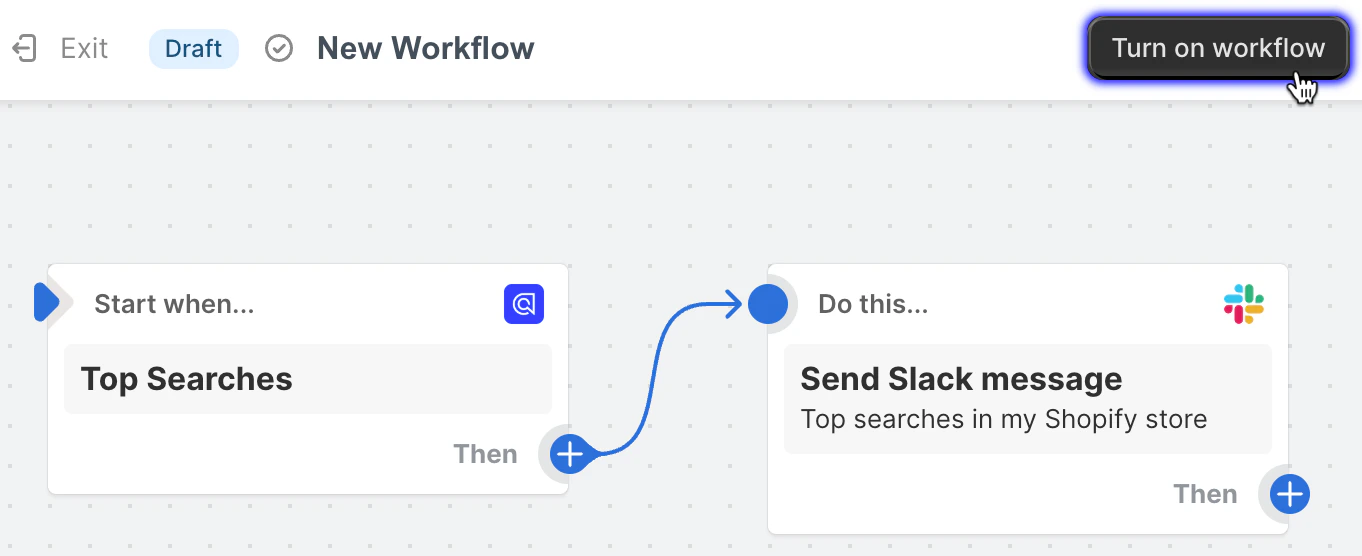 Now, you'll receive a Slack message every day at 1 PM UTC with your top searches.
### Configure action: send emails
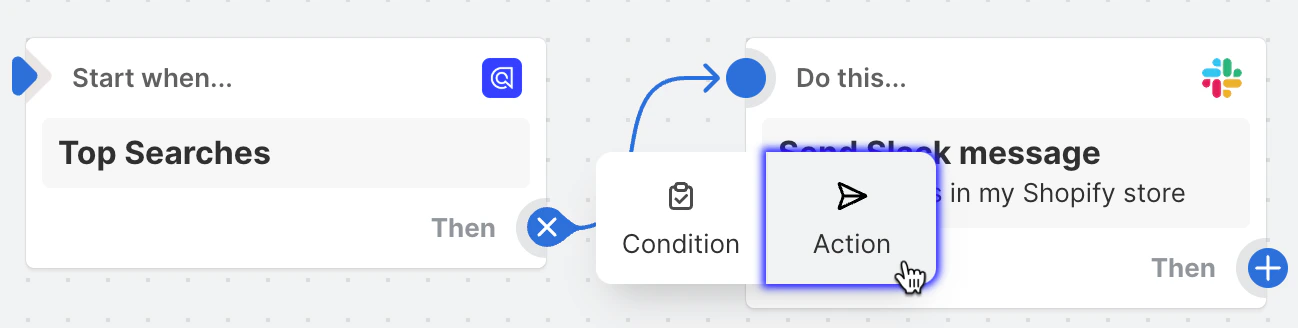
1. In the Shopify Flow app, select your workflow and add another action.
Now, you'll receive a Slack message every day at 1 PM UTC with your top searches.
### Configure action: send emails
1. In the Shopify Flow app, select your workflow and add another action.
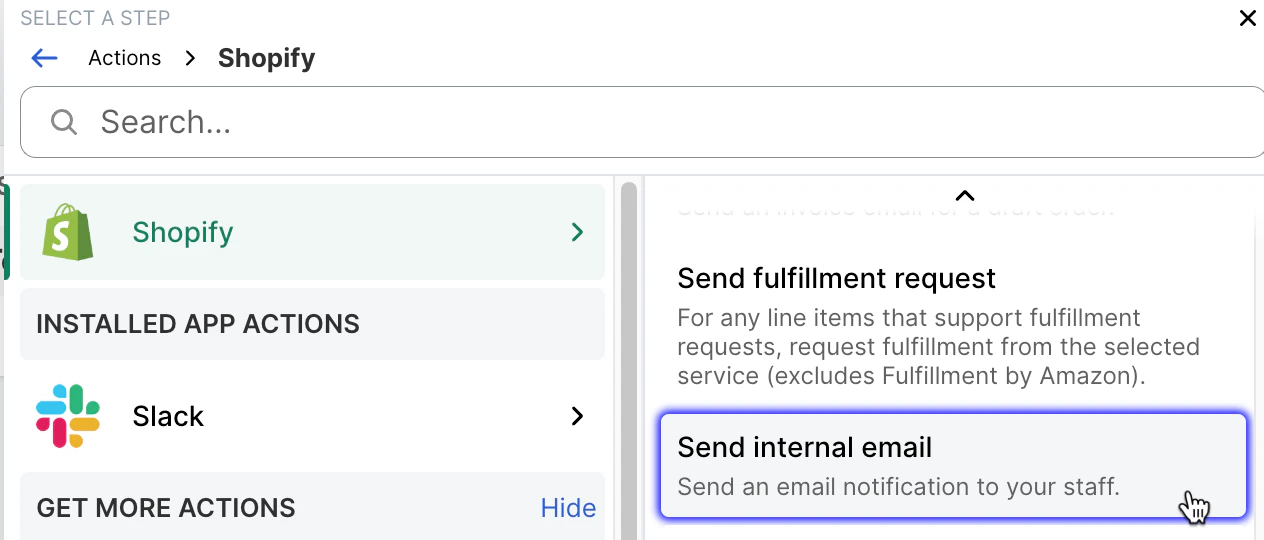
 2. From the Shopify app, select the **Send internal email** action.
 3. Enter the details for your email.
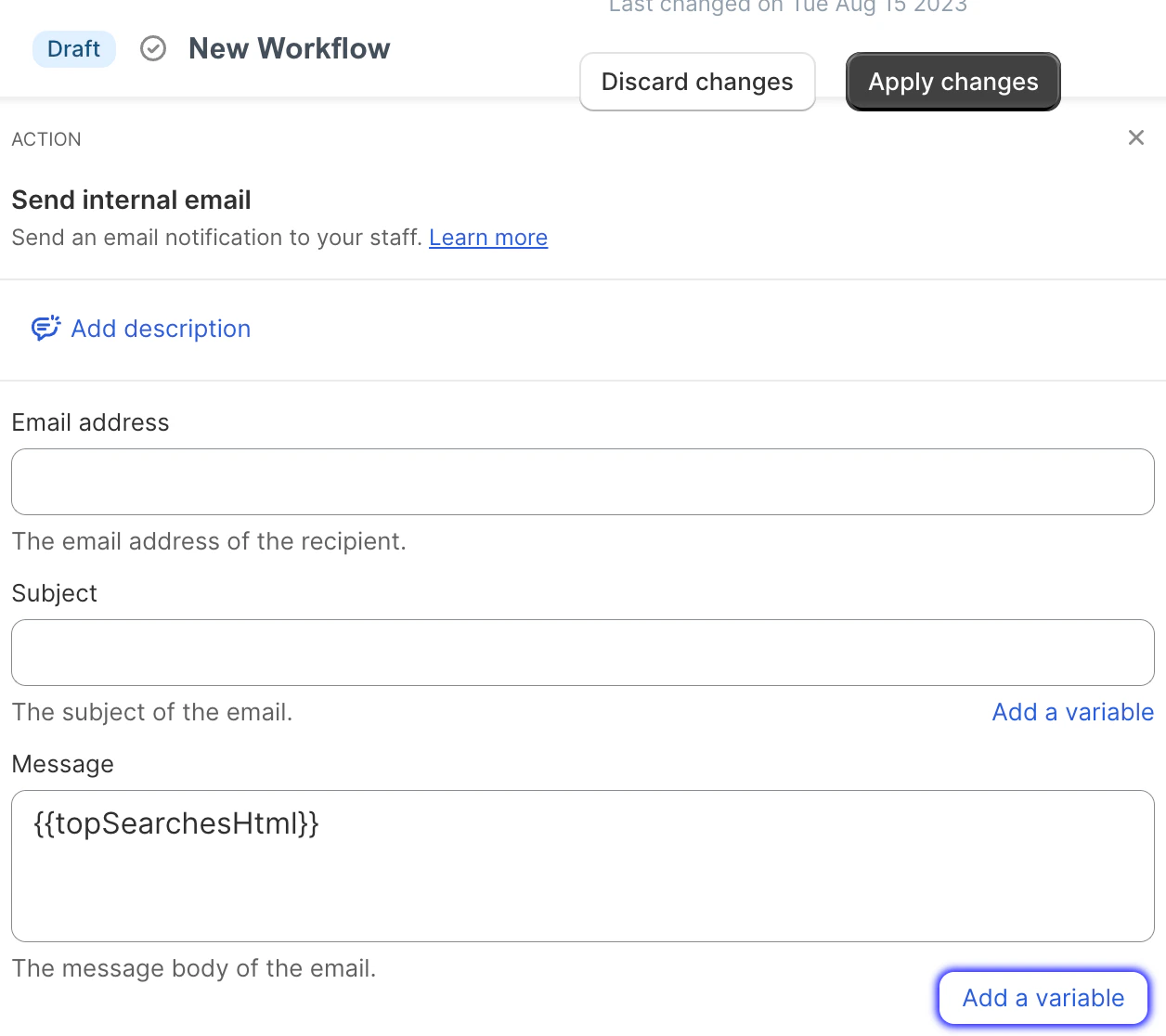 1. Optional: add a description for this email notification.
2. Enter one or more email addresses and a subject.
3. Under the **Message** field, click **Add a variable** and select the `topSearchesHtml` variable.
When the email is sent, this variable will be replaced with the email body.
4. Click **Apply Changes**.
Now, in addition to a Slack message, you'll receive an email with your top searches.
1. Optional: add a description for this email notification.
2. Enter one or more email addresses and a subject.
3. Under the **Message** field, click **Add a variable** and select the `topSearchesHtml` variable.
When the email is sent, this variable will be replaced with the email body.
4. Click **Apply Changes**.
Now, in addition to a Slack message, you'll receive an email with your top searches.