> ## Documentation Index
> Fetch the complete documentation index at: https://algolia.com/llms.txt
> Use this file to discover all available pages before exploring further.
# Shopify Algolia configuration
> Configuration settings for Algolia are stored in metafields.
Starting **December 31, 2023**, the Algolia AI Search & Discovery app will no longer be able to change Shopify theme code.
Algolia stores all configurations in the Shop metafields.
For more information, see [The Asset API resource](https://shopify.dev/docs/apps/online-store/other-integration-methods/asset) in the Shopify documentation.
The file `assets/algolia_config.js.liquid` is still available in your theme,
but the Algolia AI Search & Discovery app can't update the theme code.
## Where to find the Algolia configuration settings
The Algolia AI Search & Discovery app creates metafields in the Shop object.
The easiest way to inspect the metafields is through the Shopify admin:
1. In your Shopify admin, go to **Home**.
2. In the address bar of your browser, add `/metafields.json` to the end of your store's URL.
The Algolia configuration is stored in the namespace `algolia_search`.
Metafields are grouped under these keys:
* `translations`: translations for labels and placeholder text
* `facets`: InstantSearch facets for filters
* `sort_orders`: InstantSearch sort orders
* `algolia_config`: Algolia configuration settings
* `collections_facets_`: customized collection facets, one for each customized collection
* `collections_sort_orders_`: customized collection sort orders, one for each customized collection
Collection facets and sort orders are only created when you customize collections.
The following example shows how the Algolia configuration settings are stored in the Shop metafields.
```json JSON icon=braces theme={"system"}
{
"id": 22262894166073,
"namespace": "algolia_search",
"key": "algolia_config",
"value": "",
"type": "json_string",
},
{
"id": 28038128697506,
"namespace": "algolia_search",
"key": "collection_sort_orders_293559566498",
"value": "[{\"key\":\"recently_ordered_count\",\"title\":\"Popularity\",\"desc\":{\"active\":true,\"title\":\"Most popular\",\"replica_type\":\"virtual\"}}]",
"description": null,
"owner_id": 47976251554,
"created_at": "2023-11-15T15:05:03-05:00",
"updated_at": "2023-11-15T15:05:03-05:00",
"owner_resource": "shop",
"type": "json_string",
"admin_graphql_api_id": "gid://shopify/Metafield/28038128697506"
}
```
Each direction (`asc` or `desc`) in a sort order supports a `replica_type` property:
* `"standard"` (default). Creates a [standard replica](/doc/guides/managing-results/refine-results/sorting/in-depth/replicas#standard-and-virtual-replicas).
* `"virtual"`. Creates a [virtual replica](/doc/guides/managing-results/refine-results/sorting/in-depth/relevant-sort/).
If `replica_type` is missing, Algolia treats it as `"standard"`.
## Update metafields
Metafields are automatically updated when you change your Algolia configuration.
To manually update metafields, use the Shopify API.
You can't update metafields in the Shopify admin.
For more information, see:
* [Manage metafields](https://shopify.dev/docs/apps/custom-data/metafields/manage-metafields)
* [Metafield (Shopify Admin REST API)](https://shopify.dev/docs/api/admin-rest/latest/resources/metafield)
## Migrate your Algolia configuration to metafields
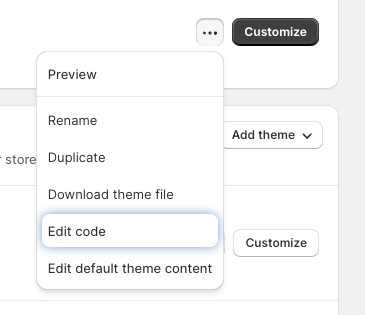
1. In your Shopify admin, go to **Online store > Themes**, select the theme you want to update, and click **Edit code**.
 2. Open the **Layouts** folder and open the `theme.liquid` file. Locate the line for including `algolia_config.js`.
```liquid Liquid icon=code theme={"system"}
{{ 'algolia_config.js' | asset_url | script_tag }}
```
2. Open the **Layouts** folder and open the `theme.liquid` file. Locate the line for including `algolia_config.js`.
```liquid Liquid icon=code theme={"system"}
{{ 'algolia_config.js' | asset_url | script_tag }}
```
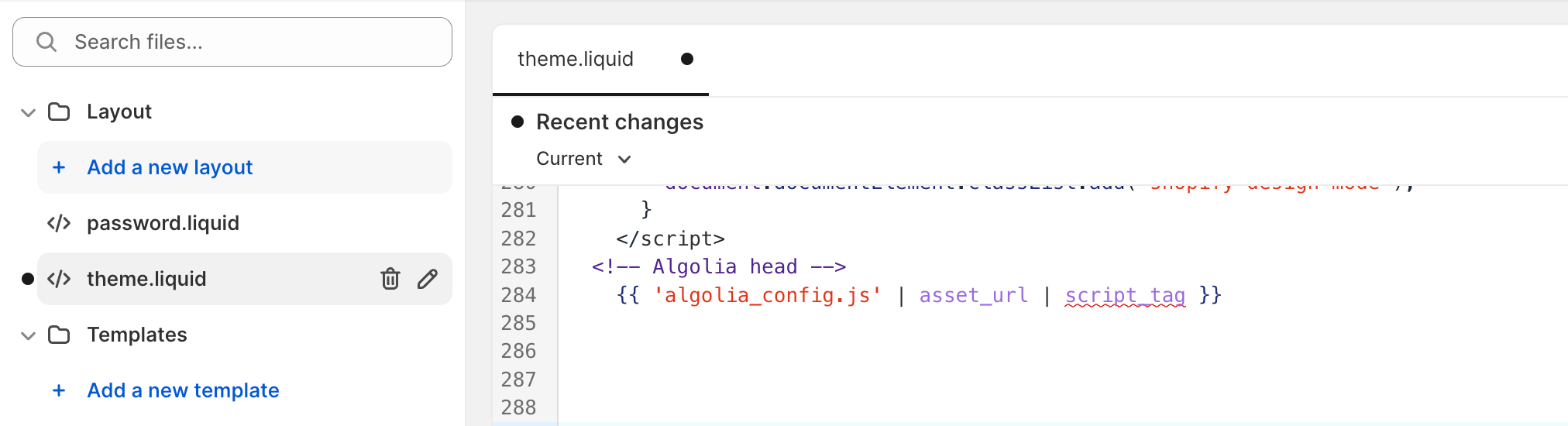 3. Replace this line with:
```liquid Liquid icon=code theme={"system"}
{% render 'algolia_config' %}
```
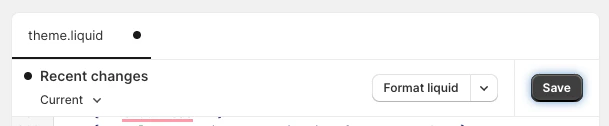
4. Save your updates.
3. Replace this line with:
```liquid Liquid icon=code theme={"system"}
{% render 'algolia_config' %}
```
4. Save your updates.
 5. Open the **Snippet** folder and select **Add a new snippet**.
6. Enter the filename for the new snippet: `algolia_config`.
7. Paste the following code into the new snippet.
```liquid Liquid expandable theme={"system"}
```
8. Save your changes.
## Manually synchronize your Algolia configuration
Configuration updates are automatically synchronized when you save your changes in the Algolia dashboard.
However, you can also manually synchronize your configuration changes.
The 'Sync Metafields' button only synchronizes Algolia configurations and the search page's facets and sort orders.
You need to [manually sync collection facets and sort orders](#manually-sync-collection-sort-orders-and-facets).
1. In Shopify admin, go to **Apps** and click **Algolia AI Search & Discovery**.
2. Click **Search options**.
3. Scroll down to the bottom of the page.
4. Click **Sync Metafields**.
## Manually sync collection sort orders and facets
Collection sort orders and facets are automatically synchronizes when you save your collection changes.
However, you can also manually synchronize collection sort orders and facets.
**Sync Metafields** only synchronizes facets and sort orders for the collection you're editing.
To synchronize another customized collection, select it, and click its **Sync Metafields** button.
1. In Shopify admin, go to **Apps** and click **Algolia AI Search & Discovery**.
2. Select **Collection pages**.
3. At the page bottom, click **Sync Collection Sort Orders and Facets**.
5. Open the **Snippet** folder and select **Add a new snippet**.
6. Enter the filename for the new snippet: `algolia_config`.
7. Paste the following code into the new snippet.
```liquid Liquid expandable theme={"system"}
```
8. Save your changes.
## Manually synchronize your Algolia configuration
Configuration updates are automatically synchronized when you save your changes in the Algolia dashboard.
However, you can also manually synchronize your configuration changes.
The 'Sync Metafields' button only synchronizes Algolia configurations and the search page's facets and sort orders.
You need to [manually sync collection facets and sort orders](#manually-sync-collection-sort-orders-and-facets).
1. In Shopify admin, go to **Apps** and click **Algolia AI Search & Discovery**.
2. Click **Search options**.
3. Scroll down to the bottom of the page.
4. Click **Sync Metafields**.
## Manually sync collection sort orders and facets
Collection sort orders and facets are automatically synchronizes when you save your collection changes.
However, you can also manually synchronize collection sort orders and facets.
**Sync Metafields** only synchronizes facets and sort orders for the collection you're editing.
To synchronize another customized collection, select it, and click its **Sync Metafields** button.
1. In Shopify admin, go to **Apps** and click **Algolia AI Search & Discovery**.
2. Select **Collection pages**.
3. At the page bottom, click **Sync Collection Sort Orders and Facets**.