> ## Documentation Index
> Fetch the complete documentation index at: https://algolia.com/llms.txt
> Use this file to discover all available pages before exploring further.
# Shopify B2B indexing
> Index Shopify B2B catalogs and company location pricing with Algolia.
export const Records = () =>
records
;
export const Index = () =>
index
;
This is a **beta feature** according to [Algolia's Terms of Service ("Beta Services")](https://www.algolia.com/policies/terms/).
[B2B on Shopify](https://help.shopify.com/en/manual/b2b) lets you sell to other businesses with company accounts, catalogs, and price lists.
Each buyer belongs to a company location,
whose catalogs determine the products they can buy and the prices they pay.
With B2B indexing, the Algolia AI Search & Discovery app adds this catalog visibility and pricing information to your product .
B2B customers who log in see only the products from their catalogs, at their negotiated prices,
in search results, autocomplete, and recommendations.
For all other visitors, nothing changes: B2B data stays hidden from retail searches.
## Before you begin
To use B2B indexing, your store must:
* Have Shopify B2B set up with at least one company location and catalog.
* Have product indexing enabled in the Algolia AI Search & Discovery app.
* Use the Algolia [app blocks](/doc/integration/shopify/getting-started/quick-start#manual-theme-configuration) in your theme.
B2B indexing doesn't support legacy theme integrations.
## Turn on B2B indexing
1. In your Shopify admin, open the Algolia AI Search & Discovery app.
2. Go to the **Indexing** tab.
3. In the **Shopify B2B** section, select **Include B2B company location data**.
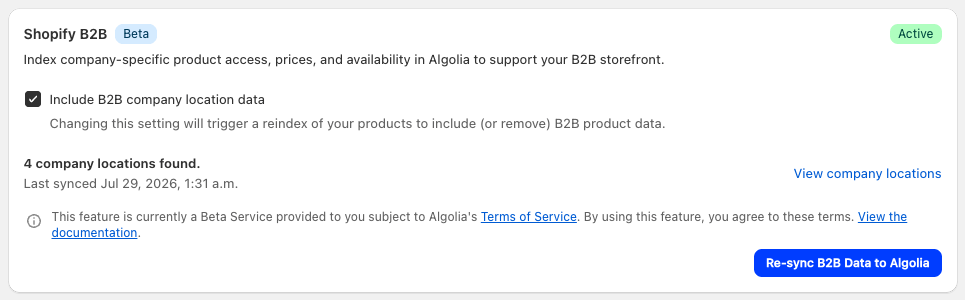 If you see a message with a request for additional read access permissions, grant the app access.
B2B indexing needs permission to read the companies and catalogs in your store.
4. In the **Enable B2B indexing?** dialog, click **Enable and reindex**.
The app fetches your B2B catalogs and company locations from Shopify and starts a full product reindex.
5. When the reindex is complete, check your product records for the B2B attributes described in [Schema](#schema).
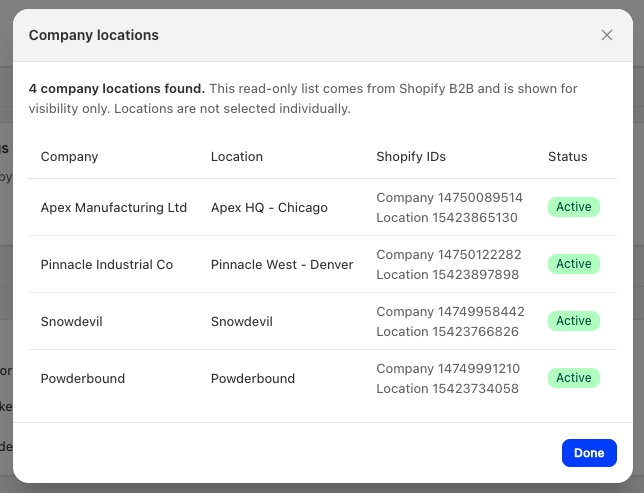
To review which company locations the app found, in the **Shopify B2B** section, click **View company locations**.
The app syncs locations from your Shopify catalogs.
You can't select them individually.
If you see a message with a request for additional read access permissions, grant the app access.
B2B indexing needs permission to read the companies and catalogs in your store.
4. In the **Enable B2B indexing?** dialog, click **Enable and reindex**.
The app fetches your B2B catalogs and company locations from Shopify and starts a full product reindex.
5. When the reindex is complete, check your product records for the B2B attributes described in [Schema](#schema).
To review which company locations the app found, in the **Shopify B2B** section, click **View company locations**.
The app syncs locations from your Shopify catalogs.
You can't select them individually.
 ## How B2B search works
When B2B customers log in to your storefront, the Autocomplete, InstantSearch, and Recommend app blocks
detect their company location.
Search results then only include products from that location's catalogs,
with the location's own B2B pricing.
This happens automatically.
If a product has no B2B price for the customer's location,
the app blocks fall back to displaying the retail price.
### Currency
B2B prices display in the currency of the location's price list,
even when the customer browses your store in a different market or currency.
This matches Shopify B2B checkout, which always charges in the price list currency.
### Price sorting
Sorting and filtering by price use the retail price stored in each record.
If a company location's pricing is a single percentage adjustment,
the retail price order matches the B2B price order, and price sorting works as usual.
For locations with fixed prices or mixed adjustments,
the app hides price sort options and price filters from those B2B customers
to prevent incorrectly ordered results.
## Keep B2B data in sync
Shopify doesn't send notifications when you change catalogs or price lists.
Instead, the app re-syncs your catalog and company location data once a day,
and checks for new changes when you open the **Indexing** tab.
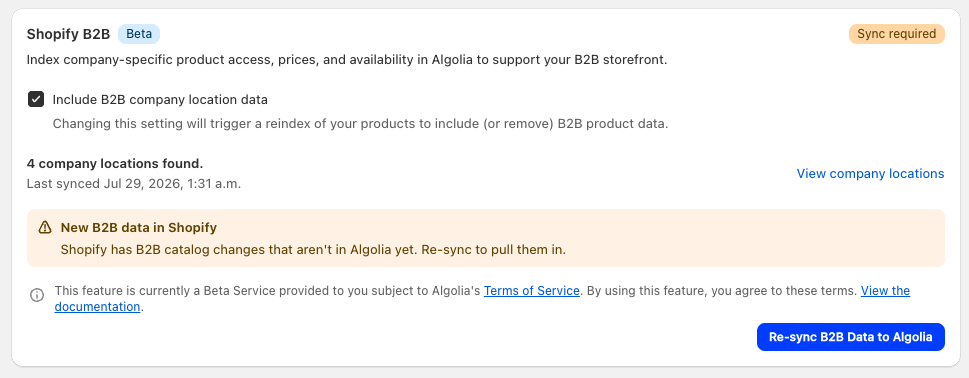
The **Shopify B2B** section shows the result:
* **Sync required**: your catalogs or company locations changed in Shopify since the last sync.
Click **Re-sync B2B Data to Algolia** to update the app's catalog data.
* **Reindex required**: synced changes affect your indexed records.
Click **Reindex products** to update them.
## How B2B search works
When B2B customers log in to your storefront, the Autocomplete, InstantSearch, and Recommend app blocks
detect their company location.
Search results then only include products from that location's catalogs,
with the location's own B2B pricing.
This happens automatically.
If a product has no B2B price for the customer's location,
the app blocks fall back to displaying the retail price.
### Currency
B2B prices display in the currency of the location's price list,
even when the customer browses your store in a different market or currency.
This matches Shopify B2B checkout, which always charges in the price list currency.
### Price sorting
Sorting and filtering by price use the retail price stored in each record.
If a company location's pricing is a single percentage adjustment,
the retail price order matches the B2B price order, and price sorting works as usual.
For locations with fixed prices or mixed adjustments,
the app hides price sort options and price filters from those B2B customers
to prevent incorrectly ordered results.
## Keep B2B data in sync
Shopify doesn't send notifications when you change catalogs or price lists.
Instead, the app re-syncs your catalog and company location data once a day,
and checks for new changes when you open the **Indexing** tab.
The **Shopify B2B** section shows the result:
* **Sync required**: your catalogs or company locations changed in Shopify since the last sync.
Click **Re-sync B2B Data to Algolia** to update the app's catalog data.
* **Reindex required**: synced changes affect your indexed records.
Click **Reindex products** to update them.
 The app never reindexes your products automatically.
Changes to product visibility and B2B prices only reach your records when you reindex.
Other changes, such as whether price sorting is available for a location,
can take up to two days to reach all B2B customers.
## Schema
B2B indexing adds two attributes to your existing product .
It doesn't create new indices.
* `clids`: the IDs of the company locations that can see the product.
Algolia uses this attribute for filtering.
It's never returned in search results.
* `_bp`: the B2B pricing for each company location, keyed by `c_COMPANY_LOCATION_ID`.
```jsonc JSON icon=braces theme={"system"}
{
// ...variant record data
"clids": [15423865130, 15423897898],
"_bp": {
"c_15423865130": {
"p": 29.99,
"cp": 39.99,
"cu": "USD",
"quantity_rule": { "min": 5, "max": 100, "inc": 5 },
"volume_pricing": { "p": 16.0, "qty": 50 }
},
"c_15423897898": { "p": 24.99, "cu": "CAD" }
}
}
```
Each `_bp` entry can include:
| Field | Description |
| ---------------- | --------------------------------------------------------------------------------------------------------------------------------------------------------------------------------------------------------- |
| `p` | B2B price for a quantity of one |
| `cp` | B2B compare-at price. Omitted when the location has none |
| `cu` | Currency code of the price list |
| `quantity_rule` | Order quantity rule: minimum (`min`), increment (`inc`), and maximum (`max`). Omitted when the rule is the Shopify default (minimum 1, increment 1, no maximum). `max` is omitted when there's no maximum |
| `volume_pricing` | Price (`p`) and minimum quantity (`qty`) of the highest quantity tier. Omitted when the variant has no quantity price breaks |
A missing `_bp` entry means the location has no B2B price for that product,
and the widgets fall back to the retail price.
If you [show products instead of variants](/doc/integration/shopify/sending-and-managing-data/schemas#show-products-instead-of-variants),
the product record's `_bp` entry contains the lowest variant price for each location,
its `volume_pricing` is the lowest volume price across all variants,
and each nested variant carries its own `_bp`.
Algolia protects B2B attributes at search time:
logged-in B2B customers can only retrieve the `_bp` entry for their own company location,
and retail visitors can't retrieve B2B data at all.
## Limitations
* B2B visibility and pricing apply to product records only.
Collections, pages, and blog posts don't include B2B data.
* Keep B2B indexing to about 50 company locations.
The integration doesn't enforce a limit,
but record size grows with each company location that prices a product,
and stores with many locations can exceed the [Algolia record size limit](https://support.algolia.com/hc/en-us/articles/4406981897617-Is-there-a-size-limit-for-my-index-records-/) during indexing.
* Records include only one volume pricing tier: the price at the highest quantity tier.
To display the full tier table on product pages,
fetch it from Shopify's [Storefront API](https://shopify.dev/docs/api/storefront).
## Next steps
To share feedback about this beta feature,
send an [email](mailto:support+shopify@algolia.com) or join the [Community](https://alg.li/discord).
The app never reindexes your products automatically.
Changes to product visibility and B2B prices only reach your records when you reindex.
Other changes, such as whether price sorting is available for a location,
can take up to two days to reach all B2B customers.
## Schema
B2B indexing adds two attributes to your existing product .
It doesn't create new indices.
* `clids`: the IDs of the company locations that can see the product.
Algolia uses this attribute for filtering.
It's never returned in search results.
* `_bp`: the B2B pricing for each company location, keyed by `c_COMPANY_LOCATION_ID`.
```jsonc JSON icon=braces theme={"system"}
{
// ...variant record data
"clids": [15423865130, 15423897898],
"_bp": {
"c_15423865130": {
"p": 29.99,
"cp": 39.99,
"cu": "USD",
"quantity_rule": { "min": 5, "max": 100, "inc": 5 },
"volume_pricing": { "p": 16.0, "qty": 50 }
},
"c_15423897898": { "p": 24.99, "cu": "CAD" }
}
}
```
Each `_bp` entry can include:
| Field | Description |
| ---------------- | --------------------------------------------------------------------------------------------------------------------------------------------------------------------------------------------------------- |
| `p` | B2B price for a quantity of one |
| `cp` | B2B compare-at price. Omitted when the location has none |
| `cu` | Currency code of the price list |
| `quantity_rule` | Order quantity rule: minimum (`min`), increment (`inc`), and maximum (`max`). Omitted when the rule is the Shopify default (minimum 1, increment 1, no maximum). `max` is omitted when there's no maximum |
| `volume_pricing` | Price (`p`) and minimum quantity (`qty`) of the highest quantity tier. Omitted when the variant has no quantity price breaks |
A missing `_bp` entry means the location has no B2B price for that product,
and the widgets fall back to the retail price.
If you [show products instead of variants](/doc/integration/shopify/sending-and-managing-data/schemas#show-products-instead-of-variants),
the product record's `_bp` entry contains the lowest variant price for each location,
its `volume_pricing` is the lowest volume price across all variants,
and each nested variant carries its own `_bp`.
Algolia protects B2B attributes at search time:
logged-in B2B customers can only retrieve the `_bp` entry for their own company location,
and retail visitors can't retrieve B2B data at all.
## Limitations
* B2B visibility and pricing apply to product records only.
Collections, pages, and blog posts don't include B2B data.
* Keep B2B indexing to about 50 company locations.
The integration doesn't enforce a limit,
but record size grows with each company location that prices a product,
and stores with many locations can exceed the [Algolia record size limit](https://support.algolia.com/hc/en-us/articles/4406981897617-Is-there-a-size-limit-for-my-index-records-/) during indexing.
* Records include only one volume pricing tier: the price at the highest quantity tier.
To display the full tier table on product pages,
fetch it from Shopify's [Storefront API](https://shopify.dev/docs/api/storefront).
## Next steps
To share feedback about this beta feature,
send an [email](mailto:support+shopify@algolia.com) or join the [Community](https://alg.li/discord).