> ## Documentation Index
> Fetch the complete documentation index at: https://algolia.com/llms.txt
> Use this file to discover all available pages before exploring further.
# Shopify Markets indexing
> Algolia supports Shopify Markets for international ecommerce.
export const Records = () =>
records
;
export const Index = () =>
index
;
export const Facet = () =>
facet
;
export const ApplicationID = () =>
application ID
;
export const Application = () =>
application
;
Shopify apps can't modify theme code directly.
To integrate Autocomplete and InstantSearch,
use the Algolia AI Search & Discovery app's **App Embed** and **App Blocks**.
For more information, see:
* [Manual theme configuration](/doc/integration/shopify/getting-started/quick-start#manual-theme-configuration)
* [Shopify Algolia configuration](/doc/integration/shopify/sending-and-managing-data/algolia-config)
[Shopify Markets](https://shopify.dev/docs/apps/build/markets) helps merchants sell around the world with multiple languages,
international pricing, or market-specific domains.
The Algolia AI Search & Discovery app creates one for each market and language.
This lets you tailor ranking settings for each language and is compatible with existing Algolia features.
## Before you begin: update Shopify theme assets
Before updating your existing theme, make a backup.
Updating will reset any customization you've made to your Algolia theme assets.
To support Shopify Markets indexing, update your Algolia theme assets to the latest version.
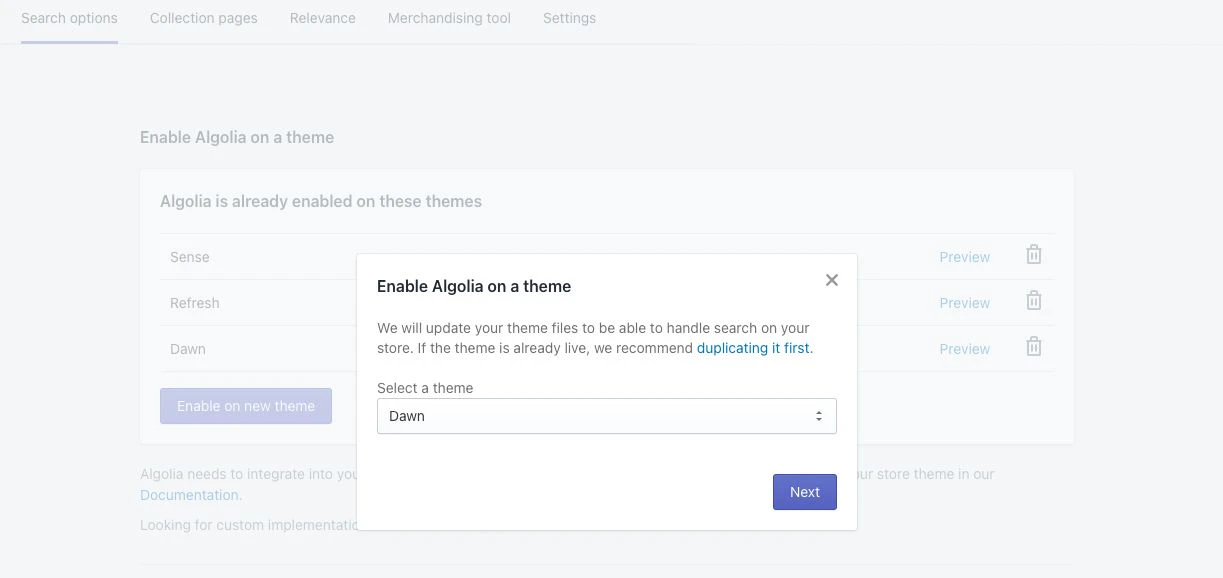
1. In your Shopify admin, go to the Algolia AI Search & Discovery app.
2. On the **Search options** tab, click **Enable on new theme** and either install the theme assets to your existing theme,
or install a new theme.
 ## Enable markets indexing
1. To enable markets settings on your store's Algolia ,
contact the [Algolia support team](https://support.algolia.com/hc/en-us/requests/new)
and provide them with your Shopify domain and Algolia .
2. After activation, go to the **Indexing** tab in the Algolia AI Search & Discovery app.
3. Select **Enable Markets Indexing**.
## Enable markets indexing
1. To enable markets settings on your store's Algolia ,
contact the [Algolia support team](https://support.algolia.com/hc/en-us/requests/new)
and provide them with your Shopify domain and Algolia .
2. After activation, go to the **Indexing** tab in the Algolia AI Search & Discovery app.
3. Select **Enable Markets Indexing**.
 A list shows your store's active Shopify Markets and their available languages.
Some active markets may disappear from the **Shopify Markets** settings if no language is explicitly selected—
languages are no longer inherited from your store settings.
If you save your configuration while these markets are hidden,
**Algolia stops indexing them**, interpreting them as removed.
To prevent data loss:
* In the **Shopify admin**, explicitly select at least one language for each market you want to index.
* Ensure the market is visible in the **Markets indexing settings** of the Algolia Shopify app.
4. For each market and language combination you want to index,
check the option in the **Sync to Algolia** column.
A list shows your store's active Shopify Markets and their available languages.
Some active markets may disappear from the **Shopify Markets** settings if no language is explicitly selected—
languages are no longer inherited from your store settings.
If you save your configuration while these markets are hidden,
**Algolia stops indexing them**, interpreting them as removed.
To prevent data loss:
* In the **Shopify admin**, explicitly select at least one language for each market you want to index.
* Ensure the market is visible in the **Markets indexing settings** of the Algolia Shopify app.
4. For each market and language combination you want to index,
check the option in the **Sync to Algolia** column.
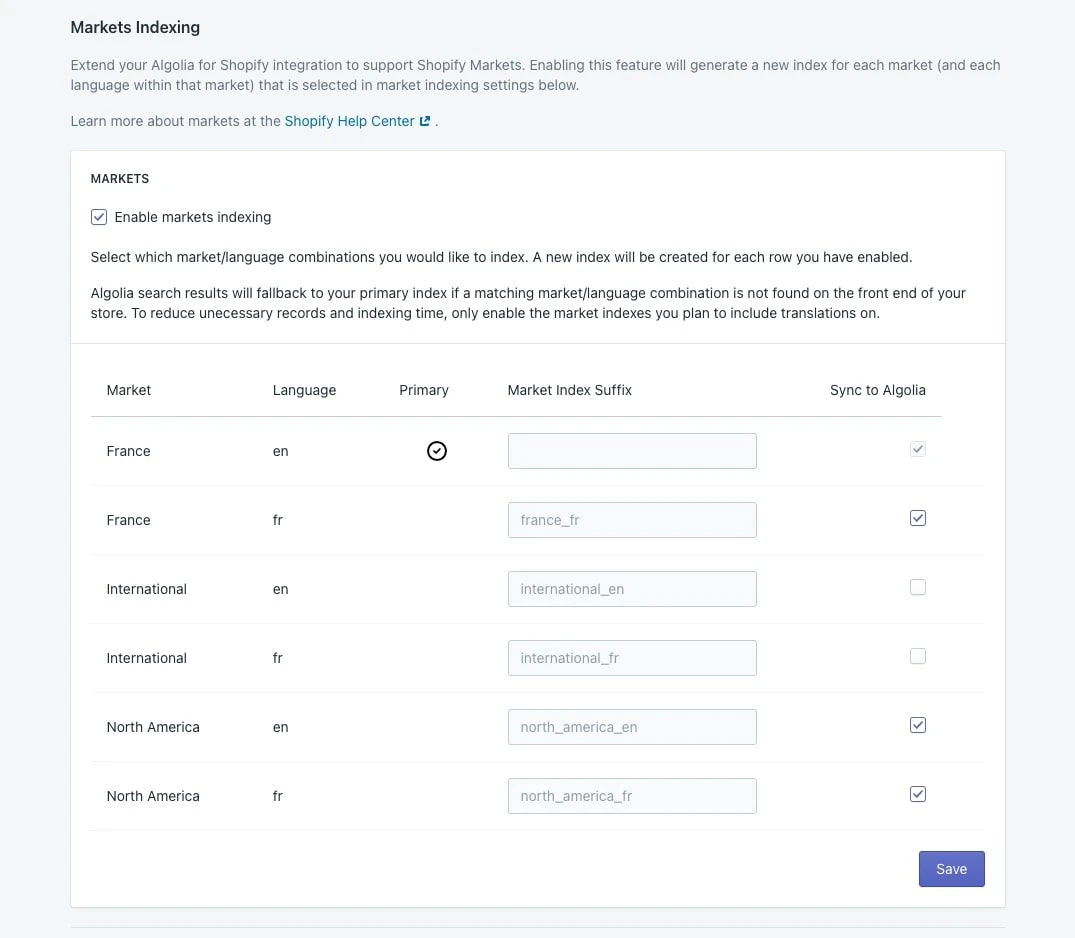 Each selected market and language combination creates a new index.
Only select the combinations you need,
since the processing time and number of increases with each new index.
5. Click **Save**.
### Reindexing
First, Algolia prepares for real-time indexing in the background.
This might take up to one minute.
Next, Algolia reindexes your products and collections with new indices, replicas,
and extra metafields for each record, such as, multiple currencies.
Each selected market and language combination creates a new index.
Only select the combinations you need,
since the processing time and number of increases with each new index.
5. Click **Save**.
### Reindexing
First, Algolia prepares for real-time indexing in the background.
This might take up to one minute.
Next, Algolia reindexes your products and collections with new indices, replicas,
and extra metafields for each record, such as, multiple currencies.
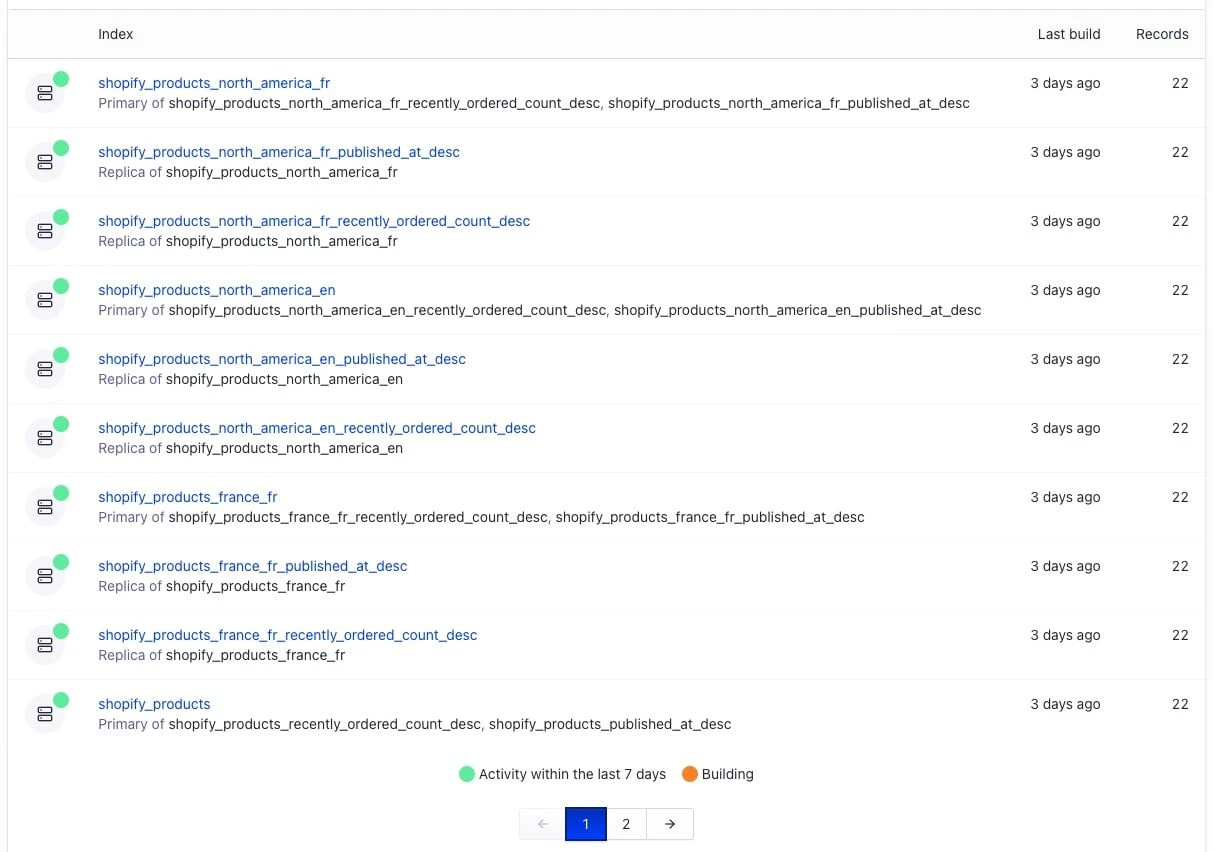 After the initial re-indexing,
real-time indexing keeps your products up-to-date with changes from each market.
### Configure your Shopify storefront
Update your search experience to support translation.
#### Autocomplete dynamic selector helper
1. In the **Search options** tab, go to the **Search basics** section.
2. In the **Autocomplete** section, click **Customize**.
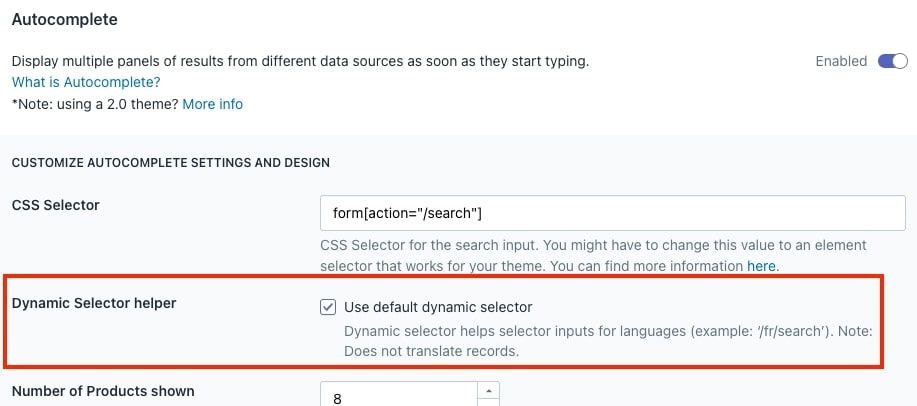
3. Select **Use default dynamic selector**.
This helps the Algolia autocomplete menu to connect to the correct search form URL when users change to a different language or market in your store.
After the initial re-indexing,
real-time indexing keeps your products up-to-date with changes from each market.
### Configure your Shopify storefront
Update your search experience to support translation.
#### Autocomplete dynamic selector helper
1. In the **Search options** tab, go to the **Search basics** section.
2. In the **Autocomplete** section, click **Customize**.
3. Select **Use default dynamic selector**.
This helps the Algolia autocomplete menu to connect to the correct search form URL when users change to a different language or market in your store.
 #### Widget text translations
You can translate text from your Shopify templates with Shopify's [Translate and Adapt](https://apps.shopify.com/translate-and-adapt) app.
The translatable text from Algolia includes labels, placeholders, and helper text.
To edit the translations:
1. Open the Translate and Adapt app.
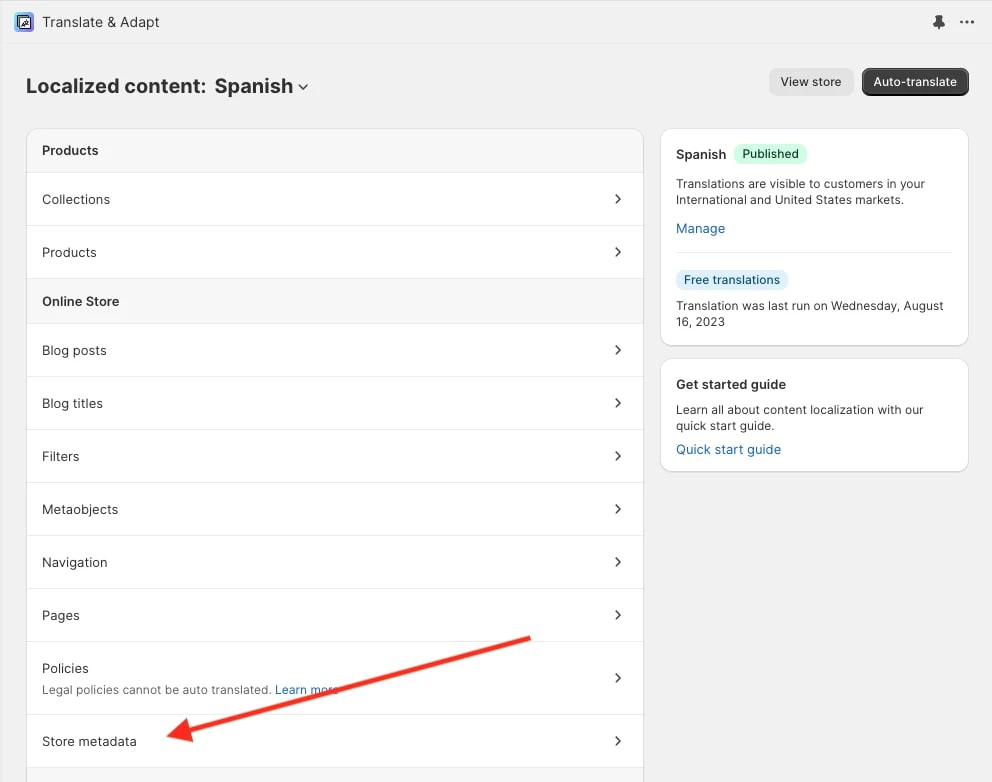
2. Select **Store metadata**.
#### Widget text translations
You can translate text from your Shopify templates with Shopify's [Translate and Adapt](https://apps.shopify.com/translate-and-adapt) app.
The translatable text from Algolia includes labels, placeholders, and helper text.
To edit the translations:
1. Open the Translate and Adapt app.
2. Select **Store metadata**.
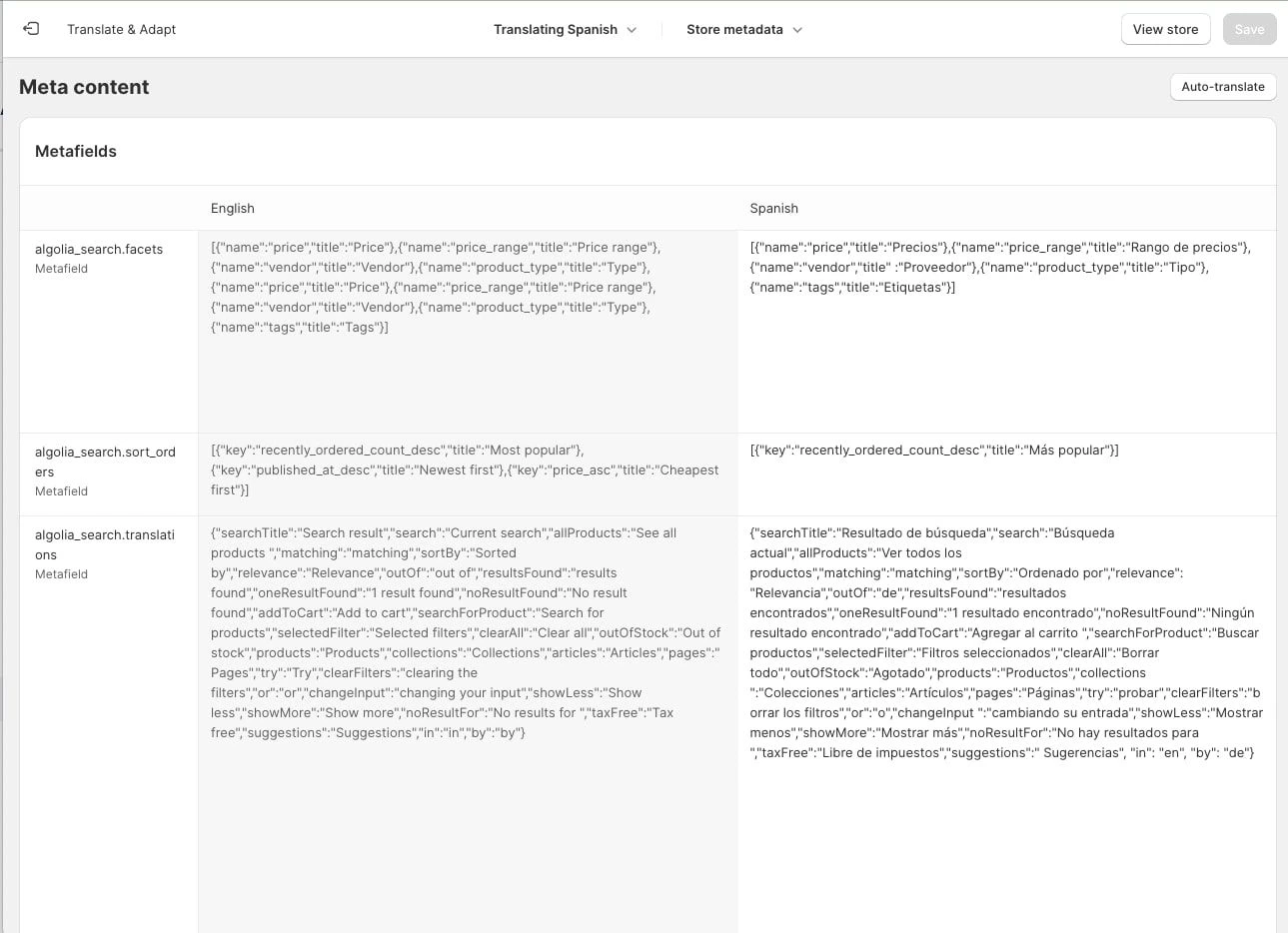
 3. Add your translation to these metafields:
* `algolia_search.translations`: translations for labels and placeholder text
* `algolia_search.instantsearch_facets`: translations for filters
* `algolia_search.instantsearch_sort_orders`: translations for different sort orders
3. Add your translation to these metafields:
* `algolia_search.translations`: translations for labels and placeholder text
* `algolia_search.instantsearch_facets`: translations for filters
* `algolia_search.instantsearch_sort_orders`: translations for different sort orders
 ## Schema
If you added translations for product attributes in Shopify, they're added to each record.
Otherwise, the record defaults to your store's primary language.
The currency for each record defaults to your store's primary currency.
Additional currencies are added as separate objects, such as, `market_pricing_eur`.
Setting attributes as unretrievable affects Markets indexing.
For more information,
see [Retrievable attributes](/doc/integration/shopify/sending-and-managing-data/schemas#retrievable-attributes).
The following example shows the changed fields of a record after enabling Markets indexing:
```jsonc JSON icon=braces theme={"system"}
{
// ...variant record data
"title": "Product Title", // Translation applied || default title
"variant_title": "option1 / option2 / option 3", // Translation applied || default variant title
"description": "Product description", // Translation applied || default description
"handle": "product-handle", // Translation applied || default handle
"price": 100, // Price in primary currency
"compare_at_price": 150, // Price in primary currency
"variant_min_price": 100, // Price in primary currency
"variant_max_price": 150, // Price in primary currency
"variant_min_compare_at_price": 150, // Price in primary currency
"variant_max_compare_at_price": 200, // Price in primary currency
"market_pricing_eur": {
"price": 90, // Price in EUR
"compare_at_price": 135, // Price in EUR
"variant_min_price": 90, // Price in EUR
"variant_max_price": 135, // Price in EUR
"variant_min_compare_at_price": 135, // Price in EUR
"variant_max_compare_at_price": 180 // Price in EUR
},
"market_pricing_gbp": {
"price": 80, // Price in GBP
"compare_at_price": 120, // Price in GBP
"variant_min_price": 80, // Price in GBP
"variant_max_price": 120, // Price in GBP
"variant_min_compare_at_price": 120, // Price in GBP
"variant_max_compare_at_price": 160 // Price in GBP
}
}
```
## Schema
If you added translations for product attributes in Shopify, they're added to each record.
Otherwise, the record defaults to your store's primary language.
The currency for each record defaults to your store's primary currency.
Additional currencies are added as separate objects, such as, `market_pricing_eur`.
Setting attributes as unretrievable affects Markets indexing.
For more information,
see [Retrievable attributes](/doc/integration/shopify/sending-and-managing-data/schemas#retrievable-attributes).
The following example shows the changed fields of a record after enabling Markets indexing:
```jsonc JSON icon=braces theme={"system"}
{
// ...variant record data
"title": "Product Title", // Translation applied || default title
"variant_title": "option1 / option2 / option 3", // Translation applied || default variant title
"description": "Product description", // Translation applied || default description
"handle": "product-handle", // Translation applied || default handle
"price": 100, // Price in primary currency
"compare_at_price": 150, // Price in primary currency
"variant_min_price": 100, // Price in primary currency
"variant_max_price": 150, // Price in primary currency
"variant_min_compare_at_price": 150, // Price in primary currency
"variant_max_compare_at_price": 200, // Price in primary currency
"market_pricing_eur": {
"price": 90, // Price in EUR
"compare_at_price": 135, // Price in EUR
"variant_min_price": 90, // Price in EUR
"variant_max_price": 135, // Price in EUR
"variant_min_compare_at_price": 135, // Price in EUR
"variant_max_compare_at_price": 180 // Price in EUR
},
"market_pricing_gbp": {
"price": 80, // Price in GBP
"compare_at_price": 120, // Price in GBP
"variant_min_price": 80, // Price in GBP
"variant_max_price": 120, // Price in GBP
"variant_min_compare_at_price": 120, // Price in GBP
"variant_max_compare_at_price": 160 // Price in GBP
}
}
```