> ## Documentation Index
> Fetch the complete documentation index at: https://algolia.com/llms.txt
> Use this file to discover all available pages before exploring further.
# Metafields
> Index Shopify's metafields.
export const Records = () =>
records
;
export const Index = () =>
index
;
export const Facet = () =>
facet
;
The Algolia AI Search & Discovery app can index Shopify [metafields](https://help.shopify.com/en/manual/custom-data/metafields).
To learn how to add metafields to your products and collections,
see [Adding metafields](https://help.shopify.com/en/manual/custom-data/metafields/metafield-definitions) in the Shopify documentation.
As an alternative, consider using [named tags](/doc/integration/shopify/sending-and-managing-data/named-tags).
They let you add extra attributes to your products and variants, without having to configure metafield indexing settings.
## How to index metafields
To index Shopify metafields as [Algolia searchable attributes](#schema),
follow these steps:
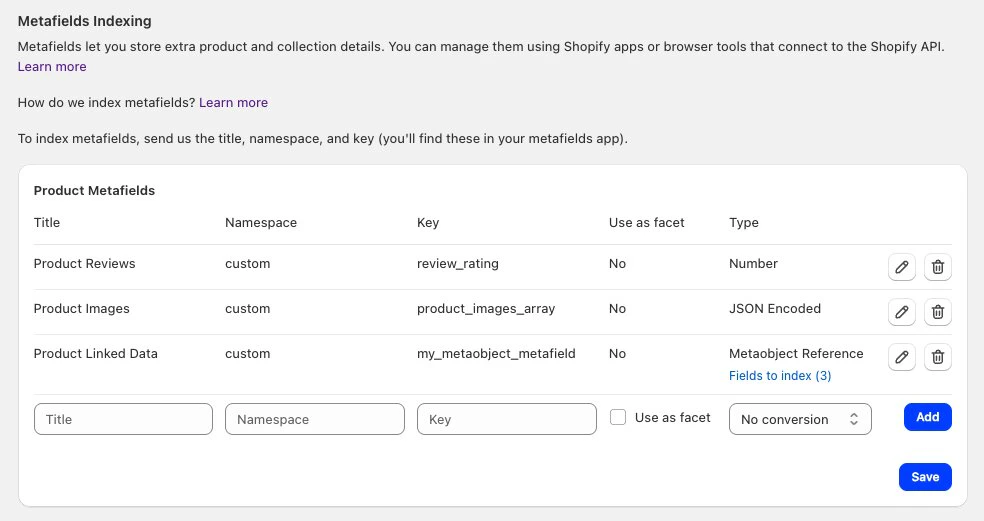
1. In your Shopify admin, go to the Algolia AI Search & Discovery app and open the **Indexing** tab.
2. Go to the **Metafields Indexing** section.
3. Enter a title, namespace, and key for the metafield you want to add.
You can find this information in the app you use to manage your metafields.
4. Optional for products: select [**Use as facet**](#metafields-as-facets) if you want to use this metafield for faceting or filtering.
5. Optional: [convert the metafield type](#type-conversion) to a number, a string array, a JSON-encoded field, or a [metaobject reference](#metaobject-reference).
6. Click **Add**.
7. If you're done adding metafields, click **Save**.
 ## Metafields as facets
For your products, you can select metafields as facets.
If you select the **Use as facet** option when adding or editing a metafield,
the metafield is initially *inactive*.
Inactive facets aren't shown in your in the Algolia dashboard.
To activate the , go to the **Search Options** tab,
click **InstantSearch - Results page powered by Algolia > Customize** and [configure your facets](/doc/integration/shopify/getting-started/configuration#faceting).
## Type conversion
## Metafields as facets
For your products, you can select metafields as facets.
If you select the **Use as facet** option when adding or editing a metafield,
the metafield is initially *inactive*.
Inactive facets aren't shown in your in the Algolia dashboard.
To activate the , go to the **Search Options** tab,
click **InstantSearch - Results page powered by Algolia > Customize** and [configure your facets](/doc/integration/shopify/getting-started/configuration#faceting).
## Type conversion
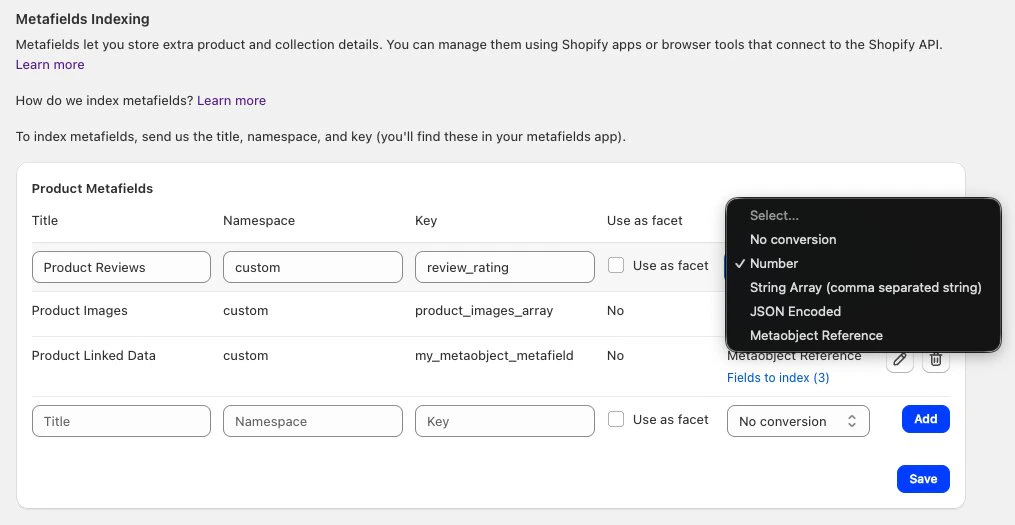 Shopify supports many types of metafields,
but they're stored as either `integer` or `string` types.
For your Algolia index, you can convert them to the following types:
### Number
Converts strings to:
* Integers: `"100" => 100`
* Decimals: `"1.2" => 1.2`
### String array
Converts a string to an array of strings, split on commas.
* To include commas in a string, wrap the string in quotes: `abc, "def,ghi"`
* To include quotes in a string, wrap the string in quotes and escape the quotes: `abc, "def\"ghi"`
* To include backslashes in a string, wrap the string in quotes and escape the backslashes: `abc, "def\\ghi"`
### JSON-encoded
Decode a JSON-encoded string or a JSON metafield.
Transform this string:
```txt theme={"system"}
"[{\"value\":2.0,\"unit\":\"oz\"},{\"value\":3.0,\"unit\":\"oz\"}]"
```
Into this record:
```json JSON icon=braces theme={"system"}
[
{ "value": 2.0, "unit": "oz" },
{ "value": 3.0, "unit": "oz" }
]
```
### Metaobject reference
Index the fields of a Shopify [metaobject](https://help.shopify.com/en/manual/custom-data/metaobjects) that is referenced by a metafield.
This works with both single metaobject reference and list metaobject reference metafield types.
When you select **Metaobject Reference** as the type, a **Fields to index** link appears.
Click this link to open a modal where you can choose which fields from the metaobject definition to include in your Algolia records.
By default, all fields are selected.
To index metaobject fields:
1. Add a metafield with the namespace and key of a metafield that references a metaobject.
2. In the **Type** drop-down menu, select **Metaobject Reference**.
3. Click **Fields to index** to open the field selection modal.
4. Select the metaobject fields you want to include in your Algolia records. At least one field must be selected.
5. Click **Confirm**, then click **Save**.
Shopify supports many types of metafields,
but they're stored as either `integer` or `string` types.
For your Algolia index, you can convert them to the following types:
### Number
Converts strings to:
* Integers: `"100" => 100`
* Decimals: `"1.2" => 1.2`
### String array
Converts a string to an array of strings, split on commas.
* To include commas in a string, wrap the string in quotes: `abc, "def,ghi"`
* To include quotes in a string, wrap the string in quotes and escape the quotes: `abc, "def\"ghi"`
* To include backslashes in a string, wrap the string in quotes and escape the backslashes: `abc, "def\\ghi"`
### JSON-encoded
Decode a JSON-encoded string or a JSON metafield.
Transform this string:
```txt theme={"system"}
"[{\"value\":2.0,\"unit\":\"oz\"},{\"value\":3.0,\"unit\":\"oz\"}]"
```
Into this record:
```json JSON icon=braces theme={"system"}
[
{ "value": 2.0, "unit": "oz" },
{ "value": 3.0, "unit": "oz" }
]
```
### Metaobject reference
Index the fields of a Shopify [metaobject](https://help.shopify.com/en/manual/custom-data/metaobjects) that is referenced by a metafield.
This works with both single metaobject reference and list metaobject reference metafield types.
When you select **Metaobject Reference** as the type, a **Fields to index** link appears.
Click this link to open a modal where you can choose which fields from the metaobject definition to include in your Algolia records.
By default, all fields are selected.
To index metaobject fields:
1. Add a metafield with the namespace and key of a metafield that references a metaobject.
2. In the **Type** drop-down menu, select **Metaobject Reference**.
3. Click **Fields to index** to open the field selection modal.
4. Select the metaobject fields you want to include in your Algolia records. At least one field must be selected.
5. Click **Confirm**, then click **Save**.
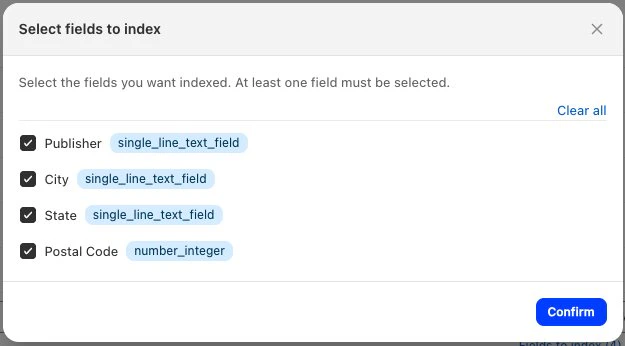 The available fields are fetched from your Shopify store's metaobject definition.
If no fields appear, verify that the namespace and key of the metafield are correct,
and that the metafield references a valid metaobject definition.
## Schema
The Algolia AI Search & Discovery app adds Shopify metafields to your as the `meta` [`searchableAttributes`](/doc/api-reference/api-parameters/searchableAttributes).
For example, a record with three `meta` fields:
`colors.main`, `colors.secondary`, and `contact.partner`.
```jsonc JSON icon=braces theme={"system"}
{
"title": "Awesome dress",
// ... Other attributes
"meta": {
"colors": {
"main": "white",
"secondary": "gold"
},
"contact": {
"partner": "sellonlineshop.co"
}
}
}
```
You can use any of these metafields in your Algolia index configuration.
To select a metafield, use `meta.namespace.key`, such as `meta.colors.primary`.
## Product and variant metafields
If a variant has metafields, its values override the metafields of its parent product.
Updating a product metafield will trigger a product update webhook but updating a variant-level metafield won't.
Use the **Sync with Algolia** feature to trigger real-time updates and reflect metafield changes.
## Multilingual support
Some Shopify apps that help with translations store their translated data in metafields.
The Algolia AI Search & Discovery app can index this translated data.
To add support for several languages:
1. Add the required translated data within metafields associated with the product.
2. [Index those metafields](#how-to-index-metafields).
3. Optional: depending on the user's chosen language,
display this data by modifying the relevant product template ([InstantSearch](/doc/integration/shopify/building-search-ui/instant-search) and [Autocomplete](/doc/integration/shopify/building-search-ui/autocomplete)).
## Metafield translations with Shopify Markets
By default, when using markets indexing, metafields aren't translated.
Only the following attributes are translated and indexed by default:
* `title`
* `handle`
* `body_html`
* `product_type`
To enable metafield translations,
contact the [Algolia support](https://support.algolia.com/hc/en-us/requests/new) team.
Ensure you've indexed [metafields](#how-to-index-metafields) and [markets](/doc/integration/shopify/sending-and-managing-data/markets#enable-markets-indexing).
### Constraints
* **Rate limiting.**
Metafield translations make one API request per field.
If you have a large Shopify store, check [Shopify's rate limits](https://shopify.dev/docs/api/usage/rate-limits).
The available fields are fetched from your Shopify store's metaobject definition.
If no fields appear, verify that the namespace and key of the metafield are correct,
and that the metafield references a valid metaobject definition.
## Schema
The Algolia AI Search & Discovery app adds Shopify metafields to your as the `meta` [`searchableAttributes`](/doc/api-reference/api-parameters/searchableAttributes).
For example, a record with three `meta` fields:
`colors.main`, `colors.secondary`, and `contact.partner`.
```jsonc JSON icon=braces theme={"system"}
{
"title": "Awesome dress",
// ... Other attributes
"meta": {
"colors": {
"main": "white",
"secondary": "gold"
},
"contact": {
"partner": "sellonlineshop.co"
}
}
}
```
You can use any of these metafields in your Algolia index configuration.
To select a metafield, use `meta.namespace.key`, such as `meta.colors.primary`.
## Product and variant metafields
If a variant has metafields, its values override the metafields of its parent product.
Updating a product metafield will trigger a product update webhook but updating a variant-level metafield won't.
Use the **Sync with Algolia** feature to trigger real-time updates and reflect metafield changes.
## Multilingual support
Some Shopify apps that help with translations store their translated data in metafields.
The Algolia AI Search & Discovery app can index this translated data.
To add support for several languages:
1. Add the required translated data within metafields associated with the product.
2. [Index those metafields](#how-to-index-metafields).
3. Optional: depending on the user's chosen language,
display this data by modifying the relevant product template ([InstantSearch](/doc/integration/shopify/building-search-ui/instant-search) and [Autocomplete](/doc/integration/shopify/building-search-ui/autocomplete)).
## Metafield translations with Shopify Markets
By default, when using markets indexing, metafields aren't translated.
Only the following attributes are translated and indexed by default:
* `title`
* `handle`
* `body_html`
* `product_type`
To enable metafield translations,
contact the [Algolia support](https://support.algolia.com/hc/en-us/requests/new) team.
Ensure you've indexed [metafields](#how-to-index-metafields) and [markets](/doc/integration/shopify/sending-and-managing-data/markets#enable-markets-indexing).
### Constraints
* **Rate limiting.**
Metafield translations make one API request per field.
If you have a large Shopify store, check [Shopify's rate limits](https://shopify.dev/docs/api/usage/rate-limits).