> ## Documentation Index
> Fetch the complete documentation index at: https://algolia.com/llms.txt
> Use this file to discover all available pages before exploring further.
# Frequent issues
> Explanation of frequent issues in Shopify or Shopify Plus implementations.
export const Index = () =>
index
;
export const Application = () =>
application
;
Shopify apps can't modify theme code directly.
To integrate Autocomplete and InstantSearch,
use the Algolia AI Search & Discovery app's **App Embed** and **App Blocks**.
For more information, see:
* [Manual theme configuration](/doc/integration/shopify/getting-started/quick-start#manual-theme-configuration)
* [Shopify Algolia configuration](/doc/integration/shopify/sending-and-managing-data/algolia-config)
## The configuration file is out of date, or configuration changes aren't applying
The root cause is the `algolia_config.js` file being out of date.
This can happen if the theme isn't configured within the Algolia AI Search & Discovery app or if the configuration file is overwritten.
To confirm that the theme is configured within the app, check that it shows up in the list in the **Search options** tab.
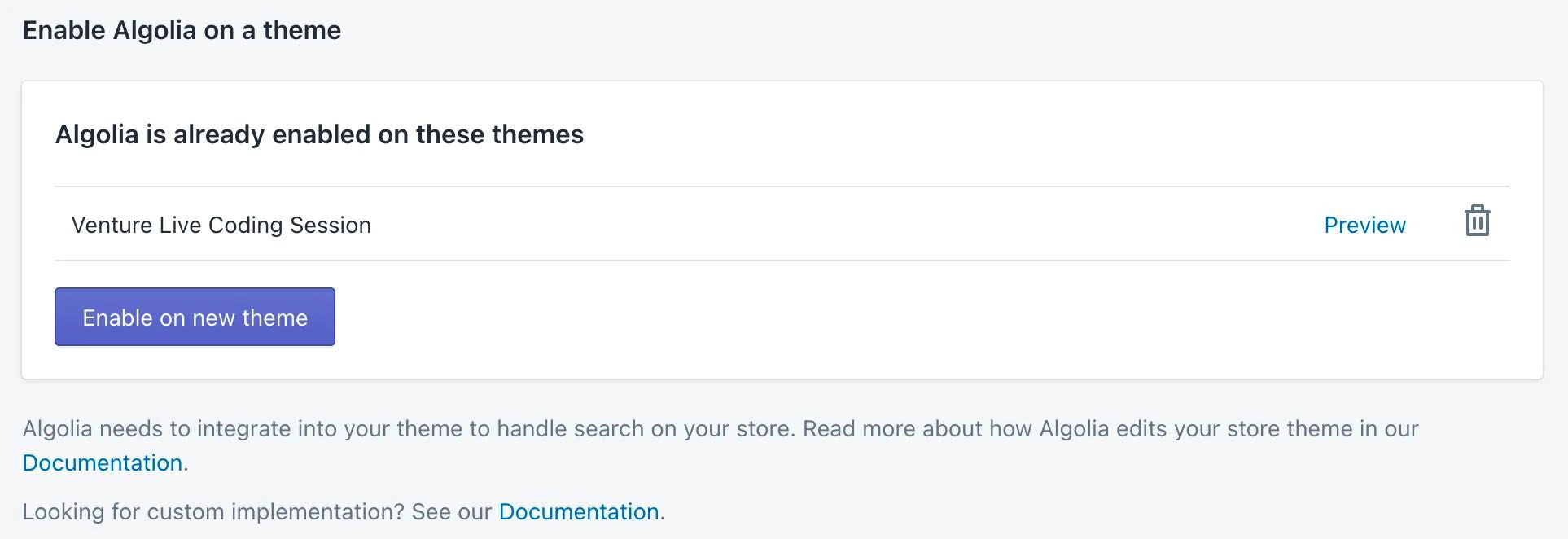 If the theme doesn't show up and if it already contains an `algolia_config.js` file, you can synchronize the themes by clicking on the **Synchronize** button:
 If the theme shows up in the list and the configuration is still not updated, you can force the app to push the latest version of this file to the theme.
Do this by updating any Algolia setting, then revert it.
On any update, Algolia pushes the latest version of `algolia_config.js` file to your theme.
## The configuration file gets overwritten when using Slate (or similar)
When using a versioned theme or a toolkit like Slate, the `algolia_config.js` file might get accidentally overwritten.
To prevent this from happening, ignore `assets/algolia_config.js.liquid` in your version control system.
For example, when using Git, you can add it to your `.gitignore` file.
## Products don't get updated when marking them available/unavailable
When updating products from the Shopify's Admin section using the batch **Make available** or **Make unavailable** action, Algolia doesn't update. This is because Shopify doesn't send the proper webhook.
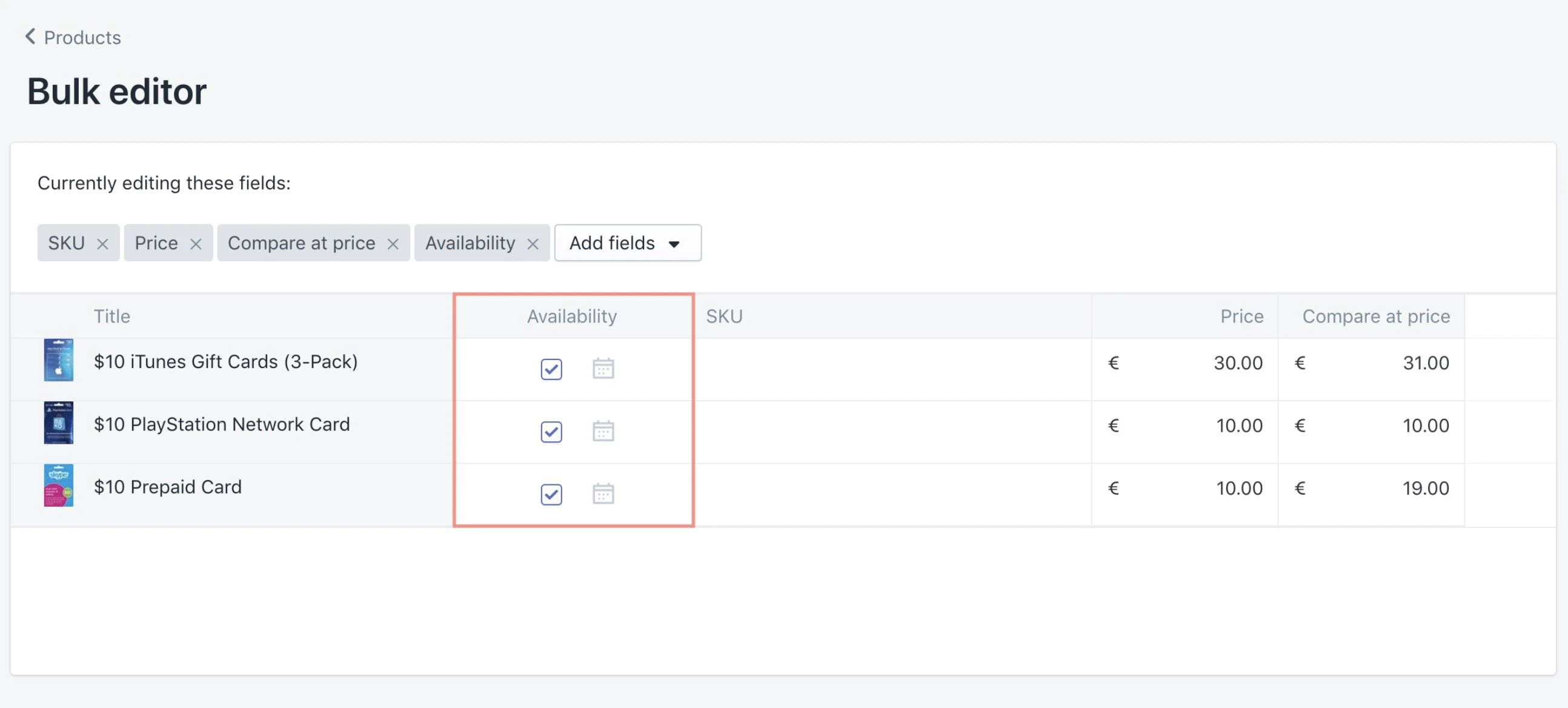
Update the availability of the products using the **Availability** field in the **Bulk Editor**:
1. Select the desired products.
2. Click **Edit products**.
3. If you don't see the **Availability** field, add it using the **Add fields** button.
4. Mark the products as available or unavailable.
If the theme shows up in the list and the configuration is still not updated, you can force the app to push the latest version of this file to the theme.
Do this by updating any Algolia setting, then revert it.
On any update, Algolia pushes the latest version of `algolia_config.js` file to your theme.
## The configuration file gets overwritten when using Slate (or similar)
When using a versioned theme or a toolkit like Slate, the `algolia_config.js` file might get accidentally overwritten.
To prevent this from happening, ignore `assets/algolia_config.js.liquid` in your version control system.
For example, when using Git, you can add it to your `.gitignore` file.
## Products don't get updated when marking them available/unavailable
When updating products from the Shopify's Admin section using the batch **Make available** or **Make unavailable** action, Algolia doesn't update. This is because Shopify doesn't send the proper webhook.
Update the availability of the products using the **Availability** field in the **Bulk Editor**:
1. Select the desired products.
2. Click **Edit products**.
3. If you don't see the **Availability** field, add it using the **Add fields** button.
4. Mark the products as available or unavailable.
 This action triggers the correct webhook from Shopify,
which triggers an Algolia indexing.
This might be slower than using the batch action.
## Products getting duplicated across multiple shops
If you have multiple shops using the same Algolia ,
and see overlapping or duplicate products across them,
this might mean the shops are sharing the same .
**Ensure that different shops have different index prefixes.**
You can update prefixes by going to the **Settings** tab of the Algolia plugin.
Updating the prefix triggers a full reindex of your products, which might take some time.
## The Algolia Autocomplete or InstantSearch isn't visible
If you've installed the Algolia AI Search & Discovery app for the first time,
or moved to a new theme, and the Algolia autocomplete or InstantSearch isn't visible, then:
1. Make sure the **Autocomplete** and **InstantSearch** options are selected.
* The **InstantSearch** option is available on the **Search Options** tab in the **Search Page** category.
* The **Autocomplete** option is available on the **Display** tab in the **Autocomplete** category.
2. Ensure that the **CSS selector** for both these options is targeting the correct element.
3. Go to the **Active Installation** section on the **Display** tab, and select the **Install to a new theme** option.
After this, the Algolia autocomplete or InstantSearch should work as expected.
## Invalid Algolia credentials during installation
If you see the error message "There was an error with your Algolia credentials" when entering your credentials, then:
* Make sure you've entered the correct credentials.
## Further support
If your Algolia plan includes commercial support,
contact the [Algolia Support](https://support.algolia.com/hc/en-us/requests/new) team.
Otherwise, visit the [Algolia community](https://alg.li/discord).
This action triggers the correct webhook from Shopify,
which triggers an Algolia indexing.
This might be slower than using the batch action.
## Products getting duplicated across multiple shops
If you have multiple shops using the same Algolia ,
and see overlapping or duplicate products across them,
this might mean the shops are sharing the same .
**Ensure that different shops have different index prefixes.**
You can update prefixes by going to the **Settings** tab of the Algolia plugin.
Updating the prefix triggers a full reindex of your products, which might take some time.
## The Algolia Autocomplete or InstantSearch isn't visible
If you've installed the Algolia AI Search & Discovery app for the first time,
or moved to a new theme, and the Algolia autocomplete or InstantSearch isn't visible, then:
1. Make sure the **Autocomplete** and **InstantSearch** options are selected.
* The **InstantSearch** option is available on the **Search Options** tab in the **Search Page** category.
* The **Autocomplete** option is available on the **Display** tab in the **Autocomplete** category.
2. Ensure that the **CSS selector** for both these options is targeting the correct element.
3. Go to the **Active Installation** section on the **Display** tab, and select the **Install to a new theme** option.
After this, the Algolia autocomplete or InstantSearch should work as expected.
## Invalid Algolia credentials during installation
If you see the error message "There was an error with your Algolia credentials" when entering your credentials, then:
* Make sure you've entered the correct credentials.
## Further support
If your Algolia plan includes commercial support,
contact the [Algolia Support](https://support.algolia.com/hc/en-us/requests/new) team.
Otherwise, visit the [Algolia community](https://alg.li/discord).