> ## Documentation Index
> Fetch the complete documentation index at: https://algolia.com/llms.txt
> Use this file to discover all available pages before exploring further.
# Add CSV data to your extracted records
> Enrich your records with data from a CSV file.
If the data you want to include in your extracted records isn't present on the site you're crawling,
you can add that data from a CSV file.
For example, you may be crawling an ecommerce site, but details such as cost pricing and inventory levels aren't on the site.
## Prepare a spreadsheet in a crawler-compatible format
Your spreadsheet's format must be compatible with the crawler:
* It must contain a header row
* One of the header columns must be `url`
* The `url` column should contain all URLs to which you want to add external data.
* The remaining columns are for data that you want to add to the record for each URL.
For an example, see [this spreadsheet](https://docs.google.com/spreadsheets/d/1hkpL4yL5lmUajzpqs_MQqKnU3MBL3VQT1WLegNy76y8/edit?usp=sharing).
## Publish your spreadsheet online
Add your spreadsheet data to Google Sheets and [publish it online](https://support.google.com/docs/answer/183965).
* The spreadsheet's sharing settings(**Restrict access to the following**) must allow the Crawler to access it.
* The spreadsheet must be published as a CSV file.
Change the setting from **Web page** to **Comma-separated values (.csv)**.
* The crawler uses the latest data in your Google spreadsheet.
To prevent this, and just use the initially uploaded data, clear the
**Automatically republish when changes are made** setting.
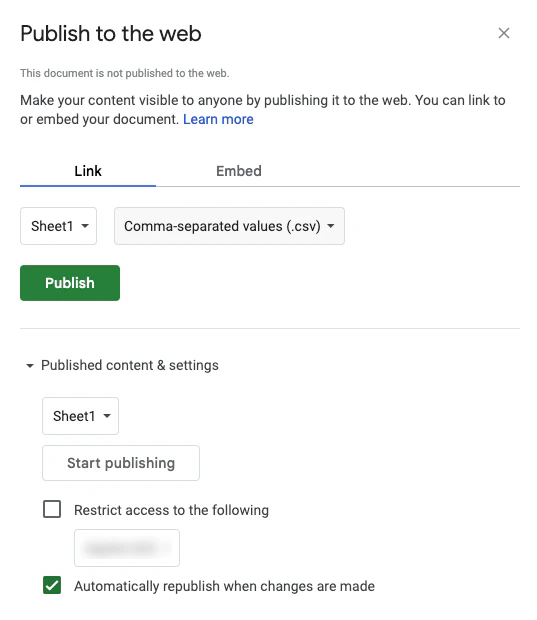 After you click **Publish**, copy the URL.
You'll need this to create an external data source.
The CSV data doesn't have to be in Google Sheets but it must be available online.
## Link the published spreadsheet in your crawler configuration
To link your spreadsheet, create an external data source and add it to the `recordExtractor` function in your crawler configuration.
### Create an external data source
1. From the Crawler page, select the [External Data](https://dashboard.algolia.com/crawler/external-data) tab.
2. Click **Add External Data**
3. As **External Data type**, select **CSV**, add your CSV file's URL, and click **Create**.
After you click **Publish**, copy the URL.
You'll need this to create an external data source.
The CSV data doesn't have to be in Google Sheets but it must be available online.
## Link the published spreadsheet in your crawler configuration
To link your spreadsheet, create an external data source and add it to the `recordExtractor` function in your crawler configuration.
### Create an external data source
1. From the Crawler page, select the [External Data](https://dashboard.algolia.com/crawler/external-data) tab.
2. Click **Add External Data**
3. As **External Data type**, select **CSV**, add your CSV file's URL, and click **Create**.
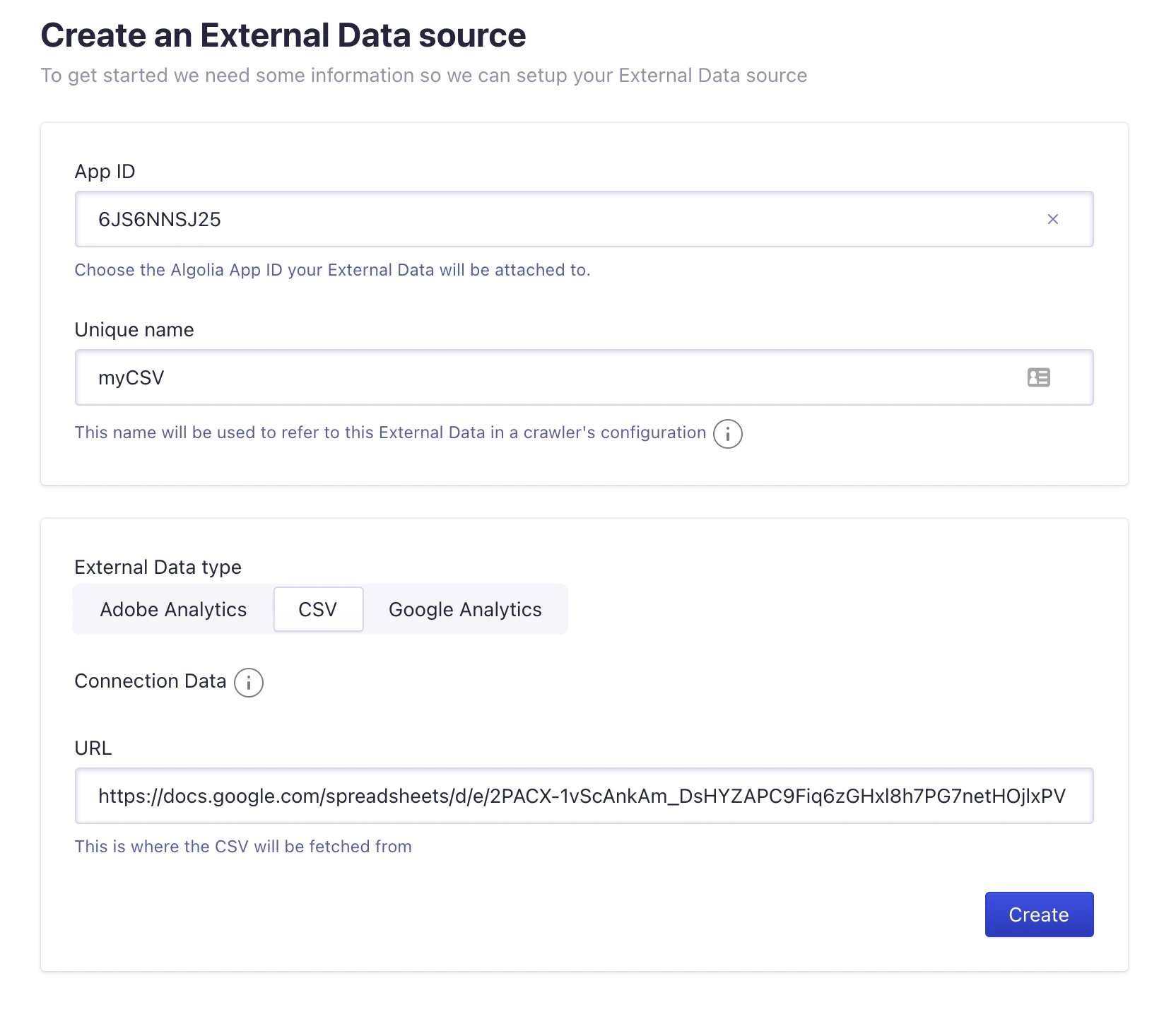 4. To test the data source, click **Explore Data** and then **Refresh Data**.
It should extract the correct number of rows from your spreadsheet.
### Add external data to extracted records
1. Go to the [**Crawler**](https://dashboard.algolia.com/crawler/) page,
select your crawler, and click **Editor**.
2. Add the [`externalData`](/doc/tools/crawler/apis/configuration/external-data)
parameter to your crawler. For example:
```js JavaScript icon=code theme={"system"}
externalData: ["myCSV"];
```
3. Add the [`dataSources`](/doc/tools/crawler/apis/configuration/actions#param-record-extractor-data-sources)
parameter to the [`recordExtractor`](/doc/tools/crawler/apis/configuration/actions#param-record-extractor)
function and reference the columns from your CSV data source.
```js JavaScript icon=code highlight={4,5,7} theme={"system"}
recordExtractor: ({ url, dataSources }) => [
{
objectID: url.href,
pageviews: dataSources.myCSV.pageviews,
category: dataSources.myCSV.category,
// Convert the string to a boolean because CSV doesn't have boolean types
onsale: dataSources.myCSV.onsale === "true",
},
];
```
The crawler only keeps data from URLs that match your crawler configuration's [`startUrls`](/doc/tools/crawler/apis/configuration/start-urls),
[`extraUrls`](/doc/tools/crawler/apis/configuration/extra-urls), and
[`pathsToMatch`](/doc/tools/crawler/apis/configuration/actions#param-paths-to-match) parameters.
#### Test the data
1. In the [**URL Tester**](/doc/tools/crawler/getting-started/monitoring#url-tester),
enter the URL of a page with CSV data attached to it (one of those you added to your spreadsheet).
2. Click **Run Test**.
3. Confirm that the extracted records contain the data from your CSV.
If this doesn't work as expected,
check that the URL in your spreadsheet matches the site URL.
4. To test the data source, click **Explore Data** and then **Refresh Data**.
It should extract the correct number of rows from your spreadsheet.
### Add external data to extracted records
1. Go to the [**Crawler**](https://dashboard.algolia.com/crawler/) page,
select your crawler, and click **Editor**.
2. Add the [`externalData`](/doc/tools/crawler/apis/configuration/external-data)
parameter to your crawler. For example:
```js JavaScript icon=code theme={"system"}
externalData: ["myCSV"];
```
3. Add the [`dataSources`](/doc/tools/crawler/apis/configuration/actions#param-record-extractor-data-sources)
parameter to the [`recordExtractor`](/doc/tools/crawler/apis/configuration/actions#param-record-extractor)
function and reference the columns from your CSV data source.
```js JavaScript icon=code highlight={4,5,7} theme={"system"}
recordExtractor: ({ url, dataSources }) => [
{
objectID: url.href,
pageviews: dataSources.myCSV.pageviews,
category: dataSources.myCSV.category,
// Convert the string to a boolean because CSV doesn't have boolean types
onsale: dataSources.myCSV.onsale === "true",
},
];
```
The crawler only keeps data from URLs that match your crawler configuration's [`startUrls`](/doc/tools/crawler/apis/configuration/start-urls),
[`extraUrls`](/doc/tools/crawler/apis/configuration/extra-urls), and
[`pathsToMatch`](/doc/tools/crawler/apis/configuration/actions#param-paths-to-match) parameters.
#### Test the data
1. In the [**URL Tester**](/doc/tools/crawler/getting-started/monitoring#url-tester),
enter the URL of a page with CSV data attached to it (one of those you added to your spreadsheet).
2. Click **Run Test**.
3. Confirm that the extracted records contain the data from your CSV.
If this doesn't work as expected,
check that the URL in your spreadsheet matches the site URL.