> ## Documentation Index
> Fetch the complete documentation index at: https://algolia.com/llms.txt
> Use this file to discover all available pages before exploring further.
# Extract data from crawled pages
> Use meta tags, helpers, or CSS selectors to extract detailed information from your site.
When you [create a new crawler](/doc/tools/crawler/getting-started/create-crawler),
a configuration file is automatically generated.
This file helps the crawler understand what information to collect from different parts of your site, like product pages or blog articles.
Following the first crawl, you can refine this configuration file to collect more comprehensive or granular details.
To target specific content for extraction, you can use meta tags, CSS selectors, or helpers.
Be aware that any change to the site's structure and attributes might affect crawling.
Use attributes that are less likely to alter, even if other aspects of the site change. For example:
* Prefer [data-\* global attributes](https://developer.mozilla.org/en-US/docs/Web/HTML/Global_attributes/data-*)
* Prefer simple CSS selectors over complex ones (with children or siblings).
If there are any changes to site attributes, you must update the crawler's configuration to guarantee continuous data extraction.
## Helpers
The Crawler can use [helpers](/doc/tools/crawler/getting-started/concepts#helpers) to extract *supported* [JSON-LD](https://json-ld.org/)
attributes from the [Article](https://schema.org/Article) and [Product](https://schema.org/Product) schemas.
To identify JSON-LD attributes on your site, use an online schema markup validator, such as: [validator.schema.org](https://validator.schema.org).
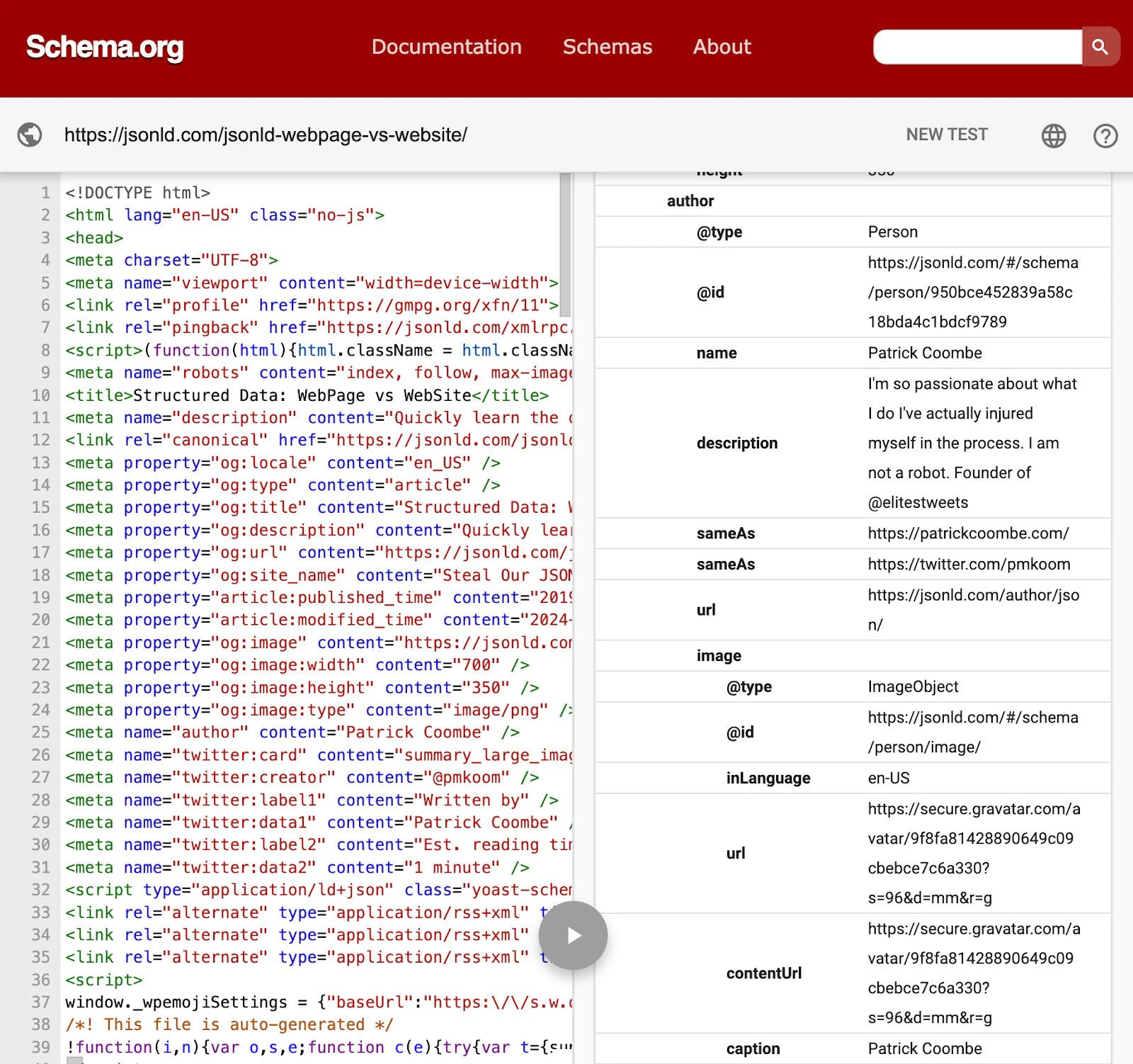
For example, to analyze the blog post [jsonld.com/jsonld-webpage-vs-website](https://jsonld.com/jsonld-webpage-vs-website),
copy that URL into the validator.
You'll find the `author` information in the **Webpage** schema.
 ### Unsupported JSON-LD attributes
To extract *unsupported* JSON-LD [attributes and schemas](/doc/tools/crawler/extracting-data/data-extraction-examples#extract-data-from-json-ld)
in your pages, define a custom helper by adding the following instructions to your crawler's configuration:
```js JavaScript icon=code theme={"system"}
let jsonld;
const node = $('script[type="application/ld+json"]').get(0);
try {
jsonld = JSON.parse(node.firstChild.data);
} catch (err) {
// Log errors in the console
console.log(node);
```
For more information, see [Troubleshooting data extraction issues](/doc/tools/crawler/troubleshooting/extraction-issues).
## Meta tags
For specifying the content a crawler should extract, meta tags are often a good start.
This is because meta tags are less likely to alter during site updates or redesigns, minimizing the need to update the crawler configuration.
However, meta tags might not include everything you want.
If you're trying to get information that's not in a meta tag, like a blog post's author, you can:
* Add the missing information to your site's meta tags
* [Use helpers](#helpers)
* [Use CSS selectors](#css-selectors).
### Extract data with meta tags
You can set up [actions](/doc/tools/crawler/getting-started/concepts#actions) in your crawler's configuration file to look for specific meta tags on your pages.
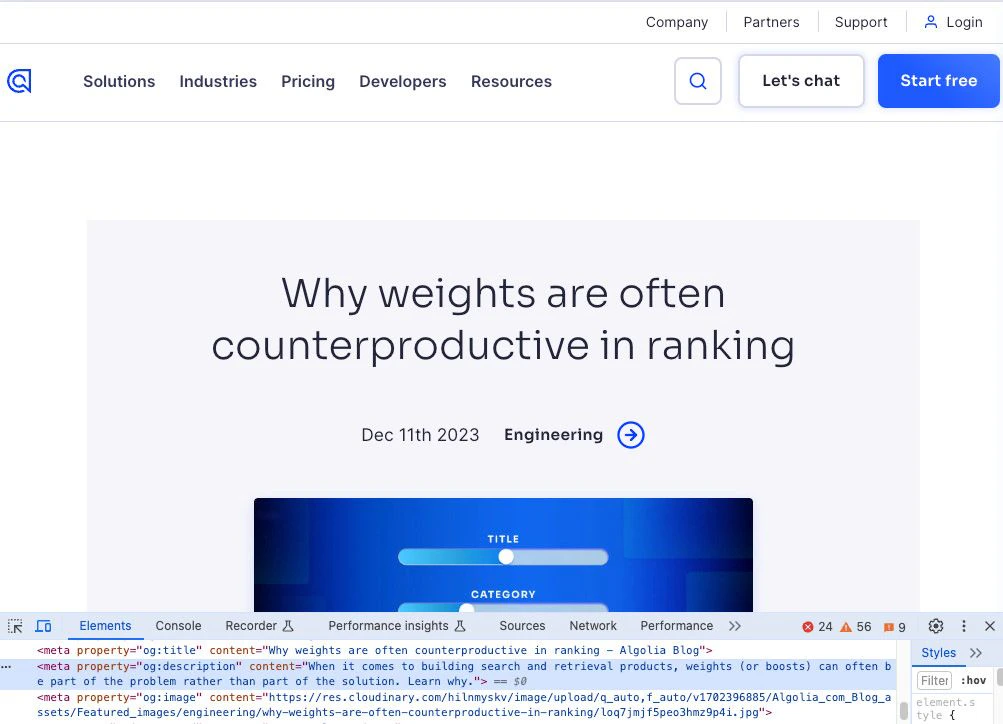
The following example captures a blog post's `description` by finding that meta tag in the `head` section of that page's HTML and creating an action to tell the crawler how to extract it:
`description: $("meta[name=description]").attr("content"),`
### Unsupported JSON-LD attributes
To extract *unsupported* JSON-LD [attributes and schemas](/doc/tools/crawler/extracting-data/data-extraction-examples#extract-data-from-json-ld)
in your pages, define a custom helper by adding the following instructions to your crawler's configuration:
```js JavaScript icon=code theme={"system"}
let jsonld;
const node = $('script[type="application/ld+json"]').get(0);
try {
jsonld = JSON.parse(node.firstChild.data);
} catch (err) {
// Log errors in the console
console.log(node);
```
For more information, see [Troubleshooting data extraction issues](/doc/tools/crawler/troubleshooting/extraction-issues).
## Meta tags
For specifying the content a crawler should extract, meta tags are often a good start.
This is because meta tags are less likely to alter during site updates or redesigns, minimizing the need to update the crawler configuration.
However, meta tags might not include everything you want.
If you're trying to get information that's not in a meta tag, like a blog post's author, you can:
* Add the missing information to your site's meta tags
* [Use helpers](#helpers)
* [Use CSS selectors](#css-selectors).
### Extract data with meta tags
You can set up [actions](/doc/tools/crawler/getting-started/concepts#actions) in your crawler's configuration file to look for specific meta tags on your pages.
The following example captures a blog post's `description` by finding that meta tag in the `head` section of that page's HTML and creating an action to tell the crawler how to extract it:
`description: $("meta[name=description]").attr("content"),`
 ### Change what you collect
Add or remove Algolia record attributes by modifying the corresponding instruction in the configuration's [`recordExtractor`](/doc/tools/crawler/apis/configuration/actions#param-record-extractor).
For example:
* To stop capturing the `description` attribute for blog posts in the next crawl,
delete `$("meta[name=description]").attr("content")` from the configuration.
* To add an attribute, add a corresponding `recordExtractor` with the relevant meta tag to the configuration file.
## CSS selectors
You can use [CSS selectors](https://developer.mozilla.org/en-US/docs/Web/API/Document/querySelector) to pinpoint the information you want to extract from the `body` of a page.
For example, to extract the author name from an [MDN blog post](https://developer.mozilla.org/en-US/blog/getting-started-with-css-container-queries/),
the appropriate CSS selector is `.author`.
### Change what you collect
Add or remove Algolia record attributes by modifying the corresponding instruction in the configuration's [`recordExtractor`](/doc/tools/crawler/apis/configuration/actions#param-record-extractor).
For example:
* To stop capturing the `description` attribute for blog posts in the next crawl,
delete `$("meta[name=description]").attr("content")` from the configuration.
* To add an attribute, add a corresponding `recordExtractor` with the relevant meta tag to the configuration file.
## CSS selectors
You can use [CSS selectors](https://developer.mozilla.org/en-US/docs/Web/API/Document/querySelector) to pinpoint the information you want to extract from the `body` of a page.
For example, to extract the author name from an [MDN blog post](https://developer.mozilla.org/en-US/blog/getting-started-with-css-container-queries/),
the appropriate CSS selector is `.author`.
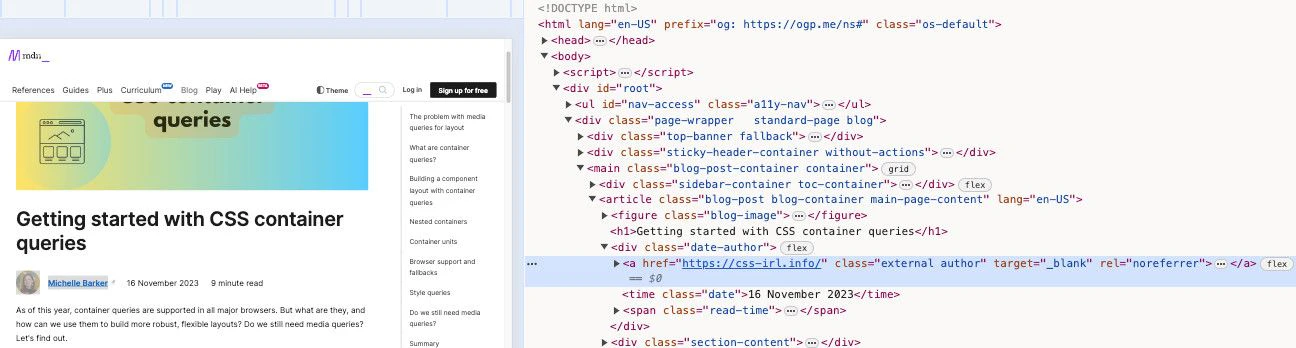 To extract this, add the following to your configuration's [`recordExtractor`](/doc/tools/crawler/apis/configuration/actions#param-record-extractor):
`author: $(".author").text(),`
For more information, see [Debug CSS selectors](/doc/tools/crawler/troubleshooting/extraction-issues#debug-css-selectors).
To extract this, add the following to your configuration's [`recordExtractor`](/doc/tools/crawler/apis/configuration/actions#param-record-extractor):
`author: $(".author").text(),`
For more information, see [Debug CSS selectors](/doc/tools/crawler/troubleshooting/extraction-issues#debug-css-selectors).