> ## Documentation Index
> Fetch the complete documentation index at: https://algolia.com/llms.txt
> Use this file to discover all available pages before exploring further.
# Configure crawlers with the editor
> Configure and optimize a crawler to fetch data from a site
export const Records = () =>
records
;
export const Index = () =>
index
;
To configure your crawlers, the [visual UI](/doc/tools/crawler/getting-started/crawler-configuration-visual) is the simplest approach.
However, the Crawler's editor gives you more fine-grained control of crawler activities.
To manage a large number of crawlers, you can configure and monitor them programmatically with the [Algolia CLI](/doc/tools/cli/commands/crawler) or the [Crawler API](/doc/rest-api/crawler).
## The editor
To configure your crawler:
1. Open the [Crawler](https://dashboard.algolia.com/users/sign_in?redirect_to=%2Fcrawler) page in the dashboard and select the crawler you want to configure. If your crawler isn't listed and several Algolia applications use the Crawler add-on, ensure you select the correct one from the **Application** menu at the top.
2. In the sidebar, click **Editor**.
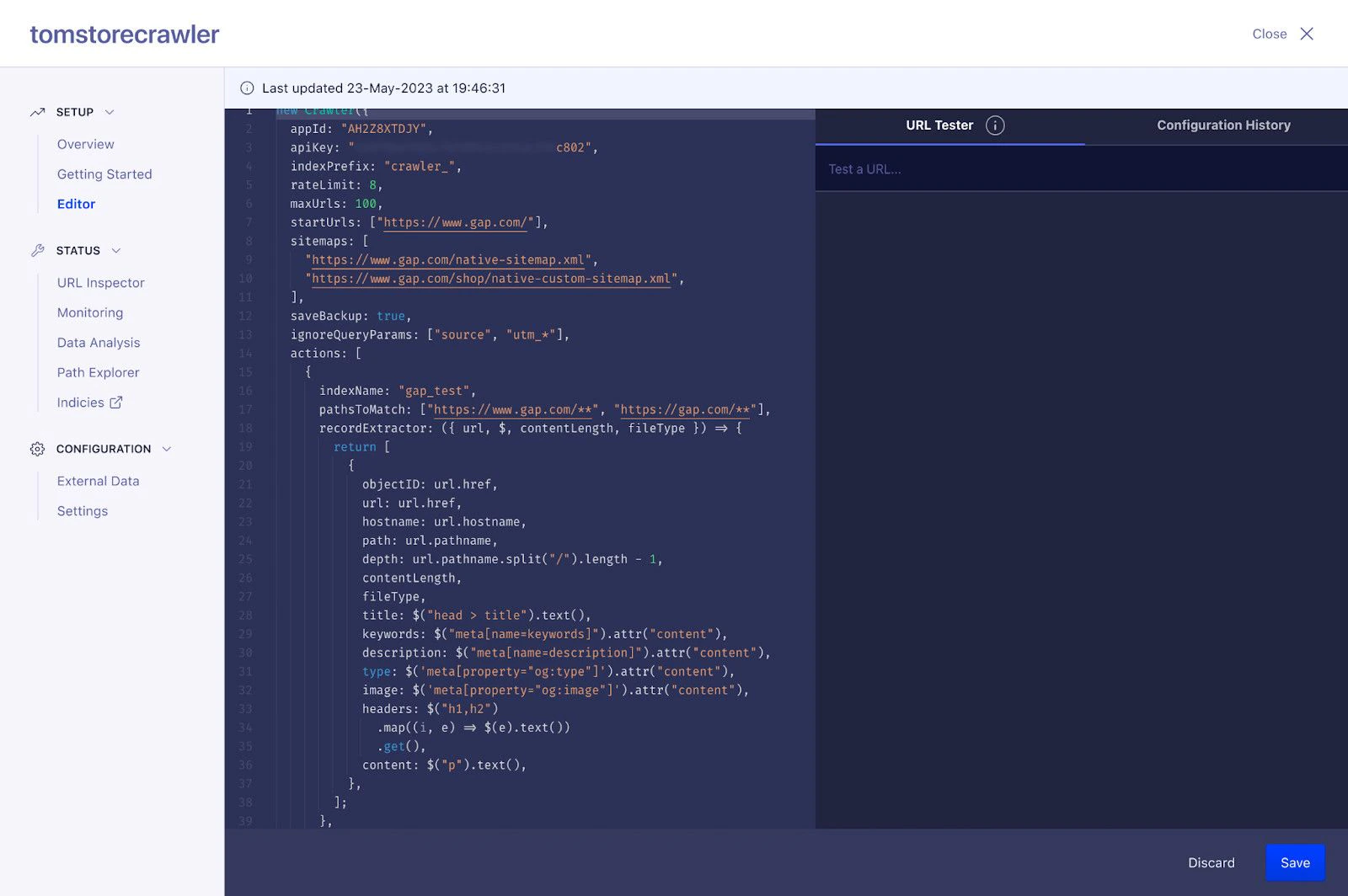 The editor has three elements:
* **Configuration editor.** Edit your crawler configuration, such as, which URLs to crawl, and what content to extract from each page.
* **[URL Tester](/doc/tools/crawler/getting-started/monitoring#url-tester).** Test your current configuration on specific URLs.
* **Configuration History.** Review all configuration changes.
## Enhance the crawler configuration
Once you've [created a crawler](/doc/tools/crawler/getting-started/create-crawler) and run the test crawl, you should change its configuration so that it works for your site.
This is an iterative process, where you:
1. Make some changes
2. Re-crawl the site by clicking **Restart crawling** from the Crawler **Overview** page.
3. Use the [Algolia dashboard](https://dashboard.algolia.com) to examine
4. Use the [monitoring tools](/doc/tools/crawler/getting-started/monitoring) to help troubleshoot [error messages or warnings](/doc/tools/crawler/troubleshooting/error-messages).
5. Repeat until you're happy.
The configuration changes that you should first consider are:
* Where to start crawling your site with [`sitemaps`](/doc/tools/crawler/apis/configuration/sitemaps) and [`startUrls`](/doc/tools/crawler/apis/configuration/start-urls)
* The maximum URLs limit with [`maxUrls`](/doc/tools/crawler/apis/configuration/max-urls)
* Deciding what you want to exclude with [`exclusionPatterns`](/doc/tools/crawler/apis/configuration/exclusion-patterns)
* Deciding what content you want to include with [`actions#pathsToMatch`](/doc/tools/crawler/apis/configuration/actions#param-paths-to-match) and [`actions#recordExtractor`](/doc/tools/crawler/apis/configuration/actions#param-record-extractor)
For an overview of all configuration options, see [Configuration](/doc/tools/crawler/apis/configuration).
## Where to start crawling your site
The [`startUrls`](/doc/tools/crawler/apis/configuration/start-urls) setting tells the crawler which [URLs](/doc/tools/crawler/getting-started/create-crawler#create-a-new-crawler) it should use to start crawling.
In most cases, it's best to **rely on your sitemap**.
If the initial setup didn't discover all your sitemaps,
add them to the [`sitemaps`](/doc/tools/crawler/apis/configuration/sitemaps) setting.
## Maximum URL limit
The [`maxUrls`](/doc/tools/crawler/apis/configuration/max-urls) parameter limits the number of pages the crawler checks.
The [test crawl](/doc/tools/crawler/getting-started/create-crawler#run-the-test-crawl) only extracts data from up to 100 URLs.
## Exclude and include content
By default, the crawler will crawl all the URLs it finds and add all the content on those pages to your Algolia indices.
However, you can instruct the crawler which sections, pages, or patterns to exclude or include.
### Decide what you want to exclude
Use [`exclusionPatterns`](/doc/tools/crawler/apis/configuration/exclusion-patterns) to tell the crawler which pages you want it to ignore.
For example, on a site (`mynewssite.com`) with news articles, author biographies, and career pages, you might only want to extract the news articles.
To do this, tell the crawler to exclude pages that match the URL patterns `https://www.mynewssite.com/author/**` and `https://www.mynewssite.com/about/**`.
This ensures the crawler only extracts data from the remaining article pages.
#### Exclude content by attribute
Sometimes, you might not want users to find some crawled content.
For instance:
* Content only relevant for a specific period, like event listings that are no longer useful after the event has ended.
* Older news articles that might not be relevant anymore.
Although you could try to manage this by adjusting your crawler configuration, you might encounter issues.
For example, if you're [making updates between the crawler's regular schedule](/doc/tools/crawler/troubleshooting/monitoring-issues#update-between-scheduled-crawls).
Instead, it's better to filter search results on the crawled data by [specific attributes](/doc/guides/managing-results/refine-results/filtering/how-to/filter-by-attributes) such as `deletion_date`.
This means that when a user performs a search after the deletion date passes, the filter automatically hides it from search results.
If you're concerned about revealing the deletion date,
you can keep it safe with a [secured API key](/doc/guides/security/api-keys/how-to/user-restricted-access-to-data).
#### Exclude URL query strings
To exclude URL patterns within a query string (for example, `Itemid=123` in the URL `www.examplesite.com/shop/?Itemid=123`),
configure your [`recordExtractor`](/doc/tools/crawler/apis/configuration/actions#param-record-extractor) to handle this.
For example:
```js JavaScript icon=code theme={"system"}
recordExtractor: ({ url, $, contentLength, fileType }) => {
// Exclude URLs containing the unwanted query string
if (url.search && (url.search.includes("Itemid="))) {
return []; // Skip indexing for this URL
}
// ...
```
### Decide what content you want to include
Adjust [`actions.pathsToMatch`](/doc/tools/crawler/apis/configuration/actions#param-paths-to-match) and [`actions.recordExtractor`](/doc/tools/crawler/apis/configuration/actions#param-record-extractor) to extract only the information you need.
For example, you have a site with three content types: blog posts, a home page, and documentation pages.
You want to store each content type separately since they're formatted differently:
your blog posts have `author` and `publishing_date` attributes but the documentation pages don't.
You want all this content to be searchable on your site.
#### Decide which attributes to send
When the crawler visits your site, it [extracts the data elements](/doc/tools/crawler/extracting-data/finding-and-extracting-data) (attributes) and stores them in an Algolia record.
Use these [attributes](/doc/guides/sending-and-managing-data/prepare-your-data#algolia-records) for fine-tuning relevance, displaying filters, or implementing multi-index search.
You must decide which attributes are important for each content type.
These attributes are the ones you should extract and send to Algolia.
For example, you've two types of content: help guides and blog posts.
Both have a `published_date` attribute, but you only want to extract the date for the blog posts, not the help guides.
* For blog posts, you want to use `published_date` to ensure newer blog posts rank first in search results.
* For help guides, `published_date` isn't helpful for ranking search results. Instead, you want to use `rating` to help ensure the guides that users found most helpful rank higher in search results.
You may need separate actions for each:
* Content type you want to crawl.
* Section of the site you want to crawl (optional).
#### Decide which content types to crawl
For each content type (schema) in an , create a separate crawler action.
To help identify the different content types on your site, refer to [Schema.org](https://schema.org/docs/schemas.html) for guidance.
For example, Schema.org has definitions for [articles](https://schema.org/Article) and [products](https://schema.org/Product).
#### Decide which sections of the site to crawl
During the [test crawl](/doc/tools/crawler/getting-started/create-crawler#run-the-test-crawl),
the crawler creates *one* action to extract all the data from your site.
As a result, you'll see all the records stored in one Algolia index.
This might fit your needs but, in some cases, there are benefits to [storing different types of data in different indices](/doc/guides/sending-and-managing-data/manage-indices-and-apps/manage-indices/concepts/one-or-more-indices).
If you store content in several indices, you must decide which sections of your site you want to extract data from.
For each section, you must create a crawler action.
If you decide to store all your data (records) in one index, you only require one action.
### Canonical URLs and crawler behavior
During the crawling process, the system attempts to extract data from all submitted domains, paths, and URLs.
The crawler may encounter [canonical URLs](https://wikipedia.org/wiki/Canonical_link_element): the "primary" version of a subject.
For example, if there are several pages with the same content, canonical URLs in a page's `head` section link to the primary version of the content.
The crawler follows both the initial and the canonical URL but it only extracts content from the *last* page it crawls and, hence, might skip the primary version of the content.
To prevent the crawler from following canonical URL redirects and ensure it crawls all pages,
add the [`ignoreCanonicalTo`](/doc/tools/crawler/apis/configuration/ignore-canonical-to) parameter to your configuration.
For more information,
see [Use canonical URLs to indicate primary content](/doc/guides/building-search-ui/resources/seo/js#you-use-canonical-urls-to-indicate-primary-content).
## Partial crawls with caching
Frequently crawling an entire site can be resource-intensive, especially if updates are infrequent.
Although Algolia lacks a partial crawl feature, the Crawler achieves similar results with the [`cache`](/doc/tools/crawler/apis/configuration/cache) parameter.
By default, caching is on (`true`).
During the initial crawl or a scheduled crawl, the crawler fetches all pages and stores their last modified timestamps in the cache.
In subsequent crawls, the crawler uses the [`If-Modified-Since`](https://developer.mozilla.org/en-US/docs/Web/HTTP/Headers/If-Modified-Since) header to compare each page's last modification date with the cached timestamps.
* If a page has been updated since the last crawl, the server responds with the full page content.
* If there haven't been any changes, the server sends a lightweight response indicating no modifications and the previously generated records for that page are retained.
This method requires your server to support [conditional requests](https://developer.mozilla.org/en-US/docs/Web/HTTP/Conditional_requests) with `Last-Modified` headers.
## Safety checks
The Crawler has two safety features that can be configured to stop your crawler:
* **Record Loss Policy.** The crawler stops if it finds 10% fewer records than the previous crawl.
* **Max Failed URLs.** The crawler stops if a certain number of pages fail to crawl.
This can happen if you change your site without updating the crawler configuration.
To ensure that significant updates or deletions don't go unnoticed, the crawler won't update your records until you check and confirm the change is okay.
* If this difference is expected, and you want to replace the index, click **Replace production index**. If you don't want to update, click **Cancel**.
* If this is unexpected, use the [URL Inspector](/doc/tools/crawler/getting-started/monitoring#url-inspector) to see what might have led to the issue.
### Exceeds your record loss threshold
To change the default 10% threshold, add the [`safetyChecks#maxLostRecordsPercentage`](/doc/tools/crawler/apis/configuration/safety-checks#param-before-index-publishing-max-lost-records-percentage) parameter to the crawler configuration or change this value in the [visual UI](/doc/tools/crawler/getting-started/crawler-configuration-visual#configuration-settings).
For example, if you want the crawler to stop when it finds 15% fewer records than the previous crawl, set `maxLostRecordsPercentage` to 15.
If the crawler exceeds `maxLostRecordsPercentage`,
it will stop and you'll see a warning:
`Too many missing records. The new index generated by this crawl is missing too many records to replace the production index automatically.`
### Exceeds your maximum failed URLs threshold
To enable this check, set a value for the [`safetyChecks#maxFailedUrls`](/doc/tools/crawler/apis/configuration/safety-checks#param-before-index-publishing-max-failed-urls) parameter or enable it in the [visual UI](/doc/tools/crawler/getting-started/crawler-configuration-visual#configuration-settings).
For example, if you want the crawler to stop when 15 URLs fail to crawl, set `maxFailedUrls` to 15.
If the crawler exceeds `maxFailedUrls`,
it will stop and you'll see a warning:
`Too many failed URLs. The new index generated by this crawl contains too many failed URLs to replace the production index automatically.`
The editor has three elements:
* **Configuration editor.** Edit your crawler configuration, such as, which URLs to crawl, and what content to extract from each page.
* **[URL Tester](/doc/tools/crawler/getting-started/monitoring#url-tester).** Test your current configuration on specific URLs.
* **Configuration History.** Review all configuration changes.
## Enhance the crawler configuration
Once you've [created a crawler](/doc/tools/crawler/getting-started/create-crawler) and run the test crawl, you should change its configuration so that it works for your site.
This is an iterative process, where you:
1. Make some changes
2. Re-crawl the site by clicking **Restart crawling** from the Crawler **Overview** page.
3. Use the [Algolia dashboard](https://dashboard.algolia.com) to examine
4. Use the [monitoring tools](/doc/tools/crawler/getting-started/monitoring) to help troubleshoot [error messages or warnings](/doc/tools/crawler/troubleshooting/error-messages).
5. Repeat until you're happy.
The configuration changes that you should first consider are:
* Where to start crawling your site with [`sitemaps`](/doc/tools/crawler/apis/configuration/sitemaps) and [`startUrls`](/doc/tools/crawler/apis/configuration/start-urls)
* The maximum URLs limit with [`maxUrls`](/doc/tools/crawler/apis/configuration/max-urls)
* Deciding what you want to exclude with [`exclusionPatterns`](/doc/tools/crawler/apis/configuration/exclusion-patterns)
* Deciding what content you want to include with [`actions#pathsToMatch`](/doc/tools/crawler/apis/configuration/actions#param-paths-to-match) and [`actions#recordExtractor`](/doc/tools/crawler/apis/configuration/actions#param-record-extractor)
For an overview of all configuration options, see [Configuration](/doc/tools/crawler/apis/configuration).
## Where to start crawling your site
The [`startUrls`](/doc/tools/crawler/apis/configuration/start-urls) setting tells the crawler which [URLs](/doc/tools/crawler/getting-started/create-crawler#create-a-new-crawler) it should use to start crawling.
In most cases, it's best to **rely on your sitemap**.
If the initial setup didn't discover all your sitemaps,
add them to the [`sitemaps`](/doc/tools/crawler/apis/configuration/sitemaps) setting.
## Maximum URL limit
The [`maxUrls`](/doc/tools/crawler/apis/configuration/max-urls) parameter limits the number of pages the crawler checks.
The [test crawl](/doc/tools/crawler/getting-started/create-crawler#run-the-test-crawl) only extracts data from up to 100 URLs.
## Exclude and include content
By default, the crawler will crawl all the URLs it finds and add all the content on those pages to your Algolia indices.
However, you can instruct the crawler which sections, pages, or patterns to exclude or include.
### Decide what you want to exclude
Use [`exclusionPatterns`](/doc/tools/crawler/apis/configuration/exclusion-patterns) to tell the crawler which pages you want it to ignore.
For example, on a site (`mynewssite.com`) with news articles, author biographies, and career pages, you might only want to extract the news articles.
To do this, tell the crawler to exclude pages that match the URL patterns `https://www.mynewssite.com/author/**` and `https://www.mynewssite.com/about/**`.
This ensures the crawler only extracts data from the remaining article pages.
#### Exclude content by attribute
Sometimes, you might not want users to find some crawled content.
For instance:
* Content only relevant for a specific period, like event listings that are no longer useful after the event has ended.
* Older news articles that might not be relevant anymore.
Although you could try to manage this by adjusting your crawler configuration, you might encounter issues.
For example, if you're [making updates between the crawler's regular schedule](/doc/tools/crawler/troubleshooting/monitoring-issues#update-between-scheduled-crawls).
Instead, it's better to filter search results on the crawled data by [specific attributes](/doc/guides/managing-results/refine-results/filtering/how-to/filter-by-attributes) such as `deletion_date`.
This means that when a user performs a search after the deletion date passes, the filter automatically hides it from search results.
If you're concerned about revealing the deletion date,
you can keep it safe with a [secured API key](/doc/guides/security/api-keys/how-to/user-restricted-access-to-data).
#### Exclude URL query strings
To exclude URL patterns within a query string (for example, `Itemid=123` in the URL `www.examplesite.com/shop/?Itemid=123`),
configure your [`recordExtractor`](/doc/tools/crawler/apis/configuration/actions#param-record-extractor) to handle this.
For example:
```js JavaScript icon=code theme={"system"}
recordExtractor: ({ url, $, contentLength, fileType }) => {
// Exclude URLs containing the unwanted query string
if (url.search && (url.search.includes("Itemid="))) {
return []; // Skip indexing for this URL
}
// ...
```
### Decide what content you want to include
Adjust [`actions.pathsToMatch`](/doc/tools/crawler/apis/configuration/actions#param-paths-to-match) and [`actions.recordExtractor`](/doc/tools/crawler/apis/configuration/actions#param-record-extractor) to extract only the information you need.
For example, you have a site with three content types: blog posts, a home page, and documentation pages.
You want to store each content type separately since they're formatted differently:
your blog posts have `author` and `publishing_date` attributes but the documentation pages don't.
You want all this content to be searchable on your site.
#### Decide which attributes to send
When the crawler visits your site, it [extracts the data elements](/doc/tools/crawler/extracting-data/finding-and-extracting-data) (attributes) and stores them in an Algolia record.
Use these [attributes](/doc/guides/sending-and-managing-data/prepare-your-data#algolia-records) for fine-tuning relevance, displaying filters, or implementing multi-index search.
You must decide which attributes are important for each content type.
These attributes are the ones you should extract and send to Algolia.
For example, you've two types of content: help guides and blog posts.
Both have a `published_date` attribute, but you only want to extract the date for the blog posts, not the help guides.
* For blog posts, you want to use `published_date` to ensure newer blog posts rank first in search results.
* For help guides, `published_date` isn't helpful for ranking search results. Instead, you want to use `rating` to help ensure the guides that users found most helpful rank higher in search results.
You may need separate actions for each:
* Content type you want to crawl.
* Section of the site you want to crawl (optional).
#### Decide which content types to crawl
For each content type (schema) in an , create a separate crawler action.
To help identify the different content types on your site, refer to [Schema.org](https://schema.org/docs/schemas.html) for guidance.
For example, Schema.org has definitions for [articles](https://schema.org/Article) and [products](https://schema.org/Product).
#### Decide which sections of the site to crawl
During the [test crawl](/doc/tools/crawler/getting-started/create-crawler#run-the-test-crawl),
the crawler creates *one* action to extract all the data from your site.
As a result, you'll see all the records stored in one Algolia index.
This might fit your needs but, in some cases, there are benefits to [storing different types of data in different indices](/doc/guides/sending-and-managing-data/manage-indices-and-apps/manage-indices/concepts/one-or-more-indices).
If you store content in several indices, you must decide which sections of your site you want to extract data from.
For each section, you must create a crawler action.
If you decide to store all your data (records) in one index, you only require one action.
### Canonical URLs and crawler behavior
During the crawling process, the system attempts to extract data from all submitted domains, paths, and URLs.
The crawler may encounter [canonical URLs](https://wikipedia.org/wiki/Canonical_link_element): the "primary" version of a subject.
For example, if there are several pages with the same content, canonical URLs in a page's `head` section link to the primary version of the content.
The crawler follows both the initial and the canonical URL but it only extracts content from the *last* page it crawls and, hence, might skip the primary version of the content.
To prevent the crawler from following canonical URL redirects and ensure it crawls all pages,
add the [`ignoreCanonicalTo`](/doc/tools/crawler/apis/configuration/ignore-canonical-to) parameter to your configuration.
For more information,
see [Use canonical URLs to indicate primary content](/doc/guides/building-search-ui/resources/seo/js#you-use-canonical-urls-to-indicate-primary-content).
## Partial crawls with caching
Frequently crawling an entire site can be resource-intensive, especially if updates are infrequent.
Although Algolia lacks a partial crawl feature, the Crawler achieves similar results with the [`cache`](/doc/tools/crawler/apis/configuration/cache) parameter.
By default, caching is on (`true`).
During the initial crawl or a scheduled crawl, the crawler fetches all pages and stores their last modified timestamps in the cache.
In subsequent crawls, the crawler uses the [`If-Modified-Since`](https://developer.mozilla.org/en-US/docs/Web/HTTP/Headers/If-Modified-Since) header to compare each page's last modification date with the cached timestamps.
* If a page has been updated since the last crawl, the server responds with the full page content.
* If there haven't been any changes, the server sends a lightweight response indicating no modifications and the previously generated records for that page are retained.
This method requires your server to support [conditional requests](https://developer.mozilla.org/en-US/docs/Web/HTTP/Conditional_requests) with `Last-Modified` headers.
## Safety checks
The Crawler has two safety features that can be configured to stop your crawler:
* **Record Loss Policy.** The crawler stops if it finds 10% fewer records than the previous crawl.
* **Max Failed URLs.** The crawler stops if a certain number of pages fail to crawl.
This can happen if you change your site without updating the crawler configuration.
To ensure that significant updates or deletions don't go unnoticed, the crawler won't update your records until you check and confirm the change is okay.
* If this difference is expected, and you want to replace the index, click **Replace production index**. If you don't want to update, click **Cancel**.
* If this is unexpected, use the [URL Inspector](/doc/tools/crawler/getting-started/monitoring#url-inspector) to see what might have led to the issue.
### Exceeds your record loss threshold
To change the default 10% threshold, add the [`safetyChecks#maxLostRecordsPercentage`](/doc/tools/crawler/apis/configuration/safety-checks#param-before-index-publishing-max-lost-records-percentage) parameter to the crawler configuration or change this value in the [visual UI](/doc/tools/crawler/getting-started/crawler-configuration-visual#configuration-settings).
For example, if you want the crawler to stop when it finds 15% fewer records than the previous crawl, set `maxLostRecordsPercentage` to 15.
If the crawler exceeds `maxLostRecordsPercentage`,
it will stop and you'll see a warning:
`Too many missing records. The new index generated by this crawl is missing too many records to replace the production index automatically.`
### Exceeds your maximum failed URLs threshold
To enable this check, set a value for the [`safetyChecks#maxFailedUrls`](/doc/tools/crawler/apis/configuration/safety-checks#param-before-index-publishing-max-failed-urls) parameter or enable it in the [visual UI](/doc/tools/crawler/getting-started/crawler-configuration-visual#configuration-settings).
For example, if you want the crawler to stop when 15 URLs fail to crawl, set `maxFailedUrls` to 15.
If the crawler exceeds `maxFailedUrls`,
it will stop and you'll see a warning:
`Too many failed URLs. The new index generated by this crawl contains too many failed URLs to replace the production index automatically.`