> ## Documentation Index
> Fetch the complete documentation index at: https://algolia.com/llms.txt
> Use this file to discover all available pages before exploring further.
# Crawler logs
> Monitor and debug your crawler's activity by recording detailed logs for each crawl run.
export const Application = () =>
application
;
Crawler logs help you troubleshoot crawl issues, verify site coverage, and monitor crawler performance over time. When enabled, the crawler records detailed logs for every crawl.
## Enable logs
1. Go to the [Algolia dashboard](https://dashboard.algolia.com/explorer/browse) and select your Algolia .
2. On the left sidebar, select **Data sources > Crawler**.
3. Select the Crawler you want to configure.
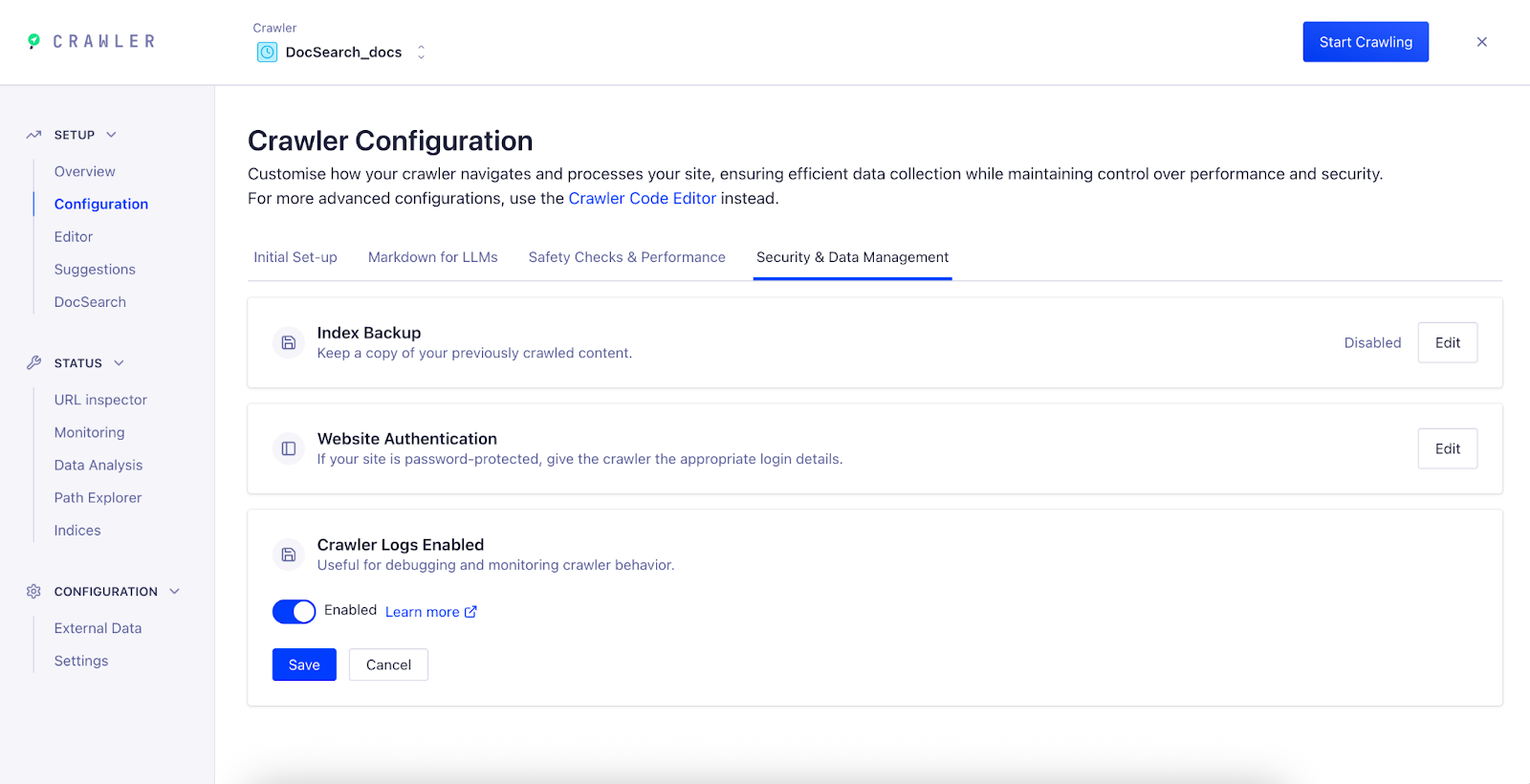
4. Go to **Setup > Configuration** and open the **Security & Data Management** tab.
5. Set the **Crawler Logs** option to **Enabled** and click **Save**.
 After you enable logs, the crawler starts generating logs for new crawl runs. Logs aren't available for previous crawls.
## View and download logs
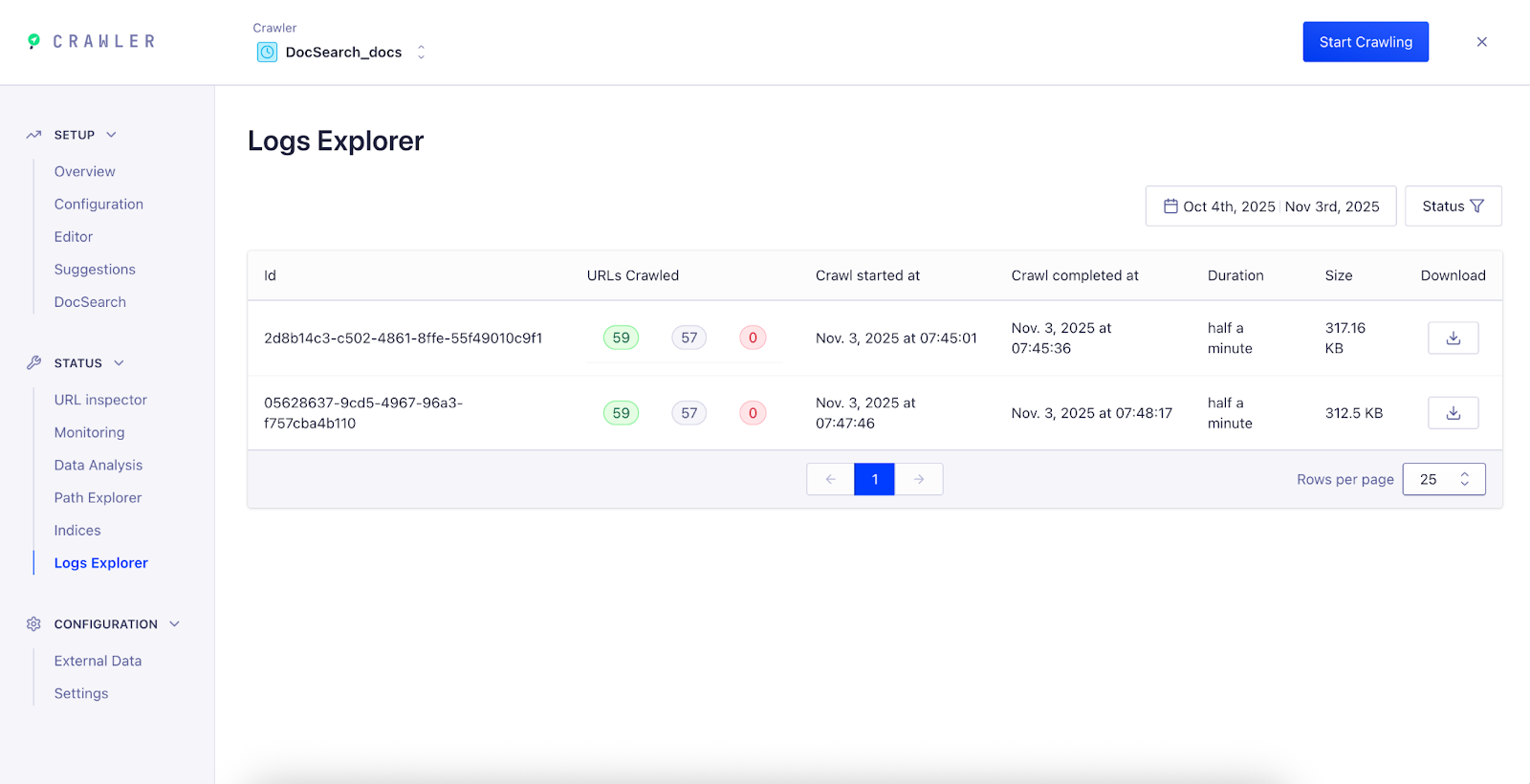
After your next crawl completes, view or download its logs in the **Logs Explorer**.
1. In the sidebar, select **Status > Logs Explorer**.
2. Each row represents a crawl run. For each crawl, you can view:
* **URLs Crawled**: total number of pages successfully processed.
* **URLs Ignored**: pages skipped due to configuration or filters.
* **URLs Failed**: pages that returned errors or couldn't be accessed.
* **Crawl Duration**: how long the crawl took.
* **Log Size**: file size of the generated log.
3. Click the **Download** icon to export the full crawl log.
After you enable logs, the crawler starts generating logs for new crawl runs. Logs aren't available for previous crawls.
## View and download logs
After your next crawl completes, view or download its logs in the **Logs Explorer**.
1. In the sidebar, select **Status > Logs Explorer**.
2. Each row represents a crawl run. For each crawl, you can view:
* **URLs Crawled**: total number of pages successfully processed.
* **URLs Ignored**: pages skipped due to configuration or filters.
* **URLs Failed**: pages that returned errors or couldn't be accessed.
* **Crawl Duration**: how long the crawl took.
* **Log Size**: file size of the generated log.
3. Click the **Download** icon to export the full crawl log.