> ## Documentation Index
> Fetch the complete documentation index at: https://algolia.com/llms.txt
> Use this file to discover all available pages before exploring further.
# Monitor crawlers
> An overview of the Crawler's monitoring tools: URL inspector, URL Tester, Monitoring tool, Data Analysis, and Path Explorer
export const Records = () =>
records
;
The Crawler offers several tools for monitoring your crawler's performance.
Go to the **[Crawler](https://dashboard.algolia.com/users/sign_in?redirect_to=%2Fcrawler)** page, select your crawler, and then look for them in the sidebar's **STATUS** section.
## Monitoring tool
The **Monitoring** tool lets you inspect your crawled URLs by status.
Select a [status](/doc/tools/crawler/troubleshooting/crawl-status) to review the URLs associated with that status and further details about the processed URL.
For more information, see [Crawler error messages](/doc/tools/crawler/troubleshooting/crawl-status)
## URL inspector
The **URL inspector** shows details about the latest crawl for a selected URL, such as the time it took to process the URL, links to and from this URL, or extracted .
You can search for individual URLs or filter by [crawl status](/doc/tools/crawler/troubleshooting/crawl-status).
If you click a link you can perform these actions with the selected URL:
* **Recrawl URL.** This can be useful to check if a network error was only temporary, or if you've changed your crawler configuration and want to see the effect of your changes.
* **Test URL.** This opens the **Editor** page with the URL selected in the [**URL Tester**](#url-tester).
For more information, see:
* [Troubleshoot site access issues](/doc/tools/crawler/troubleshooting/fetching-issues)
* [Troubleshoot monitoring issues](/doc/tools/crawler/troubleshooting/monitoring-issues)
## URL Tester
The URL Tester lets you test your crawler's configuration on one URL without crawling your entire site.
This is helpful when updating your crawler's configuration or when troubleshooting issues.
To test a URL:
1. Open the [**Editor**](/doc/tools/crawler/getting-started/crawler-configuration#the-editor) page in the Crawler dashboard. The **URL Tester** is on the right side of the screen.
2. Enter the URL you want to test. The URL tester doesn't follow redirects: `https://example.com/path/page/` isn't the same as `https://example.com/path/page`, even though it might work in your browser because of redirects.
3. Click **Run Test**.
The results of the test are shown by category as tabs.
If the test had any errors, you can use the information for troubleshooting:
| Tab | Description | Troubleshooting |
| ----------------- | ------------------------------------------------------------- | ---------------------------------------------------------------------------------------------------------------------------------------------------------------------------- |
| **All** | All messages from all categories | [Troubleshoot by crawl status](/doc/tools/crawler/troubleshooting/crawl-status) |
| **HTTP** | The HTTP response sent back by your site's server | Resolve any [HTTP status errors](/doc/tools/crawler/troubleshooting/fetching-issues#http-status-errors) |
| **Logs** | Issues reported by an action's `recordExtractor` function | Review the logs for any issues reported by a [`recordExtractor`](/doc/tools/crawler/apis/configuration/actions#param-record-extractor). |
| **Errors** | Issues reported by the Crawler | Check the [error message](/doc/tools/crawler/troubleshooting/error-messages) |
| **Records** | Records extracted from the URL | Check if all the [records and attributes](#find-and-fix-bugs-with-the-data-analysis-tool) you expect are present |
| **Links** | Links on the page that match your configuration settings | Check that you recognize all the link paths you specified in the [configuration](/doc/tools/crawler/getting-started/crawler-configuration#enhance-the-crawler-configuration) |
| **External Data** | Any external data used to enrich this URL | Check if the [external data](/doc/tools/crawler/enriching-data/overview) that you specified is present in your records |
| **HTML** | The HTML source of the URL and a preview of the rendered page | Change your record extractor without leaving the URL Tester |
## Path Explorer
The **Path Explorer** helps you find issues when crawling your site's different sections (paths) and URLs.
It shows:
* How many URLs were crawled
* How much bandwidth was used when crawling these URLs
* How many records were extracted
The Path Explorer lets you browse your crawled site as if you're navigating directories on your computer.
Every time you select a path, all its sub-paths and their [status](/doc/tools/crawler/troubleshooting/crawl-status) are shown.
For more information, see:
* [Configure a crawler with the editor ](/doc/tools/crawler/getting-started/crawler-configuration)
* [Crawler error messages](/doc/tools/crawler/troubleshooting/error-messages)
## Data Analysis
**Consistent data is essential for a great search**.
The data analysis tool generates a report with the number of records that have data consistency issues.
For example, if some of your records miss an attribute used for ranking, or use a different data type for this attribute,
these records rank lower or won't even appear in the search results.
### Find and fix bugs with the Data Analysis tool
When you have data inconsistencies, it can be difficult to track down what's going on.
The **Data Analysis** tool helps you find and fix the following kinds of issues:
* Missing attributes
* Empty arrays
* Attributes with different types across records
* Arrays with elements of different types, even within a single record
* Suspicious objects that could be of another type, like a string used as an object
For example, on a news website, you want to extract two fields:
* **Article publication date** so the most recent articles appear first.
* **Recently updated status** so you can promote articles with fresh information.
Start by editing the configuration to identify which selector to use to extract the publish and modified dates:
```js JavaScript icon=code theme={"system"}
new Crawler({
// ...
sitemaps: ["https://my-example-blog.com/sitemap.xml"],
actions: [
{
indexName: "blog",
pathsToMatch: ["https://my-example-blog.com/*"],
recordExtractor: function({ url, $ }) {
const SEVEN_DAYS = 7 * 24 * 3600 * 1000;
const title = $("h1").text();
const publishedAt = $('meta[property="article:published_time"]').attr(
"content"
);
const modifiedAt = $('meta[property="article:modified_time"]').attr(
"content"
);
let recentlyModified;
if (publishedAt !== modifiedAt) {
recentlyModified = new Date() - new Date(modifiedAt) < SEVEN_DAYS;
}
return [
{
objectID: url.href,
title,
publishedAt,
modifiedAt,
recentlyModified
}
];
}
}
]
});
```
After crawling the site, use the Data Analysis tool to check for issues.
In this example, you see warnings for both the `date` and `subtitle` attributes:
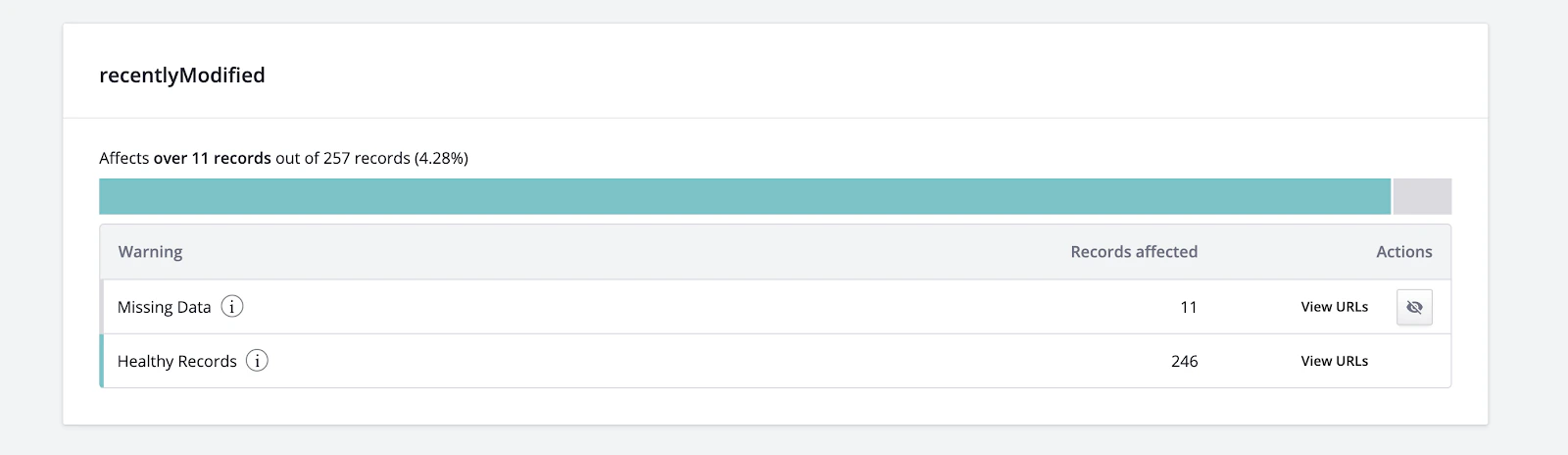 You have 11 records with missing data in the `recentlyModified` attribute.
This suggests that there's an issue with the code used to extract this piece of data.
Click **View URLs** to investigate the warning further.
You have 11 records with missing data in the `recentlyModified` attribute.
This suggests that there's an issue with the code used to extract this piece of data.
Click **View URLs** to investigate the warning further.
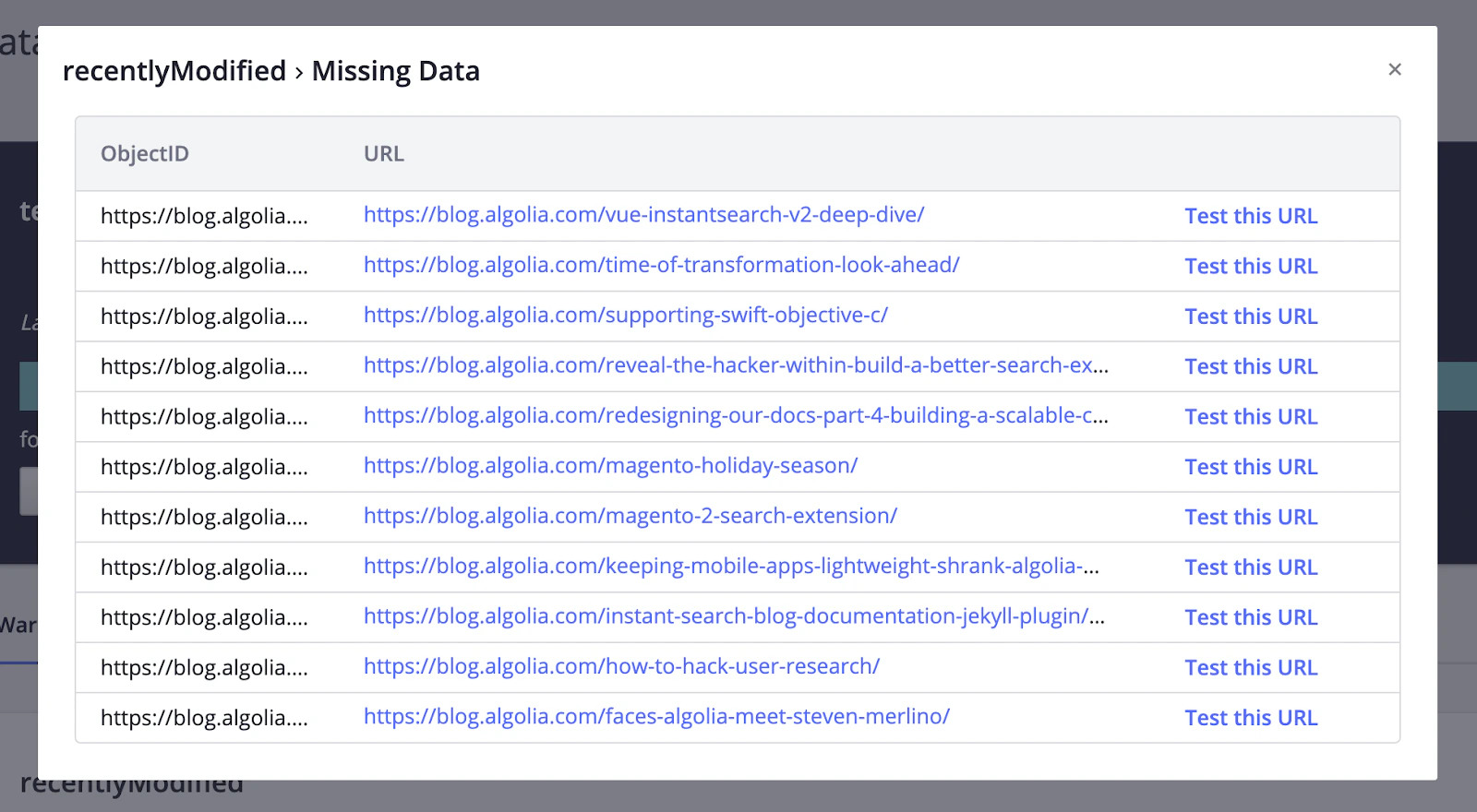 By clicking several links, you notice that the publish date is always the same as the modified date.
 This issue occurs when the two dates are identical.
Click **Test this URL** to open the [URL Tester](#url-tester).
```js JavaScript icon=code theme={"system"}
let recentlyModified;
if (publishedAt !== modifiedAt) {
recentlyModified = new Date() - new Date(modifiedAt) < SEVEN_DAYS;
}
```
The code doesn't set a value for the `recentlyModified` attribute when `publishedAt` is equal to `modifiedAt`.
In this situation, it should be `false`, because the article wasn't modified.
You can update the code and immediately test the changes on the problematic URL by clicking **Run Test**.
```js JavaScript icon=code theme={"system"}
let recentlyModified = false; // set default value to `false`
if (publishedAt !== modifiedAt) {
recentlyModified = new Date() - new Date(modifiedAt) < SEVEN_DAYS;
}
```
This issue occurs when the two dates are identical.
Click **Test this URL** to open the [URL Tester](#url-tester).
```js JavaScript icon=code theme={"system"}
let recentlyModified;
if (publishedAt !== modifiedAt) {
recentlyModified = new Date() - new Date(modifiedAt) < SEVEN_DAYS;
}
```
The code doesn't set a value for the `recentlyModified` attribute when `publishedAt` is equal to `modifiedAt`.
In this situation, it should be `false`, because the article wasn't modified.
You can update the code and immediately test the changes on the problematic URL by clicking **Run Test**.
```js JavaScript icon=code theme={"system"}
let recentlyModified = false; // set default value to `false`
if (publishedAt !== modifiedAt) {
recentlyModified = new Date() - new Date(modifiedAt) < SEVEN_DAYS;
}
```
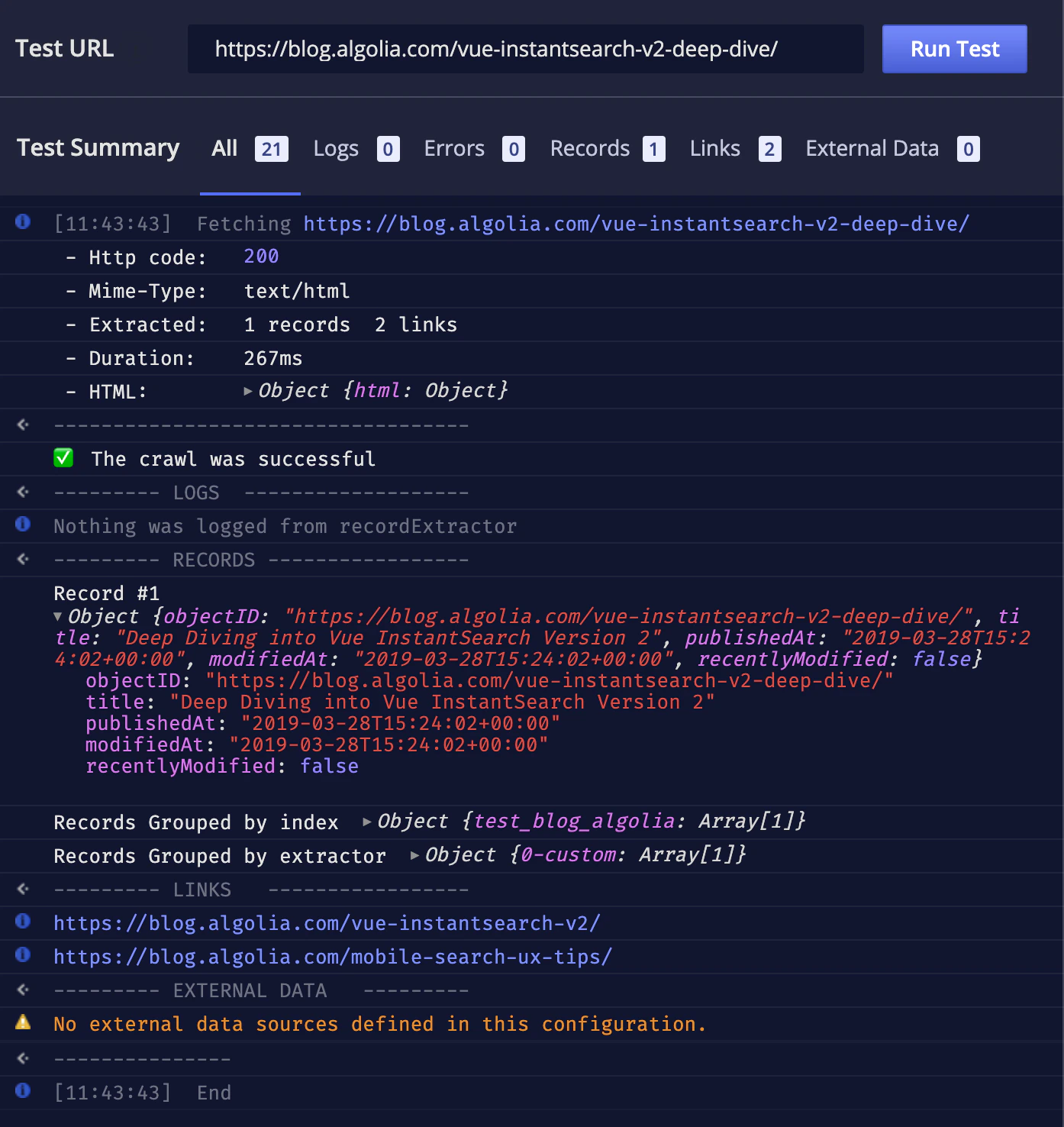 The `recentlyModified` attribute is now present even when an article wasn't modified.
You can now save the configuration and start a new crawl.
When the crawl is complete, you can run another analysis to validate that the configuration is correct: it shows no warnings.
The `recentlyModified` attribute is now present even when an article wasn't modified.
You can now save the configuration and start a new crawl.
When the crawl is complete, you can run another analysis to validate that the configuration is correct: it shows no warnings.