> ## Documentation Index
> Fetch the complete documentation index at: https://algolia.com/llms.txt
> Use this file to discover all available pages before exploring further.

# Algolia for Netlify

> The Algolia for Netlify plugin lets you add fast and relevant search experiences to your Netlify site. All you need is an existing Netlify site.

export const Records = () => <Tooltip tip="A record is a searchable object in an Algolia index. Each record consists of named attributes." cta="Algolia records" href="/doc/guides/sending-and-managing-data/prepare-your-data#algolia-records">
    records
  </Tooltip>;

export const Index = () => <Tooltip tip="An Algolia index is a searchable dataset that consists of records and configuration settings. These settings define how the records are searched and ranked.">
    index
  </Tooltip>;

export const Application = () => <Tooltip tip="An Algolia application is a self-contained environment with its own indices, configuration, and API keys. Applications don't share data or settings with each other.">
    application
  </Tooltip>;

## Link your site to Algolia

<Steps>
  <Step title="Sign in to Algolia with Netlify">
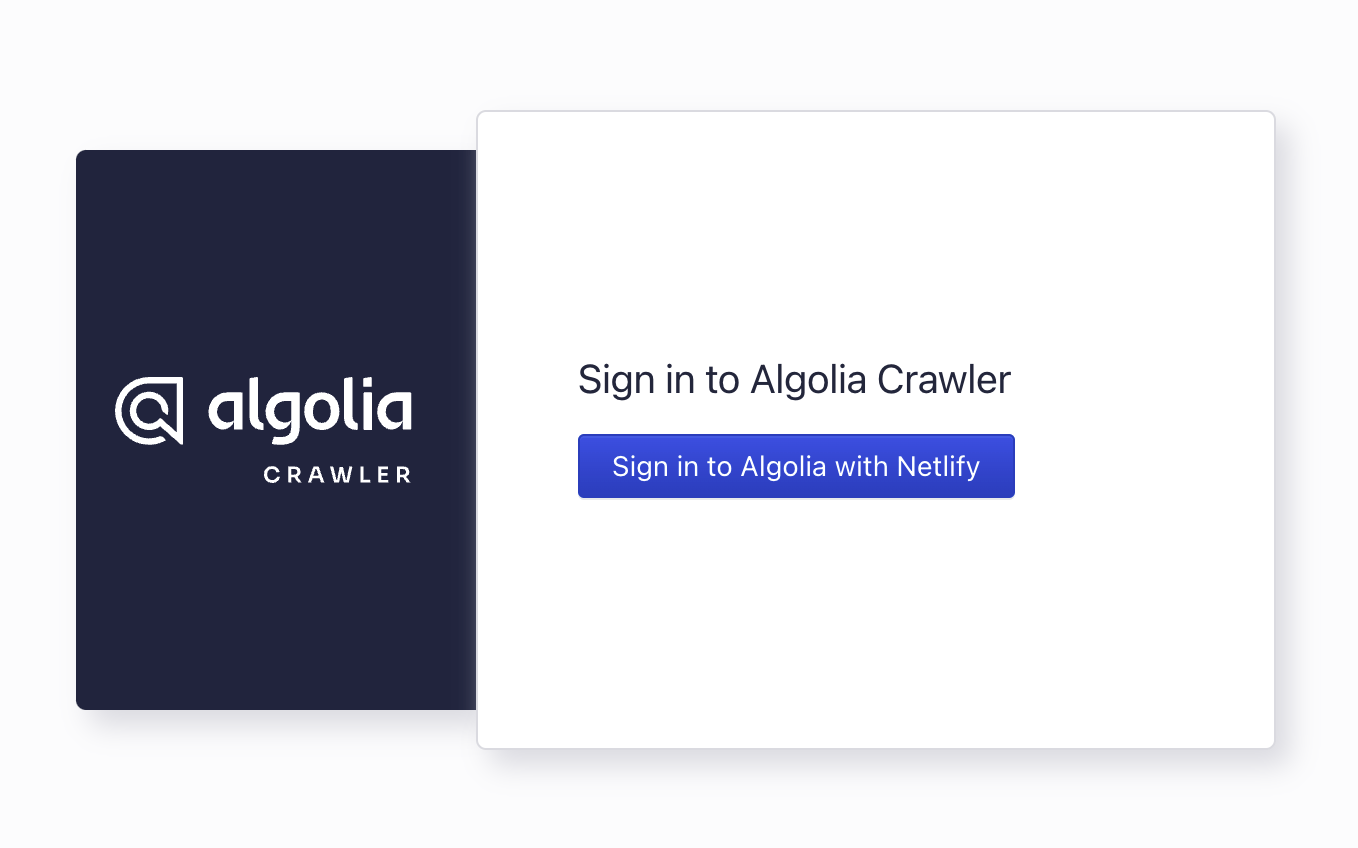
    Go to [Algolia Crawler for Netlify](https://crawler.algolia.com/admin/netlify) and click **Sign in to Algolia with Netlify**.
    If you don't have an Algolia account yet, a new one is created for you.

    <img src="https://mintcdn.com/algolia/KSYHF7soFPXylOAb/doc/tools/crawler/netlify-plugin/signin.png?fit=max&auto=format&n=KSYHF7soFPXylOAb&q=85&s=6e4ab89a8f6d5a3f3d14b36b16d841ad" alt="Web page with a button with the label 'Sign in to Algolia with Netlify'" width="1358" height="848" data-path="doc/tools/crawler/netlify-plugin/signin.png" />
  </Step>

  <Step title="Authorize Algolia in Netlify">
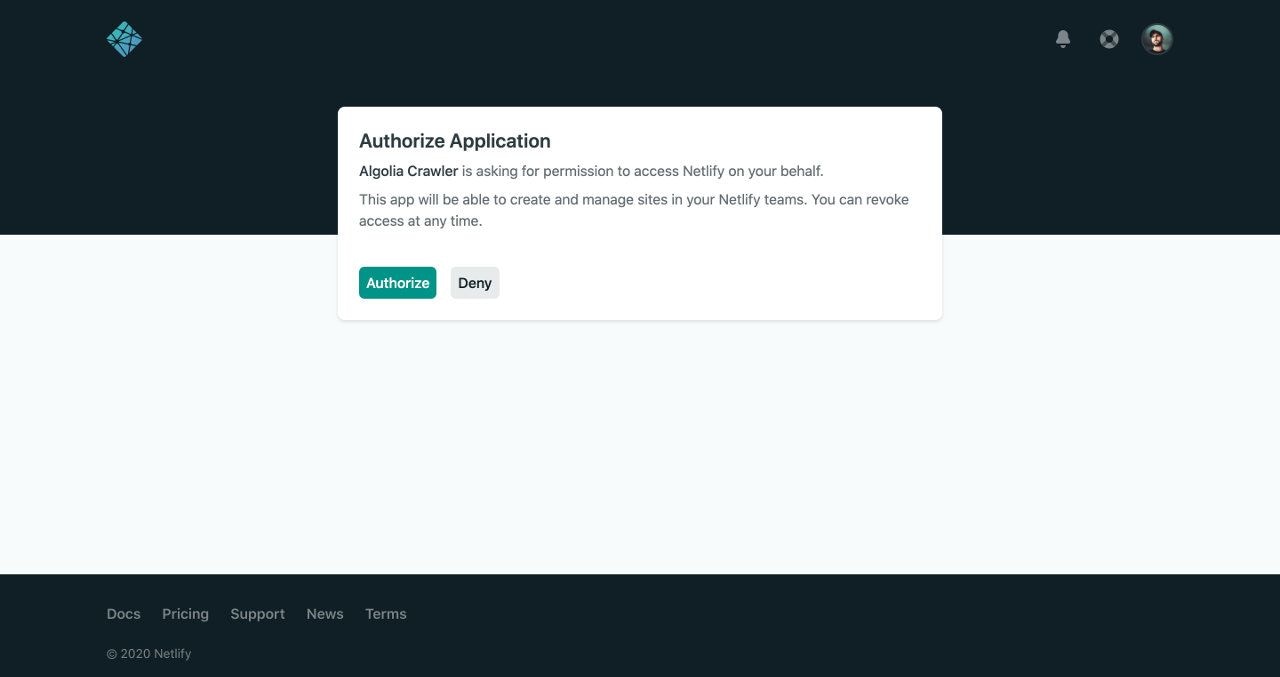
    On Netlify, you need to authorize Algolia to access your Netlify account,
    so that the plugin can update your plugin settings and add environment variables.

    <img src="https://mintcdn.com/algolia/KSYHF7soFPXylOAb/doc/tools/crawler/netlify-plugin/authorize.jpg?fit=max&auto=format&n=KSYHF7soFPXylOAb&q=85&s=aae38a798ea14687959fa1a92524f08e" alt="Screenshot of a dialog box titled 'Authorize Application' with an 'Authorize' button and a 'Deny' button." width="1280" height="677" data-path="doc/tools/crawler/netlify-plugin/authorize.jpg" />
  </Step>

  <Step title="Install plugin">
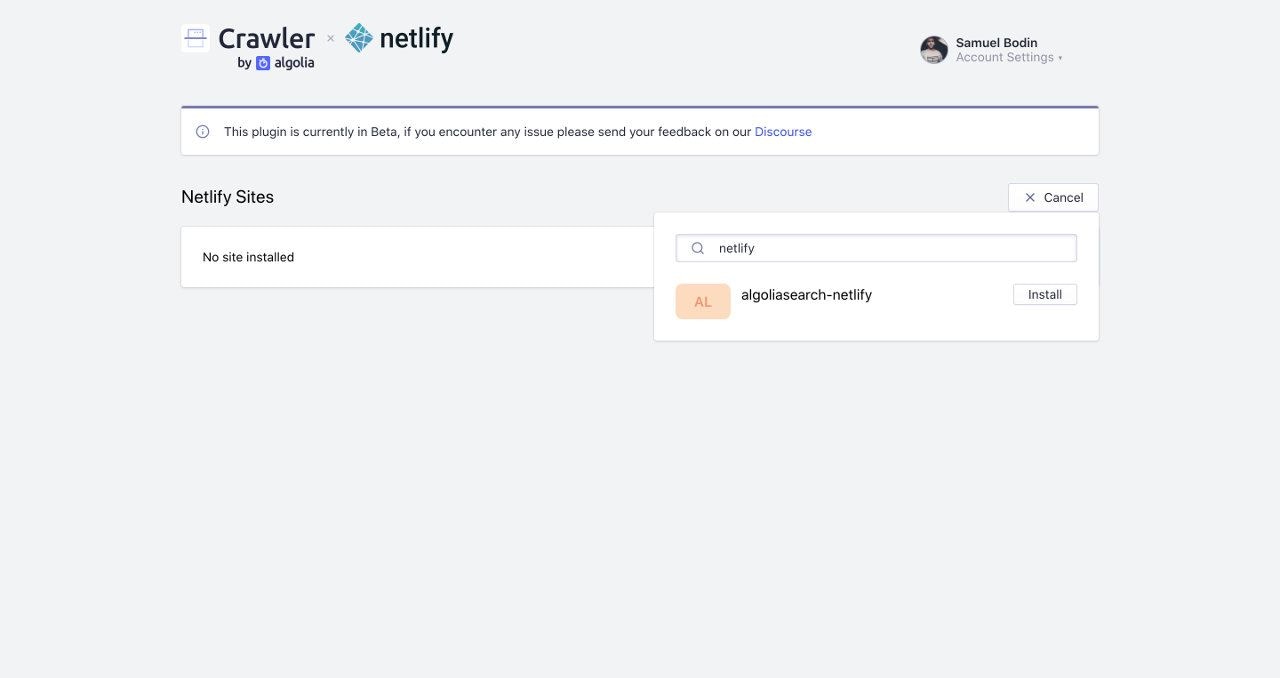
    1. In the [Crawler Admin Console](https://crawler.algolia.com/admin/netlify), search for your site and click **Install**.

       Algolia adds the necessary environment variables to your Netlify site.
       These environment variables start with `ALGOLIA_`.

       Algolia also creates a new Algolia <Application /> for your site.

           <img src="https://mintcdn.com/algolia/KSYHF7soFPXylOAb/doc/tools/crawler/netlify-plugin/search-site.jpg?fit=max&auto=format&n=KSYHF7soFPXylOAb&q=85&s=f861116b41b23c38943e069c884d0dfb" alt="Search for your site in the Algolia Crawler Admin Console" width="1280" height="678" data-path="doc/tools/crawler/netlify-plugin/search-site.jpg" />

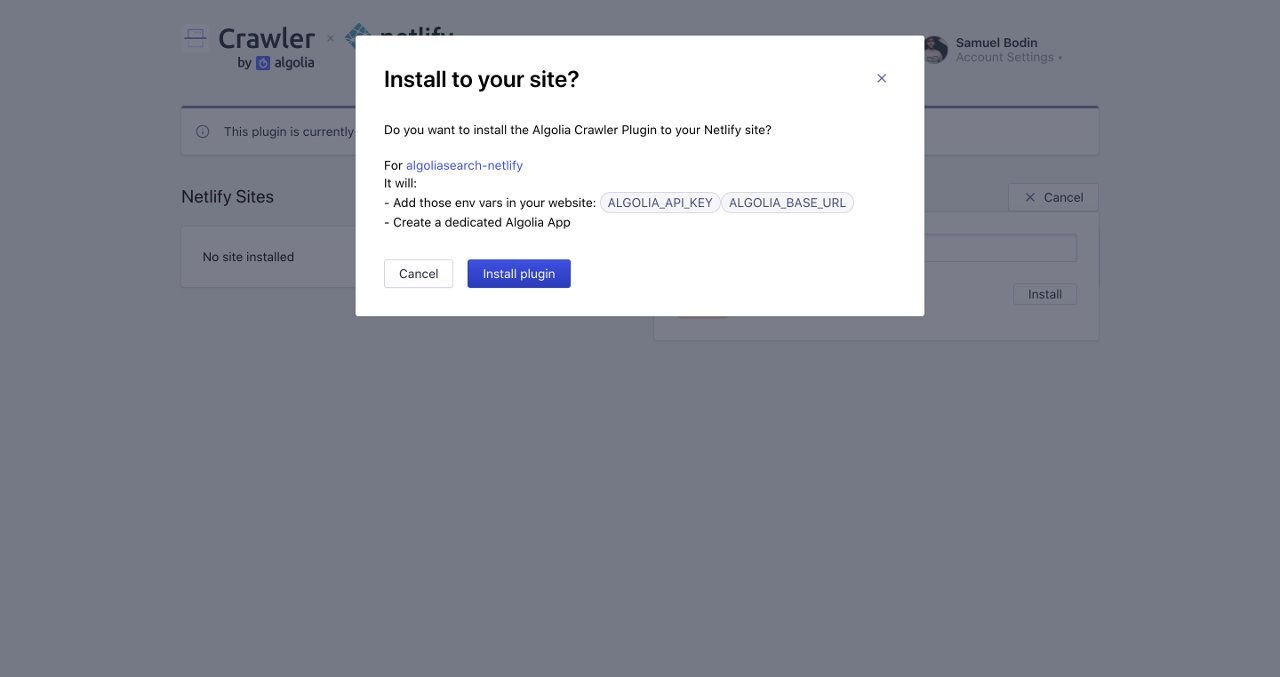
    2. Confirm by clicking **Install plugin**.
           <img src="https://mintcdn.com/algolia/KSYHF7soFPXylOAb/doc/tools/crawler/netlify-plugin/accept-install.jpg?fit=max&auto=format&n=KSYHF7soFPXylOAb&q=85&s=547b5affb60323fe6097c471709cf5a4" alt="Screenshot of a dialog box asking to install the Algolia Crawler Plugin for 'algoliasearch-Netlify' with options to 'Cancel' or 'Install plugin'." width="1280" height="677" data-path="doc/tools/crawler/netlify-plugin/accept-install.jpg" />

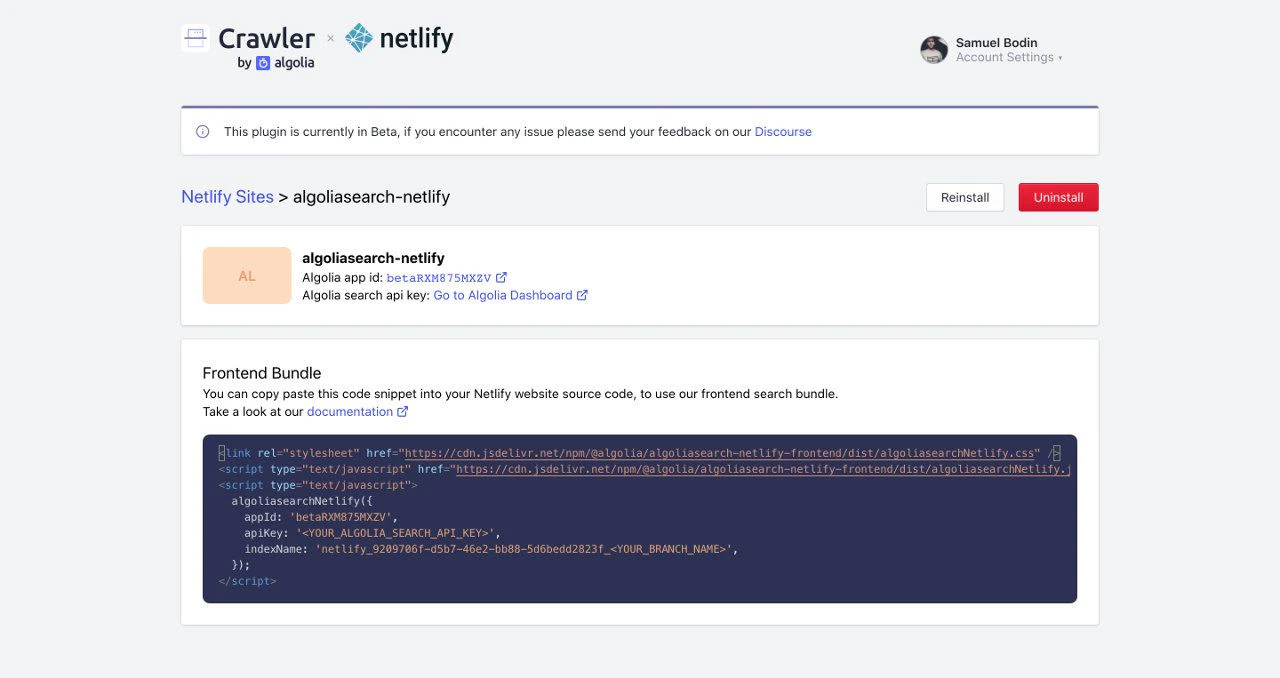
    The plugin is now installed and ready to index your site.
  </Step>
</Steps>

<img src="https://mintcdn.com/algolia/KSYHF7soFPXylOAb/doc/tools/crawler/netlify-plugin/installed.jpg?fit=max&auto=format&n=KSYHF7soFPXylOAb&q=85&s=b96f53d885c9df219958d08febc33c37" alt="Screenshot of the 'Algolia for Netlify' page showing the 'Netlify Sites > algoliasearch-Netlify' section with an 'Uninstall' button and code snippet." data-og-width="1280" width="1280" data-og-height="678" height="678" data-path="doc/tools/crawler/netlify-plugin/installed.jpg" data-optimize="true" data-opv="3" srcset="https://mintcdn.com/algolia/KSYHF7soFPXylOAb/doc/tools/crawler/netlify-plugin/installed.jpg?w=280&fit=max&auto=format&n=KSYHF7soFPXylOAb&q=85&s=4f28a0e0787c9dba8acef7b85dd9c489 280w, https://mintcdn.com/algolia/KSYHF7soFPXylOAb/doc/tools/crawler/netlify-plugin/installed.jpg?w=560&fit=max&auto=format&n=KSYHF7soFPXylOAb&q=85&s=5936778a47adf8d98b6b6fe826fccc19 560w, https://mintcdn.com/algolia/KSYHF7soFPXylOAb/doc/tools/crawler/netlify-plugin/installed.jpg?w=840&fit=max&auto=format&n=KSYHF7soFPXylOAb&q=85&s=7fed1f5dca177f7c30b7c27debbd2cc2 840w, https://mintcdn.com/algolia/KSYHF7soFPXylOAb/doc/tools/crawler/netlify-plugin/installed.jpg?w=1100&fit=max&auto=format&n=KSYHF7soFPXylOAb&q=85&s=5388a3a32699d6a6139c2be0b814b264 1100w, https://mintcdn.com/algolia/KSYHF7soFPXylOAb/doc/tools/crawler/netlify-plugin/installed.jpg?w=1650&fit=max&auto=format&n=KSYHF7soFPXylOAb&q=85&s=0a0baefd6f5a4b1b097c3680b3b57c01 1650w, https://mintcdn.com/algolia/KSYHF7soFPXylOAb/doc/tools/crawler/netlify-plugin/installed.jpg?w=2500&fit=max&auto=format&n=KSYHF7soFPXylOAb&q=85&s=8a0ea3f820e9576a41afe50fa2172590 2500w" />

## Indexing

After installing the plugin,
each Netlify deploy triggers a crawl,
which updates an Algolia <Index />.
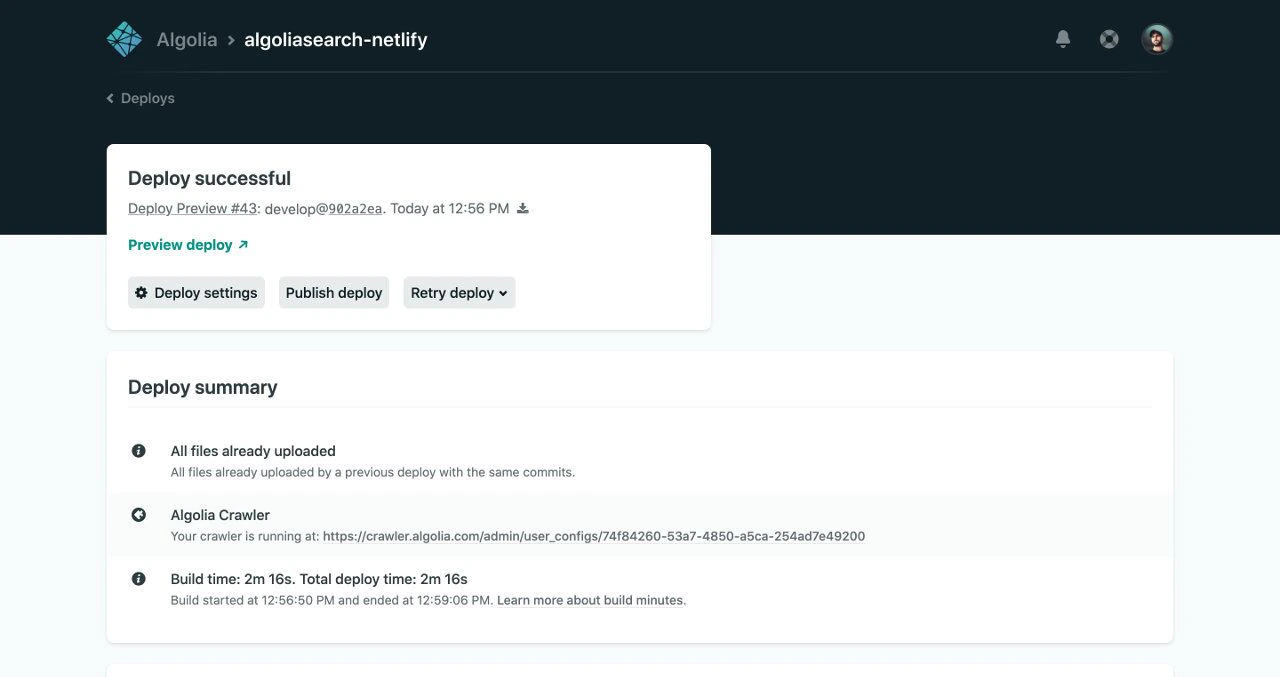
To manually trigger a new deploy in Netlify, select any deploy and click **Retry deploy > Deploy site**.

When it receives a build hook, the Algolia Crawler processes your website asynchronously.
This operation takes some time, so there is a short delay between the first deploy and the first crawl.
**Your site and your Algolia index are out of sync during that delay.**

You can find information about your current crawler in the [Netlify deploy logs](https://docs.netlify.com/monitor-sites/logs/#deploy-log).

<Info>
  By default, Algolia indexes the `main` or `master` branch.
  Algolia can still create one crawler with one index per git branch.
  This lets you use a production index on `main` and development index on `develop`.
  To enable multiple branches, you need to configure the [`branches` plugin input](/doc/tools/crawler/netlify-plugin/plugin).
  If you're using the Algolia for Netlify [frontend library](#install-the-frontend-bundle),
  you need to [pass the branch name](/doc/tools/crawler/netlify-plugin/front-end#multiple-git-branches) in the library parameters.
</Info>

<img src="https://mintcdn.com/algolia/KSYHF7soFPXylOAb/doc/tools/crawler/netlify-plugin/deploy-logs.jpg?fit=max&auto=format&n=KSYHF7soFPXylOAb&q=85&s=6d71d9369052365885ff745ced17a3d0" alt="Screenshot of a Netlify deploy page showing a 'Deploy successful' notification and summary with build time and crawler details." width="1280" height="677" data-path="doc/tools/crawler/netlify-plugin/deploy-logs.jpg" />

You can click the crawler URL to follow the progress of your crawl.
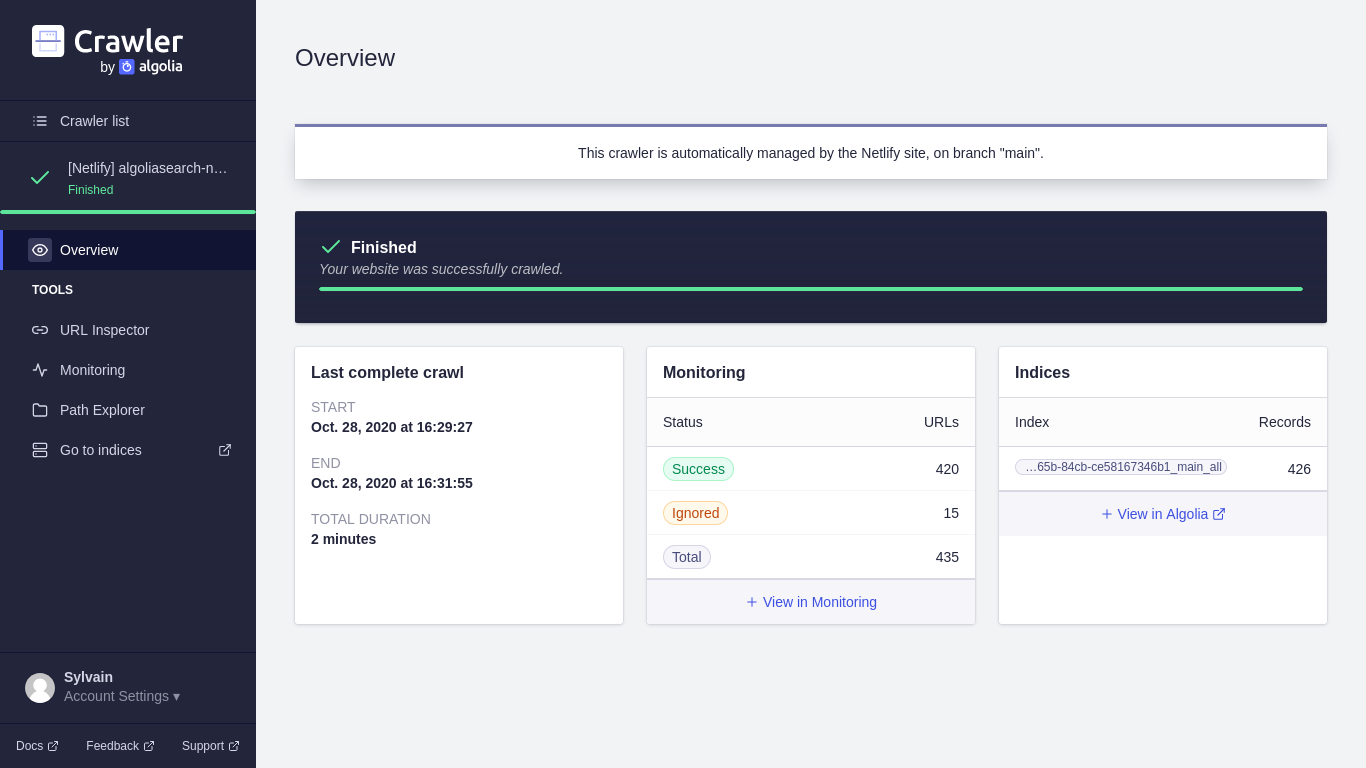
<img src="https://mintcdn.com/algolia/KSYHF7soFPXylOAb/doc/tools/crawler/netlify-plugin/crawler-overview.png?fit=max&auto=format&n=KSYHF7soFPXylOAb&q=85&s=f34eadd8908f9fd0dd7ae8c7149e2946" alt="Screenshot of the 'Crawler' overview page showing a finished crawl with a status of 'Success' for 420 URLs and 'Ignored' for 15 URLs." width="1366" height="768" data-path="doc/tools/crawler/netlify-plugin/crawler-overview.png" />

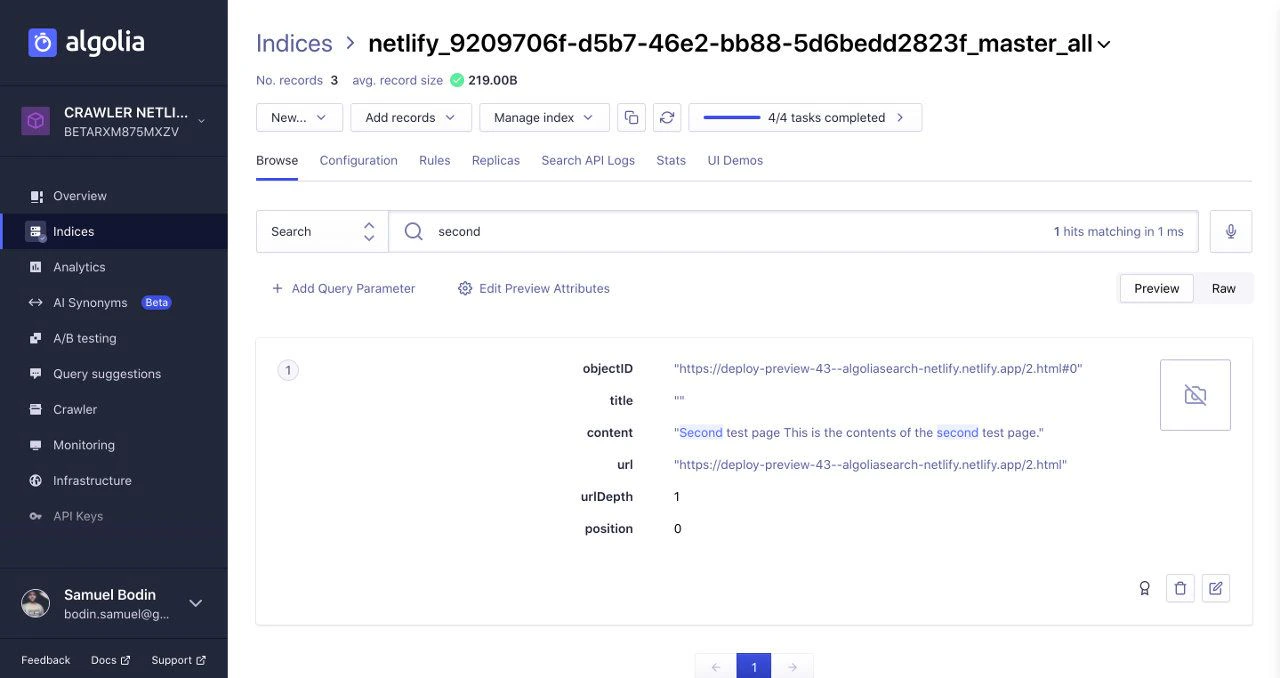
When the crawl is complete,
you can check your Algolia index with the extracted <Records />.
Algolia applies a default relevance configuration to your index,
which you can adapt in the index settings.

To learn more about what's inside the Algolia records,
see [Extraction strategy](/doc/tools/crawler/netlify-plugin/extraction-strategy)

<img src="https://mintcdn.com/algolia/KSYHF7soFPXylOAb/doc/tools/crawler/netlify-plugin/algolia-index.jpg?fit=max&auto=format&n=KSYHF7soFPXylOAb&q=85&s=61986b3216cfb8be721a5f7e3f4a2df9" alt="Screenshot of the Algolia dashboard showing the 'Netlify' index with three records and fields like 'objectID', 'title', and 'URL'." width="1280" height="678" data-path="doc/tools/crawler/netlify-plugin/algolia-index.jpg" />

## Install the frontend bundle

You can install a frontend bundle for searching in your Algolia index and navigating the search results.
You can find the code snippet in your [Crawler Admin Console](https://crawler.algolia.com/admin/netlify).
Make sure to replace these variable placeholders:

| Placeholder              | Description                                                                                                                                                                                                                                               |
| ------------------------ | --------------------------------------------------------------------------------------------------------------------------------------------------------------------------------------------------------------------------------------------------------- |
| `ALGOLIA_APPLICATION_ID` | The unique identifier of your Algolia application                                                                                                                                                                                                         |
| `ALGOLIA_API_KEY`        | Your [Algolia search-only API key](https://dashboard.algolia.com/account/api-keys/)                                                                                                                                                                       |
| `NETLIFY_SITE_ID`        | The unique identifier of your Netlify site (Algolia includes this for you in the snippet from the [Crawler Admin Console](https://crawler.algolia.com/admin/netlify))                                                                                     |
| `TARGET_GIT_BRANCH`      | Your target git branch, either a fixed branch, like `main`, or a dynamic branch using an environment variable `process.env.HEAD`. For more information, see [Using multiple branches](/doc/tools/crawler/netlify-plugin/front-end#multiple-git-branches). |

```html HTML icon=code-xml theme={"system"}
<link
  rel="stylesheet"
  href="https://cdn.jsdelivr.net/npm/@algolia/algoliasearch-netlify-frontend@1/dist/algoliasearchNetlify.css"
/>
<script src="https://cdn.jsdelivr.net/npm/@algolia/algoliasearch-netlify-frontend@1/dist/algoliasearchNetlify.js"></script>
<script>
  algoliasearchNetlify({
    appId: 'ALGOLIA_APPLICATION_ID',
    apiKey: 'ALGOLIA_API_KEY',
    siteId: 'NETLIFY_SITE_ID',
    branch: 'TARGET_GIT_BRANCH',
    selector: 'div#search',
  })
</script>
```

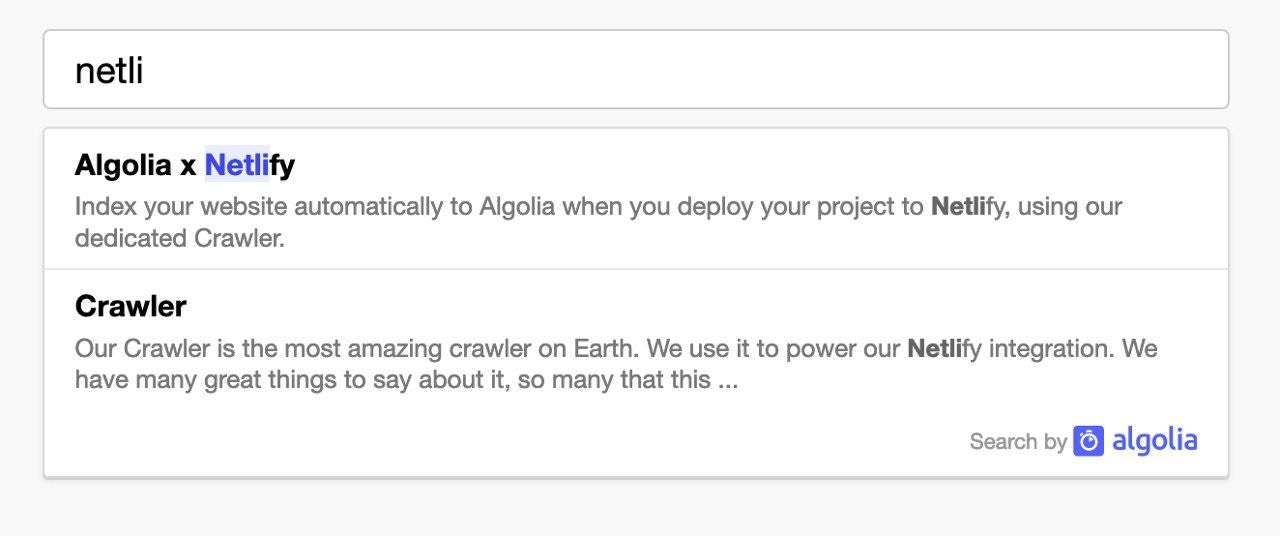
This code snippet adds [Algolia Autocomplete](/doc/ui-libraries/autocomplete/introduction/what-is-autocomplete) to the `<div id="search">` element.
<img src="https://mintcdn.com/algolia/KSYHF7soFPXylOAb/doc/tools/crawler/netlify-plugin/frontend.jpg?fit=max&auto=format&n=KSYHF7soFPXylOAb&q=85&s=e09077f2fe824df336abfe1077a85e2a" alt="Screenshot of a search result for a partial query showing 'Algolia x Netlify' and 'Crawler' entries with 'Search by Algolia' at the bottom right." width="1280" height="536" data-path="doc/tools/crawler/netlify-plugin/frontend.jpg" />

## See also

* [Frontend configuration](/doc/tools/crawler/netlify-plugin/front-end)
* [Implement a custom UI with InstantSearch](/doc/guides/building-search-ui/what-is-instantsearch/js)
* [Tune your relevance settings](/doc/guides/managing-results/relevance-overview)
* [Netlify Crawler plugin FAQ](https://support.algolia.com/hc/en-us/sections/4406120647569-Crawler-Netlify)
