> ## Documentation Index
> Fetch the complete documentation index at: https://algolia.com/llms.txt
> Use this file to discover all available pages before exploring further.
# Troubleshooting data extraction issues
> The crawler reports extraction issues when it can't extract data from your site.
export const Records = () =>
records
;
Issues can be indicated by:
* The [crawl status (`Failed` or `Skipped`) and category (`Extraction`)](/doc/tools/crawler/troubleshooting/crawl-status)
* An [error message](/doc/tools/crawler/troubleshooting/error-messages)
* Missing or attributes
## Domain wasn't crawled
No pages from a particular domain appear in your crawler's records.
### Solution
To ensure that the crawler can access and index your site, check that:
* You've [added and verified](/doc/tools/crawler/getting-started/create-crawler#verify-your-domain) the domain.
* The Crawler's IP address (34.66.202.43) is in your site's allowlist.
* The Crawler's [user agent](#responses-to-user-agents) is in your site's robots.txt file.
When fetching pages, the Crawler identifies itself with the user agent: `Algolia Crawler/xx.xx.xx`,
where `xx.xx.xx` represents a version number.
To allow crawling of your site, add the following to your `robots.txt` file:
`User-agent: Algolia Crawler`
* You've adjusted the settings for custom security checks.
If you've set up extra security measures on your site, for example with nginx,
you might need to update those settings to ensure the crawler isn't blocked.
* You've verified every domain you would like to crawl.
Algolia needs proof that you or your organization owns the domain,
whether it's on your servers or hosted.
The Crawler can only visit sites that you've [verified](/doc/tools/crawler/getting-started/create-crawler#verify-your-domain) belong to you.
* You've configured site protection systems to recognize the Crawler.
If your site uses tools like Cloudflare or Google Cloud Armor to block unwanted visitors,
you must add the Crawler's IP address or user agent to your allowlist.
Otherwise, the Crawler may be treated as an intruder: if so,
you'll see `403` status errors and the Crawler could be blocked.
After checking for these issues, retry the crawl and verify that everything works.
## A page wasn't crawled
A page within a domain wasn't crawled but others were.
### Solution
The reason why a page wasn't crawled can vary. Check that:
* **The crawling process has finished.**
Crawling a big site can take time: check the progress from the [**Crawler**](https://dashboard.algolia.com/users/sign_in) page.
* **The page is linked from the rest of your site.**
Ensure you can trace a path from the [`startUrls`](/doc/tools/crawler/apis/configuration/start-urls) to the missing page. It should either be reachable from these starting points or listed in your [sitemap](/doc/tools/crawler/getting-started/create-crawler). If not, add the missing page as a start URL.
* **You've given the crawler the correct path.**
Ensure the page matches one of the [`pathsToMatch`](/doc/tools/crawler/apis/configuration/actions#param-paths-to-match)
you've told the crawler to look for.
* **You haven't instructed the crawler to ignore the page.**
If the page matches an [`exclusionPatterns`](/doc/tools/crawler/apis/configuration/exclusion-patterns),
the crawler ignores it.
* **The page requires a login.**
If so, add the [`login`](/doc/tools/crawler/apis/configuration/login) parameter to your configuration.
After checking for these issues, retry the crawl and verify that everything works.
## Missing attributes
Attributes that you expect to see in your crawler's records are missing.
### Investigation
Verify what might be missing:
1. Review the [records in the Algolia index](https://dashboard.algolia.com/users/sign_in) and check for missing attributes.
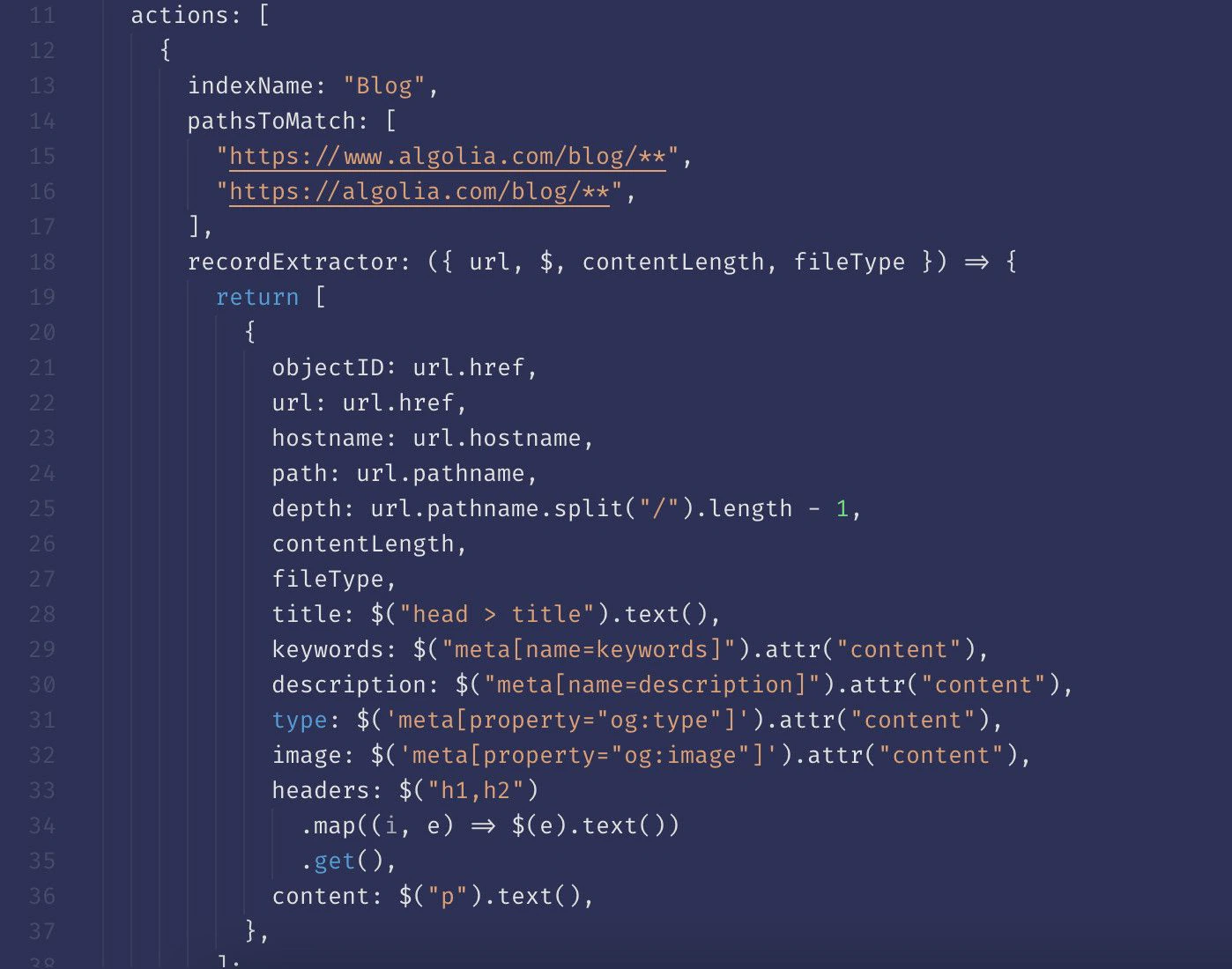
2. Open the Crawler's Editor and find the [action](/doc/tools/crawler/getting-started/concepts#actions) responsible for extracting records from that [content type](/doc/tools/crawler/getting-started/crawler-configuration#decide-what-content-you-want-to-include) (for example, a blog post). If your configuration has more than one action, identify the correct action by checking its [`pathsToMatch`](/doc/tools/crawler/apis/configuration/actions#param-paths-to-match). For example, an action that extracts blog posts looks something like: `pathsToMatch: ["https://blog.algolia.com/**"]`
3. Check if the action actually extracts the requested attribute. For example, the following action *should* collect author names from blog posts, but it doesn't.
 ### Solution
1. Find a page on your site that fully represents the content type you want to extract. For example, a blog post with complete title, subtitle, author, blog content, and date published.
2. Inspect the page to determine the best way to extract the content: [JSON-LD, Meta Tag, or CSS selectors](/doc/tools/crawler/extracting-data/finding-and-extracting-data).
3. In the Crawler's Editor, update the appropriate [`recordExtractor`](/doc/tools/crawler/apis/configuration/actions#param-record-extractor) to extract the missing attribute.
4. Use the [URL tester](/doc/tools/crawler/getting-started/monitoring#url-tester) to check that the updated configuration works and you're collecting what you need.
After updating your `recordExtractor`, retry the crawl and verify that everything works.
For more information, see:
* [JSON-LD attributes](/doc/tools/crawler/extracting-data/finding-and-extracting-data#helpers)
* [Concepts](/doc/tools/crawler/getting-started/concepts)
## Debug CSS selectors
An attribute you want to extract with a [CSS selector](/doc/tools/crawler/extracting-data/finding-and-extracting-data#css-selectors) doesn't appear in your crawler's records.
### Investigation
Use your browser [developer tools](https://developer.mozilla.org/en-US/docs/Learn/Common_questions/Tools_and_setup/What_are_browser_developer_tools)
to type a CSS [`querySelector`](https://developer.mozilla.org/en-US/docs/Web/API/Document/querySelector) command directly into the console:
```js JavaScript icon=code theme={"system"}
let value = document.querySelector(".author-name");
console.log(value);
```
Alternatively, you can add a `console.log` command to an action's [`recordExtractor`](/doc/tools/crawler/apis/configuration/actions#param-record-extractor).
For example:
```js JavaScript icon=code theme={"system"}
console.log($(".author-name").text());
```
This displays the value of the CSS selector in both the browser's console and the [URL tester's](/doc/tools/crawler/getting-started/monitoring#url-tester) **Logs** tab.
### Solution
1. Update the appropriate `recordExtractor` to extract the missing attribute.
2. Save your changes.
After updating your `recordExtractor`,
retry the crawl and verify that everything works.
## JavaScript is required
One or more pages weren't crawled.
To prioritize speed, the Crawler doesn't evaluate JavaScript by default.
This can cause differences between the dynamically generated content on the site and the static HTML that the crawler indexed.
### Investigation
To see how a page looks without JavaScript, [turn off JavaScript for your browser](https://www.wikihow.com/Disable-JavaScript).
You might notice that some information, like an author name, disappears without JavaScript.
### Solution
Enable JavaScript for the appropriate action with the [`renderJavaScript`](/doc/tools/crawler/apis/configuration/render-java-script) parameter.
After updating your action, retry the crawl and verify that everything works.
## Canonical URL omissions
Due to a canonical URL error a page wasn't crawled.
This is indicated by an error message:
* `Canonical URL`
* `Canonical URL - Not processed`
If your site has [canonical URLs](/doc/tools/crawler/getting-started/crawler-configuration#canonical-urls-and-crawler-behavior) some pages might be ignored.
This may be intentional since you may not want to crawl duplicate content.
### Solution
If you want to crawl *all* pages and your site has canonical URLs,
set [`ignoreCanonicalTo`](/doc/tools/crawler/apis/configuration/ignore-canonical-to) to `true`.
After updating your configuration,
retry the crawl and verify that everything works.
## Crawler data limitations
The Crawler imposes certain limits on extracted data,
and if you go beyond these limits, it will generate an error message.
### Solutions
| Error message | Description | Solution |
| --------------------------------- | ----------------------------------------------------- | ----------------------------------------------------------------------------------------------------------------------------------------------------------------------------------------------------- |
| Extractor record duplicate error | The `objectID` attribute must be unique | Ensure the [`recordExtractor`](/doc/tools/crawler/apis/configuration/actions#param-record-extractor) in your action assigns unique `objectID`s |
| Extractor record error | Crawler found a JSON object that references itself | Examine the page that generated the error and fix the circular reference or [ignore the page when crawling](/doc/tools/crawler/getting-started/crawler-configuration#decide-what-you-want-to-exclude) |
| Extractor record missing ID error | The record lacks the required `objectID` attribute | Ensure the `recordExtractor` in your action assigns `objectID`s |
| Record objectID too long | The `objectID` has more than 2083 characters | Ensure that the `recordExtractor` in your action assigns `objectID` attributes within this limit |
| url\_too\_deep | Path to the URL is deeper than the defined `maxDepth` | Increase your crawler configuration's [`maxDepth`](/doc/tools/crawler/apis/configuration/max-depth) |
After modifying your data, retry the crawl and verify that everything works.
## Crawler technical limitations
The Crawler has limitations and if you exceed them, an error message is shown:
* `Extractor returned too many links`
* `Extractor timed out`
* `Page is too big`
### Extractor returned too many links
A page returned more than the maximum number of links:
* 5,000 per page
* 50,000 per [sitemap](/doc/tools/crawler/getting-started/create-crawler)
#### Solution
Edit the source page to split it into several pages or remove some of its links.
After modifying your source pages, retry the crawl and verify that everything works.
### Extractor timed out
The page took too long to crawl. This may be due to:
* A mistake, such as an infinite loop, in the crawler configuration.
* Page is too big.
#### Solution
Review your crawler configuration.
After modifying your crawler configuration, retry the crawl and verify that everything works.
If the issues persist, see [Page is too big](#page-is-too-big).
### Page is too big
A page may be too big to fit in the crawler's memory.
#### Solution
You have several options:
* Reduce page size
* For pages rendered with JavaScript: avoid loading too much data.
* [Ignore the page](/doc/tools/crawler/getting-started/crawler-configuration#decide-what-you-want-to-exclude) when crawling.
After modifying your site or ignoring the problematic URL, retry the crawl and verify that everything works.
## Responses to user agents
If you find that some information isn't showing up as it should,
it may be due to your site's response to different [user agents](https://wikipedia.org/wiki/User_agent).
### Investigation
Check to see if the problem is due to the Algolia user agent by testing with a browser extension or [curl](https://curl.se/).
Send requests to the same site with different user agents and compare the differences between site responses.
For example, with `curl`:
```sh Command line icon=square-terminal theme={"system"}
curl -H "User-Agent: Algolia Crawler" http://example.com
```
```sh Command line icon=square-terminal theme={"system"}
curl -H "User-Agent: Mozilla/5.0 (Macintosh; Intel Mac OS X 10.15; rv:71.0) Gecko/20100101 Firefox/71.0" http://example.com
```
This lets you see if the site shows different content to different user agents,
which might be why some information is missing.
For more information, see:
* [Create a new crawler](/doc/tools/crawler/getting-started/create-crawler)
* [Troubleshooting data extraction issues](/doc/tools/crawler/troubleshooting/extraction-issues)
### Solution
Configure your site to ensure it doesn't rely on specific user agent strings to render content.
## RSS feeds don't generate content
[RSS](https://wikipedia.org/wiki/RSS) feed pages aren't crawled.
### Solution
This is expected behavior.
RSS feeds themselves don't contain content.
When the crawler encounters an RSS feed,
it identifies and crawls all the `link` tags in the RSS files
but doesn't generate records directly from those RSS feeds.
### Solution
1. Find a page on your site that fully represents the content type you want to extract. For example, a blog post with complete title, subtitle, author, blog content, and date published.
2. Inspect the page to determine the best way to extract the content: [JSON-LD, Meta Tag, or CSS selectors](/doc/tools/crawler/extracting-data/finding-and-extracting-data).
3. In the Crawler's Editor, update the appropriate [`recordExtractor`](/doc/tools/crawler/apis/configuration/actions#param-record-extractor) to extract the missing attribute.
4. Use the [URL tester](/doc/tools/crawler/getting-started/monitoring#url-tester) to check that the updated configuration works and you're collecting what you need.
After updating your `recordExtractor`, retry the crawl and verify that everything works.
For more information, see:
* [JSON-LD attributes](/doc/tools/crawler/extracting-data/finding-and-extracting-data#helpers)
* [Concepts](/doc/tools/crawler/getting-started/concepts)
## Debug CSS selectors
An attribute you want to extract with a [CSS selector](/doc/tools/crawler/extracting-data/finding-and-extracting-data#css-selectors) doesn't appear in your crawler's records.
### Investigation
Use your browser [developer tools](https://developer.mozilla.org/en-US/docs/Learn/Common_questions/Tools_and_setup/What_are_browser_developer_tools)
to type a CSS [`querySelector`](https://developer.mozilla.org/en-US/docs/Web/API/Document/querySelector) command directly into the console:
```js JavaScript icon=code theme={"system"}
let value = document.querySelector(".author-name");
console.log(value);
```
Alternatively, you can add a `console.log` command to an action's [`recordExtractor`](/doc/tools/crawler/apis/configuration/actions#param-record-extractor).
For example:
```js JavaScript icon=code theme={"system"}
console.log($(".author-name").text());
```
This displays the value of the CSS selector in both the browser's console and the [URL tester's](/doc/tools/crawler/getting-started/monitoring#url-tester) **Logs** tab.
### Solution
1. Update the appropriate `recordExtractor` to extract the missing attribute.
2. Save your changes.
After updating your `recordExtractor`,
retry the crawl and verify that everything works.
## JavaScript is required
One or more pages weren't crawled.
To prioritize speed, the Crawler doesn't evaluate JavaScript by default.
This can cause differences between the dynamically generated content on the site and the static HTML that the crawler indexed.
### Investigation
To see how a page looks without JavaScript, [turn off JavaScript for your browser](https://www.wikihow.com/Disable-JavaScript).
You might notice that some information, like an author name, disappears without JavaScript.
### Solution
Enable JavaScript for the appropriate action with the [`renderJavaScript`](/doc/tools/crawler/apis/configuration/render-java-script) parameter.
After updating your action, retry the crawl and verify that everything works.
## Canonical URL omissions
Due to a canonical URL error a page wasn't crawled.
This is indicated by an error message:
* `Canonical URL`
* `Canonical URL - Not processed`
If your site has [canonical URLs](/doc/tools/crawler/getting-started/crawler-configuration#canonical-urls-and-crawler-behavior) some pages might be ignored.
This may be intentional since you may not want to crawl duplicate content.
### Solution
If you want to crawl *all* pages and your site has canonical URLs,
set [`ignoreCanonicalTo`](/doc/tools/crawler/apis/configuration/ignore-canonical-to) to `true`.
After updating your configuration,
retry the crawl and verify that everything works.
## Crawler data limitations
The Crawler imposes certain limits on extracted data,
and if you go beyond these limits, it will generate an error message.
### Solutions
| Error message | Description | Solution |
| --------------------------------- | ----------------------------------------------------- | ----------------------------------------------------------------------------------------------------------------------------------------------------------------------------------------------------- |
| Extractor record duplicate error | The `objectID` attribute must be unique | Ensure the [`recordExtractor`](/doc/tools/crawler/apis/configuration/actions#param-record-extractor) in your action assigns unique `objectID`s |
| Extractor record error | Crawler found a JSON object that references itself | Examine the page that generated the error and fix the circular reference or [ignore the page when crawling](/doc/tools/crawler/getting-started/crawler-configuration#decide-what-you-want-to-exclude) |
| Extractor record missing ID error | The record lacks the required `objectID` attribute | Ensure the `recordExtractor` in your action assigns `objectID`s |
| Record objectID too long | The `objectID` has more than 2083 characters | Ensure that the `recordExtractor` in your action assigns `objectID` attributes within this limit |
| url\_too\_deep | Path to the URL is deeper than the defined `maxDepth` | Increase your crawler configuration's [`maxDepth`](/doc/tools/crawler/apis/configuration/max-depth) |
After modifying your data, retry the crawl and verify that everything works.
## Crawler technical limitations
The Crawler has limitations and if you exceed them, an error message is shown:
* `Extractor returned too many links`
* `Extractor timed out`
* `Page is too big`
### Extractor returned too many links
A page returned more than the maximum number of links:
* 5,000 per page
* 50,000 per [sitemap](/doc/tools/crawler/getting-started/create-crawler)
#### Solution
Edit the source page to split it into several pages or remove some of its links.
After modifying your source pages, retry the crawl and verify that everything works.
### Extractor timed out
The page took too long to crawl. This may be due to:
* A mistake, such as an infinite loop, in the crawler configuration.
* Page is too big.
#### Solution
Review your crawler configuration.
After modifying your crawler configuration, retry the crawl and verify that everything works.
If the issues persist, see [Page is too big](#page-is-too-big).
### Page is too big
A page may be too big to fit in the crawler's memory.
#### Solution
You have several options:
* Reduce page size
* For pages rendered with JavaScript: avoid loading too much data.
* [Ignore the page](/doc/tools/crawler/getting-started/crawler-configuration#decide-what-you-want-to-exclude) when crawling.
After modifying your site or ignoring the problematic URL, retry the crawl and verify that everything works.
## Responses to user agents
If you find that some information isn't showing up as it should,
it may be due to your site's response to different [user agents](https://wikipedia.org/wiki/User_agent).
### Investigation
Check to see if the problem is due to the Algolia user agent by testing with a browser extension or [curl](https://curl.se/).
Send requests to the same site with different user agents and compare the differences between site responses.
For example, with `curl`:
```sh Command line icon=square-terminal theme={"system"}
curl -H "User-Agent: Algolia Crawler" http://example.com
```
```sh Command line icon=square-terminal theme={"system"}
curl -H "User-Agent: Mozilla/5.0 (Macintosh; Intel Mac OS X 10.15; rv:71.0) Gecko/20100101 Firefox/71.0" http://example.com
```
This lets you see if the site shows different content to different user agents,
which might be why some information is missing.
For more information, see:
* [Create a new crawler](/doc/tools/crawler/getting-started/create-crawler)
* [Troubleshooting data extraction issues](/doc/tools/crawler/troubleshooting/extraction-issues)
### Solution
Configure your site to ensure it doesn't rely on specific user agent strings to render content.
## RSS feeds don't generate content
[RSS](https://wikipedia.org/wiki/RSS) feed pages aren't crawled.
### Solution
This is expected behavior.
RSS feeds themselves don't contain content.
When the crawler encounters an RSS feed,
it identifies and crawls all the `link` tags in the RSS files
but doesn't generate records directly from those RSS feeds.