> ## Documentation Index
> Fetch the complete documentation index at: https://algolia.com/llms.txt
> Use this file to discover all available pages before exploring further.

# Send Algolia Insights events

> Learn how to send Algolia Insights events from your autocomplete menu.

export const UserToken = () => <Tooltip tip="A user token is a pseudonymous ID that represents an individual user across Algolia searches and events. It links queries, clicks, and conversions to a user profile, enabling user-level analytics, personalization, and recommendations." cta="User token" href=" /doc/guides/sending-events/concepts/usertoken">
    user token
  </Tooltip>;

export const Index = () => <Tooltip tip="An Algolia index is a searchable dataset that consists of records and configuration settings. These settings define how the records are searched and ranked.">
    index
  </Tooltip>;

<Tip>
  Autocomplete is also available as an experimental widget in InstantSearch,
  making it easier to integrate into your search experience.
  For more information,
  see the API reference for [InstantSearch.js](/doc/api-reference/widgets/autocomplete/js) or
  [React InstantSearch](/doc/api-reference/widgets/autocomplete/react).
</Tip>

With Autocomplete, you can automatically send click and view events with the [`insights`](/doc/ui-libraries/autocomplete/api-reference/autocomplete-js/autocomplete/#param-insights) parameter.

[Sending events](/doc/guides/sending-events) lets Algolia [recommend](/doc/guides/algolia-recommend/overview) products,
adjust the ranking dynamically ([Dynamic Re-Ranking](/doc/guides/algolia-ai/re-ranking) and [Personalization](/doc/guides/personalization/classic-personalization/what-is-personalization)),
and lets you get better insights with [Analytics](/doc/guides/search-analytics/overview) and [A/B Testing](/doc/guides/ab-testing/what-is-ab-testing).

<Note>
  You can see a complete implementation in the [Autocomplete playground](https://github.com/algolia/autocomplete/tree/v1.7.4/examples/playground).
</Note>

## Before you begin

Before you can send events, you need to add the Autocomplete library to your project.
For more information, see [Get started with Autocomplete](/doc/ui-libraries/autocomplete/introduction/getting-started).

## Create an Autocomplete instance

Get started by creating a new file `index.js`.
Add the following code to create an Autocomplete instance that includes results from an Algolia <Index /> and [Query Suggestions](/doc/ui-libraries/autocomplete/guides/adding-suggested-searches).

<CodeGroup>
  ```js JavaScript theme={"system"}
  import { h, Fragment } from "preact";
  import { autocomplete, getAlgoliaResults } from "@algolia/autocomplete-js";
  import { createQuerySuggestionsPlugin } from "@algolia/autocomplete-plugin-query-suggestions";
  import algoliasearch from "algoliasearch";

  const appId = "latency";
  const apiKey = "6be0576ff61c053d5f9a3225e2a90f76";
  const searchClient = algoliasearch(appId, apiKey);

  const querySuggestionsPlugin = createQuerySuggestionsPlugin({
    searchClient,
    indexName: "instant_search_demo_query_suggestions",
    getSearchParams: () => ({ clickAnalytics: true }),
  });

  autocomplete({
    container: "#autocomplete",
    openOnFocus: true,
    plugins: [querySuggestionsPlugin],
    getSources({ query }) {
      return [
        {
          sourceId: "products",
          getItems() {
            return getAlgoliaResults({
              searchClient,
              queries: [
                {
                  indexName: "instant_search",
                  params: {
                    query,
                    clickAnalytics: true,
                  },
                },
              ],
            });
          },
          templates: {
            item({ item, components, html }) {
              return html`<div class="aa-ItemWrapper">
                <div class="aa-ItemContent">
                  <div class="aa-ItemIcon">
                    <img
                      src="${item.image}"
                      alt="${item.name}"
                      width="40"
                      height="40"
                    />
                  </div>
                  <div class="aa-ItemContentBody">
                    <div class="aa-ItemContentTitle">
                      ${components.Highlight({ hit: item, attribute: "name" })}
                    </div>
                    <div class="aa-ItemContentDescription">
                      ${components.Snippet({
                        hit: item,
                        attribute: "description",
                      })}
                    </div>
                  </div>
                </div>
                <button
                  class="aa-ItemActionButton aa-DesktopOnly aa-ActiveOnly"
                  type="button"
                >
                  <svg
                    fill="currentColor"
                    viewBox="0 0 24 24"
                    width="20"
                    height="20"
                  >
                    <path
                      d="M18.984 6.984h2.016v6h-15.188l3.609 3.609-1.406 1.406-6-6 6-6 1.406 1.406-3.609 3.609h13.172v-4.031z"
                    ></path>
                  </svg>
                </button>
              </div>`;
            },
          },
        },
      ];
    },
  });
  ```

  ```jsx JSX theme={"system"}
  import { h, Fragment } from "preact";
  import { autocomplete, getAlgoliaResults } from "@algolia/autocomplete-js";
  import { createQuerySuggestionsPlugin } from "@algolia/autocomplete-plugin-query-suggestions";
  import algoliasearch from "algoliasearch";

  const appId = "latency";
  const apiKey = "6be0576ff61c053d5f9a3225e2a90f76";
  const searchClient = algoliasearch(appId, apiKey);

  const querySuggestionsPlugin = createQuerySuggestionsPlugin({
    searchClient,
    indexName: "instant_search_demo_query_suggestions",
    getSearchParams: () => ({ clickAnalytics: true }),
  });

  autocomplete({
    container: "#autocomplete",
    openOnFocus: true,
    plugins: [querySuggestionsPlugin],
    getSources({ query }) {
      return [
        {
          sourceId: "products",
          getItems() {
            return getAlgoliaResults({
              searchClient,
              queries: [
                {
                  indexName: "instant_search",
                  params: {
                    query,
                    clickAnalytics: true,
                  },
                },
              ],
            });
          },
          templates: {
            item({ item, components }) {
              return <ProductItem hit={item} components={components} />;
            },
          },
        },
      ];
    },
  });

  function ProductItem({ hit, components }) {
    return (
      <div className="aa-ItemWrapper">
        <div className="aa-ItemContent">
          <div className="aa-ItemIcon">
            <img src={hit.image} alt={hit.name} width="40" height="40" />
          </div>
          <div className="aa-ItemContentBody">
            <div className="aa-ItemContentTitle">
              <components.Highlight hit={hit} attribute="name" />
            </div>
            <div className="aa-ItemContentDescription">
              <components.Snippet hit={hit} attribute="description" />
            </div>
          </div>
        </div>
        <button
          className="aa-ItemActionButton aa-DesktopOnly aa-ActiveOnly"
          type="button"
        >
          <svg fill="currentColor" viewBox="0 0 24 24" width="20" height="20">
            <path d="M18.984 6.984h2.016v6h-15.188l3.609 3.609-1.406 1.406-6-6 6-6 1.406 1.406-3.609 3.609h13.172v-4.031z"></path>
          </svg>
        </button>
      </div>
    );
  }
  ```
</CodeGroup>

This code adds the Autocomplete menu to an element with the `id` `autocomplete`.
To use a different selector, adjust the [`container`](/doc/ui-libraries/autocomplete/api-reference/autocomplete-js/autocomplete#param-container) parameter.
The [`openOnFocus`](/doc/ui-libraries/autocomplete/api-reference/autocomplete-js/autocomplete#param-open-on-focus) parameter ensures that the Autocomplete menu appears as soon as users focus the input.
This searches an Algolia index of [ecommerce products](https://github.com/algolia/datasets/tree/master/ecommerce) using the [`getAlgoliaResults`](/doc/ui-libraries/autocomplete/api-reference/autocomplete-preset-algolia/getAlgoliaResults) function.

## Enable the `insights` option

To automatically send events,
turn the [`insights` option](/doc/ui-libraries/autocomplete/api-reference/autocomplete-js/autocomplete#param-insights) to `true` in your autocomplete instance.

```js JavaScript icon=code theme={"system"}
// ...

autocomplete({
  container: "#autocomplete",
  placeholder: "Search products",
  openOnFocus: true,
  insights: true,
  getSources({ query }) {
    // ...
  },
});

// ...
```

To identify users consistently, such as authenticated users, use your own <UserToken /> with `setUserToken`.
The `search-insights` library can create anonymous user tokens and store them in cookie.
To use cookie-based anonymous tokens,
initialize the library with [`useCookie`](/doc/libraries/search-insights/init#param-use-cookie) set to `true`:

```js JavaScript icon="code" theme={"system"}
insightsClient("init", { appId, apiKey });
insightsClient("setUserToken", yourUserToken);

// or

insightsClient("init", { appId, apiKey, useCookie: true });
```

In older versions of the `search-insights` library (earlier than version 2.0),
cookie-based anonymous tokens are on by default.

## Manage the Insights library

Autocomplete loads the [`search-insights`](/doc/libraries/search-insights) library for you from [jsDelivr](https://www.jsdelivr.com/). You don't need to install it or set it up yourself.

If you're using a [Content Security Policy](https://developer.mozilla.org/en-US/docs/Web/HTTP/CSP) to protect your site and you want to let Autocomplete load `search-insights` for you,
make sure to add `https://cdn.jsdelivr.net` in your list of trusted sources for JavaScript.

```txt theme={"system"}
script-src https://cdn.jsdelivr.net/
```

If you prefer hosting your own version of `search-insights`,
you can add it to your project:

1. [Install the Insights client](/doc/libraries/search-insights)
2. [Initialize the Insights client](/doc/libraries/search-insights/init)

Autocomplete doesn't load `search-insights` when it detects it on the page.

## Default events

After enabling the [`insights` option](/doc/ui-libraries/autocomplete/api-reference/autocomplete-js/autocomplete#param-insights),
Autocomplete automatically sends the following events:

| Event            | Description                                                                                                           |
| ---------------- | --------------------------------------------------------------------------------------------------------------------- |
| `Items Viewed`   | [View events](/doc/libraries/sdk/v1/methods/viewed-object-ids) for results shown in the autocomplete menu.            |
| `Items Selected` | [Click events](/doc/libraries/sdk/v1/methods/clicked-object-ids-after-search) when users selects an item in the menu. |

By default, Autocomplete doesn't send any conversion events.
You can [send events from templates](#send-events-from-templates) manually.

## Customize events

You can customize the Insights plugin by using one of these hooks:

* [`onItemsChange`](/doc/ui-libraries/autocomplete/api-reference/autocomplete-plugin-algolia-insights/createAlgoliaInsightsPlugin#param-on-items-change)
* [`onSelect`](/doc/ui-libraries/autocomplete/api-reference/autocomplete-plugin-algolia-insights/createAlgoliaInsightsPlugin#param-on-select)
* [`onActive`](/doc/ui-libraries/autocomplete/api-reference/autocomplete-plugin-algolia-insights/createAlgoliaInsightsPlugin#param-on-active)

For example, you might want to use a different `eventName`.
For more information, see the [examples](/doc/ui-libraries/autocomplete/api-reference/autocomplete-plugin-algolia-insights/createAlgoliaInsightsPlugin) in the `createAlgoliaInsightsPlugin` documentation.

## Send events from templates

By default, Autocomplete doesn't send any conversion events.
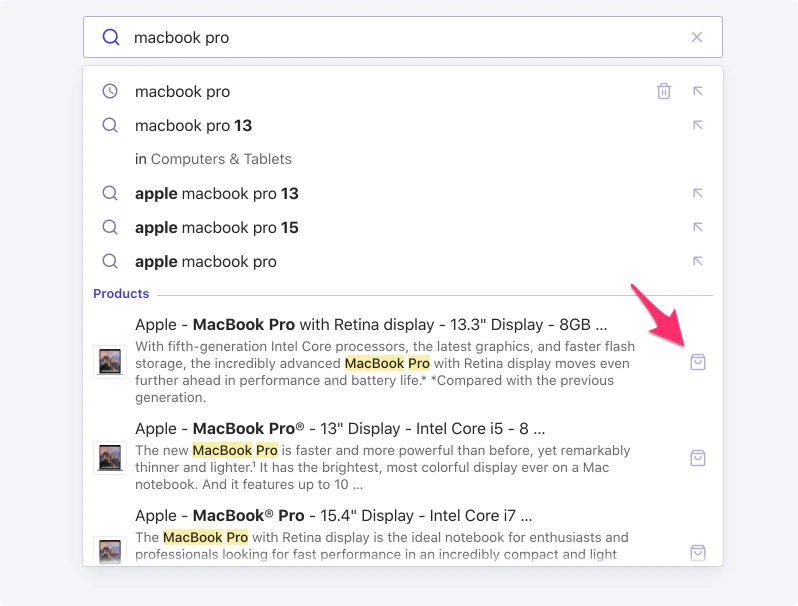
If your [templates](/doc/ui-libraries/autocomplete/core-concepts/templates) include calls to action,
such as an **Add to cart button**,
you can track interactions with them as conversion events.

<img src="https://mintcdn.com/algolia/Gja8rtqcY6eJARlr/images/ui-libraries/autocomplete/guides/add-to-cart.png?fit=max&auto=format&n=Gja8rtqcY6eJARlr&q=85&s=771eab11627d2a0ee8acd3ea96c5579d" alt="Screenshot of a search autocomplete drop-down menu showing laptop queries and product results with a red arrow pointing to a shopping bag icon." width="798" height="606" data-path="images/ui-libraries/autocomplete/guides/add-to-cart.png" />

To send events from your templates, pass the Insights client to your templates:

<CodeGroup>
  ```js JavaScript theme={"system"}
  autocomplete({
    // ...
    insights: true,
    templates: {
      item({ item, components, state, html }) {
        return createProductItemTemplate({
          hit: item,
          components,
          insights: state.context.algoliaInsightsPlugin.insights,
          html,
        });
      },
    },
  });

  function createProductItemTemplate() {
    // ...
  }
  ```

  ```jsx JSX theme={"system"}
  autocomplete({
    // ...
    insights: true,
    templates: {
      item({ item, components, state }) {
        return (
          <ProductItem
            hit={item}
            components={components}
            insights={state.context.algoliaInsightsPlugin.insights}
          />
        );
      },
    },
  });
  ```
</CodeGroup>

Now, you can send events from your templates by using the [Insights client's methods](/doc/libraries/search-insights).
For example, to track a conversion event when users click the **Add to cart button**,
use the [`convertedObjectIDsAfterSearch`](/doc/libraries/search-insights/converted-object-ids-after-search) method:

<CodeGroup>
  ```js JavaScript theme={"system"}
  function createProductItemTemplate({ hit, insights, components, html }) {
    return html`<div class="aa-ItemWrapper">
      <div class="aa-ItemIcon">
        <img src="${hit.image}" alt="${hit.name}" width="40" height="40" />
      </div>
      <div class="aa-ItemContent">
        <div class="aa-ItemContentTitle">
          ${components.Highlight({ hit, attribute: "name" })}
        </div>
        <div class="aa-ItemContentDescription">
          ${components.Snippet({ hit, attribute: "description" })}
        </div>
      </div>
      <div class="aa-ItemActions">
        <button
          class="aa-ItemActionButton"
          type="button"
          onClick="${(event) => {
            event.preventDefault();
            event.stopPropagation();
            insights.convertedObjectIDsAfterSearch({
              eventName: "Added to cart",
              index: hit.__autocomplete_indexName,
              objectIDs: [hit.objectID],
              queryID: hit.__autocomplete_queryID,
            });
          }}"
        >
          <svg
            viewBox="0 0 24 24"
            width="20"
            height="20"
            fill="none"
            stroke="currentColor"
          >
            <path
              d="M3 3h2l.4 2M7 13h10l4-8H5.4M7 13L5.4 5M7 13l-2.293 2.293c-.63.63-.184 1.707.707 1.707H17m0 0a2 2 0 100 4 2 2 0 000-4zm-8 2a2 2 0 11-4 0 2 2 0 014 0z"
              stroke-linecap="round"
              stroke-linejoin="round"
              stroke-width="2"
            />
          </svg>
        </button>
      </div>
    </div>`;
  }
  ```

  ```jsx JSX theme={"system"}
  function ProductItem({ hit, insights, components }) {
    return (
      <div className="aa-ItemWrapper">
        <div className="aa-ItemIcon">
          <img src={hit.image} alt={hit.name} width="40" height="40" />
        </div>
        <div className="aa-ItemContent">
          <div className="aa-ItemContentTitle">
            <components.Snippet hit={hit} attribute="name" />
          </div>
          <div className="aa-ItemContentDescription">
            <components.Snippet hit={hit} attribute="description" />
          </div>
        </div>
        <div className="aa-ItemActions">
          <button
            className="aa-ItemActionButton"
            type="button"
            onClick={(event) => {
              event.preventDefault();
              event.stopPropagation();
              insights.convertedObjectIDsAfterSearch({
                eventName: "Added to cart",
                index: hit.__autocomplete_indexName,
                objectIDs: [hit.objectID],
                queryID: hit.__autocomplete_queryID,
              });
            }}
          >
            <svg
              viewBox="0 0 24 24"
              width="20"
              height="20"
              fill="none"
              stroke="currentColor"
            >
              <path
                d="M3 3h2l.4 2M7 13h10l4-8H5.4M7 13L5.4 5M7 13l-2.293 2.293c-.63.63-.184 1.707.707 1.707H17m0 0a2 2 0 100 4 2 2 0 000-4zm-8 2a2 2 0 11-4 0 2 2 0 014 0z"
                strokeLinecap="round"
                strokeLinejoin="round"
                strokeWidth="2"
              />
            </svg>
          </button>
        </div>
      </div>
    );
  }
  ```
</CodeGroup>

To see a complete implementation,
check the [Autocomplete playground](https://github.com/algolia/autocomplete/tree/v1.7.4/examples/playground).

### Add-to-cart events

When your users add an item to their cart, send a special `conversion` event with the `addToCart` subtype.

```js JavaScript icon=code theme={"system"}
insights.convertedObjectIDsAfterSearch({
  eventName: "Added to cart",
  index: hit.__autocomplete_indexName,
  objectIDs: [hit.objectID],
  queryID: hit.__autocomplete_queryID,
  // Special subtype
  eventSubtype: "addToCart",
  // An array of objects representing each item added to the cart
  objectData: [
    {
      // The discount value for this item, if applicable
      discount: item.discount || 0,
      // The price value for this item (minus the discount)
      price: item.price,
      // How many of this item were added
      quantity: 2,
    },
  ],
  // The total value of all items
  value: item.price * 2,
  // The currency code
  currency: "USD",
});
```

<Note>
  Fields representing monetary values accept both numbers and strings, in major currency units (for example, `5.45` or `'5.45'`).
  To prevent floating-point math issues, use strings, especially if you're performing calculations.
</Note>

### Purchase events

When your users purchase an item, send a special `conversion` event with the `purchase` subtype.

```js JavaScript icon=code theme={"system"}
insights.convertedObjectIDsAfterSearch({
  eventName: "Added to cart",
  index: hit.__autocomplete_indexName,
  objectIDs: [hit.objectID],
  queryID: hit.__autocomplete_queryID,
  // Special subtype
  eventSubtype: "purchase",
  // An array of objects representing each purchased item
  objectData: [
    {
      // The discount value for this item, if applicable
      discount: item.discount || 0,
      // The price value for this item (minus the discount)
      price: item.price,
      // How many of this item were added
      quantity: 2,
    },
  ],
  // The total value of all items
  value: item.price * 2,
  // The currency code
  currency: "USD",
});
```

<Note>
  Fields representing monetary values accept both numbers and strings, in major currency units (for example, `5.45` or `'5.45'`).
  To prevent floating-point math issues, use strings, especially if you're performing calculations.
</Note>

## Validate your events

Use the [events debugger](/doc/guides/sending-events/guides/validate#debugger) to verify that events are being sent.
