> ## Documentation Index
> Fetch the complete documentation index at: https://algolia.com/llms.txt
> Use this file to discover all available pages before exploring further.
# InstantSearch.js (Quickstart)
> Learn how to use Autocomplete with InstantSearch.js.
Autocomplete is also available as an experimental widget in InstantSearch,
making it easier to integrate into your search experience.
For more information,
see the API reference for [InstantSearch.js](/doc/api-reference/widgets/autocomplete/js) or
[React InstantSearch](/doc/api-reference/widgets/autocomplete/react).
This guide uses [`create-instantsearch-app`](https://github.com/algolia/instantsearch/tree/master/packages/create-instantsearch-app#create-instantsearch-app)
to help you quickly build a JavaScript search app that integrates InstantSearch and Autocomplete.
## Before you begin
This guide requires [Node.js version 8 or later](https://nodejs.org/en/download/package-manager) and [npm](https://docs.npmjs.com/downloading-and-installing-node-js-and-npm).
## Integrate InstantSearch with Autocomplete
Open the terminal and run:
```sh Command line icon=square-terminal theme={"system"}
npx create-instantsearch-app my-app --template "InstantSearch.js"
```
Accept the default options throughout the installation process by pressing `Enter`.
However, you can replace any of the default options with your own.
To ensure that your app integrates Autocomplete with InstantSearch,
pay particular attention to these configuration options:
* Attributes to display
* Attributes for faceting
* Search input
### Attributes to display
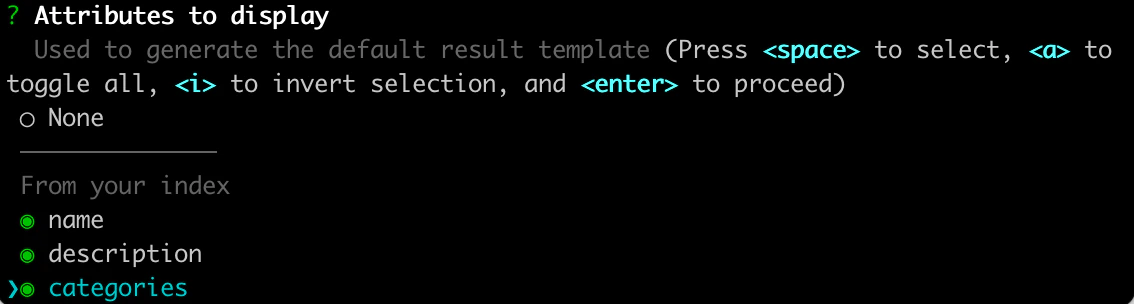
Select name, description, and categories when prompted.
 ### Attributes for faceting
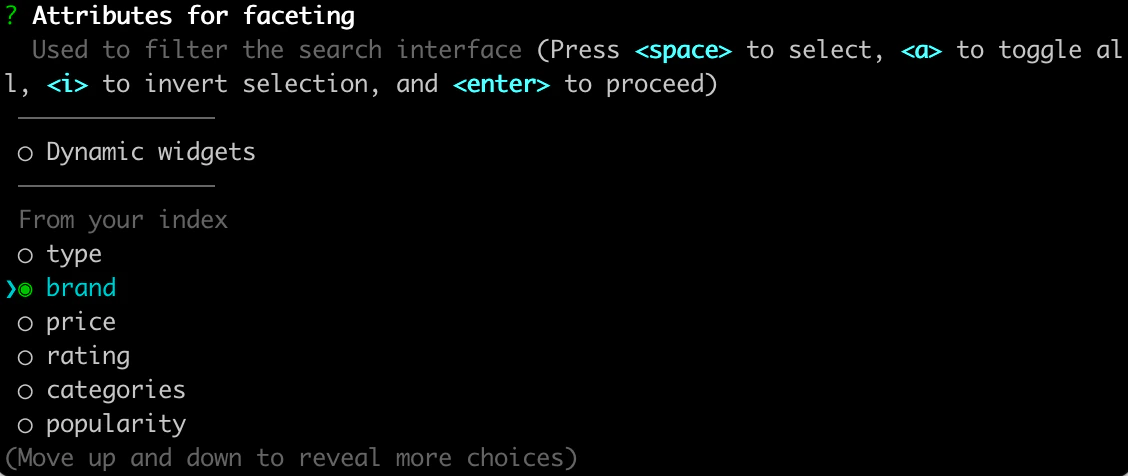
Choose brand when prompted.
### Attributes for faceting
Choose brand when prompted.
 ### Search input
Select [Autocomplete](/doc/ui-libraries/autocomplete/introduction/what-is-autocomplete) as your search input and use the default index for [Query Suggestions](/doc/guides/building-search-ui/ui-and-ux-patterns/query-suggestions/js).
### Search input
Select [Autocomplete](/doc/ui-libraries/autocomplete/introduction/what-is-autocomplete) as your search input and use the default index for [Query Suggestions](/doc/guides/building-search-ui/ui-and-ux-patterns/query-suggestions/js).
 Selecting `Y` when being prompted to "Enable user events" activates the [`insights`](/doc/api-reference/widgets/instantsearch/js#param-insights)
option, which allows Algolia to process your user events.
Events can unlock powerful aspects which enhance your app's effectiveness.
For more details about events collection and settings,
review the [API reference](/doc/api-reference/widgets/instantsearch/js#param-insights).
When `create-instantsearch-app` has finished,
it will have created a new app,
in the directory `my-app`, with everything you need.
Go to the `my-app` directory:
```sh Command line icon=square-terminal theme={"system"}
cd my-app || exit
```
Run the app:
```sh Command line icon=square-terminal theme={"system"}
npm start
```
Open your browser and go to [http://localhost:3000](http://localhost:3000).
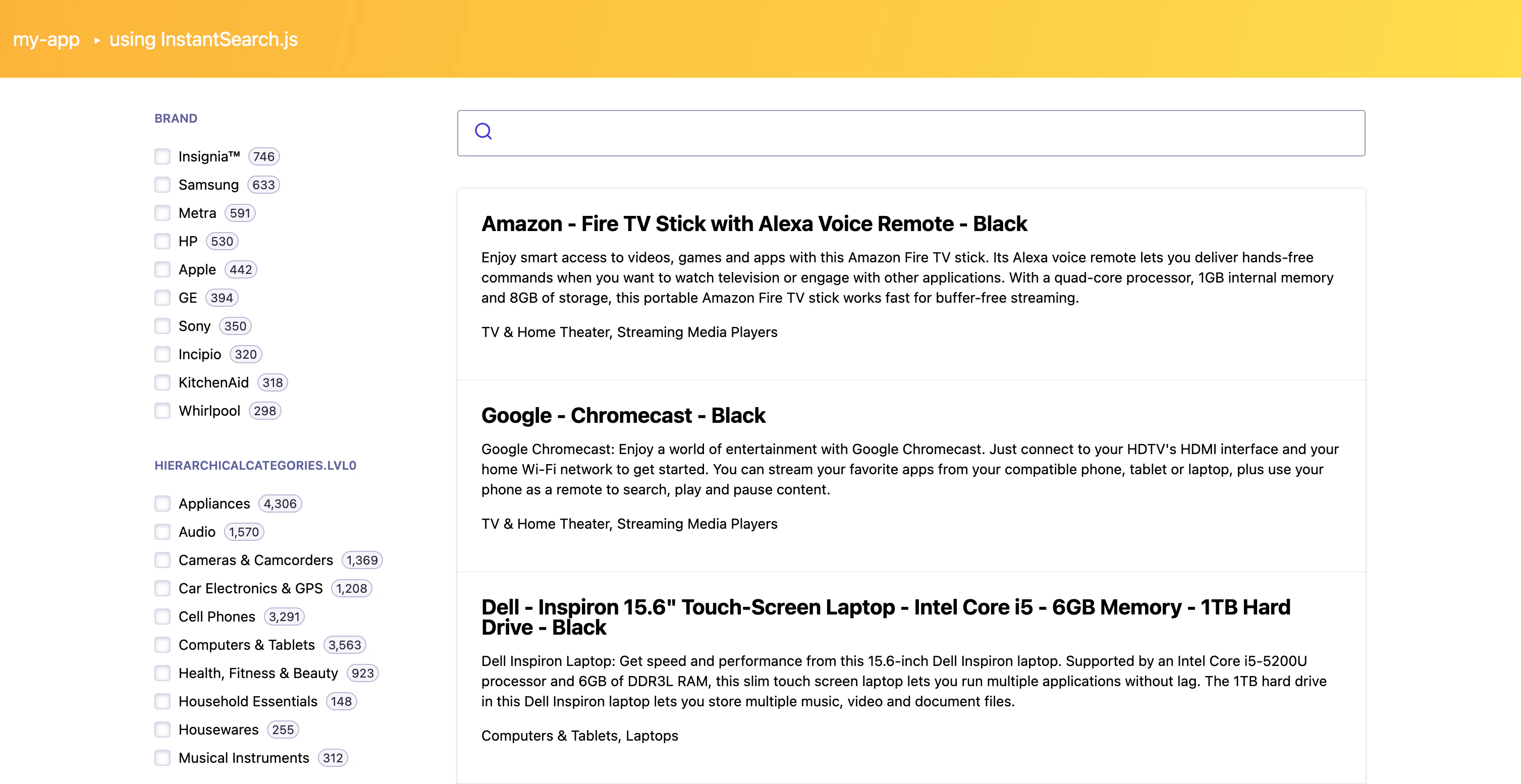
This is what you should see
Selecting `Y` when being prompted to "Enable user events" activates the [`insights`](/doc/api-reference/widgets/instantsearch/js#param-insights)
option, which allows Algolia to process your user events.
Events can unlock powerful aspects which enhance your app's effectiveness.
For more details about events collection and settings,
review the [API reference](/doc/api-reference/widgets/instantsearch/js#param-insights).
When `create-instantsearch-app` has finished,
it will have created a new app,
in the directory `my-app`, with everything you need.
Go to the `my-app` directory:
```sh Command line icon=square-terminal theme={"system"}
cd my-app || exit
```
Run the app:
```sh Command line icon=square-terminal theme={"system"}
npm start
```
Open your browser and go to [http://localhost:3000](http://localhost:3000).
This is what you should see
 ## Next steps
* Read more about [styling](/doc/guides/building-search-ui/widgets/customize-an-existing-widget/js).
* Get inspired to further customize your look and feel by taking a look at the [sandboxes](/doc/ui-libraries/autocomplete/introduction/sandboxes).
* Start your own project with a [full installation of InstantSearch.js](/doc/guides/building-search-ui/installation/js).
## Next steps
* Read more about [styling](/doc/guides/building-search-ui/widgets/customize-an-existing-widget/js).
* Get inspired to further customize your look and feel by taking a look at the [sandboxes](/doc/ui-libraries/autocomplete/introduction/sandboxes).
* Start your own project with a [full installation of InstantSearch.js](/doc/guides/building-search-ui/installation/js).