> ## Documentation Index
> Fetch the complete documentation index at: https://algolia.com/llms.txt
> Use this file to discover all available pages before exploring further.

# Rich text box with mentions and hashtags

> Learn how to create the mention or hashtag type-ahead feature from Twitter and Facebook with Autocomplete.

<Tip>
  Autocomplete is also available as an experimental widget in InstantSearch,
  making it easier to integrate into your search experience.
  For more information,
  see the API reference for [InstantSearch.js](/doc/api-reference/widgets/autocomplete/js) or
  [React InstantSearch](/doc/api-reference/widgets/autocomplete/react).
</Tip>

Beyond its typical usage for redirecting to a search page,
**you can use an autocomplete as a secondary search pattern to improve the typing experience.**

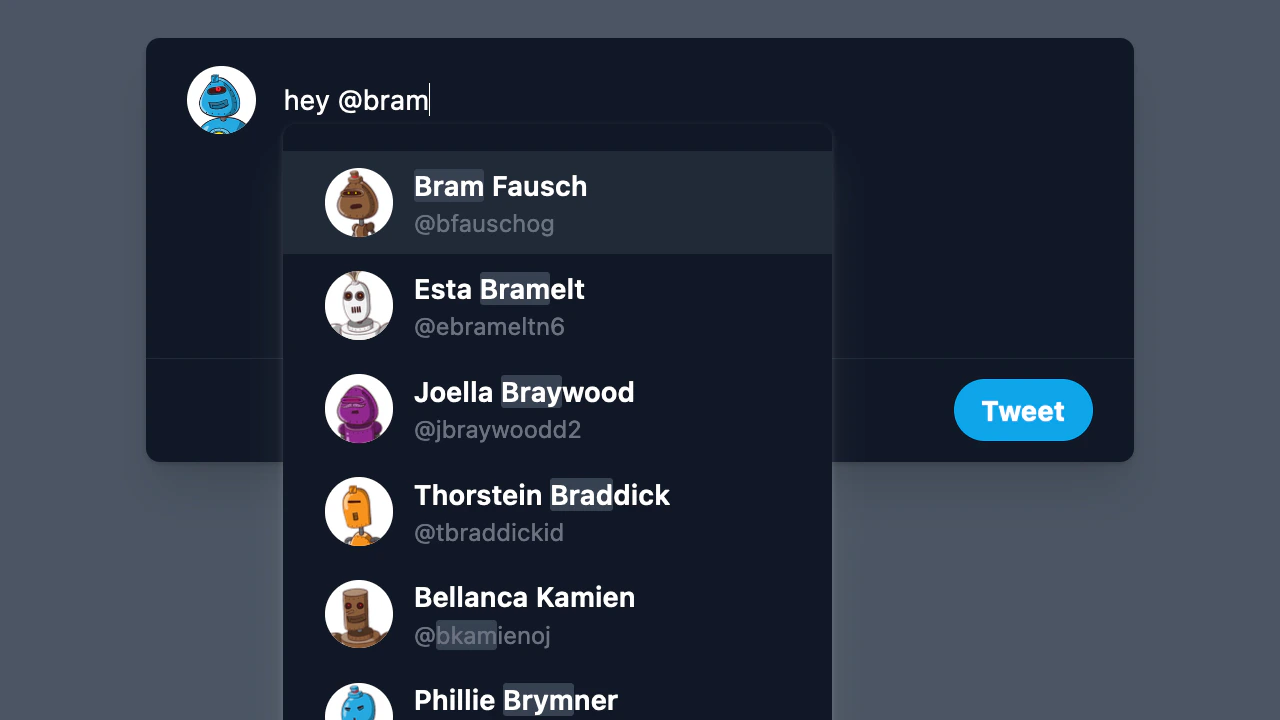
A great example is the mentions feature in Twitter.
As you're typing your tweet, you can mention another user with the "@" character.
This opens a panel with suggestions of matching users,
allowing you to complete your message with the right username.
The text box acts as a type-ahead:
the suggestions panel isn't blocking, you can keep typing,
ignoring the suggestions and letting them go away,
or you can use them to complete your message without friction.
<img src="https://mintcdn.com/algolia/JoMDf1PtMFIqKpzx/images/ui-libraries/autocomplete/twitter-compose-box.png?fit=max&auto=format&n=JoMDf1PtMFIqKpzx&q=85&s=d5a1c4a019ca90f513e353fcbee54bcd" alt="An experience that replicates the Twitter autocomplete in the compose box" width="1280" height="720" data-path="images/ui-libraries/autocomplete/twitter-compose-box.png" />

The Twitter compose box doesn't process a query from a search input.
Instead, it parses the content of a text box and detects when users are trying to mention someone.
To replicate such an experience, you need full control over how to render the text box,
meaning you must use [`autocomplete-core`](/doc/ui-libraries/autocomplete/api-reference/autocomplete-core)
instead of [`autocomplete-js`](/doc/ui-libraries/autocomplete/api-reference/autocomplete-js).

In this solution, you'll learn how to replicate the Twitter mentions feature.
You can then reuse the same logic to implement hashtags.

<Note>
  This solution uses [`autocomplete-core`](/doc/ui-libraries/autocomplete/api-reference/autocomplete-core) along with [React](https://react.dev/) and assumes familiarity with both.
</Note>

<Columns>
  <Card title="Open CodeSandbox" icon="codesandbox" href="https://codesandbox.io/s/github/algolia/autocomplete/tree/next/examples/twitter-compose-with-typeahead">
    Run and edit the Rich text box with mentions and hashtags example in CodeSandbox.
  </Card>

  <Card title="Explore source code" icon="github" href="https://github.com/algolia/autocomplete/tree/next/examples/twitter-compose-with-typeahead">
    Browse the source for the Rich text box with mentions and hashtags example on GitHub.
  </Card>
</Columns>

## Get started

First, you need to start a new React project.
You can use [Create React App](https://github.com/facebook/create-react-app),
[Vite](https://vite.dev) with a React template, or bootstrap the project yourself.

Then, install the necessary dependencies to build your Autocomplete app:

* [`@algolia/autocomplete-core`](/doc/ui-libraries/autocomplete/api-reference/autocomplete-core) to build the autocomplete
* [`@algolia/autocomplete-preset-algolia`](/doc/ui-libraries/autocomplete/api-reference/autocomplete-preset-algolia) to fetch Algolia results and highlight matches
* [`algoliasearch`](/doc/libraries/sdk/install) to interact with the Algolia Search API

<CodeGroup>
  ```sh npm theme={"system"}
  npm install @algolia/autocomplete-core @algolia/autocomplete-preset-algolia algoliasearch
  ```

  ```sh yarn theme={"system"}
  yarn add @algolia/autocomplete-core @algolia/autocomplete-preset-algolia algoliasearch
  ```
</CodeGroup>

## Build the autocomplete text box

When using [`autocomplete-core`](/doc/ui-libraries/autocomplete/api-reference/autocomplete-core),
you're in control of rendering the entire experience using the Autocomplete state.

<Steps>
  <Step title="Create a custom hook">
    Create a custom hook that instantiates Autocomplete with the passed options and returns the instance and state.

    ```jsx JSX icon=code theme={"system"}
    import React from "react";
    import { createAutocomplete } from "@algolia/autocomplete-core";

    function useAutocomplete(props) {
      const [state, setState] = React.useState(() => ({
        collections: [],
        completion: null,
        context: {},
        isOpen: false,
        query: "",
        activeItemId: null,
        status: "idle",
      }));

      const autocomplete = React.useMemo(
        () =>
          createAutocomplete({
            ...props,
            onStateChange(params) {
              props.onStateChange?.(params);
              setState(params.state);
            },
          }),
        [],
      );

      return { autocomplete, state };
    }
    ```
  </Step>

  <Step title="Build the Autocomplete component">
    Create an `Autocomplete` component which consumes the hook and renders the experience.

    ```jsx JSX icon=code theme={"system"}
    function Autocomplete(props) {
      const { autocomplete, state } = useAutocomplete({
        ...props,
        id: "twitter-autocomplete",
        defaultActiveItemId: 0,
      });

      return null;
    }
    ```
  </Step>

  <Step title="Use the Autocomplete component in your app">
    In your `App.jsx` file,
    render the `Autocomplete` component and pass Autocomplete options as props.

    ```jsx JSX icon=code theme={"system"}
    import React from "react";

    import { Autocomplete } from "./Autocomplete";

    export function App() {
      return (
        <div className="container">
          <Autocomplete placeholder="What's up?" />
        </div>
      );
    }
    ```
  </Step>
</Steps>

### Render the text box

For now, the autocomplete doesn't return anything.
Use the `autocomplete` and `state` returned from the hook to build the experience.

```jsx JSX icon=code theme={"system"}
function Autocomplete(props) {
  // ...
  const inputRef = React.useRef(null);

  return (
    <div {...autocomplete.getRootProps({})}>
      <div className="box">
        <div className="box-body">
          <div className="box-avatar">
            <img src="https://example.org/avatar.jpg" alt="You" />
          </div>
          <div className="box-compose">
            <form
              {...autocomplete.getFormProps({
                inputElement: inputRef.current,
              })}
            >
              <textarea
                className="box-textbox"
                ref={inputRef}
                {...autocomplete.getInputProps({
                  inputElement: inputRef.current,
                  autoFocus: true,
                  maxLength: 280,
                })}
              />
            </form>
          </div>
        </div>
        <div className="box-footer">
          <button type="submit" className="tweet-button">
            Tweet
          </button>
        </div>
      </div>
    </div>
  );
}
```

<Info>
  This demo uses a `<textarea>` element instead of an `<input>` as the search input.
  The `<textarea>` element is better for free-form plain text spanning multiple lines.
</Info>

### Render the panel

Now that you have a text box, you can display a panel where the suggestions for accounts to mention will show up.

First, you can write a component to render accounts.
It highlights matches in the account's name
and handle using a custom `Highlight` component which leverages
[`parseAlgoliaHitHighlight`](/doc/ui-libraries/autocomplete/api-reference/autocomplete-preset-algolia/parseAlgoliaHitHighlight).

```jsx JSX icon=code theme={"system"}
// ...
import { parseAlgoliaHitHighlight } from "@algolia/autocomplete-preset-algolia";

function AccountItem({ hit }) {
  return (
    <div className="account-body">
      <div className="account-avatar">
        <img src={hit.image} alt="" />
      </div>
      <div>
        <div className="account-name">
          <Highlight hit={hit} attribute="name" />
        </div>
        <div className="account-handle">
          @<Highlight hit={hit} attribute="handle" />
        </div>
      </div>
    </div>
  );
}

function Highlight({ hit, attribute }) {
  return (
    <>
      {parseAlgoliaHitHighlight({
        hit,
        attribute,
      }).map(({ value, isHighlighted }, index) => {
        if (isHighlighted) {
          return (
            <mark key={index} className="account-highlighted">
              {value}
            </mark>
          );
        }

        return <React.Fragment key={index}>{value}</React.Fragment>;
      })}
    </>
  );
}
```

Then, you can add the panel right after the `<form>` element.

Autocomplete lets you know about its state: the current search status, the collections,
and whether the panel is open.
You can use them to display a loading indicator when the search is stalled,
or the list of matching accounts once collections are available and the panel opens.

```jsx JSX icon=code theme={"system"}
function Autocomplete(props) {
  // ...

  return (
    <div {...autocomplete.getRootProps({})}>
      <div className="box">
        <div className="box-body">
          {/* ... */}
          <div className="box-compose">
            {/* ... */}
            <div
              {...autocomplete.getPanelProps({})}
              className="autocomplete-panel"
            >
              {state.status === "stalled" && !state.isOpen && (
                <div className="autocomplete-loading">
                  <svg
                    className="autocomplete-loading-icon"
                    viewBox="0 0 100 100"
                    fill="currentColor"
                  >
                    <circle
                      cx="50"
                      cy="50"
                      r="35"
                      fill="none"
                      stroke="currentColor"
                      strokeDasharray="164.93361431346415 56.97787143782138"
                      strokeWidth="6"
                    >
                      <animateTransform
                        attributeName="transform"
                        dur="1s"
                        keyTimes="0;0.40;0.65;1"
                        repeatCount="indefinite"
                        type="rotate"
                        values="0 50 50;90 50 50;180 50 50;360 50 50"
                      ></animateTransform>
                    </circle>
                  </svg>
                </div>
              )}
              {state.isOpen &&
                state.collections.map(({ source, items }) => {
                  return (
                    <div
                      key={`source-${source.sourceId}`}
                      className={[
                        "autocomplete-source",
                        state.status === "stalled" &&
                          "autocomplete-source-stalled",
                      ]
                        .filter(Boolean)
                        .join(" ")}
                    >
                      {items.length > 0 && (
                        <ul
                          {...autocomplete.getListProps()}
                          className="autocomplete-items"
                        >
                          {items.map((item) => {
                            const itemProps = autocomplete.getItemProps({
                              item,
                              source,
                            });

                            return (
                              <li key={item.handle} {...itemProps}>
                                <div
                                  className={[
                                    "autocomplete-item",
                                    itemProps["aria-selected"] &&
                                      "autocomplete-item-selected",
                                  ]
                                    .filter(Boolean)
                                    .join(" ")}
                                >
                                  <AccountItem hit={item} />
                                </div>
                              </li>
                            );
                          })}
                        </ul>
                      )}
                    </div>
                  );
                })}
            </div>
          </div>
        </div>
        {/* ... */}
      </div>
    </div>
  );
}
```

### Fetch results

Right now, nothing happens if you type something in the text box.
That's because you're not returning any results with Autocomplete yet.

In the `useAutocomplete` hook's options,
you can implement [`getSources`](/doc/ui-libraries/autocomplete/api-reference/autocomplete-core/createAutocomplete#param-get-sources)
to retrieve accounts from your Algolia index.

```jsx JSX icon=code theme={"system"}
// ...
import {
  getAlgoliaResults,
  parseAlgoliaHitHighlight,
} from "@algolia/autocomplete-preset-algolia";
import { liteClient as algoliasearch } from "algoliasearch/lite";

const searchClient = algoliasearch(
  "latency",
  "a4390aa69f26de2fd0c4209ff113a4f9",
);

function Autocomplete(props) {
  const { autocomplete, state } = useAutocomplete({
    // ...
    getSources({ query }) {
      return [
        {
          sourceId: "accounts",
          getItems() {
            return getAlgoliaResults({
              searchClient,
              queries: [
                {
                  indexName: "autocomplete_twitter_accounts",
                  params: {
                    query,
                    hitsPerPage: 8,
                  },
                },
              ],
            });
          },
        },
      ];
    },
  });

  // ...
}
```

You should now see highlighted results when you type a name in the text box.

### Position the panel

You're now seeing results, but the panel is at the bottom of the text box.
When you're mentioning someone on Twitter, the panel usually moves based on where the text cursor (caret) is.
To replicate this behavior, you need to determine the caret's position and dynamically move the panel as it changes.

First, you need to install [`textarea-caret`](https://www.npmjs.com/package/textarea-caret), a JavaScript library that retrieves the coordinates of the caret in a text box.

<CodeGroup>
  ```sh npm theme={"system"}
  npm install textarea-caret@3
  ```

  ```sh yarn theme={"system"}
  yarn add textarea-caret@3
  ```
</CodeGroup>

Then, you can use `getCaretCoordinates` to retrieve the caret position whenever it changes
and reposition the panel accordingly.

```jsx JSX icon=code theme={"system"}
// ...
import getCaretCoordinates from "textarea-caret";

function Autocomplete(props) {
  // ...

  const { top, height } = inputRef.current
    ? getCaretCoordinates(inputRef.current, inputRef.current?.selectionEnd)
    : { top: 0, height: 0 };

  return (
    <div {...autocomplete.getRootProps({})}>
      <div className="box">
        <div className="box-body">
          {/* ... */}
          <div className="box-compose">
            {/* ... */}
            <div
              {...autocomplete.getPanelProps({})}
              className="autocomplete-panel"
              style={{ top: `${top + height}px` }}
            >
              {/* ... */}
            </div>
          </div>
        </div>
        {/* ... */}
      </div>
    </div>
  );
}
```

Now, the panel always follows the line you're currently editing.

## Implement mentions

On Twitter, you can mention someone by typing "@" followed by their username,
which opens an autocomplete panel with as-you-type search results.
When you select a user, it replaces what you've typed with their correct username,
allowing the app to notify them when you send the tweet.

Right now, the Autocomplete implementation searches through user accounts,
but it sends the entire query.
You only want to start searching when you're writing or editing a mention.
Similarly, Autocomplete shouldn't send the entire query, only the mention.

To do so, you need to tokenize the query and find what token is currently being edited.

```js JavaScript icon=code theme={"system"}
function getActiveToken(input, cursorPosition) {
  const tokenizedQuery = input.split(/[\s\n]).reduce((acc, word, index) => {
    const previous = acc[index - 1];
    const start = index === 0 ? index : previous.range[1] + 1;
    const end = start + word.length;

    return acc.concat([{ word, range: [start, end] }]);
  }, []);

  if (cursorPosition === undefined) {
    return undefined;
  }

  const activeToken = tokenizedQuery.find(
    ({ range }) => range[0] < cursorPosition && range[1] >= cursorPosition,
  );

  return activeToken;
}
```

The `getActiveToken` function takes input text and a cursor position and determines,
based on where the cursor is, what's the active token.
To do so, it splits the input text into tokens (based on space and newlines),
each containing the word and the range it covers,
then returns the active token based on the cursor position.

Now that you have the active token,
you need to determine whether it's a mention or a simple word.
You can write a predicate function for that.

```js JavaScript icon=code theme={"system"}
function isValidTwitterUsername(username) {
  return /^@\w{1,15}$/.test(username);
}
```

You can use both functions in [`getSources`](/doc/ui-libraries/autocomplete/api-reference/autocomplete-core/createAutocomplete#param-get-sources)
to only return results when the active token is a valid Twitter username.

```jsx JSX icon=code theme={"system"}
function Autocomplete(props) {
  const { autocomplete, state } = useAutocomplete({
    // ...
    getSources({ query }) {
      const cursorPosition = inputRef.current?.selectionEnd || 0;
      const activeToken = getActiveToken(query, cursorPosition);

      if (activeToken?.word && isValidTwitterUsername(activeToken?.word)) {
        return [
          {
            sourceId: "accounts",
            getItems() {
              return getAlgoliaResults({
                searchClient,
                queries: [
                  {
                    indexName: "autocomplete_twitter_accounts",
                    query: activeToken.word.slice(1),
                    params: {
                      hitsPerPage: 8,
                    },
                  },
                ],
              });
            },
          },
        ];
      }

      return [];
    },
  });

  // ...
}
```

Now, the panel only opens when you're typing or editing a mention,
and closes as you move on to typing the rest of your message.

### Select an account

The goal of the mention feature is to help you find a user account and autocomplete on their username.
For example, when typing "@obama" on Twitter,
the panel opens and presents you with Barack Obama's account,
whose handle is "@BarackObama".
When selecting it, it replaces "@obama" with "@BarackObama" and closes the panel,
letting you continue your tweet while ensuring Barack Obama is tagged.

You can replicate this feature with Autocomplete using [`onSelect`](/doc/ui-libraries/autocomplete/core-concepts/sources#param-on-select).

```jsx JSX icon=code theme={"system"}
function replaceAt(str, replacement, index, length = 0) {
  const prefix = str.substr(0, index);
  const suffix = str.substr(index + length);

  return prefix + replacement + suffix;
}

function Autocomplete(props) {
  const { autocomplete, state } = useAutocomplete({
    // ...
    getSources({ query }) {
      // ...

      if (activeToken?.word && isValidTwitterUsername(activeToken?.word)) {
        return [
          {
            onSelect({ item, setQuery }) {
              const [index] = activeToken.range;
              const replacement = `@${item.handle}`;
              const newQuery = replaceAt(
                query,
                replacement,
                index,
                activeToken.word.length,
              );

              setQuery(newQuery);

              if (inputRef.current) {
                inputRef.current.selectionEnd = index + replacement.length;
              }
            },
            // ...
          },
        ];
      }

      return [];
    },
  });

  // ...
}
```

Whenever you select an account, the active token is replaced with the correct user handle.

### Navigate in the text box

Typing isn't the only action that can occur in a text box.
Sometimes you need to go back and edit your text,
either by clicking or navigating with the arrow keys.
When this happens, the panel should open if the cursor is on a mention and close when it isn't.

```jsx JSX icon=code theme={"system"}
function Autocomplete(props) {
  // ...

  function onInputNavigate() {
    const cursorPosition = inputRef.current?.selectionEnd || 0;
    const activeToken = getActiveToken(state.query, cursorPosition);
    const shouldOpen = isValidTwitterUsername(activeToken?.word || "");

    autocomplete.setIsOpen(shouldOpen);
    autocomplete.refresh();
  }

  const inputProps = autocomplete.getInputProps({
    inputElement: inputRef.current,
    autoFocus: true,
    maxLength: 280,
  });

  return (
    <div {...autocomplete.getRootProps({})}>
      <div className="box">
        <div className="box-body">
          {/* ... */}
          <div className="box-compose">
            <form
              {...autocomplete.getFormProps({
                inputElement: inputRef.current,
              })}
            >
              <textarea
                className="box-textbox"
                ref={inputRef}
                {...inputProps}
                onKeyUp={(event) => {
                  if (["ArrowLeft", "ArrowRight"].includes(event.key)) {
                    onInputNavigate();
                  }
                }}
                onClick={(event) => {
                  inputProps.onClick(event);

                  onInputNavigate();
                }}
              />
            </form>
            {/* ... */}
          </div>
        </div>
        {/* ... */}
      </div>
    </div>
  );
}
```

Now, you can navigate the text box with the mouse or keyboard and see the panel react accordingly.

## Add styles

You can copy the following CSS snippet in your app to style it.

```css CSS icon=paintbrush theme={"system"}
*,
::before,
::after {
  box-sizing: border-box;
  border-width: 0;
  border-style: solid;
  border-color: currentColor;
}

html {
  line-height: 1.5;
  -webkit-text-size-adjust: 100%;
}

body {
  margin: 0;
  font-family:
    system-ui,
    -apple-system,
    "Segoe UI",
    Roboto,
    Helvetica,
    Arial,
    sans-serif,
    "Apple Color Emoji",
    "Segoe UI Emoji";
  height: 100vh;
  width: 100vw;
  background-color: rgba(75, 85, 99, 1);
  padding: 1.5rem;
}

button,
textarea {
  font-family: inherit;
  font-size: 100%;
  margin: 0;
  padding: 0;
  line-height: inherit;
  color: inherit;
}

.container {
  margin-left: auto;
  margin-right: auto;
  width: 100%;
  max-width: 36rem;
}

.box {
  border-radius: 0.5rem;
  background-color: rgba(17, 24, 39, 1);
  box-shadow:
    0 20px 25px -5px rgba(0, 0, 0, 0.1),
    0 10px 10px -5px rgba(0, 0, 0, 0.04),
    0 1px 3px 0 rgba(0, 0, 0, 0.1),
    0 1px 2px 0 rgba(0, 0, 0, 0.06);
}

.box-textbox {
  height: 9rem;
  width: 100%;
  resize: none;
  background-color: transparent;
}

.box-textbox::-webkit-input-placeholder,
.box-textbox:-ms-input-placeholder,
.box-textbox::placeholder {
  color: rgba(107, 114, 128, 1);
}

.box-textbox:focus {
  outline: 2px solid transparent;
  outline-offset: 2px;
}

.box-body {
  display: flex;
  border-radius: 0.5rem;
  padding-left: 1.5rem;
  padding-right: 1.5rem;
  padding-top: 1rem;
  padding-bottom: 1rem;
  color: rgba(255, 255, 255, 1);
}

.box-body > :not([hidden]) ~ :not([hidden]) {
  margin-right: calc(1rem * 0);
  margin-left: calc(1rem * calc(1 - 0));
}

.box-compose {
  position: relative;
  margin-top: 0.5rem;
  flex-grow: 1;
}

.box-footer {
  display: flex;
  justify-content: flex-end;
  border-bottom-right-radius: 0.5rem;
  border-bottom-left-radius: 0.5rem;
  border-top-width: 1px;
  border-color: rgba(31, 41, 55, 1);
  padding-left: 1.5rem;
  padding-right: 1.5rem;
  padding-top: 0.75rem;
  padding-bottom: 0.75rem;
}

.autocomplete-panel {
  position: absolute;
  left: 0px;
  width: 100%;
  max-width: 20rem;
  border-radius: 0.5rem;
  background-color: rgba(17, 24, 39, 1);
  box-shadow:
    0 20px 25px -5px rgba(255, 255, 255, 0.1),
    0 10px 10px -5px rgba(255, 255, 255, 0.04),
    0 1px 3px 0 rgba(255, 255, 255, 0.1),
    0 1px 2px 0 rgba(255, 255, 255, 0.06);
}

.autocomplete-loading {
  padding-top: 0.75rem;
  padding-bottom: 0.75rem;
  color: rgba(14, 165, 233, 1);
}

.autocomplete-loading-icon {
  display: block;
  height: 2rem;
  width: 2rem;
  margin-left: auto;
  margin-right: auto;
}

.autocomplete-source {
  margin-top: 0.5rem;
  width: 100%;
  overflow: hidden;
  border-radius: 0.5rem;
  padding-top: 0.5rem;
  padding-bottom: 0.5rem;
}

.autocomplete-source-stalled {
  filter: grayscale(1);
  opacity: 0.8;
}

.autocomplete-items {
  height: 100%;
  max-height: 24rem;
  overflow-y: scroll;
  list-style: none;
  margin: 0;
  padding: 0;
}

.autocomplete-item {
  display: flex;
  cursor: pointer;
  flex-direction: column;
}

.autocomplete-item > :not([hidden]) ~ :not([hidden]) {
  margin-top: calc(0.25rem * calc(1 - 0));
  margin-bottom: calc(0.25rem * 0);
}

.autocomplete-item {
  padding-left: 1.5rem;
  padding-right: 1.5rem;
  padding-top: 0.5rem;
  padding-bottom: 0.5rem;
}

.autocomplete-item-selected {
  background-color: rgba(31, 41, 55, 1);
}

.account-body {
  display: flex;
  align-items: center;
}

.account-body > :not([hidden]) ~ :not([hidden]) {
  margin-right: calc(0.75rem * 0);
  margin-left: calc(0.75rem * calc(1 - 0));
}

.account-name {
  font-weight: 600;
  color: rgba(255, 255, 255, 1);
}

.account-highlighted {
  border-radius: 0.125rem;
  background-color: rgba(55, 65, 81, 1);
  color: currentColor;
}

.account-avatar,
.box-avatar {
  height: 2.5rem;
  width: 2.5rem;
  flex: none;
  border-radius: 9999px;
  background-color: rgba(255, 255, 255, 1);
  overflow: hidden;
}

.account-avatar img,
.box-avatar img {
  width: 100%;
  height: auto;
  transform: scale(1.2) translateY(-0.2rem);
}

.account-handle {
  font-size: 0.875rem;
  line-height: 1.25rem;
  color: rgba(107, 114, 128, 1);
}

.tweet-button {
  border-radius: 9999px;
  background-color: rgba(14, 165, 233, 1);
  padding-left: 1rem;
  padding-right: 1rem;
  padding-top: 0.375rem;
  padding-bottom: 0.375rem;
  font-weight: 700;
  color: rgba(255, 255, 255, 1);
  transition-property: background-color, border-color, color, fill, stroke;
  transition-timing-function: cubic-bezier(0.4, 0, 0.2, 1);
  transition-duration: 150ms;
  cursor: pointer;
}

.tweet-button:hover {
  background-color: rgba(2, 132, 199, 1);
}
```

Make sure to include it in your project's `App.jsx` file.

```jsx JSX icon=code theme={"system"}
// ...

import "./App.css";

export function App() {
  // ...
}
```

## Next steps

**The Autocomplete library is a great way to build dynamic text editing experiences**.
This solution focuses on social media,
but you can use it to create a mention feature for many different use cases such as collaborative apps like Google Docs,
email apps like Gmail, chat applications like Slack, internal social networks, and more.

To improve this demo, try to:

* Reuse the same logic to add hashtags
* Add alternative names, synonyms or Rules to improve the relevance (for example, to find people by their nicknames)
* Use with [`contenteditable`](https://developer.mozilla.org/en-US/docs/Web/HTML/Global_attributes/contenteditable)
  to render mentions and hashtags as interactive tokens
