> ## Documentation Index
> Fetch the complete documentation index at: https://algolia.com/llms.txt
> Use this file to discover all available pages before exploring further.
# Build a mentions text box
> Build a headless social media mentions text box with the `connectAutocomplete` connector.
export const customLabel_0 = undefined
This example builds on the [`autocomplete`](/doc/guides/building-search-ui/ui-and-ux-patterns/autocomplete/js) widget guide.
Use this guide to build a headless mentions text box with the `connectAutocomplete` connector.
This widget is **{customLabel_0 || "experimental"}** and is subject to change in minor versions.
## Build a custom UI with the connector
The widget renders its own input and panel.
If you need full control over the markup, a custom input element, a different panel structure, or an inline type-ahead like `@` mentions, use the `connectAutocomplete` connector instead.
It turns a render function into a widget, leaving all the markup to you.
Your render function receives the current query, the matching hits per index, and a `refine` function to run a new search:
```js JavaScript icon=code expandable theme={"system"}
import instantsearch from "instantsearch.js";
import { connectAutocomplete } from "instantsearch.js/es/connectors";
// `connectAutocomplete` builds a custom widget from a render function.
const customAutocomplete = connectAutocomplete(
(renderOptions, isFirstRender) => {
const { indices, refine, widgetParams } = renderOptions;
const { input, list } = widgetParams;
// Connect the input once, so typing doesn't lose focus on re-render
if (isFirstRender) {
input.addEventListener("input", (event) => {
refine(event.currentTarget.value);
});
return;
}
// Render your own markup from the hits on every result
const hits = indices[0]?.hits ?? [];
list.innerHTML = hits
.map((hit) => `${hit._highlightResult.name.value}`)
.join("");
},
);
search.addWidgets([
customAutocomplete({
input: document.querySelector("#autocomplete-input"),
list: document.querySelector("#autocomplete-list"),
}),
]);
```
Each entry in `indices` has the shape `{ indexName, indexId, hits, results, sendEvent }`.
The connector searches the Algolia indices in your widget tree,
the root index and any nested [`index`](/doc/api-reference/widgets/index-widget/js) widgets,
so you don't pass index names to the connector.
Because you render the markup, you're responsible for keyboard navigation, active-item state, and ARIA attributes.
If you need the same accessible combobox behavior without building it yourself, use the [`autocomplete`](/doc/api-reference/widgets/autocomplete/js) widget instead of the connector.
## Build a rich text box with mentions
Autocomplete can do more than redirect to a search page.
In a text box, it can help people find and insert usernames as they type.
For example, the social media mentions feature lets users mention another user with the `@` character so they can complete the message with the right username.
The text box provides type-ahead suggestions.
The panel doesn't block typing.
Users can keep typing and ignore the suggestions or select one to complete the message.
The compose box doesn't process a query from a search input.
Instead, it parses the content of a text box and detects when you're trying to mention someone.
To replicate this, you need full control over the markup, so you use the `connectAutocomplete` connector rather than the widget.
This example searches the public `autocomplete_twitter_accounts` index, whose records include a `name`, a `handle`, and an `image`.
 Run and edit the mentions example in CodeSandbox.
Browse the source code for the mentions example on GitHub.
### Install dependencies
Install InstantSearch.js, the Algolia API client, and [`textarea-caret`](https://www.npmjs.com/package/textarea-caret) (used later to position the panel at the caret):
```sh npm theme={"system"}
npm install instantsearch.js algoliasearch textarea-caret
```
```sh yarn theme={"system"}
yarn add instantsearch.js algoliasearch textarea-caret
```
### Render the text box
Render a `
```
### Detect a mention
If you pass the full text box value to `refine`, Algolia searches the entire message.
You only want to search when the caret sits inside a mention, and you only want to send the mention itself, not the whole message.
To do that, tokenize the text and find the word under the caret, then check whether it's a valid username:
```js JavaScript icon=code expandable theme={"system"}
// The word under the caret, with its [start, end] range in the text.
function getActiveToken(input, cursor) {
const re = /\S+/g;
let match;
while ((match = re.exec(input))) {
const [start, end] = [match.index, match.index + match[0].length];
if (start <= cursor && cursor <= end) {
return { word: match[0], range: [start, end] };
}
}
return null;
}
// A mention is "@" followed by 1–15 word characters.
const isMention = (word) => /^@\w{1,15}$/.test(word);
```
### Position the panel
When users mention someone, the panel should follow the caret instead of sitting at the bottom of the text box.
Use `getCaretCoordinates(textarea, position)` from [`textarea-caret`](https://www.npmjs.com/package/textarea-caret) to get the caret's `top`, `left`, and `height` at a given offset.
Use it to place the panel just below the `@` of the active mention.
### Search for accounts and render the panel
Attach `connectAutocomplete` to the text box.
On every input, find the active token.
If it's a mention, call `refine` with the text after `@` and show the matching accounts.
Otherwise, hide the panel.
The connector gives you `indices[0].hits` and a `refine` function.
You manage the remaining behavior, including the active token, panel state, and selection handling.
This excerpt shows the connector wiring. The setup (search client and instance, element references) and the `renderHits`, `positionPanel`, and `hidePanel` helpers are in [the complete `src/app.js`](https://github.com/algolia/doc-code-samples/tree/master/instantsearch.js/autocomplete-mentions/src/app.js).
```js JavaScript icon=code expandable theme={"system"}
// Only search when the caret sits inside a mention.
function onInput() {
activeToken = getActiveToken(textarea.value, textarea.selectionEnd);
if (activeToken && isMention(activeToken.word)) {
refine(activeToken.word.slice(1));
} else {
hidePanel();
}
}
const customAutocomplete = connectAutocomplete(
(renderOptions, isFirstRender) => {
refine = renderOptions.refine;
if (isFirstRender) {
textarea.addEventListener("input", onInput);
textarea.addEventListener("click", onInput);
textarea.addEventListener("keyup", onInput);
return;
}
const hits = renderOptions.indices[0]?.hits ?? [];
if (!activeToken || !isMention(activeToken.word) || hits.length === 0) {
hidePanel();
return;
}
// `positionPanel` places the panel at the caret; `renderHits` builds the
// suggestion rows with DOM APIs
positionPanel();
panel.hidden = false;
renderHits(hits);
},
);
search.addWidgets([customAutocomplete({})]);
search.start();
```
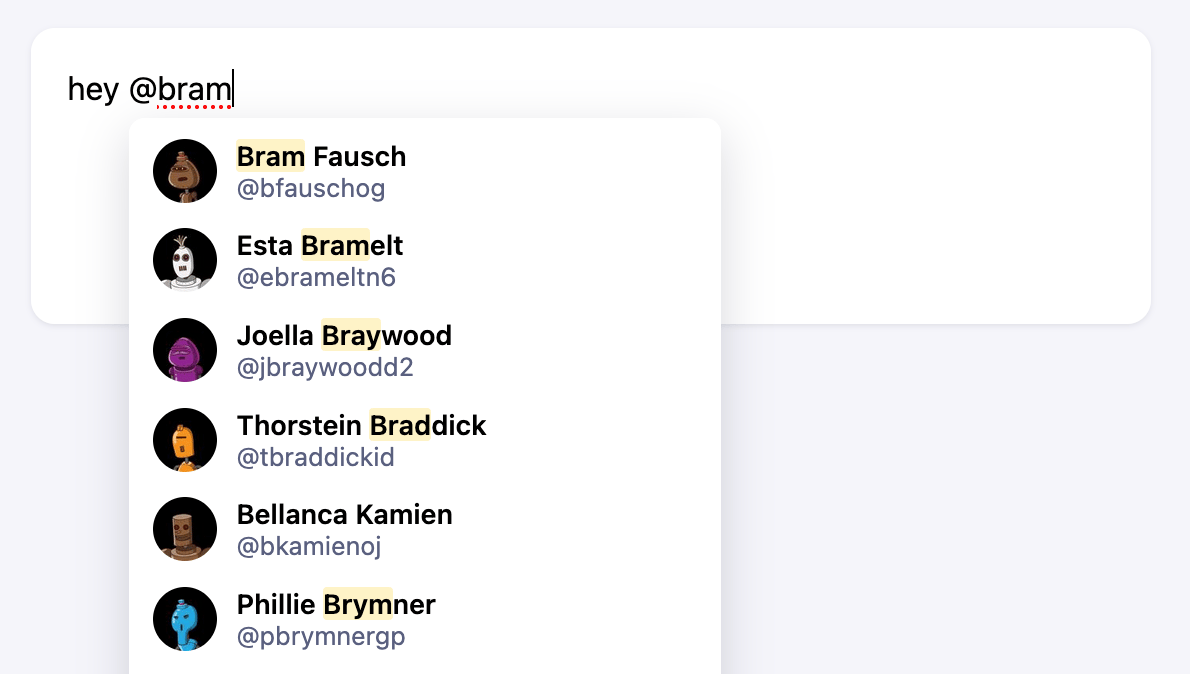
When users type `@` followed by a name, highlighted results appear.
### Show a loading state
On slow connections, the panel can appear empty while results load.
The InstantSearch instance exposes a `status` (`"idle"`, `"loading"`, `"stalled"`, or `"error"`), and it re-renders your widget when the search stalls.
Show an indicator when the search is stalled and the caret is inside a mention:
```js JavaScript icon=code theme={"system"}
// Inside the connectAutocomplete render function, before rendering the hits:
if (activeToken && isMention(activeToken.word) && search.status === "stalled") {
positionPanel();
panel.hidden = false;
const loading = document.createElement("li");
loading.className = "account-loading";
loading.textContent = "Searching…";
panel.replaceChildren(loading);
return;
}
```
### Select an account
The goal of the mention feature is to help users find an account and autocomplete its handle.
For example, when users type a few letters after `@`,
the panel opens with matching accounts.
Selecting an account replaces the typed text with the account's handle, such as "@jwestlakedc", and closes the panel.
When the user picks an account, replace the active token with the correct handle and move the caret after it.
Use `mousedown` (with `preventDefault`) rather than `click` so the `
Run and edit the mentions example in CodeSandbox.
Browse the source code for the mentions example on GitHub.
### Install dependencies
Install InstantSearch.js, the Algolia API client, and [`textarea-caret`](https://www.npmjs.com/package/textarea-caret) (used later to position the panel at the caret):
```sh npm theme={"system"}
npm install instantsearch.js algoliasearch textarea-caret
```
```sh yarn theme={"system"}
yarn add instantsearch.js algoliasearch textarea-caret
```
### Render the text box
Render a `
```
### Detect a mention
If you pass the full text box value to `refine`, Algolia searches the entire message.
You only want to search when the caret sits inside a mention, and you only want to send the mention itself, not the whole message.
To do that, tokenize the text and find the word under the caret, then check whether it's a valid username:
```js JavaScript icon=code expandable theme={"system"}
// The word under the caret, with its [start, end] range in the text.
function getActiveToken(input, cursor) {
const re = /\S+/g;
let match;
while ((match = re.exec(input))) {
const [start, end] = [match.index, match.index + match[0].length];
if (start <= cursor && cursor <= end) {
return { word: match[0], range: [start, end] };
}
}
return null;
}
// A mention is "@" followed by 1–15 word characters.
const isMention = (word) => /^@\w{1,15}$/.test(word);
```
### Position the panel
When users mention someone, the panel should follow the caret instead of sitting at the bottom of the text box.
Use `getCaretCoordinates(textarea, position)` from [`textarea-caret`](https://www.npmjs.com/package/textarea-caret) to get the caret's `top`, `left`, and `height` at a given offset.
Use it to place the panel just below the `@` of the active mention.
### Search for accounts and render the panel
Attach `connectAutocomplete` to the text box.
On every input, find the active token.
If it's a mention, call `refine` with the text after `@` and show the matching accounts.
Otherwise, hide the panel.
The connector gives you `indices[0].hits` and a `refine` function.
You manage the remaining behavior, including the active token, panel state, and selection handling.
This excerpt shows the connector wiring. The setup (search client and instance, element references) and the `renderHits`, `positionPanel`, and `hidePanel` helpers are in [the complete `src/app.js`](https://github.com/algolia/doc-code-samples/tree/master/instantsearch.js/autocomplete-mentions/src/app.js).
```js JavaScript icon=code expandable theme={"system"}
// Only search when the caret sits inside a mention.
function onInput() {
activeToken = getActiveToken(textarea.value, textarea.selectionEnd);
if (activeToken && isMention(activeToken.word)) {
refine(activeToken.word.slice(1));
} else {
hidePanel();
}
}
const customAutocomplete = connectAutocomplete(
(renderOptions, isFirstRender) => {
refine = renderOptions.refine;
if (isFirstRender) {
textarea.addEventListener("input", onInput);
textarea.addEventListener("click", onInput);
textarea.addEventListener("keyup", onInput);
return;
}
const hits = renderOptions.indices[0]?.hits ?? [];
if (!activeToken || !isMention(activeToken.word) || hits.length === 0) {
hidePanel();
return;
}
// `positionPanel` places the panel at the caret; `renderHits` builds the
// suggestion rows with DOM APIs
positionPanel();
panel.hidden = false;
renderHits(hits);
},
);
search.addWidgets([customAutocomplete({})]);
search.start();
```
When users type `@` followed by a name, highlighted results appear.
### Show a loading state
On slow connections, the panel can appear empty while results load.
The InstantSearch instance exposes a `status` (`"idle"`, `"loading"`, `"stalled"`, or `"error"`), and it re-renders your widget when the search stalls.
Show an indicator when the search is stalled and the caret is inside a mention:
```js JavaScript icon=code theme={"system"}
// Inside the connectAutocomplete render function, before rendering the hits:
if (activeToken && isMention(activeToken.word) && search.status === "stalled") {
positionPanel();
panel.hidden = false;
const loading = document.createElement("li");
loading.className = "account-loading";
loading.textContent = "Searching…";
panel.replaceChildren(loading);
return;
}
```
### Select an account
The goal of the mention feature is to help users find an account and autocomplete its handle.
For example, when users type a few letters after `@`,
the panel opens with matching accounts.
Selecting an account replaces the typed text with the account's handle, such as "@jwestlakedc", and closes the panel.
When the user picks an account, replace the active token with the correct handle and move the caret after it.
Use `mousedown` (with `preventDefault`) rather than `click` so the `