

autocomplete widget guide.
Use this guide to build a headless mentions text box with the connectAutocomplete connector.
This widget is and is subject to change in minor versions.
Build a custom UI with the connector
The widget renders its own input and panel. If you need full control over the markup, a custom input element, a different panel structure, or an inline type-ahead like@ mentions, use the connectAutocomplete connector instead.
It turns a render function into a widget, leaving all the markup to you.
Your render function receives the current query, the matching hits per index, and a refine function to run a new search:
JavaScript
indices has the shape { indexName, indexId, hits, results, sendEvent }.
The connector searches the Algolia indices in your widget tree,
the root index and any nested index widgets,
so you don’t pass index names to the connector.
Because you render the markup, you’re responsible for keyboard navigation, active-item state, and ARIA attributes.
If you need the same accessible combobox behavior without building it yourself, use the
autocomplete widget instead of the connector.Build a rich text box with mentions
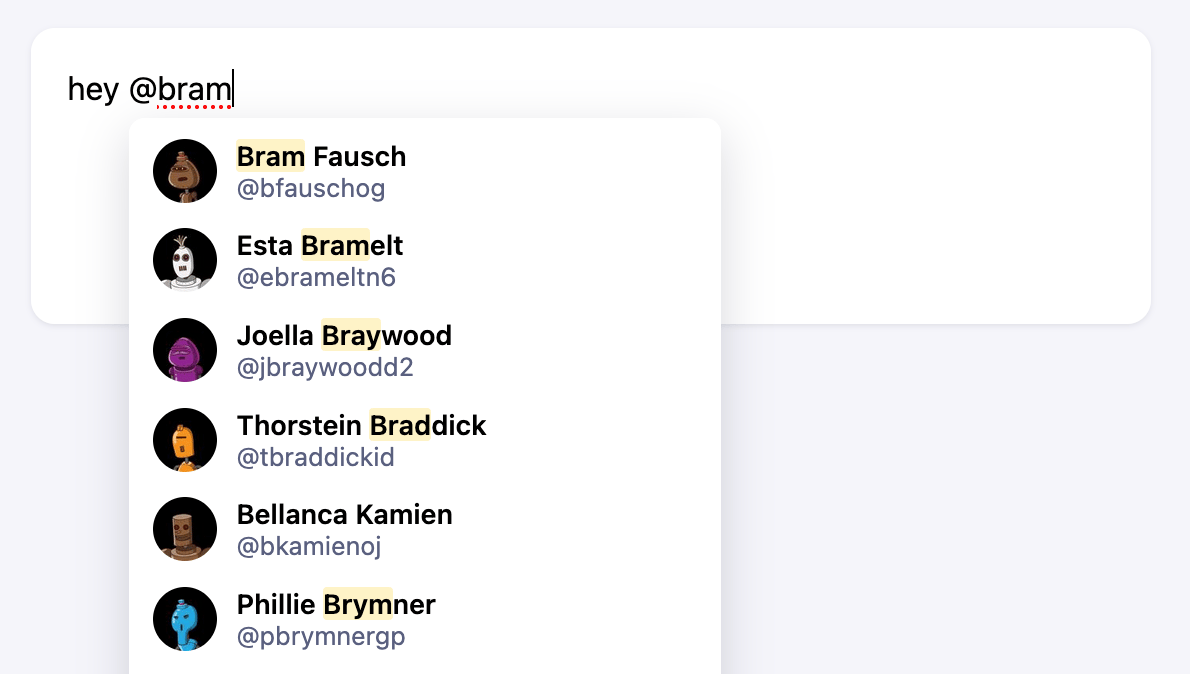
Autocomplete can do more than redirect to a search page. In a text box, it can help people find and insert usernames as they type. For example, the social media mentions feature lets users mention another user with the@ character so they can complete the message with the right username.
The text box provides type-ahead suggestions.
The panel doesn’t block typing.
Users can keep typing and ignore the suggestions or select one to complete the message.
The compose box doesn’t process a query from a search input.
Instead, it parses the content of a text box and detects when you’re trying to mention someone.
To replicate this, you need full control over the markup, so you use the connectAutocomplete connector rather than the widget.
This example searches the public autocomplete_twitter_accounts index, whose records include a name, a handle, and an image.
Open CodeSandbox
Run and edit the mentions example in CodeSandbox.
Explore source code
Browse the source code for the mentions example on GitHub.
Install dependencies
Install InstantSearch.js, the Algolia API client, andtextarea-caret (used later to position the panel at the caret):
Render the text box
Render atextarea for the message and an empty container for the suggestions panel.
This example uses a
textarea element instead of an input, which is better for free-form plain text spanning multiple lines.HTML
Detect a mention
If you pass the full text box value torefine, Algolia searches the entire message.
You only want to search when the caret sits inside a mention, and you only want to send the mention itself, not the whole message.
To do that, tokenize the text and find the word under the caret, then check whether it’s a valid username:
JavaScript
Position the panel
When users mention someone, the panel should follow the caret instead of sitting at the bottom of the text box. UsegetCaretCoordinates(textarea, position) from textarea-caret to get the caret’s top, left, and height at a given offset.
Use it to place the panel just below the @ of the active mention.
Search for accounts and render the panel
AttachconnectAutocomplete to the text box.
On every input, find the active token.
If it’s a mention, call refine with the text after @ and show the matching accounts.
Otherwise, hide the panel.
The connector gives you indices[0].hits and a refine function.
You manage the remaining behavior, including the active token, panel state, and selection handling.
This excerpt shows the connector wiring.
The setup (search client and instance, element references) and the renderHits, positionPanel, and hidePanel helpers are in the complete src/app.js.
JavaScript
@ followed by a name, highlighted results appear.
Show a loading state
On slow connections, the panel can appear empty while results load. The InstantSearch instance exposes astatus ("idle", "loading", "stalled", or "error"), and it re-renders your widget when the search stalls.
Show an indicator when the search is stalled and the caret is inside a mention:
JavaScript
Select an account
The goal of the mention feature is to help users find an account and autocomplete its handle. For example, when users type a few letters after@,
the panel opens with matching accounts.
Selecting an account replaces the typed text with the account’s handle, such as “@jwestlakedc”, and closes the panel.
When the user picks an account, replace the active token with the correct handle and move the caret after it.
Use mousedown (with preventDefault) rather than click so the textarea keeps focus:
JavaScript
Navigate in the text box
Typing isn’t the only action in a text box. Users can also edit their text or move the caret to a different position. When the caret lands on a mention, the panel should open. When it leaves a mention, the panel should close. Listen forclick and keyup in addition to input, and run the same active-token check again:
JavaScript
Add styles
Style the text box, the suggestions panel, and the account rows with your own CSS. For a complete style sheet, seesrc/app.css.
Users can move the caret through the text, and the panel updates when the caret enters or leaves a mention.
Next steps
This pattern also applies to collaborative editing (such as Google Docs), email composition (such as Gmail), and chat apps (such as Slack). To extend this pattern:- Reuse the same logic to add hashtags by changing the
isMentionfunction to detect hashtags and search a hashtag index instead. - Add synonyms or Algolia Rules so people are found by their nicknames.
- Render mentions and hashtags as interactive tokens with
contenteditable.
See also
autocompletewidget reference for the full list of options.- Autocomplete guide for the widget basics.
- Federated two-column autocomplete for an example of a widget-based, multi-source panel.