> ## Documentation Index
> Fetch the complete documentation index at: https://algolia.com/llms.txt
> Use this file to discover all available pages before exploring further.

# Integrate Autocomplete with React InstantSearch

> Learn how to use Autocomplete with React InstantSearch.

<Tip>
  Autocomplete is also available as an experimental widget in InstantSearch,
  making it easier to integrate into your search experience.
  For more information,
  see the API reference for [InstantSearch.js](/doc/api-reference/widgets/autocomplete/js) or
  [React InstantSearch](/doc/api-reference/widgets/autocomplete/react).
</Tip>

When you think of search experiences on sites like Amazon (ecommerce) or YouTube (media),
you may notice that both sites use an autocomplete experience.
It's the autocomplete, and not just a search input, that powers the search page.

If you have an existing React InstantSearch implementation,
**you can create a similar experience by adding Autocomplete to your React InstantSearch application**.
Adding Autocomplete to an existing React InstantSearch implementation lets you enhance the search experience and create a richer,
more contextual search.
You can use context from the current user and how they interacted with your site,
save their recent searches, provide suggested queries, and more.
This autocomplete can work as a rich search box in a search page,
and a portable all-in-one search experience anywhere else on your site.

This guide shows you how to integrate Autocomplete with React InstantSearch on your site.

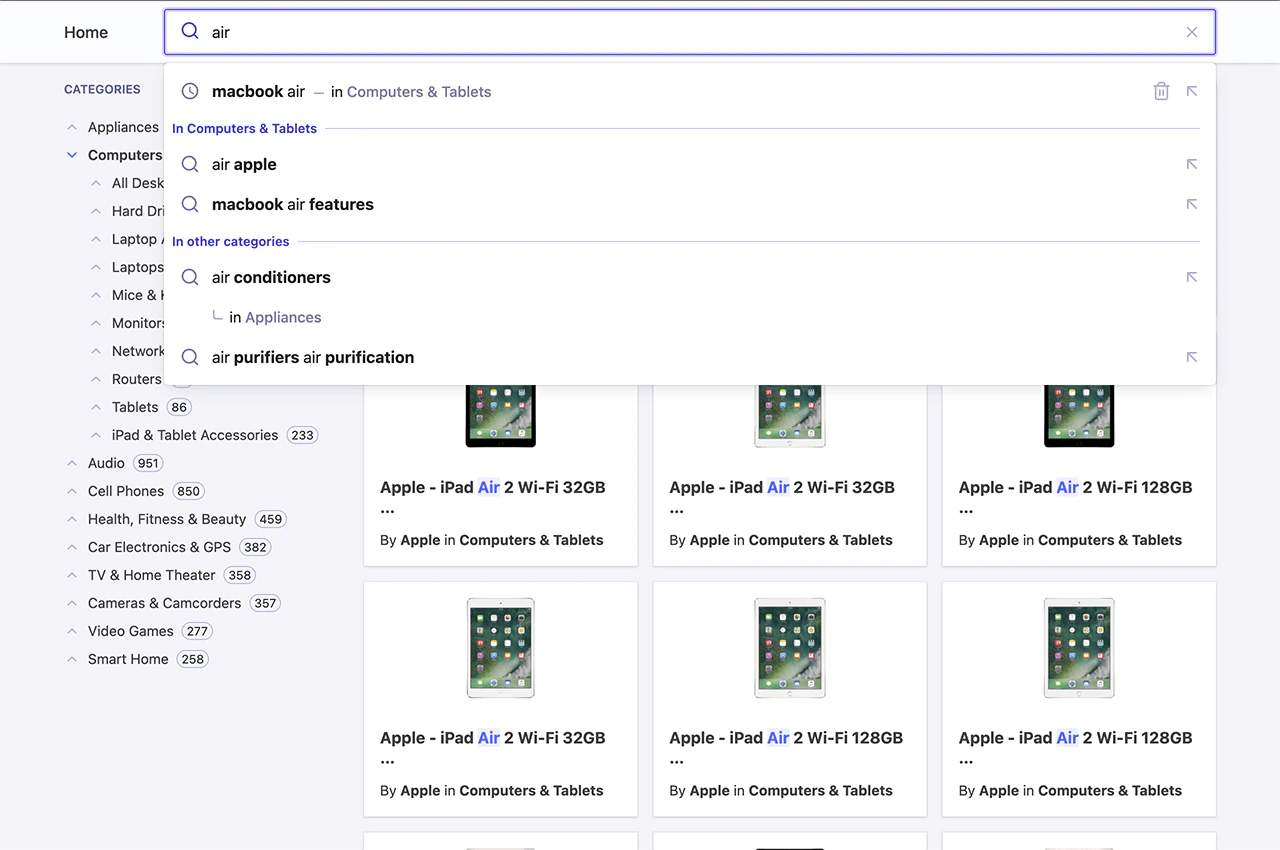
<img src="https://mintcdn.com/algolia/Gja8rtqcY6eJARlr/images/ui-libraries/autocomplete/guides/autocomplete-with-vue-instantsearch.png?fit=max&auto=format&n=Gja8rtqcY6eJARlr&q=85&s=8f70ce2894d6b00419c8bef561c6b795" alt="Screenshot of a search box with 'air' entered, showing autocomplete suggestions and product results for tablets." width="1280" height="850" data-path="images/ui-libraries/autocomplete/guides/autocomplete-with-vue-instantsearch.png" />

<Columns>
  <Card title="Open CodeSandbox" icon="codesandbox" href="https://codesandbox.io/s/github/algolia/autocomplete/tree/next/examples/react-instantsearch?file=/src/App.tsx">
    Run and edit the Autocomplete with React InstantSearch example in CodeSandbox.
  </Card>

  <Card title="Explore source code" icon="github" href="https://github.com/algolia/autocomplete/tree/next/examples/react-instantsearch">
    Browse the source for the Autocomplete with React InstantSearch example on GitHub.
  </Card>
</Columns>

This guide starts with a new React InstantSearch application,
but you can adapt it to integrate Autocomplete into your existing implementation.

## Create a search page with React InstantSearch

First, set up a starter template for the InstantSearch implementation with the
`create-instantsearch-app` command-line utility.

```sh Command line icon=square-terminal theme={"system"}
npx create-instantsearch-app@latest react-instantsearch \
  --template "React InstantSearch" \
  --app-id "latency" \
  --api-key "6be0576ff61c053d5f9a3225e2a90f76" \
  --index-name instant_search \
  --attributes-to-display name,description \
  --attributes-for-faceting categories
```

The template uses a two-column layout with categories on the left and a search box,
hits, and a pagination widget on the right.
Simplify it by replacing the content of App.tsx and App.css with the following:

<CodeGroup>
  ```tsx App.tsx theme={"system"}
  import React from "react";

  import algoliasearch from "algoliasearch/lite";
  import { Hit as AlgoliaHit } from "instantsearch.js/es/types";

  import {
    Highlight,
    Hits,
    InstantSearch,
    Pagination,
    RefinementList,
    SearchBox,
  } from "react-instantsearch";

  import "./App.css";

  const searchClient = algoliasearch(
    "latency",
    "6be0576ff61c053d5f9a3225e2a90f76",
  );

  type HitProps = {
    hit: AlgoliaHit<{
      name: string;
      image: string;
      brand: string;
      categories: string[];
    }>;
  };

  function Hit({ hit }: HitProps) {
    return (
      <article className="hit">
        <div className="hit-image">
          <img src={hit.image} alt={hit.name} />
        </div>
        <div>
          <h1>
            <Highlight hit={hit} attribute="name" />
          </h1>
          <div>
            By <strong>{hit.brand}</strong> in{" "}
            <strong>{hit.categories[0]}</strong>
          </div>
        </div>
      </article>
    );
  }

  export function App() {
    return (
      <div>
        <InstantSearch
          searchClient={searchClient}
          indexName="instant_search"
          routing
        >
          <header className="header">
            <div className="header-wrapper wrapper">
              <nav className="header-nav">
                <a href="/">Home</a>
              </nav>
              <SearchBox />
            </div>
          </header>
          <div className="container wrapper">
            <div>
              <RefinementList attribute="brand" />
            </div>
            <div>
              <Hits hitComponent={Hit} />
              <Pagination />
            </div>
          </div>
        </InstantSearch>
      </div>
    );
  }
  ```

  ```css App.css theme={"system"}
  * {
    box-sizing: border-box;
  }

  body {
    margin: 0;
    padding: 0;
    font-family:
      -apple-system, BlinkMacSystemFont, "Segoe UI", Roboto, Helvetica, Arial,
      sans-serif, "Apple Color Emoji", "Segoe UI Emoji", "Segoe UI Symbol";
    background-color: rgb(244, 244, 249);
    color: rgb(65, 65, 65);
  }

  a {
    color: var(--aa-primary-color);
    text-decoration: none;
  }

  .header {
    background: rgb(252 252 255 / 92%);
    box-shadow:
      0 0 0 1px rgba(35, 38, 59, 0.05),
      0 1px 3px 0 rgba(35, 38, 59, 0.15);
    padding: 0.5rem 0;
    position: fixed;
    top: 0;
    width: 100%;
  }

  .header-wrapper {
    align-items: center;
    display: grid;
    grid-template-columns: 100px 1fr;
  }

  .header-nav {
    font-weight: 500;
  }

  .wrapper {
    margin: 0 auto;
    max-width: 1200px;
    padding: 0 1.5rem;
    width: 100%;
  }

  .container {
    margin-top: 3.5rem;
    padding: 1.5rem;
    display: grid;
    gap: 1rem;
    grid-template-columns: 1fr 3fr;
  }

  /* Autocomplete */

  .aa-Panel {
    position: fixed;
  }

  /* InstantSearch */

  .ais-Hits-list {
    display: grid;
    gap: 1rem;
    grid-template-columns: 1fr 1fr 1fr;
  }

  .ais-Hits-item {
    padding: 1rem !important;
  }

  .hit {
    align-items: center;
    display: grid;
    gap: 1rem;
  }

  .hit h1 {
    font-size: 1rem;
  }

  .hit p {
    font-size: 0.8rem;
    opacity: 0.8;
  }

  .hit-image {
    align-items: center;
    display: flex;
    height: 100px;
    justify-content: center;
  }

  .hit-image img {
    max-height: 100%;
  }

  .ais-HierarchicalMenu-item--selected.ais-HierarchicalMenu-item--parent
    > div:first-of-type
    .ais-HierarchicalMenu-label {
    font-weight: bold;
  }

  .ais-HierarchicalMenu-item--selected:not(.ais-HierarchicalMenu-item--parent)
    .ais-HierarchicalMenu-label {
    font-weight: bold;
  }

  .ais-Pagination {
    display: flex;
    justify-content: center;
    margin: 2rem 0;
  }
  ```
</CodeGroup>

You now have a working React InstantSearch application.

## Use Autocomplete as a search box

The React InstantSearch [`<SearchBox>`](/doc/api-reference/widgets/search-box/react)
widget doesn't offer autocomplete features like those seen on YouTube and Amazon.
To implement that, replace [`<SearchBox>`](/doc/api-reference/widgets/search-box/react)
with a search box from Algolia's Autocomplete UI library.

You can store all the logic of Autocomplete in a React component.
By leveraging the hooks offered in React InstantSearch,
you can directly interface with InstantSearch in a simple but powerful way.

```tsx TypeScript icon=code theme={"system"}
import React from "react";
import { createElement, Fragment, useEffect, useRef, useState } from "react";
import { createRoot, Root } from "react-dom/client";

import { usePagination, useSearchBox } from "react-instantsearch";
import { autocomplete, AutocompleteOptions } from "@algolia/autocomplete-js";
import { BaseItem } from "@algolia/autocomplete-core";

import "@algolia/autocomplete-theme-classic";

type AutocompleteProps = Partial<AutocompleteOptions<BaseItem>> & {
  className?: string;
};

type SetInstantSearchUiStateOptions = {
  query: string;
};

export function Autocomplete({
  className,
  ...autocompleteProps
}: AutocompleteProps) {
  const autocompleteContainer = useRef<HTMLDivElement>(null);
  const panelRootRef = useRef<Root | null>(null);
  const rootRef = useRef<HTMLElement | null>(null);

  const { query, refine: setQuery } = useSearchBox();
  const { refine: setPage } = usePagination();

  const [instantSearchUiState, setInstantSearchUiState] =
    useState<SetInstantSearchUiStateOptions>({ query });

  useEffect(() => {
    setQuery(instantSearchUiState.query);
    setPage(0);
  }, [instantSearchUiState]);

  useEffect(() => {
    if (!autocompleteContainer.current) {
      return;
    }

    const autocompleteInstance = autocomplete({
      ...autocompleteProps,
      container: autocompleteContainer.current,
      initialState: { query },
      onReset() {
        setInstantSearchUiState({ query: "" });
      },
      onSubmit({ state }) {
        setInstantSearchUiState({ query: state.query });
      },
      onStateChange({ prevState, state }) {
        if (prevState.query !== state.query) {
          setInstantSearchUiState({
            query: state.query,
          });
        }
      },
      renderer: { createElement, Fragment, render: () => {} },
      render({ children }, root) {
        if (!panelRootRef.current || rootRef.current !== root) {
          rootRef.current = root;

          panelRootRef.current?.unmount();
          panelRootRef.current = createRoot(root);
        }

        panelRootRef.current.render(children);
      },
    });

    return () => autocompleteInstance.destroy();
  }, []);

  return <div className={className} ref={autocompleteContainer} />;
}
```

You can now remove the original `<SearchBox />` component from your React InstantSearch implementation and replace it with `<Autocomplete />`.

```tsx TypeScript icon=code theme={"system"}
/* ... */
function App() {
  /* ... */
  return (
    /* ... */
    <Autocomplete
      placeholder="Search products"
      detachedMediaQuery="none"
      openOnFocus
    />
  );
}
```

This replaces the InstantSearch search box with Autocomplete, and acts exactly like before.
But you can now add many more interesting features.

## Add recent searches

When you search on YouTube or Google and come back to the search box later on,
the autocomplete displays your recent searches.
This pattern lets users quickly access content by using the same path they took to find it in the first place.

Add recent searches to Autocomplete with the `@algolia/autocomplete-plugin-recent-searches` package.
It exposes a [`createLocalStorageRecentSearchesPlugin`](/doc/ui-libraries/autocomplete/api-reference/autocomplete-plugin-recent-searches/createLocalStorageRecentSearchesPlugin)
function to let you create a recent searches plugin.

```tsx TypeScript icon=code theme={"system"}
/* ... */
import { useMemo } from "react";

import { createLocalStorageRecentSearchesPlugin } from "@algolia/autocomplete-plugin-recent-searches";

export function Autocomplete({
  className,
  ...autocompleteProps
}: AutocompleteProps) {
  /* ... */
  const plugins = useMemo(() => {
    const recentSearches = createLocalStorageRecentSearchesPlugin({
      key: "instantsearch",
      limit: 3,
      transformSource({ source }) {
        return {
          ...source,
          onSelect({ item }) {
            setInstantSearchUiState({ query: item.label });
          },
        };
      },
    });

    return [recentSearches];
  }, []);

  useEffect(() => {
    if (!autocompleteContainer.current) {
      return;
    }

    const autocompleteInstance = autocomplete({
      /* ... */
      plugins,
    });
  }, [plugins]);

  return <div className={className} ref={autocompleteContainer} />;
}
```

<Note>
  Some of this code is abstracted in the following sections to simplify the examples.
</Note>

Since the `recentSearchesPlugin` reads from [`localStorage`](https://developer.mozilla.org/en-US/docs/Web/API/Window/localStorage), you can't see any recent searches until you perform at least one query. To submit a search, make sure to press Enter on the query. Once you do, you'll see it appear as a recent search.

See also:

* [Recent searches](/doc/ui-libraries/autocomplete/guides/adding-recent-searches)
* [Autocomplete recent searches plugin](/doc/ui-libraries/autocomplete/api-reference/autocomplete-plugin-recent-searches)

## Add Query Suggestions

**The most typical pattern you can see on every autocomplete is suggestions**.
They're predictions of queries that match what users are typing and are guaranteed to return results.
For example, when typing "how to" in Google, the search engine suggests matching suggestions for users to complete their query.
It's beneficial on mobile devices, where typing is more demanding than a physical keyboard.

Autocomplete lets you add Query Suggestions with the `@algolia/autocomplete-plugin-query-suggestions` package. It exposes a [`createQuerySuggestionsPlugin`](/doc/ui-libraries/autocomplete/api-reference/autocomplete-plugin-query-suggestions/createQuerySuggestionsPlugin) function to let you create a Query Suggestions plugin.

This plugin requires a [Query Suggestions](/doc/guides/building-search-ui/ui-and-ux-patterns/query-suggestions/js) index.

<CodeGroup>
  ```tsx App.tsx theme={"system"}
  // ...
  import { INSTANT_SEARCH_INDEX_NAME } from "./constants";

  function App() {
    // ...
    return (
      // ...
      <InstantSearch
        searchClient={searchClient}
        indexName={INSTANT_SEARCH_INDEX_NAME}
      >
        {/* ... */}
        <Autocomplete
          searchClient={searchClient}
          placeholder="Search products"
          detachedMediaQuery="none"
          openOnFocus
        />
      </InstantSearch>
    );
  }
  ```

  ```tsx Autocomplete.tsx theme={"system"}
  // ...
  import type { SearchClient } from "algoliasearch/lite";

  import { createQuerySuggestionsPlugin } from "@algolia/autocomplete-plugin-query-suggestions";

  import { INSTANT_SEARCH_QUERY_SUGGESTIONS } from "./constants";

  type AutocompleteProps = Partial<AutocompleteOptions<BaseItem>> & {
    searchClient: SearchClient;
    className?: string;
  };

  export function Autocomplete({
    searchClient,
    className,
    ...autocompleteProps
  }: AutocompleteProps) {
    /* ... */
    const plugins = useMemo(() => {
      /* ... */
      const querySuggestions = createQuerySuggestionsPlugin({
        searchClient,
        indexName: INSTANT_SEARCH_QUERY_SUGGESTIONS,
        getSearchParams() {
          return recentSearches.data!.getAlgoliaSearchParams({
            hitsPerPage: 6,
          });
        },
        transformSource({ source }) {
          return {
            ...source,
            sourceId: "querySuggestionsPlugin",
            onSelect({ item }) {
              setInstantSearchUiState({ query: item.query });
            },
            getItems(params) {
              if (!params.state.query) {
                return [];
              }

              return source.getItems(params);
            },
          };
        },
      });

      return [recentSearches, querySuggestions];
    }, []);
  }
  ```

  ```ts constants.ts theme={"system"}
  export const INSTANT_SEARCH_INDEX_NAME = "instant_search";
  export const INSTANT_SEARCH_QUERY_SUGGESTIONS =
    "instant_search_demo_query_suggestions";
  ```
</CodeGroup>

See also:

* [Suggested searches](/doc/ui-libraries/autocomplete/guides/adding-suggested-searches)
* [Autocomplete Query Suggestions plugin](/doc/ui-libraries/autocomplete/api-reference/autocomplete-plugin-query-suggestions)

## Debounce search results

Having two sets of results update as you type generates many UI flashes.
This is distracting for users because two distinct sections compete for their attention.

You can mitigate this problem by debouncing search results.

```tsx TypeScript icon=code theme={"system"}
// ...
import { debounce } from "@algolia/autocomplete-shared";

export function Autocomplete({
  searchClient,
  className,
  ...autocompleteProps
}: AutocompleteProps) {
  // ...
  const debouncedSetInstantSearchUiState = debounce(
    setInstantSearchUiState,
    500,
  );

  // ...
  useEffect(() => {
    if (!autocompleteContainer.current) {
      return;
    }

    const autocompleteInstance = autocomplete({
      // ...
      onStateChange({ prevState, state }) {
        if (prevState.query !== state.query) {
          debouncedSetInstantSearchUiState({
            query: state.query,
          });
        }
      },
    });

    return () => autocompleteInstance.destroy();
  }, [plugins]);
}
```

## Support categories in Query Suggestions

**A key feature of Algolia's Autocomplete is the ability to pre-configure your InstantSearch page**.
The Query Suggestions plugin supports categories that you can use to refine the query and the category in a single interaction.
This brings users to the correct category without interacting with the [`<HierarchicalMenu>`](/doc/api-reference/widgets/hierarchical-menu/react) widget, but with Autocomplete instead.

<Steps>
  <Step title="Filter by category">
    You need to filter by category and support categories in the helpers you created at the beginning:

    <CodeGroup>
      ```tsx App.tsx theme={"system"}
      // ...
      <HierarchicalMenu attributes={INSTANT_SEARCH_HIERARCHICAL_ATTRIBUTES} />
      ```

      ```tsx Autocomplete.tsx theme={"system"}
      // ...
      type SetInstantSearchUiStateOptions = {
        query: string;
        category?: string;
      };

      export function Autocomplete({
        searchClient,
        className,
        ...autocompleteProps
      }: AutocompleteProps) {
        // ...
        const { items: categories, refine: setCategory } = useHierarchicalMenu({
          attributes: INSTANT_SEARCH_HIERARCHICAL_ATTRIBUTES,
        });

        useEffect(() => {
          setQuery(instantSearchUiState.query);
          instantSearchUiState.category && setCategory(instantSearchUiState.category);
          setPage(0);
        }, [instantSearchUiState]);
      }
      ```

      ```ts constants.ts theme={"system"}
      // ...
      export const INSTANT_SEARCH_HIERARCHICAL_ATTRIBUTES = [
        "hierarchicalCategories.lvl0",
        "hierarchicalCategories.lvl1",
      ];
      ```
    </CodeGroup>
  </Step>

  <Step title="Send category to the helpers">
    Update the plugins to forward the category to the helpers:

    ```tsx TypeScript icon=code theme={"system"}
    // ...
    export function Autocomplete({
      searchClient,
      className,
      ...autocompleteProps
    }: AutocompleteProps) {
      /* ... */
      const currentCategory = useMemo(() => {
        const category = categories.find(({ isRefined }) => isRefined);
        return category && category.value;
      }, [categories]);

      const plugins = useMemo(() => {
        const recentSearches = createLocalStorageRecentSearchesPlugin({
          key: "instantsearch",
          limit: 3,
          transformSource({ source }) {
            return {
              ...source,
              onSelect({ item }) {
                setInstantSearchUiState({
                  query: item.label,
                  category: item.category,
                });
              },
            };
          },
        });

        const querySuggestions = createQuerySuggestionsPlugin({
          searchClient,
          indexName: INSTANT_SEARCH_QUERY_SUGGESTIONS,
          getSearchParams() {
            return recentSearches.data!.getAlgoliaSearchParams({
              hitsPerPage: 6,
            });
          },
          categoryAttribute: [
            INSTANT_SEARCH_INDEX_NAME,
            "facets",
            "exact_matches",
            INSTANT_SEARCH_HIERARCHICAL_ATTRIBUTES[0],
          ],
          transformSource({ source }) {
            return {
              ...source,
              sourceId: "querySuggestionsPlugin",
              onSelect({ item }) {
                setInstantSearchUiState({
                  query: item.query,
                  category: item.__autocomplete_qsCategory || "",
                });
              },
              getItems(params) {
                if (!params.state.query) {
                  return [];
                }

                return source.getItems(params);
              },
            };
          },
        });

        return [recentSearches, querySuggestions];
      }, []);
    }
    ```
  </Step>

  <Step title="Reset the InstantSearch category">
    Implement the `onReset` function on your Autocomplete instance to also reset the InstantSearch category:

    ```tsx TypeScript icon=code theme={"system"}
    const autocompleteInstance = autocomplete({
      // ...
      onReset() {
        setInstantSearchUiState({ query: "", category: currentCategory });
      },
    });
    ```
  </Step>
</Steps>

## Add contextual Query Suggestions

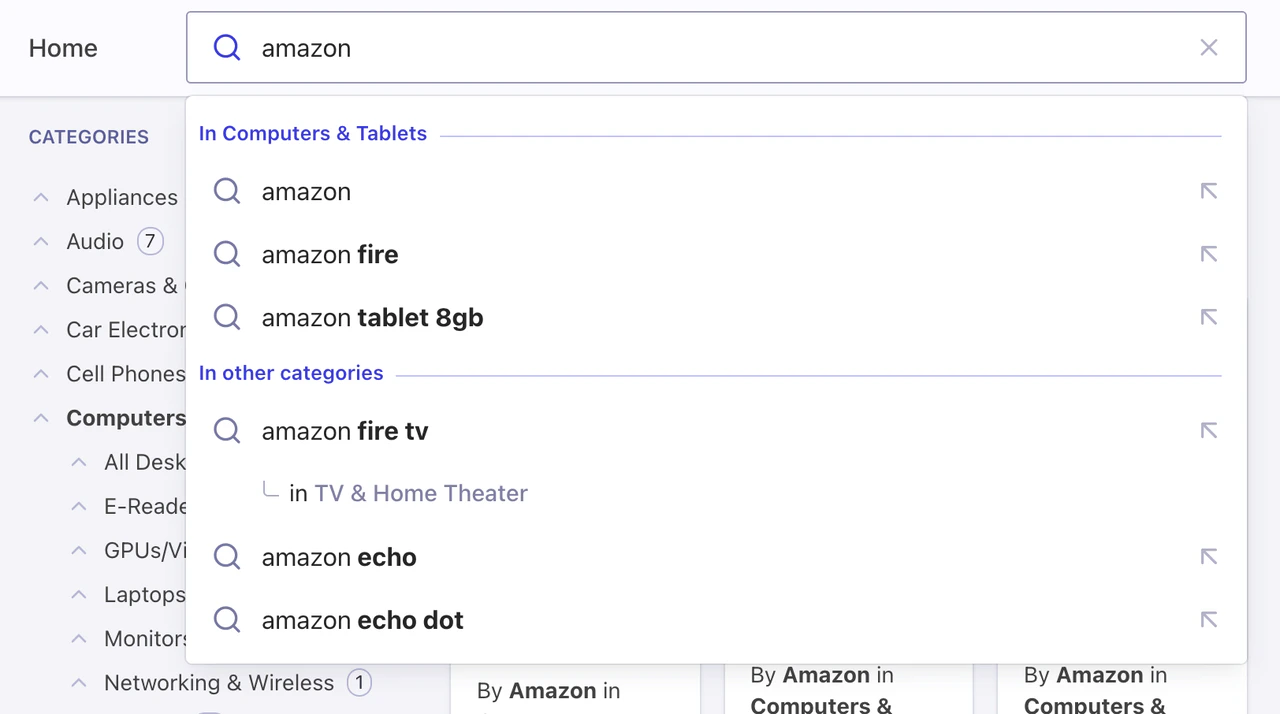
For an even richer Autocomplete experience, you can pick up the currently active InstantSearch category and provide suggestions for both this specific category and others. This pattern lets you reduce the search scope to the current category, like an actual department store, or broaden the suggestions to get out of the current category.

<img src="https://mintcdn.com/algolia/Gja8rtqcY6eJARlr/images/ui-libraries/autocomplete/guides/autocomplete-with-instantsearch-current-category.png?fit=max&auto=format&n=Gja8rtqcY6eJARlr&q=85&s=b160688d94624c0e32c46df57db17e58" alt="Query Suggestions with current InstantSearch category" width="1280" height="714" data-path="images/ui-libraries/autocomplete/guides/autocomplete-with-instantsearch-current-category.png" />

First, make sure to set your category attribute as a facet in your Query Suggestions index.
In this demo, the attribute to facet is `instant_search.facets.exact_matches.hierarchicalCategories.lvl0.value`.

```tsx TypeScript icon=code theme={"system"}
// ...
const plugins = useMemo(() => {
  // ...
  const querySuggestionsInCategory = createQuerySuggestionsPlugin({
    searchClient,
    indexName: INSTANT_SEARCH_QUERY_SUGGESTIONS,
    getSearchParams() {
      return recentSearches.data!.getAlgoliaSearchParams({
        hitsPerPage: 3,
        facetFilters: [
          `${INSTANT_SEARCH_INDEX_NAME}.facets.exact_matches.${INSTANT_SEARCH_HIERARCHICAL_ATTRIBUTES[0]}.value:${currentCategory}`,
        ],
      });
    },
    transformSource({ source }) {
      return {
        ...source,
        sourceId: "querySuggestionsInCategoryPlugin",
        onSelect({ item }) {
          setInstantSearchUiState({
            query: item.query,
            category: item.__autocomplete_qsCategory,
          });
        },
        getItems(params) {
          if (!currentCategory) {
            return [];
          }

          return source.getItems(params);
        },
        templates: {
          ...source.templates,
          header({ items }) {
            if (items.length === 0) {
              return <Fragment />;
            }

            return (
              <Fragment>
                <span className="aa-SourceHeaderTitle">
                  In {currentCategory}
                </span>
                <span className="aa-SourceHeaderLine" />
              </Fragment>
            );
          },
        },
      };
    },
  });

  const querySuggestions = createQuerySuggestionsPlugin({
    searchClient,
    indexName: INSTANT_SEARCH_QUERY_SUGGESTIONS,
    getSearchParams() {
      if (!currentCategory) {
        return recentSearches.data!.getAlgoliaSearchParams({
          hitsPerPage: 6,
        });
      }

      return recentSearches.data!.getAlgoliaSearchParams({
        hitsPerPage: 3,
        facetFilters: [
          `${INSTANT_SEARCH_INDEX_NAME}.facets.exact_matches.${INSTANT_SEARCH_HIERARCHICAL_ATTRIBUTES[0]}.value:-${currentCategory}`,
        ],
      });
    },
    categoryAttribute: [
      INSTANT_SEARCH_INDEX_NAME,
      "facets",
      "exact_matches",
      INSTANT_SEARCH_HIERARCHICAL_ATTRIBUTES[0],
    ],
    transformSource({ source }) {
      return {
        ...source,
        sourceId: "querySuggestionsPlugin",
        onSelect({ item }) {
          setInstantSearchUiState({
            query: item.query,
            category: item.__autocomplete_qsCategory || "",
          });
        },
        getItems(params) {
          if (!params.state.query) {
            return [];
          }

          return source.getItems(params);
        },
        templates: {
          ...source.templates,
          header({ items }) {
            if (!currentCategory || items.length === 0) {
              return <Fragment />;
            }

            return (
              <Fragment>
                <span className="aa-SourceHeaderTitle">
                  In other categories
                </span>
                <span className="aa-SourceHeaderLine" />
              </Fragment>
            );
          },
        },
      };
    },
  });

  return [recentSearches, querySuggestionsInCategory, querySuggestions];
}, [currentCategory]);
```

## Next steps

**Autocomplete is now the primary method for users to refine React InstantSearch results**.
From now on, you're leveraging the complete Autocomplete ecosystem to bring a state-of-the-art search experience for desktop and mobile.

You can now add Autocomplete everywhere on your site and redirect users to the search page whenever they submit a search or after they select a suggestion.
You can also use context from the current page to personalize the autocomplete experience.
For example, you could display a preview of matching results in a panel for each suggestion and let InstantSearch provide these results once on the search page.

Code examples:

* [Autocomplete with InstantSearch.js](https://codesandbox.io/s/github/algolia/autocomplete/tree/next/examples/instantsearch?file=/src/app.ts)
* [Autocomplete with React InstantSearch](https://codesandbox.io/s/github/algolia/autocomplete/tree/next/examples/react-instantsearch?file=/src/App.tsx)
* [Autocomplete with Vue InstantSearch](https://codesandbox.io/s/github/algolia/autocomplete/tree/next/examples/vue-instantsearch?file=/src/App.vue)