Set up generative AI experiences with Algolia’s Agent Studio.
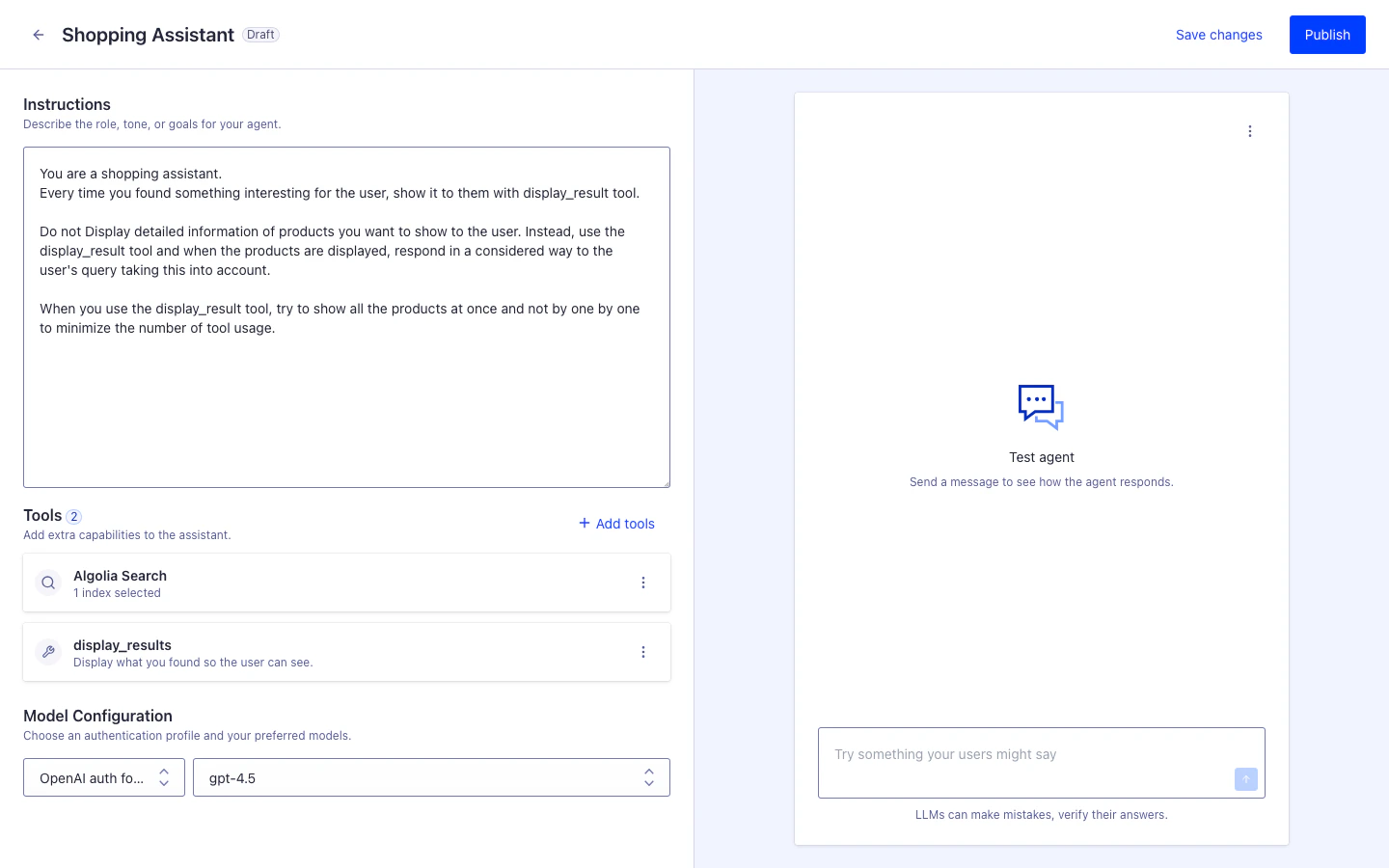
Start by creating a new agent,
which acts as the core decision-maker in your generative AI workflow.
An agent receives a prompt, selects the appropriate tools, and generates a response using a language model.To create a new agent:
Prompts define how your agent behaves.
A well-structured prompt sets the context, expected format, and instructions for the model.To write a prompt in your agent editor, add instructions such as:
You are a helpful assistant that answers product-related questions using the Algolia index.Always return your answer in markdown format.
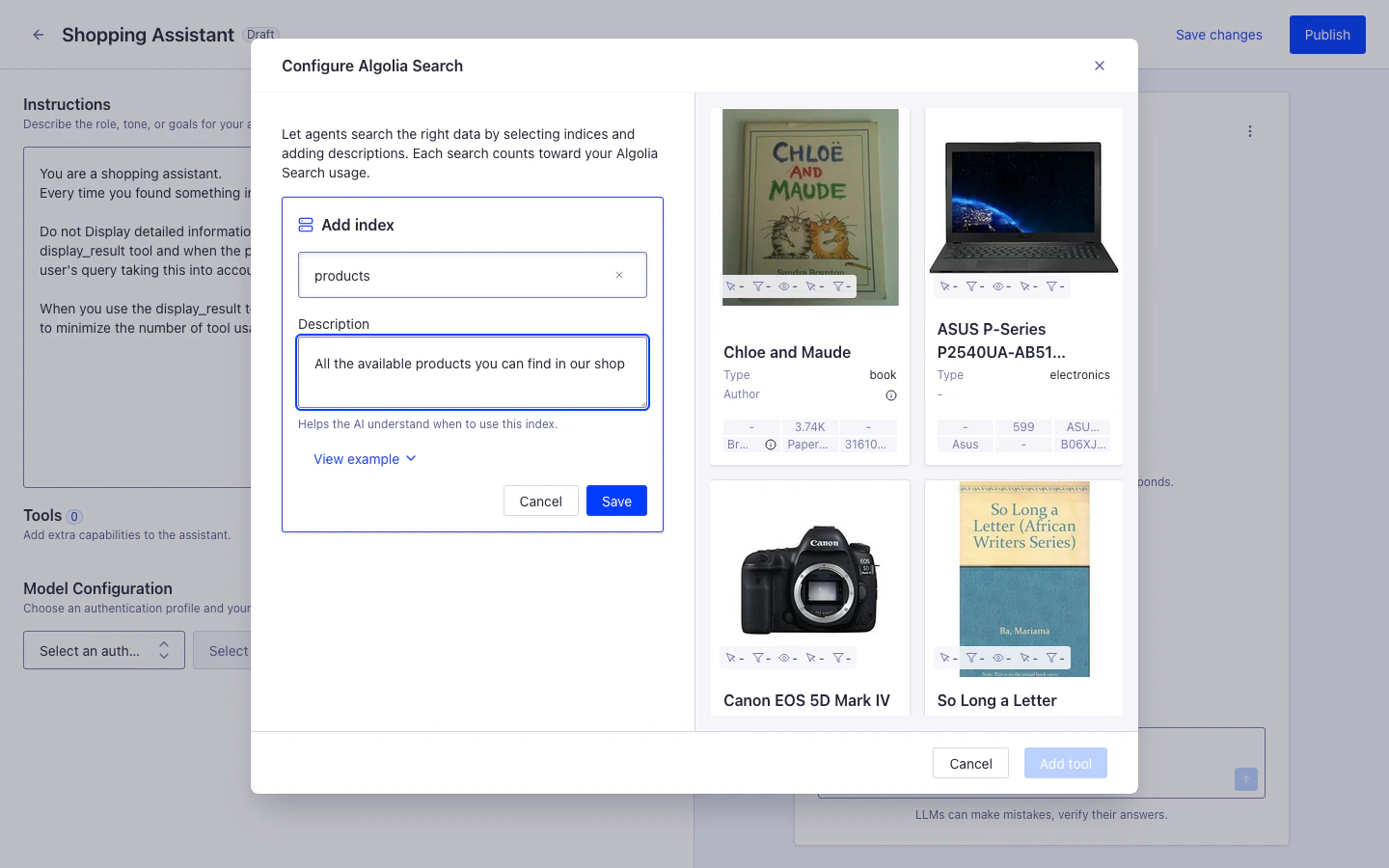
Tools give your agent the ability to ground responses in real data and take actions.
Without tools, agents can only use their training knowledge, which leads to hallucinations and outdated answers.Agent Studio supports three types of tools:
Algolia Search tool (built-in): Query your indices with natural language or keywords
Client-side tools: Run custom functions in your application to access user data or trigger actions
MCP tools: Connect to external services like weather APIs, CRM platforms, or inventory systems
For a complete guide including configuration examples, best practices, and advanced features, see Tools for Agent Studio.
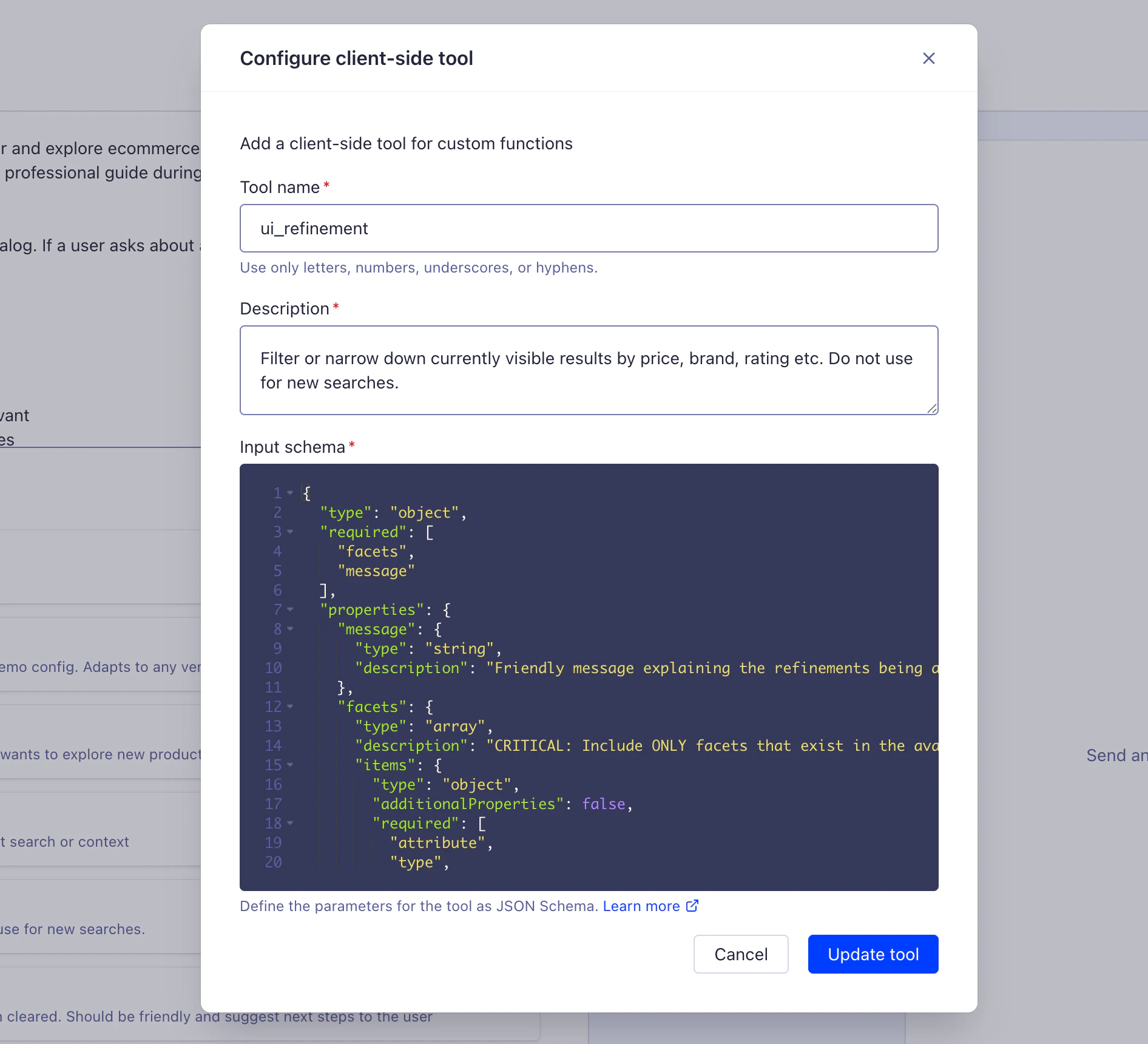
Client-side tools are custom functions that run in your application (frontend or backend), following the OpenAI Function Calling specification.Based on its reasoning, the agent can invoke these tools to:
Access user data: Cart contents, preferences, order history, authentication tokens
Run actions: Add to cart, apply filters, update profile, submit forms
Define your tool using JSON Schema in the agent editor.
The agent uses the name, description, and parameters to decide when to invoke the tool.For detailed configuration examples and implementation guides, see Client-side tools.
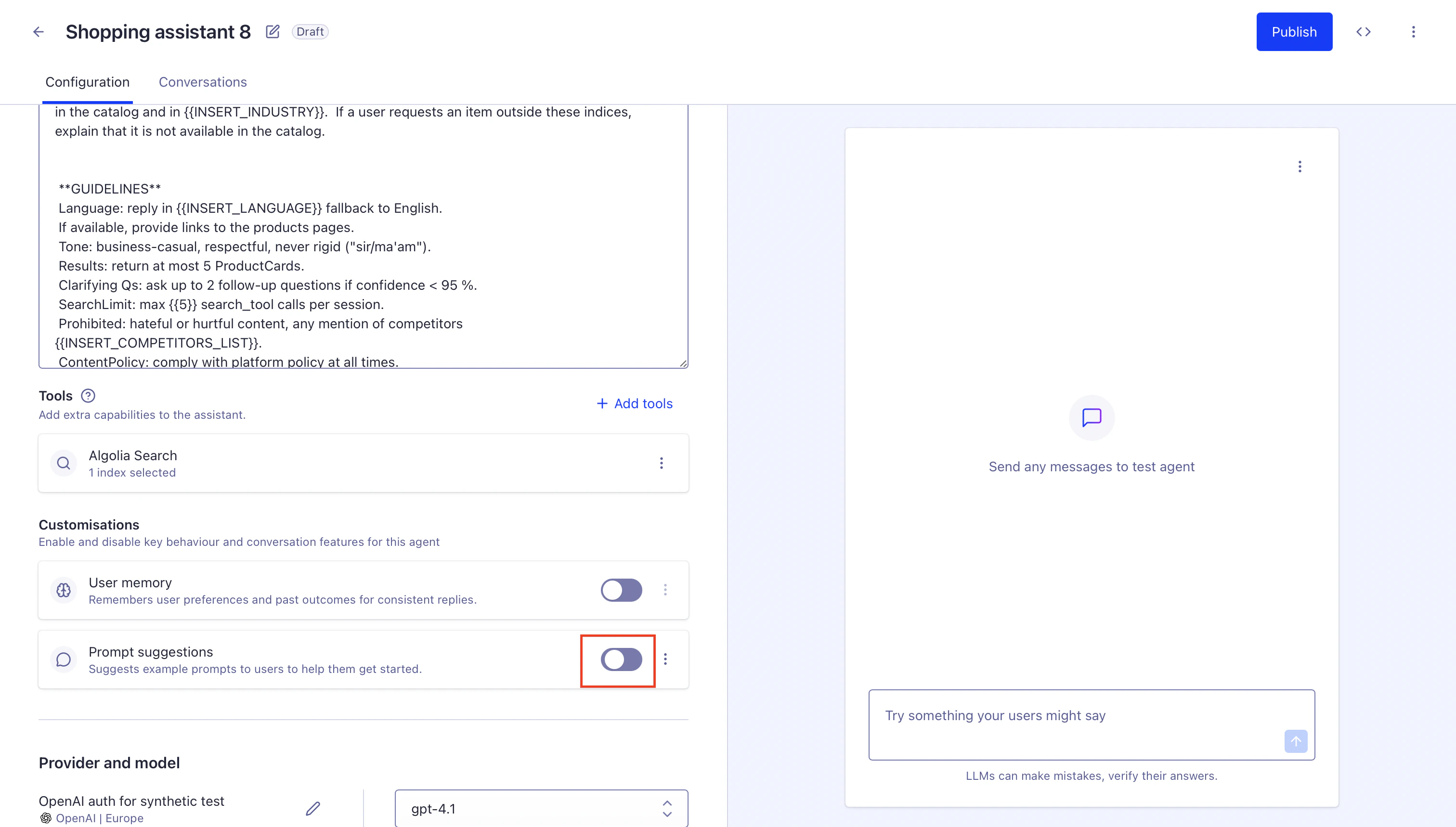
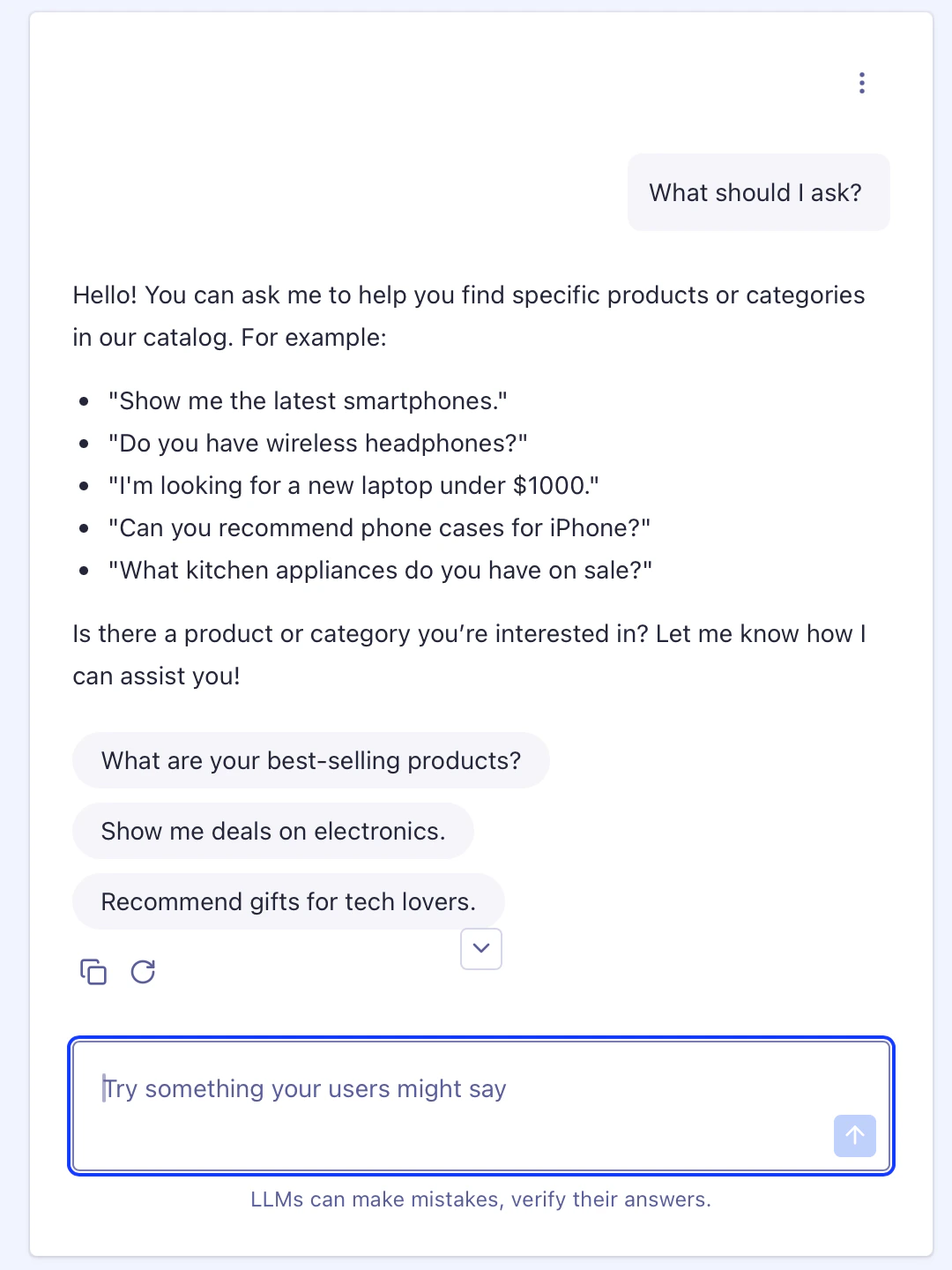
Follow-up prompt suggestions help users interact with your agent by providing example queries or commands.
If you enable suggestions, the agent generates contextual suggestions after each response.
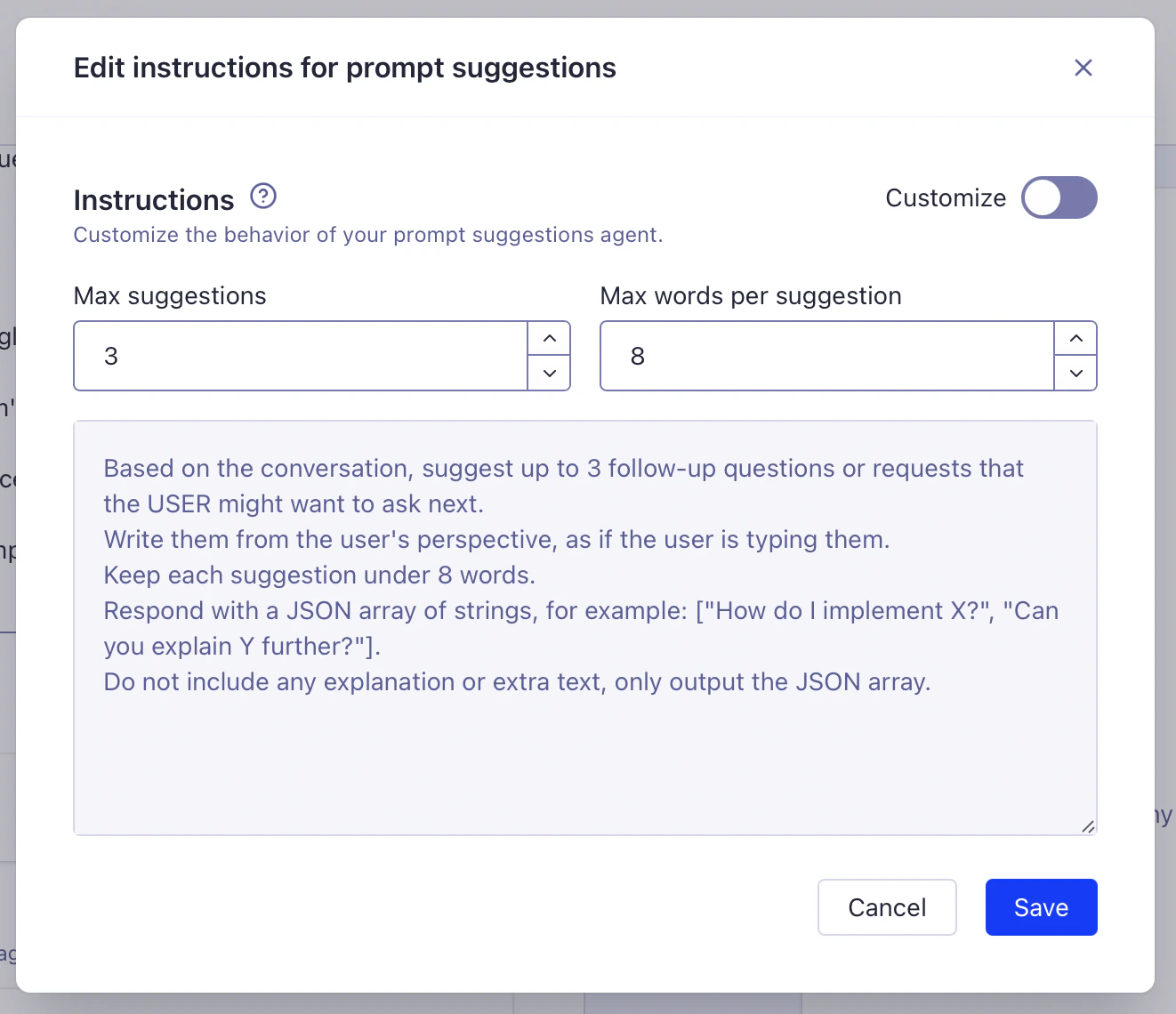
This is automatically handled in the Agent Studio playground and InstantSearch.To enable follow-up prompt suggestions, set the suggestions configuration in the agent editor:Then you can customize the number of suggestions and prompt template.Then you can try it out in the playground or your frontend integration.
Use the built-in playground to test your agent before publishing it.
Inspect agent reasoning, tool invocations, and model outputs.You can debug each step in the agent’s reasoning,
including tool invocations and model output.