


Button to personalize an index
This feature isn’t available on every plan.
Refer to your pricing plan to see if it’s included.
Select the index to personalize
Select a primary or replica. Advanced Personalization can’t personalize an index and its replicas at once. When you personalize a primary index, its and mappings apply to its replicas. The reverse is true too.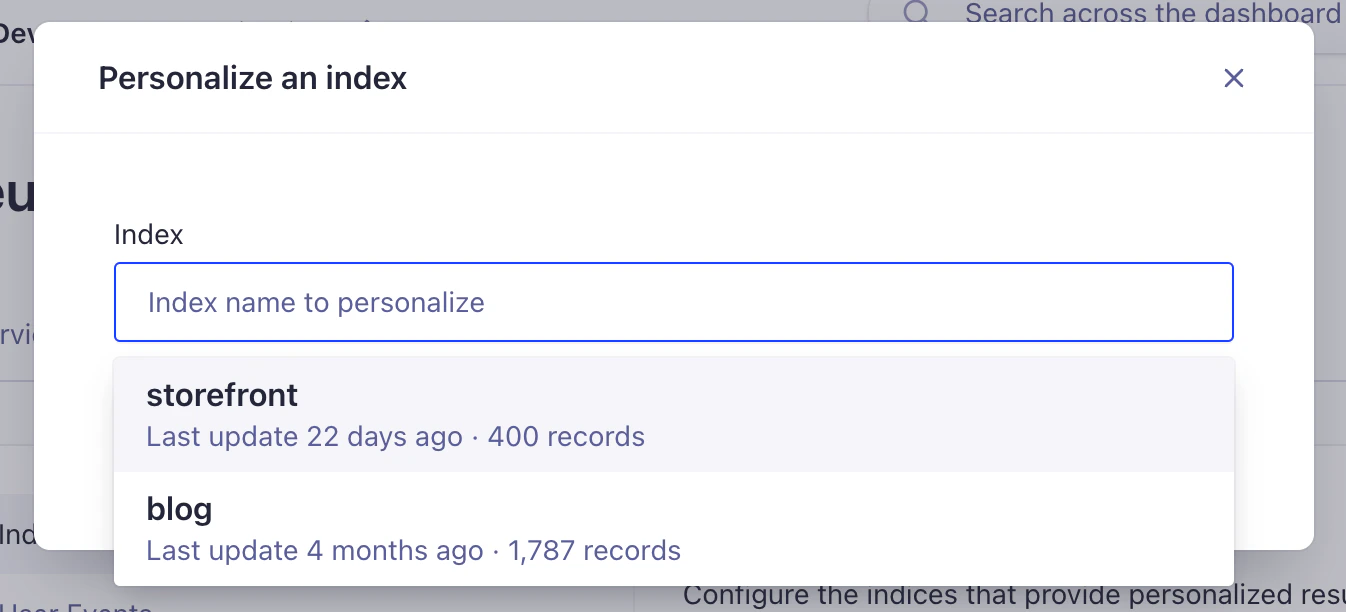
Dashboard interface to select the index to personalize
Select the attributes for affinities
Advanced Personalization needs to know which attributes to use as affinities. This lets it personalize the search experience. In the Affinities field, add the facet attributes to use. For example, say you run an ecommerce website. Its facet attributes might include category, color, gender, and size.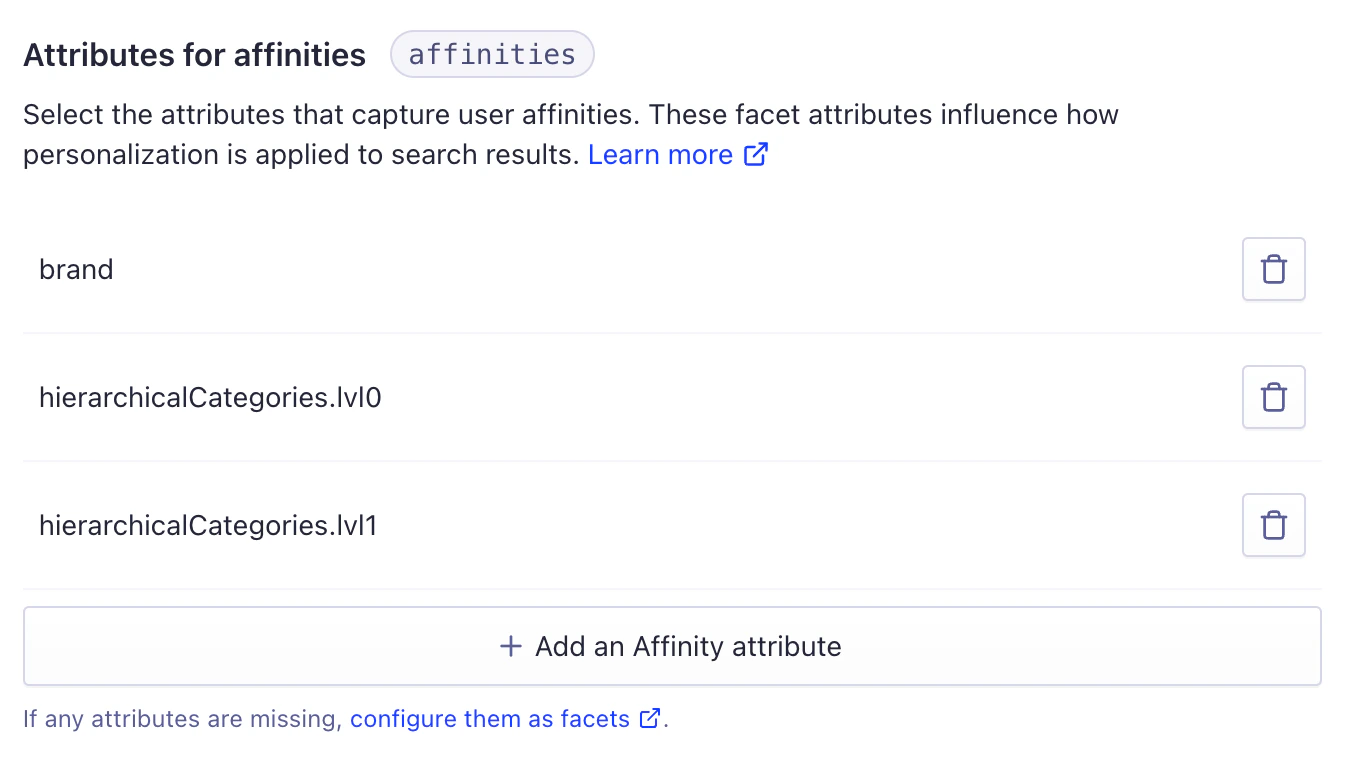
Dashboard interface to select the facets for affinities
-
Advanced Personalization relies on facet attributes.
In the Algolia dashboard, find the
attributesForFacetingsetting. Add the attributes you use as affinities to it. - It supports dot notation in facet attribute names. This helps when you select nested facet attributes as affinities.
- It supports array attributes, so a single facet attribute can hold several values.
-
It doesn’t support the
filterOnlymodifier for facet attributes. Users won’t interact with these attributes. They’re used for filtering, not faceting.