

What a failure leaves in your index depends on the update strategy.
For more information, see Index contents after a failed run.
Identify ingestion failures
To find the error, follow the instructions for the process you used to send data: API client, connector task, or Push to Algolia connector.API client
API clients report failures when they happen. If Algolia rejects a request, check the HTTP status code and error message. For example, an oversized record can cause an HTTP400 error with a message that identifies the record and its position in the batch:
Error message
saveObjects sends records in batches of 1,000.
You can configure the batch size.
If Algolia rejects a batch, the method throws an error.
Algolia doesn’t roll back batches it accepted before the failure.
It may still be indexing them.
To confirm that indexing has finished before you continue,
wait for the indexing task.
Connector task
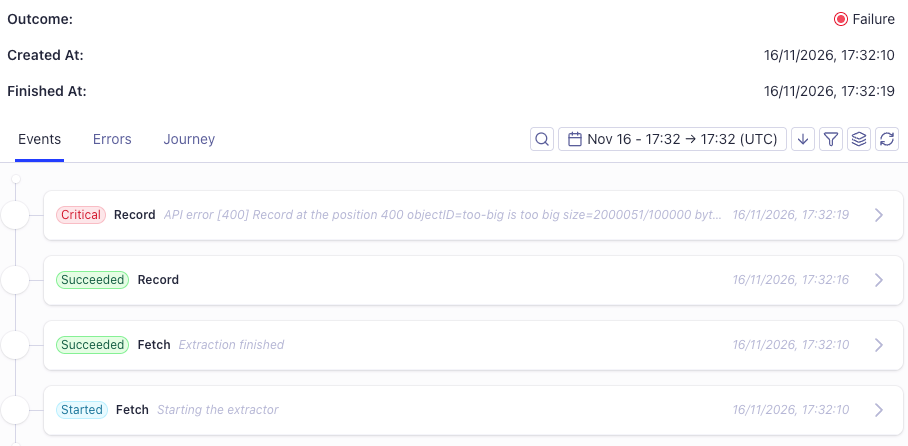
Open the Connector Debugger. In the Runs list, check the Outcome column. A red dot indicates that the run failed. Click the failed run’s row for details. Check the run’s progress. Look for events with a Critical status and read their error messages. Use the events to identify whether the connector couldn’t read the source or Algolia rejected the records. Check the Critical event’s type to identify the cause:- Critical event of type Fetch, after a series of Started and Retried events.
The connector couldn’t read the source.
The run tries to fetch the source up to five times before it fails, waiting about a minute between attempts,
so a run against an unreachable source fails after about five minutes.
The error names the cause, for example
[URL Fetcher] response failed with status code: 404. - Record event with Critical status. The connector read the source and sent records to Algolia in batches, and Algolia rejected one batch. Each accepted batch is a Record event with the status Succeeded. The rejected batch’s error message includes the position of the record that caused it. Algolia doesn’t retry rejected batches.
Ingestion API
To monitor connector runs in your code, use the Ingestion API:listRunsreturns each run’s status, outcome, and a reason.getRunreturns details for one run, including the progress countersexpectedNbOfEventsandreceivedNbOfEvents.listEventsreturns the events with their messages.listTasksshows whether each task isenabled.
Push to Algolia connector
By default, a push request returnsOK with a runID and an eventID without waiting for Algolia to finish processing the records.
A Push to Algolia task uses the same run for multiple push requests.
The Connector Debugger shows this run as Listening.
The run doesn’t report an outcome for each push.
To wait for the processing result,
set the watch parameter of push or pushTask to true.
The request waits for the operation to complete, so you don’t need to poll getEvent yourself.
-
If Algolia rejects the records, the request fails with an API error.
If you call the REST endpoint directly with
watchset totrue, Algolia returns HTTP400when it rejects a batch. The response includes the run’s events. Arecordevent with the statuscriticalidentifies the rejected batch. - If the request succeeds, Algolia has finished processing the push.
getEvent with the runID and eventID from the push response.
A direct getEvent call can return HTTP 404 during the first few seconds because the event isn’t available yet.
- If Algolia rejects the batch, the event has the type
recordand the statuscritical. Its message contains the API error. - If Algolia accepts the batch, the event has the type
logand the messagepush request completed.
record events with the status succeeded.
Call listEvents with the runID to inspect these events.
The same events appear in the Connector Debugger under the task’s run.
Fix ingestion errors
Check that each record has the correct
objectID.
An incorrect objectID can create or update the wrong record without returning an error.
Turn a task back on
After five consecutive failed runs, Algolia turns the connector task off and sends an email to the team members of that Algolia application. In the Connectors Tasks list, the task’s status icon turns red, and Run returnsTask ... is disabled.
To turn a task back on:
- Fix the cause. Running a task whose source is still broken counts as another failure.
- In the Tasks list, open the task’s ⋮ menu and select Enable task.
- Select Run, or wait for the next scheduled run. Enabling a task doesn’t run it.
Run again
If you send a record again with the sameobjectID,
Algolia updates the existing record instead of creating a duplicate.
Before retrying partial updates, check whether repeating an operation could change the record again.
For example, retrying an
Increment operation can increment the value twice.Index contents after a failed run
-
Full record updates and partial record updates (API:
saveObjects,partialUpdateObjects) write to your index as they go. Algolia keeps the records it indexed before the failure. Algolia doesn’t index any records in the rejected batch.- For full record updates, running again updates existing records and adds missing records.
- For partial updates, check the operations and the
createIfNotExistssetting before retrying.
-
Full reindexing (API:
replaceAllObjects) writes to a temporary index and replaces your index only after Algolia has accepted every batch. A failed run leaves your index unchanged and searchable. Running again starts over.- Connector tasks delete the temporary index,
INDEX_NAME.RUN_ID.tmp, when the run fails. replaceAllObjectsdeletes its temporary index,INDEX_NAME_tmp_*, only if your API key has thedeleteIndexpermission. Otherwise, delete it yourself.
- Connector tasks delete the temporary index,
- Push rejects the batch that contains a bad record. Push the batch again after fixing or removing the record.
Records missing from your source
Running again doesn’t remove records whose source items no longer exist, unless you use full reindexing. For more information, see Remove records missing from your source.The Shopify, BigCommerce, and commercetools integrations handle deletions separately from import reruns.
When a source platform reports a deletion,
its integration removes the corresponding Algolia record without a full reindex.
Verify the recovery
- Connector task. In the Connector Debugger, check that the new run’s Outcome column indicates success (a green dot).
- API client. The method returned without throwing an error, and the indexing tasks have finished.
- Push. If you set
watchtotrueon the recovery request, confirm that it completed without an error. Otherwise, inspect that request’s event and confirm that it has the typelogand the messagepush request completed.
objectID to confirm their values.
If records are present but a search doesn’t return them, see Troubleshooting search.