Open CodeSandbox
Run and edit the Segment example in CodeSandbox.
Explore source code
Browse the source for the Segment example on GitHub.
- Enable the Algolia destination in Segment.
- Enable click analytics for your searches.
- Identify users.
- Augment your Segment events with Algolia-related data.
Enable the Algolia destination in Segment
To add the Algolia destination to Segment, follow these steps:- Sign in to your Segment web app and select the workspace you want to work in.
-
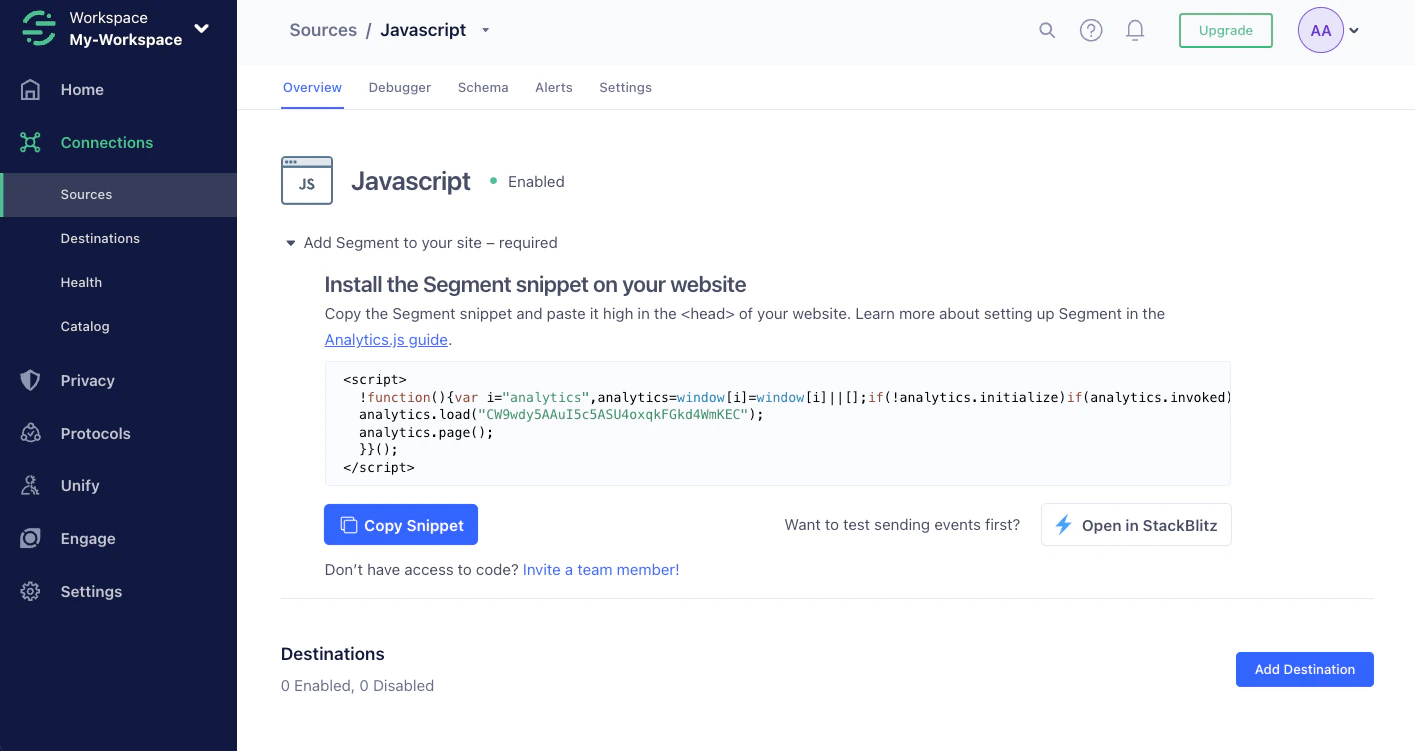
Select the source you want to set up and click Add Destination.
-
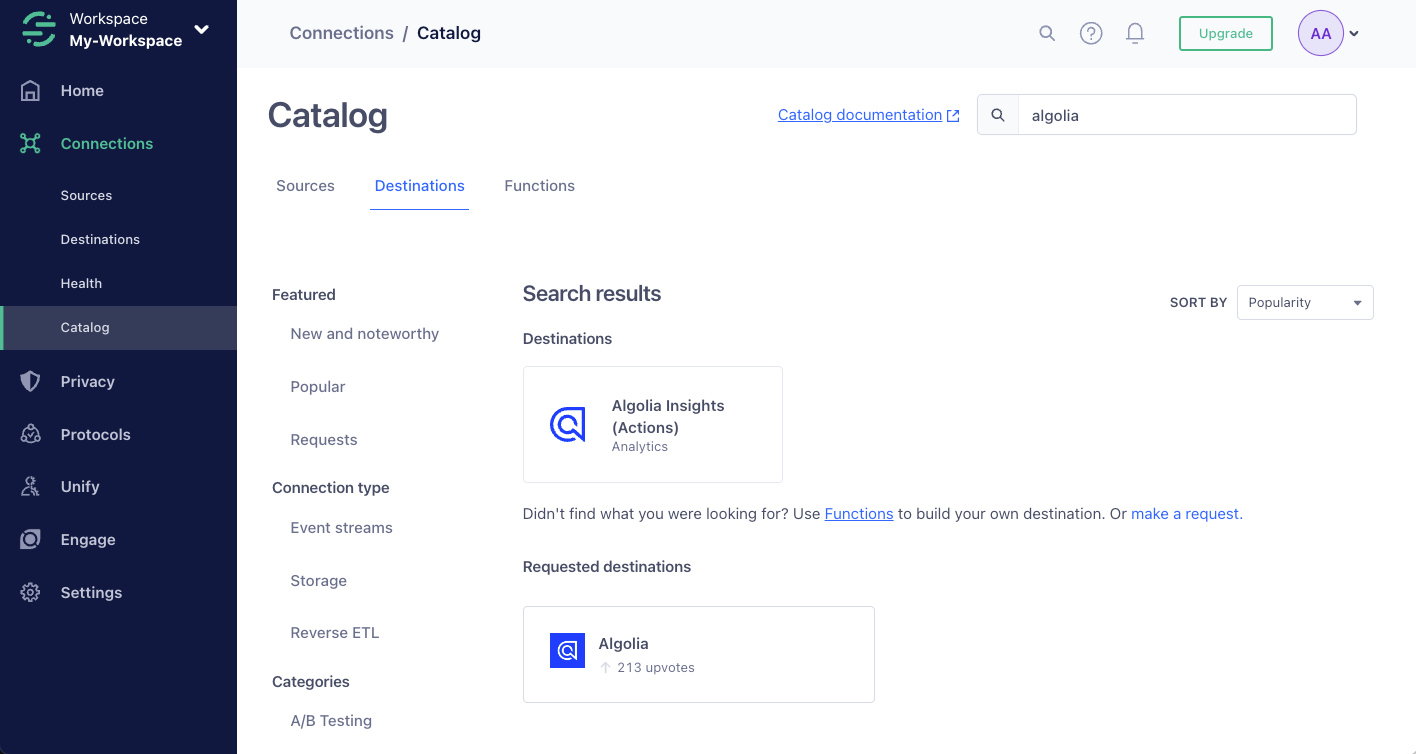
Search for the Algolia destination and select it to add it.
- Go to the Algolia dashboard and select your Algolia .
-
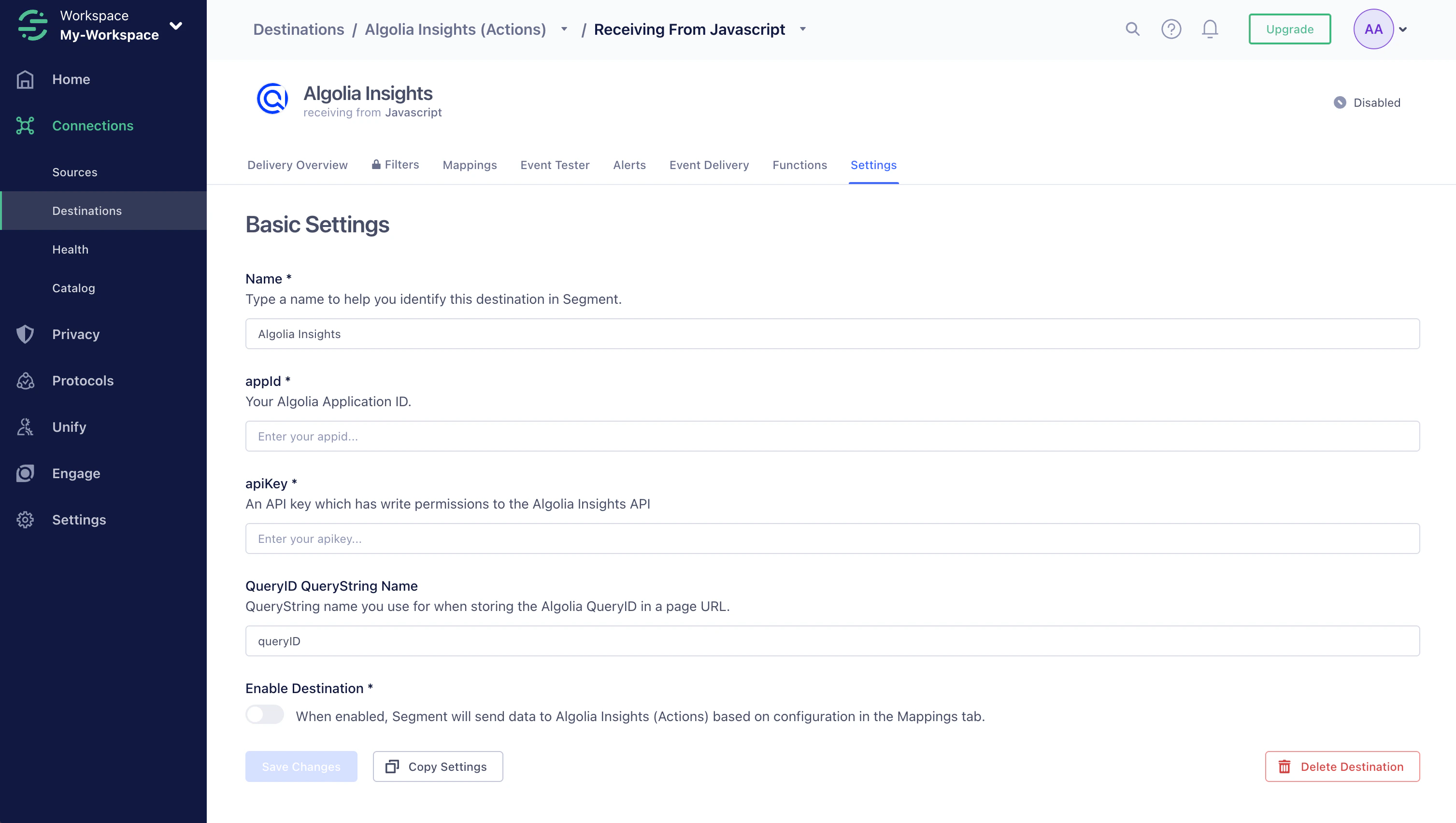
Copy your application ID and search API key from the dashboard and paste it into Segment.
Enable click analytics for your searches
To relate click and conversion events to searches, Algolia needs a query ID. To get thequeryID parameter for a search,
set the clickAnalytics parameter to true:
Identify users
If you use Segment’sanalytics.identify() function to identify users,
use the same identifier for Algolia by passing it as the userToken parameter with your search.
For example, if you want to use Personalization:
Augment your Segment events with Algolia-related data
Algolia requires these properties that aren’t part of the regular Segment specifications:
You can get these properties with the following code:
JavaScript
Debug events with Segment
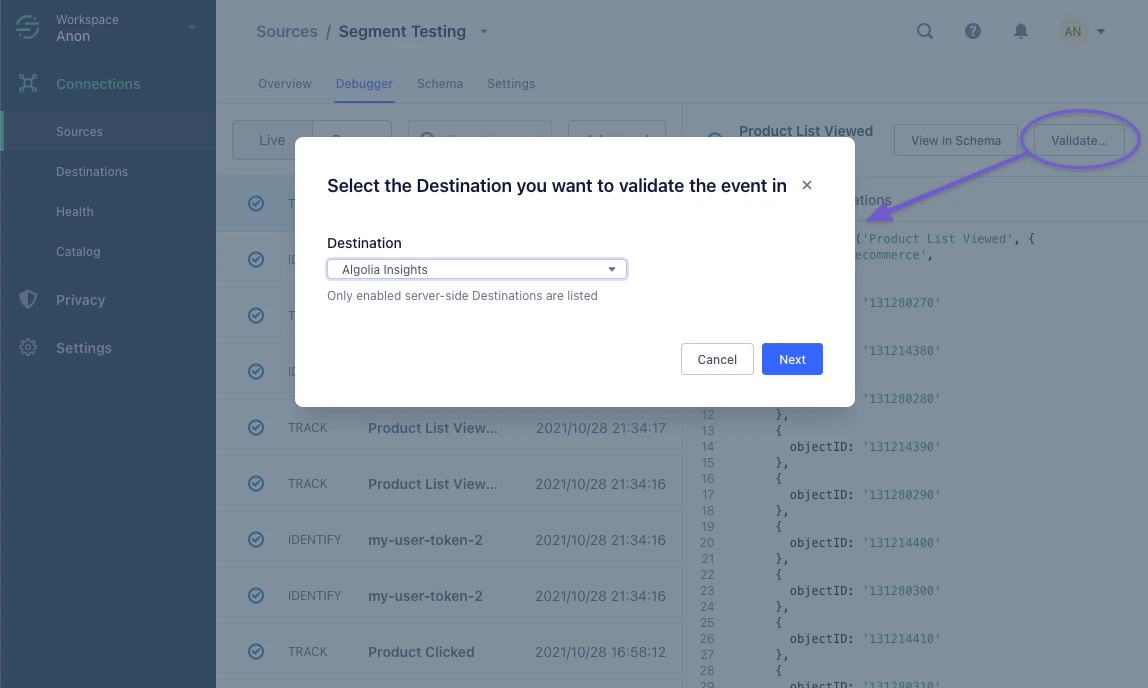
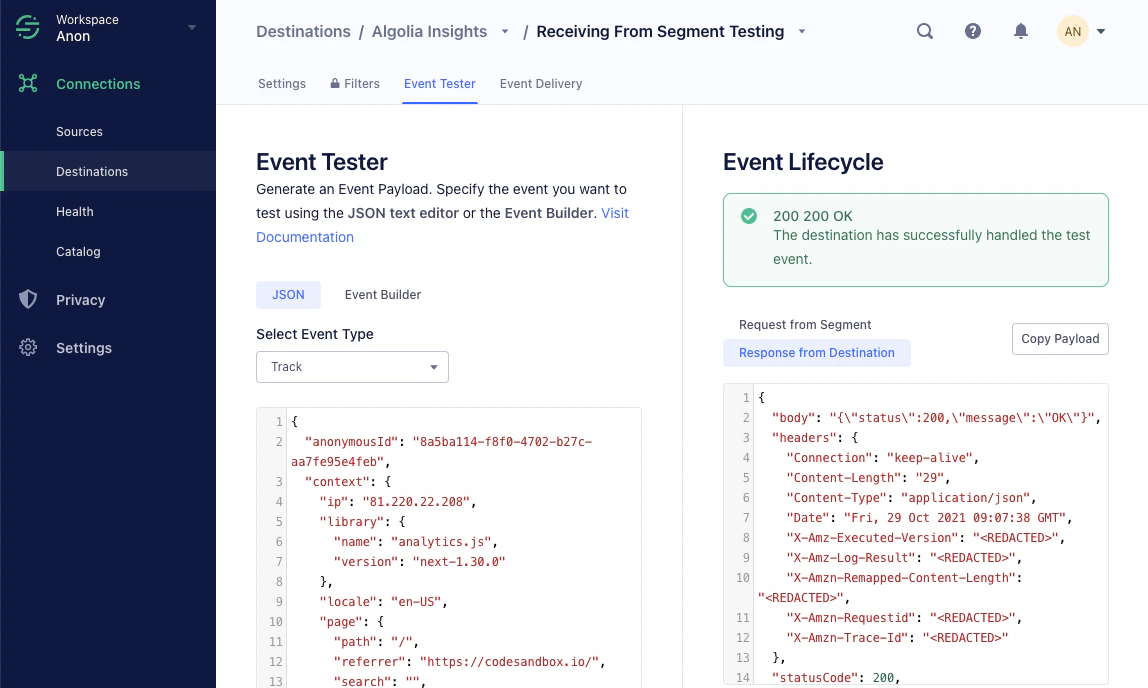
If you have administrator permissions for your Segment source, you can send test events. To do this, select your source and click Validate. Select Algolia Insights as the destination.