

Autocomplete, InstantSearch, and Recommend in the Algolia app blocks now support version 5 of the Algolia API client.
Most stores only need to switch the search client version setting to Version 5.
If you use custom storefront JavaScript, follow the version 5 upgrade guide.
Support for version 4 ends on August 14, 2026.
Out-of-stock policies
Out-of-stock product variants are removed from the search results based on filters. Filtering relies on theinventory_quantity and inventory_policy attributes of the
product variants resource.
A product variant is out-of-stock if the inventory_quantity attribute is 0.
The inventory_policy attribute can be allow if you explicitly decided to continue selling a product when it’s out of stock.
Otherwise, this attribute is deny.
This page describes variant-level indexing.
If your store uses product-level indexing,
inventory_quantity and inventory_policy
sit under variants instead, so a filter on the bare attribute matches nothing.
The app filters on variants_inventory_count > 0 for you, and inventory_available still works unchanged.
Update any filter you wrote yourself.- Remove out-of-stock products, except those marked explicitly as available.
Select your out-of-stock policy
To select your policy for handling out-of-stock items in the search results:- In your Shopify admin, open the Algolia AI Search & Discovery app.
-
On the Search options tab, go to the Additional settings > Out of stock items section.
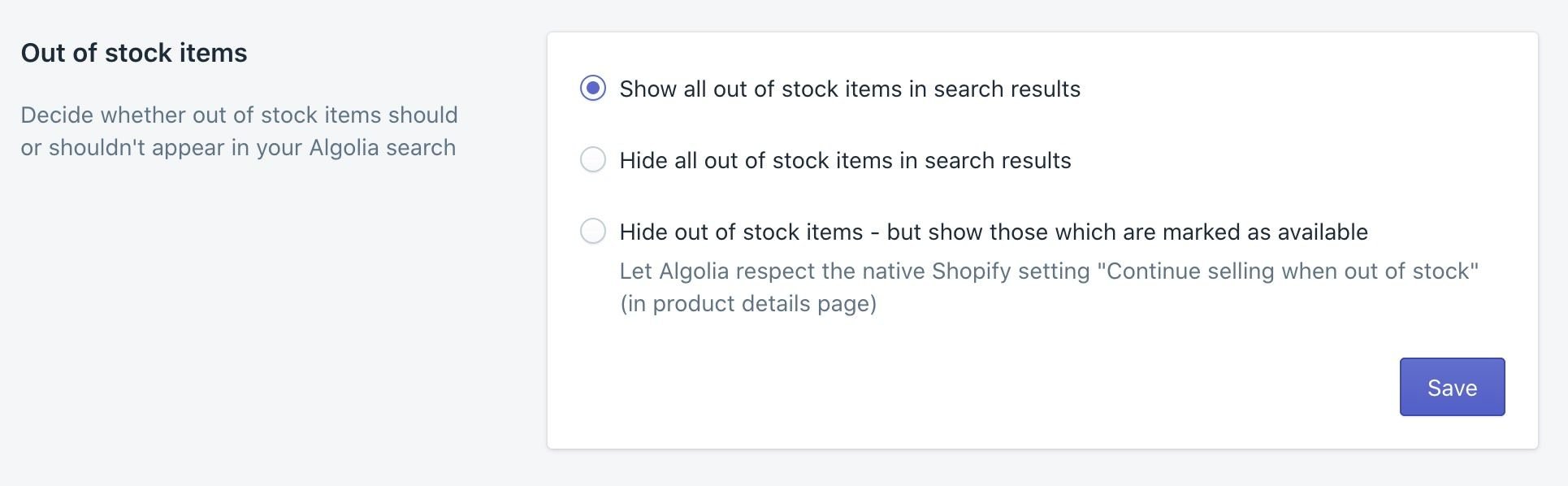
-
Select your policy for handling out-of-stock items:
- Show all out of stock items in search results. No filter is applied. All products are included in the search results. This is the default.
-
Hide all out of stock items in search results.
Out-of-stock items are removed from search results.
A filter
inventory_quantity>0is applied when searching, orvariants_inventory_count>0in product-level mode. -
Hide out of stock items - except those marked as available.
Out-of-stock items are removed from search results,
except products with the Continue selling when out of stock option.
After selecting this option, you might need to reindex your product catalog.
A filter
inventory_available:trueis applied when searching. Theinventory_availableattribute is true, when theinventory_quantityattribute is greater than 0, or when theinventory_policyattribute is set toallowfor that product.
Continue selling out-of-stock products
To select which products are included in the search results when they’re out of stock:- Go to the Products page in your Shopify admin.
- Select a product you want to show in the search result when it’s out of stock.
- In the Inventory section, select Track quantity and Continue selling when out of stock.
UI updates
You can find the Autocomplete and InstantSearch widgets in these files:Autocomplete updates
In Autocomplete v1, filters are defined in thealgolia_autocomplete_product_plugin.js.liquid file:
Javascript
algolia_autocomplete.js.liquid file includes the following changes:
Javascript
InstantSearch updates
Thealgolia_instant_search.js.liquid file includes the following changes:
Javascript