

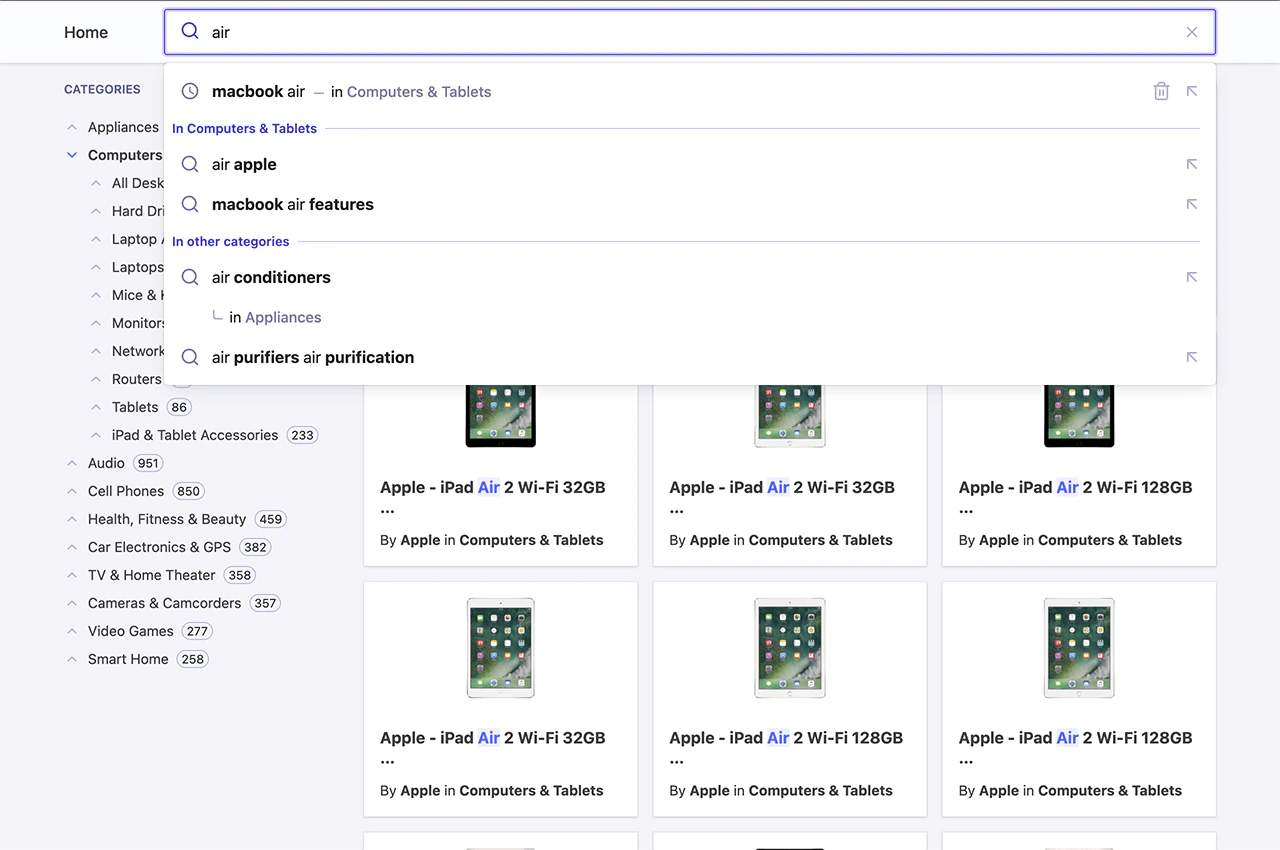
Open CodeSandbox
Run and edit the Autocomplete with React InstantSearch example in CodeSandbox.
Explore source code
Browse the source for the Autocomplete with React InstantSearch example on GitHub.
Create a search page with React InstantSearch
First, set up a starter template for the InstantSearch implementation with thecreate-instantsearch-app command-line utility.
Command line
Use Autocomplete as a search box
The React InstantSearch<SearchBox>
widget doesn’t offer autocomplete features like those seen on YouTube and Amazon.
To implement that, replace <SearchBox>
with a search box from Algolia’s Autocomplete UI library.
You can store all the logic of Autocomplete in a React component.
By leveraging the hooks offered in React InstantSearch,
you can directly interface with InstantSearch in a simple but powerful way.
TypeScript
<SearchBox /> component from your React InstantSearch implementation and replace it with <Autocomplete />.
TypeScript
Add recent searches
When you search on YouTube or Google and come back to the search box later on, the autocomplete displays your recent searches. This pattern lets users quickly access content by using the same path they took to find it in the first place. Add recent searches to Autocomplete with the@algolia/autocomplete-plugin-recent-searches package.
It exposes a createLocalStorageRecentSearchesPlugin
function to let you create a recent searches plugin.
TypeScript
Some of this code is abstracted in the following sections to simplify the examples.
recentSearchesPlugin reads from localStorage, you can’t see any recent searches until you perform at least one query. To submit a search, make sure to press Enter on the query. Once you do, you’ll see it appear as a recent search.
See also:
Add Query Suggestions
The most typical pattern you can see on every autocomplete is suggestions. They’re predictions of queries that match what users are typing and are guaranteed to return results. For example, when typing “how to” in Google, the search engine suggests matching suggestions for users to complete their query. It’s beneficial on mobile devices, where typing is more demanding than a physical keyboard. Autocomplete lets you add Query Suggestions with the@algolia/autocomplete-plugin-query-suggestions package. It exposes a createQuerySuggestionsPlugin function to let you create a Query Suggestions plugin.
This plugin requires a Query Suggestions index.
Debounce search results
Having two sets of results update as you type generates many UI flashes. This is distracting for users because two distinct sections compete for their attention. You can mitigate this problem by debouncing search results.TypeScript
Support categories in Query Suggestions
A key feature of Algolia’s Autocomplete is the ability to pre-configure your InstantSearch page. The Query Suggestions plugin supports categories that you can use to refine the query and the category in a single interaction. This brings users to the correct category without interacting with the<HierarchicalMenu> widget, but with Autocomplete instead.
1
Filter by category
You need to filter by category and support categories in the helpers you created at the beginning:
2
Send category to the helpers
Update the plugins to forward the category to the helpers:
TypeScript
3
Reset the InstantSearch category
Implement the
onReset function on your Autocomplete instance to also reset the InstantSearch category:TypeScript
Add contextual Query Suggestions
For an even richer Autocomplete experience, you can pick up the currently active InstantSearch category and provide suggestions for both this specific category and others. This pattern lets you reduce the search scope to the current category, like an actual department store, or broaden the suggestions to get out of the current category.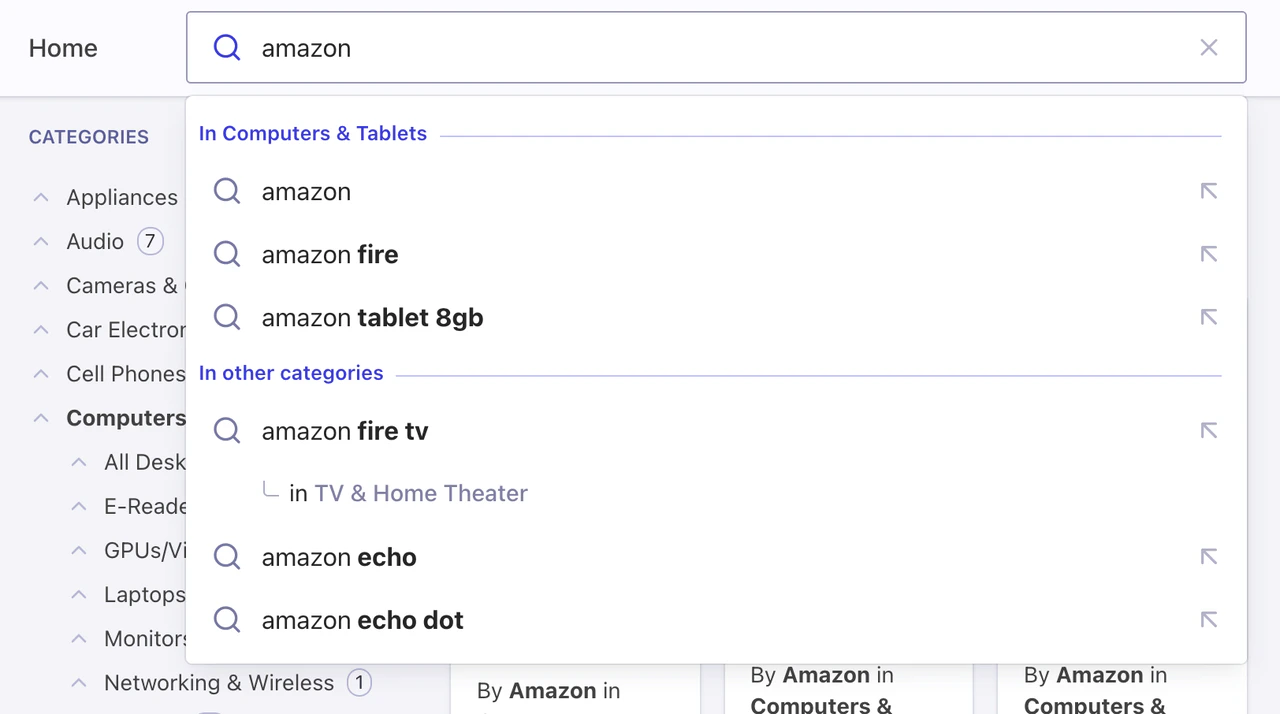
instant_search.facets.exact_matches.hierarchicalCategories.lvl0.value.
TypeScript