

- Queries that span several categories: “show me summer outfits” needs separate searches for t-shirts, shorts, dresses, and accessories. A single result list mixes them together.
- Queries that don’t map to your facet filters: “dresses for goths” might not map to the facets defined on your . The agent has to search broadly, then shortlist.
Key capabilities
Key capabilities
- Multi-search curation: the agent searches as many times as it needs, then selects across all the results it has seen
- Themed groups: results are split into cohesive groups, each with a title and a short reason
- Streaming: users can see results immediately as they come in without waiting for the full generation
How the tool works
The agent searches as many times as it needs, then calls the Grouped Results tool with its curated selection. Your frontend renders groups as they arrive (as long as your LLM provider supports tool input streaming).Input
The agent generates the curated payload and sends it to the Grouped Results tool as the tool’s input. For example, if the user asks for “summer outfits”, the agent might generate a payload like this:JSON
why fields to understand how the agent grouped and picked.
Why the payload contains object IDs
Why the payload contains object IDs
- Fewer hallucinations: the agent can’t invent a name, price, or image for a record it already retrieved through search. It can still reference an
objectIDthat doesn’t exist, which hydration catches at render time - Fewer tokens: the payload stays small whatever your records weigh, on both the input and the output side
- Quicker first paint: fewer tokens to write means the first group arrives sooner
How hydration works
How hydration works
A reference resolves against the hits an earlier search already returned in the same conversation.
Your frontend keeps those hits, then looks up each
objectID as the payload streams in.
Two consequences are worth planning for:- A curated card only shows attributes the search tool retrieved. If a card needs an image or a price, make sure
attributesToRetrieveon the search tool includes it. For more information, see Search parameters. - Unresolved
objectIDvalues disappear. If anobjectIDdoesn’t match a record from an earlier search, that entry drops out, and a group left with no entries isn’t rendered.
How the rendering hint works
How the rendering hint works
Agent Studio adds the hint at the start of each assistant message when the tool is enabled, before the agent has called anything.
Your frontend can then decide how to render the whole message without waiting to find out whether curation follows.
InstantSearch reads it for you and renders curated groups in place of the search tool’s own result list.The hint travels as assistant message metadata, once per message.
The hint is absent when the tool is off, so treat a missing value as
ai-sdk v5 carries it on the start event that opens the stream, and v4 sends a message-metadata data part right after the first step:false.
It comes from the agent’s configuration, so it holds for every query that agent handles, including the turns where the agent decides not to curate.Why the agent can skip the tool call
Why the agent can skip the tool call
Enabling the tool makes it available to the agent, which still decides turn by turn whether to curate.
Skipping the call can be the right choice, for example when a search returns nothing worth showing.On a turn where it searches without curating, users see the answer text without any product cards, because the search tool’s own result list stays hidden.If that happens more often than you want, tell the agent when to group in its instructions.
For more information, see Tips for writing efficient prompts.
Output
The tool output is only an execution artifact that carries diagnostic information. On the normal path it reports success:JSON
objectID values that no earlier search returned, the output lists them:
JSON
objectID values, and give it a clearer instruction to select only from results it has seen.
To inspect the input and output of a call, expand the tool indicator in the Live preview panel.
For more information, see Test tools in live preview.
To review calls from real users, open the Conversations tab.
Configuration
An agent accepts one Grouped Results tool at most, and only when it also has
an Algolia Search
tool.
- From the dashboard
- With the API
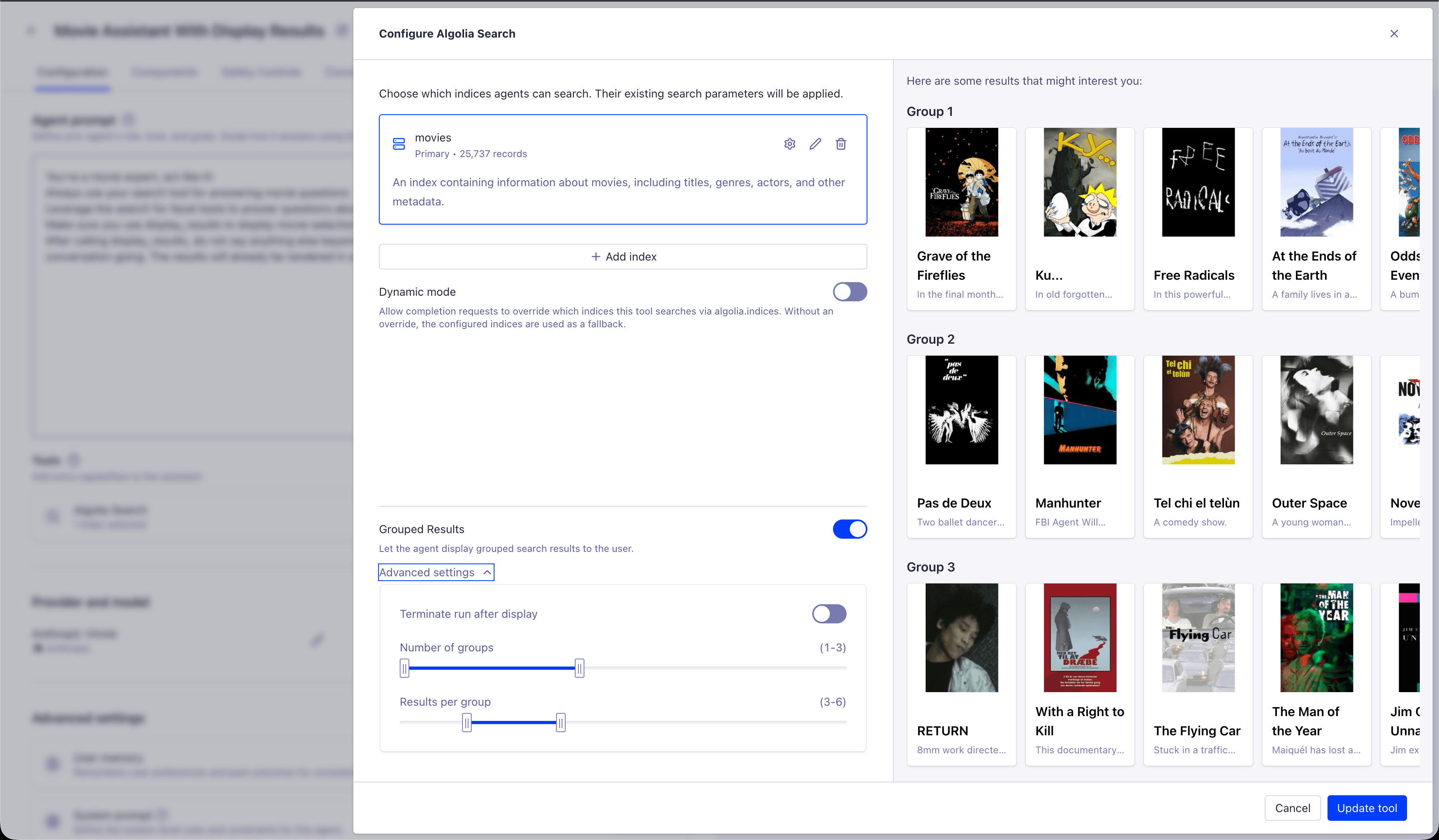
- On your Algolia Search tool, click Configure
- Turn on Grouped Results
- Optional: to change how many groups the agent creates, or how many results go in each, open Advanced settings
- Click Save
Group and result constraints
The constraints you set go into the tool’s schema, so the agent has to respect them. We recommend that you start with the defaults. The minimums are floors the agent has to fill. A highminResultsPerGroup on a thin catalog pushes it toward weaker matches, and a high minGroups makes it invent themes it wouldn’t have found on its own.
Lower them when that happens.
Terminal tool calls
By default the agent writes a closing message after the tool runs. SetisTerminal to true, or turn on Terminate run after display in the dashboard, to end the run as soon as the call succeeds.
Use it when the curated groups are the answer, and the closing sentence adds latency without adding meaning.
Keep it off when the agent should comment on what it selected, or ask a follow-up question.
Implementation
With InstantSearch (Recommended)
TheChat widget does all the heavy lifting for you:
- rendering the curated groups as they stream in
- hydrating every
objectIDreference from previous search results - reading the rendering hint
Two rendering details are worth knowing:
- Replacing the search tool’s rendering keeps the curated behavior. Pass your own layout for the search tool and it still stays hidden during curated turns, unless you set your own
shouldRender. - Recommend carousels aren’t affected. Only the search tool defers to curated groups.
intro, each group title, and the group why under its title.
The per-result why isn’t rendered by default but is available through __groupedToolResult if you want to display it.
Curated cards use the same item template as the rest of the chat, so styling them once covers both.
For full control over the layout, pass your own component for the
algolia_grouped_results tool in the Chat widget’s tools option.
Build it with createGroupedResultsToolComponent from instantsearch-ui-components to keep the streaming and hydration behavior, and supply your own group and carousel markup.
That component also accepts a translations.streamingLabel option, which replaces the default “Curating results…” caption.
With custom code
A custom chat UI has to cover what the widget does for you.- Read the rendering hint at the start of each assistant message, and use it to decide whether to render the search tool’s results yourself.
- Build a lookup of the hits from every completed search tool call in the conversation, keyed by
objectID, and resolve each reference against it. - Drop entries you can’t resolve, along with any group they leave empty.
- Parse the streaming input with a tolerant JSON parser to render groups before the call completes. Skip this and the groups appear together at the end.
- Render the last result of the last group only once its
objectIDis complete, since a value still mid-delta can resolve to the wrong record.