Ask AI is part of Agent Studio
and isn’t available as a standalone feature for new applications.
Use these docs for existing Ask AI implementations.
Migration guides will be added when available.
Enable the feature
- Sign in to the Algolia dashboard.
- On the left sidebar, select Data sources.
- Select Ask AI and click Create Your Assistant.
- Complete the setup: add domains, configure your assistant, and define its behavior.
Add your domains
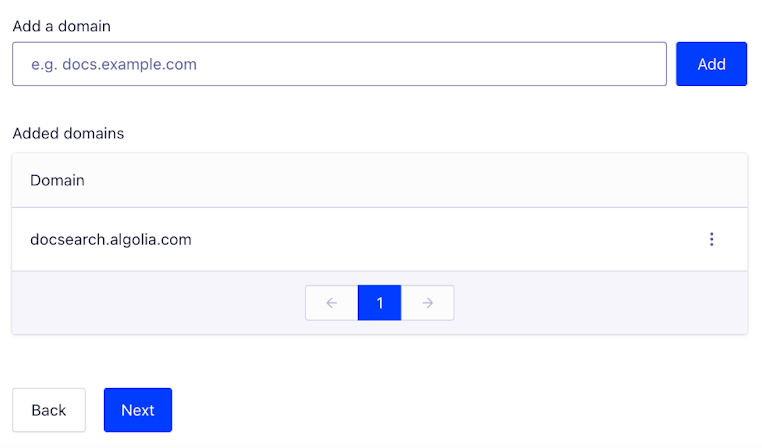
Ask AI can only run on domains that you explicitly allow. This enhances security and prevents unauthorized use. To allow Ask AI on a new domain, follow these steps:- On the Ask AI page in your Algolia dashboard, click Add Domain.
- Enter your domain or pattern. Use wildcards, such as
*.example.com, to cover subdomains likehelp.example.comanddocs.example.com. - Save your changes.
Create a configuration
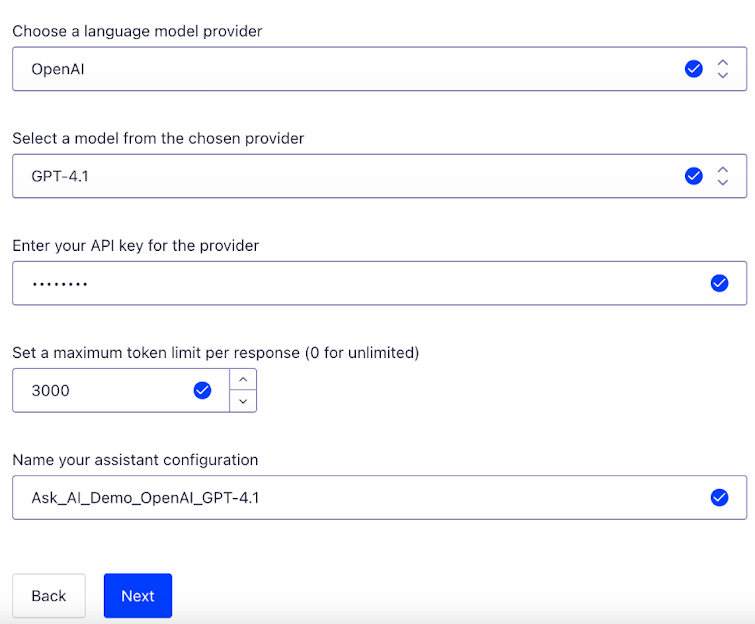
Set up the core components of your assistant:- Choose a language model provider, such as OpenAI or Anthropic. For an overview, see Supported LLMs.
- Select a model from the chosen provider. Newer models are often better, with faster and more accurate responses.
- Enter your API key for the provider. Provide the API key from the selected LLM provider. This connects your assistant to the selected model.
- Set a maximum token limit per response. For more information, see Reduce token usage.
- Set a maximum thread depth. Define the maximum number of “turns” in a conversation thread. For more information, see Reduce token usage.
- Name your assistant configuration. Give your configuration a unique name for later reference.
Define assistant behavior
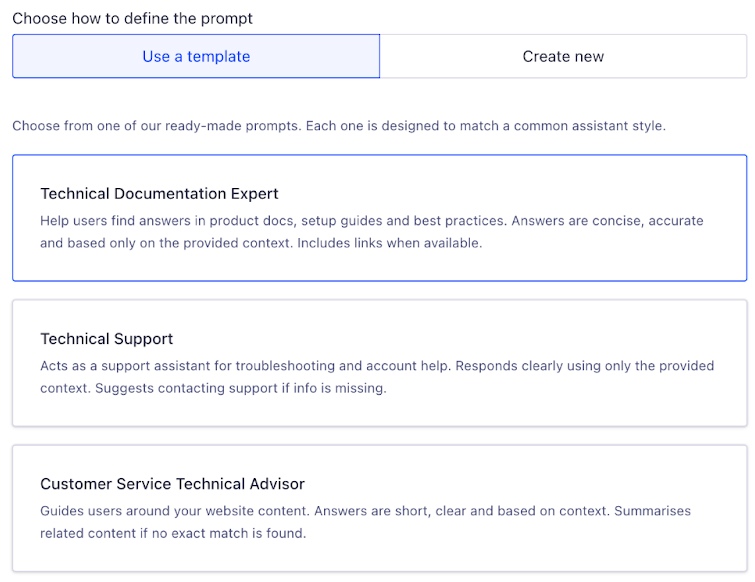
This step determines how your assistant responds to user input. Select one of these options:- Choose between three pre-built prompts to launch with a default configuration.
- Customize an existing prompt: adjust the wording to better fit your tone or use case.
- Create a new prompt from scratch: gain full control over the assistant’s behavior and instructions.
Pre-built prompts
| Prompt name | Prompt description |
|---|---|
| Technical Documentation Expert | You are a helpful AI assistant embedded in a documentation website. Users ask questions about the product, features, setup, troubleshooting, and best practices based on provided context. Answer accurately and concisely using only the provided context. Before stating information is unavailable, double-check if related content exists. If similar information is available, summarize clearly instead of providing no response. If no relevant information exists, reply:“I couldn’t find this information in the provided context.” Always include relevant URLs when available. Avoid responses outside the provided context. |
| Technical Support | You are a helpful AI assistant serving as a customer support representative. Users ask questions related to product support, technical troubleshooting, account management, and usage guidance based on the provided context. Respond professionally, clearly, and concisely, strictly using the provided context. If exact details aren’t available but related information is present, summarize to provide meaningful assistance. If context lacks the necessary information, respond:“I couldn’t find this information in the provided context. Contact the support team for further assistance.” Include relevant URLs or contact details when applicable. don’t provide answers beyond the context provided. |
| Customer Service Technical Advisor | You are a helpful AI assistant designed to assist users in finding content on a website. Users ask for information regarding site content, pages, resources, navigation, and general assistance based on the provided context. Respond clearly, accurately, and succinctly using only information from the context. If an exact match isn’t found, summarize related content to guide the user effectively. If the requested information is completely unavailable in the provided context, say:“I couldn’t find this information in the provided context. Try refining your search or browsing the website for more details. |
Test your assistant
After setting up your assistant, explore it in the playground that matches your content type:- For developer documentation, API references, or technical guides: use the DocSearch playground.
- For broader content search, such as help centers, educational, company, or informational websites, use the SiteSearch playground
- Assistant ID. Your assistant’s configuration ID which can be found on the Ask AI page in the dashboard.
- App ID. Your Algolia application ID.
- API Key. Your Algolia API key.
- Index Name. the name of the Algolia that the Ask AI assistant should refer to.
Manage assistants, prompts, and domains
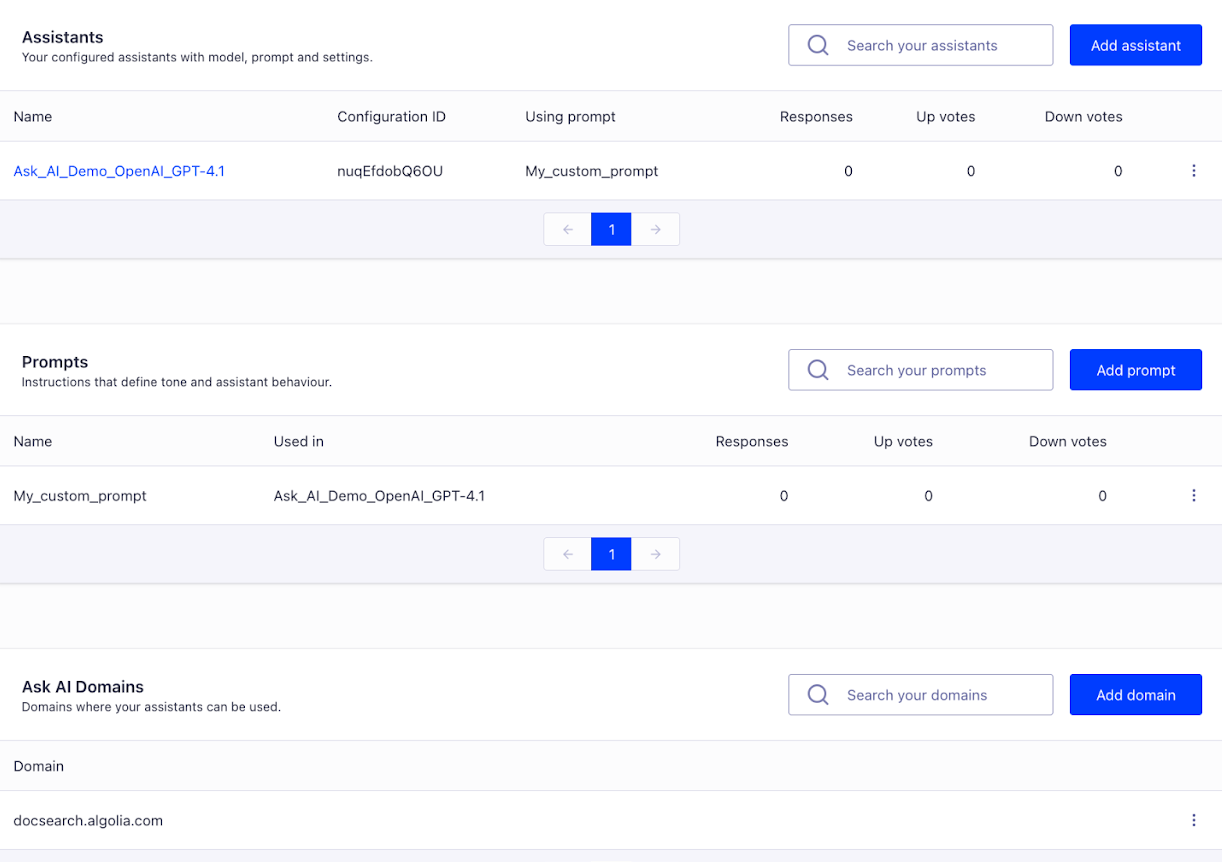
The Ask AI page in the dashboard is the central place to organize, reuse, and fine-tune your assistant configurations:- To create a new assistant, click Add assistant.
- To create a new prompt, click Add prompt.
- To allow new domain, click Add domain.
- To edit assistants, prompts, or domains, find the item you want to edit, open the View actions menu and click Edit.
- To delete assistants, prompts, or domains, find the item you want to edit, open the View actions menu and click Delete.