

recommend-js library with Algolia’s SFRA cartridge to display product recommendations in your storefront.
To learn how recommendations work, see Algolia Recommend.
General approach
Algolia Recommend integrates into your Salesforce B2C Commerce storefront through content slots. Algolia’s SFRA cartridge integration supports customizable templates for displaying product recommendations. Some recommendation widgets need anchor products. Algolia generates recommendations, such as related or similar-looking items, from these products. You can set anchor products using a session variable in your controller or ISML template file, as with Einstein Recommendations. Or, pass them with content slot configuration.Before you begin
Ensure you’ve collected enough events for the models you want to use. Use the SFRA events integration to collect events from your storefront. To speed up your implementation, import historical events from a CSV file. After collecting enough events, train the relevant models.Configuration
These steps are common for all recommendation widgets:- Go to the content slot configuration and select the content slot for recommendations.
- Create a new configuration for the content slot. Set the content type to Product.
-
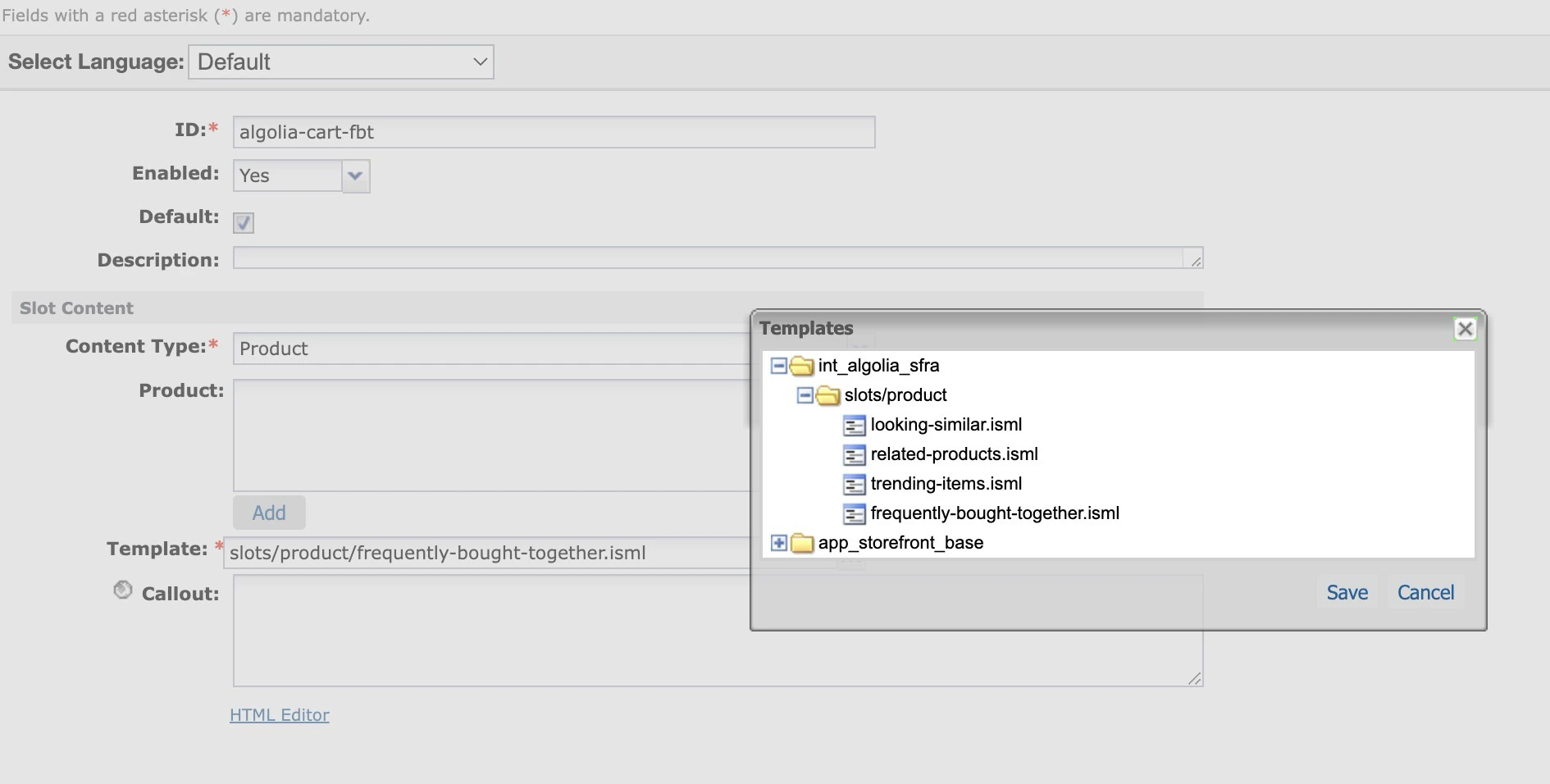
Choose the template you want to use for the recommendations,
corresponding to the Recommend models:
- Related items
- Frequently bought together
- Trending items
- Looking similar
-
Provide anchor products using the session variable
session.privacy.algoliaAnchorProductsor specify them directly in the content slot’s Product field. Depending on the widget, you can specify one or more anchor products. -
If you want to show trending items recommendations in your autocomplete menu,
update the
autocomplete-config.jsfile. - Activate Algolia Recommend in your SFRA cartridge. In your Business Manager, go to Merchant Tools > Algolia and open the Custom Preferences.
Pass anchor products with session variables
Use this strategy when the anchor product IDs vary due to user interactions or the widget’s location. This strategy is especially useful for creating recommendations:- Across a wide range or products, such as all product detail pages
- For product sets that update rapidly, such as when you add new products
- For a shopper’s specific product carts
algoliaAnchorProducts in the controller or the ISML template file.
For example, do this in the Wishlist controller or the wishlist.isml template file to show recommendations based on the products in the shopper’s wishlist.
ISML
The Algolia SFRA cartridge already sets this variable for the
Cart-Show and Product-Show controllers, so you don’t need to set it yourself.
If you haven’t customized this behavior,
use content slots to display recommendations on these pages:- On the basket page, show recommendations based on products in the shopping cart.
- On the product detail page, show recommendations based on the product on display.
Pass anchor products with content slot configuration
Use content slot configuration when the anchor products don’t change based on shopper actions or widget placement. This means the widget only generates recommendations for the specific products listed in the Products field, using product IDs.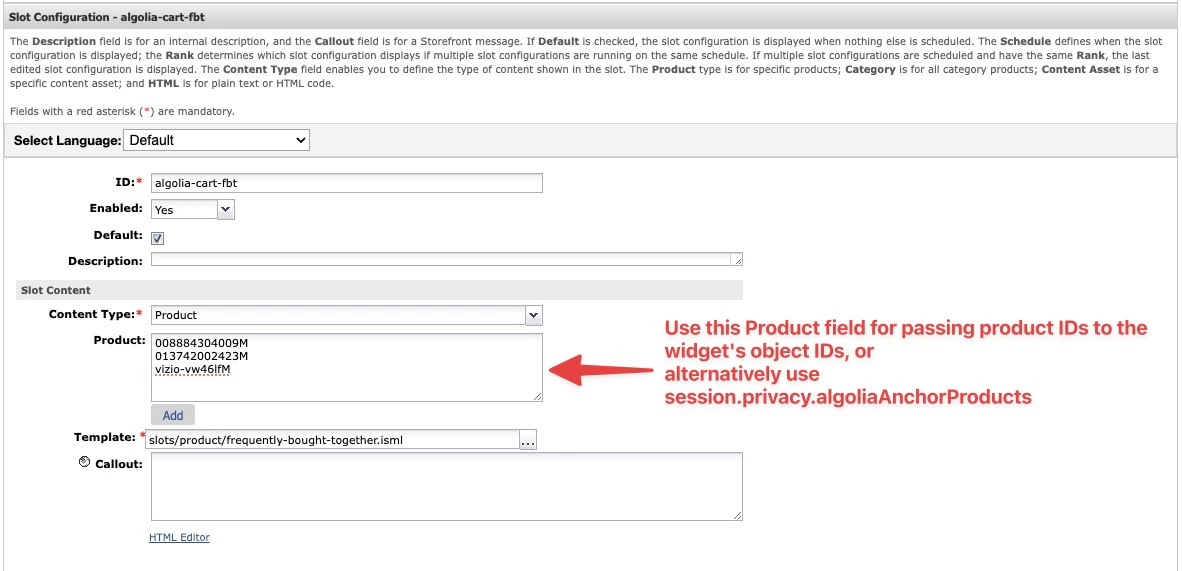
Recommendation widgets
Algolia Recommend includes widgets for showing recommendations across your storefront, for example home, category, product detail, no-result, and cart pages. You need to train models in the Algolia dashboard before you can use the widgets. For more information, see Train the Recommend models.Trending items widget
The Trending items widget displays the most popular items in your store. The widget doesn’t require additional configuration. If you want to use it on a category page, it automatically shows the trending items for that category. Otherwise, it displays the trending items for the entire . To display this widget, you can use an existing content slot or create a new one:ISML
The logic for displaying trending items in a specific category depends on the
categoryDisplayNamePath variable.
The Search.js Controller file automatically sets this variable for categories, and the widget uses it as the facetValue.
To display popular items for a different facet, customize the logic.
For more details, refer to the trending items widget reference.Frequently bought together widget
The Frequently bought together widget displays items that are frequently purchased together. This widget requires anchor products. Algolia uses them as a reference to identify frequently bought together items. A session variable namedsession.privacy.algoliaAnchorProducts handles the logic for anchor products.
You can set this variable in your controller or ISML template file.
The following example sets this variable and creates a new content slot:
ISML
Related items widget
The Related items widget displays items related to the current product. This widget requires anchor products. Algolia uses them as a reference to identify related items. The session variablesession.privacy.algoliaAnchorProducts stores the anchor product IDs.
You can set this variable in your controller or ISML template file.
Here is an example of setting this variable and creating a new content slot:
ISML
Content Type as Product and choose the template as Related items.
For more details, refer to the related items widget API reference.
Looking similar widget
The Looking similar widget displays items that look like the current product. This widget requires anchor products. Algolia uses them as a reference to identify similar-looking items. It also requires thelsImage attribute to be available in the index.
This attribute provides the reference image to the model.
You can send this attribute to Algolia by adding it to the Additional Product Attributes setting in the Algolia Business Manager module Custom Preferences.
- Go to the Algolia dashboard and train the Looking similar model, with
lsImageas the image attribute. - In the Business Manager, go to the content slot configuration, set the content type to Product, and choose the Looking similar template.
- Set the session variable
session.privacy.algoliaAnchorProduct. See the Frequently bought together widget.
ISML
Similar content widget
Use the Similar Content widget to display similar content. You can configure it for content assets or Page Designer components. To use it, add the following code snippet to your content asset or Page Designer component in Business Manager. Thedata-object-ids attribute passes the object IDs of the current content to the widget.
ISML
Autocomplete Trending items widget
Trending item recommendations suggest popular products when users start searching. If you want to use this feature in your autocomplete menu, follow these steps:- Train your Trending items model.
-
In the
int_algolia_sfra/cartridge/static/default/js/algolia/autocomplete-config.jsfile, setuseTrendingItemstotrue. - Turn on the Enable Recommend Custom Preference.
maxRecommendations variable in the autocomplete-config.js file to change the number of trending items displayed.
You can also configure the styling, placement, and order of the trending items in this file.
Widget styling
Customize widget styles, titles, and settings in the recommend-js library.), such as the number of products to show and confidence score thresholds. To help users browse recommendations, add scrolling or pagination. Algolia Recommend can deduplicate product variants with thedistinct setting.
For example, say you use the Variation product record model.
To avoid duplicate product tiles for size or color variants, set attributeForDistinct to the masterID index attribute.
Compatibility
The SFRA cartridge supports Algolia Recommend by default. To support Algolia Recommend for the SiteGenesis cartridge, update these files in your cartridge:int_algolia_sfra/cartridge/static/default/js/algolia/autocomplete-config.jscartridges/int_algolia_sfra/cartridge/static/default/js/algolia/recommend-config.js
cartridges/int_algolia_sfra/cartridge/templates/default/slots/product