By default, the Algolia B2C cartridge is configured for single-instance indexing.
This means that for day-to-day,
ongoing indexing,
run AlgoliaProductDeltaIndex_v2 and your price and inventory jobs from the production instance.
This applies both to the AlgoliaProductPriceDeltaIndex_v2 and AlgoliaProductInventoryDeltaIndex_v2 delta jobs and to AlgoliaProductPriceIndex_v2 and AlgoliaProductInventoryIndex_v2.Multi-instance indexing lets you index product data from one instance and other data from another instance.
For example, you could index product attribute data from your staging instance, and inventory and price data from your production instance.
This setup helps when your product data updates less often than inventory levels and prices.
It also helps when different instances act as the “source of truth” for different attributes.
Using non-production environments for non-time-sensitive data updates can reduce the resource load on your production instance.You can also use this mechanism to update your indices from both Salesforce B2C instances and non-B2C data sources.
Examples include a composable architecture with external product information management (PIM) or inventory management systems.
Partial record updates let you update only specific attributes of a record during an indexing job.
This means the indexing job updates only the attributes it sends.
All other existing attributes remain unchanged.This is different from full record updates.
There, a new record with the same objectID replaces the entire record.
Partial record updates are useful when you want to update only a few attributes of a record.
You don’t need to re-send the entire record.You can configure all product indexing jobs to perform partial record updates.
AlgoliaProductInventoryIndex_v2 and AlgoliaProductPriceIndex_v2 do this by default.To set up multi-instance indexing, configure the AlgoliaProductDeltaIndex_v2 job to perform partial record updates on the staging instance.The AlgoliaProductPriceDeltaIndex_v2 and AlgoliaProductInventoryDeltaIndex_v2 jobs send full records,
which would overwrite the attributes indexed from your staging instance.
In a multi-instance setup, use AlgoliaProductInventoryIndex_v2 and AlgoliaProductPriceIndex_v2 on the production instance instead.AlgoliaProductInventoryIndex_v2 and AlgoliaProductPriceIndex_v2 support only the Variation productrecord model.
With the Base product or Attribute-sliced record models, each record’s variants array contains the price and inventory data,
so run the AlgoliaProductIndex_v2 job on the production instance with indexingMethod=partialRecordUpdate and attributeListOverride=variants instead.
This replaces the variants array with a partial update and leaves the attributes indexed from your staging instance unchanged.
When indexing from Salesforce B2C Commerce B2C instances, the cartridge calculates the index name dynamically by default.
The name of the index includes part of the instance URL, for example "staging-*" or "production-".
As a result, the cartridge creates separate indices for each instance when you run indexing jobs from these instances.This behavior is useful when you want to keep data from different instances separate.
If you want to combine data from several instances into a single index, you can specify a custom index prefix.To specify a custom index prefix, you can use the Index Prefix custom site preference in the Algolia Business Manager module.
Ensure that you have the identical cartridge version installed on all instances where you want to use multi-instance indexing.
For example, install it on staging and production.
Cartridge version 23.5.0 or later supports multi-instance indexing.
Follow the installation steps or,
if upgrading from an older cartridge version, by following the migration guide.
Skip the steps about enabling and scheduling the jobs AlgoliaProductDeltaIndex_v2, AlgoliaProductInventoryIndex_v2, and AlgoliaProductPriceIndex_v2 for now.
Go to the Algolia Business Manager module (Merchant Tools > Algolia > Algolia) on your production instance.
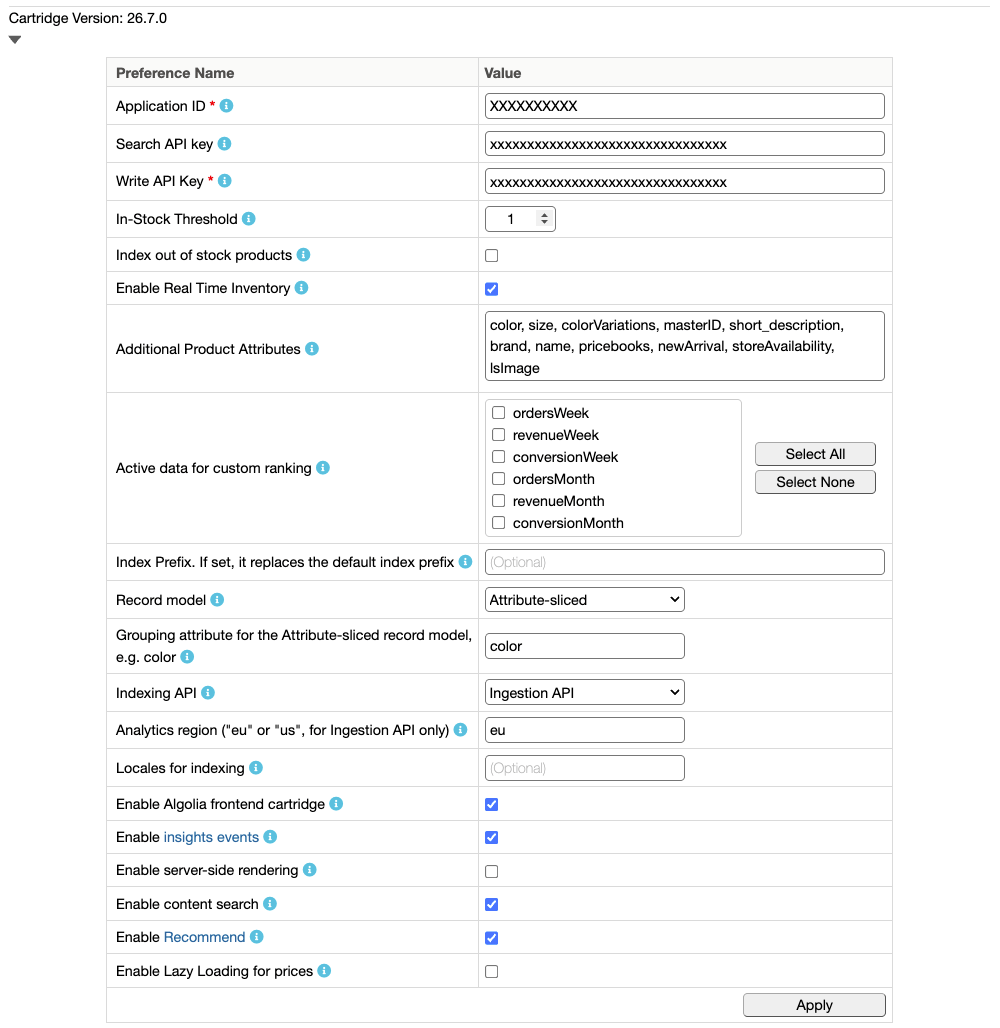
Enter a value for the Index Prefix site preference.
The staging instance should match this value.
Go to Administration > Operations > Jobs,
then enable and schedule the AlgoliaProductInventoryIndex_v2 and AlgoliaProductPriceIndex_v2 jobs.
With the Base product or Attribute-sliced record models, schedule the AlgoliaProductIndex_v2 job with indexingMethod=partialRecordUpdate and attributeListOverride=variants instead.
For details, see Partial record updates.
Run the AlgoliaProductDeltaIndex_v2 job on your staging instance. Then check your Algolia dashboard to see if it created the indices with the new index prefix.
Run the AlgoliaProductInventoryIndex_v2 and AlgoliaProductPriceIndex_v2 jobs on your production instance. Then confirm that the jobs updated the same indices with your inventory and price data from Production.