

Before you begin
- You need an Algolia application with the Agent Studio feature enabled.
- To preview PDP or PLP configurations, you need an agent with an Algolia Search tool connected to an index.
Create a prompt configuration
1
Open the prompt configurations list
In the Agent Studio dashboard, open your agent, go to the Components section, and select the Prompt suggestions component.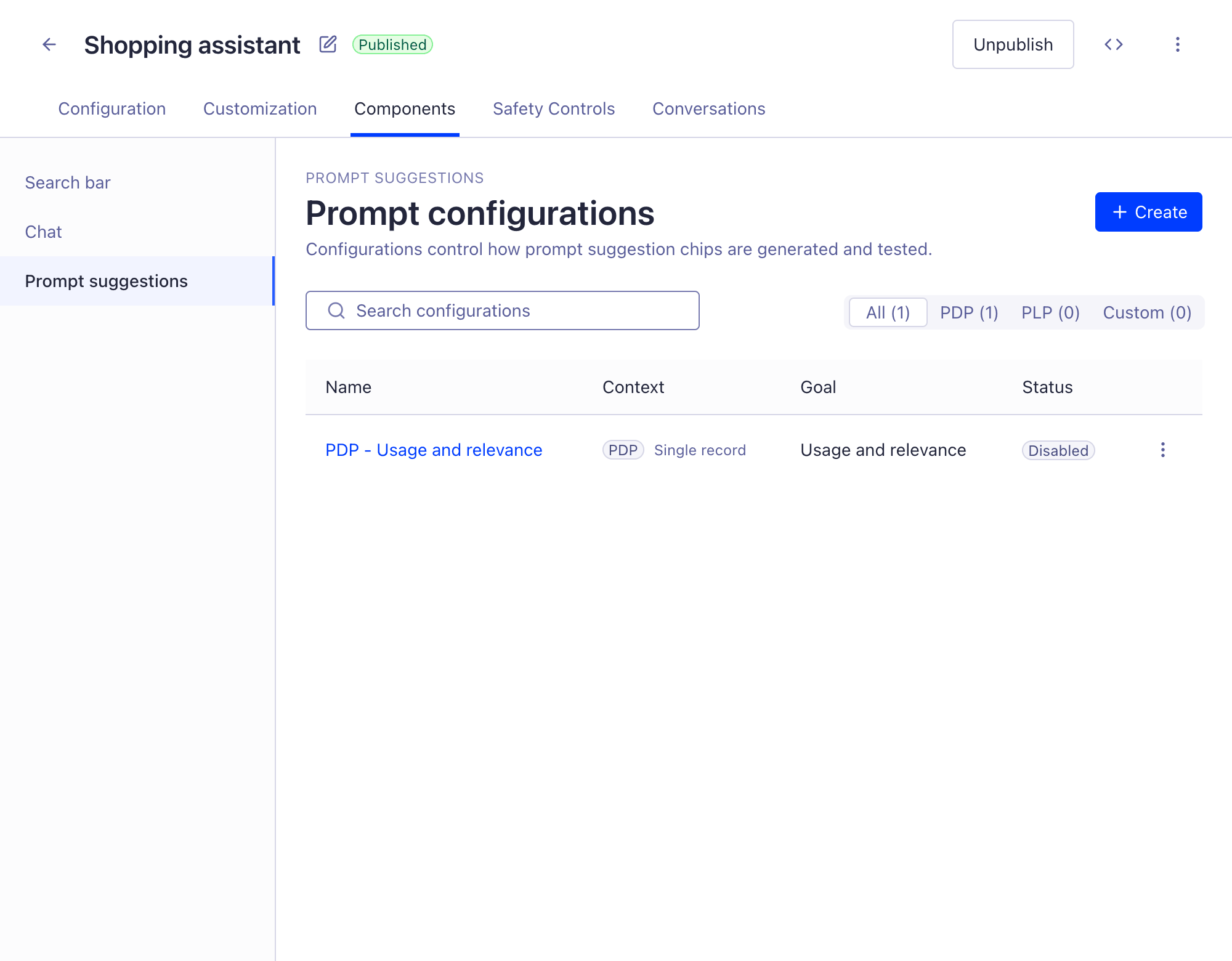
2
Create a configuration
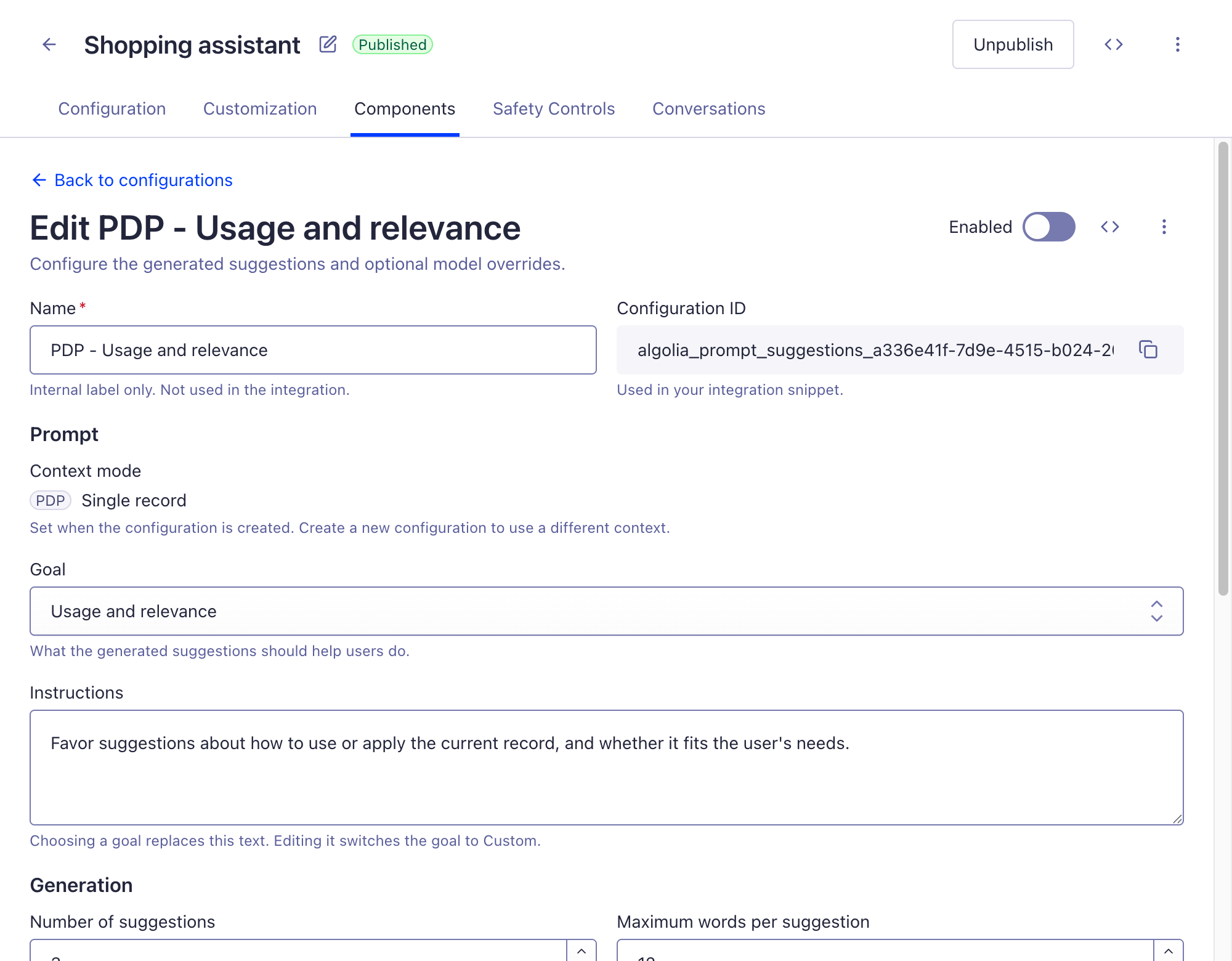
Select Create and fill in:
- Name. An internal label. It’s not used in the integration.
- Context mode. The page context the agent uses to generate suggestions.
- Goal. What the generated suggestions should help users do.
3
Choose a goal
Pick one of the built-in goals, such as comparing options or narrowing results, or select Custom and write your own instructions.Choosing a goal replaces the Instructions text.
Editing the instructions switches the goal to Custom.
Configure the generated suggestions
In the configuration editor, adjust how the agent generates suggestions:- Number of suggestions. The number of suggestion chips to generate.
- Maximum words per suggestion. Keeps chips short enough to scan.
- Provider override and Model override. Leave as Agent default to use the agent’s provider and model.
- Base system prompt. The prompt sent to the model. It’s updated from the number of suggestions and maximum words. Select Customize to edit it.
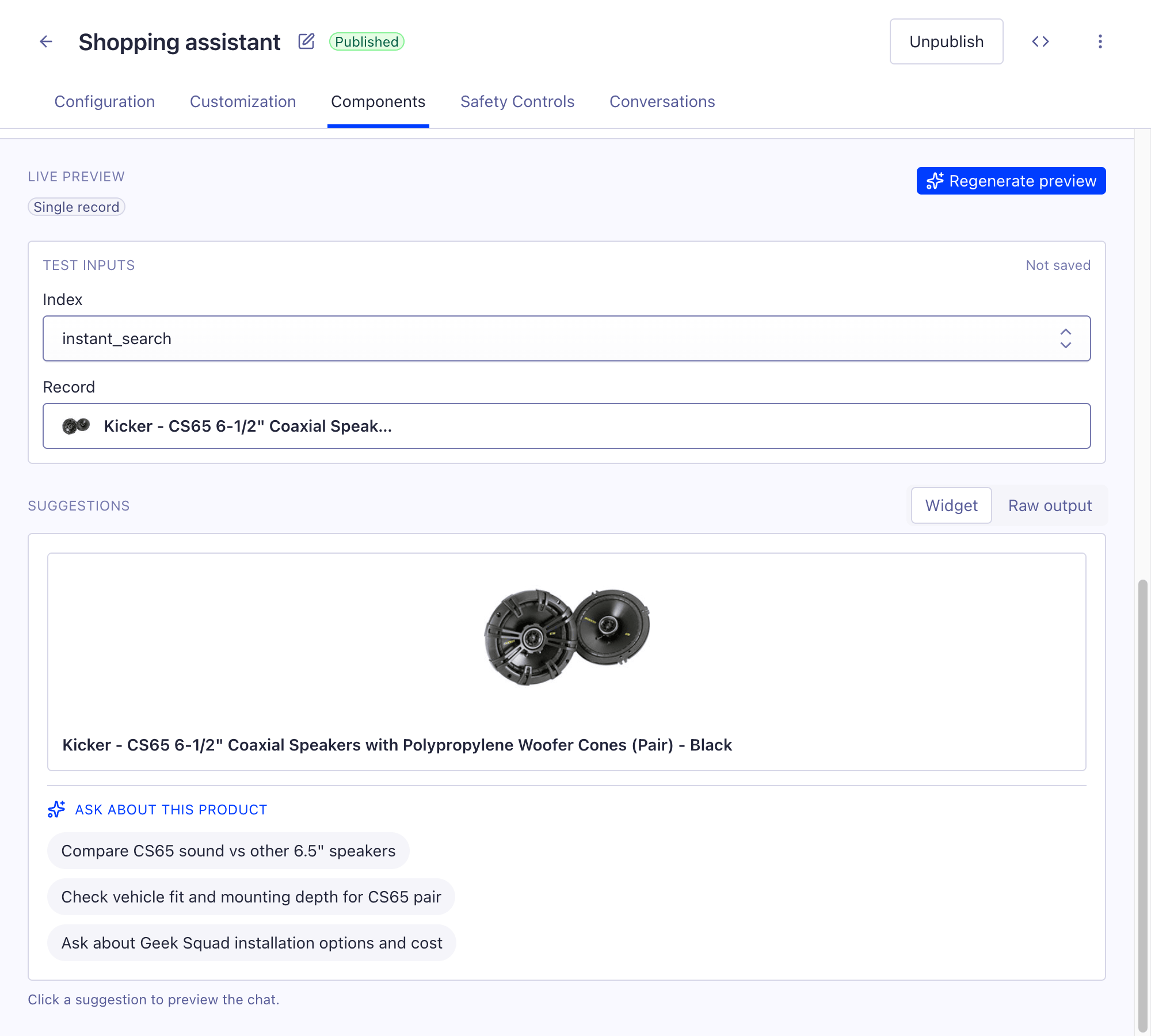
Preview suggestions
Use the live preview to test a configuration before you enable it. The test inputs depend on the context mode:- PDP. Select an index and search for a record.
- PLP. Select an index and enter a preview query.
- Custom. Enter a JSON context payload of 64 KiB or less.
Enable and integrate a configuration
1
Enable the configuration
Turn on the Enabled toggle and save.
The integration endpoint only responds once the configuration is enabled and saved.
2
Copy the configuration ID
Copy the Configuration ID from the editor.
Configuration IDs are stable: you can change the configuration’s behavior without updating your integration.
3
Add the widget to your frontend
Select Integrate, choose an integration option, and copy the generated code.
In InstantSearch, pass the configuration ID to the For all widget options, see the
promptSuggestions widget:PromptSuggestions widget reference for React or JavaScript.Manage configurations
From the configurations list, you can:- Search configurations by name and filter them by context mode.
- Duplicate a configuration to use it as a starting point.
- Delete a configuration. Disable it first: you can’t delete an enabled configuration.