

- The main search interface will use a regular index.
- As users type a phrase, suggestions from your Query Suggestions index are displayed.
Usage
To display the suggestions:- Create a Query Suggestions index from your main index.
- Implement a Multi-Index search experience using both indices.
- When clicking on a suggestion, set the query to the chosen suggestion.
Before you begin
To use InstantSearch Android, you need an Algolia account. Either create a new account or use the following credentials:- Application ID:
latency - Search API key:
afc3dd66dd1293e2e2736a5a51b05c0a - Results index name:
STAGING_native_ecom_demo_products - Suggestions index name:
STAGING_native_ecom_demo_products_query_suggestions
Project structure
Algolia’s query suggestions uses:QuerySuggestionGuide: main activity presenting the search experience,SuggestionFragment: fragment presenting the Query Suggestions,ProductFragment: fragment presenting the search results,QuerySuggestionViewModel: view model holding connectors and search business logic.
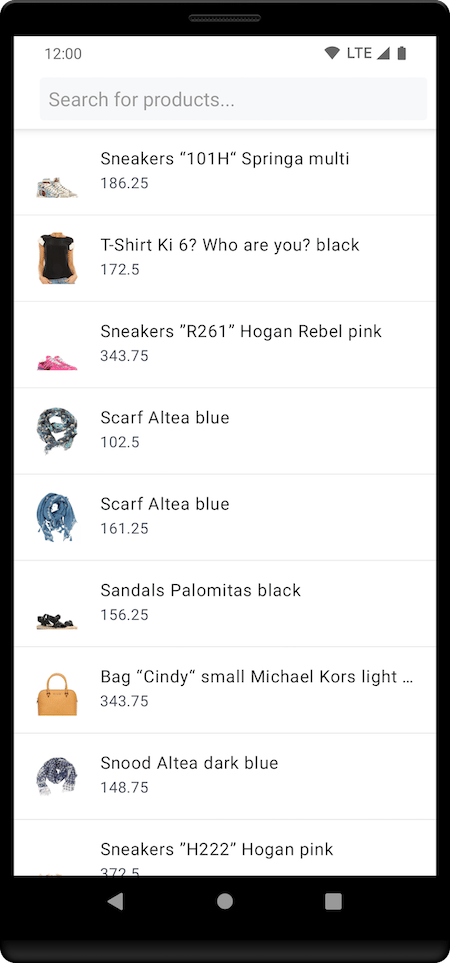
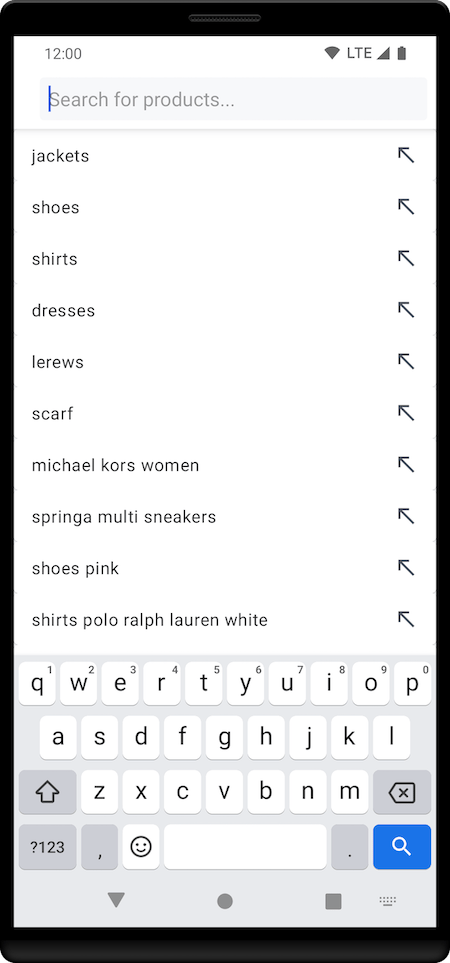
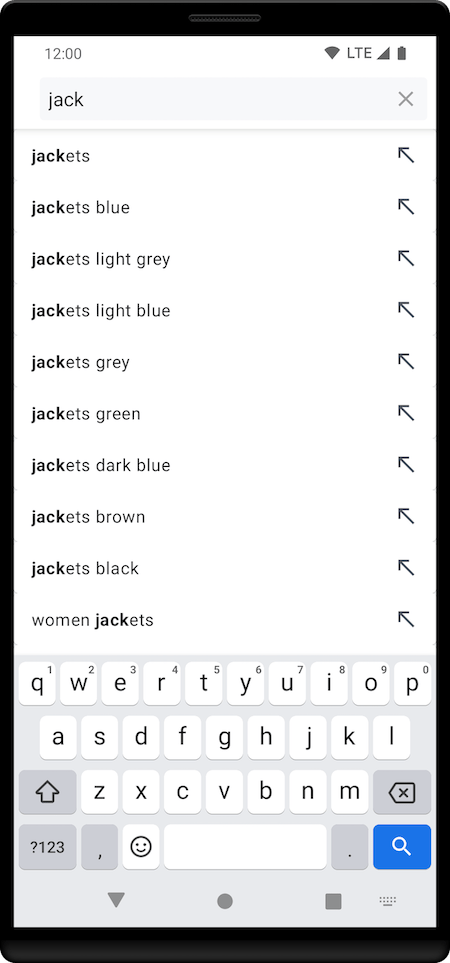
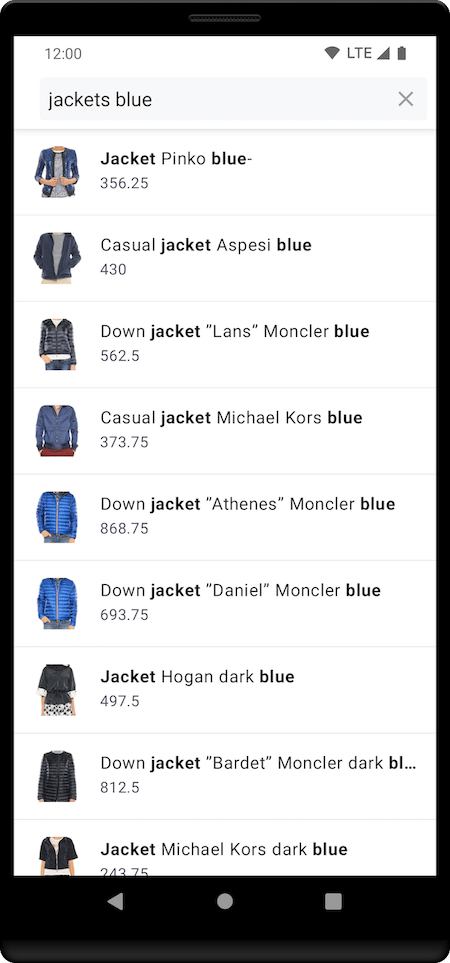
Business logic
CreateQuerySuggestionViewModel view to setup the search components and create the necessary connections between them,
establishing the business logic:
Kotlin
Products view
CreateProduct data class corresponding the index hits:
Kotlin
ProductAdapter to display search results:
Kotlin
ProductFragment to display product search results:
Kotlin
Suggestions view
CreateSuggestion data class corresponding the suggestions index hits:
Kotlin
SuggestionAdapter to display suggestions list:
Kotlin
SuggestionFragment to display suggestions’ recycler view adapter,
and to notify QuerySuggestionViewModel when a suggestion selection is made:
Kotlin
Setup layout
Finally, createQuerySuggestionActivity activity, and display ProductFragment and SuggestionFragment on SearchBox
Kotlin