Prefer using the Autocomplete widget from InstantSearch instead of the standalone Autocomplete library.
It integrates more closely with your search experience.
For more information,
see the API reference for InstantSearch.js or
React InstantSearch.
Use debug mode to inspect panel elements
Set thedebug option to true to keep the panel open.
Use this while you inspect elements in your browser DevTools.
This option defaults to false.
Then the autocomplete panel closes when the blur event occurs.
Only use this option during development.
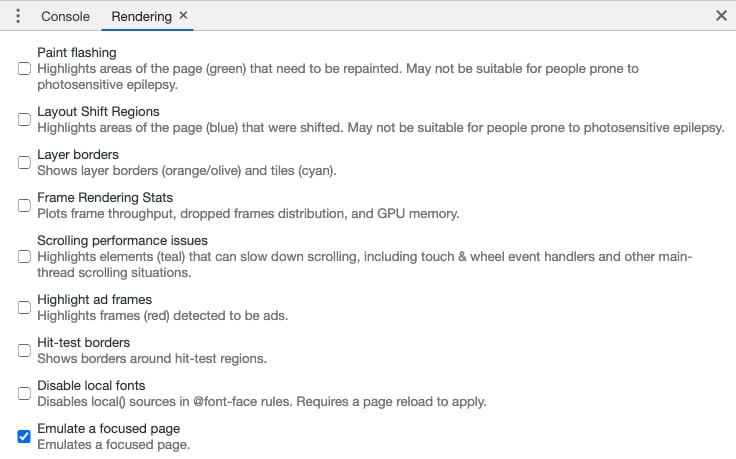
Emulate a focused page in Chrome DevTools
You can enable the “Emulate a focused page” option from Chrome DevTools. This keeps the autocomplete panel open while you inspect the DOM.