

Before you begin
You’ll need:- Admin access to your Algolia dashboard. Without it, you can declare a winner, but you can’t promote the settings.
- An eligible A/B test. The test must have reached 80% of its planned duration. For Bayesian tests, you can also declare a winner earlier if there’s enough evidence for the primary metric of at least one variant. For frequentist tests, wait until the planned end before declaring a winner.
- An eligible A/B test.
- For frequentist tests, the dashboard enables Declare winner once 80% of the planned duration has elapsed. Wait until the planned end before declaring a winner.
- For Bayesian tests, you can declare a winner at 80% of the maximum test duration, or earlier if there’s enough evidence for the primary metric of at least one variant.
- A variant as the winner. You can’t adopt the control, so the dashboard hides this option if the control wins.
Declare an A/B test winner
- Go to the Algolia dashboard and select your Algolia application.
- On the left sidebar, select Search.
- On the A/B testing page, select the A/B test you want to work on.
- On the A/B test detail page, select the variant you want as the winner and click Declare winner.
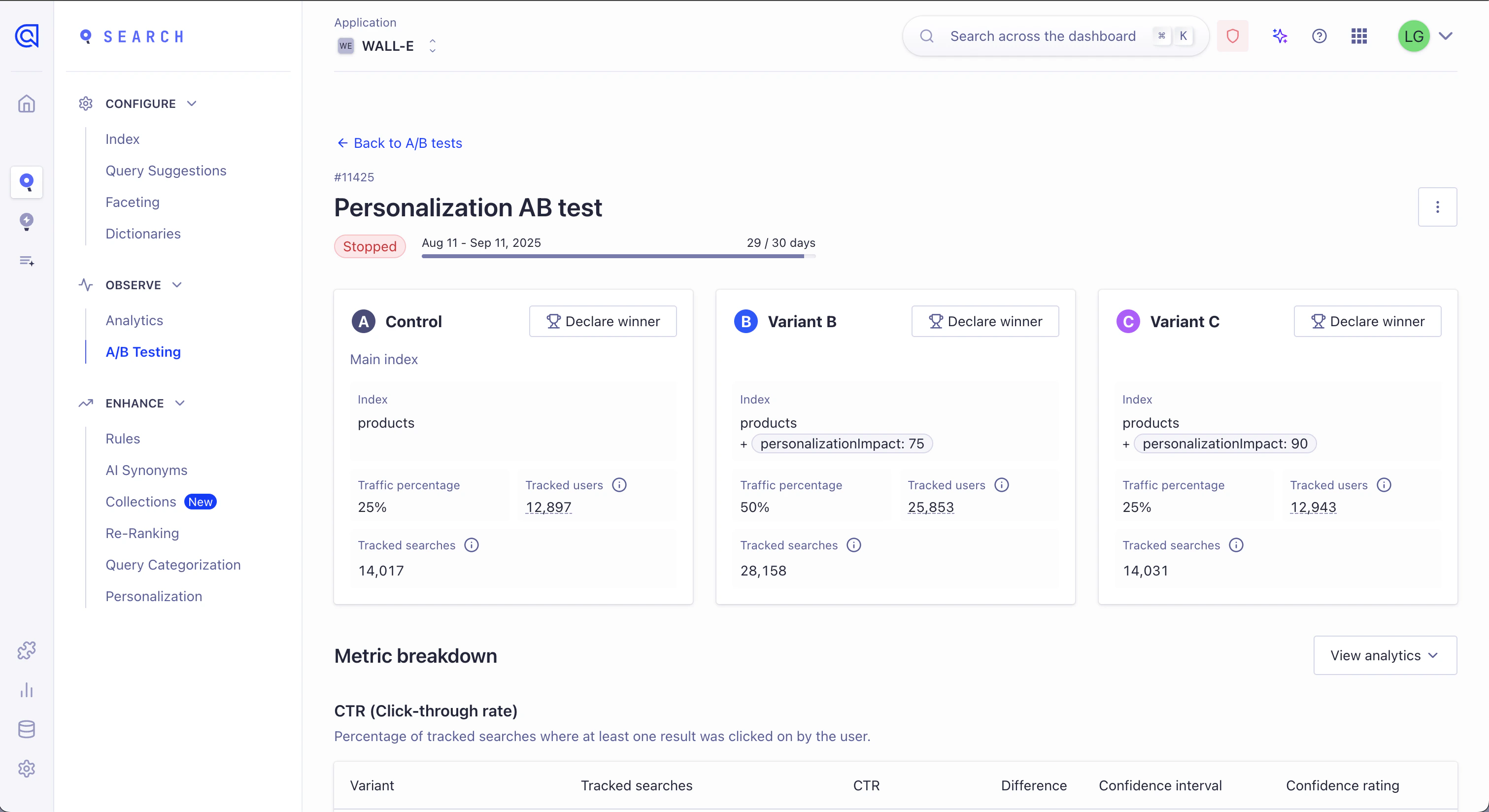
Promote settings
Before promoting settings, test the winning configuration with your search UI. After you declare a winner, click Promote settings. This copies the winning settings to your control.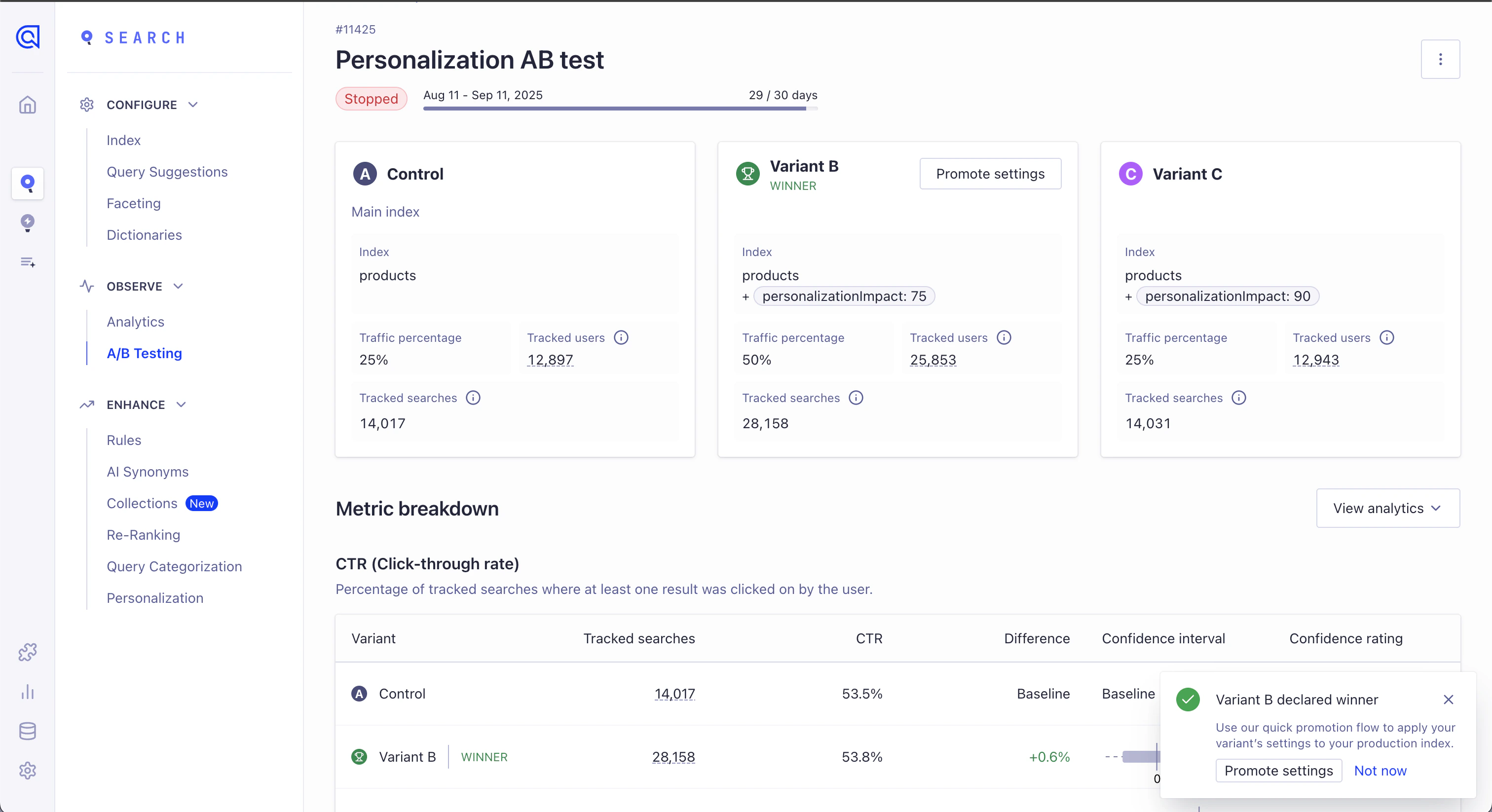
Adoption window: You have 14 days to adopt the winning settings, counted from the day the test ends or you stop it.
After that, apply the settings to your index by hand.
Confirm promotion
To confirm updating the index settings:- If the winning variant uses the same index as the control, enter
COPY - If the winning variant uses a different index from the control, enter
UPDATE
What adoption changes
Adoption copies most settings from your winning variant to your control. Some limits apply.Changed settings
- The control’s index settings, updated to match the winning variant. If the variant shares the control’s index, the custom search parameters change instead.
- These feature settings, toggled on or off to match the winner:
Unchanged settings
- Records. Adoption never modifies your data.
- Synonyms and Rules. Adoption leaves these untouched.
Verify adoption
After promoting settings, verify the changes work as expected:- In the Algolia dashboard, check the control’s settings against What adoption changes.
- Monitor your app’s search analytics for unexpected changes over the next 2 to 3 hours.
Revert settings
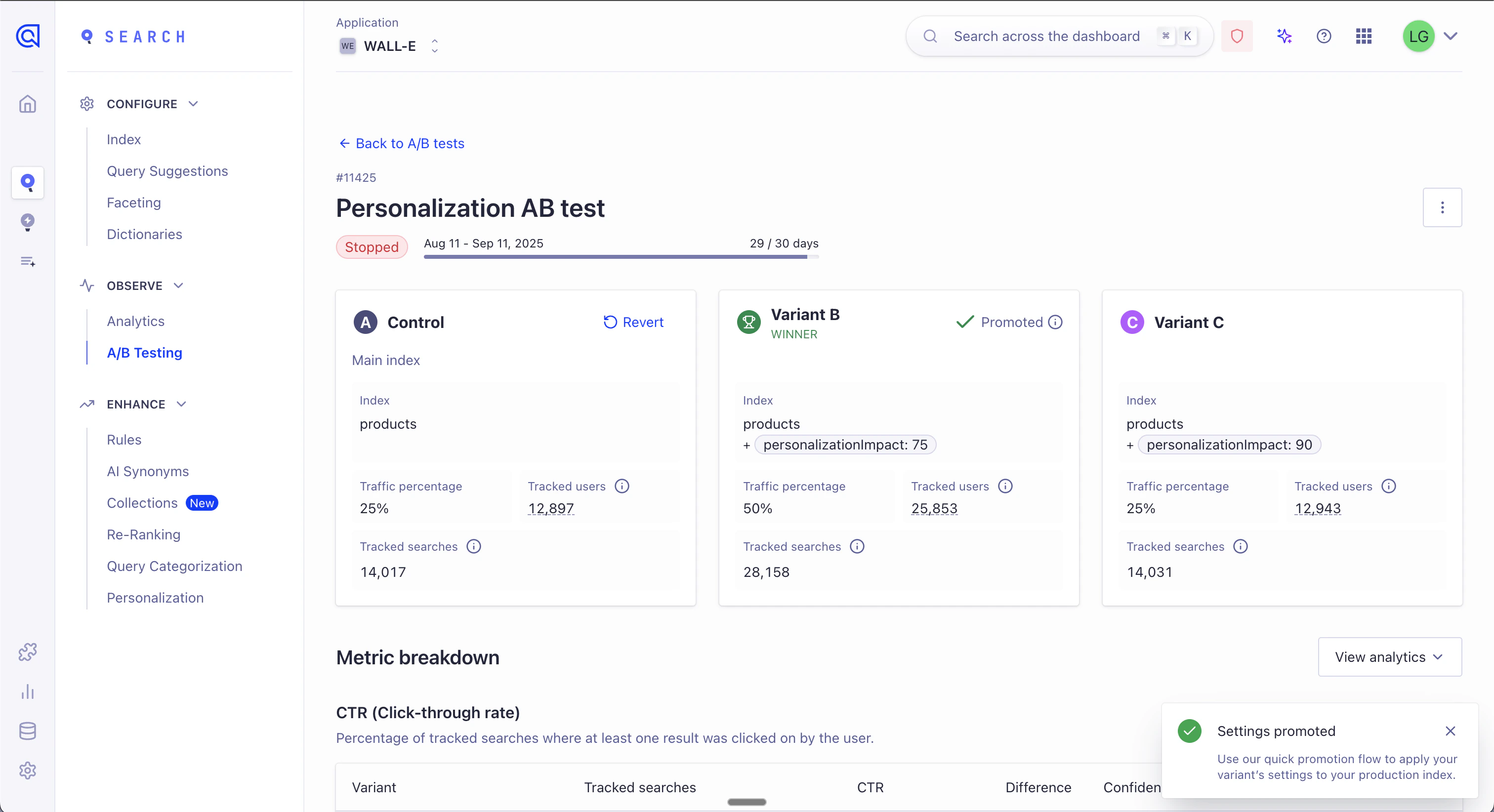
You can revert the adoption for 15 days after your A/B test ends, or after you stop it. To revert to your previous settings:- Open the A/B test details page in the dashboard.
-
On the control variant, click Revert.
-
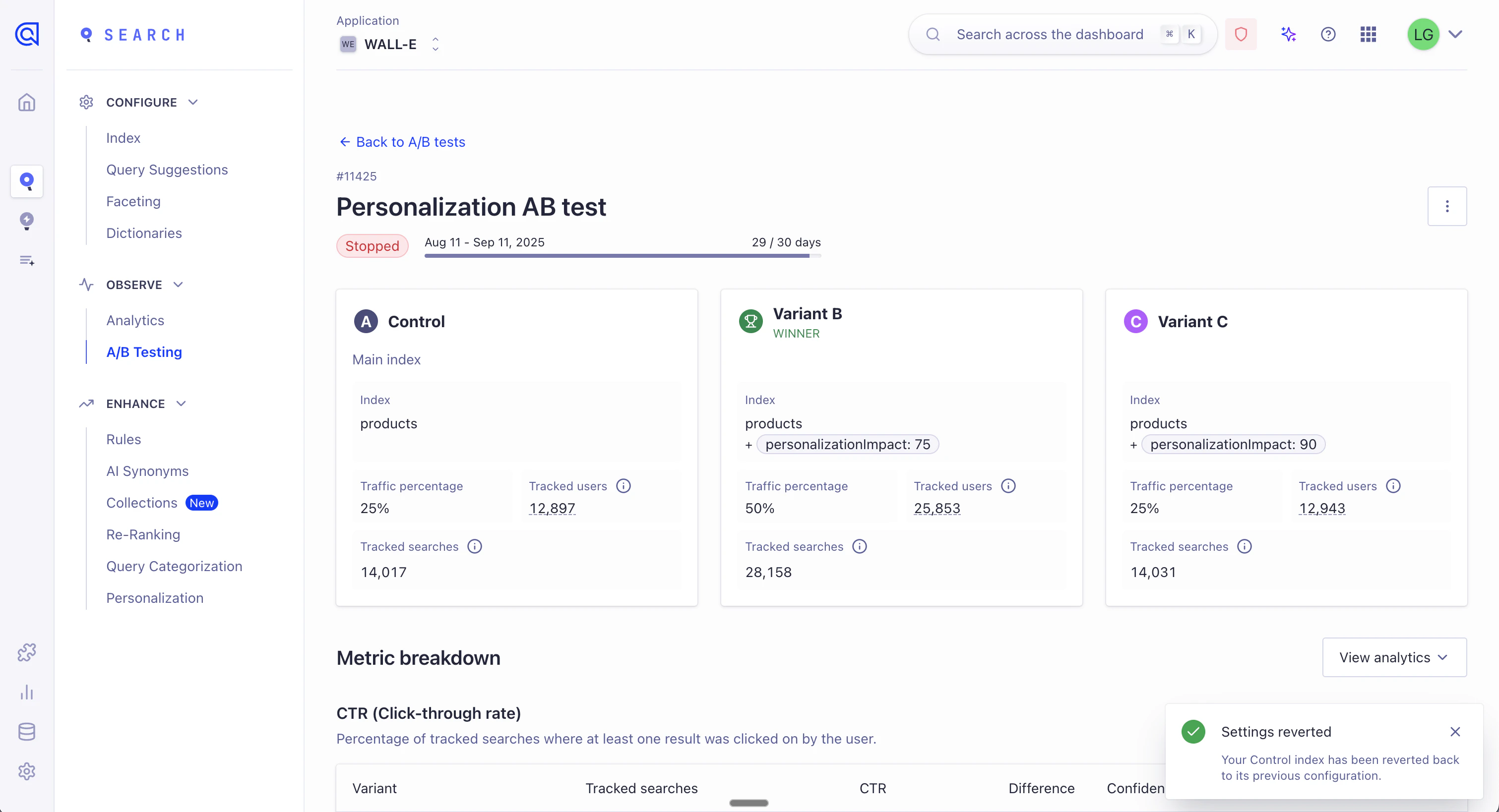
Confirm by entering
REVERTand clicking Confirm.
Revert limitations
- You can’t promote settings again for this A/B test after reverting.
- Reverting can only undo the settings that adoption applied.
- The replica and feature limits also apply when you revert settings.
Need help? If something looks wrong after you revert, contact Algolia support.