

Starting May 1, 2024,
Apple requires all iOS apps to include a privacy manifest.
For more information, see Privacy manifest.
- Input using speech-to-text
- Processing using Algolia
- Output using speech synthesis
Speech-to-text input layer
You must have a speech-to-text layer to convert your users’ speech into something Algolia understands (Algolia can’t process non-textual searches). You can add a speech-to-text layer in two ways:- Using the Chrome browser, iOS or Android native apps, or a voice platform tool like Alexa or Google Assistant with speech-to-text built-in.
- Using a third-party service. You send user speech to the service. When you receive it back, you then send it to Algolia as a search query. Some services include:
Process the query with Algolia
After converting speech to text, you need to process the query and return relevant results from your Algolia . This step involves:- Query time settings
- Index configuration
Query time settings
The query time settings improve search results during query time. For instance, selecting a language for Algolia let you set certain features like ignoring “noise” words that users could enter in their search query. If you choose English as the language, and you turn on the stop words feature, the search engine ignores words like ‘a’ and ‘an’ as they’re not relevant to the search query. This gives more exact search results.- Set
removeStopWordsand ensure to select a supported language. For example,enfor English. This setting removes stop words like “a”, “an”, or “the” before running the search query. - Send the entire query string along as
optionalWords. Speech often has words that aren’t in any of your . With this setting, records don’t need to match all the words. Records matching more words rank higher. For example, in the spoken query “Show me all blue dresses”, only “blue dresses” may yield results for a clothing store: the other words should be optional. - Set
ignorePluralstotrueand ensure to select a supported language. For example,enfor English. This setting marks words like “car” and “cars” as matching terms. - Apply
analyticsTagsto the query, including voice queries. You can activate these settings using thenaturalLanguagesparameter. These settings work well together when the query format is in natural language instead of keywords, for example, when your user performs a voice search.
Index configuration
Similarly, you can apply some rules related to your index. These rules are dynamic and apply depending on what users type in the search query. Detecting user intent can help dynamically change the search results.Speech synthesis output
Not all voice platforms need speech synthesis or text-to-speech. For example, a site that shows search results may be enough. If your voice platform does need speech synthesis, your options are:- A built-in system such as Alexa or Google Assistant.
- A third-party system. Most modern browsers support speech synthesis through the SpeechSynthesis API. If you want a wider choice of voices, you have Azure Cognitive Services or Amazon Web Services’ Polly.
Prepare your project
To use InstantSearch, you need an Algolia account. You can create a new account, or use the following credentials:- Application ID:
latency - Search API Key:
927c3fe76d4b52c5a2912973f35a3077 - Index name:
STAGING_native_ecom_demo_products
Create a new Xcode project
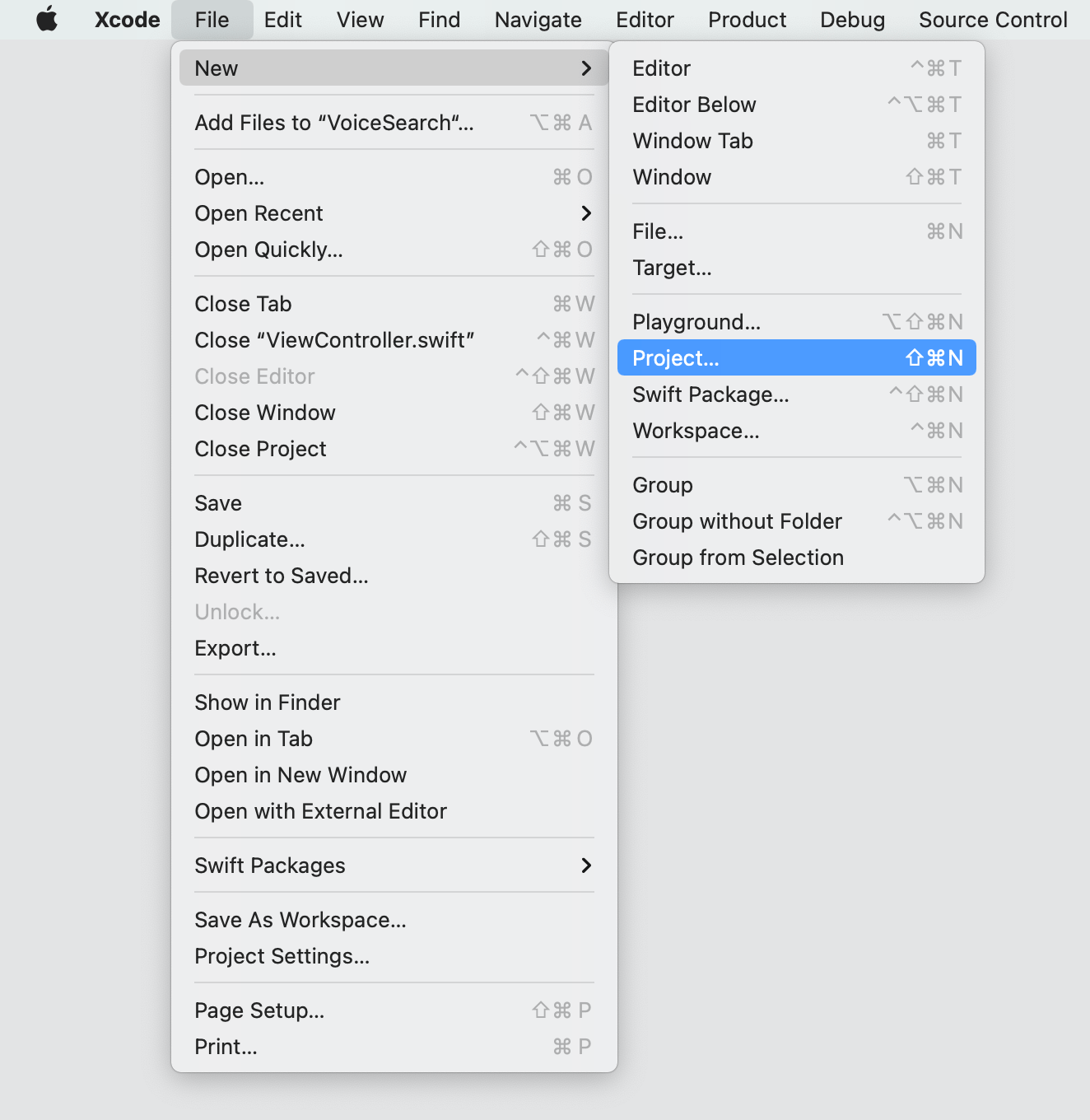
Start by creating a new Xcode project. Open Xcode, and selectFile -> New -> Project in the menu bar.
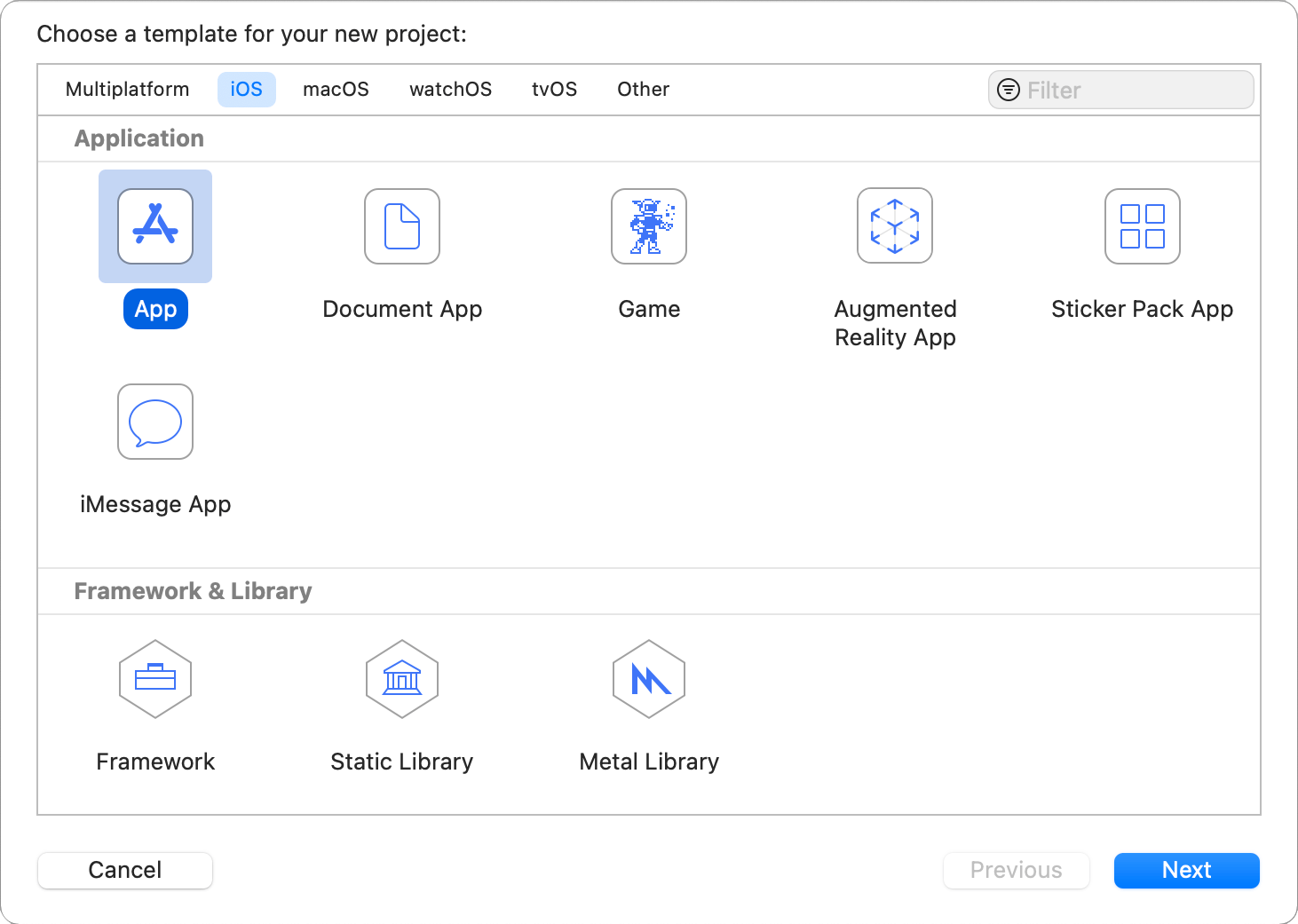
iOS -> App template and click Next.
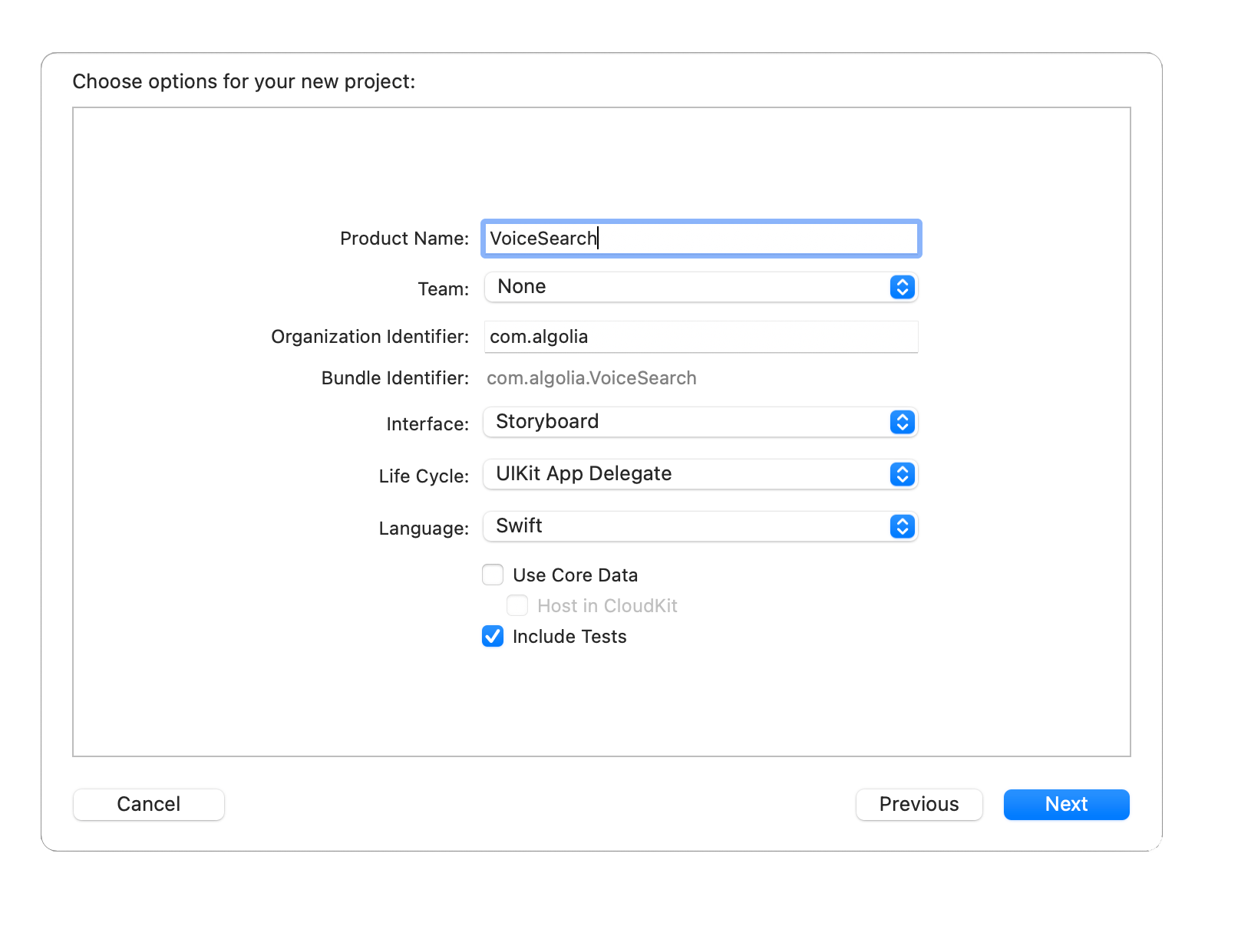
Command+R).
The device simulator shows a blank screen.

Add project dependencies
This tutorial uses Swift Package Manager to integrate the Algolia libraries. If you prefer to use another dependency manager (Cocoapods) read the corresponding installation guides for InstantSearch and VoiceOverlay.
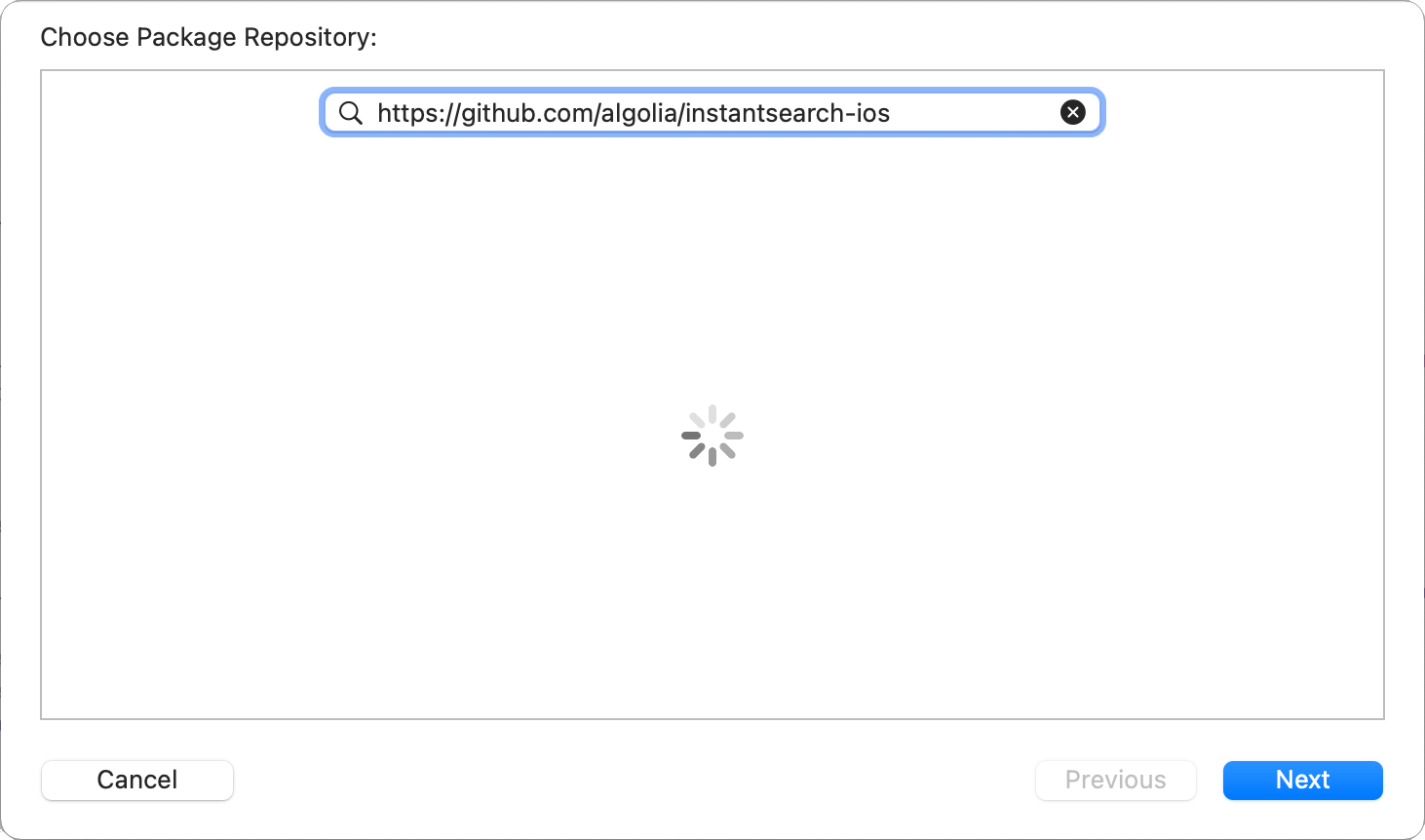
In the menu bar select File > Swift Packages > Add Package Dependency.
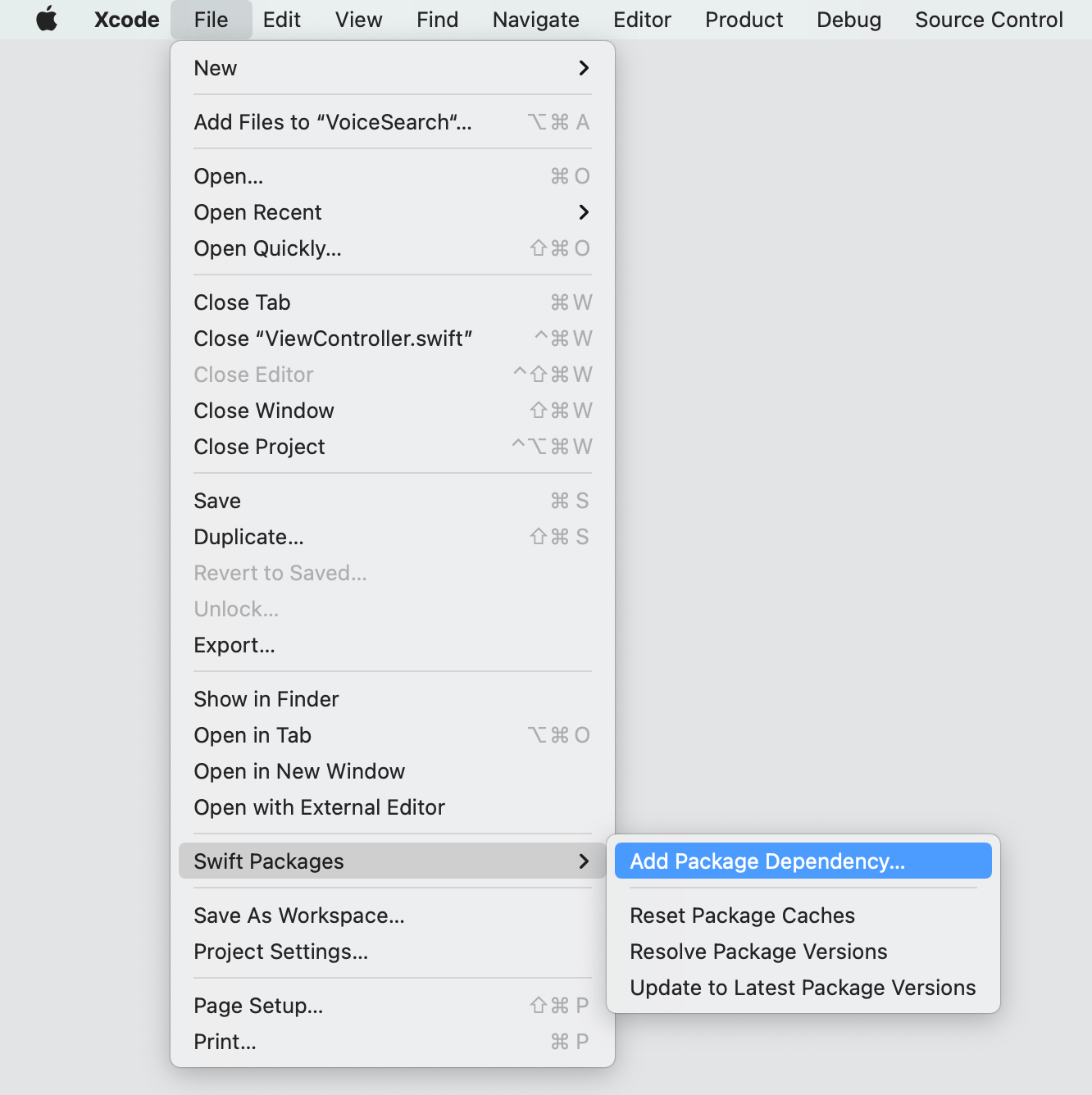
https://github.com/algolia/instantsearch-ios
InstantSearch product from the following list:
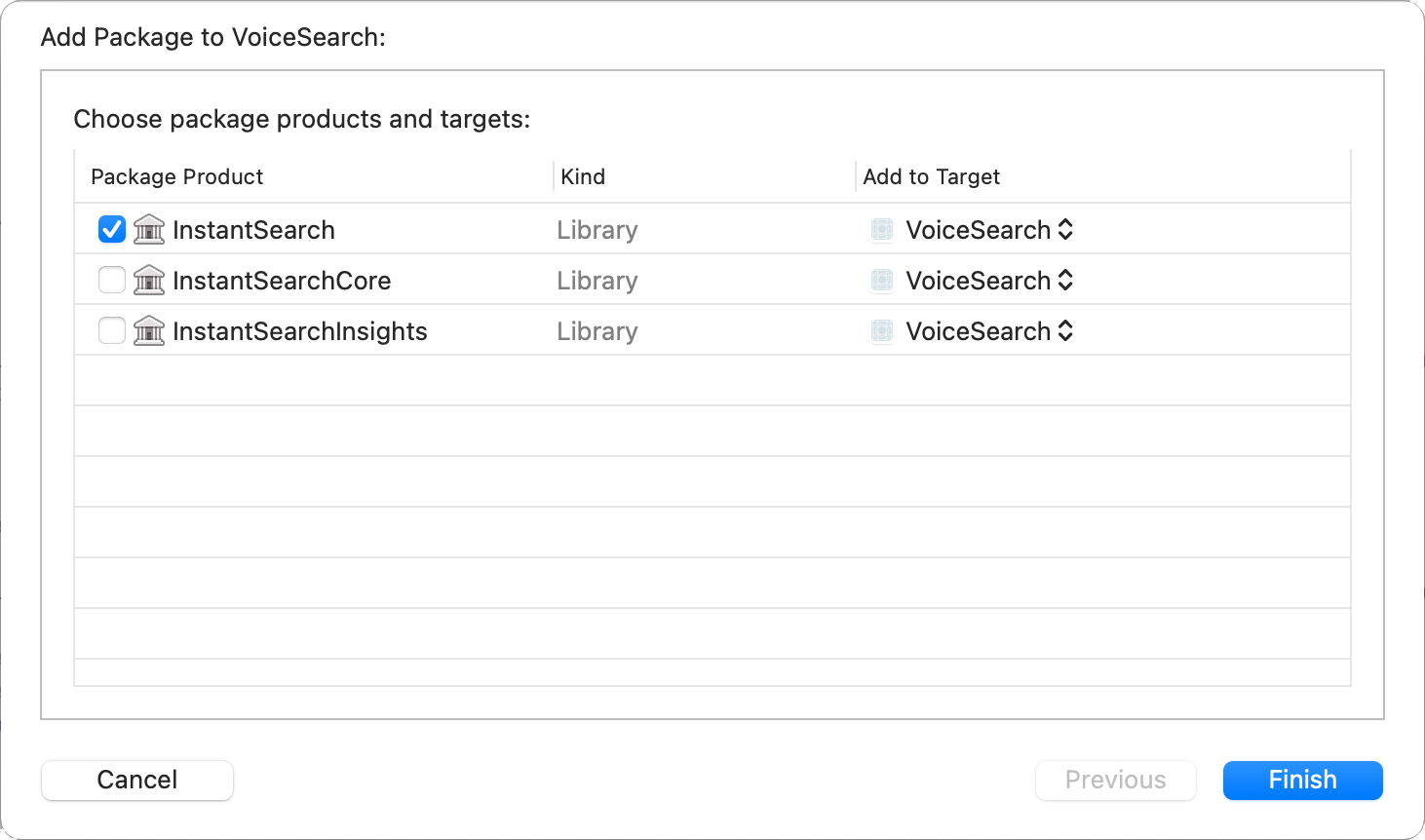
VoiceOverlayhttps://github.com/algolia/voice-overlay-iosSDWebImagehttps://github.com/SDWebImage/SDWebImage
Model object
Start with declaring theStoreItem model object that represents the items in the index.
Add a new file StoreItem.swift to the project with the following code:
Swift
Result views
Add a fileProductTableViewCell.swift for visually displaying the store item in the results list.
Swift
ProductTableViewCell extension.
Its setup method configures a cell with a StoreItem instance:
Swift
Results view controller
Algolia doesn’t provide a ready-to-use results view controller, but you can create one with the tools in the InstantSearch library by copying the following code. To learn more, seeHits.
Add a StoreItemsTableViewController class, which implements the HitsController protocol.
This view controller presents the search results with the previously declared ProductTableViewCell.
Swift
Create a basic search experience
All the auxiliary parts of the app are ready. You can now set up the main view controller of the app. In your Xcode project, open theViewController.swift file and import the InstantSearch library.
Swift
ViewController class with a minimal set of InstantSearch components for a basic search experience.
HitsSearcher: component that performs search requests and handles search responses.UISearchController: view controller that manages the display of search results based on interactions with a search box. UIKit component.TextFieldController: controller that binds theSearchBarwith other InstantSearch components.SearchBoxConnector: connector that encapsulates the textual query input handling logic and connects it withHitsSearcherandTextFieldController.StoreItemsTableViewController: controller that presents the list of search results.HitsConnector: connector that encapsulates the search hits handling logic and connects it withHitsSearcherandHitsController.
ViewController class should look as follows:
Swift
setup method which configures the viewController and its searchController.
Call it from the viewDidLoad method.
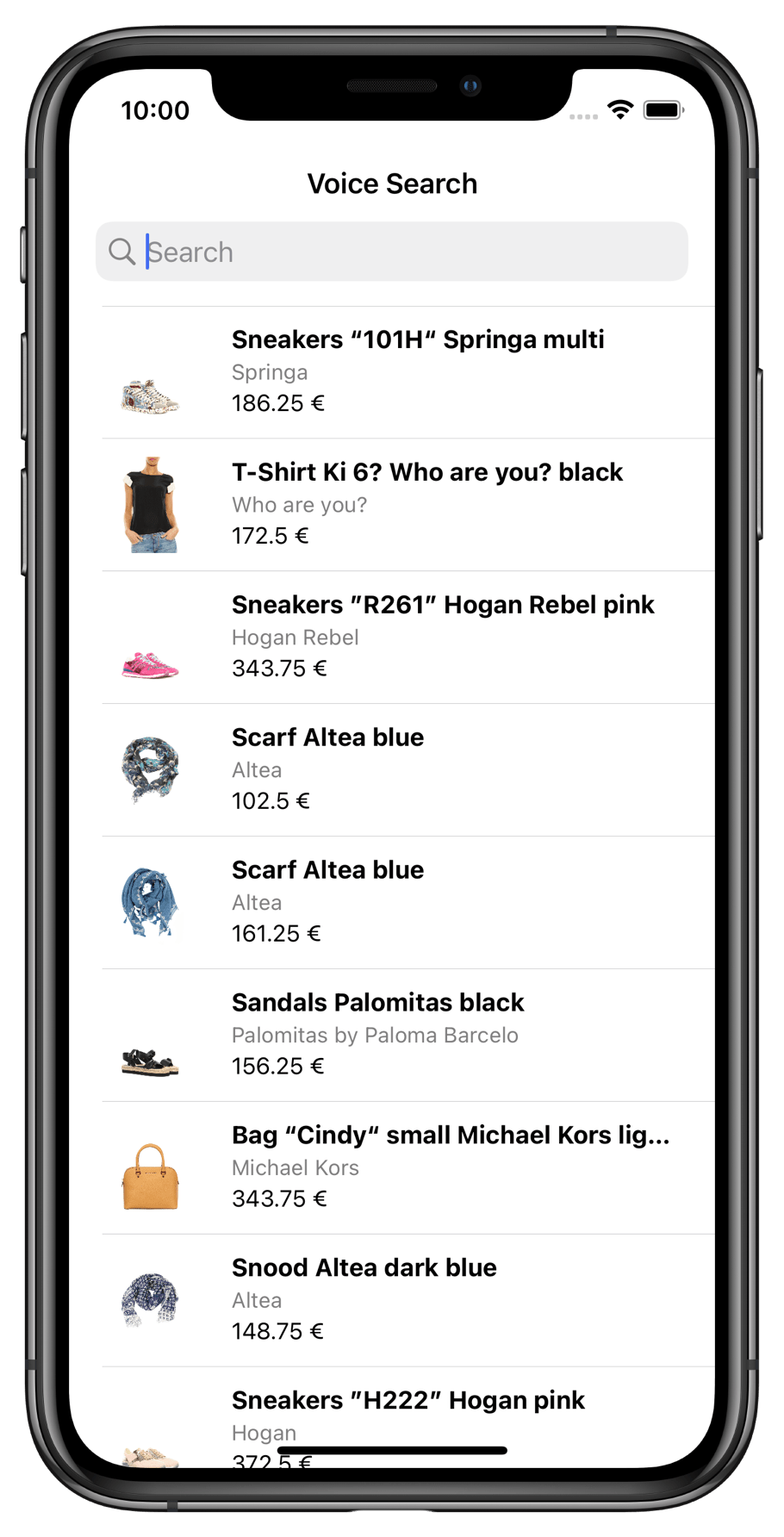
Next, make the searchController active in the viewDidAppear method to make the search appear on each appearance of the main view.
Swift
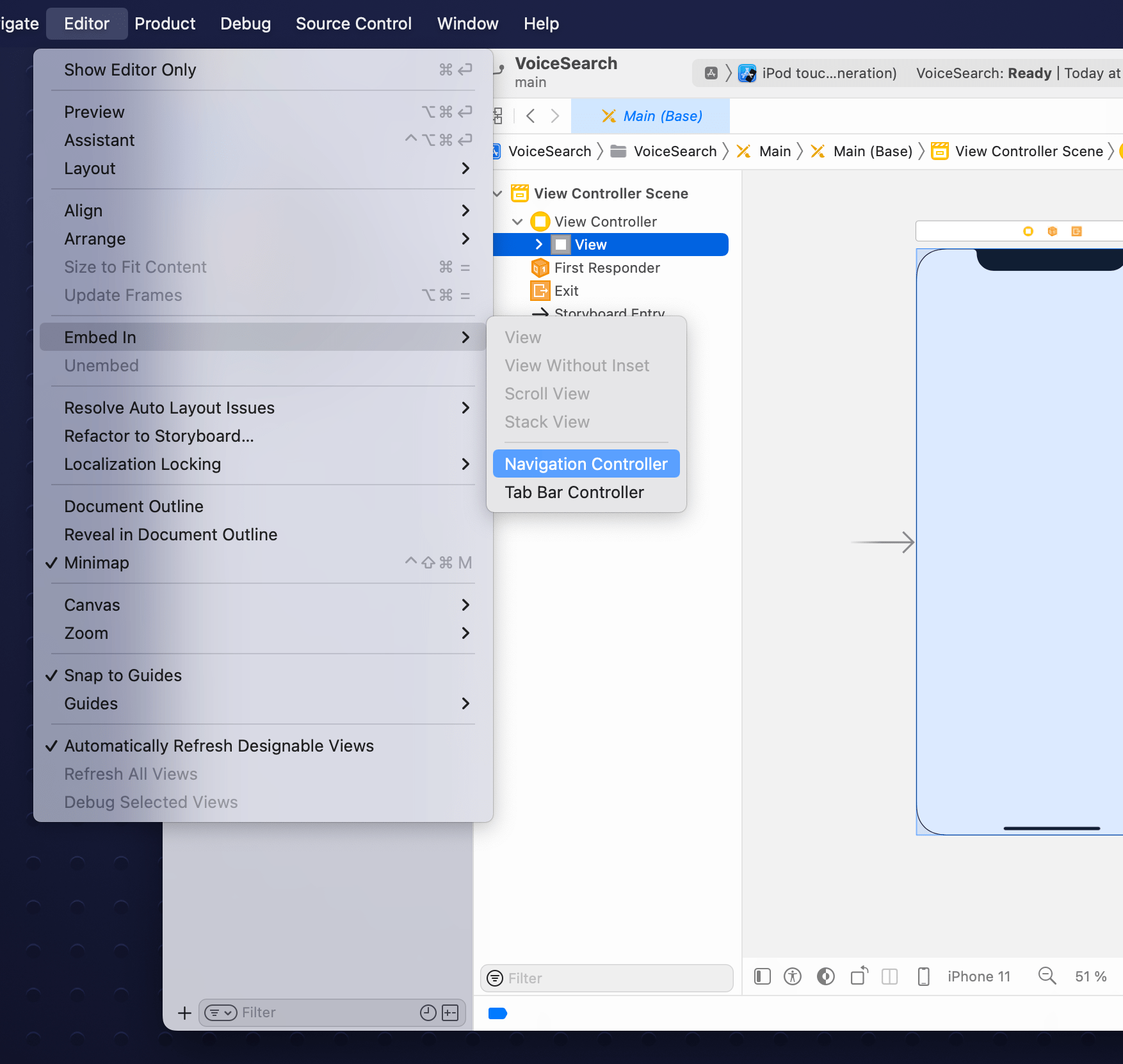
Main storyboard file.
Select the view in the View Controller Scene.
In the Xcode menu select Editor > Embed In > Navigation Controller.
Create a voice search experience
To integrate voice search:1
Setup audio permissions
By default, the 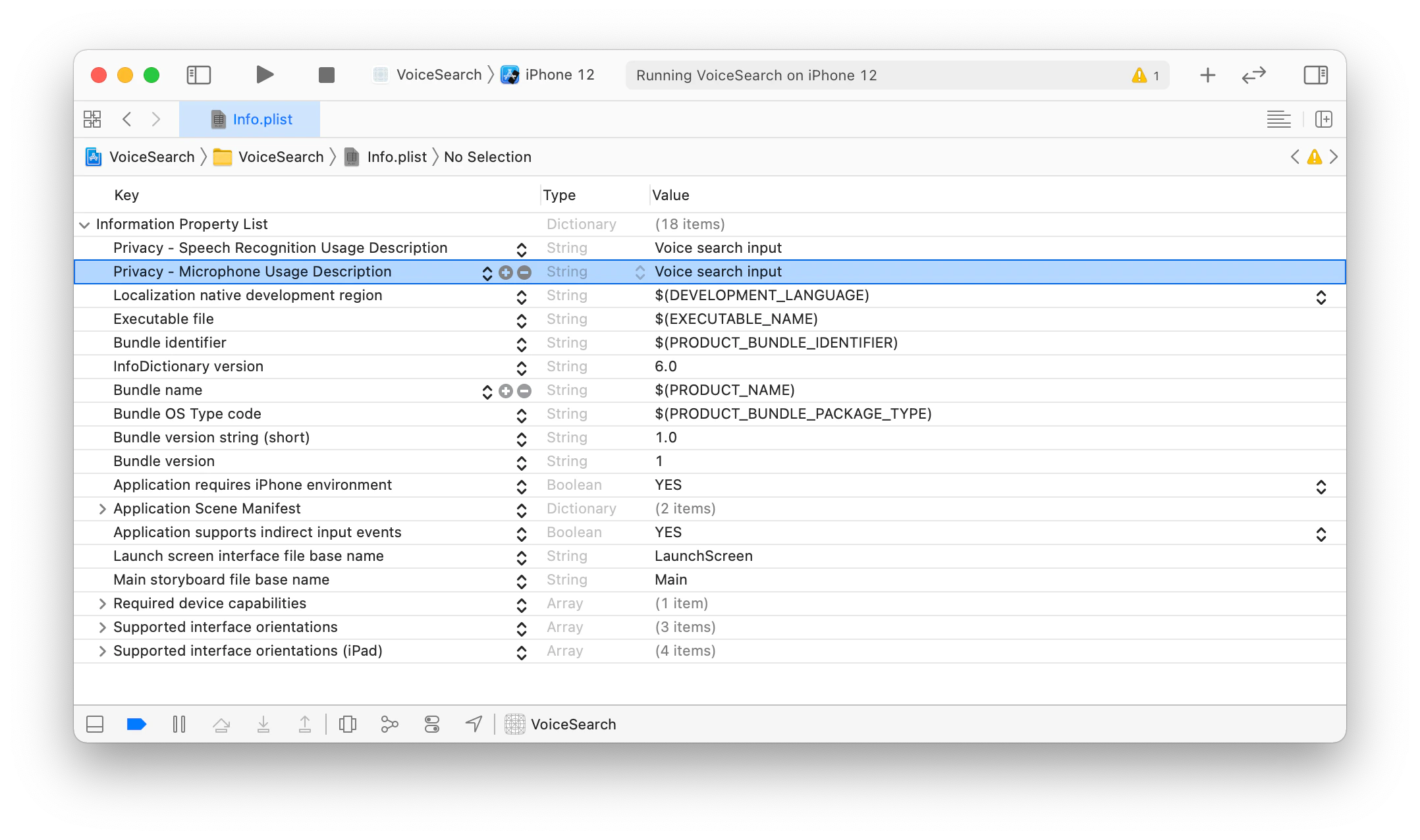
VoiceOverlay library uses the AVFoundation framework for voice capturing and the Speech framework for speech to text transformation.
Both libraries come with the iOS SDK.
These frameworks require the microphone and speech recognition permissions, respectively, from the operating system.
The VoiceOverlay library takes care of the permission request logic and appearance,
all you have to do is to provide the reason you need these permissions in the info.plist file .Open the info.plist file of your VoiceSearch target in the Xcode editor,
and add the following keys:Privacy - Microphone Usage DescriptionPrivacy - Speech Recognition Usage Descriptionwith values :Voice input.
info.plist should look as follows:2
Add voice input logic
Add Declare Add a private method which handles the presentation of errors.Implement the Customize the search box bookmark button in the
import InstantSearchVoiceOverlay at the top of your ViewController.swift file.Swift
VoiceOverlayController in the ViewController:Swift
Swift
searchBarBookmarkButtonClicked function of the UISearchBarDelegate protocol in the extension of the view controller.
This function binds the voice input callback to SearchBoxInteractor, encapsulated by the SearchConnector in your class declaration.Swift
setup method.
Set the view controller as a delegate of the search box.Swift
ViewController should look as follows:
Swift
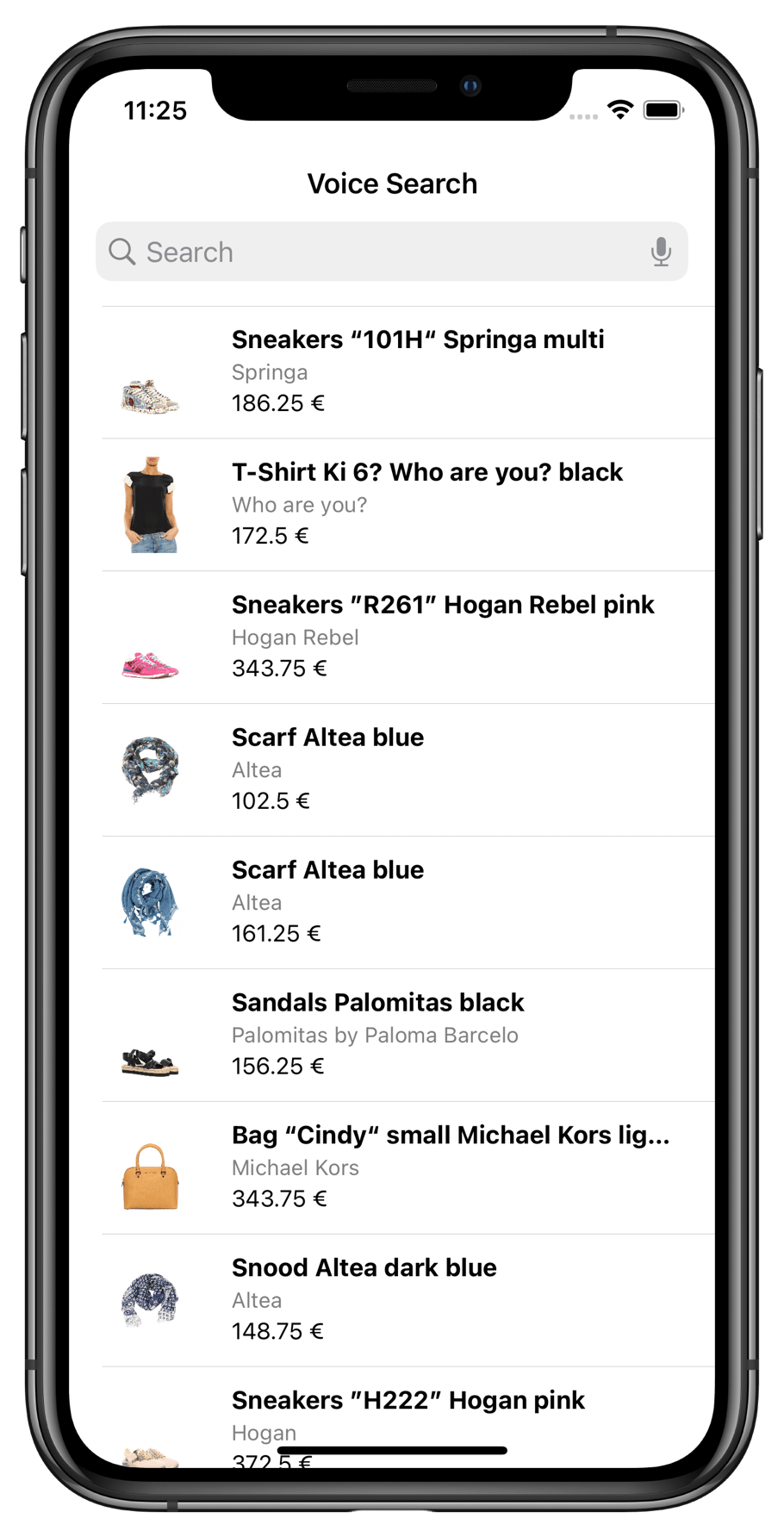
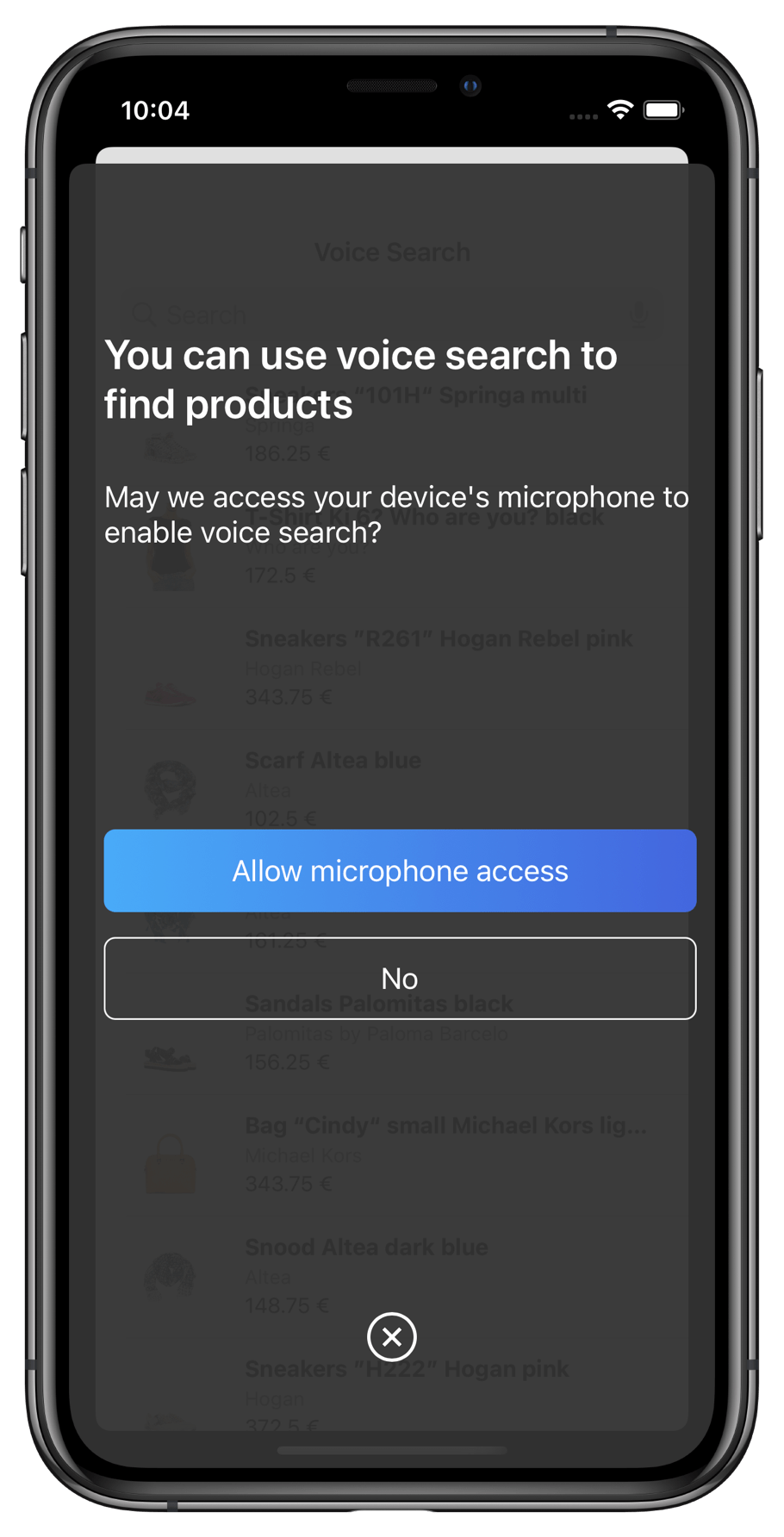
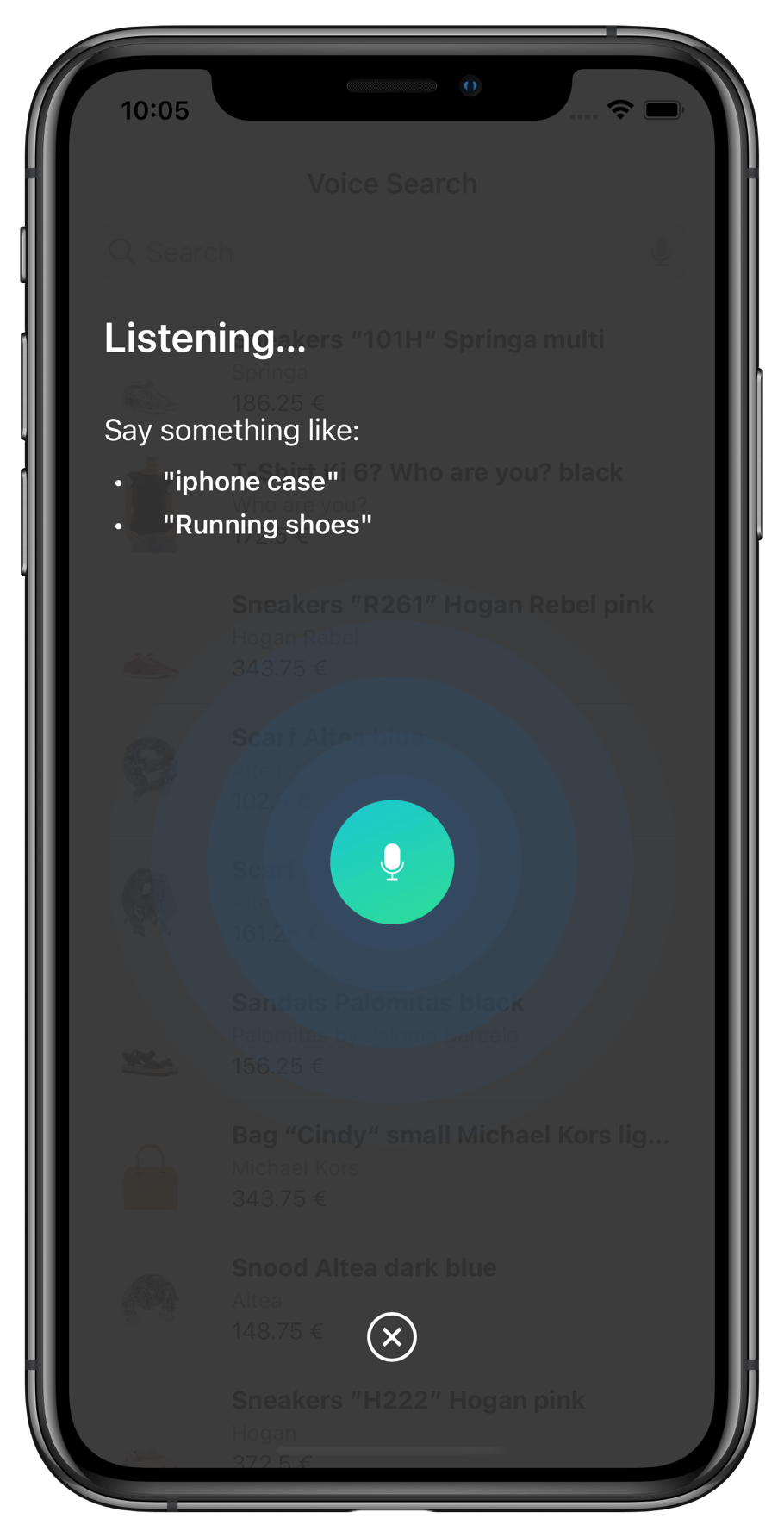
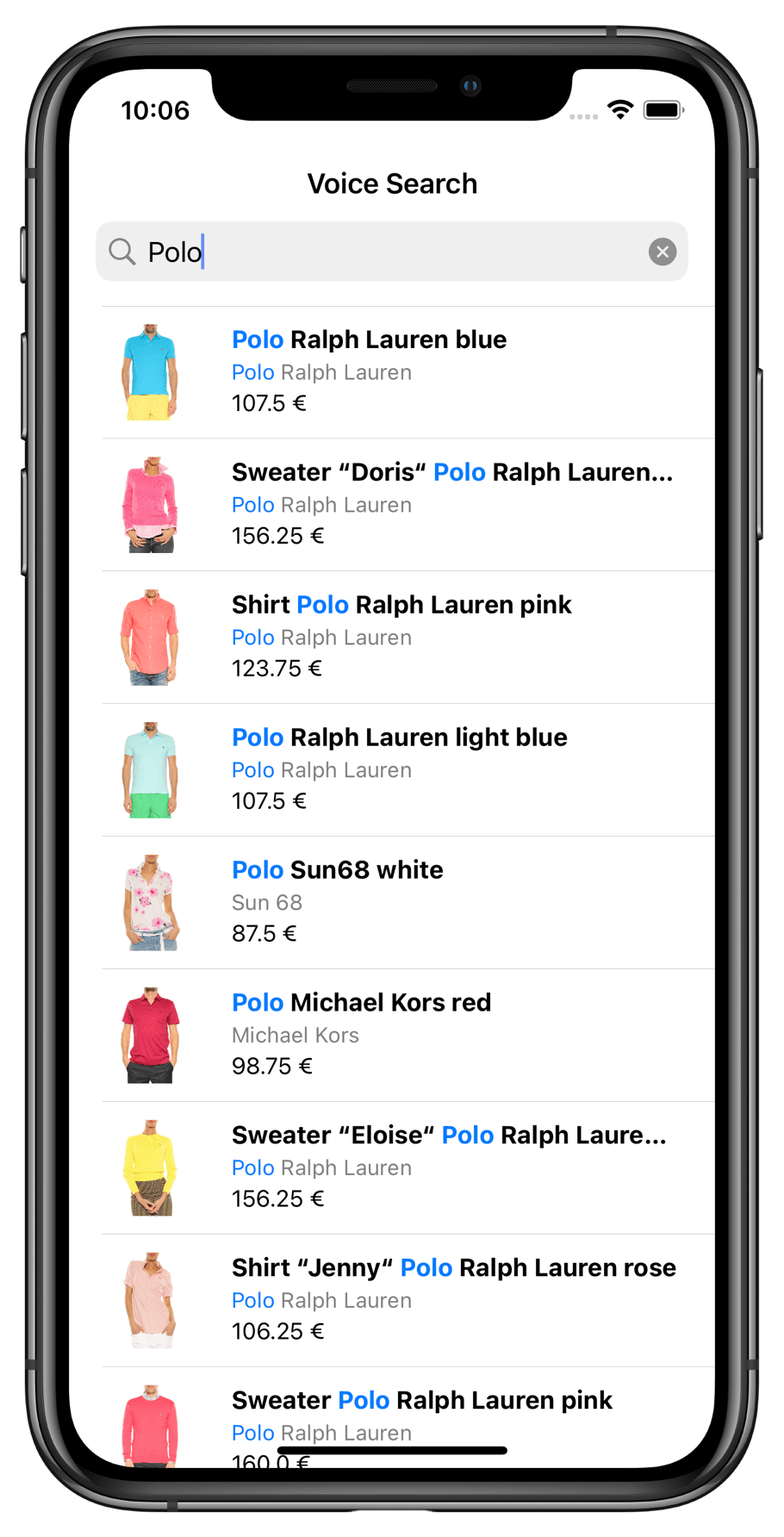
VoiceOverlay should appear when you tap the voice input button.
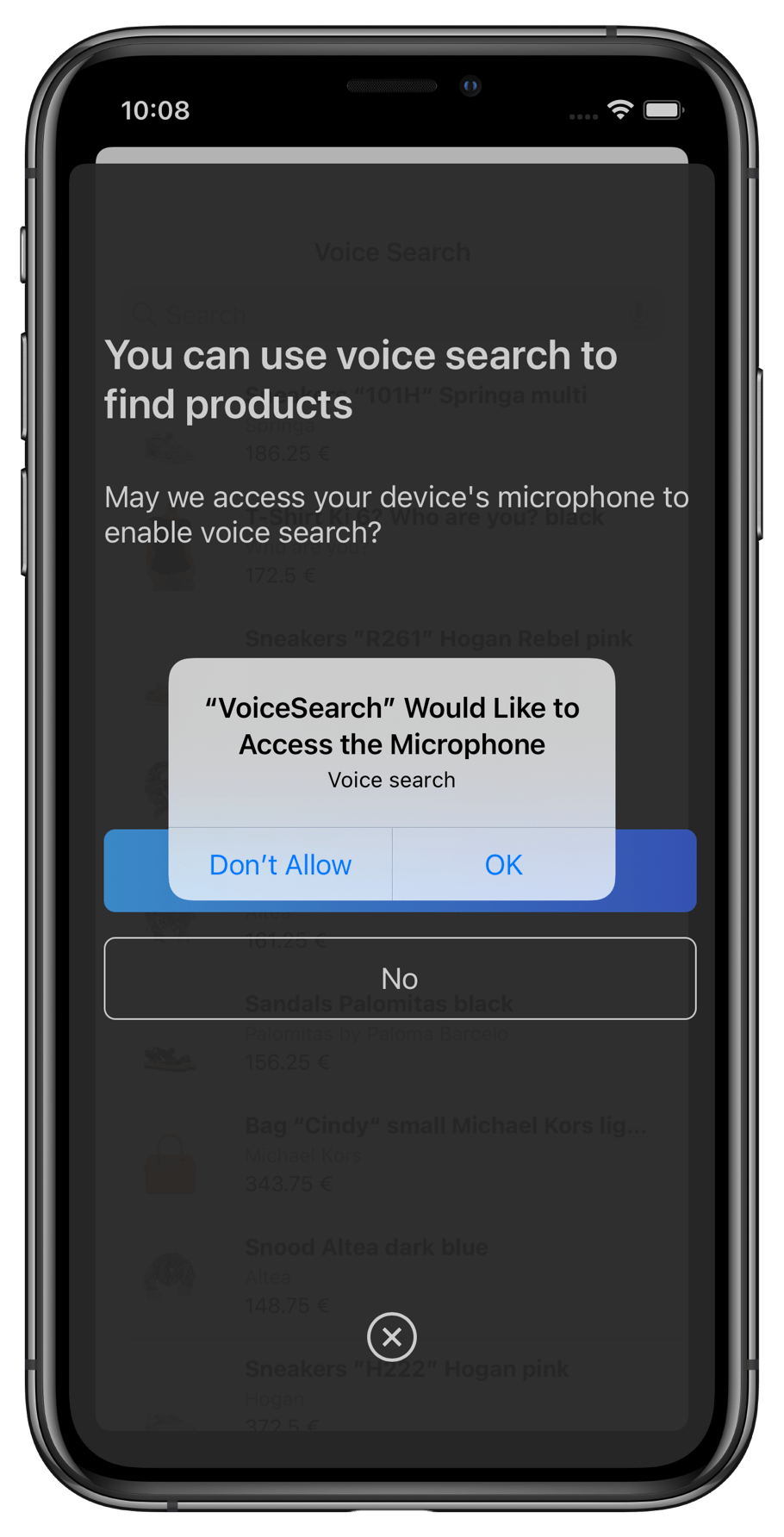
At the first launch,
it asks for permission.
Conclusion
With a few components and Algolia’s libraries, you can build a voice search experience for your iOS app. You can customize your search experience and make it unique by modifyingInstantSearch components, as well as the VoiceOverlay components.