

This is a beta feature according to Algolia’s Terms of Service (“Beta Services”).
Before you begin
To use variant image galleries:- Make sure the Algolia AI Search & Discovery app indexes your store’s products.
- Use the Algolia app blocks in your theme, with the InstantSearch block on your search results page. Galleries don’t support legacy theme integrations.
- Show one card per product in search results. With variant indexing, turn on Display one result per product in the app’s Search options. With product-level indexing, you don’t need an extra setting.
Assign images to variants
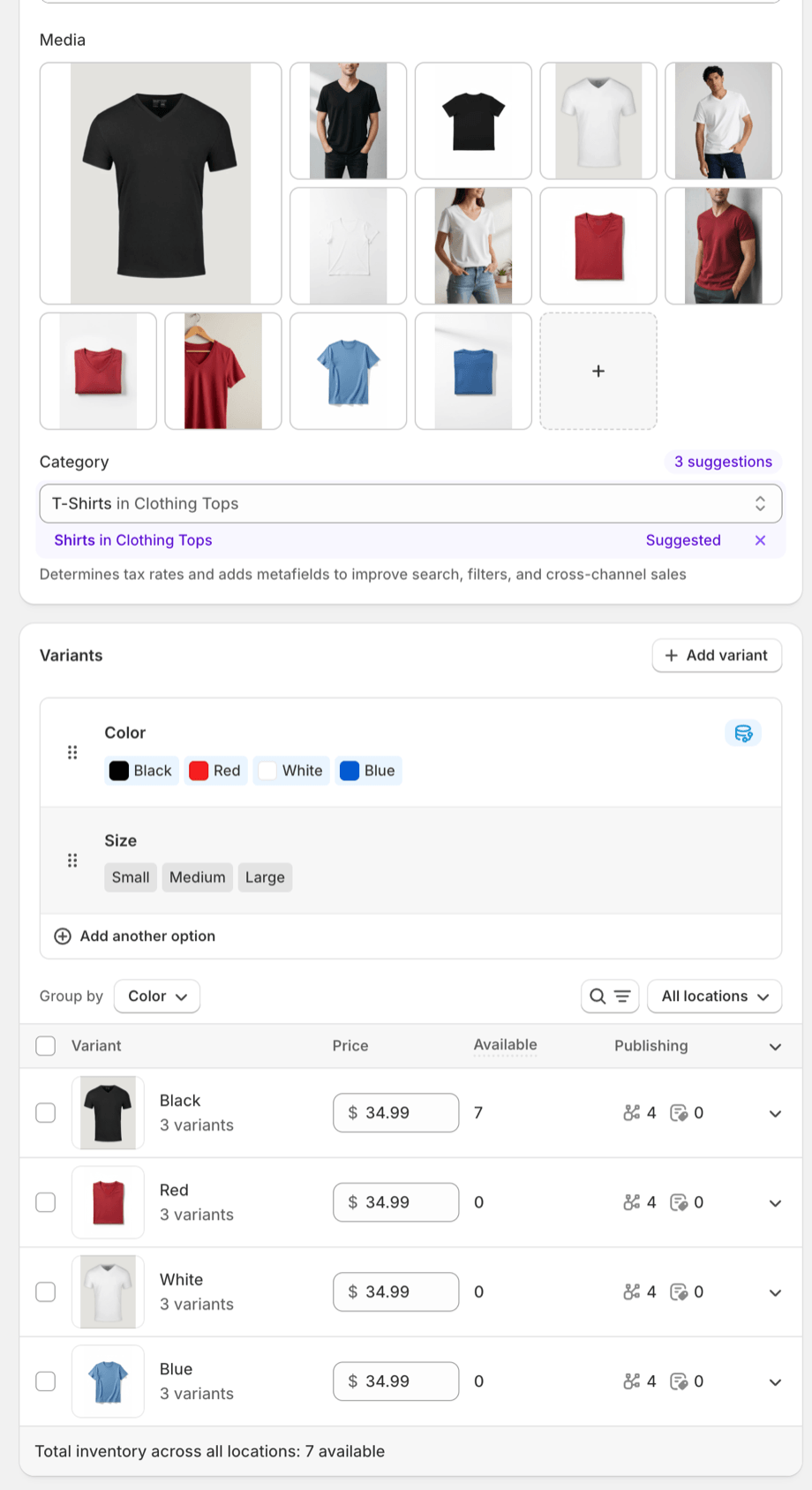
Shopify supports one assigned image per variant and recommends arranging related images together in the product media gallery. The Algolia AI Search & Discovery app uses the assigned images and their order to build each variant’s gallery:- A variant’s group starts with its assigned image and ends immediately before the next image assigned to another variant.
- Images before the first assigned image belong to every variant. They appear after each variant’s own images.
- Variants without an assigned image show the whole product gallery.
- Reordering the gallery changes the groups, and a shared image placed between two groups belongs to the group before it.
[lifestyle, red-front, red-back, blue-front, blue-back],
where the Red variant uses red-front and the Blue variant uses blue-front,
shows [red-front, red-back, lifestyle] for Red and [blue-front, blue-back, lifestyle] for Blue.
To show swatches, set up Shopify swatches for the values of the product option you want users to change.
Cards show swatches for the first product option that has them.
Group the product images by the values of that option.
Turn on variant image galleries
1
Open the InstantSearch settings
In your Shopify admin, open the Algolia AI Search & Discovery app,
go to the Search options tab,
and in the InstantSearch section, click Customize.
2
Turn on the setting
In the Variant imaging section, select Show variant image galleries.
3
Grant storefront access
In the Enable variant imaging? dialog, click Continue.
Shopify asks you to grant the app permission to read your published product listings.
The app needs this permission to fetch product images for your search results.After you grant access, the app creates a storefront access token in the background.
Galleries appear on your search results page after the token is ready.
What users see
The interaction depends on the number of images the selected variant has:
Swatches appear under the product image.
Selecting a swatch updates the card image, the gallery, and the product link to that variant.
Swatches mark sold-out options.
The product link opens the first in-stock variant with the selected value, such as an available size in that color.
If none is in stock, it opens the first variant with that value, never one from another option value.
If a product’s swatches don’t fit in one row, users can open a panel to view all swatches.
Phones and tablets
Swatches and arrows work on phones and tablets. The second-image preview isn’t available on these devices.Variant indexing
Each card represents the variant Algolia ranked highest for the product. The card renders with that variant’s swatch selected and its gallery active.Product-level indexing
By default, each card shows the product’s first image without a selected swatch. The gallery becomes active when a user selects a swatch or when a search query or filter matches a value of the option used for swatches.Turn off variant image galleries
In the Variant imaging section, clear Show variant image galleries. Cards return to a single image. The app keeps the storefront access permission and token, so you can turn galleries back on without granting access again.Limitations
- Galleries appear on the InstantSearch results page only. Autocomplete and Recommend don’t show them.
- Products with more than 250 images or more than 250 variants show a single image.
- The app can only fetch products published to your Online Store channel. Unpublished products show a single image.
- Images load from Shopify when the results render. On slow connections, swatches and arrows can appear a moment after the cards.