

This is a beta feature according to Algolia’s Terms of Service (“Beta Services”).
Before you begin
To use AI Mode:- Use the Algolia app blocks in your theme, with the Autocomplete block turned on.
- Turn on Agent Studio for your Algolia application. The Algolia API key you use in the app must have the settings permission Agent Studio requires.
- Create and publish an agent with the Algolia Search tool configured to search your store’s products index (
<prefix>products). - Add your storefront domains to the agent’s approved domains.
Include your
myshopify.comdomain for theme editor previews and every domain shoppers use. The app requires your primary domain and warns when yourmyshopify.comdomain is missing. It doesn’t check other domains. - Set a rate limit for the agent. Without one, anyone can send the agent unlimited questions and use your LLM credits, so the app doesn’t let you turn on AI Mode until the agent has one.
- If your store uses language or market URL prefixes, such as
/fror/en-jp, turn on Use default dynamic selector in the Autocomplete settings. Autocomplete and AI Mode need this setting to load on those pages.
Turn on AI Mode
1
Open the AI Mode settings
In your Shopify admin, open the Algolia AI Search & Discovery app,
go to the Search options tab,
and find the AI Mode card in the Search basics section.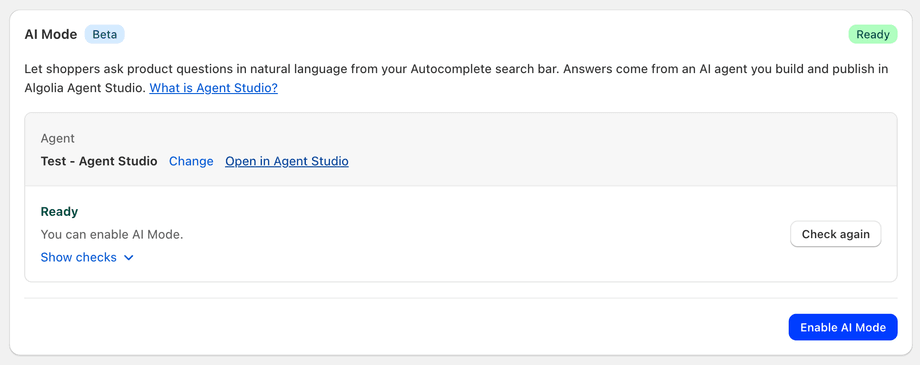
2
Connect an agent
Under Connect an agent, select an agent and click Connect and check.
The app checks that the agent meets the requirements and shows its product filter under Store filters configured.The app lists required fixes and recommended changes.
Required fixes block activation and appear with an 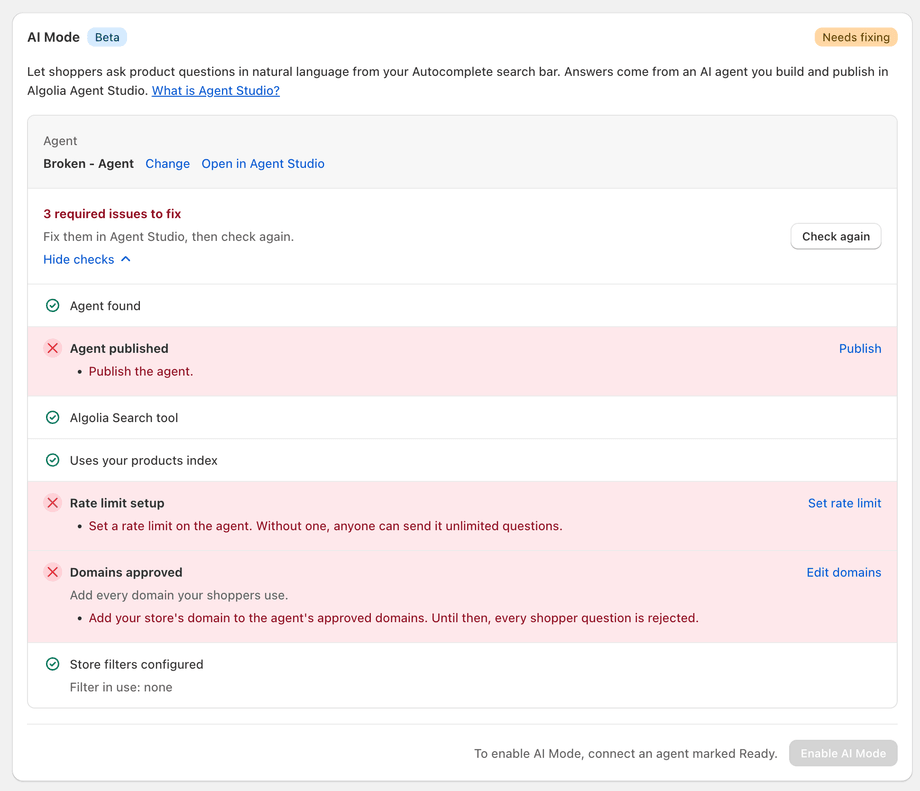
× icon.
Use each row’s link to update the agent in Agent Studio, then click Check again.3
Turn on the setting
When the card shows Ready, click Enable AI Mode,
then confirm in the Enable AI Mode? dialog.
AI Mode appears on your storefront right away.
What shoppers see
Selecting AI Mode in the Autocomplete panel opens the chat. If the shopper has already entered a search query, the chat submits it as the first question. The chat opens at the bottom right of the page. On screens 680 pixels wide or less, it opens full screen. Pressing Escape or selecting Close returns focus to the search field.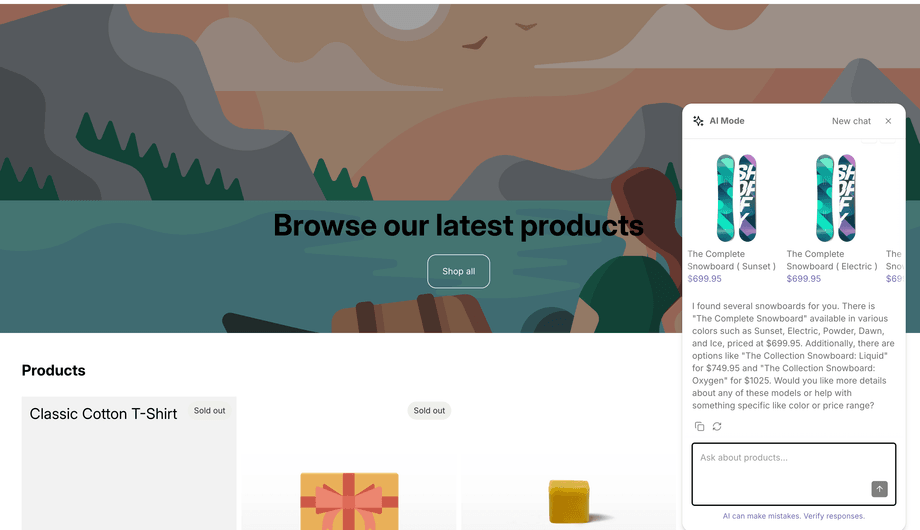
Product cards
Products appear in a carousel below the answer. Each card shows an image, title, and price. Selecting a card opens the product. If the answer is still loading, selecting a card stops it. To customize the cards, use thebeforeAiModeProductTemplate hook.
Conversations
The conversation follows the shopper from page to page in the same browser tab. The chat stays closed until the shopper opens it again. A new tab, or selecting New chat, starts a new conversation. If an answer hasn’t started after 10 seconds, the chat shows “Still working…”. After 30 seconds, it stops waiting and shows an error with a Retry button.Language
AI Mode sends the storefront language with each question. To get answers in the shopper’s language, tell the agent in its prompt to reply in the language of the conversation. Answer quality depends on the agent’s prompt and model.Filter products
AI Mode shows products from your store’s products index. Two things decide which products:- Your agent’s filter, set on the products index in the agent’s Algolia Search tool.
- Your store’s out-of-stock setting:
AI Mode combines them with
AND.
For example, the agent filter vendor:"Burton" with Hide all out of stock items in search results gives vendor:"Burton" AND inventory_quantity > 0.
If your store shows out-of-stock items, AI Mode doesn’t add a stock filter, and the agent’s filter applies on its own.
AI Mode sends a copy of the agent’s filter because a filter in the request replaces the agent’s own.
Set the agent’s filter
SetsearchParameters.filters on your products index in the tool’s JSON, with Other tools in Agent Studio or the Agent Studio API.
For an example, see Configure the Search tool.
The tool form in the dashboard doesn’t have a filter field.
After you change the filter, open the AI Mode card.
Filter in use shows the filter AI Mode uses.
AI Mode keeps the previous filter until you open the card.
Don’t put filters in Custom
A filter in Custom (searchControls.custom) overrides every other filter.
AI Mode then can’t apply your out-of-stock setting or the beforeAiModeFiltersString hook, and the AI Mode card shows a warning.
Move the filter to searchParameters.filters, or add the stock condition to the Custom filter yourself,
for example vendor:"Burton" AND inventory_quantity > 0.
Filter syntax
AI Mode adds AND <stock filter> to the end of the agent’s filter, without parentheses.
Algolia reads vendor:"Burton" OR vendor:"Nike" AND inventory_quantity > 0 as (vendor:"Burton" OR vendor:"Nike") AND inventory_quantity > 0.
The agent’s filter must follow Algolia’s rules for parentheses:
OR groups inside AND work, but AND groups inside OR return an error.
Show one result per product
If your store shows products instead of variants, AI Mode sendsdistinct: true so each product appears once.
This overrides the agent’s distinct setting.
Customize the stock filter
Use thebeforeAiModeFiltersString hook to change the stock filter.
The beforeAutocompleteFiltersString hook doesn’t apply to AI Mode.
The hook receives the stock filter, which can be an empty string.
AI Mode combines the returned string with the agent’s filter using AND.
Returning an empty string removes the stock filter but preserves the agent’s filter.
The hook must return a string.
If it returns nothing, AI Mode also removes the stock filter.
The returned filter must follow the same syntax rules.
Translate labels
AI Mode uses the following keys in thealgolia_search.translations shop metafield.
Missing or empty keys use their English defaults.
To change the English labels, use the
beforeAutocompleteAiModeTemplate hook for the button and the beforeAiModeOptions hook for the chat.
Shopify Translate and Adapt stores a separate copy of the metafield JSON for each language.
Add any missing keys to each language’s copy of the metafield.
Translate each language directly, and use a market adaptation only when needed.
For instructions, see Widget text translations.
You can also change the chat’s labels with the beforeAiModeOptions hook.
Text set by the hook overrides translations.
The hook doesn’t change the AI Mode button or the loading messages.
To change the button, use the beforeAutocompleteAiModeTemplate hook.
To hide a label, such as the disclaimer, use CSS.
Analytics
When you turn on click and conversion events, AI Mode sends click and view events for product cards. The web pixel tracks purchases of clicked products as conversions.Turn off AI Mode
In the AI Mode card, click Disable AI Mode. The button disappears from your storefront. The app keeps the connected agent, so you can turn AI Mode back on without selecting it again.Troubleshooting
Use these checks to resolve common AI Mode issues.The AI Mode button doesn’t appear
Check that you turned on AI Mode and that Autocomplete loads on the page. Confirm that your store meets the requirements, including the dynamic selector setting for language or market URL prefixes.Every question returns an error
Open the AI Mode card and resolve any failed checks. In Agent Studio, confirm that:- The agent’s LLM provider key is valid. The AI Mode card doesn’t check this key.
- The Algolia Search tool still includes your store’s products index.
- The agent’s approved domains include the domain where the error occurs.
- The agent hasn’t reached its rate limit.