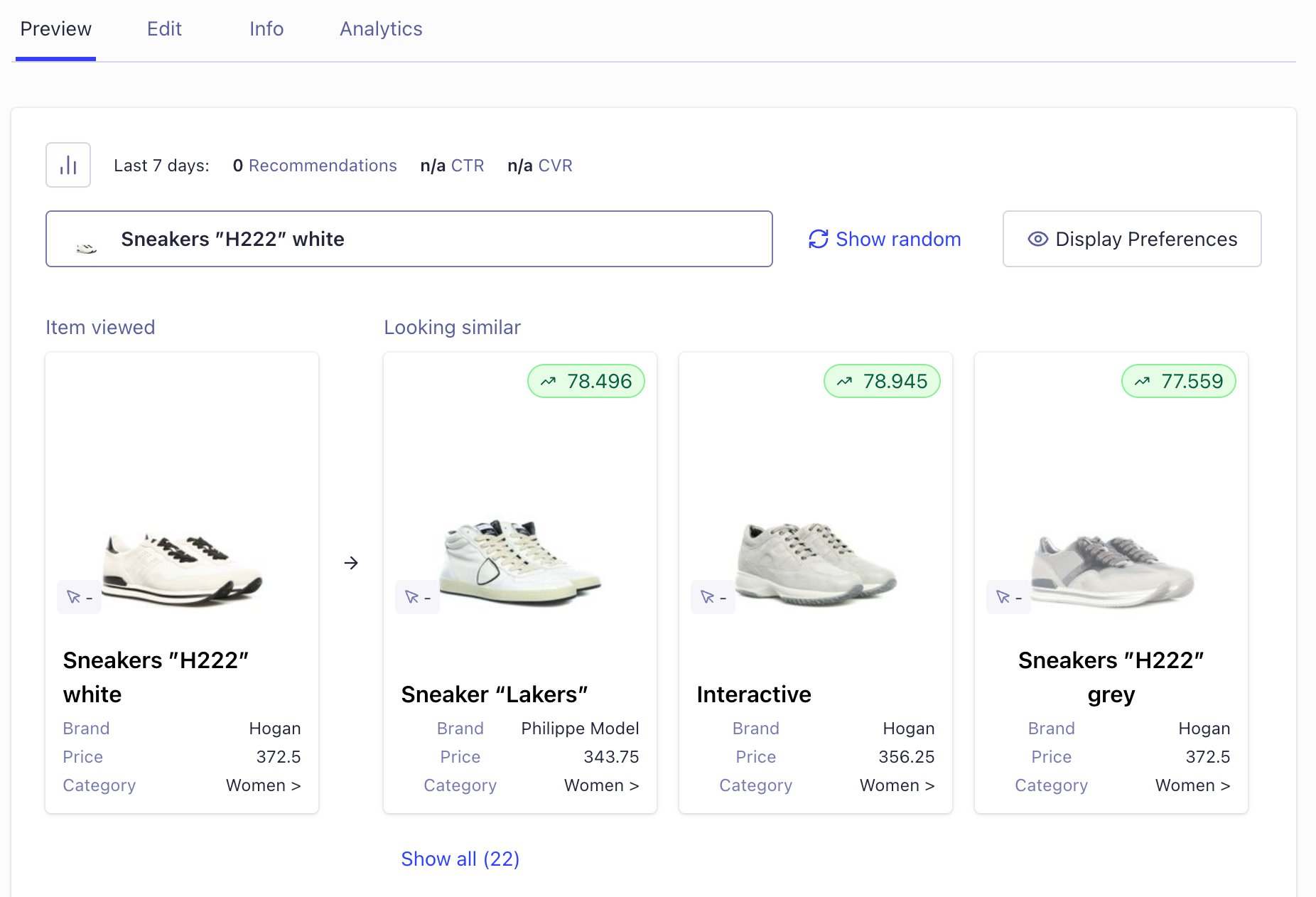
- When your users know what they want Users might want something specific that isn’t available, like an out-of-stock product. You can recommend similar-looking alternatives to help users continue their shopping.
- When users don’t know what they want Use recommendations from the Looking similar model to inspire users to explore your catalog. Navigating through similar-looking products can be a great way to discover new products which they might never search for.
-
When you have other ideas
The Looking similar model is a catalog analysis tool that can generate hundreds of recommendations for each item.
If you combine the recommendations with the Recommend Filtering API,
you can refine them based on attribute, such as
category == "Clothing"orprice >= 10, and enable advanced merchandising.
Limitations
The model has the following limitations:- Maximum 3 attributes with images
- Maximum 500,000 images per training (the model will fetch up to this limit, sorted by relevance based on your custom ranking)
- It can’t use Recommend Rules
Set up the Looking similar model
Start by selecting an application with AI Recommendations enabled.- Go to the Algolia dashboard and select your Algolia application.
- On the left sidebar, select Recommend.
- On the Models page, look for the Looking similar model and select Start using.
-
Select an index with image URLs to use as the data source, and select up to three image attributes.
The recommended items will be sorted by the best score.
The model supports images from single attributes with single values, such as
productImage, from attributes with several values, such asrentalHomeImages, or from several attributes, such asproductImage,userProvidedProductImage. - Start training the model by clicking Start training.
Check the training results
After a few minutes, you can find training metrics in the Info tab of the model overview: the number and percentage of items with recommendations.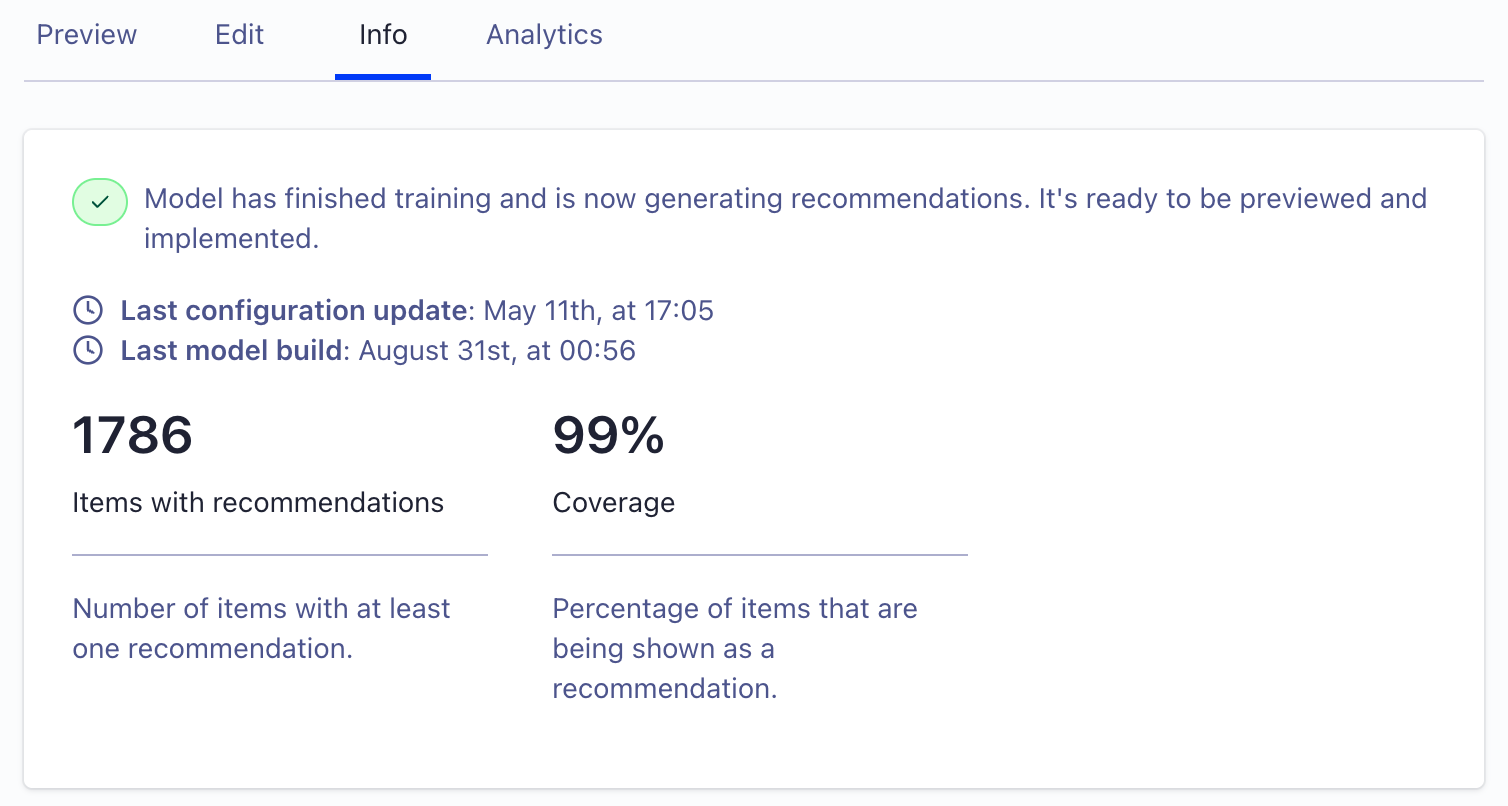
The coverage (percentage of items recommended at least once) should be high as the model generates up to 30 recommendations per item with images.