

- The main search interface will use a regular .
- As users type a phrase, suggestions from your Query Suggestions index are displayed.
MultiHitsViewModel component. Read on for an example of how to display a search box with instant results and query suggestions “as you type”.
Usage
To display the suggestions:- Create a Query Suggestions index from your main index.
- Implement a Multi-Index search experience using both indices.
- When clicking on a suggestion, set the query to the chosen suggestion.
Before you begin
To use InstantSearch iOS, you need an Algolia account. Either create a new account or use the following credentials:- Application ID:
latency - Search API key:
927c3fe76d4b52c5a2912973f35a3077 - Results index name:
STAGING_native_ecom_demo_products - Suggestions index name:
STAGING_native_ecom_demo_products_query_suggestions
Expected behavior
The initial screen shows the search box and results for an empty query: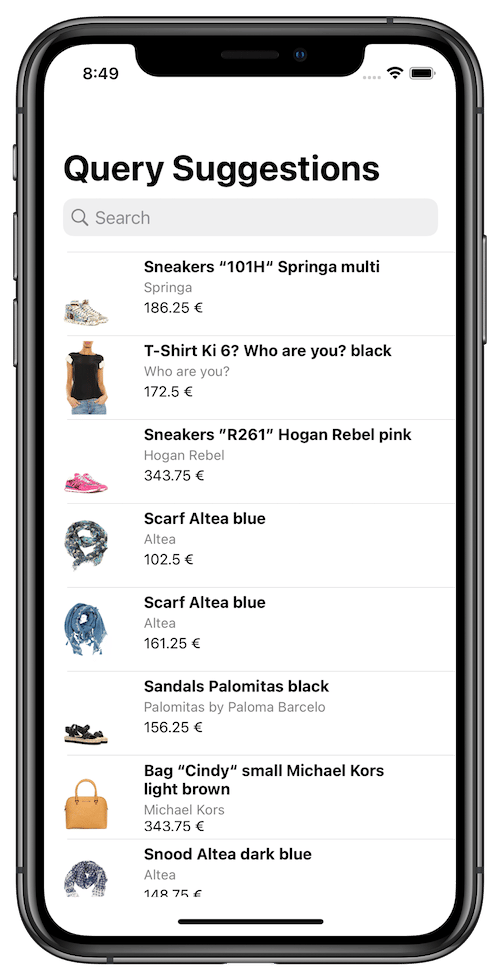
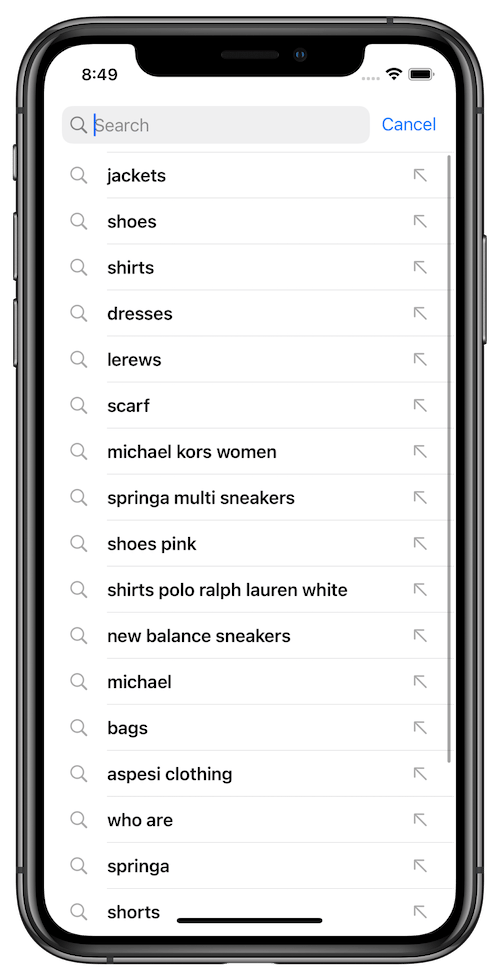
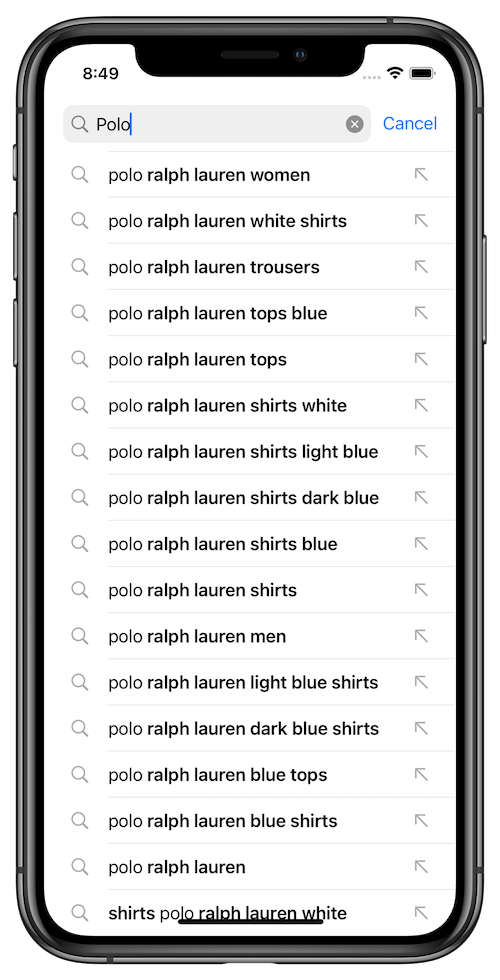
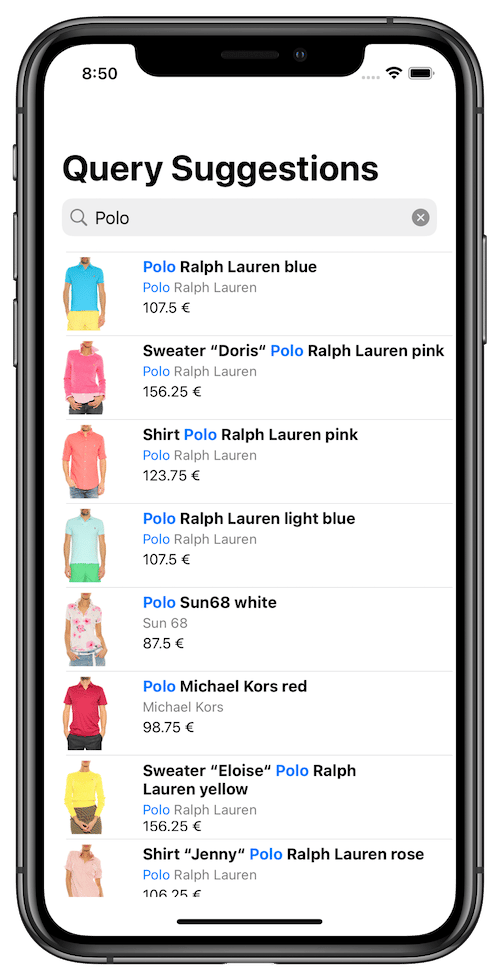
- A basic query suggestions view controller is provided out-of-box with the InstantSearch library.
- The query suggestions view controller is a hits view controller that uses the
QuerySuggestionobject provided by the InstantSearch Core library as a search record.
Project structure
Algolia’s query suggestions uses three view controllers:QuerySuggestionsDemoViewController: main view controller presenting the search experience,SuggestionsTableViewController: child view controller presenting the Query Suggestions,StoreItemsTableViewController: child view controller presenting the search results.
Model object
Start with declaration of theStoreItem model object which represents the items in the index.
Swift
Result views
ProductTableViewCell is a subclass of UITableViewCell for visually displaying store items in the list of results.
This view uses the SDWebImage library for asynchronous image loading.
To use ProductTableViewCell, you need to add the SDWebImage library to your project.
Swift
ProductTableViewCell extension. Its setup method configures a cell with a StoreItem instance:
Swift
Results view controller
Algolia doesn’t provide a ready-to-use results view controller, but you can create one with the tools in the InstantSearch library by copying and pasting the following code to your project.Read more about
Hits in the API reference.StoreItemsTableViewController, a subclass of UITableViewController, which implements the HitsController protocol.
This view controller presents the search results using the previously declared ProductTableViewCell.
Swift
Suggestions
The suggestion model is provided by InstantSearch iOS and calledQuerySuggestion.
Define the SearchSuggestionTableViewCell displaying a search suggestion.
Swift
SearchSuggestionsTableViewCell to setup the cell with a QuerySuggestion instance.
Swift
SuggestionsTableViewController, a subclass of UITableViewController implementing HitsController protocol which displays the list of suggestions.
As a selection of a suggestion or type ahead button click might trigger the textual query change, this view controller also conform to SearchBoxController protocol, so it can be easily connected to SearchBoxInteractor or SearchBoxConnector.
Swift
Building the main view controller
The last step is the declaration of theQuerySuggestionsDemoViewController. It includes the business logic performing the multi-index search in the products and suggestions indices simultaneously.
First, declare, and initialize all the necessary components:
Swift
Business logic
Now add asetup function to create the necessary connections between the components and set them up, establishing the business logic of your view controller.
It must be called after the initialization of these components.
Swift
Setup layout
Finally, add sub-views to the view controller, and specify the Auto Layout constraints so that the display looks good on any device. Add theconfigureUI() function to your file and call it from viewDidLoad:
Swift
Presentation
Your query suggestions search experience is now ready to use. Initialize yourQuerySuggestionsDemoViewController and push it in your navigation controller hierarchy.
Swift