

Autocomplete, InstantSearch, and Recommend in the Algolia app blocks now support version 5 of the Algolia API client.
Most stores only need to switch the search client version setting to Version 5.
If you use custom storefront JavaScript, follow the version 5 upgrade guide.
Support for version 4 ends on August 14, 2026.
The file
assets/algolia_config.js.liquid is still available in your theme,
but the Algolia AI Search & Discovery app can’t update the theme code.Where to find the Algolia configuration settings
The Algolia AI Search & Discovery app creates metafields in the Shop object. The easiest way to inspect the metafields is through the Shopify admin:- In your Shopify admin, go to Home.
- In the address bar of your browser, add
/metafields.jsonto the end of your store’s URL.
algolia_search.
Metafields are grouped under these keys:
translations: translations for labels and placeholder textfacets: InstantSearch facets for filterssort_orders: InstantSearch sort ordersalgolia_config: Algolia configuration settingscollections_facets_<COLLECTION_ID>: customized collection facets, one for each customized collectioncollections_sort_orders_<COLLECTION_ID>: customized collection sort orders, one for each customized collection
Collection facets and sort orders are only created when you customize collections.
JSON
asc or desc) in a sort order supports a replica_type property:
"standard"(default). Creates a standard replica."virtual". Creates a virtual replica.
replica_type is missing, Algolia treats it as "standard".
Update metafields
Metafields are automatically updated when you change your Algolia configuration. To manually update metafields, use the Shopify API. You can’t update metafields in the Shopify admin. For more information, see:Migrate your Algolia configuration to metafields
-
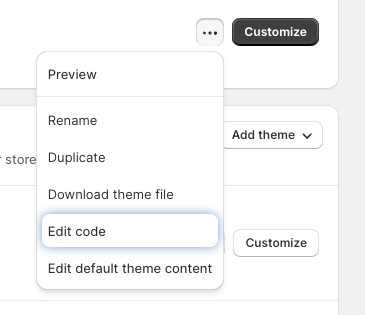
In your Shopify admin, go to Online store > Themes, select the theme you want to update, and click Edit code.
-
Open the Layouts folder and open the
theme.liquidfile. Locate the line for includingalgolia_config.js.Liquid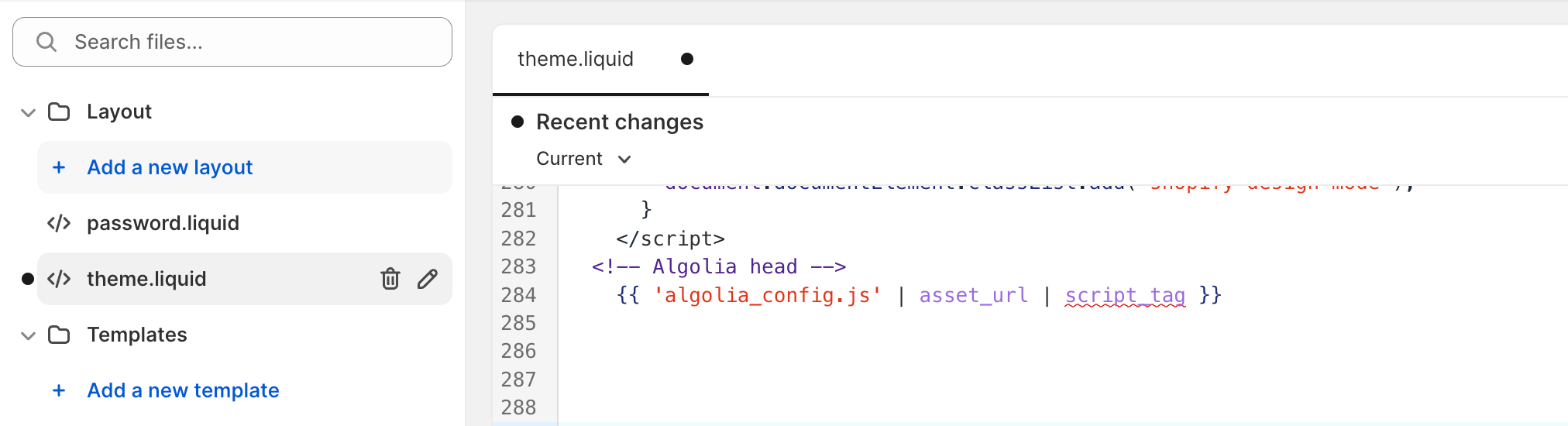
-
Replace this line with:
Liquid
-
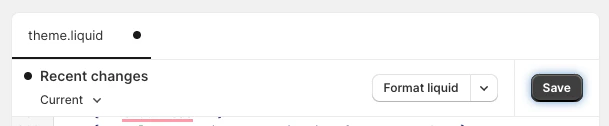
Save your updates.
- Open the Snippet folder and select Add a new snippet.
-
Enter the filename for the new snippet:
algolia_config. -
Paste the following code into the new snippet.
Liquid
- Save your changes.
Manually synchronize your Algolia configuration
Configuration updates are automatically synchronized when you save your changes in the Algolia dashboard. However, you can also manually synchronize your configuration changes. The ‘Sync Metafields’ button only synchronizes Algolia configurations and the search page’s facets and sort orders.- In Shopify admin, go to Apps and click Algolia AI Search & Discovery.
- Click Search options.
- Scroll down to the bottom of the page.
- Click Sync Metafields.
Manually sync collection sort orders and facets
Collection sort orders and facets are automatically synchronizes when you save your collection changes. However, you can also manually synchronize collection sort orders and facets.- In Shopify admin, go to Apps and click Algolia AI Search & Discovery.
- Select Collection pages.
- At the page bottom, click Sync Collection Sort Orders and Facets.