

Autocomplete, InstantSearch, and Recommend in the Algolia app blocks now support version 5 of the Algolia API client.
Most stores only need to switch the search client version setting to Version 5.
If you use custom storefront JavaScript, follow the version 5 upgrade guide.
Support for version 4 ends on August 14, 2026.
Before you begin: update Shopify theme assets
To support Shopify Markets indexing, update your Algolia theme assets to the latest version.- In your Shopify admin, go to the Algolia AI Search & Discovery app.
-
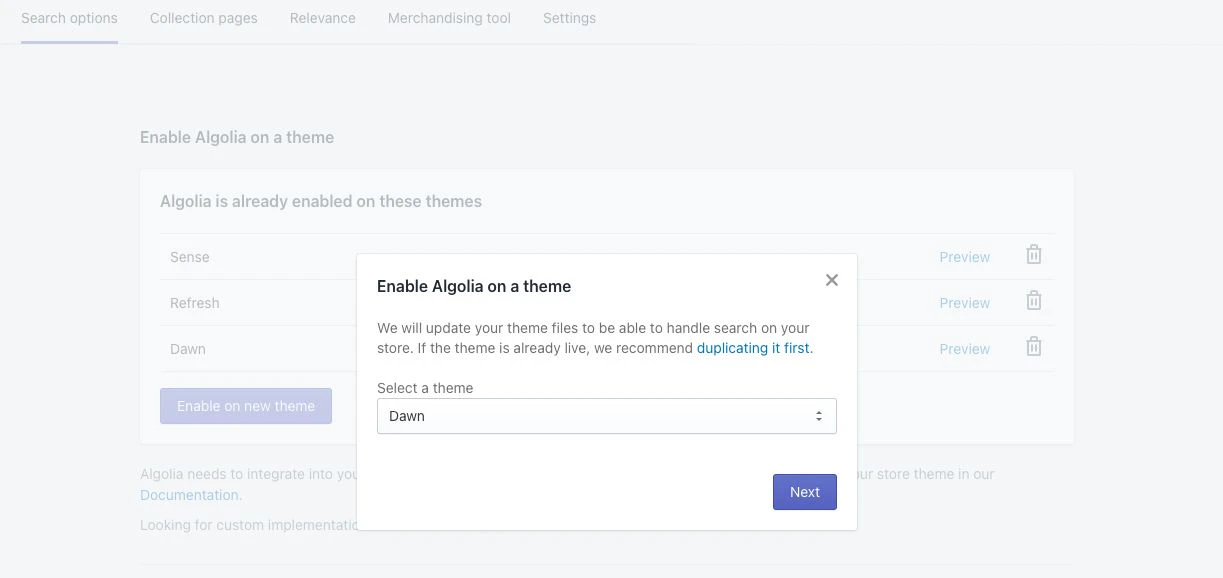
On the Search options tab, click Enable on new theme and either install the theme assets to your existing theme,
or install a new theme.
Enable markets indexing
- In the Algolia AI Search & Discovery app, go to the Indexing tab.
-
Select Enable Markets Indexing.
 Some active markets may disappear from the Shopify Markets settings if no language is explicitly selected— languages are no longer inherited from your store settings.If you save your configuration while these markets are hidden, Algolia stops indexing them, interpreting them as removed.To prevent data loss:
- In the Shopify admin, explicitly select at least one language for each market you want to index.
- Ensure the market is visible in the Markets indexing settings of the Algolia Shopify app.
-
For each market and language combination you want to index,
check the option in the Sync to Algolia column.
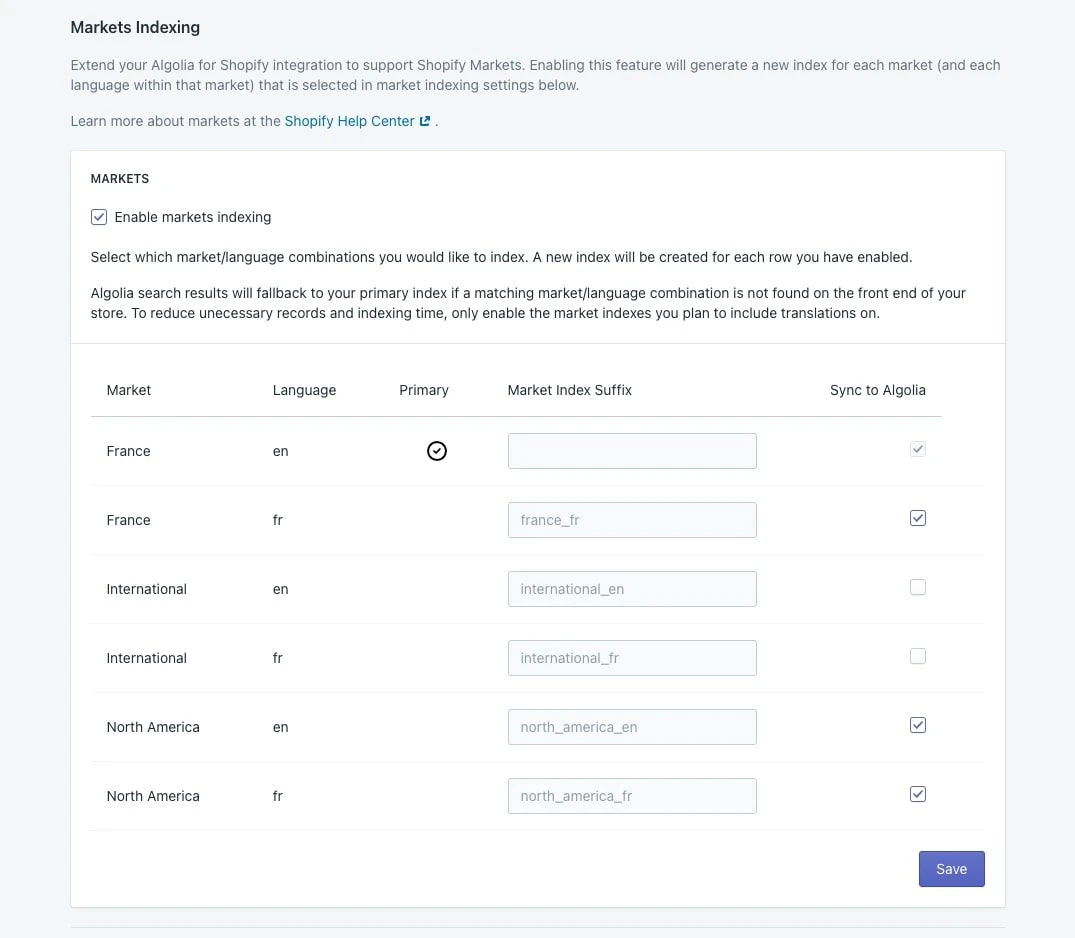
- Click Save.
Reindexing
First, Algolia prepares for real-time indexing in the background. This might take up to one minute. Next, Algolia reindexes your products and collections with new indices, replicas, and extra metafields for each record, such as, multiple currencies.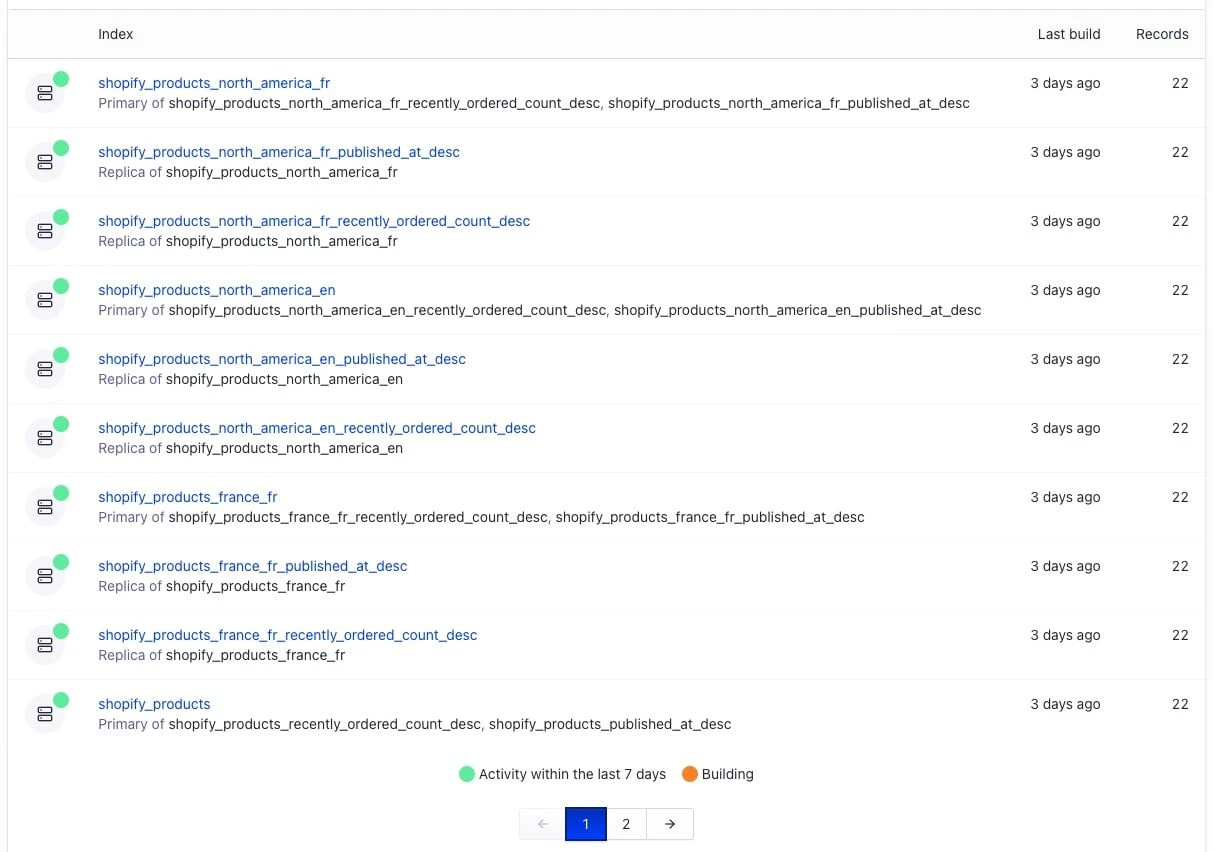
Configure your Shopify storefront
Update your search experience to support translation.Autocomplete dynamic selector helper
- In the Search options tab, go to the Search basics section.
- In the Autocomplete section, click Customize.
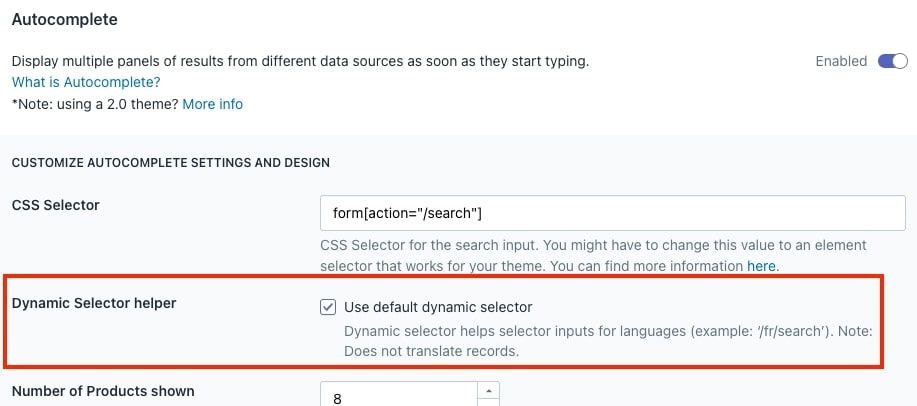
- Select Use default dynamic selector. This helps the Algolia autocomplete menu to connect to the correct search form URL when users change to a different language or market in your store.
Widget text translations
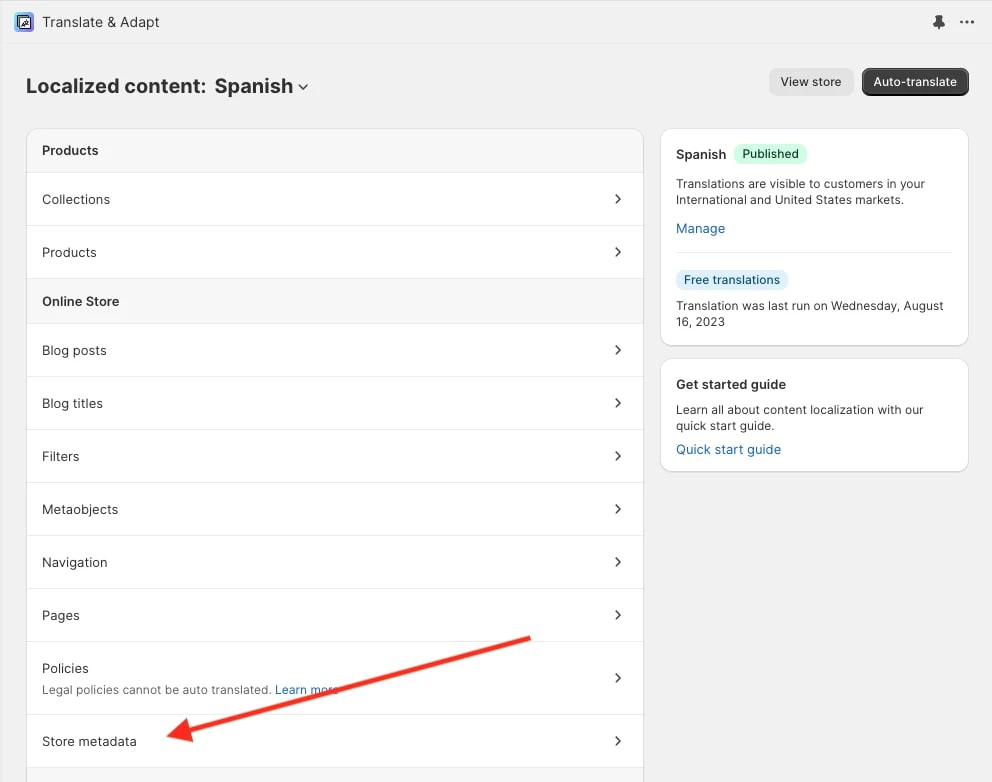
You can translate text from your Shopify templates with Shopify’s Translate and Adapt app. The translatable text from Algolia includes labels, placeholders, and helper text. To edit the translations:- Open the Translate and Adapt app.
-
Select Store metadata.
-
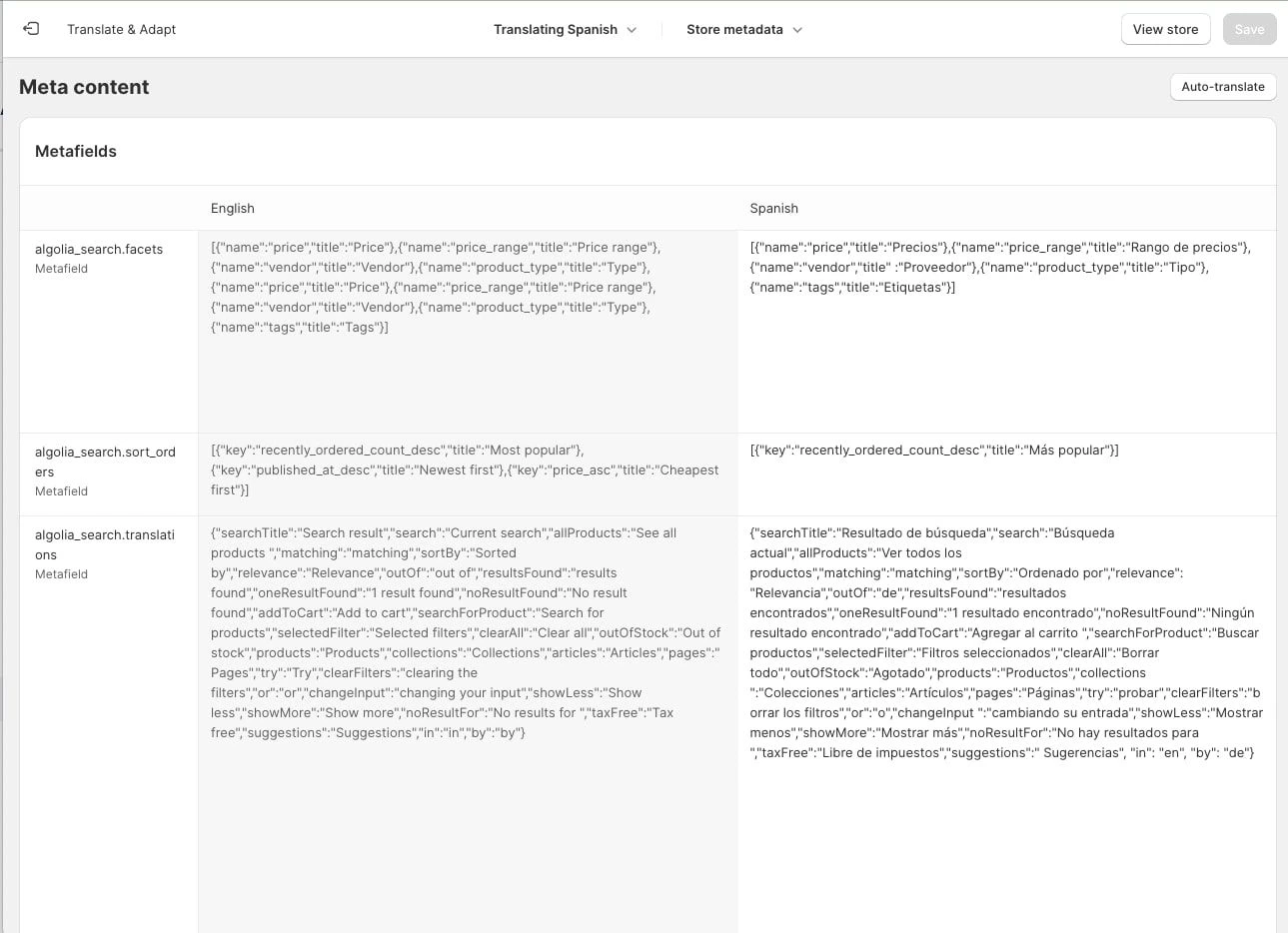
Add your translation to these metafields:
algolia_search.translations: translations for labels and placeholder textalgolia_search.instantsearch_facets: translations for filtersalgolia_search.instantsearch_sort_orders: translations for different sort orders
Schema
If you added translations for product attributes in Shopify, they’re added to each record. Otherwise, the record defaults to your store’s primary language. The currency for each record defaults to your store’s primary currency. Additional currencies are added as separate objects, such as,market_pricing_eur.
Setting attributes as unretrievable affects Markets indexing.
For more information,
see Retrievable attributes.
The following example shows the changed fields of a record after enabling Markets indexing:
JSON