

Use Algolia Query Suggestions
1
Create an Algolia Query Suggestions index
- Go to the Algolia dashboard.
- Click Query Suggestions
-
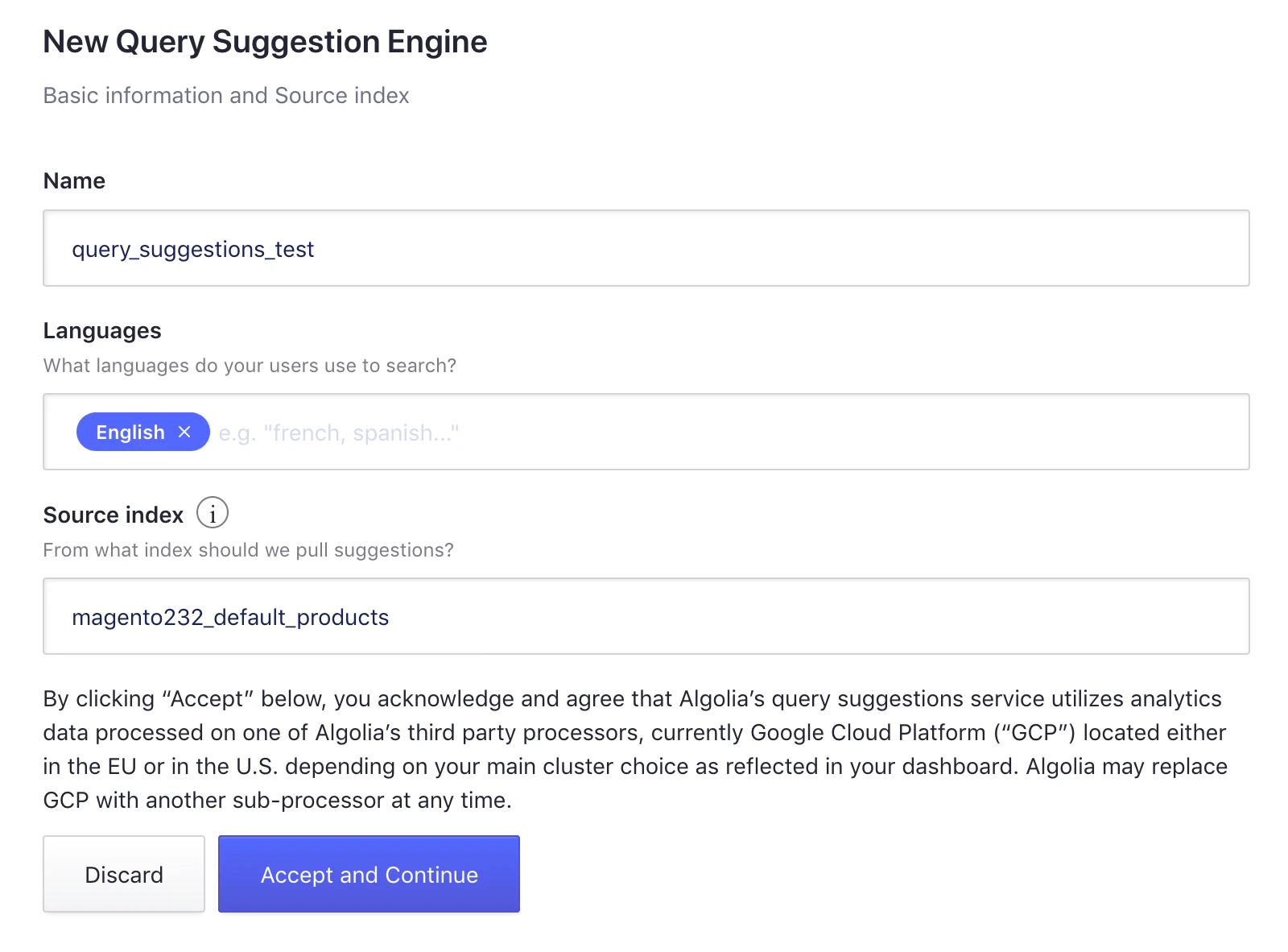
Click New Query Suggestions
-
Choose an index name (this guide uses
query_suggestions_test). - Select the languages you use and the source index (for example, your main product index).
- Click Accept and Continue to create the Query Suggestions index.
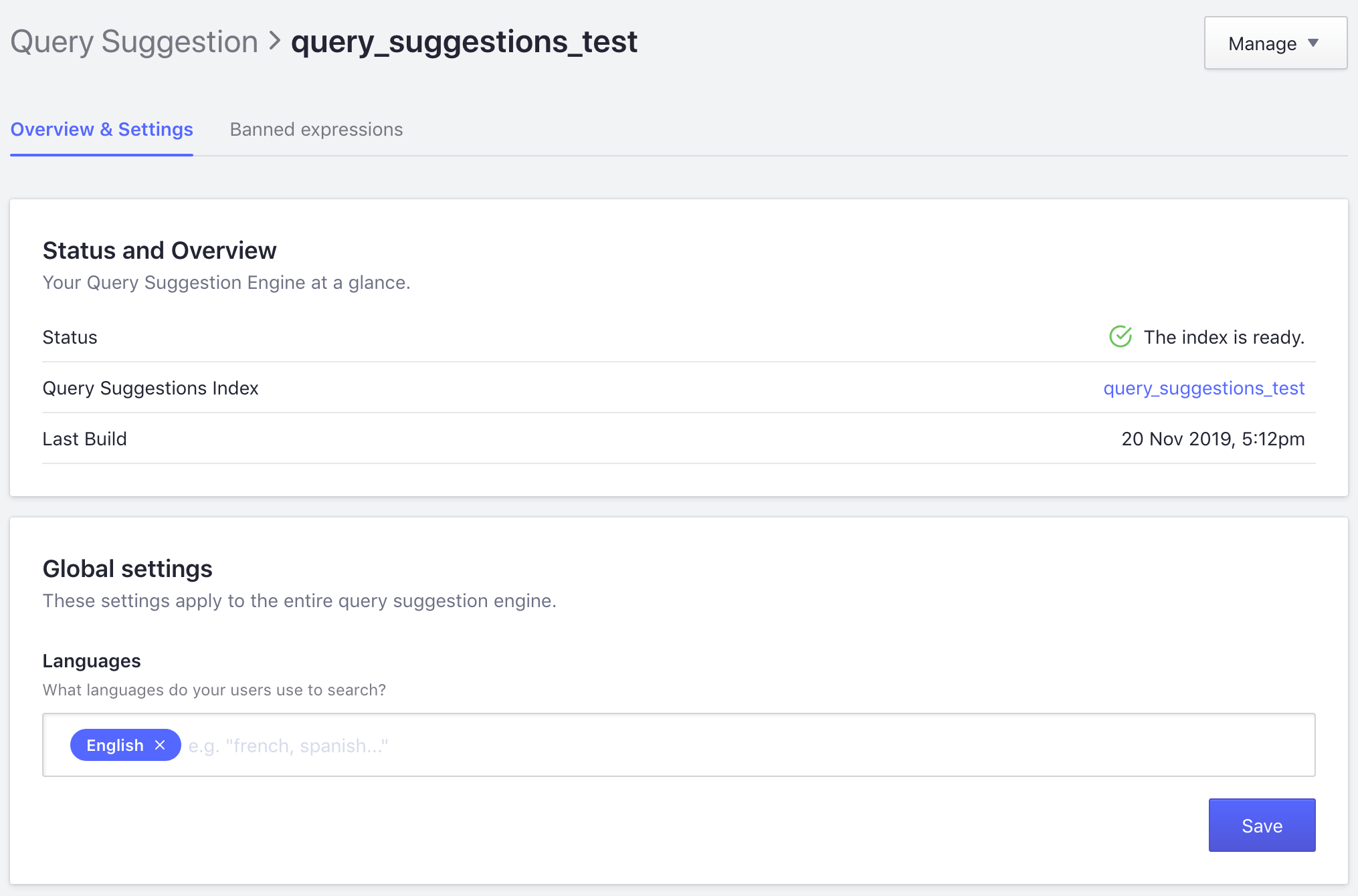
2
Enable Algolia Query Suggestions
- Go to Stores > Algolia Search > Autocomplete Menu > Enable Suggestions in your Magento store’s Admin.
-
Select Use Algolia Query Suggestions.
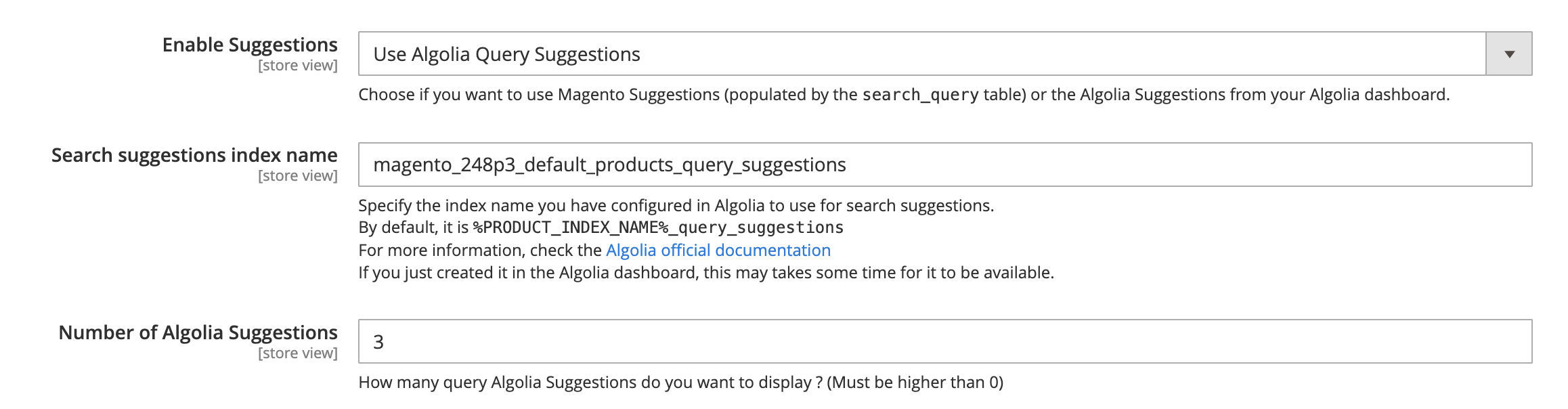
- Search suggestions index name: specify the index name you have configured in Algolia to use for Query Suggestions
- Number of Algolia Suggestions: 3 by default
3
Clear the cache and test the search
Test the search box to confirm that suggestions appear.
Use Magento search queries
When you enable Magento Search Queries, the extension indexes search terms from Adobe Commerce and Magento Open Source. It then shows those terms in the Autocomplete menu. To enable Magento Search Queries, go to Stores > Algolia Search > Autocomplete Menu > Enable Suggestions in your Magento Admin and select Use Magento Search Queries.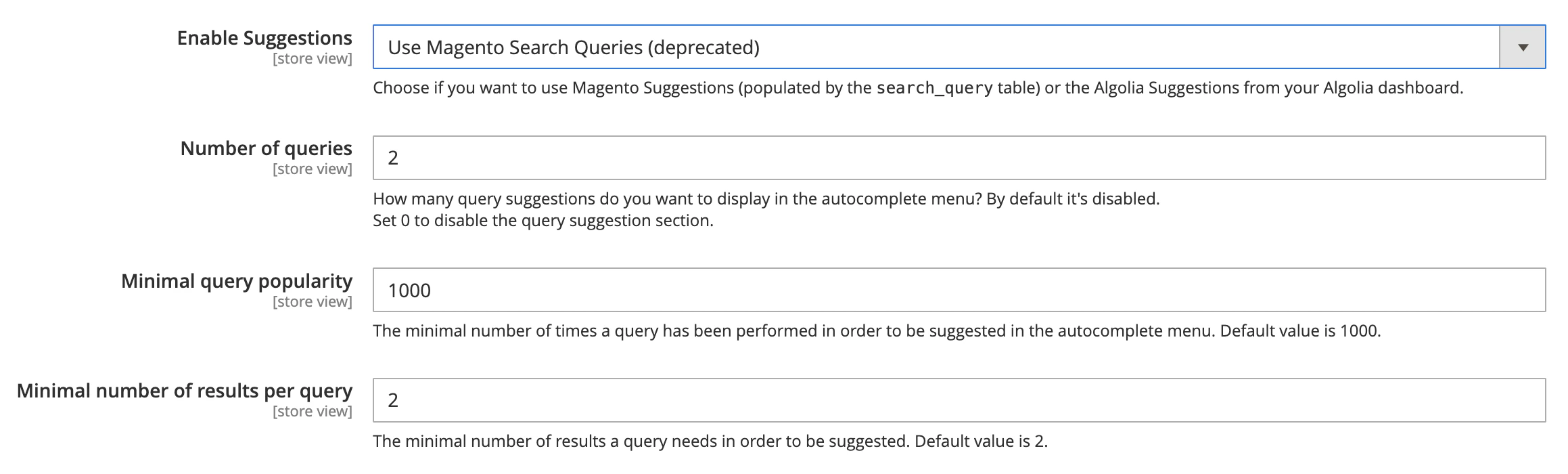
- Number of queries: 0 by default. The maximum number of results shown in the Autocomplete menu
- Minimum query popularity: 1,000 by default
- Minimum number of results per query: 2 by default